

- Something you know: Your password.
- Something you have: A temporary code from a supported authenticator app.
- Click your user avatar in the lower left corner of the navbar to open your user details.
- On the User Details page, click the Set up link in Two-Factor Authentication.
- Re-enter your password to verify your account.
-
After you verify your account, a setup window opens asking you to download your preferred authenticator app and scan the QR code in the window.
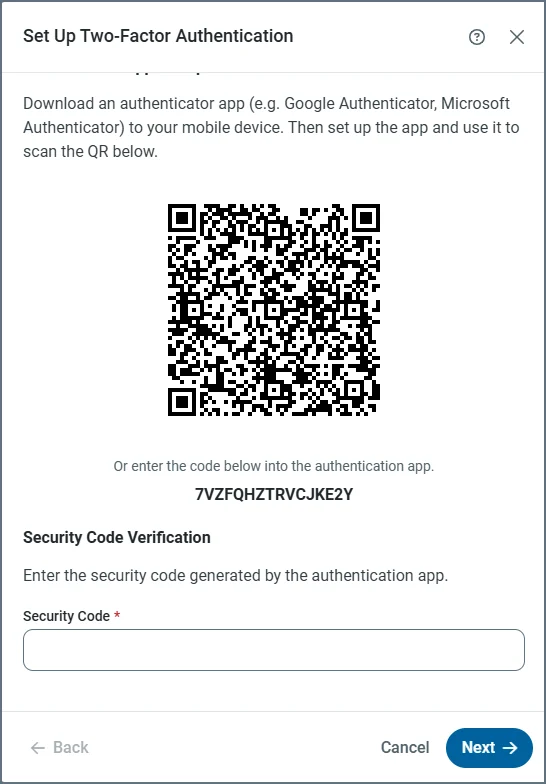
- After you scan the QR code with the authenticator app, is added to your authenticator.
- Enter the Security Code from your authenticator app, then click Next. If authentication is successful, a success message appears.
- You must set up your own 2FA.
- Users with an Admin role can remove 2FA from other users by navigating to Users > [user name] > Two-Factor Authentication > Remove.
- You can use the same method to remove 2FA from your own account.
- You can check to see if you have set up 2FA for your account by clicking on your avatar in the left navbar.