

- Migrate your global application data to a new instance of on a new server. This migration includes global configuration data and settings. You can export your data by using the Migration feature. The migration process is automatic, which means there is less chance of errors, and it is faster. recommends you use this method because it resides in the application.
-
Backup all your data by copying and moving the application directory and application database manually to a new server. This method moves configuration data as well as the full working set of other data (logs, files that are pending processing or that are already processed, and so on). This method is simple, but it is slower and more error-prone.
By default, secures sensitive values with an encryption key that is specific to each instance. When you manually copy or move configuration files containing these sensitive values, you must ensure that the same key is used in the new instance. See Defining a Custom Master Key for details.
Migration
Navigate to Settings > Advanced and locate the Migration section on the Advanced page. Click Export, then choose the Export all workspaces and settings option to perform a full export of your application, including all of the global application data and settings.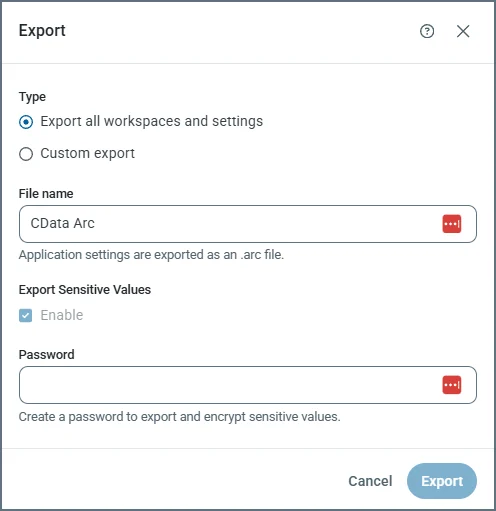
.arc extension. This file type stores global application data such as multiple workspaces and settings as well as users, EDI TPMC partners and documents, reports, and other global data.
For details on using the Migration tab to export your application configuration, see Exporting Multiple Workspaces and Global Application Configuration Data.
Manual Backup
interfaces with your local system in two ways:- Using the application directory folder. This is a folder on disk that stores the configuration data.
- Using the application database. This database stores metadata for transactions that are processed by the application.
Application Directory
stores all profile, certificate, and connector configuration data in files located in the application directory folder. Therefore, backing up or recreating a configuration is simply a matter of copying the full contents of the folder and moving it. You can move it to a new server to recreate a configuration in a new instance.Copying the Application Directory
By default, the application directory refers to the following directories:-
Java:
/opt/arc -
.NET:
C:\ProgramData\CData\Arc
If is installed over an existing installation of a previous version of the application, the application might reuse the old folder structure. In this case, the application directory might be located in one of these directories instead:
-
Java:
~/arc/data(where~resolves to the home directory for the user who is running the server that hosts ) -
.NET ():
C:\Program Files\CData\Arc -
.NET (ESB):
C:\Program Files\ArcESB -
.NET (RSSBus Connect):
C:\Program Files\RSSBus\RSSBusConnect
Configuring the Application Directory
This section is relevant only when you migrate to a new server and when the default location for the application directory is overwritten with a custom path. Some setups might use a non-default location for the application directory (for example, hosting the application directory on a shared network file system). In this case, simply configure the new instance of to use the same network folder for the application directory that the previous instance used. To configure a non-default application directory, see the documentation for your edition of :Application Database
By default, uses a SQLite (.NET) or H2 (Java) database to store data about the transactions processed by the application. You can also configure an external database like PostgreSQL, SQL Server, or MySQL, as described in Installation and Configuration. If uses an external database, the connection string for this database must be configured in the configuration file for the server that hosts the application (the Web.Config file in .NET and the arc.properties file in Java). Backing up an external database is outside of the scope of and should be accomplished directly through the database. Migrating to a new machine simply requires configuring the new instance to read from and write to the same external database. To configure the application database, see the appropriate documentation for your edition of :Licensing
licenses—with the exception of the Cloud License special-license tier—are tied to a specific machine name. The license is contained in a .lic file in the application directory. Backing up the license is simply a matter of copying the license file, as explained below. Migrating the license file to a new machine without updating the license for the new machine results in license errors. However, you can reapply a license on a new server through the application interface as long as you use the License Transfer Request form to alert the licensing team about the move, as explained in the next section.Backing Up the License
.NET Edition
In the .NET edition, by default the license file is in the following folder:C:\ProgramData\CData\Arc
If is installed over an RSSBus Connect installation and the RSSBus folder paths are reused, the corresponding location is: C:\Program Files\RSSBus\RSSBus Connect\www\app_data
Create a copy of the .lic file in this folder to back up the license.
Java Edition
In the Java edition, by default the license file is in the following folder:/opt/arc
If is installed over an RSSBus Connect installation and the RSSBus folder paths are reused, the corresponding location is: ~/rssbus/connect
Create a copy of the .lic file at this location to back up the license.