

Active Incoming Testing
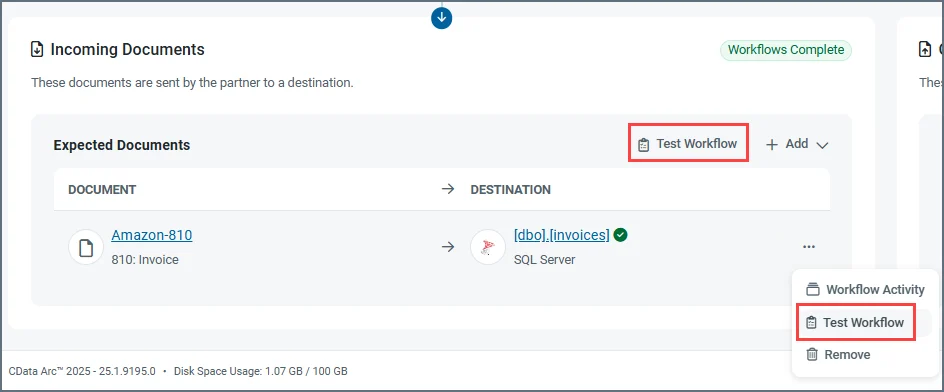
The active category refers to incoming workflows that receive documents by the triggering of a receive automation event from the source connector (where pulls from the partner’s server). Connectors in this category include MFT connectors such as SFTP, FTP, and S3. Choose Test Workflow to trigger a test. If you use the button in the Expected Documents section, you are prompted to select a workflow. Once the test file has been received and processed through the workflow, a results page opens showing details about the file that was received as well as statuses for each step of the workflow. The following image shows a successful E2E test: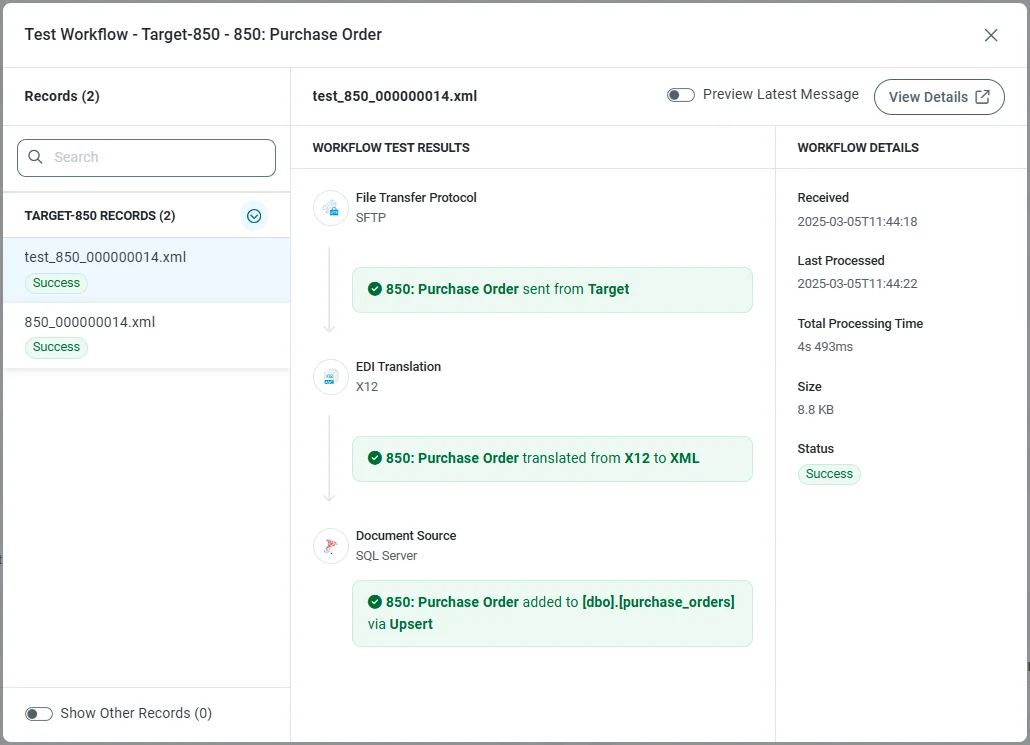
- Click View Details to open the message Details page of the message.
- Toggle Preview Latest Message to see the contents of the message used in the E2E test.
- By default the results window only shows records that pertain to the specific partner:document relationship you chose to test the workflow on. It is possible, however, to receive documents that are not part of the specific workflow. This happens when data received from a partner’s server is for a different document type, or when pulling records from a database for an outgoing test. Toggle Show Other Records to see these documents.
Passive Incoming Testing
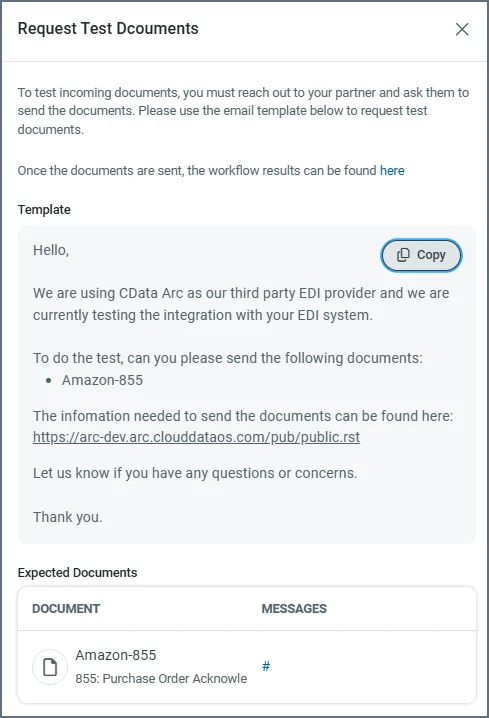
The passive category refers to workflows that are triggered from the partner’s end of the connection (the partner sends documents to you). Connectors in this category include MFT connectors such as AS2, AS4, and OFTP. Unlike with active workflow tests, you cannot trigger receipt of a document, so provides an email template you can use to ask your partner to send some sample data. To perform an E2E test for a passive incoming document workflow, navigate to the partner’s Workflows tab. You have two options:- Use the Test Workflow button in the documents section to create a sample email with details on all of the partner’s configured incoming documents. Use this to send one email to your partner requesting they send sample data for all expected documents.
-
Hover over a workflow, click the ellipses, then click Test Workflow to create a sample email containing information related to one incoming document. It might look something like this:
Active Outgoing Testing
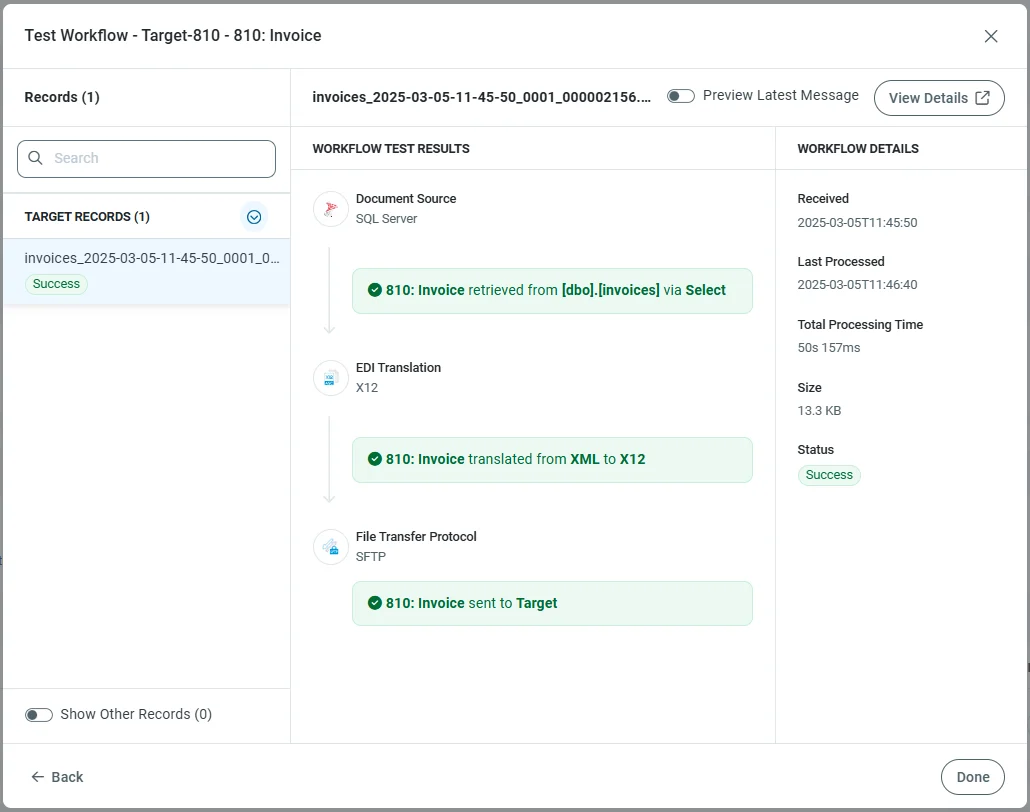
Because outgoing workflows always originate from , all outgoing workflows are active.The one exception to this rule is the AMQP connector. It passively waits for new information to be published to the queue it is listening to. However, E2E testing works the same way as all other outgoing workflow tests.
Workflow Activity
Each workflow has a page that shows all of the activity (tests and real files) for that document workflow. To open it, hover over a workflow, click the ellipses, then click Workflow Activity.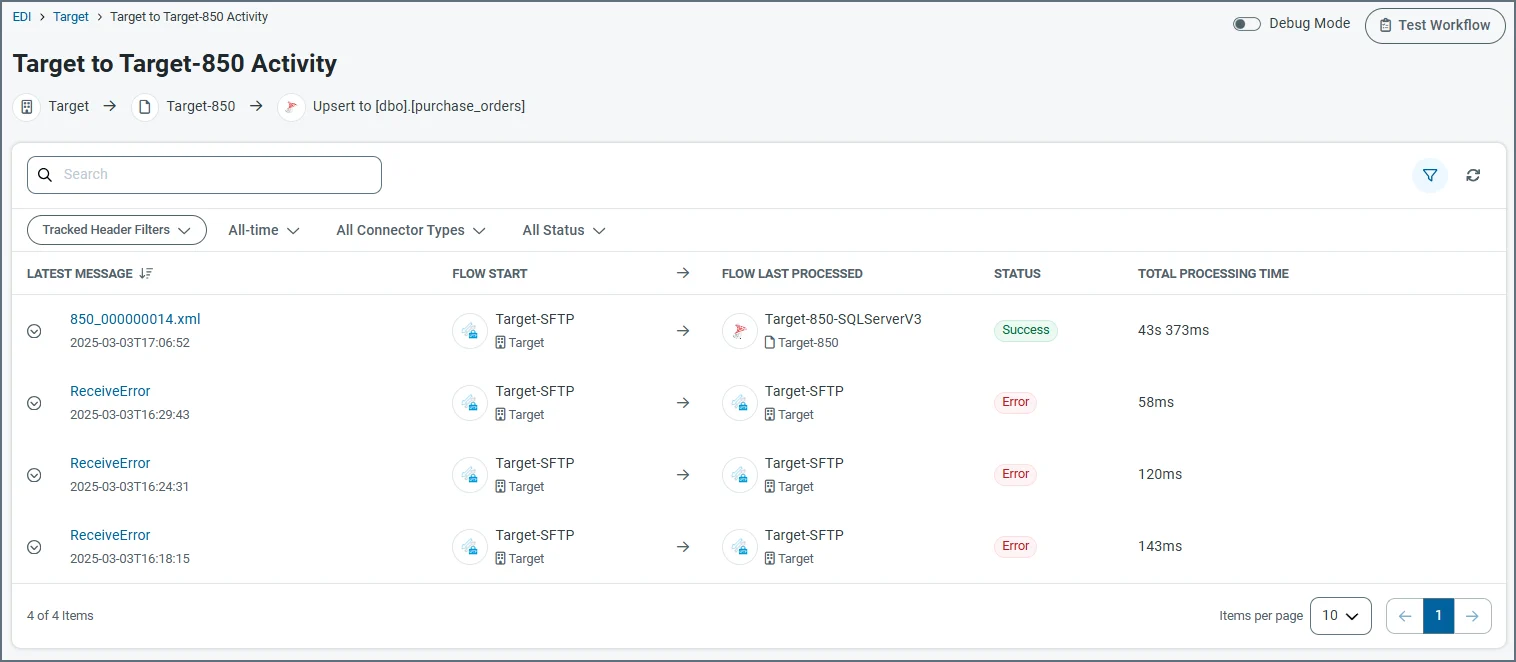
- Message name
- Connector that started the workflow
- Final connector in the workflow
- Status
- Processing time