Workspaces enable you to isolate flow canvases. Connectors and flows that are configured in separate workspaces are held in entirely separate folders on disk, which allows a complete separation of processes for organizational purposes.
Only the connectors from one workspace are displayed at a time, so using multiple workspaces can help reduce clutter on the Flows page. For example, a single flow canvas could contain an automated trading process for each of Amazon, Target, and Walmart but these independent flows could also be separated out into new workspaces, as shown in the following image:
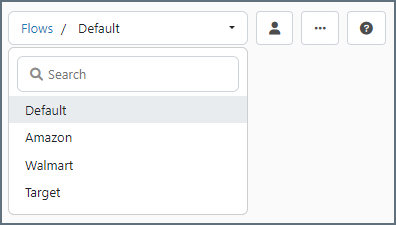 Using workspaces to compartmentalize flows also provides a means to easily control the permissions of users and their access to those flows. Using the previous image, the user account assigned to Jenny might have full access to the Amazon workspace, more limited access to the Target workspace, and no access at all to the Walmart workspace. For more information about permissions, see User Management and Roles.
Connectors in one workspace cannot be connected to connectors from a different workspace.
The Activity page collects and displays data across all workspaces. You can filter by workspace name on the Messages and Transactions tabs, but workspaces are treated as functionally the same for application monitoring and management.
Using workspaces to compartmentalize flows also provides a means to easily control the permissions of users and their access to those flows. Using the previous image, the user account assigned to Jenny might have full access to the Amazon workspace, more limited access to the Target workspace, and no access at all to the Walmart workspace. For more information about permissions, see User Management and Roles.
Connectors in one workspace cannot be connected to connectors from a different workspace.
The Activity page collects and displays data across all workspaces. You can filter by workspace name on the Messages and Transactions tabs, but workspaces are treated as functionally the same for application monitoring and management.
Using the Workspaces Grid
When you click the Flows tab, you are presented with the workspaces grid. From here you can perform actions on individual workspaces or use the checkboxes on the workspace cards to select multiple workspaces on which to perform bulk actions. The toolbar at the top of the page lets you perform the following actions:
| Icon | Action |
|---|
 | Refreshes the selected workspace (all workspaces if none are selected). |
 | Exports the selected workspace into a .arc file (only available when at least one workspace card is selected). |
 | Deletes the selected workspace (only available when at least one workspace card is selected). |
 | Imports an .arcflow file into the selected workspace(s). |
You can also manually create a new workspace by clicking Add Workspace.
The search bar lets you search for specific workspaces, connectors, connector types, or Flow APIs.
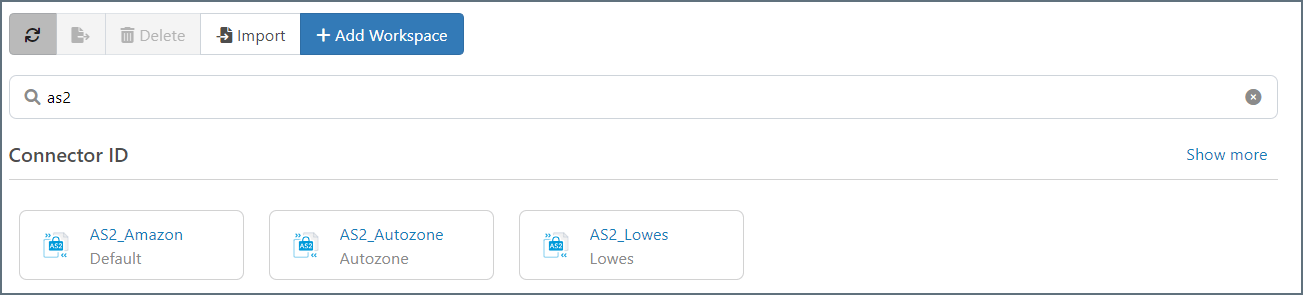 Clicking on a result takes you to that object in its workspace card.
You can filter the workspace cards by the following criteria:
Clicking on a result takes you to that object in its workspace card.
You can filter the workspace cards by the following criteria:
- Alphabetical order
- Last modified date
- Last accessed date
Workspace Cards
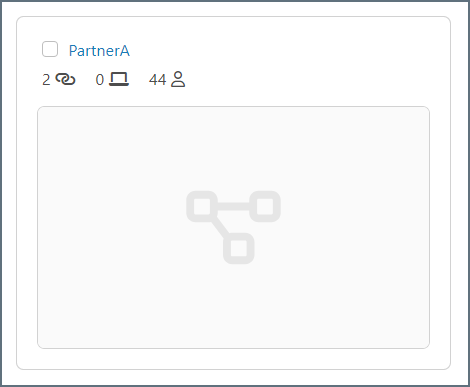
Each workspace card is a snapshot view that shows the workspace name along with a count of the connectors, Flow APIs, and users with access to that workspace.
| Icon | Description |
|---|
 | Hover over this icon to see the list of connectors in the workspace. |
 | Hover over this icon to see the list of all Flow APIs in the workspace and the HTTP method being used. |
 | Hover over this icon to see the list of users with permissions on the workspace. |
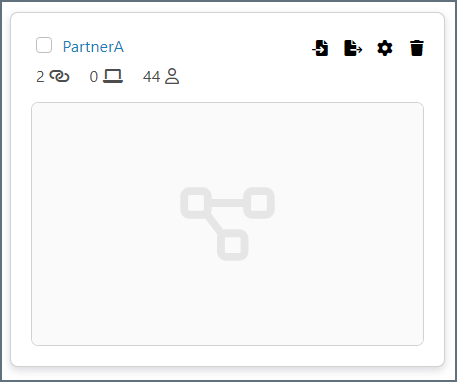
When you hover over a card, an additional set of icons appears.
| Icon | Action |
|---|
 | Opens the Workspace Import dialog. Navigate to the .arcflow file you want to import and choose Open. Click Next to set your workspace import options, then click Next to check for conflicts and to complete the import. See Setting Import Options and Resolving Import Conflicts for details.
|
 | Opens the Workspace Export dialog which allows you to export an .arcflow file that contains the workspace contents. See Exporting a Workspace for details. |
 | Opens the Workspace Settings dialog. |
 | Deletes the current workspace. |
Default Workspace
includes a special Default workspace that you cannot delete. You are not required to use multiple workspaces because you can configure all flows in the default workspace.
The default workspace stores all of the application data files and configuration files in a data folder in the Application Directory. The data and configuration files for any other workspaces are held in a workspaces folder in the Application Directory.
Navigating and Managing Workspaces from a Flow Canvas
From the workspaces grid, click into a workspace.
You can use the top toolbar of a flow canvas to manage your workspaces:

- Use the workspace selector dropdown on the left to switch to a different workspace.
 See which users can access this workspace, or add new users. This option is only visible to admin users.
- Click the ellipses for additional options, then make your selection:
- Select Import Workspace to import a workspace from another instance. Navigate to the
.arcflow file you want to import and choose Open. Click Next to set your workspace import options, then click Next to check for conflicts and to complete the import. See Setting Import Options and Resolving Import Conflicts for details.
- Select Export Workspace to export a workspace that can be imported into another instance. Set your export preferences, then click Export to create the
.arcflow file. See Setting Export Options for details.
- Click Settings to open the workspace-specific Settings dialog.
 Click the Help button to open the documentation for the flow designer in a new browser tab.
- Use the search bar to search for connectors, flow APIs, saved views, and notes in the current workspace. When you find what you are searching for, click it to be taken to the object in the canvas.
 Use the toggle to set what action the cursor performs. The options are:
- Move: Allows users to click and drag around the canvas to navigate within the canvas. This is the default action.
- Multi-Select: Allows users to draw a rectangle around a group of connectors. This is useful when creating flow APIs or when you need to move or delete multiple connectors at once. Right-click on the rectangle to see the available actions you can take on all the objects in the rectangle.
 Undo your most recent action.
 Restore a previously undone layout on the canvas.
 Save the current workspace view.
 Auto-format and lay out the entire flow canvas. If you select multiple connectors in the workspace, use this to auto-format just the selected connectors.
Click the Flows breadcrumb link to return to the workspace grid.The small map in the bottom right corner of the flow canvas shows silhouettes of the connectors in the workspace. The current view of the canvas is represented by the white rectangle in the map. As you move around the canvas, the white rectangle also moves, so you always have a high level picture of where you are in the workspace.
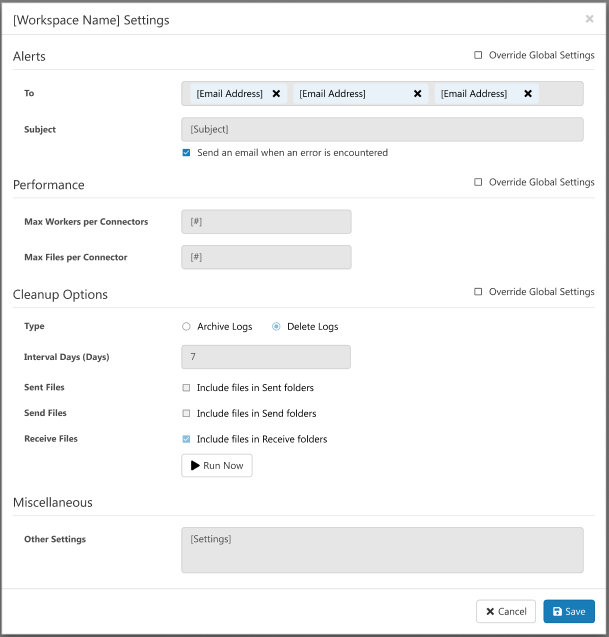
Workspace Settings
The Workspace Settings dialog gives you the ability to control specific settings and aspects on a per-workspace basis. For each category of settings, you must click the Override Global Settings checkbox for the workspace-specific settings to take effect. These settings are a subset of the options on the Settings page. You can configure:
-
Alerts
-
Performance Settings
-
Cleanup Settings
-
Miscellaneous Other Settings: Enables you to configure hidden connector settings in a semicolon-separated list (for example,
setting1=value1;setting2=value2). Normal connector use cases and functionality should not require the use of these settings.