The PDF connector supports generating rich visual business forms as PDF documents from XML, by using a PDF template.
Key Capabilities
- PDF form generation from XML input using template-based field mapping
- Multi-page output support with selective page generation and barcode field integration
- Support for Code39, Code128, GS1-128, and QR code barcode types with advanced configuration
Overview
PDF connectors translate XML input into PDF output. XML element names are matched with form field names in the PDF template. The value of each XML element is pushed into the appropriate form field to generate the PDF output file.
Connector Configuration
This section contains all of the configurable connector properties.
Settings Tab
Configuration
Settings related to the core operation of the connector.
| Setting | Description |
|---|
| Connector Id | The static, unique identifier for the connector. |
| Connector Type | Displays the connector name and a description of what it does. |
| Connector Description | An optional field to provide a free-form description of the connector and its role in the flow. |
| Template File | The PDF file to use as an output template. This file must have form fields whose names match the incoming XML data. The fields must also be arranged in the format you want for all PDF files generated by the connector. The Example below shows how the XML and the template file work together to generate output. |
Other Settings
| Setting | Description |
|---|
| Local File Scheme | A scheme for assigning filenames to messages that are output by the connector. You can use macros in your filenames dynamically to include information such as identifiers and timestamps. For more information, see Macros. |
Advanced Tab
Other Settings
| Setting | Description |
|---|
| Processing Delay | The amount of time (in seconds) by which the processing of files placed in the Transactions tab is delayed. This is a legacy setting. Best practice is to use a File connector to manage local file systems instead of this setting. |
Logging
Miscellaneous
Automation Tab
Automation Settings
Settings related to the automatic processing of files by the connector.
| Setting | Description |
|---|
| Send | Whether messages arriving at the connector are automatically processed. |
Alerts Tab
SLAs Tab
Generating a PDF Document
The PDF connector reads XML input files and uses the data from these XML files to generate PDF documents that match the Template File PDF document specified on the Settings tab. The structure of these XML input files should match the structure described below, or the legacy structure described in the next section.
Here is an example of an XML input file:
<Items>
  <PDF>
    <FormField1>Some data</FormField1>
    <BarcodeField type="code39">>5789337490548932</BarcodeField>
  </PDF>
</Items>
- An Items element at the root
- A PDF child element representing a PDF document
- Inside the PDF element, an element that matches the name of each form field that should be dynamically populated with data
The names for each form field (the names to use for elements in the PDF element) come from the Template File PDF document. Whatever value is used to label the form fields in this template should be used as the element names to ensure the correct data is injected into the appropriate field in the resulting PDF.
Multi-Page Outputs
If the template file PDF contains multiple pages, the connector automatically generates the appropriate number of pages when processing an XML input file. In addition, multiple copies of the template file can be generated from a single XML file, in which case the additional copies are appended as multiple PDF pages for the same single output file.
To generate multiple copies of the template file as a multi-page output, simply repeat the PDF element that is a direct child of the root Items element. Each PDF element at this position is considered a separate instance of the template file, so it should contain all of the named form field values necessary to fill out the template.
Output a Subset of Pages
If the template file PDF contains multiple pages, the connector supports generating a subset of these template pages by specifying the appropriate pages in the XML input file. The Items element at the root of the input document accepts a pages attribute with a comma-delimited list of the page numbers (zero-indexed) that should be included in the output.
For example, if the template file contains 4 pages, and only the first and last page should be included in the output, the XML input file would look like this:
<Items pages="0,3">
  <PDF>
    <FormField1>Some data</FormField1>
  </PDF>
</Items>
Barcodes
Barcode fields (form fields that should contain barcode data) are treated just like other form fields: the barcode field has a label in the PDF template which should be used as the element name in the input XML. In addition, barcode fields should have a type attribute that determines the barcode type to generate. The connector supports four barcode types:
- code39
- code128
- gs1128
- qrcode
The numerical data for the barcode is then provided as the XML value for the appropriately named element.
Advanced Barcode Configuration
In addition to specifying the barcode type in the XML input file, the barcode can be configured directly in the PDF template file. When creating and editing the form field that holds the barcode, you can add configuration information to the field tooltip that affects the resulting bar code. This configuration information should always have the following form:
$$parameter1:value,parameter2:value$$
The following parameters are supported for barcodes:
- barcode: the type of barcode (redundant when using the type attribute described in the previous section)
- qrcodeversion: the version of the QR code when the barcode type is set to qrcode
- eclevel: the level of error correction when using a QR code. Accepted values are L (low), M (medium), Q (quartile), and H (high)
- quietzone: a whitespace buffer surrounding the barcode. The value should be an integer value representing a multiple of the smallest bar size (with a recommended value 10 or higher)
The following parameters are uncommon and should only be used for barcodes with special requirements:
- heightnarrowratio: the width of the narrowest bar in relation to the height of the barcode; must be specified as a ratio where height is 1 (for example, ‘0.05’ for 1/20th)
- widenarrowratio: the width of the narrowest bar in relation to the width of the widest bar; must be specified as a ratio where the widest bar is 1 (for example, ‘0.2’ for 1/5th)
- spacebarratio: the width of a space in a barcode in relation to the width of the bar; must be specified as a ratio where the bar width is 1 (default value is 1)
Example
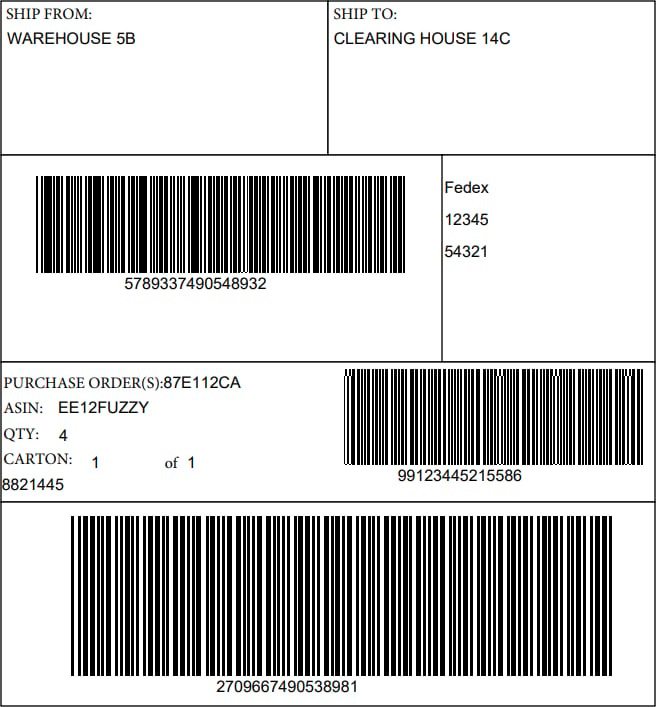
Below is an example XML input file, PDF Template File, and resulting PDF output.
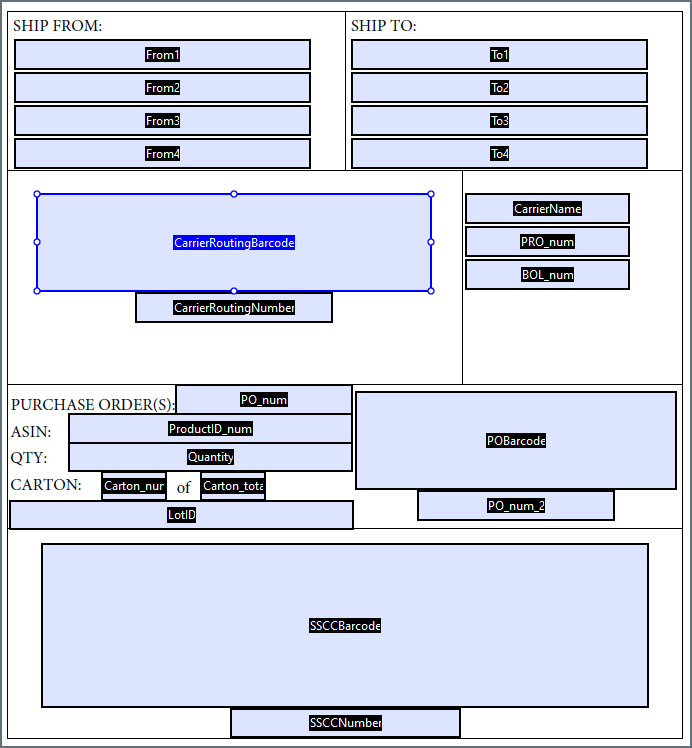
The template file image below is of the Adobe Pro form editor, which displays the names of each form field. Remember that the field names in the template file must match the element labels in the XML.
<Items>
  <PDF>
    <From1>WAREHOUSE 5B</From1>
    <To1>CLEARING HOUSE 14C</To1>
    <CarrierRoutingBarcode type="code39">5789337490548932</CarrierRoutingBarcode>
    <CarrierRoutingNumber>5789337490548932</CarrierRoutingNumber>
    <CarrierName>Fedex</CarrierName>
    <PRO_num>12345</PRO_num>
    <BOL_num>54321</BOL_num>
    <PO_num>87E112CA</PO_num>
    <ProductID_num>EE12FUZZY</ProductID_num>
    <Quantity>4</Quantity>
    <POBarcode type="code39">99123445215586</POBarcode>
    <PO_num_2>99123445215586</PO_num_2>
    <Carton_num>1</Carton_num>
    <Carton_total>1</Carton_total>
    <LotID>8821445</LotID>
    <SSCCNumber>2709667490538981</SSCCNumber>
    <SSCCBarcode type="code39">2709667490538981</SSCCBarcode>
  </PDF>
</Items>
Template File
Output
 In addition to the XML format described in Generating a PDF Document, the connector supports an older XML input file structure to maintain backwards compatibility. CData recommends that you use the syntax described in the previous section when designing new Flows.
Following is an example of the legacy XML format:
In addition to the XML format described in Generating a PDF Document, the connector supports an older XML input file structure to maintain backwards compatibility. CData recommends that you use the syntax described in the previous section when designing new Flows.
Following is an example of the legacy XML format:
<Items>
	<Item name="BillAddressLine1">Wayne Tech Plant 1</Item>
	<Item name="BillAddressLine2">100 Wayne Ave.</Item>
	<Item name="BillAddressLine3">Chapel Hill, NC 27514</Item>
	<Item name="ShipAddressLine1">Same as billing address</Item>
</Items>
Macros
Examples

