Overview
contains powerful data transformation tools that support mapping EDI documents (such as X12, EDIFACT, and so on) to flat file structures like comma-separated values (CSV) files. This guide focuses on mapping an X12 850 document (purchase order) to CSV format. The approach described in this article is also applicable to mapping other EDI documents; however, the specific relationships between mapped values might be different. This guide begins with an overview of how handles EDI mapping, then walks through each step of the flow. See Sample Documents to review the X12 850 input and CSV output documents used in this guide.Video Resources
Watch this video for an overview of data transformation in .EDI Mapping in
Converting To and From XML
uses XML as an intermediary format for data transformation and manipulation. The first step in most mapping projects is to convert the source file format (X12 in this case) into XML, and the last step is to convert XML into the destination format (CSV in this case). Since translating to and from XML is such an important step in data transformation, includes many dedicated connectors for translating files to and from XML. This guide uses an X12 connector and a CSV connector. These connectors automatically convert their file formats into XML. Using these connectors, the source format (an X12 850 purchase order) and the destination format (a CSV file with the desired columns) can be modeled as XML.Transforming XML
Once the source and destination formats have been modeled as XML, the task is to convert one XML structure into another. This is accomplished by the XML Map connector. The XML Map connector requires sample Source and Destination template files, which represent the starting and ending XML structures respectively. After these have been specified, the XML Map connector’s visual designer is populated with the two XML structures. In the XML Map connector’s visual designer, you can drag and drop elements from the source structure onto elements in the destination structure to create a mapping relationship between them. This mapping step requires an understanding of the source file data so that the appropriate elements are included in the output file. The XML Map connector includes value formatters, conditional logic, and even custom scripting to manipulate and compute data during the mapping process. Once you create the mapping relationship, the XML Map connector can automatically convert any files that match the source XML structure into a file with the destination XML structure. In this example, this means that the XML model of an X12 850 document is automatically converted into an XML model of a CSV file. The final step is to use a CSV connector to take this XML model and convert it to an actual CSV file.Flattening a Purchase Order
A specific conceptual challenge when mapping an 850 purchase order to CSV is the need to flatten the purchase order. A single 850 document can contain multiple orders, and each order can contain different numbers of line items. CSV files, in contrast, have a static number of columns in which to store this data. Since the number of CSV columns cannot expand to accommodate the varying number of orders in an 850, an 850 cannot be mapped to a single record (row) in a CSV file. Similarly, since the number of CSV columns cannot expand to accommodate the varying number of line items in an order, an order cannot be mapped to a single row in a CSV file. Each row in the CSV must store the data for a single line item in an order, since a single line item can be represented as a static set of values regardless of the number of line items and orders in an 850. Flattening an 850 takes its multi-layered and variable structure and reduces it to a set of static line items. The XML Map connector uses the concept of aForeach looping relationship to flatten structures during a mapping. In this case, a new CSV row is created for each line item in the 850. Establishing this relationship in an XML Map connector is simply a matter of using the visual designer to drag one element (the PO1 element that represents a line item) onto another element (the element that represents a CSV record). Flattening structures with the XML Map connector is easy, but you must understand the source and destination XML structures so that you can establish the appropriate Foreach relationship.
Summary
Creating a mapping in requires these steps:- Convert a sample input file (such as an X12 850 document) to XML using the connector specific to the input format (the X12 connector in our example)
- Convert a sample output file (such as a CSV file with the desired columns) to XML using the connector specific to the output format (the CSV connector in our example)
- Use the resulting XML files as the source and destination files for an XML Map connector
- Drag and drop elements in the XML Map connector’s visual designer to establish a relationship between the source and destination XML structures
Creating the Mapping Flow
This section describes the steps required to create a flow in to map an example 850 purchase order into a flat CSV file.Step 1: The X12 Connector
The first step of this mapping flow is to convert an example source document (an X12 850) into XML. This is accomplished with the X12 connector, which converts X12 documents into XML and can optionally validate X12 interchange headers during the conversion. In front of the X12 connector is a trigger connector (AS2 in the following example), which receives the X12 850 document and passes it directly to the X12 connector. Your use case might require a different trigger connector, such as SFTP. See Connector Categories for details on the types of connectors that might fit your use case. Click Flows on the navbar, then add a trigger connector (AS2 in our example) and an X12 connector to the workspace canvas (see Designing a Flow for instructions). Best practice is to include the name of the trading partner sending X12 documents in the Connector Id fields (Amazon in the following image). Connect the AS2 and X12 connectors.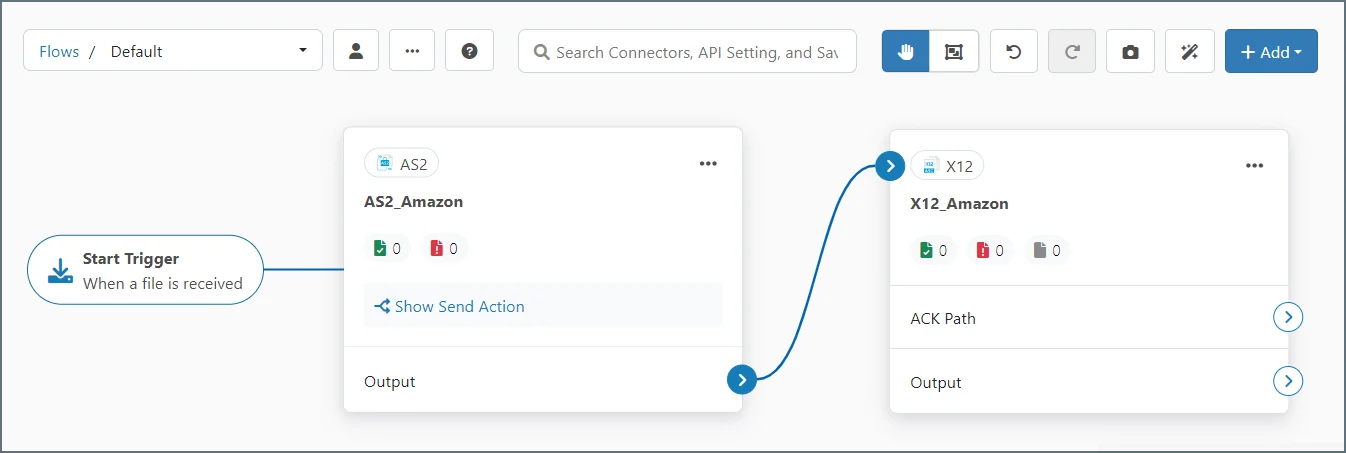
Configuring the X12 Connector
On the X12 connector Settings tab, set the Translation Type toX12-to-XML. This lets the X12 connector validate X12 interchange headers as it converts the X12 document into XML format (to ensure that the X12 documents were sent to and received by the expected parties).
By default, Dynamically process partners is checked. This means that the connector automatically identifies and tracks trading partner relationships from EDI transactions. In this case, no manual partner configuration is required because the connector dynamically manages all partners within your license limit. The connector also fills in interchange and functional group values based on the configured settings. This guide uses the default setting. See X12 Connector Settings to learn what is required if you uncheck this.
Validation is not performed if the Usage Indicator is set to
T-Test Data.Upload a Test File
Navigate to the Transactions tab of the X12 connector and click More > Upload Test File.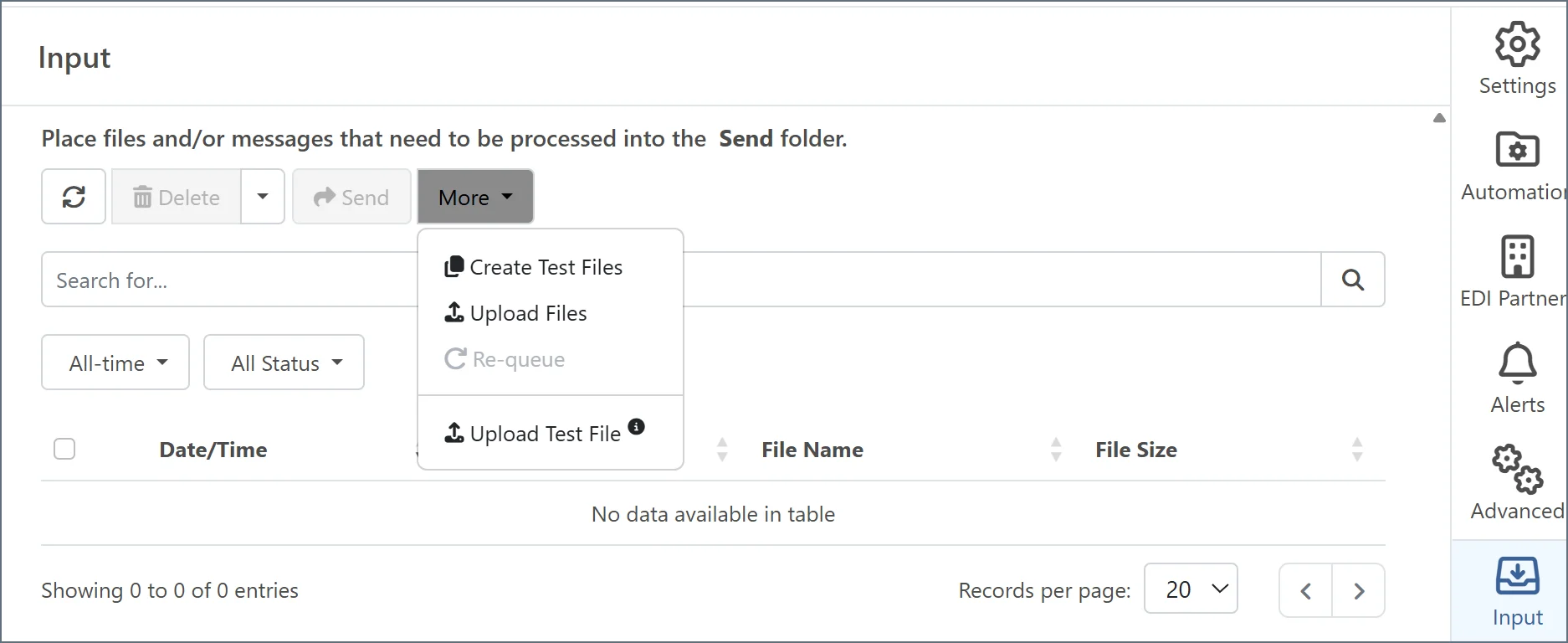
Step 2: The CSV Connector
The next step is to convert an example destination document (a CSV file with the appropriate columns) into XML. This is done using the CSV connector, which translates files between XML and CSV. Add an instance of the CSV connector to the flow. Do not connect it to the X12 connector. Also add an instance of a terminal connector (File in this example). It serves as the final connector in the flow. Connect the CSV and File connectors.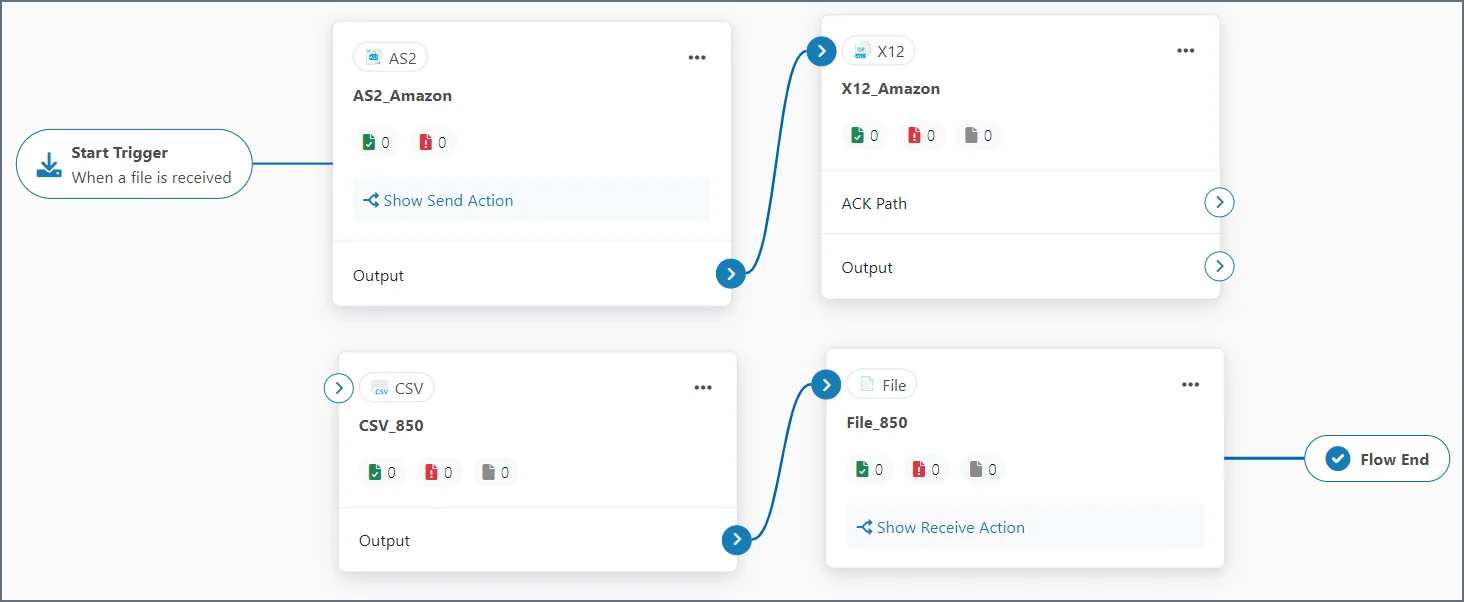
Configuring the CSV Connector
Open the CSV connector Settings tab. The only CSV connector configuration property required for this mapping flow is Column headers present. Enable this when the CSV files produced by the mapping flow should have a row of column header names at the top of the file.Generate or Upload a Sample File
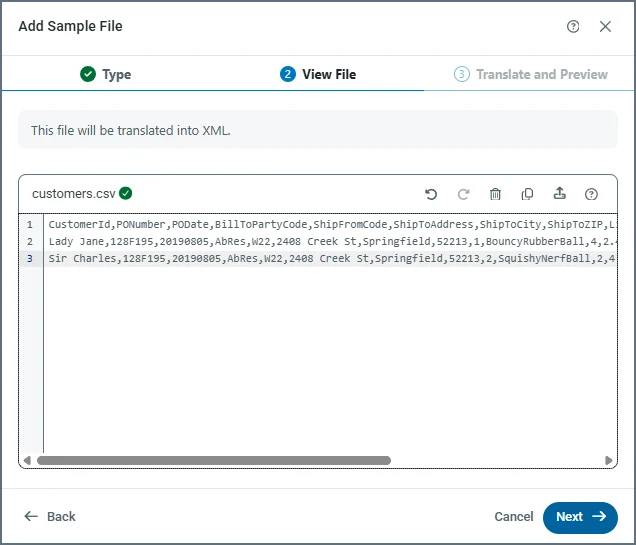
Navigate to the Sample Files tab of the CSV connector and click Add Sample File. If you already have an example CSV file that contains the appropriate columns (and headers if Column headers present is enabled), choose File Upload and browse to your file. Alternatively, select Manually Create to create a CSV file directly in the application. If you choose Manually Create, give your sample file a name. Click Next.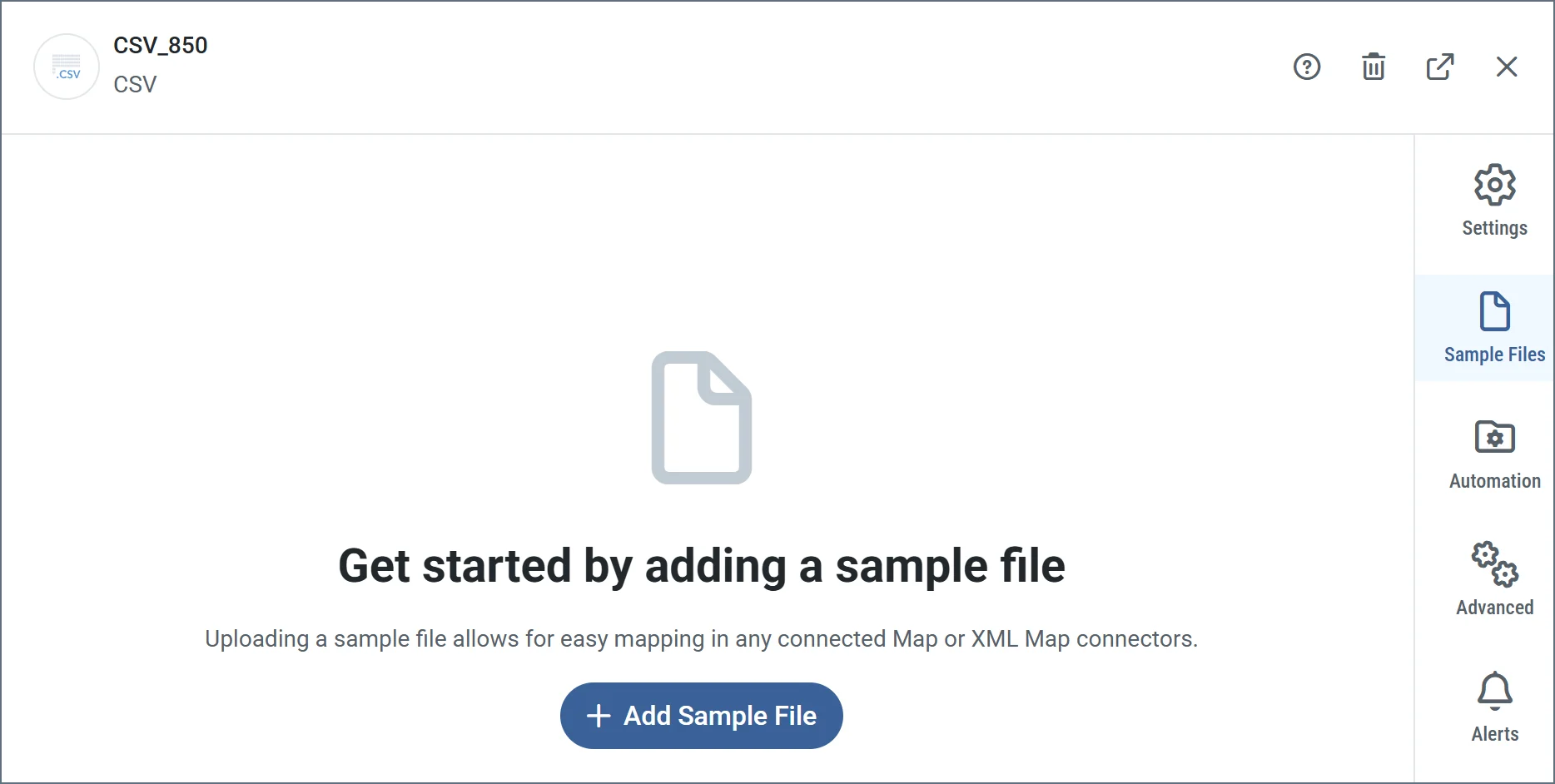
Step 3: The XML Map Connector
Now that the X12 connector and CSV connectors have generated XML models of the source and destination documents, use the XML Map connector to transform one XML structure into the other. Add an instance of the XML Map connector onto the flow, then connect the X12 connector to the XML Map connector and the XML Map connector to the CSV connector.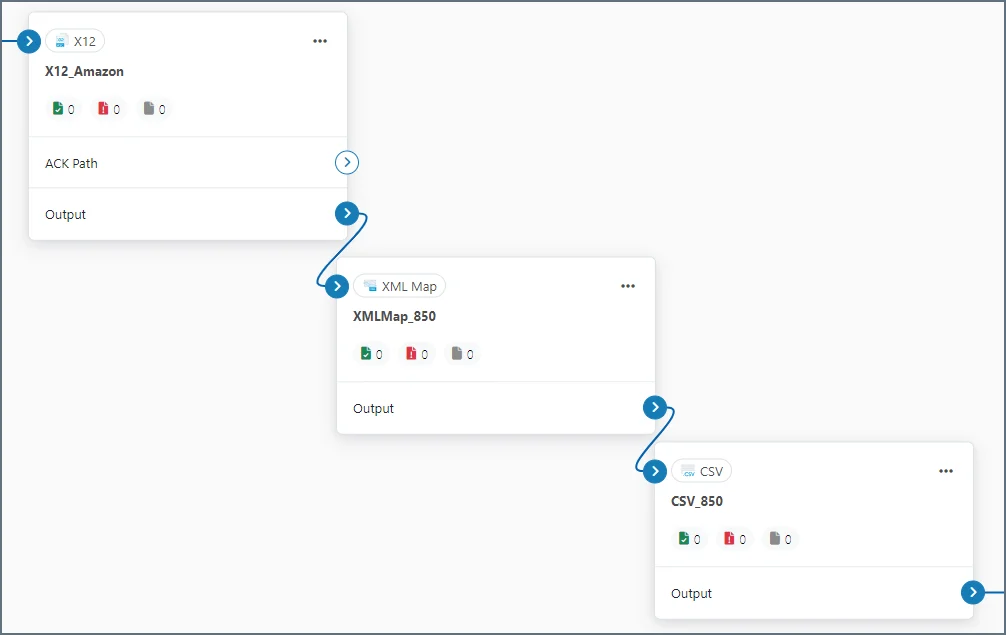
Configuring the XML Map Connector
On the XML Map connector XML Map tab, the connector should pre-populate the Source from the X12 connector test file and the Destination from the CSV connector sample file.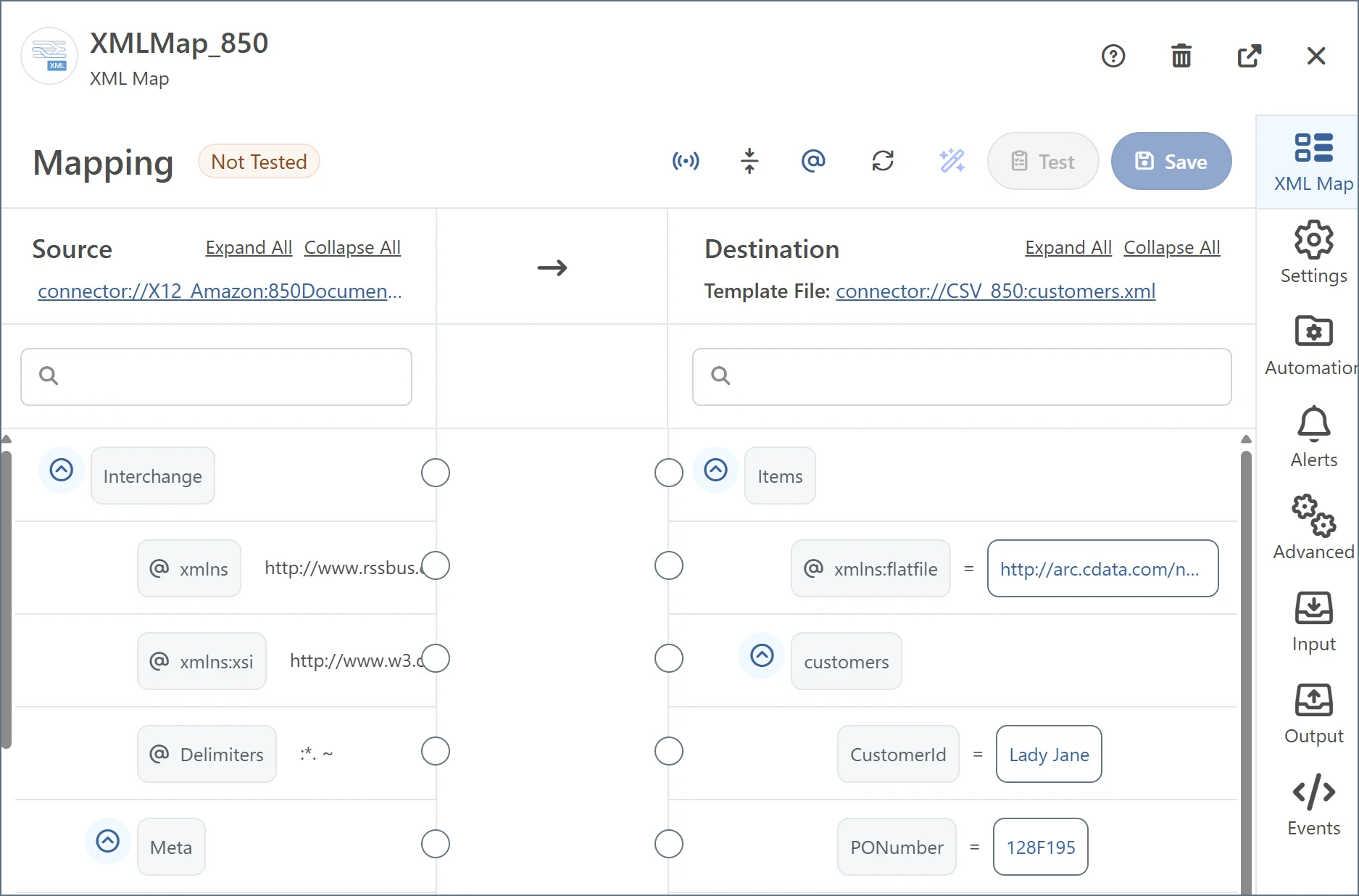
Understanding the XML Structures
Creating the right mapping relationships in the XML Map connector requires understanding how the source and destination structures are represented in XML. There are two types of XML elements (nodes) in the structures. Parent and Leaf nodes define the hierarchical structure of XML data, where parent nodes group related elements and leaf nodes represent the actual data values to be mapped. Use the expand and collapse buttons next to a parent node to show or hide its leaves. See Mapping Nodes for more information.- In the 850 XML, each EDI loop and segment is a parent node. Each individual EDI element is a leaf node.
- In the CSV XML, each direct child of the root Items element is called a record element: it represents a distinct row in the CSV. Each record element is a parent node, and the children of record elements are all column elements: they each represent a single field or column of a record. Each column element is a leaf node.
Creating the Mapping
Once you configure the XML Map connector with the source and destination structures, create the mapping by dragging and dropping nodes in the designer. Mappings are created in two primary steps:- Creating the Foreach looping relationships between parent nodes
- Mapping values between leaf nodes in the established Foreach loops
Creating Foreach Loops
Foreach relationships mean that each time an element appears in the source, a new XML structure should be created in the destination. For example, if ElementA in the source is mapped to ElementB in the destination, each occurrence of ElementA in an input file results in an instance of ElementB (and all of ElementB’s children) in the output file. In this case (as described in the Flattening a Purchase Order section), each line item in the source 850 should result in a new record in the destination CSV. To create this relationship, drag the Source element that represents a line item onto the Destination element that represents a CSV record. In this case, the source element is TX-00401-850, and the destination element is customers: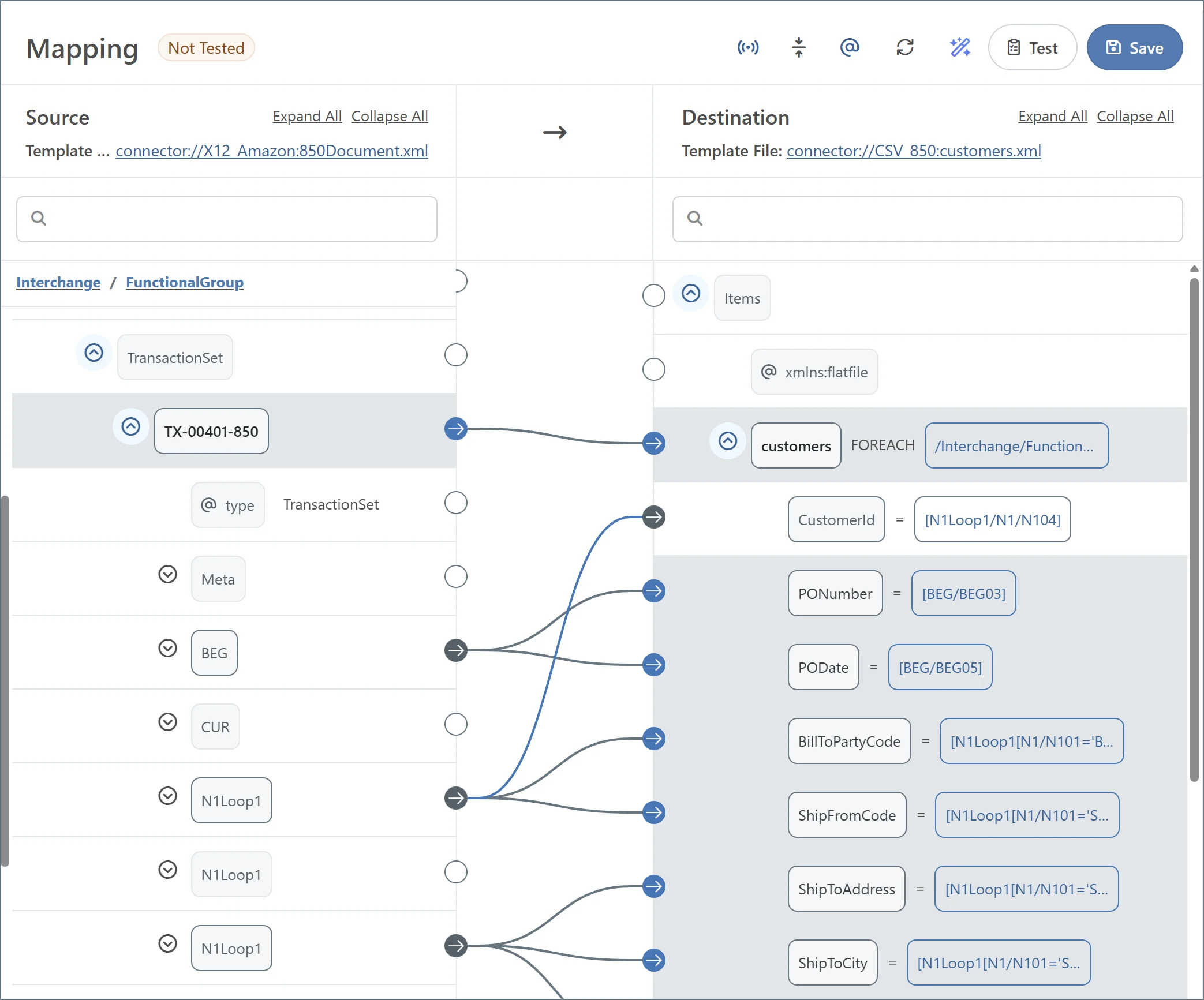
Mapping Leaf Nodes
Once the Foreach relationships have been established, you can map the values from leaf nodes in the loops. Mapping leaf nodes determine the values that populate the XML structures created by Foreach loops.Simple Leaf Node Mappings
When a value from the source should be directly inserted in the resulting output, simply drag a leaf node from the source onto a leaf node in the destination to map the values. For example, the BEG03 element holds the value for PONumber, which corresponds to the PONumber attribute in the destination: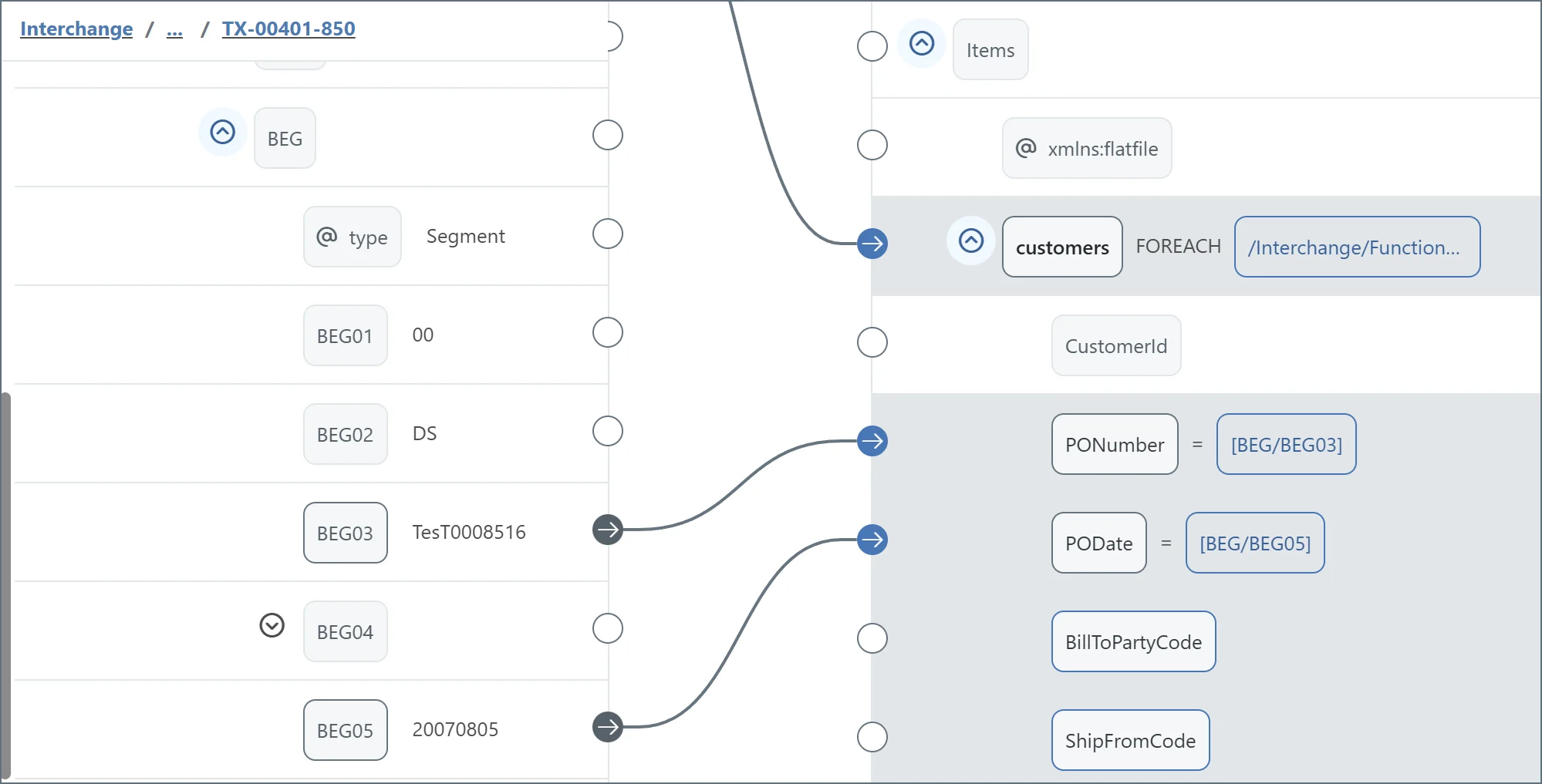
The xpaths for these elements are relative to the Foreach xpath.
Conditional Mappings with Lookahead Syntax
The 850 document contains multiple N1Loop1 elements representing a party in the exchange and the role of that party (for example, ship-to party or bill-to party). For each N1Loop1, the N1Loop1/N1/N104 element holds the value that identifies the party (the party name or ID), so these values must be mapped to the output CSV. However, the xpath for each N104 element is the same regardless of the party’s role, so the xpath to the N104 element is not enough to map the correct values. The role of the party is held in N1Loop1/N1/N101, so the mapping needs to look into the N101 element before mapping the N104 element value to the output CSV. In other words, the BillToPartyCode needs to be mapped to:N1Loop1/N1/N104 WHERE N1Loop1/N1/N101 = 'BT'
This conditional mapping can be accomplished with Lookahead syntax.
First, drag the element containing the value from the source onto the destination element (BillToPartyCode):
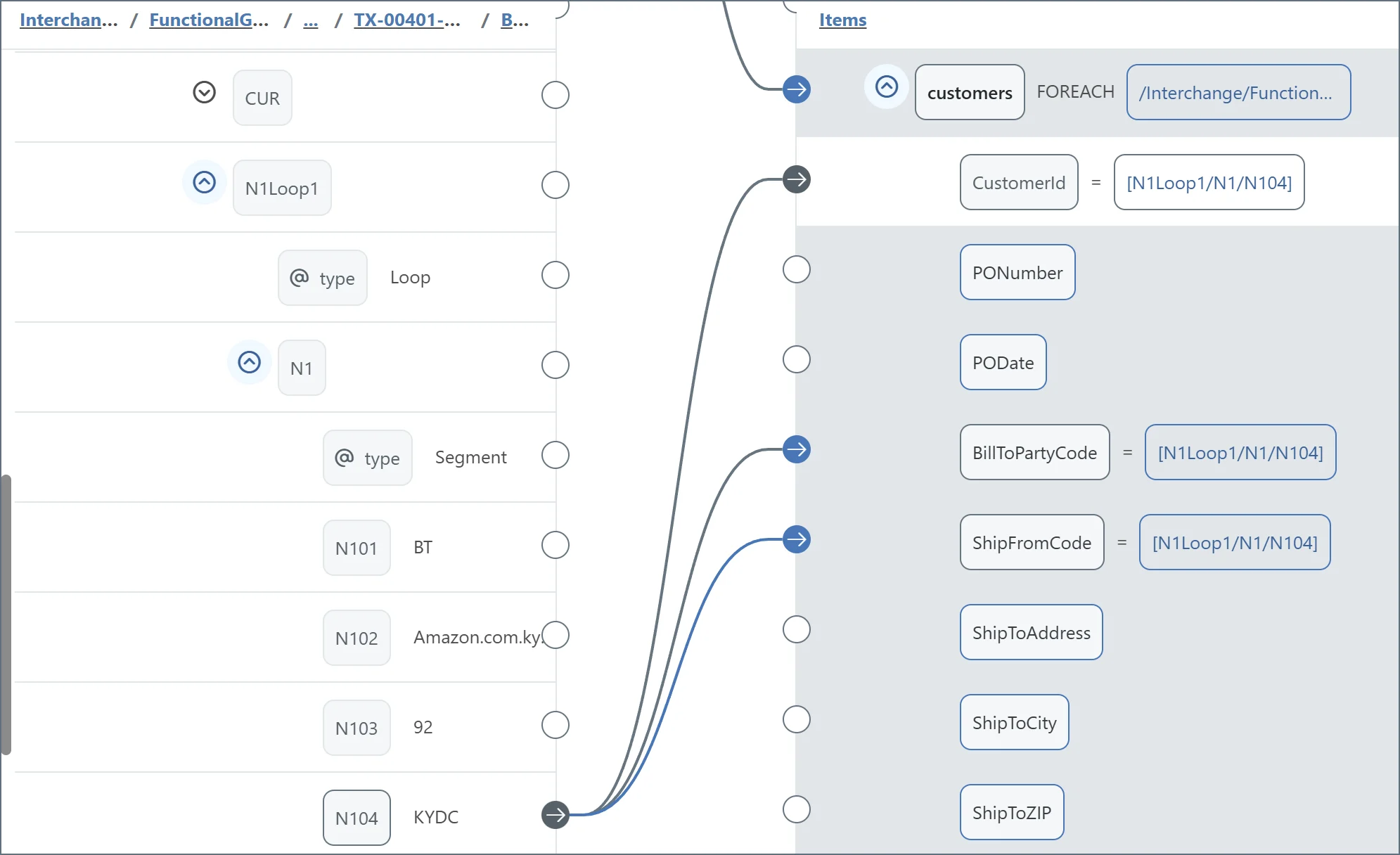
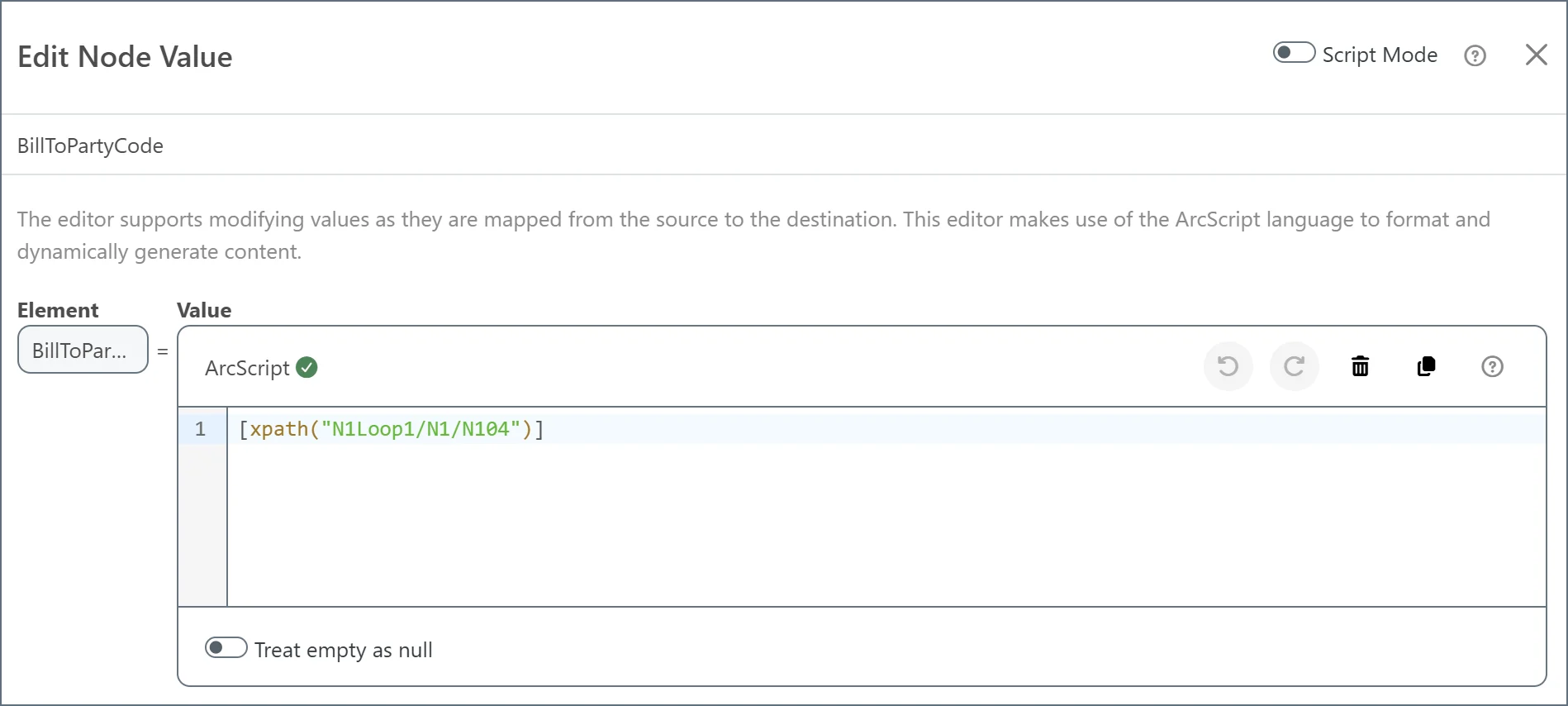
- Find the element in the current xpath that is the closest parent of the element to look into (the N1 element in this case)
- Specify in square brackets
[ ]the xpath to the element to look into ([N101]in this case) - Add an equals expression
=to indicate the value the check this element against (BTin this case) - Escape the square brackets with backslashes so that they are not evaluated as part of the xpath expression
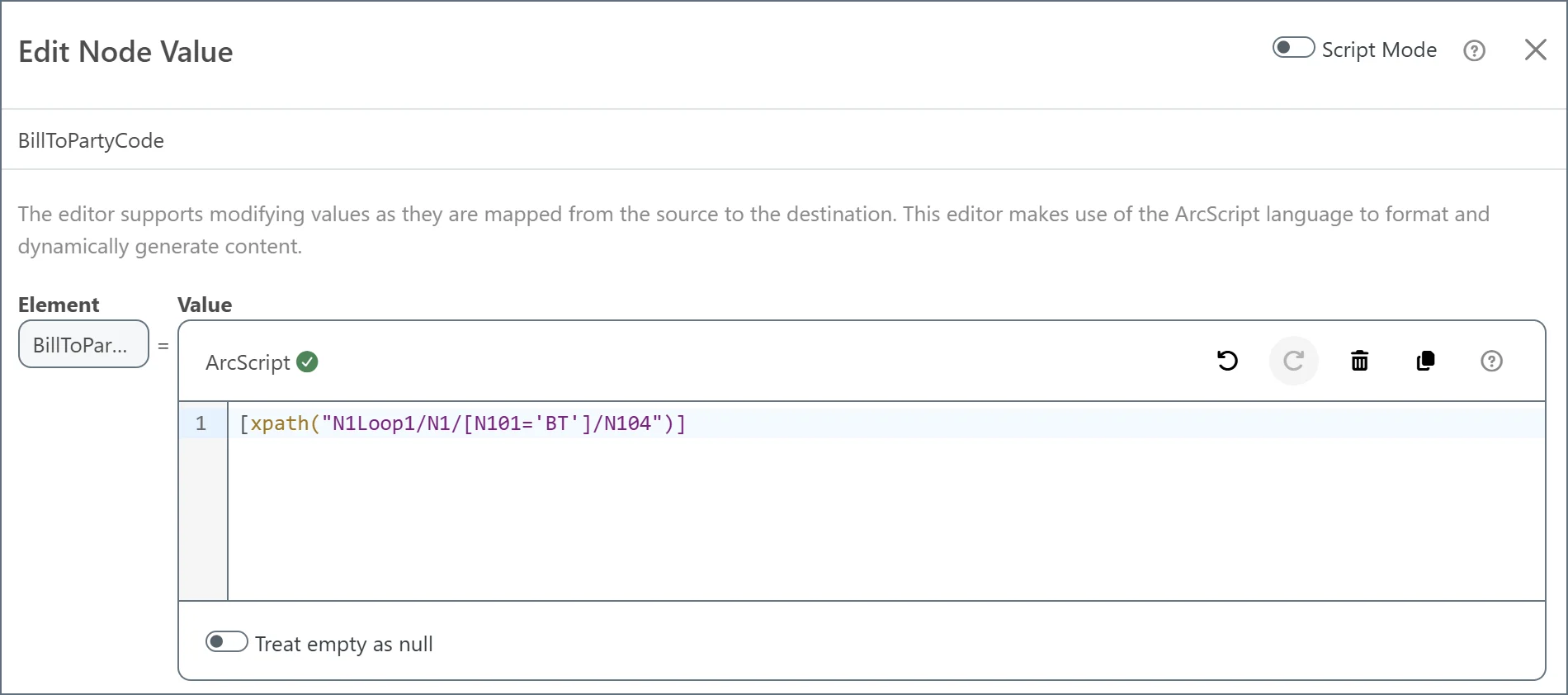
Modifying and Calculating with the Node Value Editor
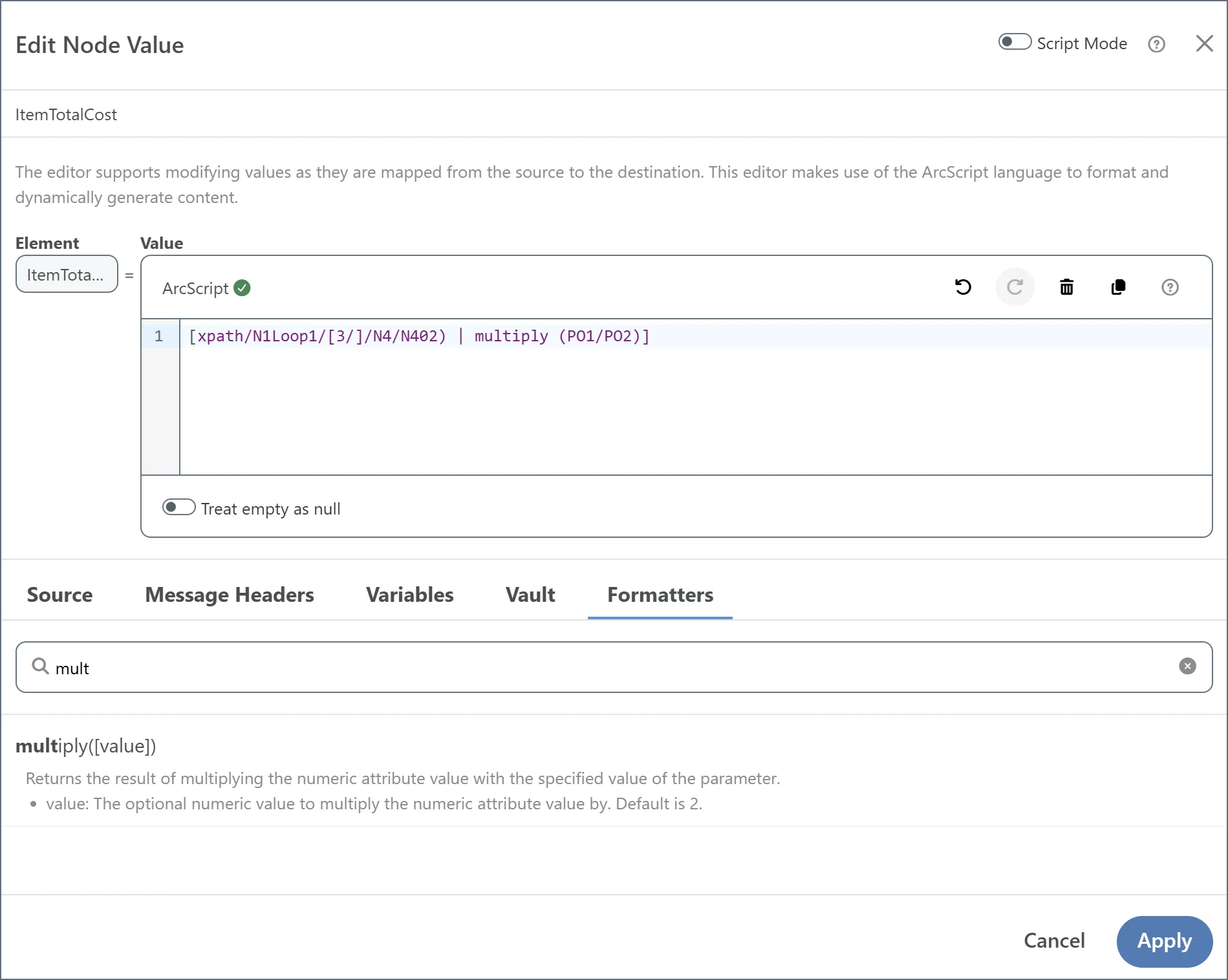
In addition to xpath manipulation, the Node Value editor supports formatters that modify or manipulate values during a mapping. The ItemTotalCost element needs to be mapped to the total cost for the line item, which is not directly available in a source element but is easily calculated by multiplying the item quantity and the item price. As a starting point, map an item price to the ItemTotalCost element and open the Node Value editor. You can use the multiply formatter to multiply this starting value (the price per item) with the number of items. Formatter syntax works as follows:- Sequences are contained in square brackets (as is already the case in the current ItemTotalCost expression)
- Sequences are evaluated from left to right
- Sequences are delimited by vertical pipe characters (for example,
[value | formatter1() | formatter2() | formatter3()])
The xpath() syntax that results from dragging a source node onto a destination node is itself a special kind of formatter.