Key Capabilities
- Healthcare data exchange with full HL7 message standard support
- MSH header validation and generation for compliant message structure
- Original mode acknowledgment processing for reliable healthcare communications
- Support for multiple HL7 versions with strict schema validation options
Overview
When receiving HL7 documents, HL7 connectors validate interchange headers and convert the HL7 document into XML. This is useful as a staging step, because XML is the primary format that uses to manipulate data in a flow. The HL7 connector automatically reads the input file to determine the appropriate schema, then parses the document according to this schema. When generating HL7 documents, HL7 connectors convert XML into HL7 document syntax and apply the appropriate interchange headers. This is useful as the final step for creating an HL7 document, after the XML data has been fetched and transformed elsewhere in the flow.Connector Configuration
This section contains all of the configurable connector properties.Settings Tab
Translation Configuration
Settings related to the core operation of the connector.| Setting | Description |
|---|---|
| Connector Id | The static, unique identifier for the connector. |
| Connector Type | Displays the connector name and a description of what it does. |
| Connector Description | An optional field to provide a free-form description of the connector and its role in the flow. |
| Translation Type | Whether the connector should convert HL7 documents into XML, or generate HL7 documents from XML. |
| Dynamically process partners | When enabled, the connector automatically identifies and tracks trading partner relationships from EDI transactions. When disabled, you must manually define the partner relationship. See EDI Partners Tab for more information. |
EDI Partner
| Setting | Description |
|---|---|
| Partner Id (MSH3.1) | In conjunction with the other 3.X elements, identifies the application sending the HL7 document. Only applicable when Dynamically process partners is unchecked. |
| Personal Id (MSH5.1) | In conjunction with the other 5.X elements, identifies the application receiving the HL7 document. Only applicable when Dynamically process partners is unchecked. |
MSH Settings
Settings related to the message headers. When converting HL7 documents into XML, the document headers are validated against these settings; when generating HL7 documents from XML, these settings are used to generate document headers.| Setting | Description |
|---|---|
| Partner Application Universal Id (MSH3.2) | In conjunction with the other 3.X elements, identifies the application sending the HL7 document. |
| Partner Application Universal Id Type (MSH3.3) | In conjunction with the other 3.X elements, identifies the application sending the HL7 document. |
| Partner Facility Namespace Id (MSH4.1) | In conjunction with the other 4.X elements, identifies the facility sending the HL7 document. |
| Partner Facility Universal Id (MSH4.2) | In conjunction with the other 4.X elements, identifies the facility sending the HL7 document. |
| Partner Facility Universal Id Type (MSH4.3) | In conjunction with the other 4.X elements, identifies the facility sending the HL7 document. |
| Personal Application Universal Id (MSH5.2) | In conjunction with the other 5.X elements, identifies the application receiving the HL7 document. |
| Personal Application Universal Id Type (MSH5.3) | In conjunction with the other 5.X elements, identifies the application receiving the HL7 document. |
| Personal Facility Namespace Id (MSH6.1) | In conjunction with the other 6.X elements, identifies the facility receiving the HL7 document. |
| Personal Facility Universal Id (MSH6.2) | In conjunction with the other 6.X elements, identifies the facility receiving the HL7 document. |
| Personal Facility Universal Id Type (MSH6.3) | In conjunction with the other 6.X elements, identifies the facility receiving the HL7 document. |
| Setting | Description |
|---|---|
| Security (MSH8) | Used to implement security features. |
| Processing Id (MSH11.1) | Defines whether the document is part of a production, training, or debugging system. |
| Processing Mode (MSH11.2) | Defines whether the document is part of an archival process or an initial load. Options are: not present-current processing, archive, restore from archive, or initial load. |
| Version Id (MSH12) | This field is matched by the receiving system to its own version to ensure the document is interpreted correctly. |
| Sequence Number (MSH13) | A non-null value in this field indicates that the sequence number protocol is in use. |
| Continuation Pointer (MSH14) | Used to define continuations in application-specific ways. |
| Accept Acknowledgment Type (MSH15) | Identifies the conditions under which accept acknowledgments are required to be returned in response to the document. Required for enhanced acknowledgment mode. Options are: always, never, error or reject conditions only, or successful completion only. |
| Application Acknowledgment Type (MSH16) | Contains the conditions under which application acknowledgements are required to be returned in response to the document. Required for enhanced acknowledgment mode. Options are: always, never, error or reject conditions only, or successful completion only. |
Acknowledgments
Settings related to generating and requesting acknowledgments.| Setting | Description |
|---|---|
| Acknowledgment Type | Whether or not acknowledgments should be generated and requested. See Acknowledgments for more information. |
Sample Files Tab
Advanced Tab
EDI Delimiters
Settings that specify which characters separate elements, segments, and so on.| Setting | Description |
|---|---|
| Data Element Separator | The character that separates individual data elements in the document. |
| Component Element Separator | The character that separates elements within a composite data structure in the document. |
| Segment Terminator | The character that indicates the end of a segment in the document. |
| Release Char | The character that releases (escapes) the next character, overriding its usual meaning. This allows reserved characters to appear as data within documents, as long as they are preceded by the Release Char. |
| Repetition Char | The character that indicates repetition of element values. |
| Suffix | Appended to the Segment Terminator to distinguish segments. |
Advanced Settings
Settings not included in the previous categories.| Setting | Description |
|---|---|
| Batch Transactions | Whether multiple transactions should be grouped together in a single output file. When this is not checked, the connector creates a separate output file for each transaction. When checked, the connector groups all transactions into a single output file. Only applicable when the Translation Type is HL7 to XML. |
| Expand Qualifier Values | When translating HL7 into XML, whether elements containing an HL7 qualifier should include child elements to express the qualifier code and value. Only applicable when the Translation Type is HL7 to XML. For example:<N101><Code>ST</Code><Value>Ship To</Value></N101> |
| Generate Description As | When translating HL7 into XML, descriptions of the HL7 segments and elements can be provided as context for the HL7 data. Use this dropdown to choose whether to add this context as an XML comment or as XML attributes. |
| Strict Schema Validation | Whether the connector should Ignore, Warn, or Fail when the following are detected: repeat counts above the allowed number, missing required elements or segments, invalid qualifier and code values, disallowed element lengths, and invalid element values. |
| Transmission Control | Whether the connector should wait for a transmission to be acknowledged before beginning the next transmission. Only applicable when the Translation Type is XML to HL7. |
| Processing Delay | The amount of time (in seconds) by which the processing of files placed in the Transactions tab is delayed. This is a legacy setting. Best practice is to use a File connector to manage local file systems instead of this setting. |
| Local File Scheme | A scheme for assigning filenames to messages that are output by the connector. You can use macros in your filenames dynamically to include information such as identifiers and timestamps. For more information, see Macros. |
| Validate Identifiers | When checked, the connector ensures that the identifiers in the translated document match the identifiers specified in the connector configuration. |
| Duplicate File Action | How the connector should behave when it receives a message with a control number that the connector has seen before (a duplicate). When set to Ignore, the connector silently skips the duplicate and continues processing. When set to Warn, the connector processes the file but returns a warning. When set to Fail, the connector does not accept the file and returns an error. |
| Upload Schema | Use this to upload a schema and install it in the connector’s Schema folder. If a schema already exists, you are asked if you want to overwrite it. |
| Reset State | EDI connectors keep track of control numbers that have been used and increment that number to ensure that future runs do not duplicate data. Use this button to reset the counter to its initial state without changing any of the configured settings. |
Logging
Miscellaneous
EDI Partners Tab
Automation Tab
Automation
Settings related to the automatic processing of files by the connector.| Setting | Description |
|---|---|
| Send | A toggle that instructs the connector to automatically send files when they are ready. |
| Resend Interval | The interval the connector waits before resending a file that received a negative ACK. For example, if a trading partner receives the file but something is wrong with it and they send back a negative ACK, this setting specifies how long to wait before sending the file again. |
| Max Attempts (async) | The maximum number of times the connector processes the input file when a functional ACK is requested. Success is based on the return of a functional ACK within the Resend Interval. If a successful functional ACK is not returned, the connector resends the file until Max Attempts is reached. If this is set to 0, the connector resends the file indefinitely. |
Performance
Alerts Tab
SLAs Tab
XML to HL7
When generating HL7 files, set the Translation Type to XML to HL7. The application then reads the header information from the settings configured on the Settings tab. Once you have configured the connector with the settings from your trading partner agreement, click the Transactions tab and select More > Create Test Files. The application creates a set of test XML files which provide example data of what the XML should look like for the connector to generate an HL7 document. After these test files are processed by the connector, navigate to the Transactions tab to see the resulting HL7 document.HL7 to XML
When generating XML, set the Translation Type to HL7 to XML. Then complete the trading partner agreement settings so the application can validate the information in the HL7 documents during processing. XML files are generated into the Output folder. To create test HL7 files for several HL7 documents, click the Transactions tab and select More > Create Test Files. After these test files are processed by the connector, navigate to the Transactions tab to see the resulting XML.Use With the XML Map Connector
Upload Test File
Acknowledgements
Acknowledgements can be automatically generated and processed by the application.Original Mode Acknowledgements
This is an indication that an interchange has taken place between the two parties (although not necessarily that any individual message has been exchanged). It is automatically generated in response to a request in the interchange.Message Originator
Requesting Acknowledgements
HL7 connectors in XML to HL7 mode can be configured so that original mode acknowledgements are requested for an interchange. Select Original Mode in the Acknowledgement Type field on the Settings tab to direct the connector to maintain a Pending ACK status for the transmission until the appropriate acknowledgements have been returned and processed.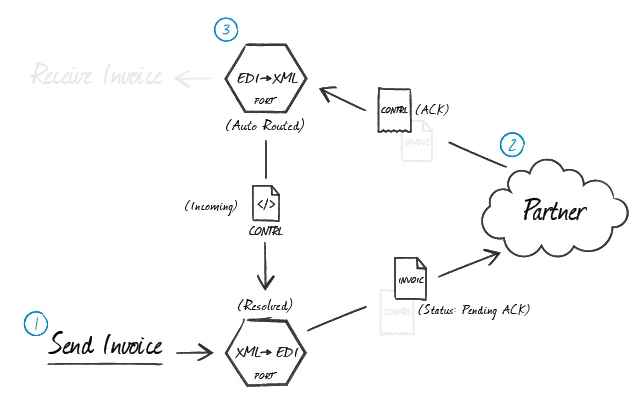
The Transmission Control setting in the Advanced Settings section of the Advanced tab controls the flow of documents as it relates to their acknowledgements. When this is checked, the connector waits for an acknowledgement of the current message before processing the next message.
Processing Acknowledgements
When HL7 acknowledgements are received at an HL7 connector in HL7 to XML mode, the connector can be configured to automatically route any detected acknowledgements to the XML to HL7 connector that originated the transmission. Routing ACKs between HL7 connectors is configured visually on the Flows canvas by dragging the gray dot at the bottom of the HL7 connector in XML to HL7 mode onto the HL7 connector that is in HL7 to XML mode. The receiving XML to HL7 connector then pairs the acknowledgements to the original message and resolves the matching message.Message Recipient
Generating Acknowledgements
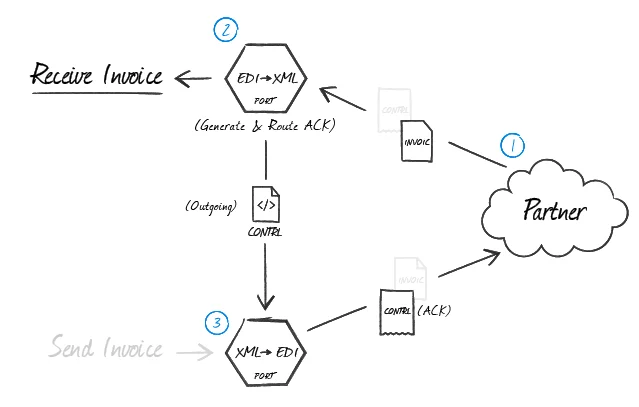
When an HL7 connector in HL7 to XML mode is processing received messages from the originator and generating XML, you can tell the connector to automatically generate original mode acknowledgements by selecting Original Mode in the Acknowledgement Type field on the Settings tab. You must route these acknowledgements to an HL7 connector in XML to HL7 mode to generate the HL7 acknowledgement. To route the ACK appropriately, drag the gray dot at the bottom of the HL7 connector in HL7 to XML mode onto the HL7 connector that is in XML to HL7 mode.