

Key Capabilities
- Full bidirectional translation between EANCOM and XML formats
- Comprehensive interchange header validation and generation
- Support for multiple EANCOM versions with automatic schema detection
- Interchange and functional acknowledgment support
Overview
When receiving EANCOM documents, EANCOM connectors validate interchange headers and convert the EANCOM document into XML. This is useful as a staging step, because XML is the primary format that uses to manipulate data within a flow. The EANCOM connector automatically reads the input file to determine the appropriate schema, then parses the document according to this schema. When generating EANCOM documents, EANCOM connectors convert XML into EANCOM document syntax and apply the appropriate interchange headers. This is useful as the final step for creating an EANCOM document, after the XML data has been fetched and transformed elsewhere in the flow.Connector Configuration
This section contains all of the configurable connector properties.Settings Tab
Translation Configuration
Settings related to the core operation of the connector.| Setting | Description |
|---|---|
| Connector Id | The static, unique identifier for the connector. |
| Connector Type | Displays the connector name and a description of what it does. |
| Connector Description | An optional field to provide a free-form description of the connector and its role in the flow. |
| Translation Type | Whether the connector should convert EANCOM documents into XML, or generate EANCOM documents from XML. |
| Dynamically process partners | When enabled, the connector automatically identifies and tracks trading partner relationships from EDI transactions. When disabled, you must manually define the partner relationship. See EDI Partners Tab for more information. |
EDI Partner
| Setting | Description |
|---|---|
| Partner Identifier (UNB2.1) | The unique Id identifying the sending party in the EANCOM communication. When you are generating an EANCOM document, this should be your identifier. Only applicable when Dynamically process partners is unchecked. |
| Recipient Identifier (UNB3.1) | The unique Id identifying the receiving party in the EANCOM communication. When you are generating an EANCOM document, this should be your trading partner’s identifier. Only applicable when Dynamically process partners is unchecked. |
Interchange Settings
Settings related to the EANCOM interchange headers. When converting EANCOM documents into XML, the document headers are validated against these settings; when generating EANCOM documents from XML, these settings are used to generate document headers.| Setting | Description |
|---|---|
| Syntax Identifier (UNB1.1) | Identifies the character set used in the EANCOM document. |
| Syntax Version (UNB1.2) | In combination with the Syntax Identifier, determines the syntax to be used in the EANCOM document. Based on your selection here, other interchange setting options appear or disappear on the Advanced tab. |
| Partner Code Qualifier (UNB2.2) | The qualifier for the Sender Identifier, which provides context to the value (for example, an EAN location number). |
| Personal Code Qualifier (UNB3.2) | The qualifier for the Recipient Identifier, which provides context to the value (for example, an EAN location number). |
| Test Indicator (UNB11) | Whether the interchange is in test mode or production mode. If you check this, interchange headers are not validated when documents are received. |
| Functional Group | Check this to automatically add the sender and recipient identifiers to the Functional Group Settings on the Advanced tab. |
Acknowledgments
Settings related to generating and requesting acknowledgments.| Setting | Description |
|---|---|
| Technical acknowledgment (CONTRL) | Whether a technical CONTRL ACK should be returned (when receiving) and requested (when sending). A technical acknowledgment serves as a receipt of the interchange. |
| Functional acknowledgment (CONTRL) | Whether a functional CONTRL ACK should be returned (when receiving) and requested (when sending). A functional acknowledgment serves as an indication of acceptance or rejection of the received interchange. |
Sample Files Tab
Advanced Tab
EDI Delimiters
Settings that specify which characters separate elements, segments, etc.| Setting | Description |
|---|---|
| Data Element Separator | The character that separates individual data elements in the document. |
| Component Element Separator | The character that separates elements within a composite data structure in the document. |
| Segment Terminator | The character that indicates the end of a segment in the document. |
| Release Char | The character that releases (escapes) the next character, overriding its usual meaning. This allows reserved characters to appear as data within documents, as long as they are preceded by the Release Char. |
| Repetition Char | The character that indicates repetition of element values. |
| Suffix | Appended to the Segment Terminator to distinguish segments. |
Interchange Settings
Additional settings related to the EANCOM interchange headers. These options appear or disappear based on the Syntax Version specified on the Settings tab.| Setting | Description |
|---|---|
| Service Code List Directory Version Number (UNB1.3) | Further specifies the syntax to be used in the EANCOM document. Only applicable for EANCOM syntax version 4. |
| Character Encoding (UNB1.4) | Specifies the character encoding (such as ASCII or UTF-8). Only applicable for EANCOM syntax version 4. |
| Address for Reverse Routing (UNB2.3) | The optional address in the sender’s system to which responding interchanges should be sent. Only applicable for EANCOM syntax versions prior to version 4. |
| Partner Internal ID (UNB2.3) | An additional sender identifier to facilitate internal routing of response interchanges. Only applicable for EANCOM syntax version 4. |
| Partner Internal Sub-Identification (UNB2.4) | Further identifies the sender when sub-level identification is required. Only applicable for EANCOM syntax version 4. |
| Routing Address (UNB3.3) | The optional address in the recipient’s system to which interchanges should be routed. Only applicable for EANCOM syntax versions prior to version 4. |
| Personal Internal ID (UNB3.3) | An additional recipient identifier to facilitate internal routing of received interchanges. Only applicable for EANCOM syntax version 4. |
| Personal Internal Sub-Identification (UNB3.4) | Further identifies the recipient when sub-level identification is required. Only applicable for EANCOM syntax version 4. |
| Partner Password (UNB6.1) | Reference or password to gain access to the recipient’s system. |
| Partner Password Qualifier (UNB6.2) | The qualifier that provides context to the Partner Password, if applicable. |
| Application Reference ID (UNB7) | Identifies the application group to which the messages in the interchange relate. |
| Processing Priority Code (UNB8) | Code for requesting processing priority for the interchange. |
| Communication Agreement (UNB10) | Defines the type of communication agreement controlling the interchange. |
Functional Group Settings
Settings related to the functional group headers of EANCOM documents. These optional identifiers can help group similar interchanges together, or facilitate sub-addressing within an organization.| Setting | Description |
|---|---|
| Application Partner Identifier (UNG2.1) | Identifies the application sending the document (such as a division, branch, or computer system). |
| Application Personal Identifier (UNG2.1) | Identifies the application for which the document is intended. |
Advanced Settings
Settings not included in the previous categories.| Setting | Description |
|---|---|
| Batch Transactions | An interchange can contain multiple transactions. When this is not checked, the connector creates a separate output file for each transaction in the interchange. When checked, the connector groups all transactions into a single output file. |
| Encoding | Specifies the character encoding (such as ASCII or UTF-8). |
| Expand Qualifier Values | When checked, XML elements containing an EDI qualifier include child elements containing the qualifier code and value. For example: <N101><Code>ST</Code><Value>Ship To</Value></N101>. |
| Functional Acks | By default, all functional acknowledgments (997, 999) are routed to the connector selected in the flow diagram, and XML translations are not received in the Transactions tab. Check this to have the translated acknowledgment also be included in the Transactions tab. This allows functional acknowledgments to be integrated into a destination source in addition to new EDI documents. |
| Generate Description As | When translating EANCOM into XML, descriptions of the EANCOM segments and elements can be provided as context for the EANCOM data. Use this dropdown to choose whether to add this context as an XML comment or as XML attributes. |
| Local File Scheme | A scheme for assigning filenames to messages that are output by the connector. You can use macros in your filenames dynamically to include information such as identifiers and timestamps. For more information, see Macros. |
| Nest Loops | When checked, the connector detects EDI structures that have hierarchical relationships embedded in the EDI data, and generates XML with these hierarchical relationships represented as parent-child relationships. See Master-Detail Hierarchy: Translating CPS Loops for more information. |
| Processing Delay | The amount of time (in seconds) by which the processing of files placed in the Transactions tab is delayed. This is a legacy setting. Best practice is to use a File connector to manage local file systems instead of this setting. |
| Strict Schema Validation | Whether the connector should Ignore, Warn, or Fail when the following are detected: repeat counts above the allowed number, missing required elements or segments, invalid qualifier and code values, disallowed element lengths, and invalid element values. Choosing Disable turns off the schema validation checks. |
| Track UNB2.1 | Whether to add UNB2.1 values as tracked headers to processed messages. |
| Track UNB3.1 | Whether to add UNB3.1 values as tracked headers to processed messages. |
| Track Transaction Types | Whether to add transaction types as tracked headers to processed messages. |
| Validate Identifiers | Check this to ensure that the identifiers in the translated document match the identifiers in the connector’s configuration. |
| Duplicate File Action | How the connector should behave when it receives a message with a control number that the connector has seen before (a duplicate). When set to Ignore, the connector silently skips the duplicate and continues processing. When set to Warn, the connector processes the file but returns a warning. When set to Fail, the connector does not accept the file and returns an error. |
| Upload Schema | Use this to upload a schema and install it in the connector’s Schema folder. If a schema already exists, you are asked if you want to overwrite it. |
| Reset State | EDI connectors keep track of control numbers that have been used and increment that number to ensure that future runs do not duplicate data. Use this button to reset the counter to its initial state without changing any of the configured settings. |
Logging
Miscellaneous
EDI Partners Tab
Automation Tab
Automation
Settings related to the automatic processing of files by the connector.| Setting | Description |
|---|---|
| Send | A toggle that instructs the connector to automatically send files when they are ready. |
| Resend Interval | The interval the connector waits before resending a file that received a negative ACK. For example, if a trading partner receives the file but something is wrong with it and they send back a negative ACK, this setting specifies how long to wait before sending the file again. |
| Max Attempts (async) | The maximum number of times the connector processes the input file when a functional ACK is requested. Success is based on the return of a functional ACK within the Resend Interval. If a successful functional ACK is not returned, the connector resends the file until Max Attempts is reached. If this is set to 0, the connector resends the file indefinitely. |
Performance
Alerts Tab
SLAs Tab
XML to EANCOM
When generating EANCOM files, select XML to EANCOM as the Translation Type. The application reads the header information for the interchange, functional group, and message sections from the settings configured on the Settings tab. These settings include the sender identifier and code qualifier, receiver identifier and code qualifier, and so on. Once you have configured the connector with the settings from your trading partner agreement, click the Transactions tab and select More > Create Test Files. The application creates a set of test XML files that provide example data of what the XML should look like for the connector to generate an EANCOM document. You can also select the documents and click Send to see the generated EANCOM documents.EANCOM to XML
When generating XML, select EANCOM to XML as the Translation Type. The application only processes EANCOM files when this option is selected. You need to configure the settings for the trading partner agreement on this page for the application to validate the information in EANCOM documents during processing. XML files are generated into the Output folder for this connector. Click the Transactions tab and select More > Create Test Files to create test EANCOM files for several EANCOM documents. You can select these documents and click Send to see the generated XML.Use With the XML Map Connector
Upload Test File
Acknowledgements
Acknowledgments are routed to the connector specified by the grey dotted line in the flow diagram, as shown in the following image: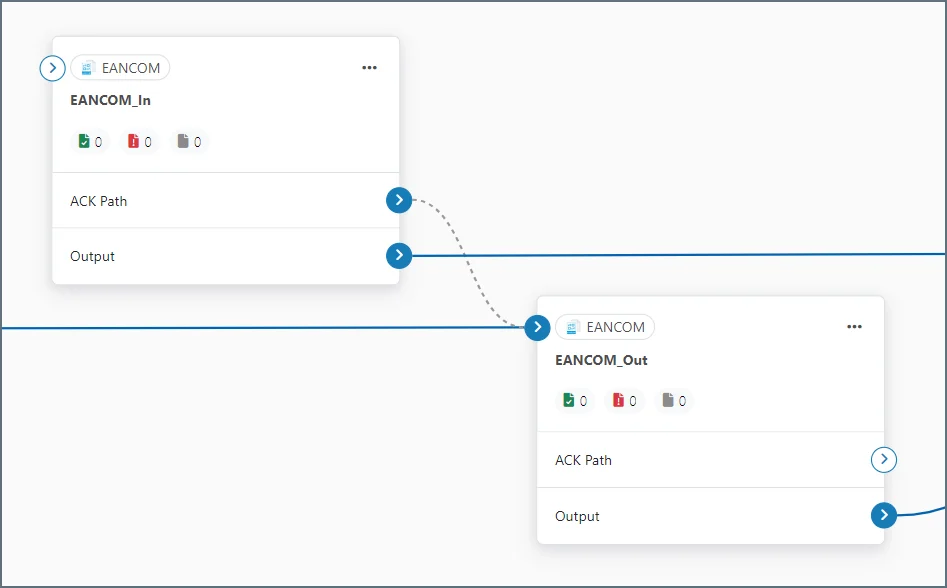
Interchange Acknowledgments
This is an indication that an interchange has taken place between the two parties (though not necessarily that any individual message has been exchanged). They are automatically generated in response to a request in the interchange.Functional Acknowledgments
Functional acknowledgments are an indication that an individual message such as an Invoice or PO has been accepted. These are generated in response to a bidirectional agreement by both parties.Message Originator
Requesting Acknowledgements
EANCOM connectors in XML-to-EDI mode can be configured so that both interchange and functional acknowledgments can be requested for a message. Select the Technical acknowledgment (CONTRL) and Functional acknowledgment (CONTRL) checkboxes on the Settings tab to direct the connector to maintain a Pending ACK status for the transmission until the appropriate acknowledgments have been returned and processed.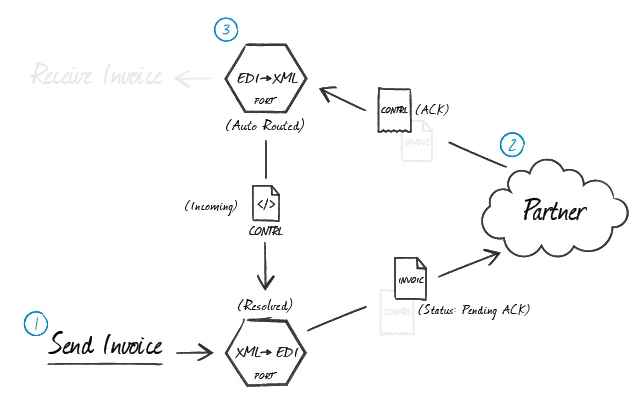
Processing Acknowledgements
When interchange and functional EANCOM acknowledgments are received at an EANCOM connector in EDI-to-XML mode, the connector can be configured to automatically route any detected acknowledgments to the EANCOM connector that first generated the transmission. In the flow diagram, drag the grey circle from the receiving (EDI-to-XML) EANCOM connector onto the originating (XML-to-EDI) EANCOM connector. The configured (XML-to-EDI) EANCOM connector pairs the acknowledgments to the original message and resolves the matching message.Message Recipient
Generating Acknowledgements
When an EANCOM connector in EDI-to-XML mode processes received messages from the originator and generates XML, tell the connector to automatically generate CONTRL acknowledgments by selecting the Acknowledgment check boxes in the Settings tab. Route these acknowledgments to an EANCOM connector in XML-to-EDI mode to generate the EANCOM acknowledgement. In the flow diagram, drag the grey circle onto the (XML-to-EDI) EANCOM connector that generates EANCOM documents for this partner.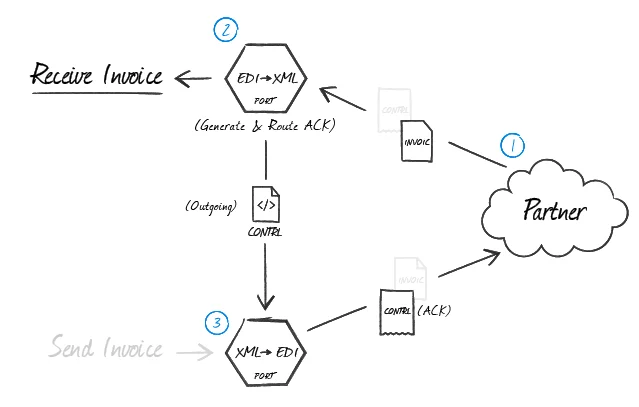
Master-Detail Hierarchy: Translating CPS Loops
In EDI documents, most hierarchical relationships are represented by the order of EDI segments. Some EDI structures, like CPS Loops (which are found in DESADV documents), do not follow this convention and instead have the hierarchical relationships embedded in the EDI element data itself. This can make it difficult to preserve these hierarchical relationships when converting the EDI data to XML. The EANCOM connector supports preserving hierarchical relationships in CPS segments via the Nest Loops setting on the Advanced tab. When enabled, the connector parses the elements in the CPS segments to determine which segments “belong to” other segments in a hierarchical relationship. These hierarchical relationships are reflected in the output XML as parent-child relationships: in other words, this setting converts hierarchy implied by the EDI content into hierarchy represented by the XML structure. This section briefly explains both how hierarchy is encoded in CPS data, and how this hierarchy is converted into XML when Nest Loops is enabled.CPS Hierarchy
All CPS segments have two values that help establish hierarchy:- an Id value, which identifies the current CPS segment (this value is stored in CPS01, or the first element in a CPS segment)
- a parent-Id value, which identifies the current CPS segment’s hierarchical parent (this value is stored in CPS02, or the second element in a CPS segment)
Converting CPS Hierarchy to XML
When Nest Loops is enabled, the EANCOM connector handles the conversion of CPS hierarchy to XML hierarchy automatically. The connector parses the Id and parent-Id values from CPS segments and ensures that the resulting XML elements are appropriately nested (indented) inside the elements representing their parents. In other words, ifsegmentA has a parent-Id value that is equal to segmentB, the resulting XML has segmentA as a child of segmentB. In this way, the hierarchical relationships are preserved in the XML structure when the EDI data is translated.