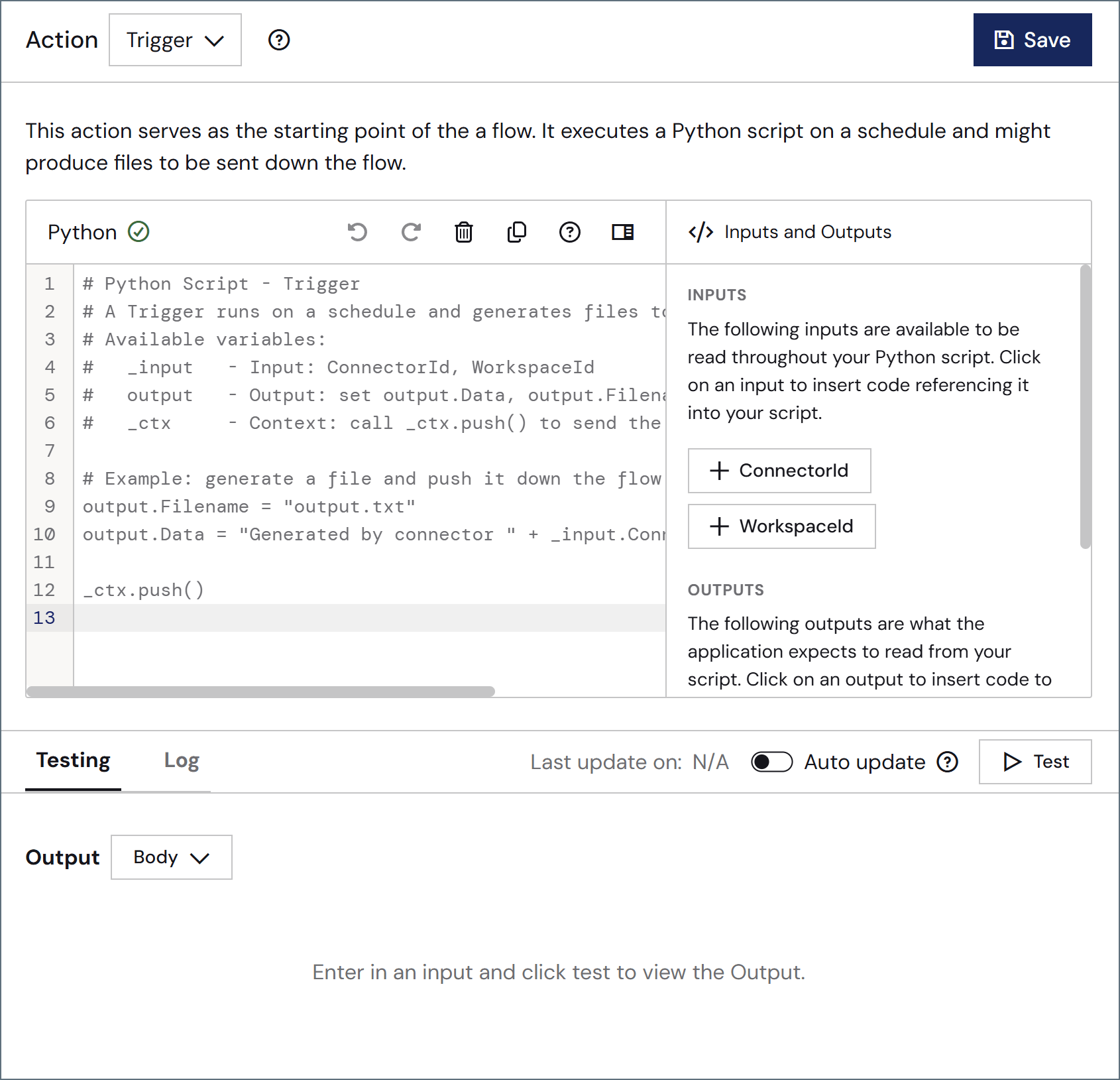
Python connectors use the Python scripting language to accomplish a wide range of custom behavior. The script configured in the connector is run each time a document is placed in the Transactions tab for the connector. The input document can be read and modified in the script, or the input document can simply trigger the Python script configured in the connector. Python connectors can also be configured to run on a schedule via Receive automation on the Automation tab.After you decide the appropriate task for your Python connector, read the Writing Python documentation to explore how to call various operations.
Options related to writing and testing the script.
Setting
Description
Action dropdown
Choose the connector’s action. (See Actions for details on the three options.)
Python editor
Use the editor to write your script. The toolbar contains standard editing options such as undo, redo, delete, copy, and format. It also includes an option to hide the Insert Options in the right pane.
Insert Options
The panel in the right pane makes it easy to insert code into your script with one click. The dropdown includes Inputs and Outputs (such as ConnectorId or Encoding—the available options depend on the configured Action), Snippets, Keywords, Operators and Formatters. Find the code you want to insert, and click to add it.
Testing tab
Specify whether to view the script input and/or output as the message body or headers. Options on this tab vary based on the script’s action type (for example, trigger scripts do not have inputs). Click Test to test the script.
Log tab
Displays the test log.
Last update on
Displays the datetime the script was last modified and saved.
Auto update
Use the toggle to automatically test the script after each modification.
A scheme for assigning filenames to messages that are output by the connector. You can use macros in your filenames dynamically to include information such as identifiers and timestamps. For more information, see Macros.
Settings that govern the creation and storage of logs.
Setting
Description
Log Level
The verbosity of logs generated by the connector. When you request support, set this to Debug.
Log Subfolder Scheme
Instructs the connector to group files in the Logs folder according to the selected interval. The Weekly option (which is the default) instructs the connector to create a new subfolder each week and store all logs for the week in that folder. Leaving this setting blank tells the connector to save all logs directly in the Logs folder. For connectors that process many transactions, using subfolders helps keep logs organized and improves performance.
Log Messages
Check this to have the log entry for a processed file include a copy of the file itself. If you disable this, you might not be able to download a copy of the file from the Transactions tab.
The amount of time (in seconds) by which the processing of files placed in the Transactions tab is delayed. This is a legacy setting. Best practice is to use a File connector to manage local file systems instead of this setting.
Miscellaneous settings are for specific use cases.
Setting
Description
Other Settings
Enables you to configure hidden connector settings in a semicolon-separated list (for example, setting1=value1;setting2=value2). Normal connector use cases and functionality should not require the use of these settings.
Settings related to the automatic processing of files by the connector.
Setting
Description
Send
Whether messages arriving at the connector are automatically processed.
Retry Interval
The number of minutes that the connector waits before retrying a failed script execution.
Max Attempts
The number of times that the connector retries a failed script execution before raising an error.
Receive
Whether the connector should automatically run the script on a configured schedule.
Receive Execution Interval
The unit of measure to use for the receive automation schedule (such as Minutes, Hours, or Days).
Minutes Past the Hour
The minutes offset for an hourly schedule. Only applicable when the interval setting above is set to Hourly.
Time
The time of day that the attempt should occur. Only applicable when the interval setting above is set to Daily, Weekly, or Monthly.
Day
The day on which the attempt should occur. Only applicable when the interval setting above is set to Weekly or Monthly.
Minutes
The number of minutes to wait before attempting the download. Only applicable when the interval setting above is set to Minute.
Cron Expression
A five-position string representing a cron expression that determines when the attempt should occur. Only applicable when the interval setting above is set to Advanced.
Start Date and Time
The date and time at which the automation first runs. Every run after that follows the interval setting above. The last and next run times appear in the Automation Status section.
Settings related to the allocation of resources to the connector.
Setting
Description
Max Workers
The maximum number of worker threads consumed from the threadpool to process files on this connector. If set, this overrides the default setting on the Performance Settings portion of the Advanced Settings page.
Max Files
The maximum number of files sent by each thread assigned to the connector. If set, this overrides the default setting on the Performance Settings portion of the Advanced Settings page.
This tab lists all messages associated with the connector. Use the search bar to find specific messages, or click the funnel icon to apply a filter. You can filter by time, message direction, and/or status.Options on this tab vary depending on the connector’s action type:
If your connector is a Trigger, use the Receive button to start the flow.
If your connector is a Transform or Terminal, messages that come from a previous connector in the flow automatically appear in the flow, or you can use the Upload Files button to add files.
Python connectors send data to the output feed through the built-in output item, which is pushed automatically when the script finishes — no explicit push is needed. (To push a custom item instead, set its attributes and call _ctx.push(item).) Following are three common use cases.1 Create and output a file:
output.Filename = "results.txt"output.Data = "This is my result"
2 Pass an input file as output:
output.Filepath = _input.Filepath
3 Write entries to the connector log file:
print("Custom Log entry line 1")print("Custom Log entry line 2")
In a Python connector, print() writes to the log file for the current message (as shown above). To write to the Arc application log instead, use _ctx.log('level', 'message') with a level of DEBUG, INFO, WARNING, or ERROR.