

Date/Time entries are always localized to the local time zone and date format settings of your browser, so even when you browse to a server hosted in a different time zone, the displayed timestamps reflect the local time.
Searching and Filtering the Logs
The top of each Activity page tab has a search bar that you can use to search all the logs on that page. Click the funnel icon to open a context-sensitive filter section with different options for each log type. For example, as shown in the following image, the Messages tab has filters for Tracked Headers, time, connector type, workspace, connector Id, and status.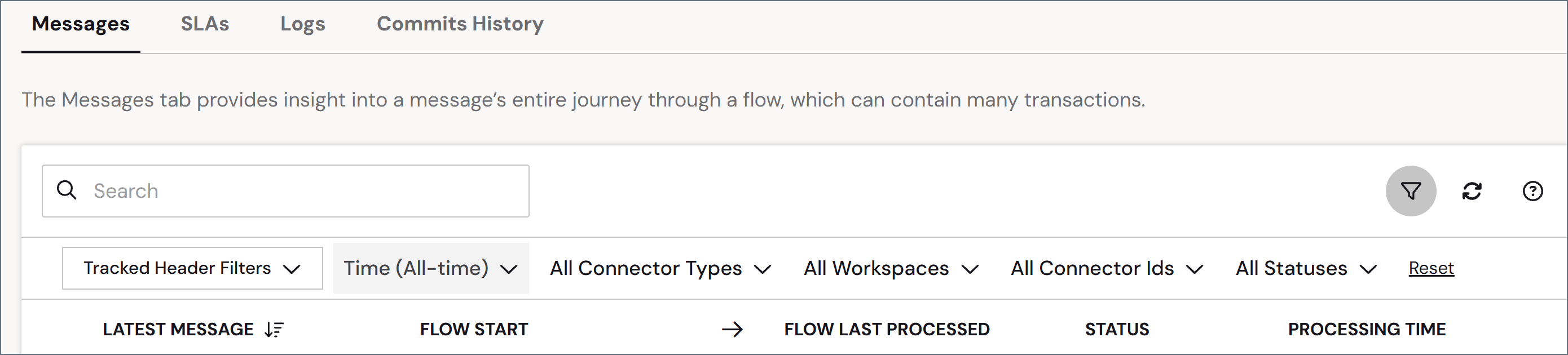
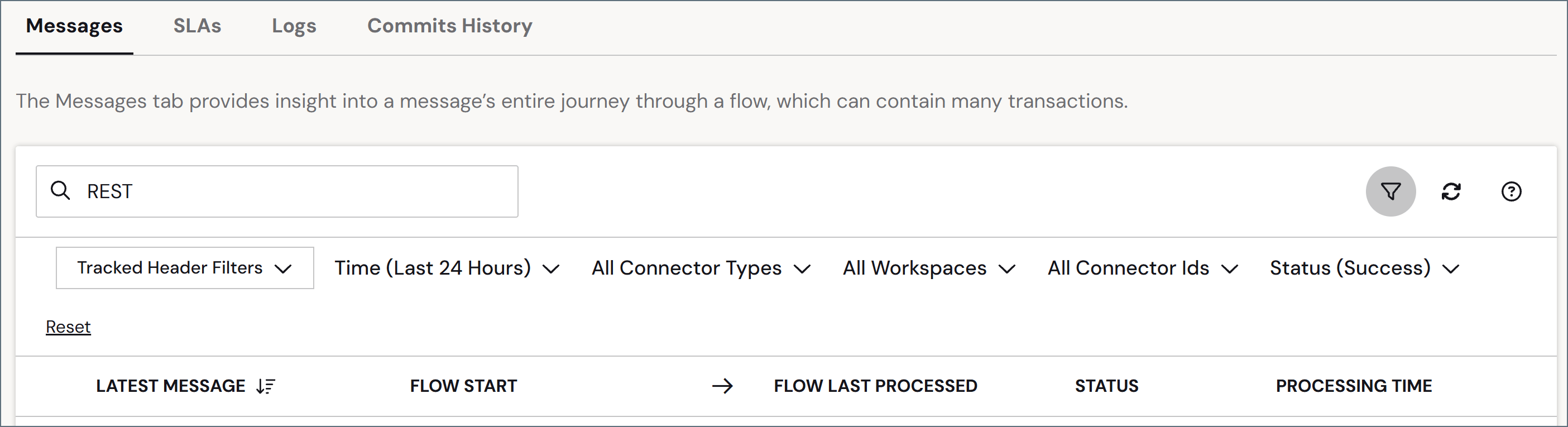
Tracked Headers
Arc supports using additional searchable metadata (Tracked Headers) as an additional way to filter results on the Messages tab. You can add tracked headers in a number of ways:- The Tracked Headers field in the Advanced Settings section of the Settings > Advanced page lets you provide a comma-delimited list of custom header names.
- Some connectors, like X12, have settings in the Advanced tab that let you to opt-in to the tracking of certain headers, like ISA08.
- The XML Map connector lets you right-click an element and add it as a tracked header on the output message.
-
The
_messageitem in ArcScript lets you set tracked headers through a_message.trackedheader:HeaderNamesyntax. To see other examples of using_message, read CData Arc Message.
- Expanding a message in the Messages tab
- Opening the Message Details page
- Viewing the Transactions tab for a connector
Messages Tab
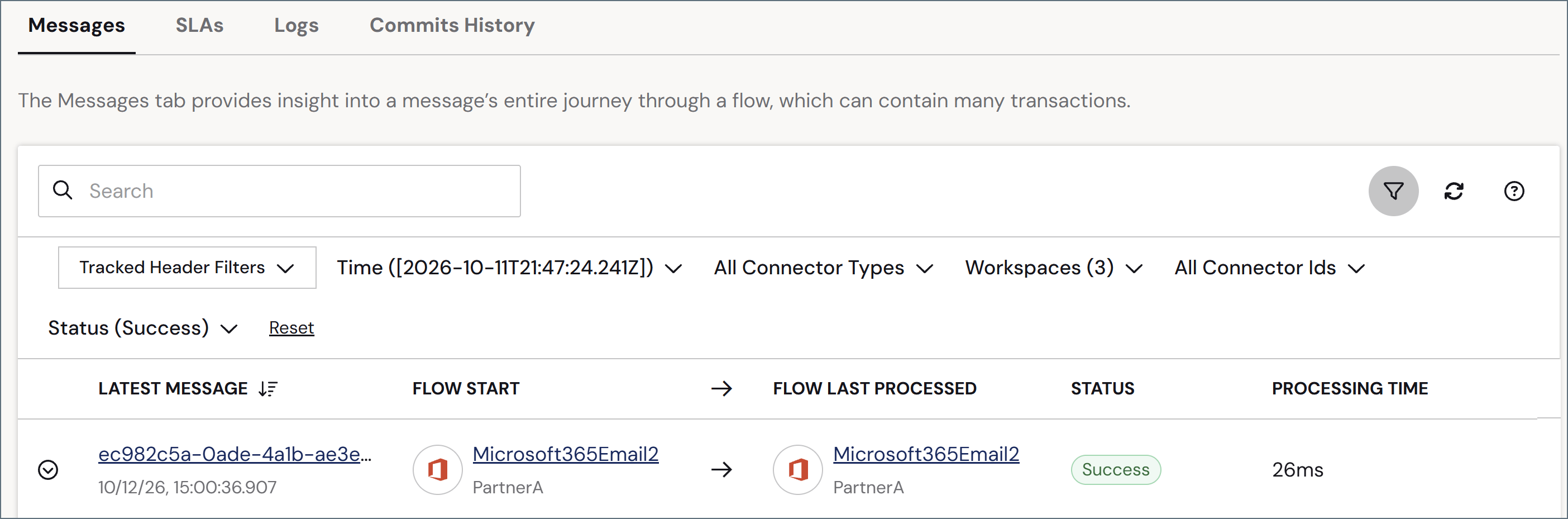
The Messages tab provides insight into a message’s entire journey through a flow, which can contain many transactions. You might often want to see what happened with a message that you received, and this lets you see the full picture of the message as it traveled through the flow. The Messages table contains the full list of messages. By default, the list is sorted by the Latest Message column, but you can click any column name to sort by it. It displays the following details:- Latest Message—the latest filename for the message with a timestamp for the last activity related to this message. Click this link to open a window to preview the message content and optionally download, copy, or format it.
- Flow Start and Last Processed—the Connector Id where the message originated, and the Connector Id of the last connector to process a transaction related to the message. Click a Connector Id to open the connector’s configuration page in the flow designer.
-
Status—the status of the message. The options are:
- Success
- Warning
- Error
- Pending
- Skipped
- Total Processing Time—the amount of time that the message was in the flow for processing
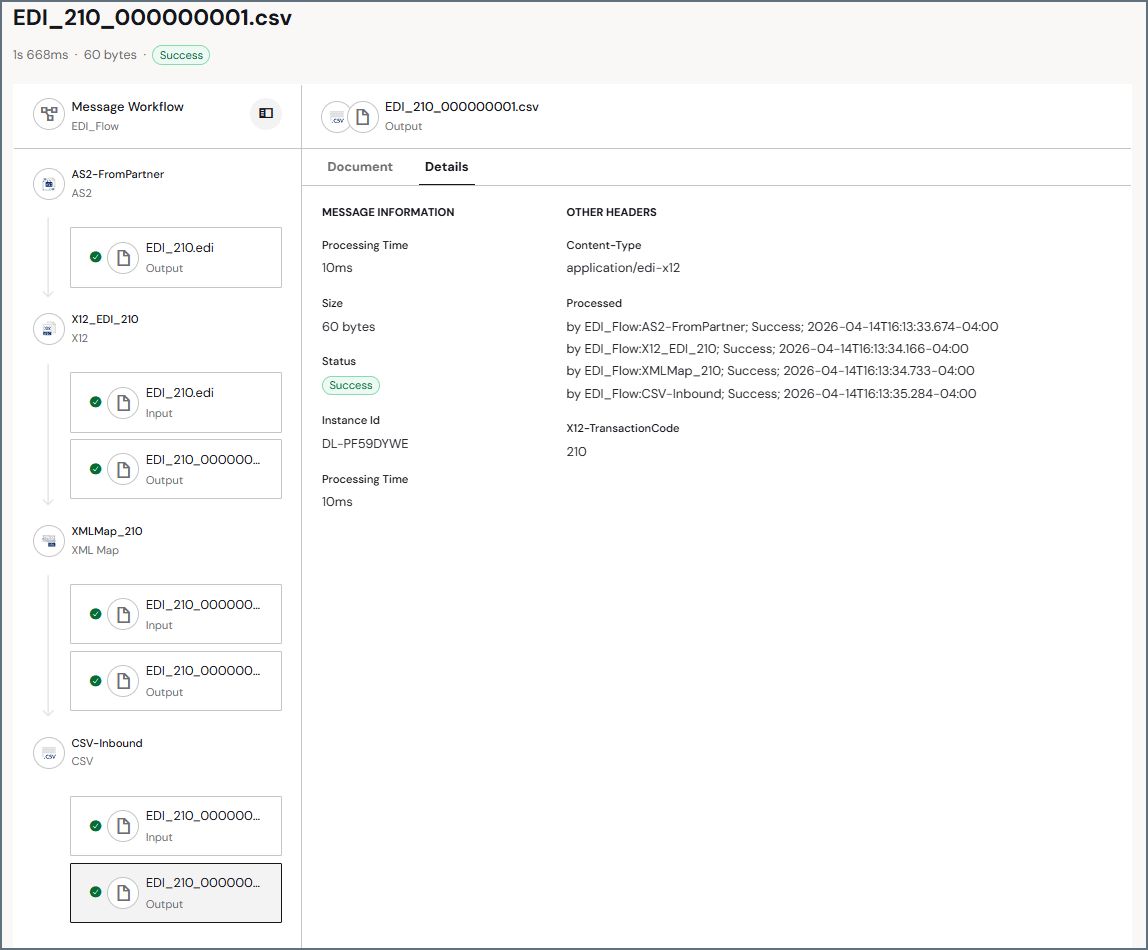
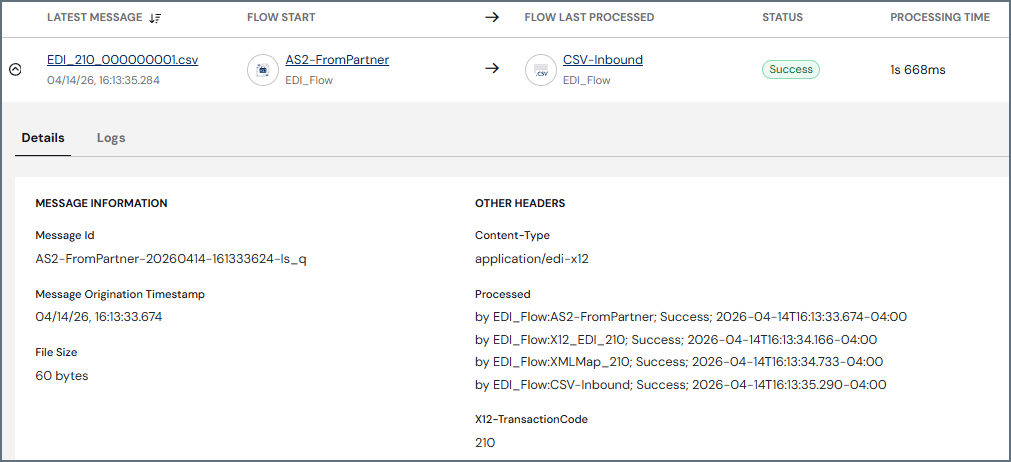
- The Message Id
- The time at which the message originated
- A list of Tracked Headers associated with the message
- A list of Other Headers associated with the message (not tracked)
- Messages that pertain to the message status. For example, if the status is Error, the card shows the error message that caused this status in the summary.
 to download an individual log file. Alternatively, use the Download All Logs button to download a zip file containing all logs that pertain to the message.
Diagnosing Transaction Errors
When a transaction fails, you can use the AI model configured for Arc to analyze the failure and suggest a cause and next steps. The analysis runs only when you start it. Arc never diagnoses a transaction automatically.Diagnosing errors requires an AI provider. Before you start, configure one in the AI Settings section of the Settings > Advanced page.
Starting a Diagnosis
A Diagnose error link appears below the error message of any failed transaction. You can find it on the Message Workflow page for a failed message (open it from the Messages tab), in the message Details card when you expand a failed message on the Messages tab, and on a connector’s Transactions tab.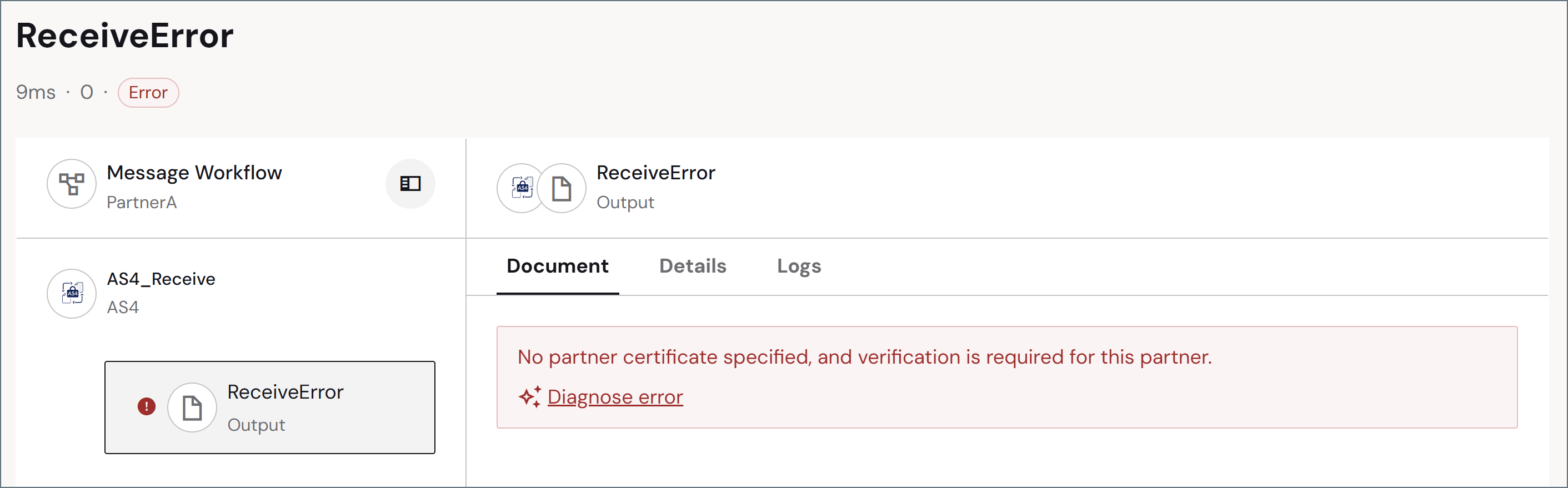
-
Click the Diagnose error link to open the Error Diagnosis window. The window shows the error message on the left.
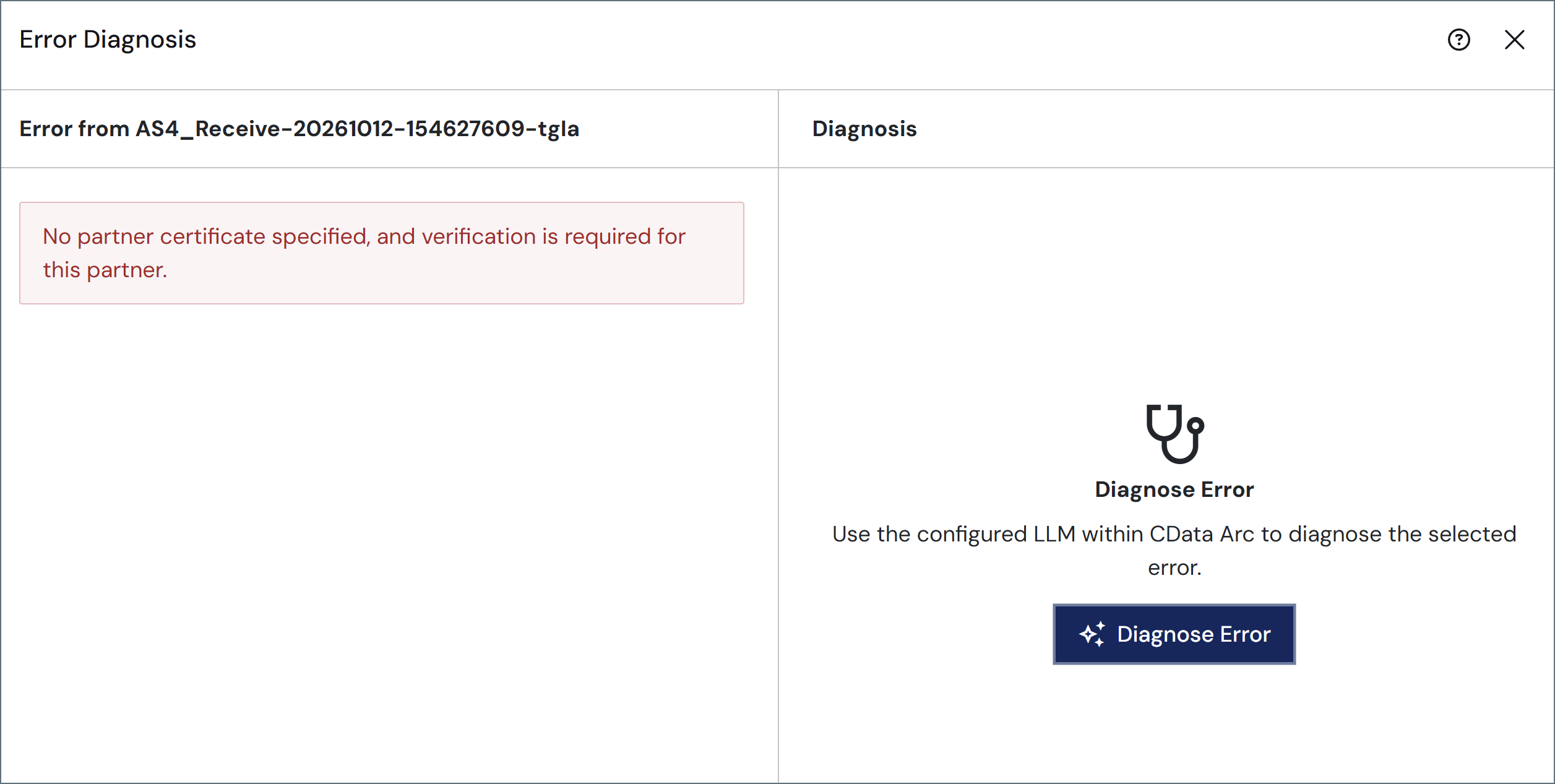
- Click the Diagnose Error button to start the analysis.
Reading the Diagnosis
The diagnosis appears on the right side of the window, organized into the following sections (not every section appears on every diagnosis):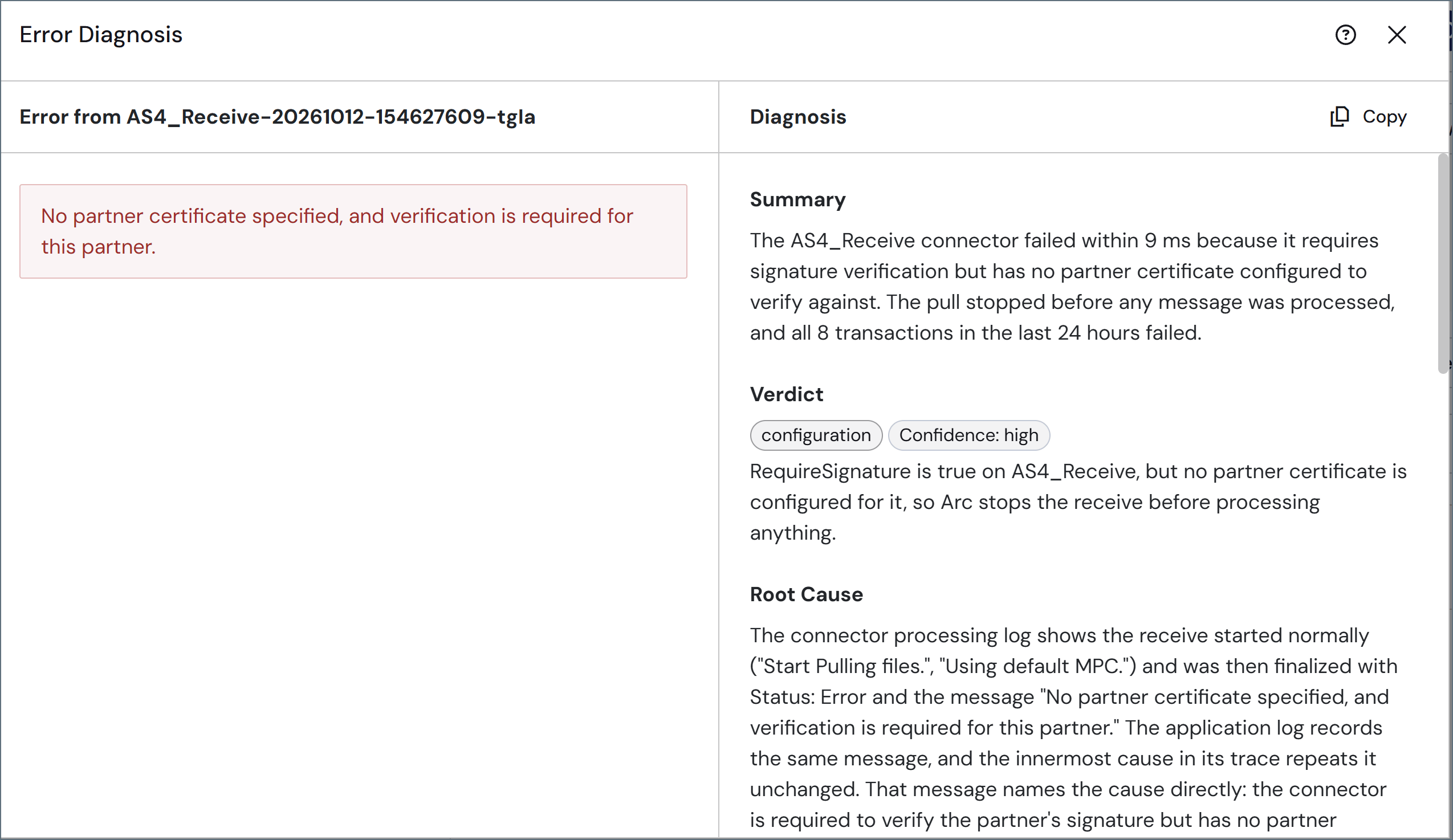
Data Used for the Diagnosis
Arc sends information about the failed transaction to the AI provider you configured in AI Settings. It does not send the message payload or the message headers. The information includes:- The transaction record and its detail logs
- The connector’s settings, flow, certificates, and recent activity
- The related request, application, and service logs
- The identity and trading partner configuration for the following connector types: AS2, AS3, AS4, OFTP, GISB, RNIF, PIP, PEPPOL, X12, EDIFACT, TRADACOMS, VDA, SFTP Server, FTP Server, TCP Server, and OpenPGP
Diagnosing an error is read-only. Arc does not apply fixes, roll back changes, or modify any configuration as a result of a diagnosis.AI-generated diagnoses can be incorrect, so verify the suggested cause and remediation steps before you change your configuration. Review your AI provider’s data handling terms to confirm that sending this information to the provider meets your organization’s requirements.
SLAs Tab
The SLAs tab stores information on every SLA configured on individual connectors. It includes information on which workspace the SLA is associated with, as well as status information and the time remaining in that status. It displays the following details:- Connector Id—the Id of each connector with a defined SLA
- Workspace—the name of the associated workspace
- Previous Status—the prior SLA status (for example, OK)
- Current Status—the current SLA status (for example, At Risk) and the time remaining before the SLA changes status again (for example, to In Violation)
Logs Tab
The Logs tab contains five sets of logs: Application, Automation, Access, Audit, and Profile. By default, each table includes a summary count of today’s logs, and a total count of all logs. The application logs also group similar entries into patterns. Click the See All link in each section to populate the window with the full list of logs in that category. From here you can search, filter, and download logs.Logs maintenance is managed by using the Interval value in the Cleanup Settings section of the Settings > Advanced page. The automation logs also have their own retention rules: see Retention.
Application Logs
The application logs record any application-level errors that occur during processing and any requests made to application resources. The error messages here can help provide context to errors for specific transactions. Use this tab to verify that external trading partners’ web requests are successfully routed to a connector within the Arc flow. When the application receives a web request at a public endpoint, it attempts to route the message to a specific connector based on message headers (for example, AS2 Identifiers). If an error prevents the application from routing the message successfully, this error appears on the Application tab. To help you spot recurring issues and noisy activity at a glance, Arc groups similar application log entries into patterns, as shown in the following image. A pattern represents a set of messages that share the same structure, with the variable parts of each message (such as IDs, counts, and task names) replaced by a<*> wildcard. For example, the messages Stopped task [CheckIntegrityTask] and Stopped task [PortHealthCheckTask] are both grouped under the pattern Stopped task <*>.
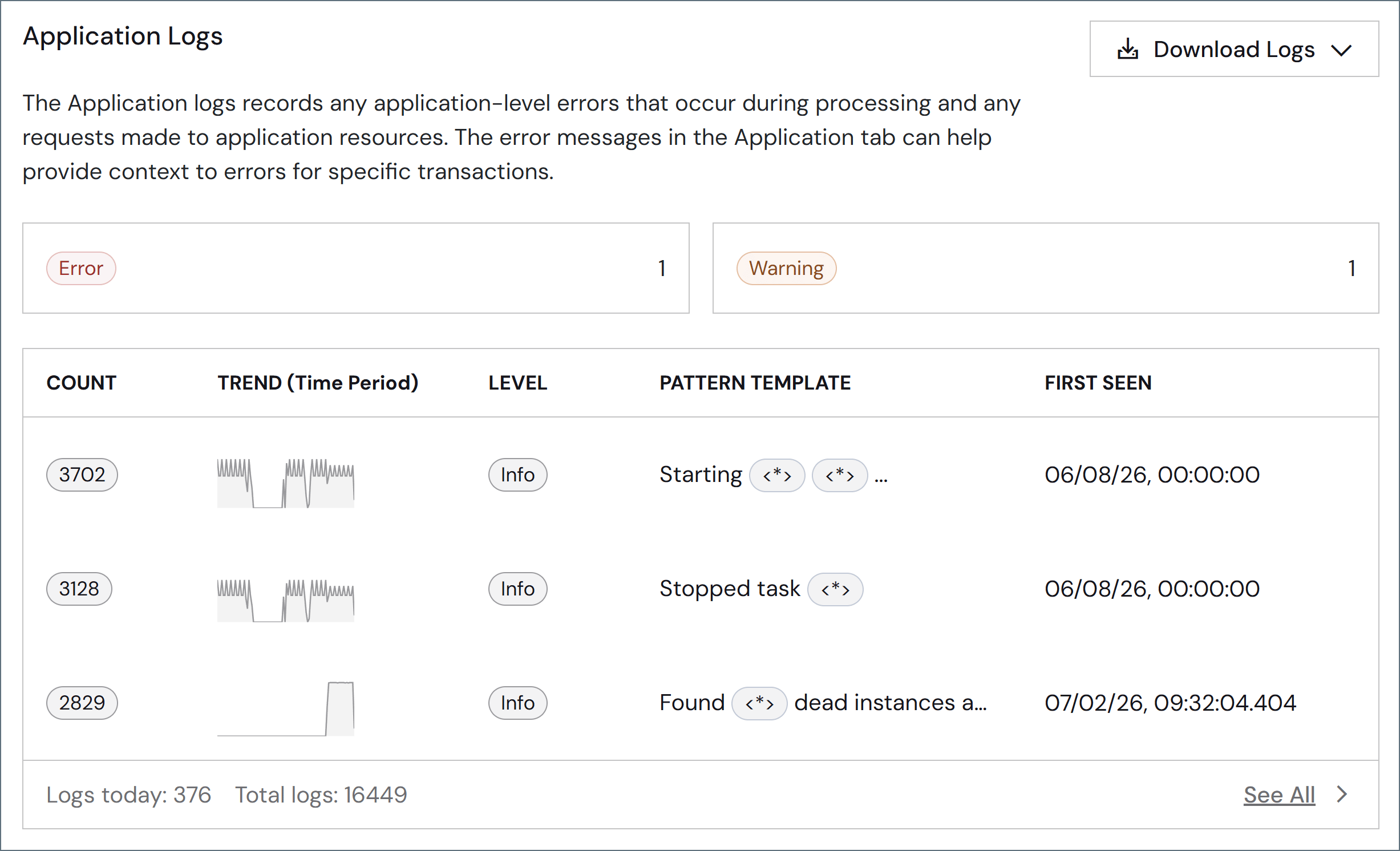
- Count—the number of log entries that match the pattern
- Trend (Time Period)—a sparkline showing how often the pattern has occurred over time
- Level—the log level of the pattern (for example, Info)
- Pattern Template—the shared message structure, with variable values shown as
<*> - First Seen—the timestamp of the earliest entry that matches the pattern
- Date/Time—the timestamp for the event
-
Level—the log level. Review the information in the Message column for details. The options are:
- None—events are not logged
- Error—information about errors encountered during processing
- Warning—information about warnings encountered during processing
- Info—general information about the processing, including any errors and warnings (if applicable)
- Debug—detailed debugging information for both successful and failed processes
- Trace—detailed trace information for both successful and failed processes (useful if you need to send logs to CData Support)
Logging levels Debug and Trace might log sensitive information, including file information and SSL certificates. Although sensitive details such as passwords are masked, you should review these logs for sensitive information before sharing them outside of your organization. - Resource—the resource that produced the message
- Message—the message text
- Instance Id—the machine on which the event occurred
Automation Logs
The automation logs record what the automation service decided for each connector: whether the connector was due to run, whether it was triggered, why it was skipped, and whether a run succeeded, failed, or completed without receiving any message. Use these logs to confirm that a scheduled connector actually polled, even when the poll produced no messages and no errors. Automation logs are separate from the application logs, so these entries do not appear in the application log. Both the Automation section and the full page display the following details:- Date/Time—the timestamp for the entry
- Level—the severity of the entry: Debug, Info, or Error
- Connector—the connector and workspace the entry applies to. Click the connector name to open its configuration page.
- Action—the automation action the entry covers: Receive, Scheduled Send, Check Pending, or Service (a service-level decision that applies to the connector as a whole rather than to one action)
- Decision—what the automation service decided (see the Decisions table for details)
- Next Run Time—the next time the connector is scheduled to run, when the entry involves a schedule evaluation
- Reason—a text description of the decision
- Instance Id—the Arc instance that wrote the entry
Decisions
Each entry has one of the following decisions:
At the Debug level, entries are also recorded for service-level Lock Skipped decisions (the connector lock was unavailable when no run was due) and for Triggered decisions on the Check Pending action.
Triggered is a reliable confirmation that a run started. The scheduler advances the schedule as soon as it finds a run due, so a due evaluation alone does not prove that anything happened. Arc writes Triggered only after the worker starts, and records every due action that does not start as Lock Skipped or Not Started.
Log Level
Automation entries follow each connector’s own Log Level setting (on the connector’s Advanced tab), not the application log level. You can get automation detail for a single connector without raising the log level for the whole application. Outcomes are always recorded, whatever the level. Success, No Messages, and Failed describe a run that executed, so they are written unconditionally. Raising the level does not reveal whether a run succeeded, because that is always recorded. It reveals why a run did not happen:- Error adds License Skipped and Not Started.
- Info adds Triggered, Backoff Skipped, and Lock Skipped for a due run that was blocked.
- Debug adds the evaluations behind each decision, including Not Due and Already Handled.
Retention
The daily cleanup removes automation log entries that are older than seven days, or older than the Interval value in Cleanup Settings if that is shorter. Arc also limits the table to about 100,000 entries. Because the daily cleanup enforces that limit, the table can briefly exceed it.Access Logs
The access logs record entries for requests that are made to endpoints that it provides. This includes API requests, connectors that expose a public endpoint (for example, Webhook), and public endpoints related to receiving data (for example, public.rst). It displays the following details:- Date/Time—the timestamp for the transaction
- Method—the HTTP method used
- URL—the URL
- User—the authenticated user who made the request. If the user who made the request was anonymous, this entry is blank.
- User Type—the account type of the user who made the request: Standard, SSO, Active Directory, LDAP, or Service. Each type is shown with a distinct icon. See User Types for more information.
- Remote IP—the IP Address where the request originated
- Instance Id—the Id of the instance that served the request
Audit Logs
The audit logs store each change made to the application configuration. This includes all actions, such as creating connectors, configuring connectors, updating profile settings, and so on. It displays the following details:- Date/Time: the timestamp for the configuration change
- Action: the type of change that was made. The options are:
- GET
- POST
- PUT
- MERGE
- PATCH
- Resource: either the Admin Console (the web UI that serves as the typical interface for managing and configuring the application) or the Admin API (the REST-based API that can be consumed to manage and configure the application).
- Message: detailed text description of the change, including which resource was affected, the specific field or setting that was modified, and the previous and new values
- User: the user who made the change
- User Type: the account type of the user who made the change: Standard, SSO, Active Directory, LDAP, or Service. Each type is shown with a distinct icon. See User Types for more information.
Profile Logs
The profile logs record activity from configured communication profiles. This includes file transfers, protocol-level events, and server activity for profiles such as AS2, AS4, and SFTP Server. It displays the following details:- Date/Time—the timestamp of the activity
- Connector—the Id of the connector involved
- File—a link to open the log file for the profile
- Status—the status of the action. Options are Complete, In Progress