

What Triggers Backoff
Backoff is triggered when a connector fails to successfully send any files across three consecutive automation cycles. A single failed file in an otherwise successful cycle does not trigger backoff; all files in the cycle must fail.How the Delay Works
Once a connector enters backoff, the automation service skips it for an escalating delay period:
The delay resets if the connector successfully exits backoff.
Identifying Backoff
UI Indicator
When a connector is in backoff, it displays a status indicator showing that it is in a backoff state and when the automation service is next scheduled to run. This indicator updates automatically when the backoff state changes, such as after a successful manual send or a settings save.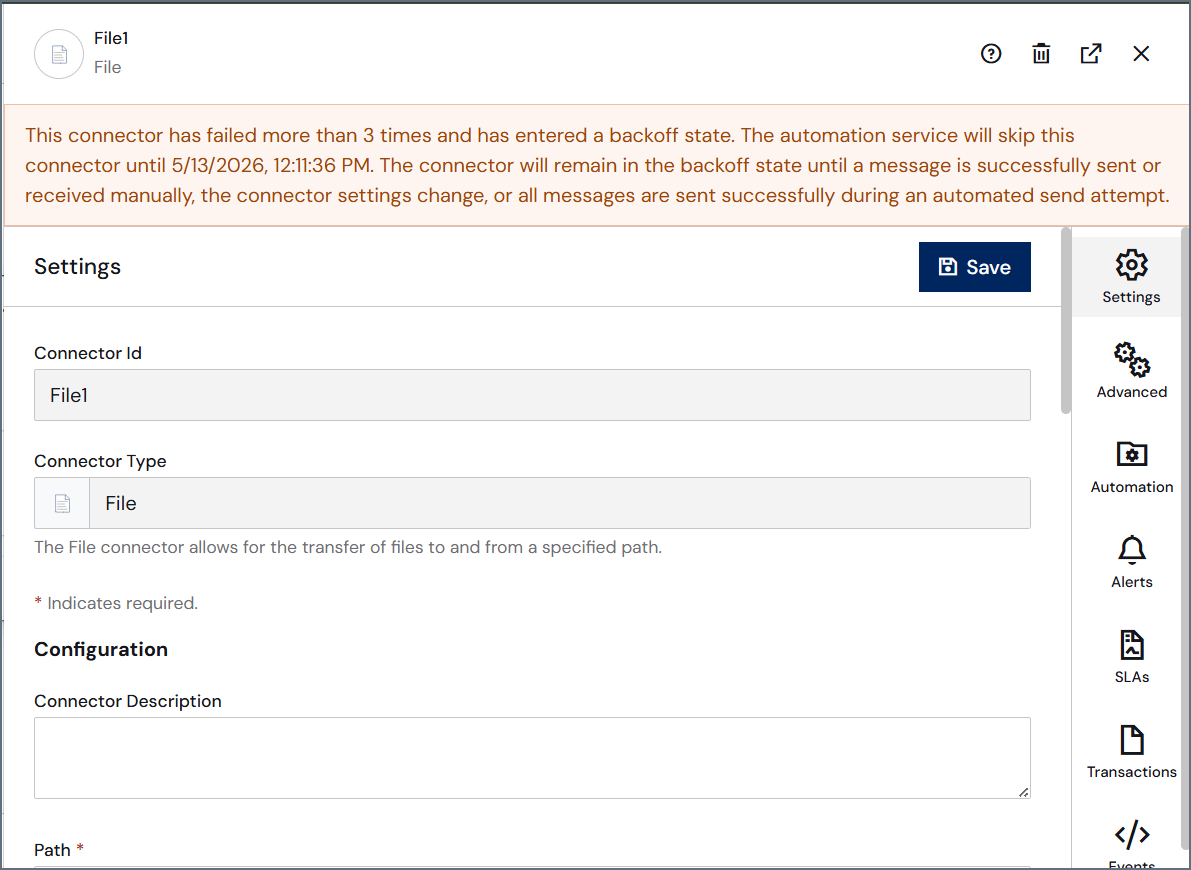
Automation Status Card
The Automation Status card appears on the Automation tab for Receive, Download, and Scheduled Send automations. Other automation types, such as Send, do not display the card. While the connector is in backoff, the card displays a Status of Suspended. The Last Processed Result keeps the outcome of the last run that actually executed (typically Failed), because the automation service skips the connector until backoff ends. Click View Details next to Suspended to open the Automation Suspend Details dialog. It lists each instance that is in backoff, how many times it failed, and when the automation service resumes.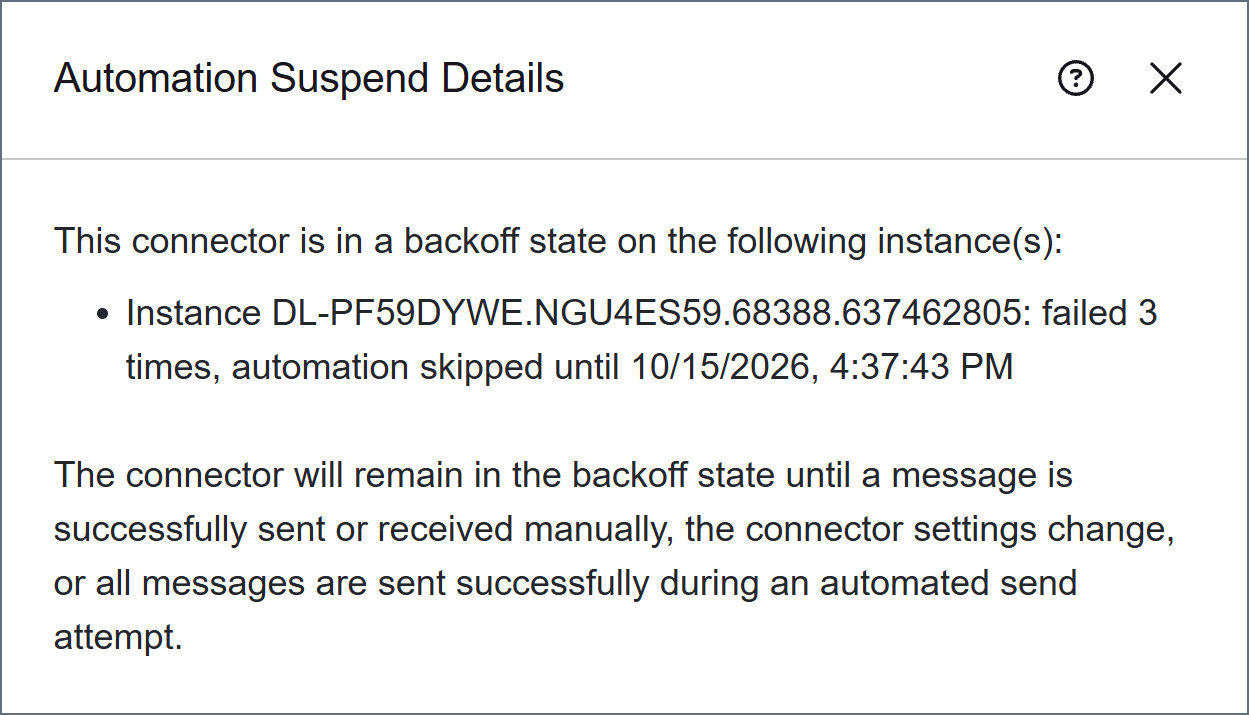
Dashboard
If you have the Connectors in Backoff widget displayed in the Key Metrics section of your dashboard, connectors in backoff are displayed there.Application Log
Arc writes a warning to the application log when a connector enters backoff: This connector has failed [# of times] and has entered a backoff state. The automation service will skip this connector until [date/time]. The connector will remain in the backoff state until a message is successfully sent or received manually, the connector settings change, or all messages are sent successfully during an automated send attempt.Unsent Files
If files are accumulating in a connector’s Transactions tab with a status of Unsent while automation appears to be enabled, backoff is a likely cause. Check the application log for a backoff warning and review the transaction log for consecutive automation failures.Exiting Backoff
A connector exits backoff automatically when any of the following occurs:- A file is sent or received successfully through a manual send or receive
- The connector’s settings are saved
- All files are sent successfully during an automated send attempt