

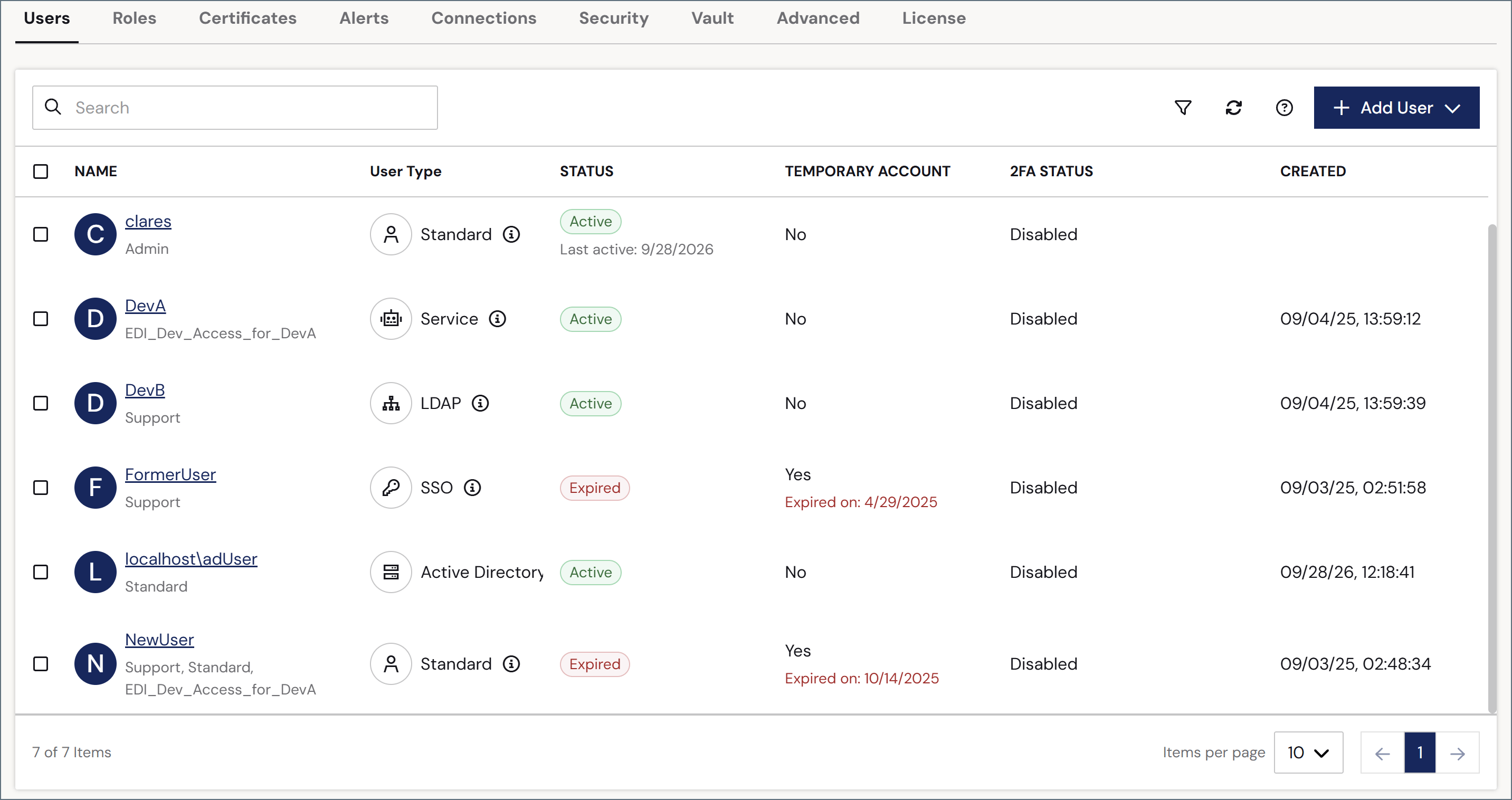
To create and manage users, navigate to the Settings page, then the Users tab. This tab includes a table of all users, and includes information about their roles, their user type and status, whether they are temporary users, their two-factor authentication (2FA) status, and more.
Add or Edit Users
To add a user, click Add User. To edit an existing user, hover over their row in the table, click the ellipses, then choose Edit. Complete the following fields:
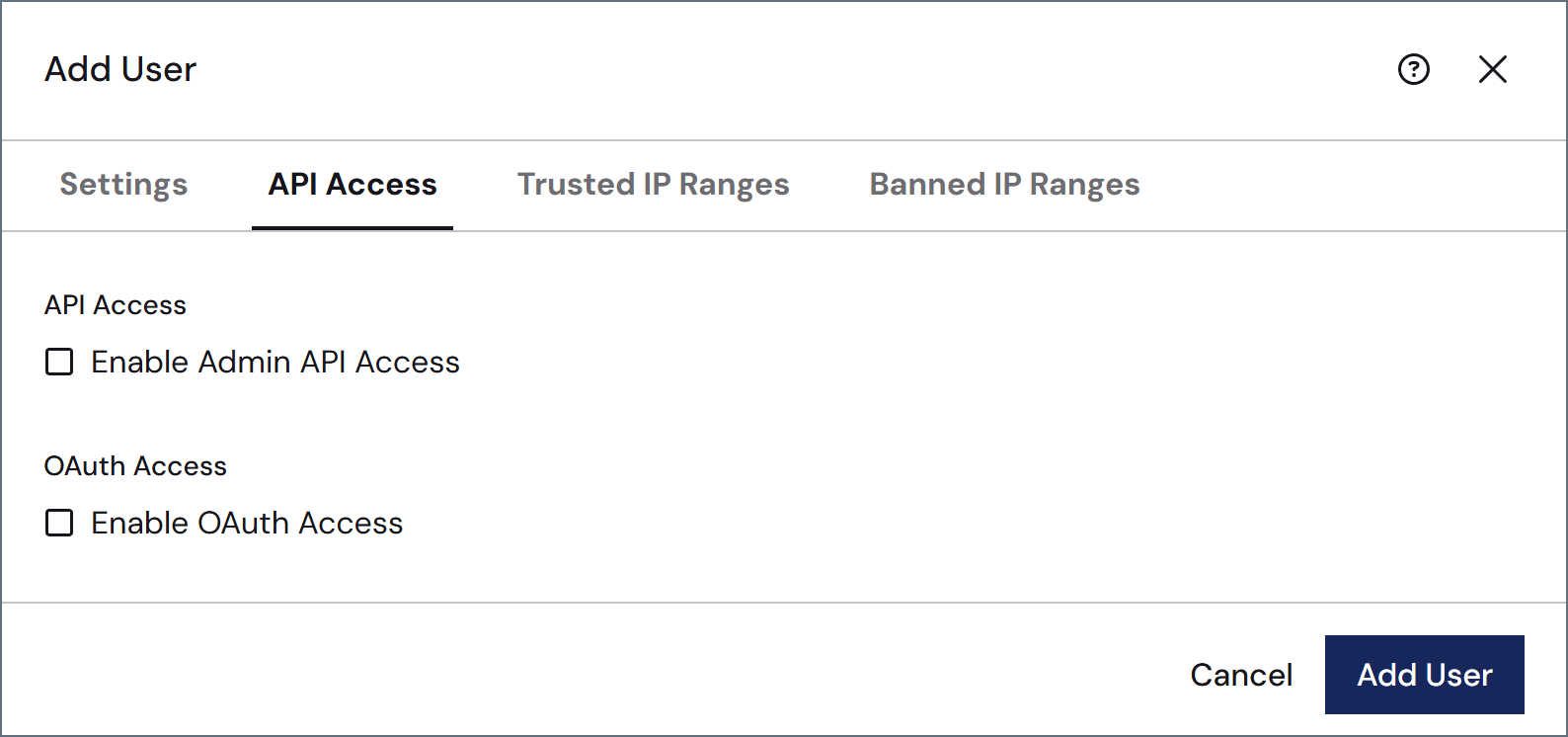
To give the new user Admin API and/or OAuth access, click the API Access tab.
To add trusted or banned IP ranges specific to this user, click the Trusted IP Ranges or Banned IP Ranges tabs to add the ranges. You can provide single IP addresses, simple ranges (such as
203.0.113.* or 203.0.113.1-255), or Classless Inter-Domain Routing (CIDR) ranges. These tabs also display the global trusted and banned ranges that have been defined on the Network Access portion of the Settings > Security page.
User Types
Arc supports the following user types:- Standard accounts are for people who sign in to the Arc console interactively with a username and password.
- SSO accounts are for people who authenticate through an external identity provider (IdP). The Password field is hidden for SSO accounts that do not have the Admin role. SSO accounts with the Admin role retain a local password as a fallback for signing in when SSO is unavailable. The Federation Id field is always shown for SSO accounts and is used to map the identity claim from the IdP to this Arc user account. Because authentication happens at the IdP, Arc 2FA does not apply to SSO accounts, so the 2FA controls are not shown. For more information on configuring SSO, see Single Sign-On.
- Active Directory accounts are for people who authenticate using a Windows domain account. Usernames must be in
domain\usernameformat. Active Directory is only available on the .NET edition. - LDAP accounts are for people who authenticate using an LDAP directory service. LDAP is only available on the Cross-Platform edition.
- Service accounts are for automated, machine-to-machine access, such as invoking Flow API endpoints or calling the Admin API. Service accounts do not sign in interactively, so the Password field and 2FA controls are not shown; instead, they authenticate only with an authtoken or OAuth client credentials configured on the API Access tab. Service accounts require at least one authentication method configured on the API Access tab (either Enable Authtoken Access or Enable OAuth Access). If neither is enabled, the form displays a warning and blocks saving. For example, you might pair a service account with a role that grants only the Flow API Invoke permission to let it call specific endpoints without any access to, or visibility into, the Arc UI.
When SSO is globally enabled, the Federation Id field also appears for Standard accounts. This supports Standard accounts that have a Federation Id but were not migrated to the SSO type, such as Admin accounts that keep a local password as a fallback.