

Managing Vault Providers
Vault providers determine where Arc resolves vault item values. The local vault is always present and is the only provider you can write to. External providers are read-only and let you surface secrets that already exist in your infrastructure without duplicating them in Arc. To open the provider list, click Vault Provider Config on the Vault tab. The Vault Providers Config pane opens, listing each configured provider with its Name and Provider type. The Local provider is always the first row and cannot be edited or removed.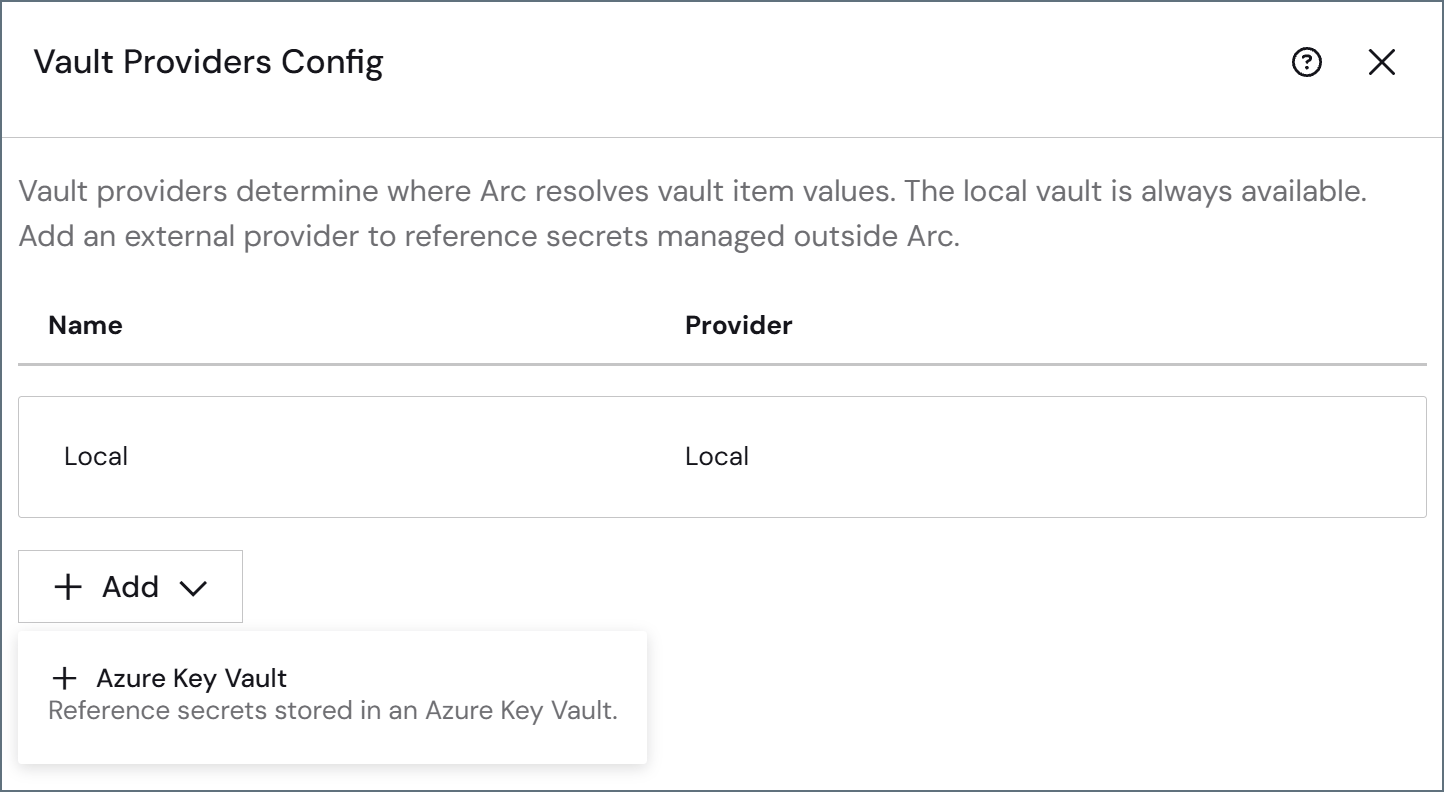
Adding an Azure Key Vault Provider
- In the Vault Providers Config pane, click Add > Azure Key Vault.
-
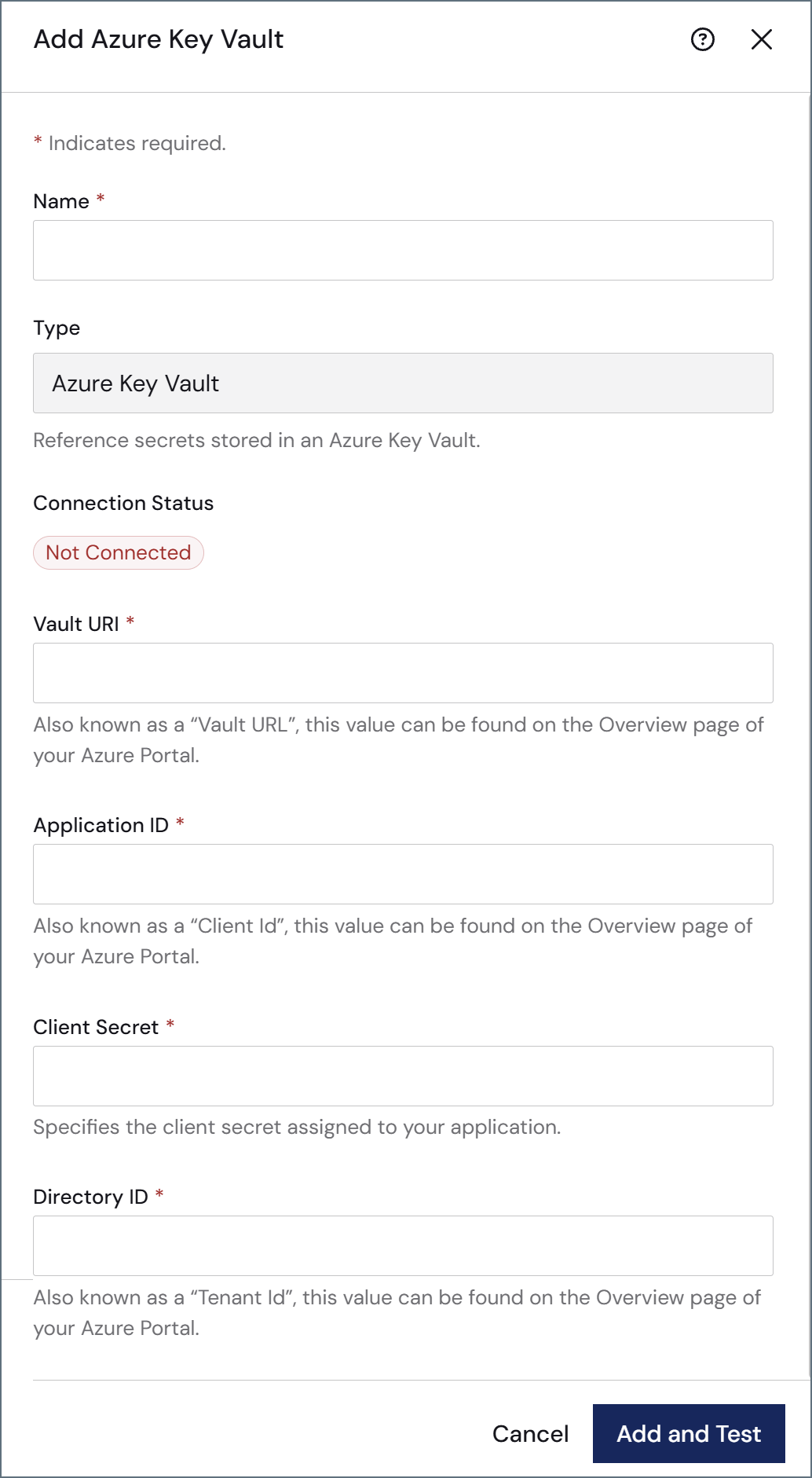
Fill in the required fields:
- Name: The display name for this provider. Must be unique.
- Vault URI: The Vault URL from the Azure Portal Overview page. Read-only after the provider is created.
- Application ID: The Client Id from the Azure Portal Overview page.
- Client Secret: The client secret assigned to the application.
- Directory ID: The Tenant Id from the Azure Portal Overview page.
-
Click Add and Test to save the provider and verify the connection.
External providers (like Azure Key Vault) are only available on the Enterprise license tier.
Managing Local Vault Items
Adding Items to the Local Vault
There are two ways to add an item to the local vault:- Navigate to Settings > Vault and click Add Vault Item at the top of the vault table.
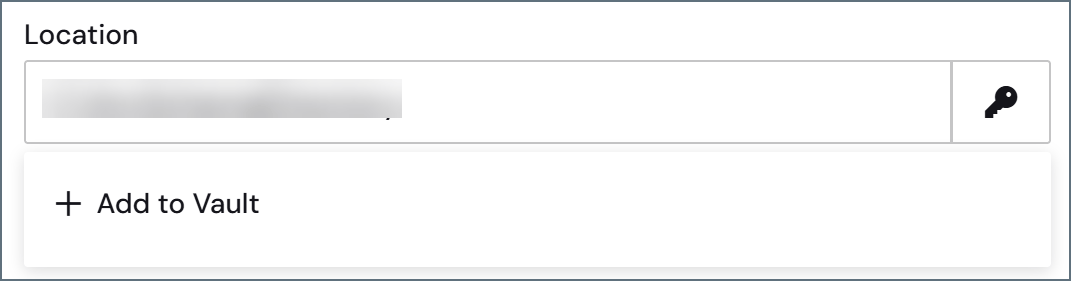
- Enter a value in a field elsewhere in Arc, click the key symbol, and select Add to Vault.
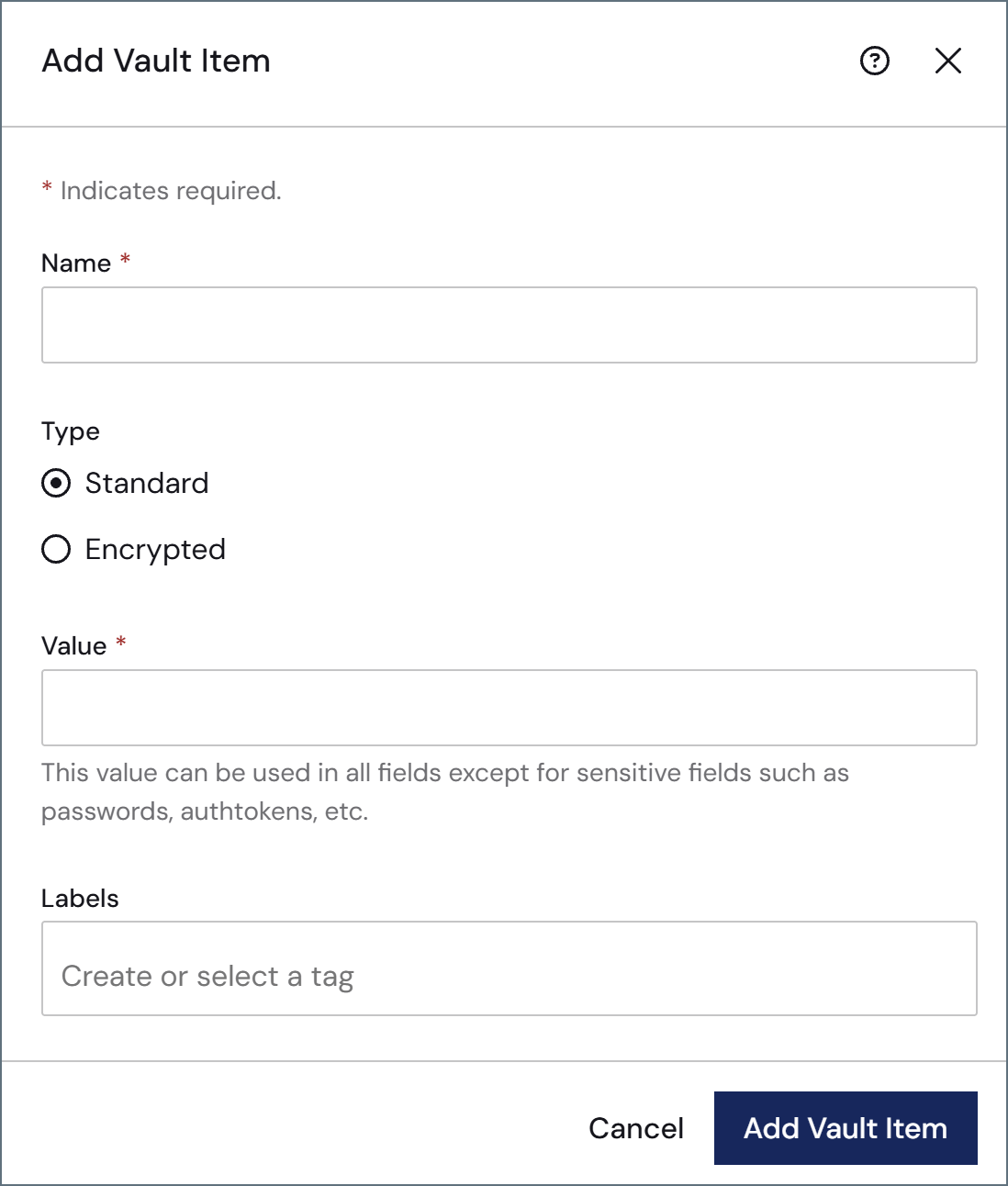
- Name: The name of the vault item as it appears when you use it.
-
Type: The classification for the vault item.
- Standard items can be used in all non-sensitive fields. Examples of standard items include URLs, usernames, and ports.
- Encrypted items can only be used in sensitive fields. Examples of encrypted items include passwords and authtokens.
- Value: The actual value that the vault item contains. For example, the URL, username, or password that you want to use when this vault item is selected.
-
Labels: (Optional) Labels for the vault item that make it easier to manage and search through large vaults. Separate each label with a comma or new-line character.
Editing Vault Items
To edit a vault item, click its name or hover over it, then click the ellipsis and choose Edit. The Edit Vault Item pane opens and allows you to edit the name, value, and labels for the item. Note that item Ids and types (standard or encrypted) cannot be edited after creation. To delete multiple vault items, check the box next to each item and click Remove. Items sourced from an external provider cannot be edited or removed in Arc. Hovering over an external item shows the tooltip: “This item is managed by an external vault provider and cannot be edited or removed.” To change or remove an external item, update it in the originating system.Using Vault Items
When an item is added to the vault, it can be used in fields that match the item type (standard or encrypted) and display a key symbol in the Arc UI:
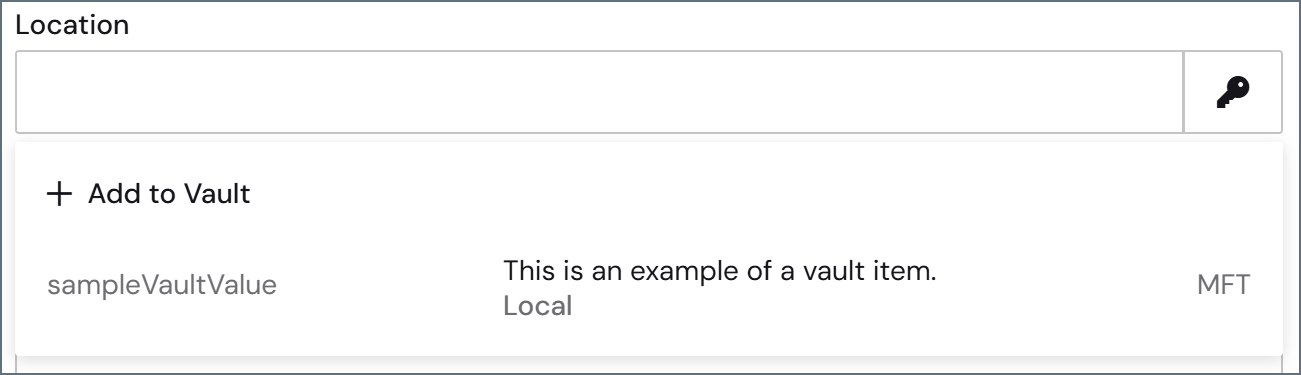
If you already have a value in the field, you can click Add to Vault to open the Add Vault Item pane as outlined above.
Scripting
Vault items can be used in ArcScript contexts. For more information, please see Functions.Use caution when referring to encrypted vault items in scripting contexts to ensure that sensitive information is not included in the logs.