

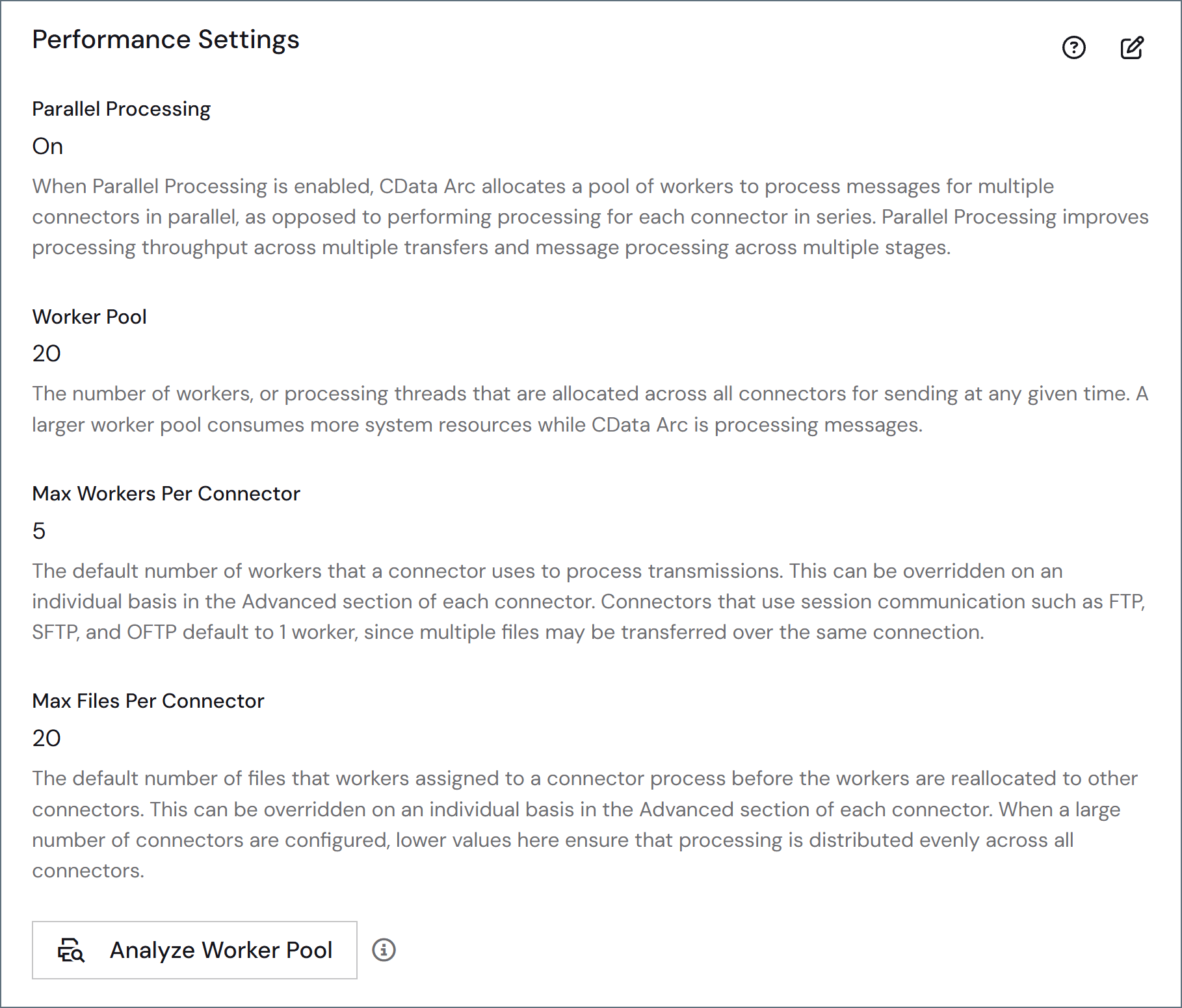
See Maximizing Performance for more information.
Analyze Worker Pool
The Analyze Worker Pool button collects diagnostic logs from the worker pool for a set period of time and runs an AI analysis on them. The analysis reports on the health of the worker pool, identifies performance findings, and recommends configuration changes. Arc never applies recommendations automatically. Review each recommendation and make the changes yourself. This feature requires an AI provider. If an AI provider is not configured in AI Settings, the button is disabled. Hover over the info icon next to the button to see why. Only members of the Admin role can start, cancel, and remove analyses. Members of the Standard and Support roles can open the pane and view previously run analyses, but cannot start, cancel, or remove them.Starting an Analysis
-
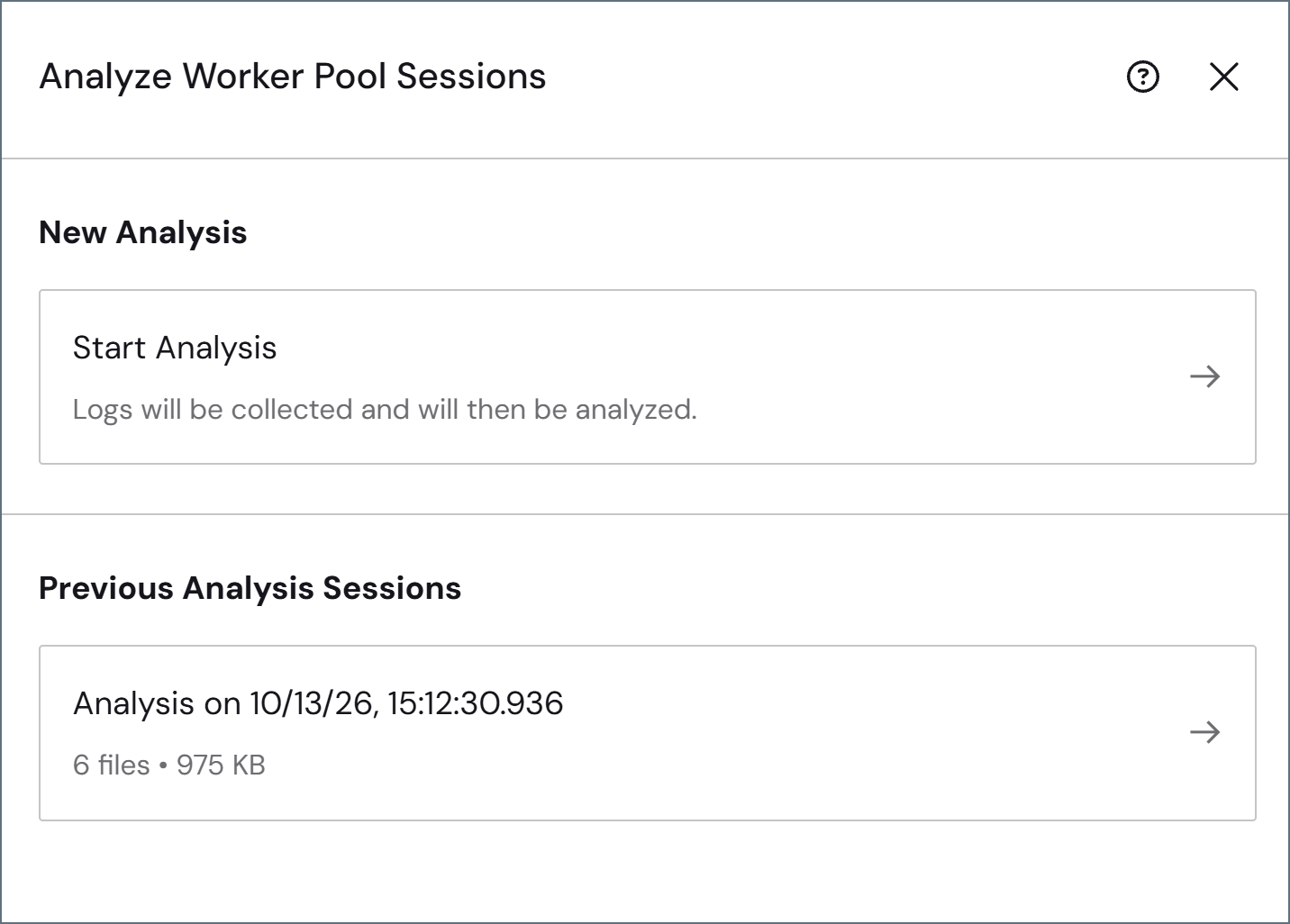
Click Analyze Worker Pool to open the Analyze Worker Pool Sessions pane. The pane lists any previous analysis sessions.
-
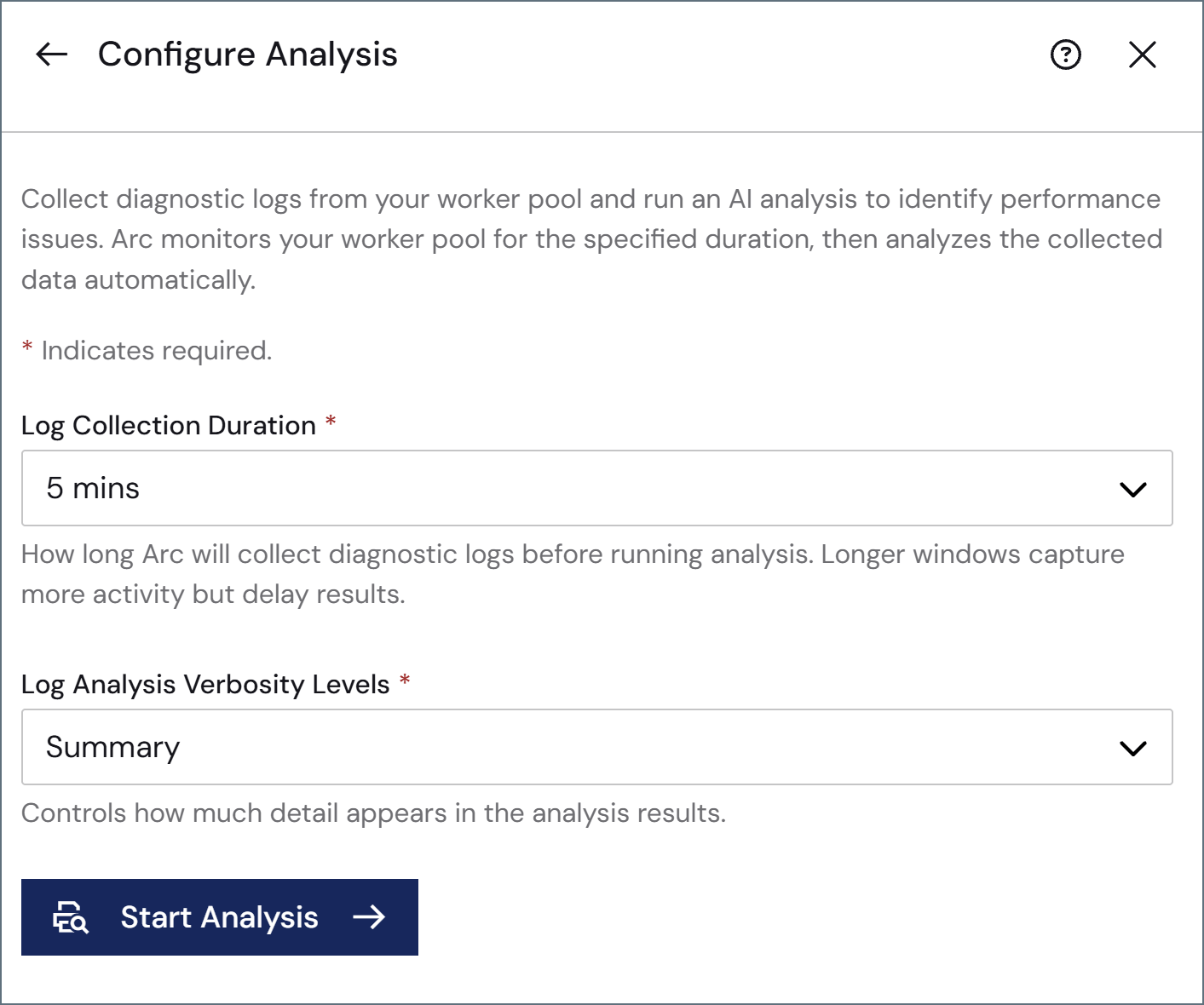
Under New Analysis, click Start Analysis to open the Configure Analysis pane.
-
Set the following options:
The verbosity level is set when the analysis starts and cannot be changed afterward. To see more detail, run a new analysis with a higher verbosity level.
- Click Start Analysis.
Viewing Results
Each completed analysis is saved and listed under Previous Analysis Sessions in the Analyze Worker Pool Sessions pane, along with its file count and size. Click a session to open its Worker Pool Log Analysis report. Click the copy icon in the report header to copy the full analysis.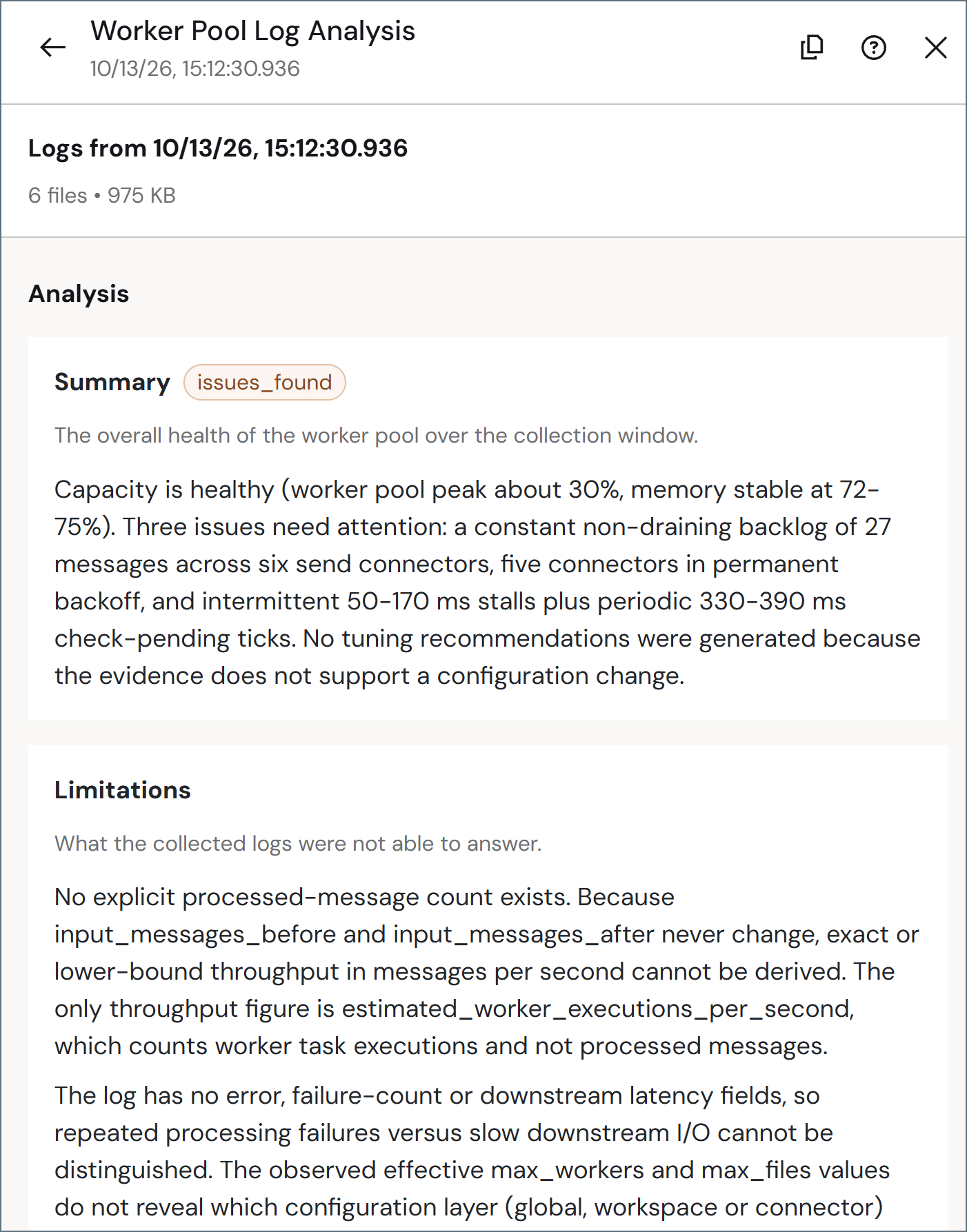
To delete a saved analysis, hover over the analysis and click the trashcan icon. Confirm your selection and click Remove. Only members of the Admin role can remove analyses.