Key Capabilities
- Intelligent flow routing based on configurable conditions (filename, headers, XPath, and EDI metadata)
- Support for multiple data types (such as string, number, DateTime) with flexible comparison operators
- Advanced XPath evaluation for XML document routing
- EDI-specific metadata branching for document type routing
Overview
Branch conditions can check for these different types of values:- the filename
- a header on the message
- all matching XPaths
- the first matching XPath
- one or more matching XPaths
- EDI metadata
- To use the XPath options, the file being evaluated must be an XML file.
- EDI metadata branching can only be used on EDI documents.
Connector Configuration
This section contains all of the configurable connector properties.Branch Config Tab
Settings related to configuring the branch conditions. The branch settings allow you to specify multiple conditions for a single source value to define your branches.| Setting | Description |
|---|---|
| Sample File | If you upload a sample XML file, the connector shows the document structure when you use an XPath for comparison. An example is shown below. |
| If | Use the dropdown to specify what attribute to compare when messages are received. Options are: the message header, the filename, all matching XPaths, the first matching XPath, one or more matching XPaths, or EDI metadata. Once you make your selection, use the fields to the right to further define the condition, as shown in the Sample File image above. |
| Data Type | Whether the target value is a string, number, or DateTime. If your data type is String, use the Trim string and Ignore case checkboxes to further refine the comparison. If your data type is DateTime, use the field to the right to specify how your DateTime values are structured. |
| Trim String | Whether the string comparison should ignore whitespace. |
| Ignore Case | Whether the string comparison should be case-sensitive. 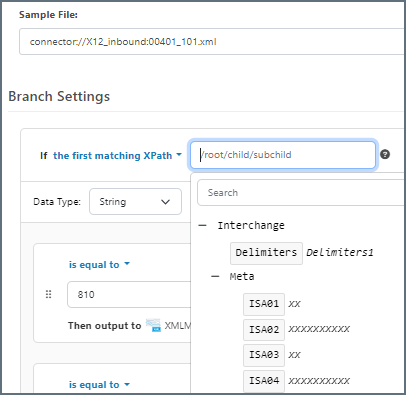 The center portion of the branch settings section (shown in the image below) allows you to set as many conditions as you need. Hover above or below the white pane and select Add Case to add conditions. 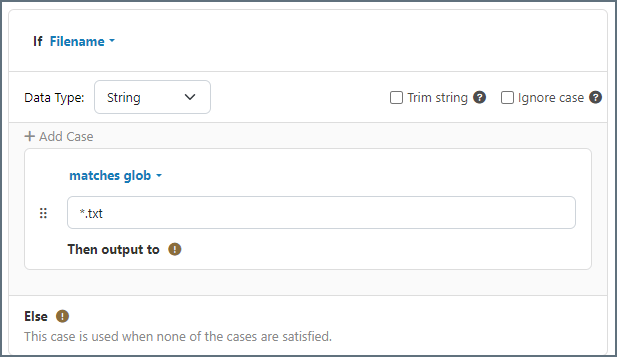 Each condition is made up of three components:
As you create your flow, connect a different connector to each case statement in the Branch connector to establish the Then output to connectors. Finally, connect a different connector to the Else case to tell Arc what to do if none of the other conditions are satisfied. |
| Ignore Missing Values | Whether to treat missing headers or XPaths as an empty string (not applicable when your If selection is Filename). This avoids errors being thrown when an expected header or XPath is missing, and instead passes the message along the ‘does not match’ Flow path. |
Settings Tab
Settings related to the core operation of the connector.| Setting | Description |
|---|---|
| Connector Id | The static, unique identifier for the connector. |
| Connector Type | Displays the connector name and a description of what it does. |
| Connector Description | An optional field to provide a free-form description of the connector and its role in the flow. |
Advanced Tab
Logging
Settings that govern the creation and storage of logs.
| Setting | Description |
|---|---|
| Log Level | The verbosity of logs generated by the connector. When you request support, set this to Debug. |
| Log Subfolder Scheme | Instructs the connector to group files in the Logs folder according to the selected interval. The Weekly option (which is the default) instructs the connector to create a new subfolder each week and store all logs for the week in that folder. Leaving this setting blank tells the connector to save all logs directly in the Logs folder. For connectors that process many transactions, using subfolders helps keep logs organized and improves performance. |
| Log Messages | Check this to have the log entry for a processed file include a copy of the file itself. If you disable this, you might not be able to download a copy of the file from the Transactions tab. |
Other Settings
Miscellaneous
Miscellaneous settings are for specific use cases.
| Setting | Description |
|---|---|
| Other Settings | Enables you to configure hidden connector settings in a semicolon-separated list (for example, setting1=value1;setting2=value2). Normal connector use cases and functionality should not require the use of these settings. |
Automation Tab
Automation Settings
Performance
Settings related to the allocation of resources to the connector.
| Setting | Description |
|---|---|
| Max Workers | The maximum number of worker threads consumed from the threadpool to process files on this connector. If set, this overrides the default setting on the Performance Settings portion of the Advanced Settings page. |
| Max Files | The maximum number of files sent by each thread assigned to the connector. If set, this overrides the default setting on the Performance Settings portion of the Advanced Settings page. |
Alerts Tab
SLAs Tab
Examples Using the Branch Connector
The following examples describe common Branch connector use cases.Branching on Message Headers
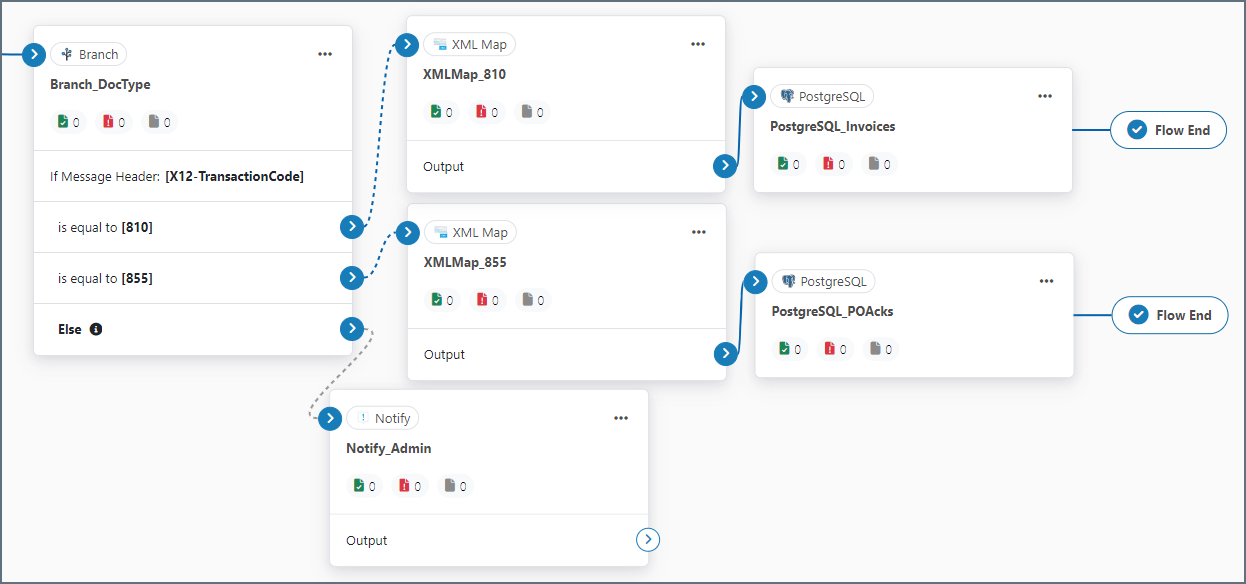
In this example, your business receives multiple types of EDI documents from a trading partner, and you need the different types to be processed differently.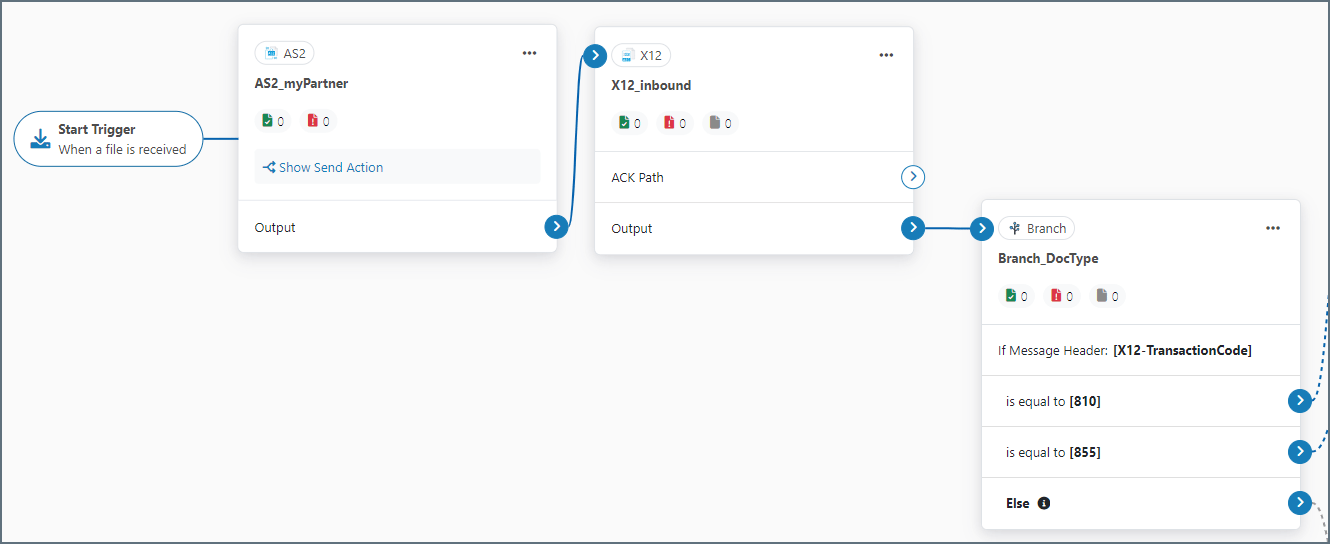
- When an 810 document is received, the next step in the flow sends it to the invoices table of the back-end system (PostgreSQL in this example.)
- When an 855 document is received, the next step in the flow sends it to a PO acknowledgement table in the back-end system.
- When any other type of document is received, the Else condition uses a Notify connector to send an email to an administrator for manual processing.
Branching on EDI Metadata
In this example, your business receives X12 documents from multiple companies, and you need the documents from two companies to be sent to specific Workspaces for further processing.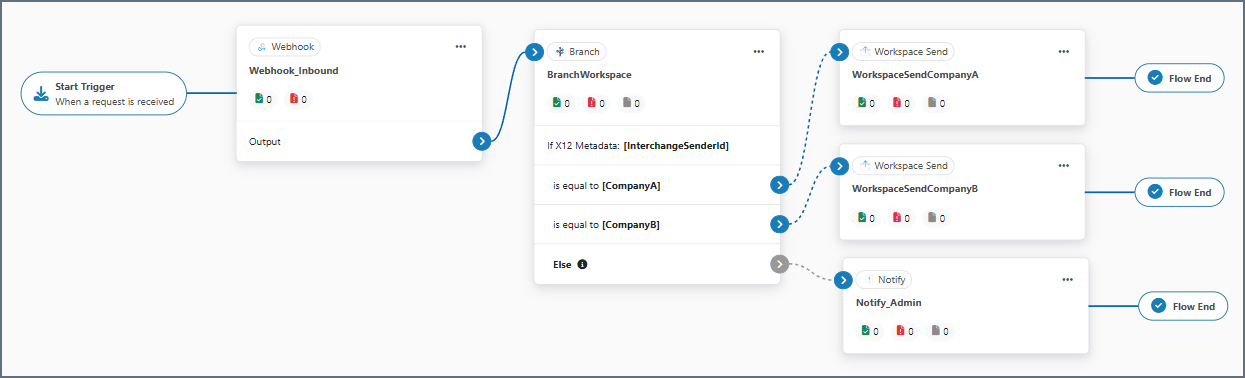
- When a document is received from CompanyA, the next step in the flow sends it to the CompanyA workspace.
- When a document is received from CompanyB, the next step in the flow sends it to the CompanyB workspace.
- When any other type of document is received, the Else condition uses a Notify connector to send an email to an administrator alerting them that an inbound X12 document did not match one of the two expected companies.