

Key Capabilities
- Hierarchical XML record grouping and aggregation with key-based grouping and multiple grouping keys
- Aggregate function support (MIN, MAX, SUM, AVG, COUNT, and CONCATENATE) with XPath-based identification
- Preserves original record structure while adding summary and grouping elements
Overview
The XML Group connector processes collections of related XML records by aggregating, validating, and transforming structured data for seamless integration with various systems. It enables efficient handling of hierarchical XML data, ensuring consistency and interoperability across applications such as data exchange, reporting, and automated workflows.Connector Configuration
This section contains all of the configurable connector properties.Group Config Tab
Settings related to configuring the group.Sample File
Use the Sample File toggle to specify a sample file that allows the connector to provide more context about the document. See Using Sample Files for more information.| Setting | Description |
|---|---|
| Sample File | Select an existing sample file, or upload a new one. |
Loop Settings
Settings related to the XPath the connector should use to represent a single record in the input document, as well as the XML element to use to hold each group of related records.| Setting | Description |
|---|---|
| Element Name | The name of the XML element to use for the grouping in the output file. |
| Record XPath | Which XPath from the input should represent a single record. |
Group Settings
Settings that define which elements in each record to use to determine the key for each group. See Using Group Settings for more information.| Setting | Description |
|---|---|
| Element Name | Tells the connector what to name the XML element to use for grouping in the output file. This is usually the same name as the element in the input file that the Key XPath points to, but you can use a different name. |
| Key XPath | The XPath from the input file of the element to use as the key (what you want to group by). The Key XPath is relative to the Record XPath. |
| Add Key XPath | Click this button to define additional keys. |
Summary Settings
Use the Summary Settings toggle to see the settings that define how to summarize the records in each group. See Using Summary Settings for more information.| Setting | Description |
|---|---|
| Element Name | The name of the XPath to use to summarize the records. |
| Function | The function to use as the aggregate. Choose from MIN, MAX, SUM, AVG, COUNT, and CONCATENATE. |
| XPath | The relative XPath to the element to aggregate. |
| Add Aggregate XPath | Click this button to add more aggregate XPaths. |
Order By Settings
Use the Order By toggle to see the settings that define how to sort the records in each group.| Setting | Description |
|---|---|
| XPath | The relative XPath to the element to sort by. |
| Order By | Whether to sort in ascending or descending order. |
| Add Order By XPath | Click this button to add more XPaths to sort by. |
Settings Tab
Configuration
Settings related to establishing the connection.Automation Tab
Automation Settings
Settings related to the automatic processing of files by the connector.| Setting | Description |
|---|---|
| Send | Check this to have the connector automatically send groups when they are ready. |
Performance
Alerts Tab
SLAs Tab
Advanced Tab
Logging
Other Settings
| Setting | Description |
|---|---|
| Processing Delay | The amount of time (in seconds) by which the processing of files placed in the Transactions tab is delayed. This is a legacy setting. Best practice is to use a File connector to manage local file systems instead of this setting. |
Miscellaneous
Using Sample Files
Toggle Sample File on to upload a sample input XML that mimics the XML input that is going to be passed into the connector. When enabled, it provides XPath helpers for each of the XPath fields in the UI, so it becomes easier to see the document structure and select the correct XPath. You can only click eligible XML elements, based on what the XPath is representing for the connector. For example, in Loop Settings, you can only select parent elements because expects that those elements are what represent a record.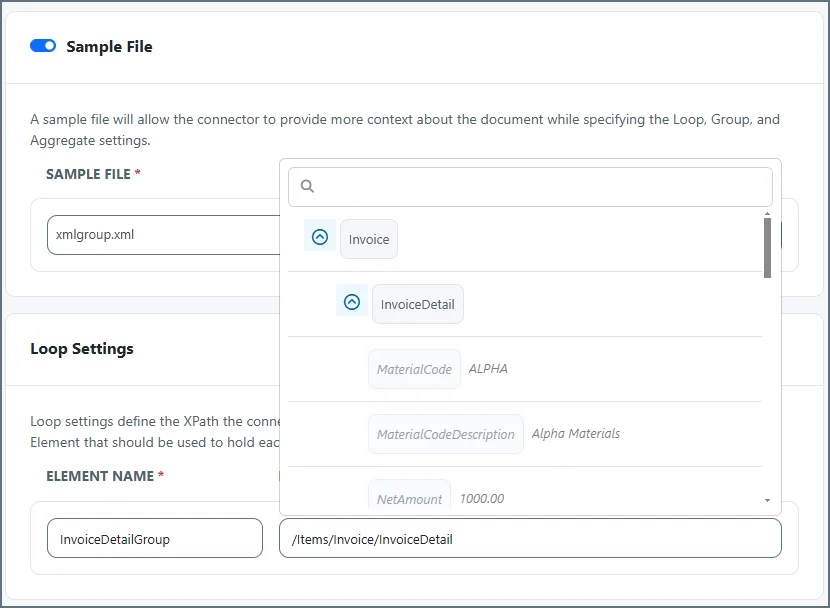
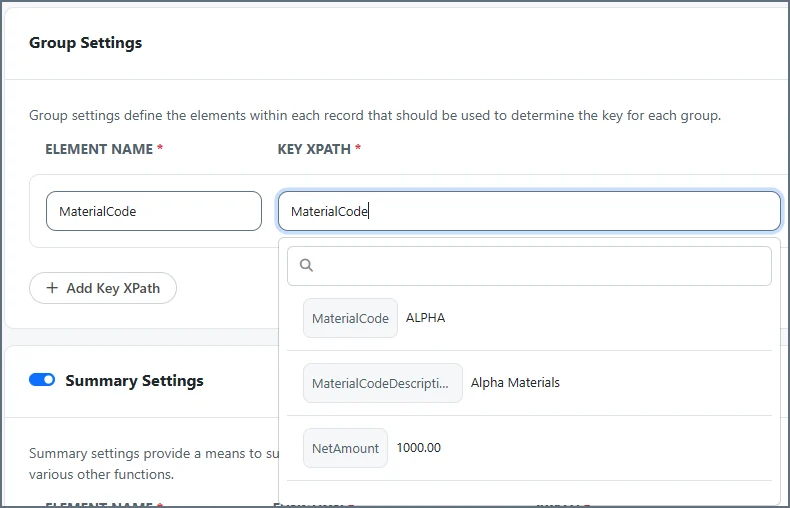
Using Group Settings
Group settings define the elements in each record to use to determine the key for each group. The key is usually anId value such as CustomerID or InvoiceID. You can have multiple keys, which appear as children of the element name and xpath set in Loop Settings.
- Element Name tells the connector what to name the XML element to use for grouping in the output file. This is usually the same name as the element in the input file that the Key XPath points to, but you can use a different name.
- Key XPath is the XPath from the input file of the element to use as the key (what you want to group by). The Key XPath is relative to the Record XPath.
<MaterialCode> element is the key. This lets you group all occurrences of ALPHA, BRAVO and CHARLIE together in the output, instead of having multiples of each.
Using Summary Settings
Summary settings control how the connector should aggregate data. You can define an XPath containing a value that you want to perform an action operator on (MIN, MAX, SUM, AVG, COUNT, CONCATENATE), and the connector then performs that operator on all records in a group. A common example is to SUM the price of each record. The following example uses the Loop Settings and Group Settings described in the previous images, along with the following Summary Settings:InvoiceDetailGroup for each key element (the MaterialCode). Inside each InvoiceDetailGroup is the MaterialCode key from the Group Settings, and the calculated NetAmountSUM from the Summary Settings. Finally, the original InvoiceDetail elements and their children are included: