

Key Capabilities
- Transforms flat XML files into CSV, TSV, and PSV formats using ArcScript templating
- Visual Designer for simple mappings with automatic field matching and Code view for complex transformations
- XPath navigation for extracting values from nested XML structures with dynamic template generation
Overview
The CSV Map connector has two modes of operation: the visual Designer and the scripting-focused Code view. The Designer enables you to visually establish simple relationships between document types. More complicated translations require the Code view, which leverages the Script scripting language to create a mapping template between XML and a flat file structure. To begin, from the Settings tab, upload a sample Source File and Destination File. If the structure of both sample files allows for designer-driven mapping, the visual Designer is populated with the source and destination fields. The application also attempts to populate the Code window with as much of the destination structure as it can.Connector Configuration
This section contains all of the configurable connector properties.Mapping Tab
Upload files to initiate design-driven mapping of source and destinations fields. Click Upload File, then choose your source and destination files.- The Source File represents the XML structure of input documents. Any files processed by the connector should have a matching XML structure. To support designer-driven mapping, this file must be a simple XML, CSV, PSV, or TSV structure.
- The Destination File file represents the structure of output documents. To use designer-driven mapping, this file must be a simple XML, CSV, PSV, or TSV structure.
Mappings
This section defines the mapping relationship between input and output files. The Designer view can map simple XML, CSV, PSV, and TSV structures, and the Code view can map more complicated XML structures. See Using the Designer and Using Code View for details.Settings Tab
Connector Configuration
Settings related to the core operation of the connector.Advanced Tab
Advanced Settings
| Setting | Description |
|---|---|
| Processing Delay | The amount of time (in seconds) by which the processing of files placed in the Transactions tab is delayed. This is a legacy setting. Best practice is to use a File connector to manage local file systems instead of this setting. |
| Local File Scheme | A scheme for assigning filenames to messages that are output by the connector. You can use macros in your filenames dynamically to include information such as identifiers and timestamps. For more information, see Macros. |
Logging
Miscellaneous
Automation Tab
Automation Settings
Settings related to the automatic processing of files by the connector.| Setting | Description |
|---|---|
| Send | Whether messages arriving at the connector are automatically processed. |
Performance
Alerts Tab
SLAs Tab
Using the Designer
The visual designer is only available for CSV, PSV, TSV, and simple XML files. Below is an example of a simple XML document as the source file: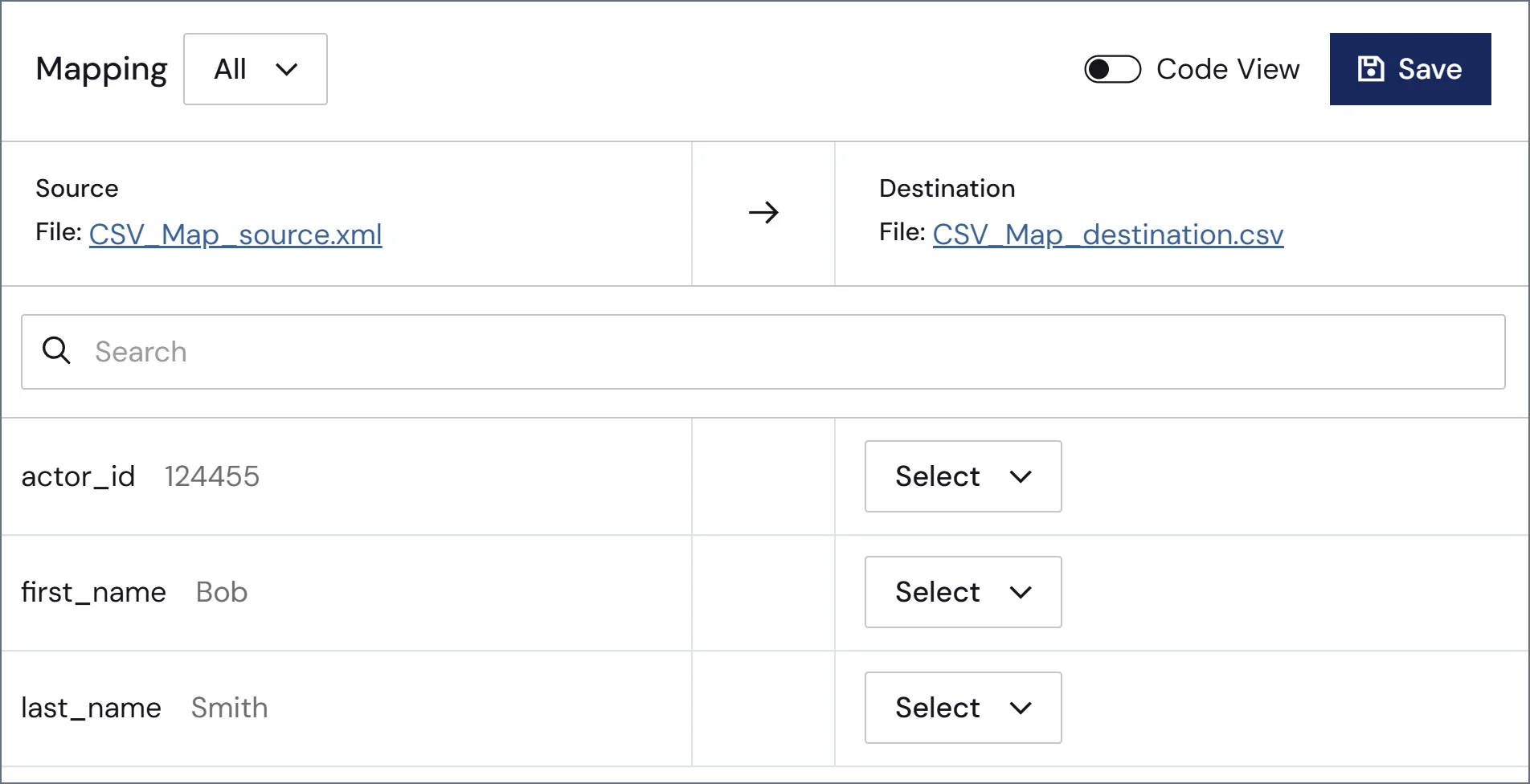
Using the Code View
The Code view provides the ability to generate the mapping template manually using Script. This allows for more granular control over the possible input and output formats. The code view defines how the destination file looks once rendered, with Script elements dynamically filling in the template with values from the source document. Script elements all start with an arc prefix: for example,<arc:set>. Any content in the code view that is not Script is included as part of the output file.
Navigating XML Input
Script supports navigating complicated XML structures to parse out values from the Source File. The xmlDOMSearch operation takes an xpath as input and loads the XML structure at the given path. This operation loops for each instance of the xpath found in the source document: to load the entire document and avoid looping, provide the root element of the XML source as input to xmlDOMSearch. For example:author element in the root. Within each author loop, the value from the name element is read as content in the output file. The output file in this case would look like this:
Templating Output Data
The Code view serves as a template of the output file, and Script fills in the values to the defined template. As a simple example, if data is formatted as comma-separated values, these commas can be included as part of the Code view to provide structure to the Script functions. Therefore, you can generate more complex CSV files from more complicated XML structures than the Designer mode allows. For example, take the following XML, which has nested elements that prevent the use of Designer mode:Additional Scripting Features
Since full Script is available in Code view, you might want to leverage Script Operations in the template. For example, if the source file only includes the Id of an item in the database, but you need the actual item name, you can use the dbQuery operation to look up the name for the corresponding Id. Script also supports conditional logic in a mapping template. Thearc:if keyword is one of many keywords available to help with performing conditional logic in templates. For example, if the source file contains information about customers in QuickBooks, you might want to perform different business logic for customers with an outstanding balance versus customers who have paid in full. A simple example of this use case might look like the following: