

Key Capabilities
- Odette FTP support for automotive and manufacturing industry secure file exchange
- Bidirectional file transfer with certificate-based encryption, signing, and compression
- Message routing through intermediary OFTP entities with SSID/SFID configuration
- Automatic retry and resend logic with synchronous and asynchronous receipt handling
Overview
An OFTP connection is configured in two places. Configure the OFTP Profiles page with an Odette identifier, settings for the local OFTP server, and other information that is global across all OFTP connections. Then configure individual OFTP connectors with connection settings specific to a single trading partner (a single OFTP entity). For information on routing an OFTP message through a separate OFTP entity (for example, a clearinghouse), see Message Routing.Profile Configuration
The OFTP profile must be configured before connections can be established with individual OFTP connectors. Click Profiles > OFTP on the navbar.OFTP Profile Tab
Personal Id
Settings for identifying the local profile.| Setting | Description |
|---|---|
| Odette Identifier (SSID Code) | Your Odette identifier. This value is included in outgoing transmissions to identify the sender, and incoming messages must be addressed to this identifier. Odette identifiers are provided by the Odette organization. |
| Password (SSID Password) | The password associated with the Odette Identifier. You can choose this value as long as your trading partners have the same value configured on their systems. |
Server Settings
Settings related to the OFTP server implementation.| Setting | Description |
|---|---|
| Port | The port on which the server listens for incoming connections. |
| SSL/TLS | Whether SSL/TLS must be negotiated to connect to the server. |
| TLS Private Certificate | If TLS/SSL is enabled, specify the TLS/SSL certificate required to verify the server’s identity. |
| Certificate Password | The password required to access the TLS/SSL certificate. |
Personal Certificate
Settings related to the private decryption and signature certificate.| Setting | Description |
|---|---|
| Data Decryption Certificate | The certificate used to decrypt incoming messages and sign outgoing messages. Never share this certificate with external parties. Click the Create Certificate button to generate a self-signed certificate that is ready to use in an OFTP transaction; a corresponding public key certificate is also generated with the same filename and a .cer extension. |
| Certificate Password | The password required to access the Data Decryption Certificate. |
Optional Certificate Settings
Optional settings to define parameters for a certificate.| Setting | Description |
|---|---|
| Auth Challenge Private Certificate | A certificate with a private key used when challenged by the server to verify authenticity. Accepts PKCS#12 certificates in .pfx or .p12 formats. |
| Certificate Password | The private certificate password. |
| Sign Private Certificate | A certificate with a private key used when signing sent messages. Accepts PKCS#12 certificates in .pfx or .p12 formats. |
| Certificate Password | The private certificate password. |
| Strong Certificate Verification | Only allow strong certificate verification from trusted certificate authorities. |
Advanced Settings
| Setting | Description |
|---|---|
| Inactivity Timeout | The length of time (in seconds) to wait before closing inactive connections to the server. |
Lockouts
Optional settings related to locking server access.| Setting | Description |
|---|---|
| Failed Attempts | The number of unsuccessful login attempts allowed before the user is locked out. |
| Lockout Period | The length of time (in minutes) that the user is locked out. |
| Time Check Period | The length of time (in minutes) that records are kept of failed login attempts. |
Trusted IP Addresses
Logging
Miscellaneous
Connector Configuration
This section contains all of the configurable connector properties.Settings Tab
Host Configuration
Settings related to the remote OFTP entity to connect to.| Setting | Description |
|---|---|
| Connector Id | The static, unique identifier for the connector. |
| Connector Type | Displays the connector name and a description of what it does. |
| Connector Description | An optional field to provide a free-form description of the connector and its role in the flow. |
| Odette Identifier | The Odette identifier for the remote OFTP entity (the trading partner’s identifier). |
| Password | The password associated with the partner’s identifier. |
| Version | The version of the OFTP protocol to use when exchanging files. |
| Remote Host | The hostname or IP address of the remote OFTP server. |
| Port | The port on which to connect to the remote OFTP server. |
| Connection Timeout | The length of time (in seconds) the connector waits for a connection response before throwing a timeout error. |
| Use SSL/TLS | Whether to negotiate SSL/TLS when connecting to the remote OFTP server. |
| Secure Odette Authentication | Whether to perform application-layer encryption and decryption. To perform this authentication, you must specify both a signing and encryption certificate. |
Connection Info
Settings related to the OFTP connection parameters.| Setting | Description |
|---|---|
| Virtual File Format | The OFTP file format to use when transmitting files. |
| Virtual Outgoing File Security | Whether to sign and/or encrypt outgoing messages. |
| Virtual Incoming File Security | Whether to require signed and/or encrypted incoming messages. |
| Compression | Whether to compress outgoing messages. |
| Signed Receipts | Whether outgoing messages should request or require a signed receipt to be returned. |
Trading Partner Certificates
Settings related to the public key certificates provided by the trading partner.| Setting | Description |
|---|---|
| Encryption Certificate | The public key certificate used for encryption when sending messages. This certificate must be paired with the trading partner’s private decryption certificate. The trading partner must provide this public key certificate when sharing their OFTP configuration details. |
| TLS Server Certificate | The public key certificate used to verify the identity of a TLS/SSL server. This is only necessary if the partner’s OFTP system requires HTTPS instead of HTTP. If the trading partner does not provide a TLS server certificate, you can leave this setting blank to allow the underlying OS/JVM to perform certificate validation, or set it to Any Certificate to unconditionally trust the target server’s identity. |
Routing
Settings related to routing an OFTP message through a separate OFTP entity.| Setting | Description |
|---|---|
| Routing Partner | If outgoing OFTP messages should be routed through an OFTP entity that is separate from the target OFTP entity, set this field to the OFTP connector that is configured to connect to the intermediary OFTP server. |
serverA and route the file through serverB, configure the connector to connect to serverA and set this field to an OFTP connector configured to connect to serverB. See Message Routing for more information.
Advanced Tab
Optional Certificates (PEM/CER Format)
Settings related to additional certificates to use for enhanced security.| Setting | Description |
|---|---|
| Auth Challenge Certificate | The public key certificate to present when challenged by the server to verify authenticity. |
| Verification Certificate | The public key certificate to use when verifying digital signatures on incoming messages. |
| Receipt Verification Certificate | The public key certificate to use when verifying digital signatures on incoming receipts. |
| Rollover Certificate | An additional certificate to use for authentication. This is useful when you need an overlap period while changing certificates. |
| Rollover Verification Certificate | An additional certificate to use for signature verification. This is useful when you need an overlap period while changing certificates. |
Alternate Local Profile
Settings that override the OFTP configuration on the Profile page. Setting an alternate local profile allows the use of different local certificates and identifiers for certain trading partners.| Setting | Description |
|---|---|
| SSID | Your Odette identifier. This overrides the Odette Identifier on the Profiles tab. When set, the OFTP server uses the alternate SSID and password for this partner. When sending, this ID is used as the file sender and for session authentication, unless it is overridden by the relaying partner. If SSID and SFID are both set, the SFID is used when sending the file. |
| Password | The local identifier password. |
| SFID | When accepting incoming OFTP files, processes messages in this connector as if they were relayed from the local OFTP profile. Unless this value is set, incoming network connections are greeted with the SSID and password from the OFTP profile. If SSID and SFID are both set, the SFID is used when sending the file. |
| Private Certificate | The certificate used to decrypt incoming messages and sign outgoing messages. This overrides the Data Decryption Certificate setting on the Profiles page. |
| Certificate Password | The password required to access the local private certificate. |
TLS Client Authentication
Settings related to client authentication when two-way TLS authentication is required.| Setting | Description |
|---|---|
| Use Profile Settings | Use the private certificate on the Profiles page. |
| Private Certificate | The private certificate presented during TLS client authentication. |
| Certificate Password | The password required to access the TLS client certificate. |
Automatic Certificate Identification
The fields in this section let you specify patterns that allow the connector to automatically identify certificates. The default wildcard character in each field (*) instructs the connector to not search for each pattern.Advanced Settings
Settings not included in the previous categories.| Setting | Description |
|---|---|
| Credit Count | The maximum credit value to be sent in the initial connection (SSID command). |
| Encryption Algorithm | The algorithm to use when encrypting outgoing messages. |
| Exchange Buffer Size | The data exchange buffer size, in bytes, to be sent in the initial connection (SSID command). |
| Enforce Protocol Version | Whether to accept protocol versions not configured for this partner. |
| File Description Map | The map to set file description text for sending files. Use a semi-colon-delimited list of glob patterns for matching filenames. For example, INVOICE*=This is an invoice;*ORDER*=This is an order. |
| Max Record Size | When the virtual file format is Fixed or Variable, this field determines the maximum size of each record. The default record size is 128. |
| File Hash Algorithm | The file hash algorithm to use. |
| Receipt Hash Algorithm | The receipt hash algorithm to use. |
| Received Filename Format | Incoming files are written to the Transactions tab using this filename convention. You can use the following macros to ensure that unique filenames are generated: %VirtualFilename%, %VirtualFileDate%, %GUID%. |
| TLS Enabled Protocols | The list of TLS/SSL protocols supported when establishing outgoing connections. Best practice is to only use TLS protocols. Some obsolete operating systems do not support TLS 1.2. |
| Virtual Filename Map | The map from local filenames to outgoing virtual filenames to use when sending files. Use a semi-colon-delimited list of glob patterns for matching filenames. For example, INVOICE*=filename1;*ORDER*=filename2. |
| Local File Scheme | A scheme for assigning filenames to messages that are output by the connector. You can use macros in your filenames dynamically to include information such as identifiers and timestamps. For more information, see Macros. |
| Processing Delay | The amount of time (in seconds) by which the processing of files placed in the Transactions tab is delayed. This is a legacy setting. Best practice is to use a File connector to manage local file systems instead of this setting. |
Proxy Settings
Logging
Miscellaneous
Automation Tab
Automation Settings
Settings related to the automatic processing of files by the connector.| Setting | Description |
|---|---|
| Send Automation | Whether files arriving at the connector are automatically sent as OFTP messages. |
| Retry Interval | The number of minutes before a failed send is retried. A retry is triggered when the server does not respond to a send attempt, or responds negatively to communicate that the file was not received. |
| Max Attempts | The maximum number of times the connector processes the input file. Success is based on a successful server acknowledgement and validation of the receipt (when requested synchronously). If you set this to 0, the connector retries the file indefinitely. |
| Resend Interval | The number of minutes before unacknowledged messages are resent. A resend is triggered when the server receives the file, but an asynchronous MDN receipt is not provided within the expected time frame. |
| Max Attempts (async) | The maximum number of times the connector processes the input file when asynchronous receipts are requested. Success is based on the return of an asynchronous receipt within the Resend Interval after a successful server acknowledgement. If a successful server acknowledgement is not returned, Max Attempts is applied instead. If this is set to 0, the connector resends the file indefinitely. |
| Receive | Whether the connector should automatically make pull requests to receive messages from the trading partner. |
| Interval | The interval between automatic download attempts. |
| Minutes Past the Hour | The minutes offset for an hourly schedule. Only applicable when the interval setting above is set to Hourly. For example, if this value is set to 5, the automation service downloads at 1:05, 2:05, 3:05, etc. |
| Time | The time of day that the attempt should occur. Only applicable when the interval setting above is set to Daily, Weekly, or Monthly. |
| Day | The day on which the attempt should occur. Only applicable when the interval setting above is set to Weekly or Monthly. |
| Minutes | The number of minutes to wait before attempting the download. Only applicable when the interval setting above is set to Minute. |
| Cron Expression | A five-position string representing a cron expression that determines when the attempt should occur. Only applicable when the interval setting above is set to Advanced. |
Performance
Alerts Tab
SLAs Tab
Establishing a Connection
The following settings are required to establish an outgoing OFTP connection:- Identifier (the trading partner’s identifier)
- Password (the password associated with the trading partner’s identifier)
- Remote Host
- Port
Send and Receive Files
Once the OFTP profile and partner-specific OFTP connectors have been configured, files can be securely sent and received.Send Files
In an OFTP connector, the Transactions tab displays the files to be sent to the target trading partner. If Send Automation is enabled on the Automation tab, files that reach the Transactions tab of the connector are automatically packaged and sent. Access the log files for all transmissions by expanding the row associated with the transmitted file. The Create Test Files button lets you generate a simple series of test files to send to the trading partner.Resend and Retry
An OFTP Resend is triggered when the trading partner is expected to return an asynchronous receipt, but fails to do so within the Resend Interval duration (60 minutes by default). The application then attempts to resend the transmission. The application continues resending the message until a receipt is received or the Max Attempts (async) is exhausted. A Retry is triggered when the protocol response from the trading partner’s system indicates that the server has not received the transmission. This can indicate a networking or connectivity issue, which is often transient. The application retries the transmission every Retry Interval minutes until the transmission is received or the Max Attempts is exhausted.Receive Files
In an OFTP connector, the Transactions tab displays the files that have been received by the application and routed to the connector. Files are routed to a specific OFTP connector based on the Odette identifier present in the incoming OFTP message. Expand each file row to display a list of available logs for the transmission. These files are available on the connector Transactions tab. If the connector is connected to other connectors in the flow, files are automatically moved from the Transactions tab of the OFTP connector to the Transactions tab of the next connector in the flow.Message Routing
Each OFTP connector is configured to connect to a single OFTP entity. Sometimes using OFTP requires a routing scenario where a file originating at one OFTP entity (agentA in the image below) needs to pass through another OFTP entity (agent B) to reach the destination OFTP entity (agent C).
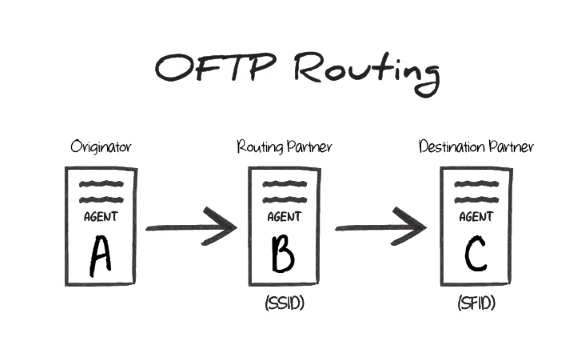
B is the SSID value during the transfer, and the Odette identifier of agent C is the SFID. In other words, the SSID identifies the ‘middleman’ server that the originator connects to, and the SFID identifies the target entity that this ‘middleman’ should route the OFTP message to.
OFTP Routing in
To accomplish this routing scenario in , configure one OFTP connector to connect to agentB (the ‘middleman’ server) and another OFTP connector to connect to agent C (the destination server).
Set the Routing Partner field (in the Routing portion of the Settings tab) for the agent C connector to the OFTP connector that is configured to connect to agent B.
Files to send out to the destination server should be processed by the OFTP connector configured to connect to agent C. The other OFTP connector (targeting agent B) is used behind-the-scenes to route the message, but does not directly process files in the Flow.
SSID vs SFID
If a partner provides a single identifier that they call an SFID, configure an OFTP connector to connect with this entity, and use the SFID as the SSID. If the partner provides an SFID value and an SSID value, the SFID corresponds to serverC in the above scenario, and the SSID corresponds to server B.