

Tables and Columns
Parent and Child Tables
Results
Options
The Options panel on the right side of the Edit Source Structure dialog contains settings that control how the connector processes records. These settings are available alongside the table designer and apply to the entire query.
- Only process new or changed records: Enables incremental processing so that the connector only selects rows that are new or changed since the last run.
- Update [column] with [value] when rows are processed: Updates a column with a specified value after each row is processed.
You can also preview the output structure or view the underlying XML configuration by toggling Preview XML or Code View at the top of the Edit Source Structure dialog.
Joined Tables
This produces a query equivalent to:Results
After you click Apply, a Results node appears in the results structure. To configure the columns and filters for your join output, click the ellipsis (...) on the Results node and choose Results Settings.
The Edit Results Settings dialog opens with two tabs: Columns and Filters.
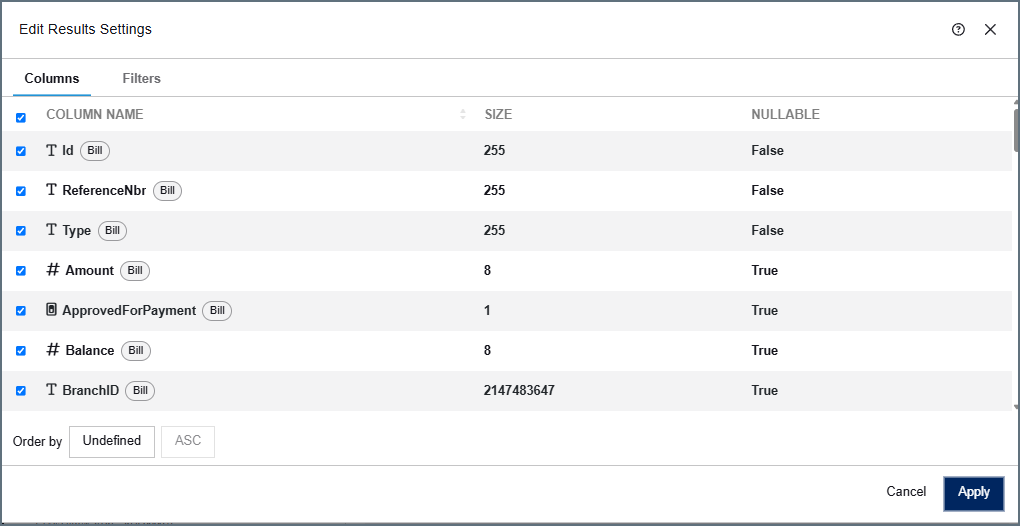
In the Columns tab, all columns from all joined tables are listed. Each column displays a tag indicating its source table. By default, all columns are selected. Uncheck a column to exclude it from the query output.
At the bottom of the Columns tab, use the Order by field to sort the output by a column, and choose ASC (ascending) or DESC (descending) order.
The Filters tab lets you add filters to limit the rows the connector selects. See Filters for more information.
Options
The Options panel on the right side of the Edit Source Structure dialog contains settings that control how the connector processes records. These settings are available alongside the JOIN designer and apply to the entire join query.
- Use column [x] for processing new or changed records: Enables incremental processing so that the connector only selects rows that are new or changed since the last run. In a Joined Tables configuration, this column must come from the base (leftmost) table. Columns from joined tables are not available for this setting.
- Update [column] with [value] when rows are processed: Updates a column with a specified value after each row is processed.
You can also preview the output structure or view the underlying XML configuration by toggling Preview XML or Code View at the top of the Edit Source Structure dialog.
Receive Filters
The following filters appear on the Advanced tab and restrict which messages the connector retrieves on each poll.
| Setting | Description |
|---|---|
| Read State | Restricts the messages retrieved to only unread or only read messages. Defaults to Any. |
| Importance | Restricts the messages retrieved to a single importance level. Defaults to Any. |
| Attachments | Restricts the messages retrieved to those with or without attachments. Defaults to Any. |
| Category | Restricts the messages retrieved to those stamped with the specified Outlook category. Leave empty to receive messages regardless of category. |
| Conversation Id | Restricts the messages retrieved to a single conversation thread. Each received message carries its conversation Id in the Microsoft365Email-Conversation-Id header, which is where this value comes from. |
| Subject | Restricts the messages retrieved to those whose subject contains the specified value. Leave empty to receive messages regardless of subject. |
| Sender | Restricts the messages retrieved to those sent from the specified email address. The address must match in full; a partial address or bare domain matches nothing. Leave empty to receive messages from any sender. |
| Max Messages | The maximum number of messages to retrieve in a single poll. Messages are retrieved oldest first, so remaining messages are picked up on the following poll. Defaults to 50. |
| Days To Search | The number of days to look back when searching for messages. Defaults to 7. When set to 0, no date limit is applied. When Only Process New Messages is enabled, this value is used only as a fallback when no prior receive watermark is available. |
| Only Process New Messages | When enabled (the default), the connector tracks the last message received and will not re-download it on subsequent polls. The connector uses a stored watermark as the primary date filter and falls back to Days To Search when the watermark is unavailable. When disabled, every poll retrieves messages within the Days To Search window without tracking state. |
Post-Receive Action
Filters
You can optionally add filters to limit the data the connector selects. Click the Filters tab in the settings dialog to configure filters. The connector translates your filters into query syntax.
Creating a Filter
To create a filter, follow these steps:
- Click Add Filter.
- In the column dropdown, choose the column that you want to filter.
- In the condition dropdown, choose the filtering condition. The available conditions depend on the data type of the column you selected. For example, a numeric column has the condition Less Than or Equal To, whereas a string column has Contains.
- Enter a value in the value field. If the condition does not require a value (for example, Is Null), the value field is not shown.
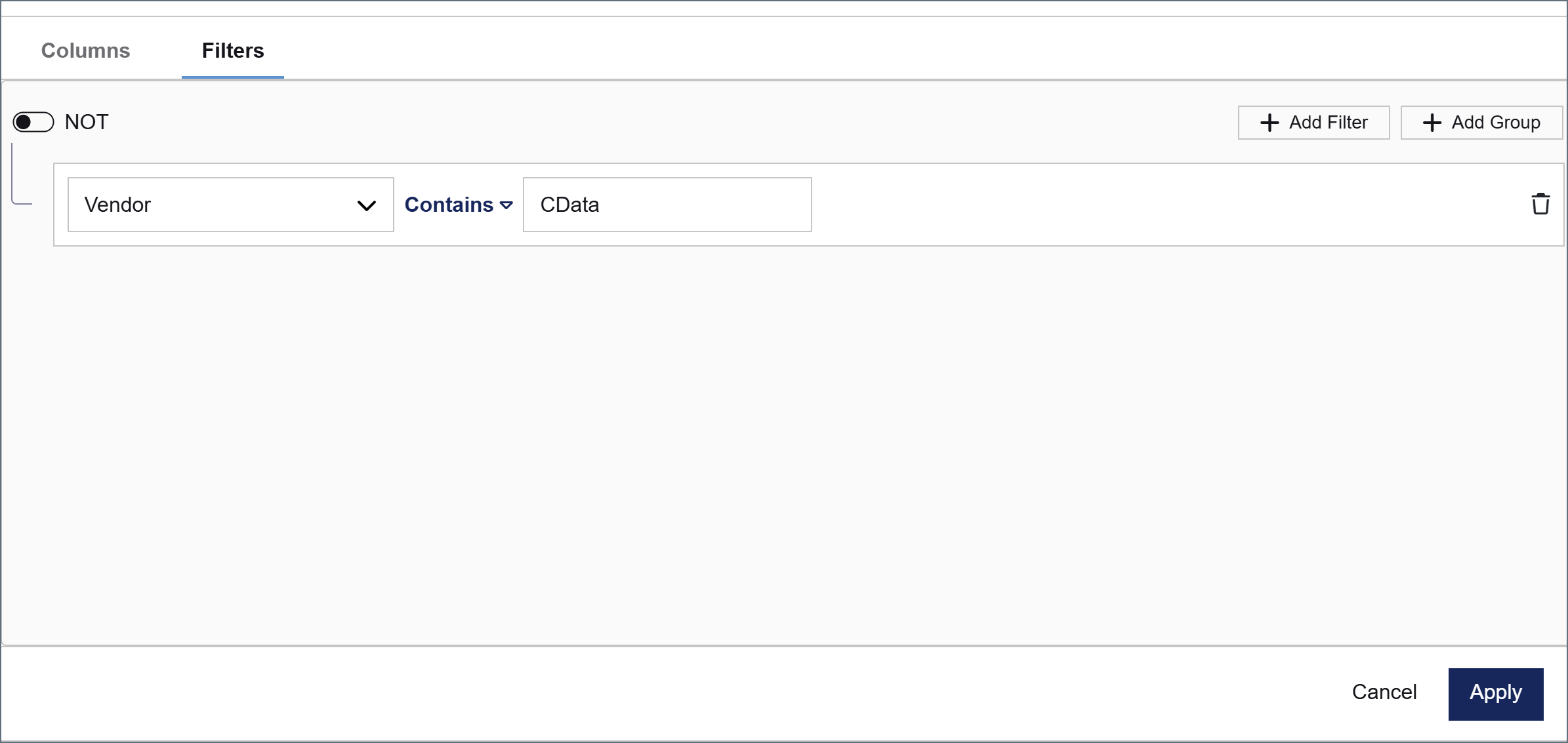
The image below shows an example of a filter on a column named Vendor. With this filter in place, the connector only selects rows where the Vendor column contains CData.
Filter Groups
You can apply multiple filters by clicking Add Filter and creating more filters. All filters belong to the same group by default. Click Add Group to create a nested group and separate filters by different logic.
Each group has the following options at the top:
- NOT toggle: Inverts the logic of the entire group. For example, toggling NOT on a group that contains Amount Less Than or Equal To 5000 instructs the connector to select only rows where the amount is greater than 5000.
- And / Or toggle: Determines how this group relates to adjacent filters or groups.
- If you select And, this group's condition must be true in addition to adjacent conditions.
- If you select Or, this group's condition is an alternative to adjacent conditions.
The screenshot below shows an example with multiple filter groups.
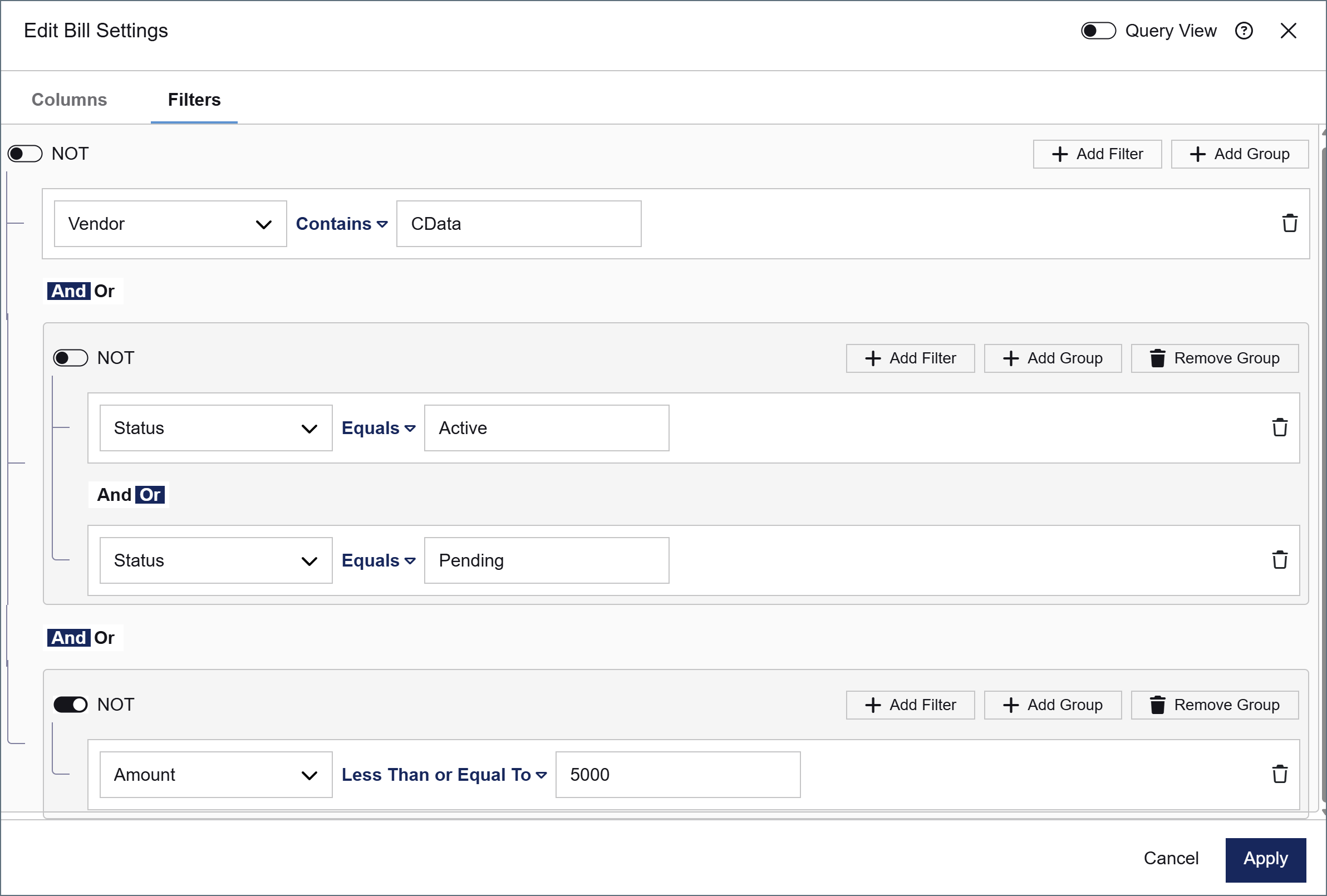
In this example, the filter condition is met when all of the following are true:
- The Vendor column contains CData
- The Status column equals Active or Pending
- The Amount column is not less than or equal to 5000 (that is, Amount is greater than 5000)
If this filter condition is met, the connector selects the matching data and passes it down the flow.