Key Capabilities
- SMTP-based email delivery with OAuth 2.0 support for modern providers
- Template mode for dynamic content generation from XML data or ArcScript
- Attachment mode for sending files with customizable message bodies
- Support for multiple recipients (To, CC, and BCC) with dynamic field population
Overview
An Email Send connector connects to an SMTP server to send files as outgoing email messages. Input files processed by the connector can be sent directly as email attachments, or data can be parsed from input files and included in the outgoing message via a scripting template. For more information on creating a scripting template, see the Templates sections.Connector Configuration
This section contains all of the configurable connector properties.Settings Tab
Email Send Configuration
Settings for the name and description of the connector.| Setting | Description |
|---|---|
| Connector Id | The static, unique identifier for the connector. |
| Connector Type | Displays the connector name and a description of what it does. |
| Connector Description | An optional field to provide a free-form description of the connector and its role in the flow. |
Connection
Settings for connecting to the SMTP server.Message
Settings for the outgoing email message. Most of these fields can include dynamic data from the outgoing file (see Dynamic Fields for more information).Automation Tab
Automation Settings
Performance
Settings related to the allocation of resources to the connector.
| Setting | Description |
|---|---|
| Max Workers | The maximum number of worker threads consumed from the threadpool to process files on this connector. If set, this overrides the default setting on the Performance Settings portion of the Advanced Settings page. |
| Max Files | The maximum number of files sent by each thread assigned to the connector. If set, this overrides the default setting on the Performance Settings portion of the Advanced Settings page. |
Alerts Tab
SLAs Tab
Advanced Tab
Proxy Settings
These are a collection of settings that identify and authenticate to the proxy through which the connection should be routed. By default, this section uses the global settings on the Proxy Settings portion of the Security Settings page. Clear the checkbox to supply settings specific to your connector.
| Setting | Description |
|---|---|
| Proxy Type | The protocol used by a proxy-based firewall. |
| Proxy Host | The name or IP address of a proxy-based firewall. |
| Proxy Port | The TCP port for a proxy-based firewall. |
| Proxy User | The user name to use to authenticate with a proxy-based firewall. |
| Proxy Password | A password used to authenticate to a proxy-based firewall. |
| Authentication Scheme | Leave the default None or choose from one of the following authentication schemes: Basic, Digest, Proprietary, or NTLM. |
Advanced Settings
Extra settings related to processing.Message
Message settings determine how the connector searches for messages and manages them after processing.
Note: The settings below are deprecated and hidden by default. They appear only on connectors where they were previously enabled or configured to a non-default value. To retain copies of successfully processed files, right-click the connector in the flow, choose Show Success Path, and connect the success path to a File connector.
| Setting | Description |
|---|---|
| Save to Sent Folder (Deprecated) | Copies files processed by the connector to the Sent folder. Disabled by default. Files saved to the Sent folder are not covered by Encryption at Rest. |
| Sent Folder Scheme (Deprecated) | Groups files in the Sent folder by the selected time interval. Only relevant when Save to Sent Folder is enabled. |
Logging
Settings that govern the creation and storage of logs.Miscellaneous
Miscellaneous settings are for specific use cases.
| Setting | Description |
|---|---|
| Other Settings | Enables you to configure hidden connector settings in a semicolon-separated list (for example, setting1=value1;setting2=value2). Normal connector use cases and functionality should not require the use of these settings. |
Establishing a Connection
The following settings are required to establish a network-level connection to the SMTP server:- Host
- Port
- TLS Type
- User
- Password
Sending Emails
The Message section on the connector Settings page determines the email message to be sent:- If Message Type is set to Attachment, files processed by the connector are sent as email attachments, and you should specify the body of the message in the message text editor. See Attachment Mode for more information.
- If Message Type is set to Template, the message text editor is treated as an ArcScript template. In the scripting template, values can be parsed out from the files processed by the connector and included in the email body. See Template Mode for more information.
Dynamic Fields
The To, From, CC, BCC, and Subject fields support dynamic information from the outgoing file (for example, the filename and the connectors that have processed the file). The file information is available through the [_message] item. The _message item has a collection of attributes with aheader: prefix that corresponds to each of the headers available in the outgoing file. These headers include the filename, any metadata related to processing the file within the Arc flow, and any custom headers promoted to the file via scripting.
The _message item and the header attributes are referenced in square brackets like any other ArcScript item:
[_message.header:headerName]
For example, the Subject could be set to the following value to include the filename of the outgoing file:
[_message.header:filename]
Template Mode
Setting Message Type to Template instructs the connector to interpret the message body as an ArcScript template. The template uses a simple syntax to interact with the input file and retrieve values to use in the email body. These values can be combined with static text to generate a standard body format that is dynamically populated based on the files processed by the connector. To use Template mode, the connector must receive an XML file as an input. Templates can only parse information from XML files.Basic Template
For an example of a template message, consider the following input XML document:Company, Email, FirstName, Description—inside of Lead tags. The ArcScript expression to pass the Email field into a message would look like this:
[document.lead_email]
There are three components to this expression:
- The document item, which points to the currently open file.
- The lead_email attribute, which points to ‘john@abcinc.com’.
- Square brackets (
[]), which indicate the use of a formatter rather than literal characters.
XPath Formatting
The XPath formatter (written asxpath in expressions) provides an alternative approach to retrieving dynamic values from files. This approach might be more familiar to users already using ArcScript elsewhere in Arc. XPath requires input files to be XML files.
Using the same input file example as above:
[xpath(/Lead/Email)]
There are three components to this expression:
- xpath followed by parentheses, which denotes the expression as an XPath expression.
- The path to the data, with each level delineated by slashes.
- Square brackets (
[]), which indicate the use of a formatter rather than literal characters.
Using the XPath Formatter in Template Mode
Consider the following XML:Code View Editor
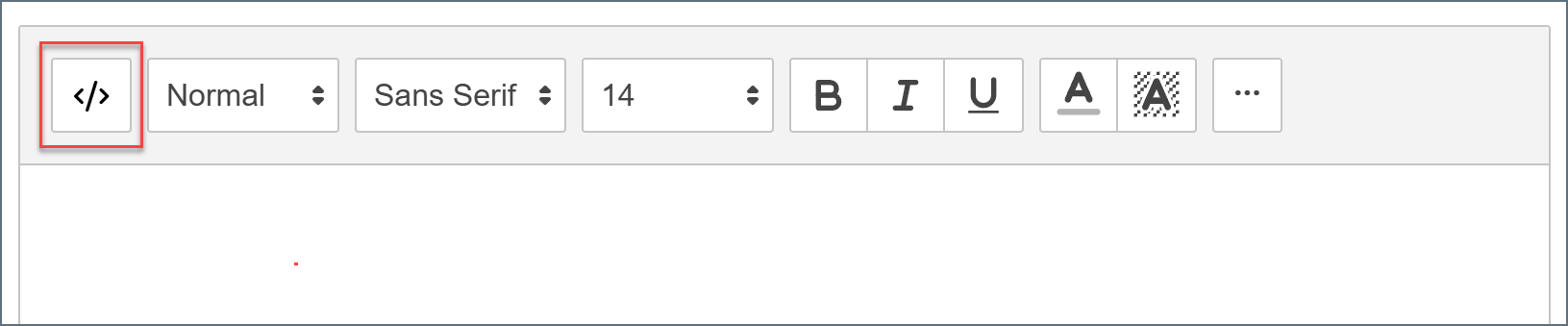
The Code View editor enables the creation of custom ArcScript for advanced processing of information from XML files. To open the Code View editor, click the Code View button in the message editor.