

Key Capabilities
- Hierarchical XML record grouping and aggregation with key-based grouping and multiple grouping keys
- Aggregate function support (MIN, MAX, SUM, AVG, COUNT, and CONCATENATE) with XPath-based identification
- Preserves original record structure while adding summary and grouping elements
Overview
The XML Group connector processes collections of related XML records by aggregating, validating, and transforming structured data for seamless integration with various systems. It enables efficient handling of hierarchical XML data, ensuring consistency and interoperability across applications such as data exchange, reporting, and automated workflows.Connector Configuration
This section contains all of the configurable connector properties.Group Config Tab
Settings related to configuring the group.Sample File
Use the Sample File toggle to specify a sample file that allows the connector to provide more context about the document. See Using Sample Files for more information.Loop Settings
Settings related to the XPath the connector should use to represent a single record in the input document, as well as the XML element to use to hold each group of related records.Group Settings
Settings that define which elements in each record to use to determine the key for each group. See Using Group Settings for more information.Summary Settings
Use the Summary Settings toggle to see the settings that define how to summarize the records in each group. See Using Summary Settings for more information.Order By Settings
Use the Order By toggle to see the settings that define how to sort the records in each group.Settings Tab
Configuration
Settings related to establishing the connection.| Setting | Description |
|---|---|
| Connector Id | The static, unique identifier for the connector. |
| Connector Type | Displays the connector name and a description of what it does. |
| Connector Description | An optional field to provide a free-form description of the connector and its role in the flow. |
Automation Tab
Automation Settings
Settings related to the automatic processing of files by the connector.Performance
Settings related to the allocation of resources to the connector.
| Setting | Description |
|---|---|
| Max Workers | The maximum number of worker threads consumed from the threadpool to process files on this connector. If set, this overrides the default setting on the Performance Settings portion of the Advanced Settings page. |
| Max Files | The maximum number of files sent by each thread assigned to the connector. If set, this overrides the default setting on the Performance Settings portion of the Advanced Settings page. |
Alerts Tab
SLAs Tab
Advanced Tab
Message
Message settings determine how the connector searches for messages and manages them after processing.
Note: The settings below are deprecated and hidden by default. They appear only on connectors where they were previously enabled or configured to a non-default value. To retain copies of successfully processed files, right-click the connector in the flow, choose Show Success Path, and connect the success path to a File connector.
| Setting | Description |
|---|---|
| Save to Sent Folder (Deprecated) | Copies files processed by the connector to the Sent folder. Disabled by default. Files saved to the Sent folder are not covered by Encryption at Rest. |
| Sent Folder Scheme (Deprecated) | Groups files in the Sent folder by the selected time interval. Only relevant when Save to Sent Folder is enabled. |
Logging
Settings that govern the creation and storage of logs.
| Setting | Description |
|---|---|
| Log Level | The verbosity of logs generated by the connector. When you request support, set this to Debug. |
| Log Subfolder Scheme | Instructs the connector to group files in the Logs folder according to the selected interval. The Weekly option (which is the default) instructs the connector to create a new subfolder each week and store all logs for the week in that folder. Leaving this setting blank tells the connector to save all logs directly in the Logs folder. For connectors that process many transactions, using subfolders helps keep logs organized and improves performance. |
| Log Messages | Check this to have the log entry for a processed file include a copy of the file itself. If you disable this, you might not be able to download a copy of the file from the Transactions tab. |
Other Settings
Miscellaneous
Miscellaneous settings are for specific use cases.
| Setting | Description |
|---|---|
| Other Settings | Enables you to configure hidden connector settings in a semicolon-separated list (for example, setting1=value1;setting2=value2). Normal connector use cases and functionality should not require the use of these settings. |
Using Sample Files
Toggle Sample File on to upload a sample input XML that mimics the XML input that is going to be passed into the connector. When enabled, it provides XPath helpers for each of the XPath fields in the UI, so it becomes easier to see the document structure and select the correct XPath. You can only click eligible XML elements, based on what the XPath is representing for the connector. For example, in Loop Settings, you can only select parent elements because Arc expects that those elements are what represent a record.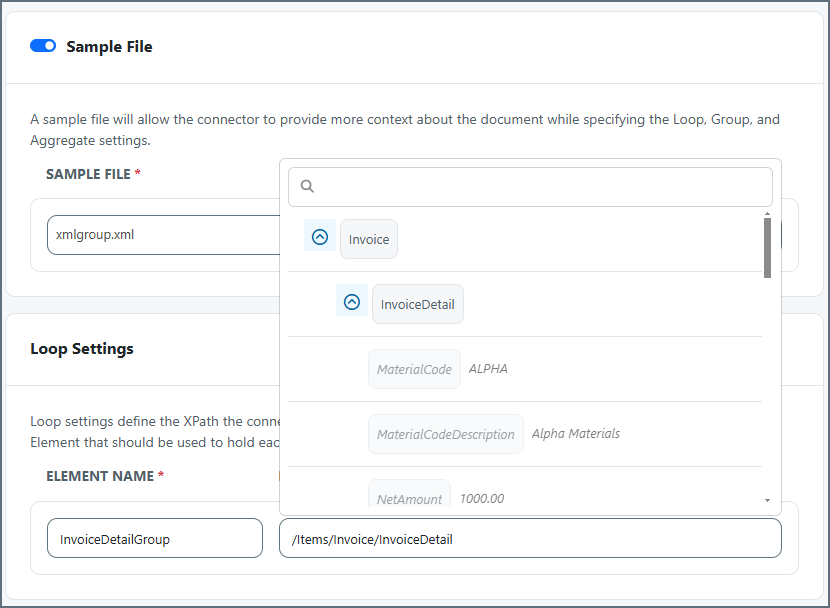
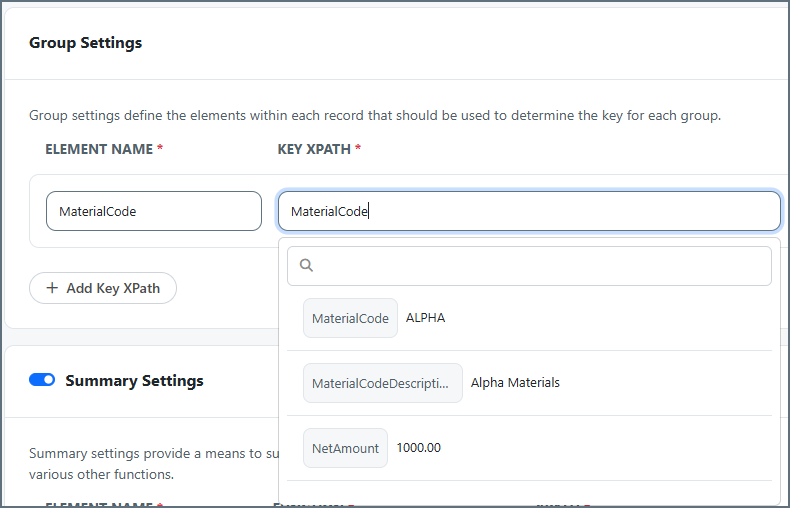
Using Group Settings
Group settings define the elements in each record to use to determine the key for each group. The key is usually anId value such as CustomerID or InvoiceID. You can have multiple keys, which appear as children of the element name and xpath set in Loop Settings.
- Element Name tells the connector what to name the XML element to use for grouping in the output file. This is usually the same name as the element in the input file that the Key XPath points to, but you can use a different name.
- Key XPath is the XPath from the input file of the element to use as the key (what you want to group by). The Key XPath is relative to the Record XPath.
<MaterialCode> element is the key. This lets you group all occurrences of ALPHA, BRAVO and CHARLIE together in the output, instead of having multiples of each.
Using Summary Settings
Summary settings control how the connector should aggregate data. You can define an XPath containing a value that you want to perform an action operator on (MIN, MAX, SUM, AVG, COUNT, CONCATENATE), and the connector then performs that operator on all records in a group. A common example is to SUM the price of each record. The following example uses the Loop Settings and Group Settings described in the previous images, along with the following Summary Settings:InvoiceDetailGroup for each key element (the MaterialCode). Inside each InvoiceDetailGroup is the MaterialCode key from the Group Settings, and the calculated NetAmountSUM from the Summary Settings. Finally, the original InvoiceDetail elements and their children are included: