

 icon.
icon.
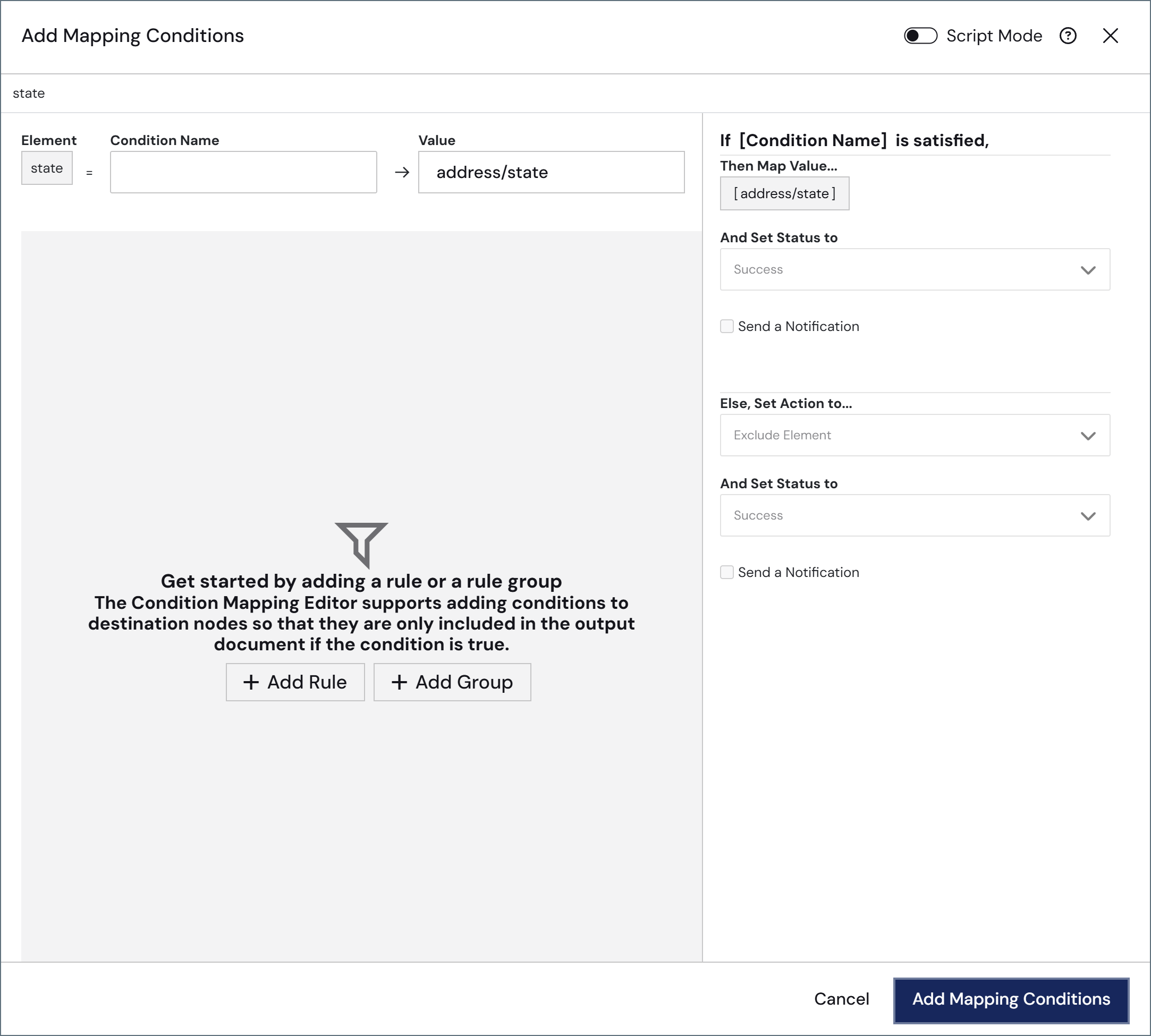
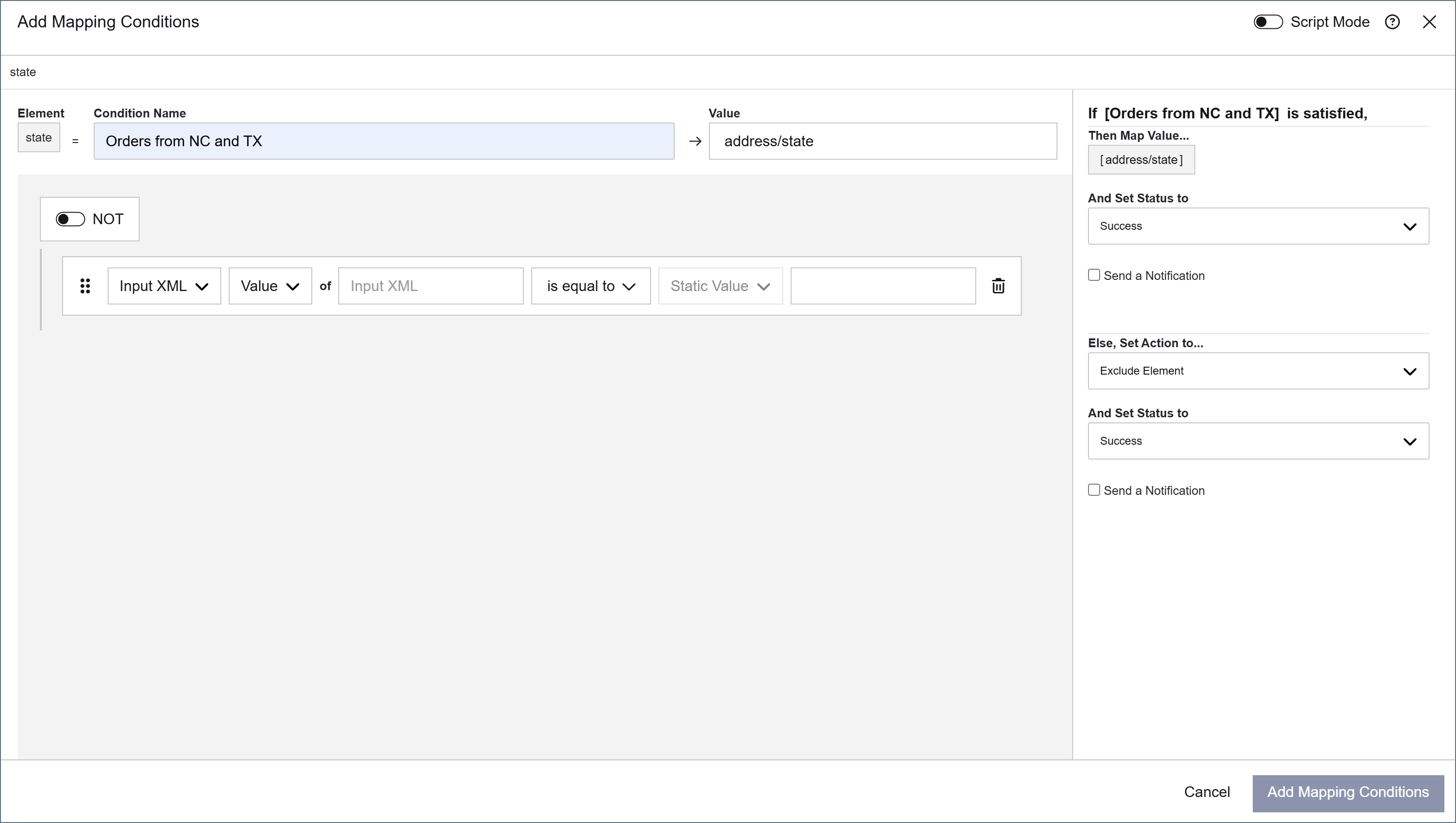
- Input XML
- Value: The value at the XPath being evaluated
- Data Type: The data type of the value (String, Number, DateTime)
- Occurrences: The number of times the XPath occurs in the document
- Index: The index representing the current iteration of the Foreach loop that is being evaluated
- Message Header
- Value: The value of the message header being evaluated
- Data Type: The data type of the value (String, Number, DateTime)
- Variable
- Value: The value of the variable being evaluated
- Data Type: The data type of the value (String, Number, DateTime)
- Static Value (default): A free-text input for a literal comparison value. Only available on the right side.
- Input XML
- Message Header
- Variable
- The source dropdown is locked to Static Value when the operator is contains, starts with, ends with, matches glob, matches regex, is in, or is not in, or when the left-side type is Index or Occurrences
- The right side is hidden entirely when the operator takes no value: is empty, is not empty, is null, and is not null
- When the left-side type is Data Type, the right side dropdown shows a fixed set of options: String, Number, or DateTime
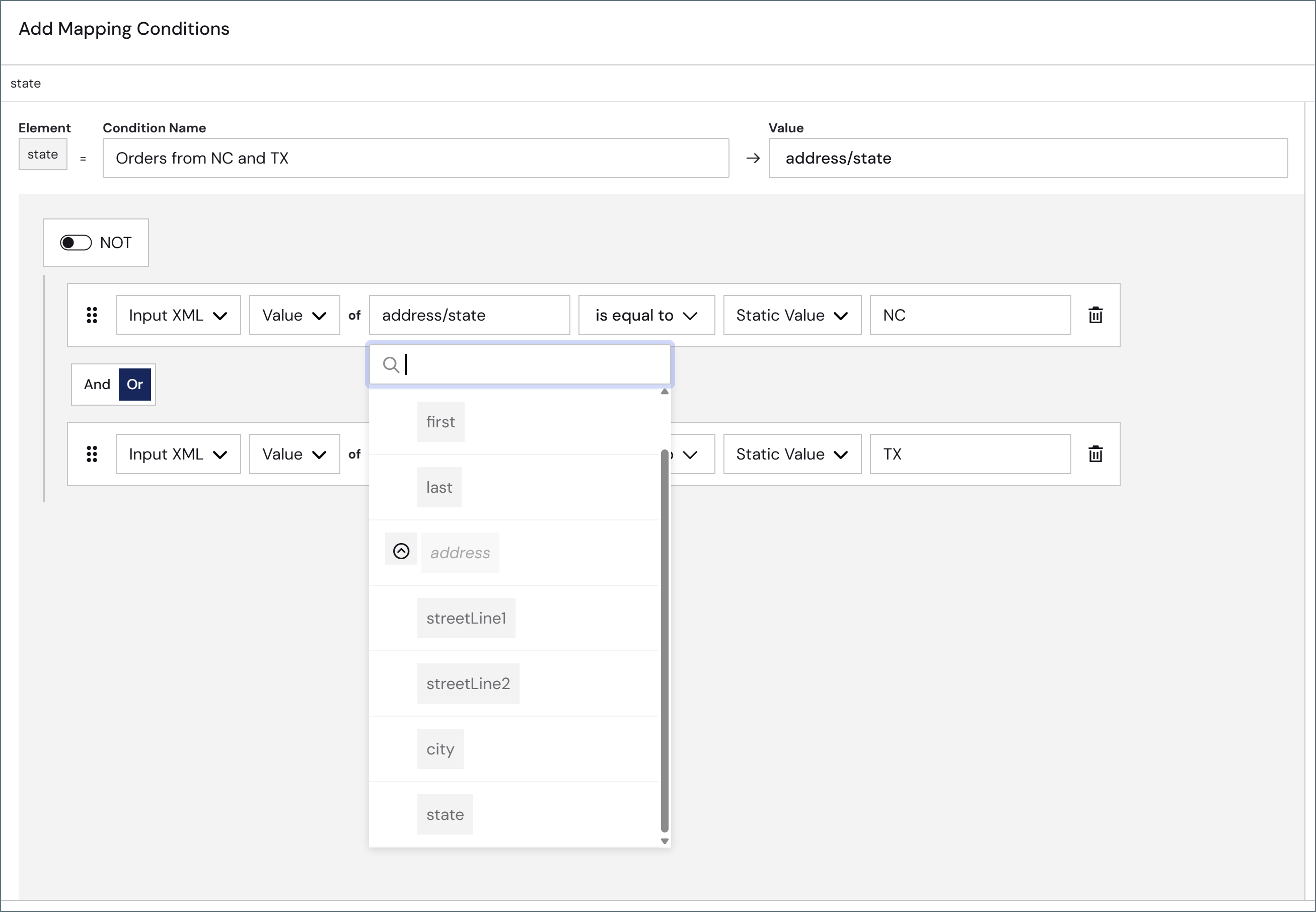
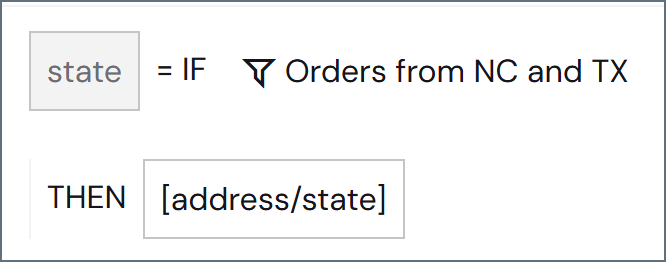
 and drag the object to a new location.
When you have completed defining the condition, use the right-hand pane to specify what should happen when the condition is satisfied.
and drag the object to a new location.
When you have completed defining the condition, use the right-hand pane to specify what should happen when the condition is satisfied.
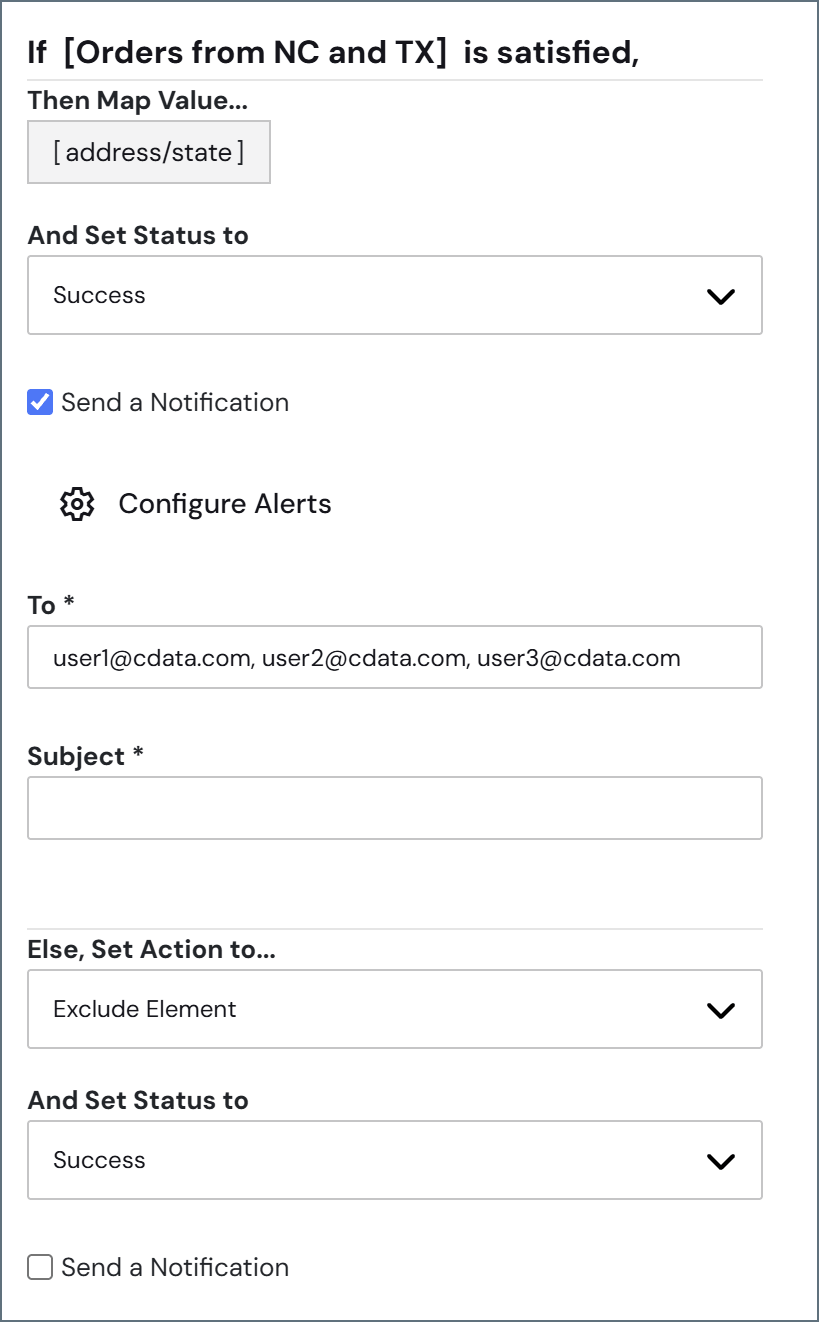
- Success
- Warning
- Error
Click Configure Alerts to open the Alerts page in a new browser tab, where you configure your email settings. If these are not configured correctly, email notification fails.
- Exclude Element from the mapping altogether
- Map Value to map the value anyway
- Assign a Different Value to assign a different value (defined as an expression or custom script once you save the condition)
Script Mode
You can use ArcScript syntax to specify custom conditions by toggling on the Script Mode toggle in the upper right corner.Script Mode in Mapping Conditions
Once you toggle script mode on, use the window to write your custom conditions, then use the right-hand pane in the same way as described above to:- Set the status of the message
- Send notifications
- Add Else conditions to your mapping, including excluding elements from the mapping if the condition is not met
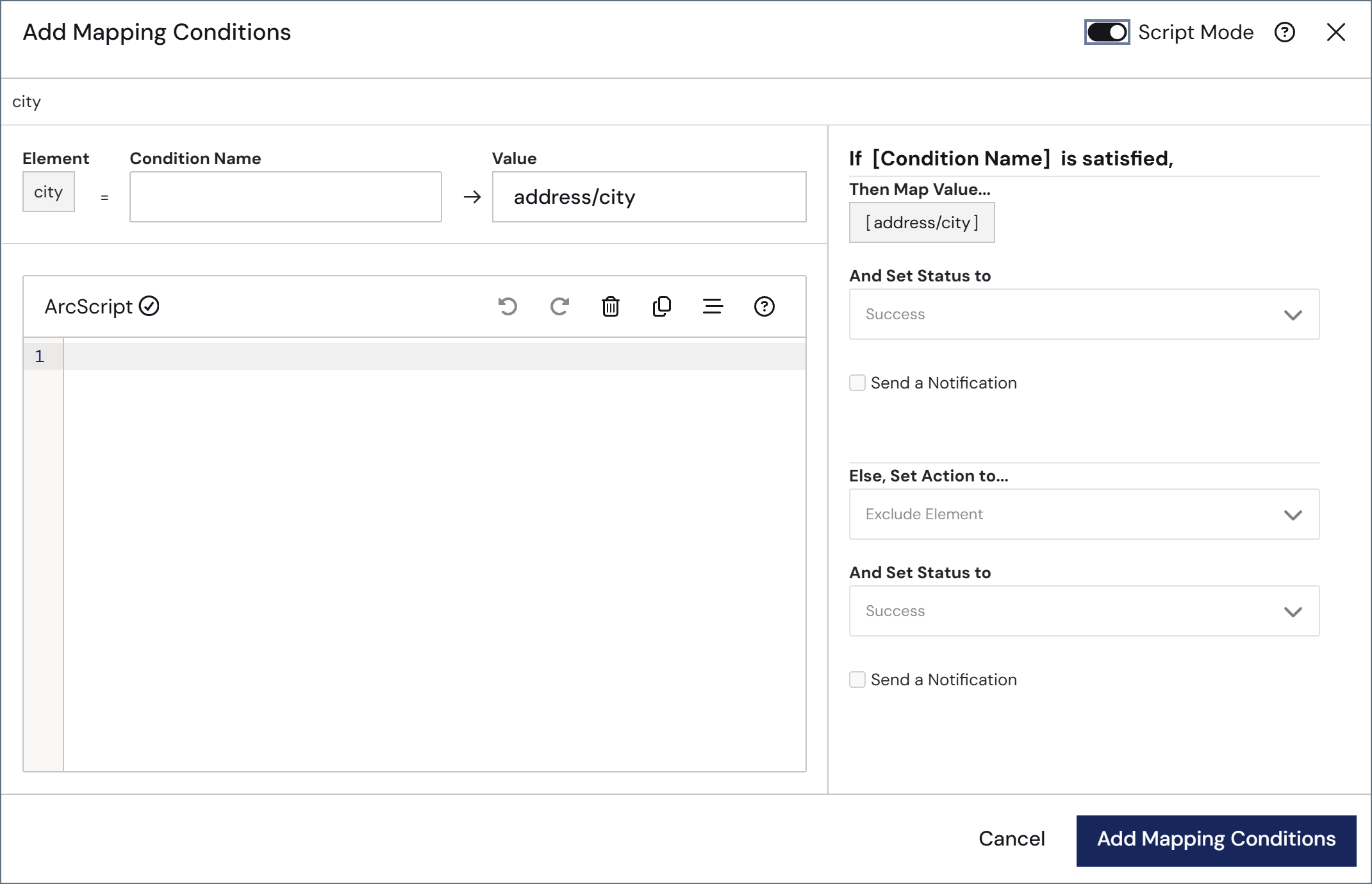
- The editor validates your condition as you type. If you see an Invalid Condition message, you have some sort of syntax issue that must be resolved.
- If you create an ArcScript condition that cannot be rendered in the designer, when you switch back to designer mode you are warned that Arc cannot render this configuration in designer mode. If you switch to the designer mode you lose all changes to the existing configuration.
Examples
One common use of the custom condition editor is to compare two dynamic values from the source document (instead of comparing a single dynamic value against a static value). For example, you could use the following custom condition to see whether two values in the source XML are equal:'[xpath(element1)]' == '[xpath(data/element2)]'
The single quotes in the example above are required.
[xpath(element1) | equals([xpath(data/element2])])]
Notice that this syntax does not require single quotes.
The following example compares an XPath to a _map variable set earlier in the mapping. The def(0) formatter provides a fallback if the XPath value is absent before the comparison runs.
[xpath(FST/FST01) | def(0) | greaterthan([_map.OverUnderShipQty])]
This example uses Script Mode because
_map variables are not available in the designer’s right-side source dropdown. For comparisons between other dynamic values (such as XPath versus XPath, or XPath versus a message header or variable), you can use the right-side source dropdown in the Condition Editor designer instead of Script Mode.Datetime is 2026-10-05 and today is 2026-09-28, datediff('day') returns 7, so the condition is satisfied.
[xpath(Datetime) | datediff('day') | isbetween(0, 15)]
datediff('day') returns the difference in days between the date field and today: positive for future dates, negative for past dates. isbetween(0, 15) is inclusive of both bounds, so the condition matches today through 15 days from now, and the negative values for past dates fall outside the range.
See Formatters for details on all of the ArcScript’s formatters.