

Key Capabilities
- App-only authentication for shared and departmental mailboxes, using Azure Service Principal credentials without per-user OAuth consent
- Outlook categories as non-destructive processing markers: stamp received messages with a server-side category and filter on it in subsequent polls instead of deleting or moving them
- Rich server-side receive filters on folder, read status, importance, attachments, and received date, plus client-side filtering on Outlook categories
- Send on behalf of or as another user or shared mailbox, with proper Microsoft Graph permissions
- Full folder management: create processing folders, move messages after receive, or query folders by name or Id
Establish a Connection
To allow Arc to use data from Microsoft 365 Email, you must first establish a connection. There are two ways to do this:- Add a Microsoft 365 Email connector to your flow. Then, in the settings pane, click Create next to the Connection drop-down list.
- Open the Arc Settings page, then open the Connections tab. Click Add, select Microsoft 365 Email, and click Next.
- The login process is only required the first time the connection is created.
- Connections to Microsoft 365 Email can be reused across multiple Microsoft 365 Email connectors.
-
Enter the following connection information in the Add Connection modal:
- Name: The static name of the connection. Set a name of your choice.
- Type: The connector name. This field is always set to Microsoft 365 Email.
- Auth Scheme: The authentication scheme to use. Options are AzureAD, AzureMSI, AzureServicePrincipal (the default), and AzureServicePrincipalCert. See Authentication Schemes for details on each scheme and its required fields.
- Default Groups: The default group context when accessing group-scoped resources in Microsoft Office 365.
- Default User: The default user context when accessing user-scoped resources in Microsoft Office 365.
- Message Content Type: Whether to return message bodies in HTML format or as plain text.
- Group Id: The Id of a Microsoft Office 365 group whose data you want to access. Optional.
- User Principal Name (UPN): The UPN or object Id of the mailbox this connector acts on, for example
support@xyzcorp.com. Required for app-only schemes (AzureServicePrincipal, AzureServicePrincipalCert, and AzureMSI). Leave empty when using AzureAD to act on the signed-in user’s own mailbox.
- Enter any additional fields required for your chosen auth scheme. See Authentication Schemes below.
- Click Connect (AzureAD only) or Test Connection (all other schemes) to verify that Arc can connect with the provided information. If an error occurs, check all fields and try again.
- Click Add Connection to finalize the connection.
- Select the newly created connection from the Connection drop-down list on the Settings tab.
- Click Save Changes.
Authentication Schemes
The app-only schemes (AzureServicePrincipal, AzureServicePrincipalCert, and AzureMSI) require an application registration in the Microsoft Entra admin center. The registration must be granted the Mail.ReadWrite and Mail.Send application permissions, both with tenant admin consent, before Arc can connect. Mail.ReadWrite covers Receive, the post-receive actions, and folder lookups; Mail.Send covers Send. Mail.Read is sufficient in place of Mail.ReadWrite only if you never use the post-receive actions. AzureAD uses delegated permissions and requires a redirect URI in the registration instead.AzureAD
Delegated user authentication. The user signs in through a browser and grants access; tokens are stored and refreshed automatically. Use this scheme to act on the signed-in user’s own mailbox. Leave User Principal Name (UPN) empty when using this scheme. No additional fields beyond the common fields above are required. After entering them, click Connect. A new browser tab opens for signing into your Microsoft account. Log in, grant the requested permissions, and return to Arc.AzureMSI
Managed Service Identity authentication for Arc instances running on Azure infrastructure (virtual machines, App Service, or AKS pods with workload identity). The connector acquires a token from the host’s managed identity automatically, without requiring credentials. Set User Principal Name (UPN) to the mailbox you want to access. No additional fields beyond the common fields above are required.AzureServicePrincipal
Application-only authentication using a client secret. Does not require per-user OAuth consent, making it suitable for shared and departmental mailboxes. Set User Principal Name (UPN) to the mailbox you want to access. OAuth- Azure Tenant (required): The Id or primary domain of the Microsoft Entra tenant that contains the mailbox, for example
contoso.onmicrosoft.com. - OAuth Client Id (required): The client Id assigned to your Azure AD app registration.
- OAuth Client Secret: The client secret assigned to your Azure AD app registration.
AzureServicePrincipalCert
Application-only authentication using a certificate instead of a client secret. Use this scheme when your organization requires certificate-based credentials. Set User Principal Name (UPN) to the mailbox you want to access. OAuth- Azure Tenant (required): The Id or primary domain of the Microsoft Entra tenant that contains the mailbox, for example
contoso.onmicrosoft.com. - OAuth Client Id (required): The client Id assigned to your Azure AD app registration.
- OAuth JWT Cert: The certificate to use for signing JWT assertions.
- OAuth JWT Cert Password: The password for the OAuth JWT certificate.
- OAuth JWT Cert Subject: Identifies the subject of the OAuth JWT certificate used to locate a matching certificate in the store. Supports partial matches and the wildcard
*to select the first certificate.
Select an Action
After establishing a connection to Microsoft 365 Email, you must choose the action that the Microsoft 365 Email connector will perform. The table below outlines each action and where it belongs in an Arc flow.Advanced Tab
AI
Advanced Settings
Advanced settings are specific to the Microsoft 365 Email connector and the CData Office365 driver it relies on. Some settings only appear based on the selected action; see the documentation page for the action you are configuring for details.Miscellaneous
Miscellaneous settings are for specific use cases.Automation Tab
Automation Settings
Settings related to the automatic processing of files by the connector.Automation Status
Performance
Settings related to the allocation of resources to the connector.Alerts Tab
Settings related to configuring alerts. Before you can execute Service Level Agreements (SLAs), you need to set up email alerts for notifications. By default, Arc uses the global settings on the Alerts tab. To use other settings for this connector, toggle Override global setting on. By default, error alerts are enabled, which means that emails are sent whenever there is an error. To turn them off, uncheck the Enable checkbox. Enter a Subject (mandatory), then optionally enter a comma-separated list of Recipient emails.SLAs Tab
Settings related to configuring Service Level Agreements (SLAs). SLAs enable you to configure the volume you expect connectors in your flow to send or receive, and to set the time frame in which you expect that volume to be met. Arc sends emails to warn the user when an SLA is not met, and marks the SLA as At Risk, which means that if the SLA is not met soon, it will be marked as Violated. This gives the user an opportunity to step in and determine the reasons the SLA is not being met, and to take appropriate actions. If the SLA is still not met at the end of the at-risk time period, the SLA is marked as violated, and the user is notified again. To define an SLA, toggle Expected Volume on, then click the Settings tab.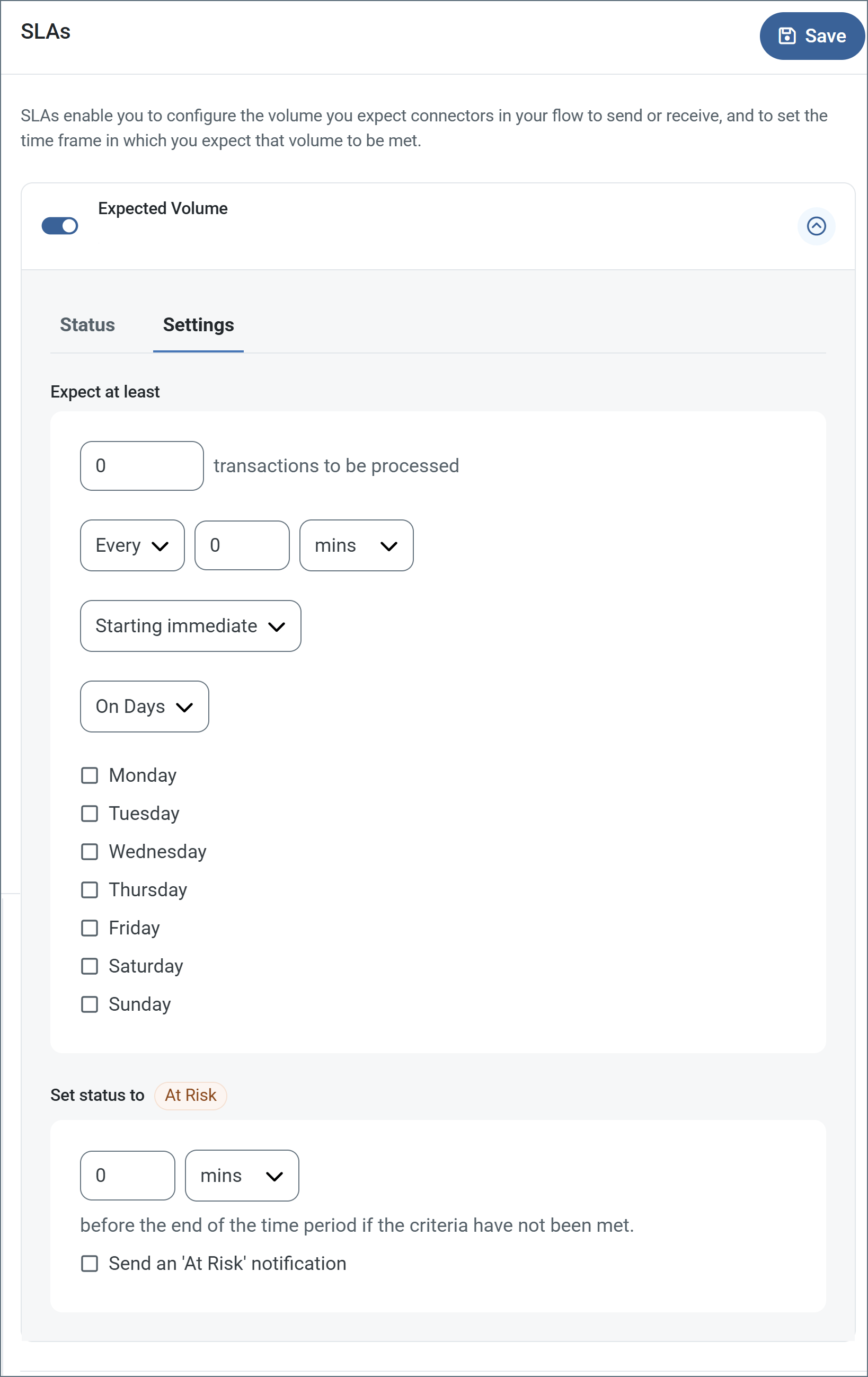
- If your connector has separate send and receive actions, use the radio buttons to specify which direction the SLA pertains to.
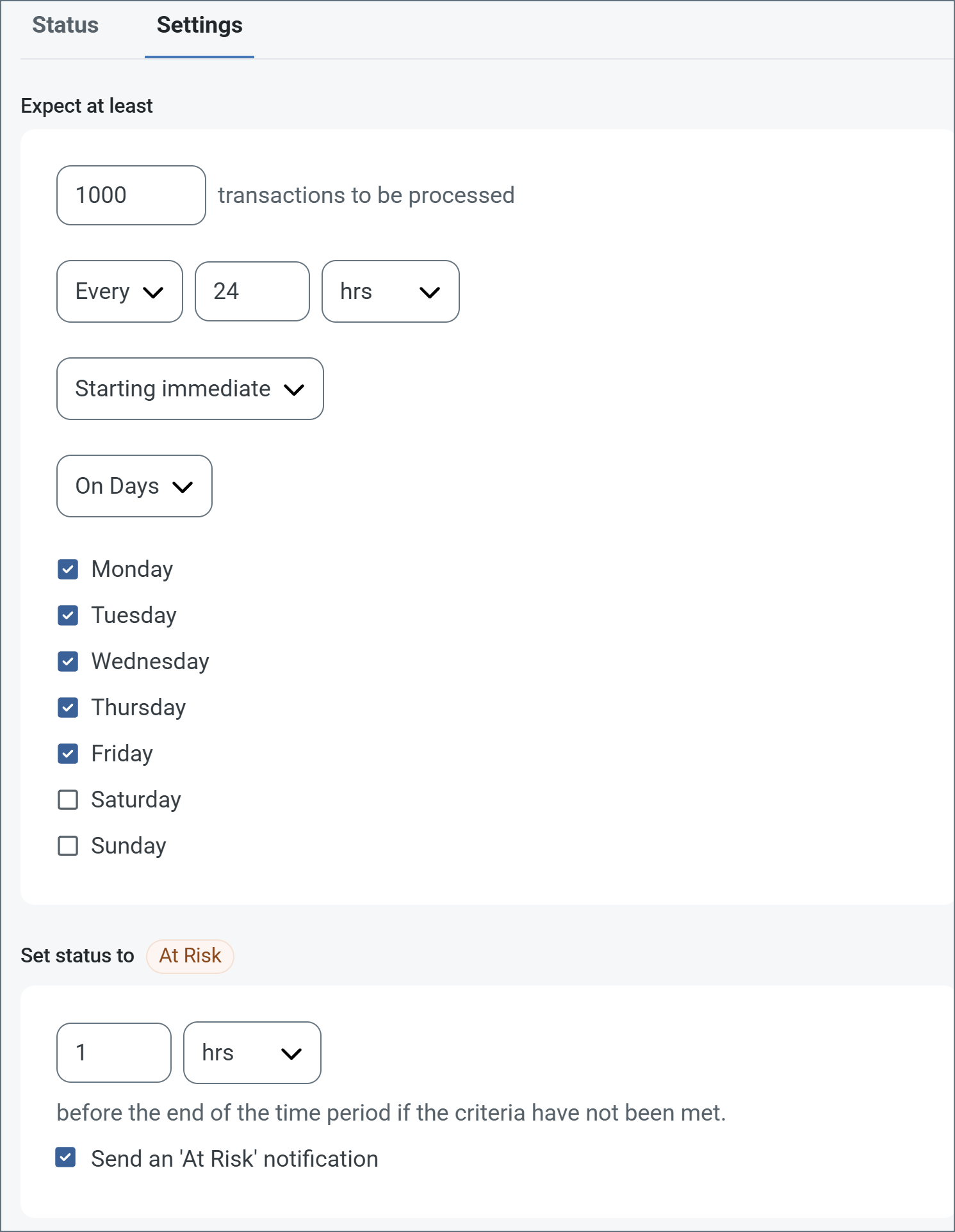
- In the Expect at least portion of the window:
- Set the minimum number of transactions you expect to be processed (the volume)
- Use the Every fields to specify the time frame
- Indicate when the SLA should go into effect. If you choose Starting on, complete the date and time fields.
- Check the boxes for the days of the week that you want the SLA to be in effect. Use the dropdown to choose Everyday if necessary.
- In the Set status to ‘At Risk’ portion of the window, specify when the SLA should be marked as at risk.
- By default, notifications are not sent until an SLA is in violation. To change that, check Send an ‘At Risk’ notification.
You can turn off SLA alerts if necessary. This can be useful during maintenance windows. Click Settings on the navbar, then navigate to Alerts > General Alerts. Click the tablet and pencil icon to edit, and uncheck the SLA Alerts setting.
Macros
Using macros in file naming strategies can enhance organizational efficiency and contextual understanding of data. By incorporating macros into filenames, you can dynamically include relevant information such as identifiers, timestamps, and header information, providing valuable context to each file. This helps ensure that filenames reflect details important to your organization. Arc supports these macros, which all use the following syntax:%Macro%.
Examples
Some macros, such as %Ext% and %ShortDate%, do not require an argument, but others do. All macros that take an argument use the following syntax:%Macro:argument%
Here are some examples of the macros that take an argument:
- %Header:headername%: Where
headernameis the name of a header on a message. - %Header:mycustomheader% resolves to the value of the
mycustomheaderheader set on the input message. - %Header:ponum% resolves to the value of the
ponumheader set on the input message. - %RegexFilename:pattern%: Where
patternis a regex pattern. For example,%RegexFilename:^([\w][A-Za-z]+)%matches and resolves to the first word in the filename and is case insensitive (test_file.xmlresolves totest). - %Vault:vaultitem%: Where
vaultitemis the name of an item in the vault. For example,%Vault:companyname%resolves to the value of thecompanynameitem stored in the vault. - %DateFormat:format%: Where
formatis an accepted date format (see Sample Date Formats for details). For example,%DateFormat:yyyy-MM-dd-HH-mm-ss-fff%resolves to the date and timestamp on the file.
- Combining multiple macros in one filename:
%DateFormat:yyyy-MM-dd-HH-mm-ss-fff%%EXT% - Including text outside of the macro:
MyFile_%DateFormat:yyyy-MM-dd-HH-mm-ss-fff% - Including text within the macro:
%DateFormat:'DateProcessed-'yyyy-MM-dd_'TimeProcessed-'HH-mm-ss%