

Tables and Columns
Advanced Tab Settings
The following settings appear on the Advanced tab:
| Setting | Description |
|---|---|
| Send As | Sends the email as another user or shared mailbox. Under AzureAD, this requires the delegated Mail.Send.Shared permission. Under the app-only schemes, it requires the Mail.Send application permission plus Send As rights granted on the target mailbox by an Exchange administrator. |
| Send On Behalf Of | Sends the email on behalf of another user. Recipients see both the sender and the mailbox the message was sent from. |
UPSERT Query Behavior
UPSERT settings are configured per column in both Table Structure and Mapping modes. Right-click a column and select UPSERT Settings from the context menu.
The UPSERT Settings dialog opens. By default, the Enable UPSERT settings toggle is ON, meaning the connector checks whether a record already exists in the destination before deciding to INSERT or UPDATE it.
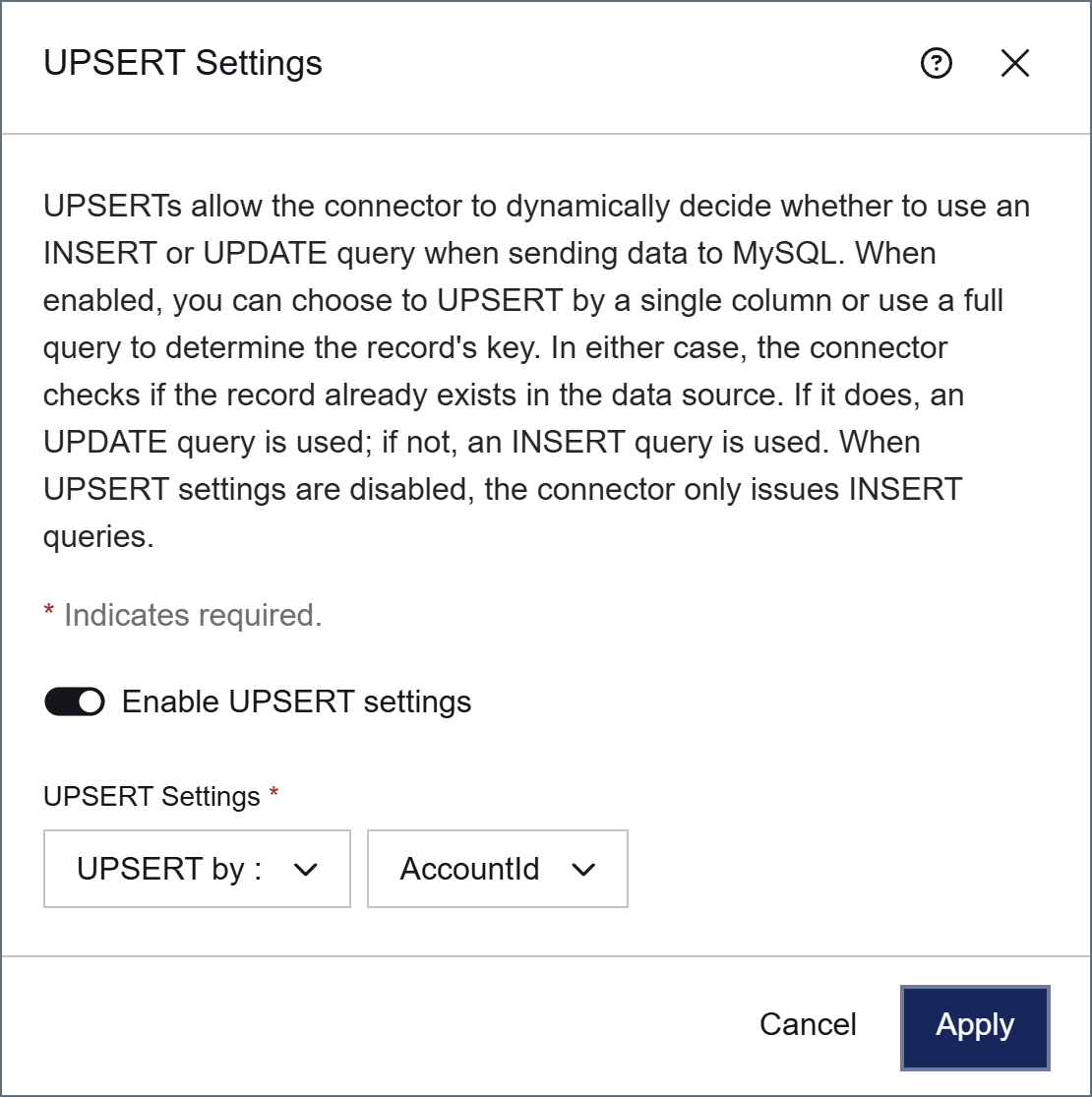
The query used to determine whether a record exists is controlled by the logic described in the following sections.
UPSERT Settings Enabled
When Enable UPSERT settings is on, query behavior depends on the option selected in the UPSERT Settings list: UPSERT by (match on a single column) or Query to select UPSERT key (use a custom lookup query).
UPSERT By Id
When you select UPSERT by in the UPSERT Settings list and choose the table’s key column, the connector issues a query to determine if any records exist with the matching key value:UPSERT By Non-key Column
When you select UPSERT by in the UPSERT Settings list and choose a non-key column, the connector issues a query to determine if any records exist where that column contains the matching value, targeting the primary key in the SELECT (the following examples illustrate UPSERTing to an Orders table):If the selected UPSERT by column is not specified in the input, the lookup is used with a NULL value, as shown in the following query:
Using a Custom Query
When you select Query to select UPSERT key in the UPSERT Settings list, you can write a custom query to determine the UPSERT key. This allows the lookup to use more complex logic than a single column match. Consider the following query:@OrderID syntax is used to reference a value from the matching input XML. You can also use static values: the quotes around 'Active' denote that this clause uses a static value.
Again, a successful match of the key column is used to form an update request. If there is no match, the record is inserted.
UPSERT Settings Disabled
To disable UPSERT behavior for a column, open the UPSERT Settings dialog (right-click the destination column and select UPSERT Settings), toggle Enable UPSERT settings to OFF, and click Apply. When UPSERT settings are disabled, the connector issues only INSERT queries. Examining the code view of the input mapping shows that theaction attribute of the table is insert:
update, as shown in the following snippet: