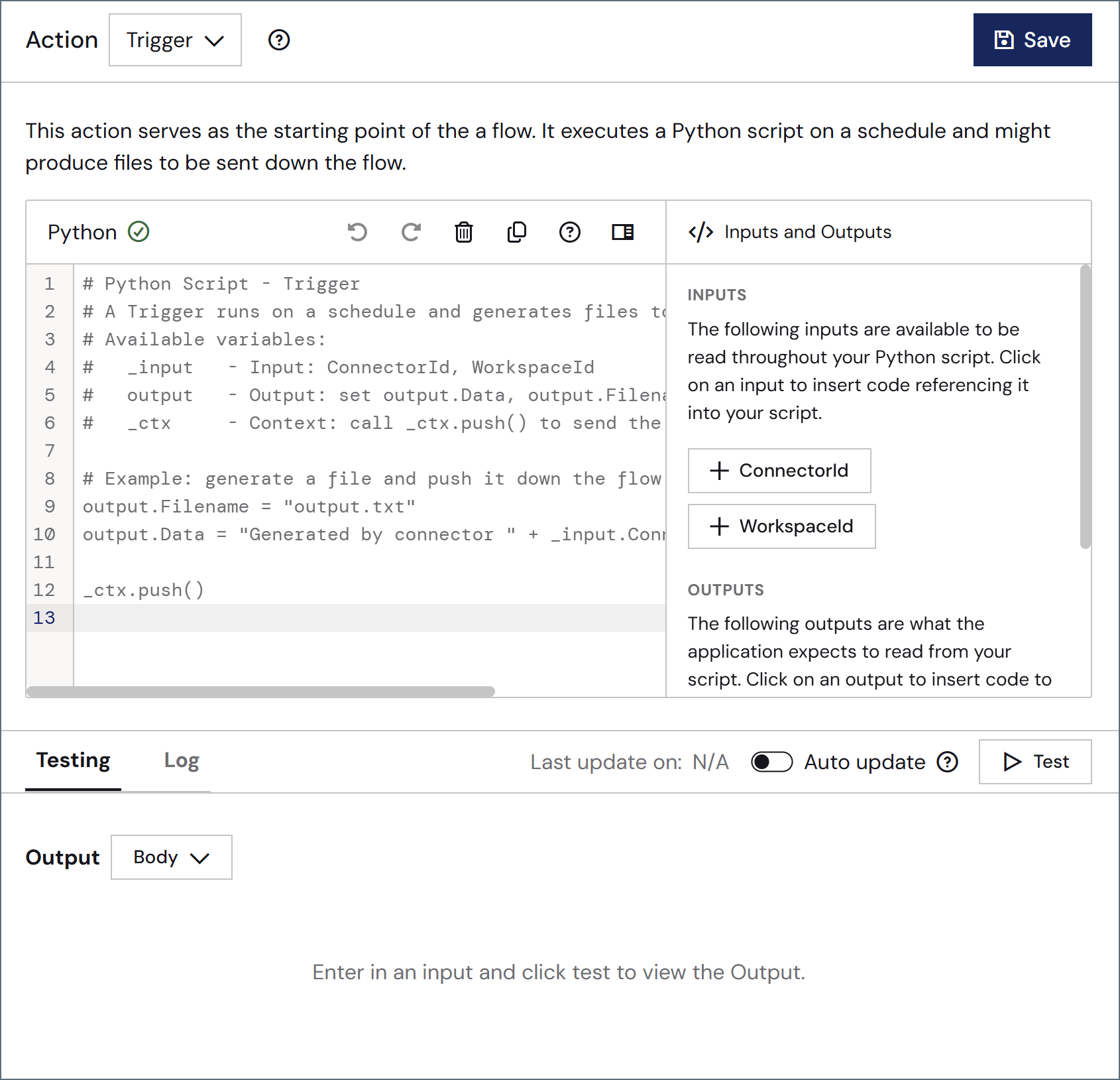
Python connectors use the Python scripting language to accomplish a wide range of custom behavior. The script configured in the connector is run each time a document is placed in the Transactions tab for the connector. The input document can be read and modified in the script, or the input document can simply trigger the Python script configured in the connector. Python connectors can also be configured to run on a schedule via Receive automation on the Automation tab.After you decide the appropriate task for your Python connector, read the Writing Python documentation to explore how to call various operations.
Options related to writing and testing the script.
Setting
Description
Action dropdown
Choose the connector’s action. (See Actions for details on the three options.)
Python editor
Use the editor to write your script. The toolbar contains standard editing options such as undo, redo, delete, copy, and format. It also includes an option to hide the Insert Options in the right pane.
Insert Options
The panel in the right pane makes it easy to insert code into your script with one click. The dropdown includes Inputs and Outputs (such as ConnectorId or Encoding—the available options depend on the configured Action), Snippets, Keywords, Operators and Formatters. Find the code you want to insert, and click to add it.
Testing tab
Specify whether to view the script input and/or output as the message body or headers. Options on this tab vary based on the script’s action type (for example, trigger scripts do not have inputs). Click Test to test the script.
Log tab
Displays the test log.
Last update on
Displays the datetime the script was last modified and saved.
Auto update
Use the toggle to automatically test the script after each modification.
A scheme for assigning filenames to messages that are output by the connector. You can use macros in your filenames dynamically to include information such as identifiers and timestamps. For more information, see Macros.
Settings that govern the creation and storage of logs.
Setting
Description
Log Level
The verbosity of logs generated by the connector. When you request support, set this to Debug.
Log Subfolder Scheme
Instructs the connector to group files in the Logs folder according to the selected interval. The Weekly option (which is the default) instructs the connector to create a new subfolder each week and store all logs for the week in that folder. Leaving this setting blank tells the connector to save all logs directly in the Logs folder. For connectors that process many transactions, using subfolders helps keep logs organized and improves performance.
Log Messages
Check this to have the log entry for a processed file include a copy of the file itself. If you disable this, you might not be able to download a copy of the file from the Transactions tab.
The amount of time (in seconds) by which the processing of files placed in the Transactions tab is delayed. This is a legacy setting. Best practice is to use a File connector to manage local file systems instead of this setting.
Miscellaneous settings are for specific use cases.
Setting
Description
Other Settings
Enables you to configure hidden connector settings in a semicolon-separated list (for example, setting1=value1;setting2=value2). Normal connector use cases and functionality should not require the use of these settings.
Settings related to the automatic processing of files by the connector.
Setting
Description
Send
Whether messages arriving at the connector are automatically processed.
Retry Interval
The number of minutes that the connector waits before retrying a failed script execution.
Max Attempts
The number of times that the connector retries a failed script execution before raising an error.
Receive
Whether the connector should automatically run the script on a configured schedule.
Receive Execution Interval
The unit of measure to use for the receive automation schedule (such as Minutes, Hours, or Days).
Minutes Past the Hour
The minutes offset for an hourly schedule. Only applicable when the interval setting above is set to Hourly.
Time
The time of day that the attempt should occur. Only applicable when the interval setting above is set to Daily, Weekly, or Monthly.
Day
The day on which the attempt should occur. Only applicable when the interval setting above is set to Weekly or Monthly.
Minutes
The number of minutes to wait before attempting the download. Only applicable when the interval setting above is set to Minute.
Cron Expression
A five-position string representing a cron expression that determines when the attempt should occur. Only applicable when the interval setting above is set to Advanced.
Settings related to the allocation of resources to the connector.
Setting
Description
Max Workers
The maximum number of worker threads consumed from the threadpool to process files on this connector. If set, this overrides the default setting on the Performance Settings portion of the Advanced Settings page.
Max Files
The maximum number of files sent by each thread assigned to the connector. If set, this overrides the default setting on the Performance Settings portion of the Advanced Settings page.
This tab lists all messages associated with the connector. Use the search bar to find specific messages, or click the funnel icon to apply a filter. You can filter by time, message direction, and/or status.Options on this tab vary depending on the connector’s action type:
If your connector is a Trigger, use the Receive button to start the flow.
If your connector is a Transform or Terminal, messages that come from a previous connector in the flow automatically appear in the flow, or you can use the Upload Files button to add files.
Python connectors send data to the output feed through the built-in output item, which is pushed automatically when the script finishes — no explicit push is needed. (To push a custom item instead, set its attributes and call _ctx.push(item).) Following are three common use cases.1 Create and output a file:
output.Filename = "results.txt"output.Data = "This is my result"
2 Pass an input file as output:
output.Filepath = _input.Filepath
3 Write entries to the connector log file:
print("Custom Log entry line 1")print("Custom Log entry line 2")
In a Python connector, print() writes to the log file for the current message (as shown above). To write to the Arc application log instead, use _ctx.log('level', 'message') with a level of DEBUG, INFO, WARNING, or ERROR.
{"docsConfig":{"theme":"mint","$schema":"https://mintlify.com/docs.json","name":"CData Arc Documentation","colors":{"primary":"#002660","light":"#FFE500","dark":"#002660"},"logo":{"light":"https://mintcdn.com/cdata-arc/-adMVRA2NGLWRgFp/public/images/cdata_arc_web.svg?fit=max\u0026auto=format\u0026n=-adMVRA2NGLWRgFp\u0026q=85\u0026s=8863df3ad6488c6280d057711f48aa94","dark":"https://mintcdn.com/cdata-arc/-adMVRA2NGLWRgFp/public/images/cdata_arc_yellow.svg?fit=max\u0026auto=format\u0026n=-adMVRA2NGLWRgFp\u0026q=85\u0026s=db878c051424afd58007b04161a4f5e1","href":"https://www.cdata.com/arc"},"favicon":"https://mintcdn.com/cdata-arc/Lo_2D5t4szDfleFN/favicon.ico?fit=max\u0026auto=format\u0026n=Lo_2D5t4szDfleFN\u0026q=85\u0026s=4b165e5b4d92eef3607cdc47218f10e2","appearance":{"default":"system","strict":false},"background":{"color":{"light":"#F1EEE9","dark":"#15151C"}},"footer":{"socials":{"x":"https://x.com/cdatasoftware","youtube":"https://www.youtube.com/c/CDataSoftware","linkedin":"https://www.linkedin.com/company/cdatasoftware","facebook":"https://www.facebook.com/cdatasoftware","instagram":"https://www.instagram.com/cdatasoftware"}},"fonts":{"heading":{"family":"DM Sans","weight":700},"body":{"family":"DM Sans"}},"styling":{"eyebrows":"breadcrumbs","latex":false},"contextual":{"options":["copy","view","chatgpt","claude","perplexity","mcp","cursor","vscode"],"display":"header"},"variables":{"siteName":"CData Arc","siteNameShort":"Arc","companyName":"CData"},"navigation":{"languages":[{"language":"en","navbar":{"primary":{"type":"button","label":" Contact Us","href":"https://www.cdata.com/company/contact.aspx"}},"href":"26.4/self-hosted/en/getting-started"},{"language":"ja","navbar":{"primary":{"type":"button","label":"お問い合わせ","href":"https://jp.cdata.com/contact/"}},"href":"26.4/self-hosted/ja/getting-started"}]}},"deployment":{"deploymentMetadataValue":{"subdomain":"cdata-arc","hasAudioNarration":false,"actualSubdomain":"cdata-arc","customDomains":["docs.arc.cdata.com"],"gitSource":{"type":"github","owner":"cdatasoftware","repo":"arc-docs","deployBranch":"main","contentDirectory":"","isPrivate":true,"mountPath":"","label":""},"chroma":{"liveDeploymentHistoryId":"6ae14a4699b9508b21c9dbd8","collectionId":"90177a11-7b4b-4316-b7a6-26cb9925267d","schemaVersion":"v3","latestBuiltDeploymentHistoryId":"6ae14a4699b9508b21c9dbd8"},"entitlements":{"AI_CHAT":{"status":"ENABLED"},"WEB_MCP":{"status":"ENABLED"},"NARRATION":{"status":"ENABLED"}},"buildId":"6ae14a4699b9508b21c9dbd8","clientVersion":"0.0.4006","searchFilterCounts":[{"language":"en","tag":"Arc User Guide","count":3135},{"language":"ja","tag":"Arc ユーザーガイド","count":2659},{"language":"en","tag":"Connectors","count":1994},{"language":"en","tag":"Self-Hosted","count":1921},{"language":"ja","tag":"Self-Hosted","count":1921},{"language":"en","tag":"Cloud","count":1760},{"language":"ja","tag":"コネクタ","count":1658},{"language":"ja","tag":"Cloud","count":1211},{"language":"en","tag":"Other","count":1064},{"language":"ja","tag":"その他","count":887},{"language":"en","tag":"Scripting","count":608},{"language":"en","tag":"ArcScript","count":581},{"language":"en","tag":"API Reference","count":546},{"language":"ja","tag":"スクリプティング","count":512},{"language":"ja","tag":"ArcScript","count":489},{"language":"ja","tag":"API リファレンス","count":472},{"language":"en","tag":"Getting Started","count":357},{"language":"en","tag":"Core","count":341},{"language":"ja","tag":"コア","count":312},{"language":"ja","tag":"はじめに","count":306}]},"assistantConfig":{"enableAskAiButton":false,"enableStarterQuestions":false,"enableAskAiSearchBar":true},"basePath":"","hasChatPermissions":true,"hasWebMcpPermissions":true,"toggles":[{"name":"kill-isr","enabled":true,"variant":{"name":"disabled","enabled":false,"feature_enabled":true},"impressionData":false},{"name":"agent-mintlify-slack","enabled":true,"variant":{"name":"disabled","enabled":false,"feature_enabled":true},"impressionData":false},{"name":"editor-v7-file-tree","enabled":true,"variant":{"name":"disabled","enabled":false,"feature_enabled":true},"impressionData":false},{"name":"agent-integrations-settings","enabled":true,"variant":{"name":"disabled","enabled":false,"feature_enabled":true},"impressionData":false},{"name":"automations-pr-grouping","enabled":true,"variant":{"name":"disabled","enabled":false,"feature_enabled":true},"impressionData":false},{"name":"custom-prefix","enabled":true,"variant":{"name":"disabled","enabled":false,"feature_enabled":true},"impressionData":false},{"name":"analytics-v7","enabled":true,"variant":{"name":"disabled","enabled":false,"feature_enabled":true},"impressionData":false},{"name":"user-flows-analytics","enabled":true,"variant":{"name":"disabled","enabled":false,"feature_enabled":true},"impressionData":false},{"name":"no-publish-flow","enabled":true,"variant":{"name":"disabled","enabled":false,"feature_enabled":true},"impressionData":false},{"name":"workos-onboarding","enabled":true,"variant":{"name":"disabled","enabled":false,"feature_enabled":true},"impressionData":false},{"name":"llms-txt-v2","enabled":true,"variant":{"name":"disabled","enabled":false,"feature_enabled":true},"impressionData":false},{"name":"pause-universal-search-reconcile","enabled":true,"variant":{"name":"disabled","enabled":false,"feature_enabled":true},"impressionData":false},{"name":"snapshot-serving-live","enabled":true,"variant":{"name":"disabled","enabled":false,"feature_enabled":true},"impressionData":false},{"name":"stripTemperatureMiddleware","enabled":true,"variant":{"name":"disabled","enabled":false,"feature_enabled":true},"impressionData":false},{"name":"per-site-search-delta","enabled":true,"variant":{"name":"disabled","enabled":false,"feature_enabled":true},"impressionData":false},{"name":"support-platform-pylon-zendesk","enabled":true,"variant":{"name":"disabled","enabled":false,"feature_enabled":true},"impressionData":false},{"name":"snapshot-serving","enabled":true,"variant":{"name":"disabled","enabled":false,"feature_enabled":true},"impressionData":false},{"name":"instant-rollback","enabled":true,"variant":{"name":"disabled","enabled":false,"feature_enabled":true},"impressionData":false},{"name":"granular-notifications-server","enabled":true,"variant":{"name":"disabled","enabled":false,"feature_enabled":true},"impressionData":false},{"name":"granular-notifications","enabled":true,"variant":{"name":"disabled","enabled":false,"feature_enabled":true},"impressionData":false},{"name":"editor-private-page-search","enabled":true,"variant":{"name":"disabled","enabled":false,"feature_enabled":true},"impressionData":false},{"name":"automations-fable","enabled":true,"variant":{"name":"disabled","enabled":false,"feature_enabled":true},"impressionData":false},{"name":"fixed-ai-action-pricing","enabled":true,"variant":{"name":"disabled","enabled":false,"feature_enabled":true},"impressionData":false},{"name":"automation-resolve-merge-conflict","enabled":true,"variant":{"name":"disabled","enabled":false,"feature_enabled":true},"impressionData":false},{"name":"scoped-publishing","enabled":true,"variant":{"name":"disabled","enabled":false,"feature_enabled":true},"impressionData":false},{"name":"mintql","enabled":true,"variant":{"name":"disabled","enabled":false,"feature_enabled":true},"impressionData":false},{"name":"page-level-analytics","enabled":true,"variant":{"name":"disabled","enabled":false,"feature_enabled":true},"impressionData":false},{"name":"editor-version-history-v2","enabled":true,"variant":{"name":"disabled","enabled":false,"feature_enabled":true},"impressionData":false},{"name":"editor-nav-generations","enabled":true,"variant":{"name":"disabled","enabled":false,"feature_enabled":true},"impressionData":false},{"name":"billing-page-v2","enabled":true,"variant":{"name":"disabled","enabled":false,"feature_enabled":true},"impressionData":false},{"name":"workspace-projects","enabled":true,"variant":{"name":"disabled","enabled":false,"feature_enabled":true},"impressionData":false},{"name":"assistant-v5","enabled":true,"variant":{"name":"disabled","enabled":false,"feature_enabled":true},"impressionData":false},{"name":"byok-sep-25","enabled":true,"variant":{"name":"disabled","enabled":false,"feature_enabled":true},"impressionData":false},{"name":"fork-pr-previews","enabled":true,"variant":{"name":"disabled","enabled":false,"feature_enabled":true},"impressionData":false},{"name":"revalidation-jwt","enabled":true,"variant":{"name":"disabled","enabled":false,"feature_enabled":true},"impressionData":false},{"name":"vite-origin","enabled":true,"variant":{"name":"disabled","enabled":false,"feature_enabled":true},"impressionData":false},{"name":"editor-agent-model-picker","enabled":true,"variant":{"name":"disabled","enabled":false,"feature_enabled":true},"impressionData":false},{"name":"billing-updated-9-15","enabled":true,"variant":{"name":"disabled","enabled":false,"feature_enabled":true},"impressionData":false},{"name":"workos-sso-scim","enabled":true,"variant":{"name":"disabled","enabled":false,"feature_enabled":true},"impressionData":false},{"name":"hobby-abuse-scan","enabled":true,"variant":{"name":"disabled","enabled":false,"feature_enabled":true},"impressionData":false},{"name":"dashboard-inbox","enabled":true,"variant":{"name":"disabled","enabled":false,"feature_enabled":true},"impressionData":false},{"name":"workos-signup","enabled":true,"variant":{"name":"disabled","enabled":false,"feature_enabled":true},"impressionData":false},{"name":"workos-enabled","enabled":true,"variant":{"name":"disabled","enabled":false,"feature_enabled":true},"impressionData":false}],"googleFontsInlined":true},"customCss":[{"filePath":"custom.css","content":"@font-face{font-family:'Grafier';src:local('Grafier'),url(/public/fonts/grafier/PPGrafier-Regular.woff2) format('woff2'),url(/public/fonts/grafier/PPGrafier-Regular.woff) format('woff');font-weight:400;font-style:normal;font-display:swap}:root{--brand-agility:#FFE500;--brand-resolve:#002660;--brand-depth:#15151C;--brand-clarity:#F1EEE9;--brand-balance:#B5B9BC;--brand-link:#0B59CE;--brand-link-hover:#1F5B8E;--system-error:#BE6634;--n0:#FFFFFF;--n1:#FFFDFA;--n2:#F1EEE9;--n3:#D9D6D2;--n9:#525252;--n11:#15151C;--surface-bg:var(--brand-clarity);--surface-sidebar:transparent;--surface-card:var(--n0);--surface-header:transparent;--text-primary:var(--n11);--text-secondary:var(--n9);--border:var(--n3);--radius:5px;--shadow:0 10px 35px rgba(50,50,93,.10), 0 3px 15px rgba(0,0,0,.07);--shadow-up:0 13px 35px rgba(50,50,93,.20), 0 3px 18px rgba(0,0,0,.08);--font-sans:'DM Sans', ui-sans-serif, system-ui, sans-serif;--font-mono:'DM Mono', 'Nimbus Mono PS', 'Courier New', monospace;--logo-h:23px;--logo-w:116px}html.dark{--surface-bg:#1a1a22;--surface-sidebar:var(--surface-bg);--surface-card:#1a1a22;--surface-header:var(--surface-bg);--text-primary:rgb(158, 159, 161);--text-secondary:var(--brand-balance);--border:#2e2e3a;--brand-link:#5b9cf6;--brand-link-hover:#93c5fd}html:not(.dark) body{background-color:var(--surface-bg)}html.dark body{background-color:var(--surface-bg)}html.dark #background-color{background-color:var(--surface-bg)!important}html:not(.dark) body .mint-bg-white{background:linear-gradient(135deg,#fffdfa 0,#f1eee9 100%)!important}html.dark body .mint-bg-white{background:linear-gradient(135deg,#1a1a22 0,#15151c 100%)!important}body,html{font-weight:400;color:var(--text-primary)}h1,h2,h3,h4,h5,h6{line-height:1.2;color:#000}body,h3,h4,h5,h6,html{font-family:var(--font-sans)}h3,h4,h5,h6{font-weight:700}#page-title,h1,h2{font-family:'Grafier',var(--font-sans);font-weight:400!important;letter-spacing:normal!important;font-feature-settings:\"ss01\",\"case\"}#page-title *,h1 *,h2 *{letter-spacing:inherit!important;font-weight:inherit!important}html.dark h1,html.dark h2,html.dark h3,html.dark h4,html.dark h5,html.dark h6{color:#fff}label,li,p,td,th{line-height:1.65}code,kbd,pre,samp{font-family:var(--font-mono)!important}a{color:var(--brand-link);text-decoration:none;transition:color .15s}a:hover{color:var(--brand-link-hover)}#header a,#navbar a{color:inherit}#sidebar-content a.nav-anchor{color:var(--text-secondary)}#navbar a.nav-anchor:hover,.nav-anchor:hover{color:var(--brand-resolve)!important}html.dark #navbar a.nav-anchor:hover,html.dark .nav-anchor:hover{color:var(--brand-link-hover)!important}.nav-anchor>div.rounded-md{background:var(--text-secondary)!important}.nav-anchor:hover>div.rounded-md{background:var(--brand-resolve)!important}html.dark .nav-anchor:hover>div.rounded-md{background:var(--brand-link)!important}#header{background-color:var(--surface-header)!important;border-bottom:1px solid var(--border)!important}html.dark #header,html.dark #navbar,html.dark header,html.dark nav{background-color:var(--surface-bg)!important;border-bottom:1px solid var(--border)!important}#navbar a,label,li,p,td,th{font-family:var(--font-sans)}#navbar a{font-weight:500;font-size:.9375rem}html:not(.dark) [class*=btn-primary],html:not(.dark) [class*=button-primary],html:not(.dark) a.btn,html:not(.dark) button:not([class*=ghost]):not([class*=icon]):not([aria-label]):not(#localization-select-trigger):not([class*=text-gray]):not([class*=text-white]):not(.chat-assistant-sheet button):not(.chat-assistant-floating-input button){background-color:var(--brand-depth)!important;color:#fff!important;border-color:var(--brand-depth)!important}html:not(.dark) #navbar button:not(#topbar-cta-button),html:not(.dark) #sidebar button,html:not(.dark) #table-of-contents button,html:not(.dark) .chat-assistant-floating-input button,html:not(.dark) .chat-assistant-sheet button{background-color:transparent!important;color:inherit!important;border-color:transparent!important;box-shadow:none!important}html:not(.dark) #header .breadcrumb-item,html:not(.dark) #header .breadcrumb-item a{color:var(--brand-resolve)}html:not(.dark) #header .breadcrumb-item a:hover{color:var(--brand-link-hover)}html.dark #header .breadcrumb-item,html.dark #header .breadcrumb-item a{color:var(--text-secondary)}html.dark #header .breadcrumb-item a:hover{color:#fff}#topbar-cta-button{background-color:var(--brand-depth)!important;color:#fff!important;border:0!important;border-radius:var(--radius)!important;height:40px;padding:0 20px;font-family:var(--font-sans);font-weight:500;font-size:.9375rem;white-space:nowrap;transition:box-shadow .2s,transform .1s;cursor:pointer}#topbar-cta-button:hover{box-shadow:var(--shadow-up);transform:translateY(-1px);color:#fff!important}html.dark #topbar-cta-button{background-color:var(--brand-agility)!important}html.dark #topbar-cta-button,html.dark #topbar-cta-button:hover{color:var(--brand-depth)!important}html.dark #topbar-cta-button span,html.dark #topbar-cta-button svg{color:var(--brand-depth)!important;fill:var(--brand-depth)!important}#topbar-cta-button span[class*=bg-primary]{background-color:transparent!important;border-radius:inherit!important}img.nav-logo{height:var(--logo-h)!important;width:auto!important;max-width:var(--logo-w)!important;max-height:var(--logo-h)!important}@media (max-width:768px){:root{--logo-h:23px;--logo-w:116px}}#sidebar,html.dark #sidebar{background-color:var(--surface-sidebar)!important;border-right:1px solid var(--border)!important}#sidebar-content a,#sidebar-content button{font-family:var(--font-sans);font-weight:400;font-size:.9rem;color:var(--text-primary);border-radius:var(--radius);transition:background-color .12s,color .12s}#sidebar-content a:hover{background-color:var(--n2);color:var(--brand-resolve)}html.dark #sidebar-content a:hover{background-color:rgba(255,255,255,.06);color:#fff}#sidebar-content li[data-active]>a{color:var(--brand-resolve)!important;font-weight:600!important;background-color:#dedfe1!important;box-shadow:none!important}html.dark #sidebar-content li[data-active]>a{color:#fff!important;background-color:rgba(255,229,0,.12)!important;box-shadow:none!important}.sidebar-group-header{font-family:var(--font-sans);font-size:.7rem;font-weight:500;letter-spacing:.1em;text-transform:uppercase;color:var(--text-secondary)}.nav-tabs{border-bottom:1px solid var(--border)}.nav-tabs-item{font-family:var(--font-sans);font-weight:500;color:var(--text-secondary);transition:color .15s,border-color .15s}.nav-tabs-item[data-active]{color:var(--brand-resolve)!important;font-weight:700!important}html.dark .nav-tabs-item[data-active]{color:#fff!important}a.nav-tabs-item[data-active]>div.absolute.bottom-0{height:8px!important}html:not(.dark) a.nav-tabs-item[data-active]>div.absolute.bottom-0{background-color:var(--brand-resolve)!important}html.dark a.nav-tabs-item[data-active]>div.absolute.bottom-0{background-color:var(--brand-agility)!important}#content-area{background-color:var(--surface-bg);color:var(--text-primary)}#body-content,.mdx-content{font-family:var(--font-sans);color:var(--text-primary)}#page-title{font-size:1.875rem;color:#000;line-height:1.2}html.dark #page-title{color:#fff}:not(pre)>code{background-color:color-mix(in srgb,var(--brand-resolve) 8%,var(--surface-card));color:var(--brand-resolve);border:1px solid color-mix(in srgb,var(--brand-resolve) 18%,transparent);border-radius:3px;padding:.15em .4em;font-family:var(--font-mono)!important;font-size:.875em}html.dark :not(pre)>code{background-color:rgba(255,255,255,.08);color:#93c5fd;border-color:rgba(255,255,255,.12)}.code-block button,pre button{color:var(--brand-balance);border-radius:3px;transition:color .15s,background-color .15s}.code-block button:hover,pre button:hover{color:var(--brand-agility);background-color:rgba(255,229,0,.12)}.card,html.dark .card{background-color:var(--surface-card)}.card{border:1px solid var(--border);border-radius:var(--radius);box-shadow:var(--shadow);transition:box-shadow .2s}.card:hover{box-shadow:var(--shadow-up)}html.dark .card{border-color:var(--border)}.callout[data-type=info]{border-left:4px solid var(--brand-resolve);background-color:color-mix(in srgb,var(--brand-resolve) 6%,var(--surface-card))}.callout[data-type=warning]{border-left:4px solid var(--brand-agility);background-color:color-mix(in srgb,var(--brand-agility) 10%,var(--surface-card))}.callout[data-type=error]{border-left:4px solid var(--system-error);background-color:color-mix(in srgb,var(--system-error) 8%,var(--surface-card))}.callout[data-type=success],.callout[data-type=tip]{border-left:4px solid #27ae60;background-color:color-mix(in srgb,#27ae60 6%,var(--surface-card))}#table-of-contents{font-size:.85rem}.toc-item a{color:var(--text-secondary);transition:color .15s}.toc-item[data-active-deepest] a{color:var(--brand-resolve)!important;font-weight:600}html.dark .toc-item[data-active-deepest] a{color:var(--brand-agility)!important}#search-input,#table-of-contents{font-family:var(--font-sans)}#search-input:focus{outline:2px solid var(--brand-resolve);outline-offset:2px}html.dark #search-input:focus{outline-color:var(--brand-agility)}[cmdk-item][aria-selected=true],[cmdk-item][data-selected=true]{background-color:color-mix(in srgb,var(--brand-resolve) 8%,transparent)!important}html.dark [cmdk-item][aria-selected=true],html.dark [cmdk-item][data-selected=true]{background-color:rgba(255,229,0,.12)!important}#footer,table{font-family:var(--font-sans)}#footer{background-color:transparent!important;border-top:none!important}#footer a{color:var(--brand-balance);transition:color .15s}#footer a:hover{color:var(--text-primary)}#footer [class*=social]:hover,html.dark h1 a,html.dark h2 a,html.dark h3 a,html.dark h4 a{color:var(--brand-agility)}table{border-radius:var(--radius);overflow:hidden;width:100%}table thead tr th,th,thead th{background-color:var(--brand-resolve);color:#fff!important;font-weight:600;font-size:.875rem;padding:.6rem .75rem!important;vertical-align:middle!important}html.dark th{background-color:#1a2a4a}td{border-bottom:1px solid var(--border);padding:.55rem .75rem;font-size:.9rem}td:first-child{padding-left:.75rem!important}tr:last-child td{border-bottom:none}tr:nth-child(even) td{background-color:color-mix(in srgb,var(--brand-resolve) 3%,transparent)}html.dark tr:nth-child(even) td{background-color:rgba(255,255,255,.03)}h1 a,h2 a,h3 a,h4 a{color:var(--brand-resolve);opacity:0;transition:opacity .15s}h1:hover a,h2:hover a,h3:hover a,h4:hover a{opacity:1}hr{border:0;border-top:1px solid var(--border);margin:1.5rem 0}:focus-visible{outline:2px solid var(--brand-resolve);outline-offset:3px;border-radius:var(--radius)}html.dark :focus-visible{outline-color:var(--brand-agility)}::selection{background-color:color-mix(in srgb,var(--brand-agility) 45%,transparent);color:var(--brand-depth)}@media (max-width:768px){h1{font-size:1.625rem}h2{font-size:1.25rem}.code-block,pre{font-size:.8em}}"}],"page":{"pagePath":"26.3/cloud/en/connectors/python","slug":"/26.3/cloud/en/connectors/python","pageMetadata":{"title":"Python Connector","sidebarTitle":"Python","description":"Perform custom functions and operations using Python script, including data transformations, external calls, and business rule processing.","href":"/26.3/cloud/en/connectors/python"},"description":{"compiledSource":"\"use strict\";\nconst {jsx: _jsx} = arguments[0];\nconst {useMDXComponents: _provideComponents} = arguments[0];\nfunction _createMdxContent(props) {\n const _components = {\n p: \"p\",\n ..._provideComponents(),\n ...props.components\n };\n return _jsx(_components.p, {\n children: \"Perform custom functions and operations using Python script, including data transformations, external calls, and business rule processing.\"\n });\n}\nfunction MDXContent(props = {}) {\n const {wrapper: MDXLayout} = {\n ..._provideComponents(),\n ...props.components\n };\n return MDXLayout ? _jsx(MDXLayout, {\n ...props,\n children: _jsx(_createMdxContent, {\n ...props\n })\n }) : _createMdxContent(props);\n}\nreturn {\n default: MDXContent\n};\n","frontmatter":{},"scope":{}},"pageType":"default","mdx":{"mdxSource":{"compiledSource":"\"use strict\";const{Fragment:_Fragment,jsx:_jsx,jsxs:_jsxs}=arguments[0];const{useMDXComponents:_provideComponents}=arguments[0];const CommonActionType=({resource=`script`})=>_jsxs(_Fragment,{children:[_jsx(`p`,{children:`This connector can perform any of the three connector action types:`}),_jsxs(`p`,{style:{paddingLeft:`1.5rem`,marginTop:`0.25rem`,marginBottom:`0.25rem`},children:[`• `,_jsx(`em`,{children:`Trigger`}),` executes a `,resource,` on a schedule and might produce files to be sent down the flow. This action serves as the starting point of a flow.`]}),_jsxs(`p`,{style:{paddingLeft:`1.5rem`,marginTop:`0.25rem`,marginBottom:`0.25rem`},children:[`• `,_jsx(`em`,{children:`Transform`}),` accepts messages from the flow as input for a `,resource,` and produces output. This action serves as the middle of a flow.`]}),_jsxs(`p`,{style:{paddingLeft:`1.5rem`,marginTop:`0.25rem`,marginBottom:`0.25rem`},children:[`• `,_jsx(`em`,{children:`Terminal`}),` accepts messages from the flow as input for a `,resource,` and acts as the terminal point of the flow.`]})]});const NameDescription=({extraRows})=>_jsxs(`table`,{children:[_jsx(`thead`,{children:_jsxs(`tr`,{children:[_jsx(`th`,{children:`Setting`}),_jsx(`th`,{children:`Description`})]})}),_jsxs(`tbody`,{children:[_jsxs(`tr`,{children:[_jsx(`td`,{children:_jsx(`strong`,{children:`Connector Id`})}),_jsx(`td`,{children:`The static, unique identifier for the connector.`})]}),_jsxs(`tr`,{children:[_jsx(`td`,{children:_jsx(`strong`,{children:`Connector Type`})}),_jsx(`td`,{children:`Displays the connector name and a description of what it does.`})]}),_jsxs(`tr`,{children:[_jsx(`td`,{children:_jsx(`strong`,{children:`Connector Description`})}),_jsx(`td`,{children:`An optional field to provide a free-form description of the connector and its role in the flow.`})]}),extraRows]})]});const SlasTab=({siteName=`CData Arc`})=>{const{Note}=_provideComponents()||{};if(!Note)_missingMdxReference(`Note`,true);return _jsxs(_Fragment,{children:[_jsx(`p`,{children:_jsx(`em`,{children:`Settings related to configuring Service Level Agreements (SLAs).`})}),_jsxs(`p`,{children:[`SLAs enable you to configure the volume you expect connectors in your flow to send or receive, and to set the time frame in which you expect that volume to be met. `,siteName,` sends emails to warn the user when an SLA is not met, and marks the SLA as `,_jsx(`em`,{children:`At Risk`}),`, which means that if the SLA is not met soon, it will be marked as `,_jsx(`em`,{children:`Violated`}),`. This gives the user an opportunity to step in and determine the reasons the SLA is not being met, and to take appropriate actions. If the SLA is still not met at the end of the at-risk time period, the SLA is marked as violated, and the user is notified again.`]}),_jsxs(`p`,{children:[`To define an SLA, toggle `,_jsx(`strong`,{children:`Expected Volume`}),` on, then click the `,_jsx(`strong`,{children:`Settings`}),` tab.`]}),_jsx(`img`,{src:`/26.3/images/sla_empty.png`,alt:`SLA Empty`}),_jsxs(`ul`,{children:[_jsx(`li`,{children:`If your connector has separate send and receive actions, use the radio buttons to specify which direction the SLA pertains to.`}),_jsxs(`li`,{children:[`In the `,_jsx(`strong`,{children:`Expect at least`}),` portion of the window:`,_jsxs(`ul`,{children:[_jsx(`li`,{children:`Set the minimum number of transactions you expect to be processed (the volume)`}),_jsxs(`li`,{children:[`Use the `,_jsx(`strong`,{children:`Every`}),` fields to specify the time frame`]}),_jsxs(`li`,{children:[`Indicate when the SLA should go into effect. If you choose `,_jsx(`strong`,{children:`Starting on`}),`, complete the date and time fields.`]}),_jsxs(`li`,{children:[`Check the boxes for the days of the week that you want the SLA to be in effect. Use the dropdown to choose `,_jsx(`strong`,{children:`Everyday`}),` if necessary.`]})]})]}),_jsxs(`li`,{children:[`In the `,_jsx(`strong`,{children:`Set status to 'At Risk'`}),` portion of the window, specify when the SLA should be marked as at risk.`,_jsx(`ul`,{children:_jsxs(`li`,{children:[`By default, notifications are not sent until an SLA is in violation. To change that, check `,_jsx(`strong`,{children:`Send an 'At Risk' notification`}),`.`]})})]})]}),_jsx(`p`,{children:`The following example shows an SLA configured for a connector that expects to receive 1000 files every day Monday-Friday. An at-risk notification is sent 1 hour before the end of the time period if the 1000 files have not been received.`}),_jsx(`img`,{src:`/26.3/images/sla_defined.png`,alt:`SLA Configuration Example`}),_jsxs(Note,{children:[`You can turn off SLA alerts if necessary. This can be useful during maintenance windows. Click `,_jsx(`strong`,{children:`Settings`}),` on the navbar, then navigate to `,_jsx(`strong`,{children:`Alerts > General Alerts`}),`. Click the tablet and pencil icon to edit, and uncheck the `,_jsx(`strong`,{children:`SLA Alerts`}),` setting.`]})]})};const AlertsTab=({siteNameShort=`Arc`})=>{const _components={a:`a`,..._provideComponents()};return _jsxs(_Fragment,{children:[_jsx(`p`,{children:_jsx(`em`,{children:`Settings related to configuring alerts.`})}),_jsxs(`p`,{children:[`Before you can execute Service Level Agreements (SLAs), you need to set up email alerts for notifications. By default, `,siteNameShort,` uses the global settings on the `,_jsx(_components.a,{href:`/26.3/cloud/en/getting-started/administration/settings/alerts`,children:`Alerts`}),` tab. To use other settings for this connector, toggle `,_jsx(`strong`,{children:`Override global setting`}),` on.`]}),_jsxs(`p`,{children:[`By default, error alerts are enabled, which means that emails are sent whenever there is an error. To turn them off, uncheck the `,_jsx(`strong`,{children:`Enable`}),` checkbox.`]}),_jsxs(`p`,{children:[`Enter a `,_jsx(`strong`,{children:`Subject`}),` (mandatory). Check `,_jsxs(`strong`,{children:[`Allow `,siteNameShort,`Script in Subject`]}),` to use `,siteNameShort,`Script in the `,_jsx(`strong`,{children:`Subject`}),` field. When you select this, the `,_jsxs(`strong`,{children:[siteNameShort,`Script Editor`]}),` button appears (`,_jsx(`img`,{src:`/26.3/images/rest_arcscript_editor.png`,alt:`arcscript editor button`,style:{display:`inline`,verticalAlign:`middle`,margin:0}}),`).`]}),_jsxs(`p`,{children:[`Optionally, enter a comma-separated list of `,_jsx(`strong`,{children:`Recipient`}),` emails.`]})]})};const MiscConnector=()=>_jsxs(_Fragment,{children:[_jsx(`p`,{children:_jsx(`em`,{children:`Miscellaneous settings are for specific use cases.`})}),_jsxs(`table`,{children:[_jsx(`thead`,{children:_jsxs(`tr`,{children:[_jsx(`th`,{children:`Setting`}),_jsx(`th`,{children:`Description`})]})}),_jsx(`tbody`,{children:_jsxs(`tr`,{children:[_jsx(`td`,{children:_jsx(`strong`,{children:`Other Settings`})}),_jsxs(`td`,{children:[`Enables you to configure hidden connector settings in a semicolon-separated list (for example, `,_jsx(`code`,{children:`setting1=value1;setting2=value2`}),`). Normal connector use cases and functionality should not require the use of these settings.`]})]})})]})]});const Logging=()=>_jsxs(_Fragment,{children:[_jsx(`p`,{children:_jsx(`em`,{children:`Settings that govern the creation and storage of logs.`})}),_jsxs(`table`,{children:[_jsx(`thead`,{children:_jsxs(`tr`,{children:[_jsx(`th`,{children:`Setting`}),_jsx(`th`,{children:`Description`})]})}),_jsxs(`tbody`,{children:[_jsxs(`tr`,{children:[_jsx(`td`,{children:_jsx(`strong`,{children:`Log Level`})}),_jsxs(`td`,{children:[`The verbosity of logs generated by the connector. When you request support, set this to `,_jsx(`strong`,{children:`Debug`}),`.`]})]}),_jsxs(`tr`,{children:[_jsx(`td`,{children:_jsx(`strong`,{children:`Log Subfolder Scheme`})}),_jsxs(`td`,{children:[`Instructs the connector to group files in the Logs folder according to the selected interval. The `,_jsx(`strong`,{children:`Weekly`}),` option (which is the default) instructs the connector to create a new subfolder each week and store all logs for the week in that folder. Leaving this setting blank tells the connector to save all logs directly in the Logs folder. For connectors that process many transactions, using subfolders helps keep logs organized and improves performance.`]})]}),_jsxs(`tr`,{children:[_jsx(`td`,{children:_jsx(`strong`,{children:`Log Messages`})}),_jsxs(`td`,{children:[`Check this to have the log entry for a processed file include a copy of the file itself. If you disable this, you might not be able to download a copy of the file from the `,_jsx(`strong`,{children:`Transactions`}),` tab.`]})]})]})]})]});const MacrosExamples=({extraMacros=[]})=>{const _components={a:`a`,..._provideComponents()};return _jsxs(_Fragment,{children:[_jsxs(`p`,{children:[`Some macros, such as %Ext% and %ShortDate%, do not require an argument, but others do. All macros that take an argument use the following syntax: `,_jsx(`code`,{children:`%Macro:argument%`})]}),_jsx(`p`,{children:`Here are some examples of the macros that take an argument:`}),_jsxs(`ul`,{children:[_jsxs(`li`,{children:[`%Header:headername%: Where `,_jsx(`code`,{children:`headername`}),` is the name of a header on a message.`]}),_jsxs(`li`,{children:[`%Header:mycustomheader% resolves to the value of the `,_jsx(`code`,{children:`mycustomheader`}),` header set on the input message.`]}),_jsxs(`li`,{children:[`%Header:ponum% resolves to the value of the `,_jsx(`code`,{children:`ponum`}),` header set on the input message.`]}),_jsxs(`li`,{children:[`%RegexFilename:pattern%: Where `,_jsx(`code`,{children:`pattern`}),` is a regex pattern. For example, `,_jsx(`code`,{children:`%RegexFilename:^([\\\\w][A-Za-z]+)%`}),` matches and resolves to the first word in the filename and is case insensitive (`,_jsx(`code`,{children:`test_file.xml`}),` resolves to `,_jsx(`code`,{children:`test`}),`).`]}),_jsxs(`li`,{children:[`%Vault:vaultitem%: Where `,_jsx(`code`,{children:`vaultitem`}),` is the name of an item in the `,_jsx(_components.a,{href:`/26.3/cloud/en/getting-started/administration/settings/global-settings-vault`,children:`vault`}),`. For example, `,_jsx(`code`,{children:`%Vault:companyname%`}),` resolves to the value of the `,_jsx(`code`,{children:`companyname`}),` item stored in the vault.`]}),_jsxs(`li`,{children:[`%DateFormat:format%: Where `,_jsx(`code`,{children:`format`}),` is an accepted date format (see `,_jsx(_components.a,{href:`/26.3/cloud/en/scripting/value-formatters/date-formatters#sample-date-formats`,children:`Sample Date Formats`}),` for details). For example, `,_jsx(`code`,{children:`%DateFormat:yyyy-MM-dd-HH-mm-ss-fff%`}),` resolves to the date and timestamp on the file.`]}),extraMacros.filter(item=>item.example).map(item=>_jsx(`li`,{children:item.example},`ex-${item.name}`))]}),_jsx(`p`,{children:`You can also create more sophisticated macros, as shown in the following examples:`}),_jsxs(`ul`,{children:[_jsxs(`li`,{children:[`Combining multiple macros in one filename: `,_jsx(`code`,{children:`%DateFormat:yyyy-MM-dd-HH-mm-ss-fff%%EXT%`})]}),_jsxs(`li`,{children:[`Including text outside of the macro: `,_jsx(`code`,{children:`MyFile_%DateFormat:yyyy-MM-dd-HH-mm-ss-fff%`})]}),_jsxs(`li`,{children:[`Including text within the macro: `,_jsx(`code`,{children:`%DateFormat:'DateProcessed-'yyyy-MM-dd_'TimeProcessed-'HH-mm-ss%`})]})]})]})};const MacrosTable=({siteName=`CData Arc`,extraMacros=[]})=>{const _components={a:`a`,..._provideComponents()};return _jsxs(_Fragment,{children:[_jsx(`p`,{children:`Using macros in file naming strategies can enhance organizational efficiency and contextual understanding of data. By incorporating macros into filenames, you can dynamically include relevant information such as identifiers, timestamps, and header information, providing valuable context to each file.`}),_jsxs(`p`,{children:[siteName,` supports these macros, which all use the following syntax: `,_jsx(`code`,{children:`%Macro%`}),`.`]}),_jsxs(`table`,{children:[_jsx(`thead`,{children:_jsxs(`tr`,{children:[_jsx(`th`,{children:`Macro`}),_jsx(`th`,{children:`Description`})]})}),_jsxs(`tbody`,{children:[_jsxs(`tr`,{children:[_jsx(`td`,{children:`ConnectorID`}),_jsx(`td`,{children:`Evaluates to the ConnectorID of the connector.`})]}),_jsxs(`tr`,{children:[_jsx(`td`,{children:`ConnectorName`}),_jsx(`td`,{children:`Evaluates to the name of the connector. Enables you to include the connection name in file names or paths: for example, to tag backup files by which database connection produced them.`})]}),_jsxs(`tr`,{children:[_jsx(`td`,{children:`Ext`}),_jsx(`td`,{children:`Evaluates to the file extension of the file currently being processed by the connector.`})]}),_jsxs(`tr`,{children:[_jsx(`td`,{children:`Filename`}),_jsx(`td`,{children:`Evaluates to the filename (extension included) of the file currently being processed by the connector.`})]}),_jsxs(`tr`,{children:[_jsx(`td`,{children:`FilenameNoExt`}),_jsx(`td`,{children:`Evaluates to the filename (without the extension) of the file currently being processed by the connector.`})]}),_jsxs(`tr`,{children:[_jsx(`td`,{children:`MessageId`}),_jsx(`td`,{children:`Evaluates to the MessageId of the message being output by the connector.`})]}),_jsxs(`tr`,{children:[_jsxs(`td`,{children:[`RegexFilename:`,_jsx(`em`,{children:`pattern`})]}),_jsx(`td`,{children:`Applies a RegEx pattern to the filename of the file currently being processed by the connector.`})]}),_jsxs(`tr`,{children:[_jsxs(`td`,{children:[`Header:`,_jsx(`em`,{children:`headername`})]}),_jsxs(`td`,{children:[`Evaluates to the value of a targeted header (`,_jsx(`code`,{children:`headername`}),`) on the current message being processed by the connector.`]})]}),_jsxs(`tr`,{children:[_jsx(`td`,{children:`LongDate`}),_jsx(`td`,{children:`Evaluates to the current datetime of the system in long-handed format (for example, Wednesday, January 24, 2024).`})]}),_jsxs(`tr`,{children:[_jsx(`td`,{children:`ShortDate`}),_jsx(`td`,{children:`Evaluates to the current datetime of the system in a yyyy-MM-dd format (for example, 2024-01-24).`})]}),_jsxs(`tr`,{children:[_jsxs(`td`,{children:[`DateFormat:`,_jsx(`em`,{children:`format`})]}),_jsxs(`td`,{children:[`Evaluates to the current datetime of the system in the specified format (`,_jsx(`code`,{children:`format`}),`). See `,_jsx(_components.a,{href:`/26.3/cloud/en/scripting/value-formatters/date-formatters#date-formats-with-literal-characters`,children:`Sample Date Formats`}),` for the available datetime formats.`]})]}),_jsxs(`tr`,{children:[_jsxs(`td`,{children:[`Vault:`,_jsx(`em`,{children:`vaultitem`})]}),_jsx(`td`,{children:`Evaluates to the value of the specified vault item.`})]}),extraMacros.map(item=>_jsxs(`tr`,{children:[_jsx(`td`,{children:item.name}),_jsx(`td`,{children:item.description})]},item.name))]})]})]})};const Performance=()=>{const _components={a:`a`,..._provideComponents()};return _jsxs(_Fragment,{children:[_jsx(`p`,{children:_jsx(`em`,{children:`Settings related to the allocation of resources to the connector.`})}),_jsxs(`table`,{children:[_jsx(`thead`,{children:_jsxs(`tr`,{children:[_jsx(`th`,{children:`Setting`}),_jsx(`th`,{children:`Description`})]})}),_jsxs(`tbody`,{children:[_jsxs(`tr`,{children:[_jsx(`td`,{children:_jsx(`strong`,{children:`Max Workers`})}),_jsxs(`td`,{children:[`The maximum number of worker threads consumed from the threadpool to process files on this connector. If set, this overrides the default setting on the `,_jsx(_components.a,{href:`/26.3/cloud/en/getting-started/administration/settings/performance-settings`,children:`Performance Settings`}),` portion of the `,_jsx(_components.a,{href:`/26.3/cloud/en/getting-started/administration/settings/advanced-settings`,children:`Advanced Settings`}),` page.`]})]}),_jsxs(`tr`,{children:[_jsx(`td`,{children:_jsx(`strong`,{children:`Max Files`})}),_jsxs(`td`,{children:[`The maximum number of files sent by each thread assigned to the connector. If set, this overrides the default setting on the `,_jsx(_components.a,{href:`/26.3/cloud/en/getting-started/administration/settings/performance-settings`,children:`Performance Settings`}),` portion of the `,_jsx(_components.a,{href:`/26.3/cloud/en/getting-started/administration/settings/advanced-settings`,children:`Advanced Settings`}),` page.`]})]})]})]})]})};const siteNameShort=`Arc`;const siteName=`CData Arc`;function _createMdxContent(props){const _components={a:`a`,code:`code`,em:`em`,li:`li`,p:`p`,pre:`pre`,span:`span`,strong:`strong`,tbody:`tbody`,td:`td`,th:`th`,thead:`thead`,tr:`tr`,ul:`ul`,..._provideComponents(),...props.components},{CodeBlock,Heading,OptimizedImage,Table,_MdxComponentBoundary}=_components;if(!CodeBlock)_missingMdxReference(`CodeBlock`,true);if(!Heading)_missingMdxReference(`Heading`,true);if(!OptimizedImage)_missingMdxReference(`OptimizedImage`,true);if(!Table)_missingMdxReference(`Table`,true);if(!_MdxComponentBoundary)_missingMdxReference(`_MdxComponentBoundary`,true);return _jsxs(_Fragment,{children:[_jsxs(_components.p,{children:[`The Python connector provides the ability to perform functions or operations that are not otherwise available in the built-in connectors of `,siteName,`.`]}),`\n`,_jsx(Heading,{level:`2`,id:`key-capabilities`,children:`Key Capabilities`}),`\n`,_jsxs(_components.ul,{children:[`\n`,_jsxs(_components.li,{children:[`Custom business logic implementation using `,_jsx(_components.a,{href:`/26.3/cloud/en/scripting/python-scripting`,children:`Python scripting`})]}),`\n`,_jsx(_components.li,{children:`Access to full message context including message headers and file content`}),`\n`,_jsx(_components.li,{children:`Integration with external libraries and system commands (Python)`}),`\n`,_jsx(_components.li,{children:`Support for complex data transformations and business rule processing`}),`\n`]}),`\n`,_jsx(Heading,{level:`2`,id:`overview`,children:`Overview`}),`\n`,_jsxs(_components.p,{children:[`Python connectors use the Python scripting language to accomplish a wide range of custom behavior. The script configured in the connector is run each time a document is placed in the `,_jsx(_components.a,{href:`#transactions-tab`,children:`Transactions`}),` tab for the connector. The input document can be read and modified in the script, or the input document can simply trigger the Python script configured in the connector. Python connectors can also be configured to run on a schedule via `,_jsx(_components.strong,{children:`Receive`}),` automation on the `,_jsx(_components.a,{href:`#automation-tab`,children:`Automation`}),` tab.`]}),`\n`,_jsxs(_components.p,{children:[`After you decide the appropriate task for your Python connector, read the `,_jsx(_components.a,{href:`/26.3/cloud/en/scripting/writing-python`,children:`Writing Python`}),` documentation to explore how to call various operations.`]}),`\n`,_jsx(Heading,{level:`2`,id:`connector-configuration`,children:`Connector Configuration`}),`\n`,_jsx(_components.p,{children:`This section contains all of the configurable connector properties.`}),`\n`,_jsx(Heading,{level:`3`,id:`python-tab`,children:`Python Tab`}),`\n`,_jsx(_components.p,{children:_jsx(_components.em,{children:`Options related to writing and testing the script.`})}),`\n`,_jsx(OptimizedImage,{src:`https://mintcdn.com/cdata-arc/LkAbwKqGcezu7w3n/26.3/images/python_tab.png?fit=max\u0026auto=format\u0026n=LkAbwKqGcezu7w3n\u0026q=85\u0026s=6a0abd6c556298923c4e0501ab837ad6`,width:`700`,\"data-og-width\":`1690`,\"data-og-height\":`1629`,\"data-path\":`26.3/images/python_tab.png`,\"data-optimize\":`true`,\"data-opv\":`3`,srcset:`https://mintcdn.com/cdata-arc/LkAbwKqGcezu7w3n/26.3/images/python_tab.png?w=280\u0026fit=max\u0026auto=format\u0026n=LkAbwKqGcezu7w3n\u0026q=85\u0026s=956277c6d2cf4e5051e7ac293bf1e48b 280w, https://mintcdn.com/cdata-arc/LkAbwKqGcezu7w3n/26.3/images/python_tab.png?w=560\u0026fit=max\u0026auto=format\u0026n=LkAbwKqGcezu7w3n\u0026q=85\u0026s=a0530c0f55de4062b896cc5219eed30a 560w, https://mintcdn.com/cdata-arc/LkAbwKqGcezu7w3n/26.3/images/python_tab.png?w=840\u0026fit=max\u0026auto=format\u0026n=LkAbwKqGcezu7w3n\u0026q=85\u0026s=24a4623f7643b6d2a1c0ec541430946a 840w, https://mintcdn.com/cdata-arc/LkAbwKqGcezu7w3n/26.3/images/python_tab.png?w=1100\u0026fit=max\u0026auto=format\u0026n=LkAbwKqGcezu7w3n\u0026q=85\u0026s=f57e087b56be0e96f8e9763673874ec5 1100w, https://mintcdn.com/cdata-arc/LkAbwKqGcezu7w3n/26.3/images/python_tab.png?w=1650\u0026fit=max\u0026auto=format\u0026n=LkAbwKqGcezu7w3n\u0026q=85\u0026s=cdeda88764c73ca63586abbeef864f28 1650w, https://mintcdn.com/cdata-arc/LkAbwKqGcezu7w3n/26.3/images/python_tab.png?w=2500\u0026fit=max\u0026auto=format\u0026n=LkAbwKqGcezu7w3n\u0026q=85\u0026s=0f03335f2d4b14017241e88a2f18139d 2500w`}),`\n`,_jsxs(Table,{children:[_jsx(_components.thead,{children:_jsxs(_components.tr,{children:[_jsx(_components.th,{children:`Setting`}),_jsx(_components.th,{children:`Description`})]})}),_jsxs(_components.tbody,{children:[_jsxs(_components.tr,{children:[_jsx(_components.td,{children:_jsx(_components.strong,{children:`Action dropdown`})}),_jsxs(_components.td,{children:[`Choose the connector’s action. (See `,_jsx(_components.a,{href:`#actions`,children:`Actions`}),` for details on the three options.)`]})]}),_jsxs(_components.tr,{children:[_jsx(_components.td,{children:_jsx(_components.strong,{children:`Python editor`})}),_jsx(_components.td,{children:`Use the editor to write your script. The toolbar contains standard editing options such as undo, redo, delete, copy, and format. It also includes an option to hide the Insert Options in the right pane.`})]}),_jsxs(_components.tr,{children:[_jsx(_components.td,{children:_jsx(_components.strong,{children:`Insert Options`})}),_jsxs(_components.td,{children:[`The panel in the right pane makes it easy to insert code into your script with one click. The dropdown includes `,_jsx(_components.strong,{children:`Inputs and Outputs`}),` (such as ConnectorId or Encoding—the available options depend on the configured Action), `,_jsx(_components.strong,{children:`Snippets`}),`, Keywords, Operators and Formatters. Find the code you want to insert, and click to add it.`]})]}),_jsxs(_components.tr,{children:[_jsx(_components.td,{children:_jsx(_components.strong,{children:`Testing tab`})}),_jsxs(_components.td,{children:[`Specify whether to view the script input and/or output as the message body or headers. Options on this tab vary based on the script’s action type (for example, trigger scripts do not have inputs). Click `,_jsx(_components.strong,{children:`Test`}),` to test the script.`]})]}),_jsxs(_components.tr,{children:[_jsx(_components.td,{children:_jsx(_components.strong,{children:`Log tab`})}),_jsx(_components.td,{children:`Displays the test log.`})]}),_jsxs(_components.tr,{children:[_jsx(_components.td,{children:_jsx(_components.strong,{children:`Last update on`})}),_jsx(_components.td,{children:`Displays the datetime the script was last modified and saved.`})]}),_jsxs(_components.tr,{children:[_jsx(_components.td,{children:_jsx(_components.strong,{children:`Auto update`})}),_jsx(_components.td,{children:`Use the toggle to automatically test the script after each modification.`})]})]})]}),`\n`,_jsx(Heading,{level:`4`,id:`actions`,children:`Actions`}),`\n`,_jsx(_MdxComponentBoundary,{name:`CommonActionType`,children:_jsx(CommonActionType,{})}),`\n`,_jsx(Heading,{level:`3`,id:`settings-tab`,children:`Settings Tab`}),`\n`,_jsx(Heading,{level:`4`,id:`configuration`,children:`Configuration`}),`\n`,_jsx(_components.p,{children:_jsx(_components.em,{children:`Settings related to the core operation of the connector.`})}),`\n`,_jsx(_MdxComponentBoundary,{name:`NameDescription`,children:_jsx(NameDescription,{})}),`\n`,_jsx(Heading,{level:`4`,id:`advanced-settings`,children:`Advanced Settings`}),`\n`,_jsxs(Table,{children:[_jsx(_components.thead,{children:_jsxs(_components.tr,{children:[_jsx(_components.th,{children:`Setting`}),_jsx(_components.th,{children:`Description`})]})}),_jsx(_components.tbody,{children:_jsxs(_components.tr,{children:[_jsx(_components.td,{children:_jsx(_components.strong,{children:`Local File Scheme`})}),_jsxs(_components.td,{children:[`A scheme for assigning filenames to messages that are output by the connector. You can use macros in your filenames dynamically to include information such as identifiers and timestamps. For more information, see `,_jsx(_components.a,{href:`#macros`,children:`Macros`}),`.`]})]})})]}),`\n`,_jsx(Heading,{level:`3`,id:`advanced-tab`,children:`Advanced Tab`}),`\n`,_jsx(Heading,{level:`4`,id:`logging`,children:`Logging`}),`\n`,_jsx(_MdxComponentBoundary,{name:`Logging`,children:_jsx(Logging,{})}),`\n`,_jsx(Heading,{level:`4`,id:`other-settings`,children:`Other Settings`}),`\n`,_jsxs(Table,{children:[_jsx(_components.thead,{children:_jsxs(_components.tr,{children:[_jsx(_components.th,{children:`Setting`}),_jsx(_components.th,{children:`Description`})]})}),_jsx(_components.tbody,{children:_jsxs(_components.tr,{children:[_jsx(_components.td,{children:_jsx(_components.strong,{children:`Processing Delay`})}),_jsxs(_components.td,{children:[`The amount of time (in seconds) by which the processing of files placed in the `,_jsx(_components.strong,{children:`Transactions`}),` tab is delayed. This is a legacy setting. Best practice is to `,_jsx(_components.a,{href:`/26.3/cloud/en/flows/designing-a-flow#interacting-with-the-local-file-system`,children:`use a File connector`}),` to manage local file systems instead of this setting.`]})]})})]}),`\n`,_jsx(Heading,{level:`4`,id:`miscellaneous`,children:`Miscellaneous`}),`\n`,_jsx(_MdxComponentBoundary,{name:`MiscConnector`,children:_jsx(MiscConnector,{})}),`\n`,_jsx(Heading,{level:`3`,id:`automation-tab`,children:`Automation Tab`}),`\n`,_jsx(Heading,{level:`4`,id:`automation-settings`,children:`Automation Settings`}),`\n`,_jsx(_components.p,{children:_jsx(_components.em,{children:`Settings related to the automatic processing of files by the connector.`})}),`\n`,_jsxs(Table,{children:[_jsx(_components.thead,{children:_jsxs(_components.tr,{children:[_jsx(_components.th,{children:`Setting`}),_jsx(_components.th,{children:`Description`})]})}),_jsxs(_components.tbody,{children:[_jsxs(_components.tr,{children:[_jsx(_components.td,{children:_jsx(_components.strong,{children:`Send`})}),_jsx(_components.td,{children:`Whether messages arriving at the connector are automatically processed.`})]}),_jsxs(_components.tr,{children:[_jsx(_components.td,{children:_jsx(_components.strong,{children:`Retry Interval`})}),_jsx(_components.td,{children:`The number of minutes that the connector waits before retrying a failed script execution.`})]}),_jsxs(_components.tr,{children:[_jsx(_components.td,{children:_jsx(_components.strong,{children:`Max Attempts`})}),_jsx(_components.td,{children:`The number of times that the connector retries a failed script execution before raising an error.`})]}),_jsxs(_components.tr,{children:[_jsx(_components.td,{children:_jsx(_components.strong,{children:`Receive`})}),_jsx(_components.td,{children:`Whether the connector should automatically run the script on a configured schedule.`})]}),_jsxs(_components.tr,{children:[_jsx(_components.td,{children:_jsx(_components.strong,{children:`Receive Execution Interval`})}),_jsx(_components.td,{children:`The unit of measure to use for the receive automation schedule (such as Minutes, Hours, or Days).`})]}),_jsxs(_components.tr,{children:[_jsx(_components.td,{children:_jsx(_components.strong,{children:`Minutes Past the Hour`})}),_jsxs(_components.td,{children:[`The minutes offset for an hourly schedule. Only applicable when the interval setting above is set to `,_jsx(_components.em,{children:`Hourly`}),`.`]})]}),_jsxs(_components.tr,{children:[_jsx(_components.td,{children:_jsx(_components.strong,{children:`Time`})}),_jsxs(_components.td,{children:[`The time of day that the attempt should occur. Only applicable when the interval setting above is set to `,_jsx(_components.em,{children:`Daily`}),`, `,_jsx(_components.em,{children:`Weekly`}),`, or `,_jsx(_components.em,{children:`Monthly`}),`.`]})]}),_jsxs(_components.tr,{children:[_jsx(_components.td,{children:_jsx(_components.strong,{children:`Day`})}),_jsxs(_components.td,{children:[`The day on which the attempt should occur. Only applicable when the interval setting above is set to `,_jsx(_components.em,{children:`Weekly`}),` or `,_jsx(_components.em,{children:`Monthly`}),`.`]})]}),_jsxs(_components.tr,{children:[_jsx(_components.td,{children:_jsx(_components.strong,{children:`Minutes`})}),_jsxs(_components.td,{children:[`The number of minutes to wait before attempting the download. Only applicable when the interval setting above is set to `,_jsx(_components.em,{children:`Minute`}),`.`]})]}),_jsxs(_components.tr,{children:[_jsx(_components.td,{children:_jsx(_components.strong,{children:`Cron Expression`})}),_jsxs(_components.td,{children:[`A five-position string representing a cron expression that determines when the attempt should occur. Only applicable when the interval setting above is set to `,_jsx(_components.em,{children:`Advanced`}),`.`]})]})]})]}),`\n`,_jsx(Heading,{level:`4`,id:`performance`,children:`Performance`}),`\n`,_jsx(_MdxComponentBoundary,{name:`Performance`,children:_jsx(Performance,{})}),`\n`,_jsx(Heading,{level:`3`,id:`alerts-tab`,children:`Alerts Tab`}),`\n`,_jsx(_MdxComponentBoundary,{name:`AlertsTab`,children:_jsx(AlertsTab,{})}),`\n`,_jsx(Heading,{level:`3`,id:`slas-tab`,children:`SLAs Tab`}),`\n`,_jsx(_MdxComponentBoundary,{name:`SlasTab`,children:_jsx(SlasTab,{})}),`\n`,_jsx(Heading,{level:`3`,id:`transactions-tab`,children:`Transactions Tab`}),`\n`,_jsx(_components.p,{children:`This tab lists all messages associated with the connector. Use the search bar to find specific messages, or click the funnel icon to apply a filter. You can filter by time, message direction, and/or status.`}),`\n`,_jsxs(_components.p,{children:[`Options on this tab vary depending on the connector’s `,_jsx(_components.a,{href:`#actions`,children:`action type`}),`:`]}),`\n`,_jsxs(_components.ul,{children:[`\n`,_jsxs(_components.li,{children:[`If your connector is a `,_jsx(_components.strong,{children:`Trigger`}),`, use the `,_jsx(_components.strong,{children:`Receive`}),` button to start the flow.`]}),`\n`,_jsxs(_components.li,{children:[`If your connector is a `,_jsx(_components.strong,{children:`Transform`}),` or `,_jsx(_components.strong,{children:`Terminal`}),`, messages that come from a previous connector in the flow automatically appear in the flow, or you can use the `,_jsx(_components.strong,{children:`Upload Files`}),` button to add files.`]}),`\n`]}),`\n`,_jsx(Heading,{level:`2`,id:`producing-output-and-log-entries`,children:`Producing Output and Log Entries`}),`\n`,_jsxs(_components.p,{children:[`Python connectors send data to the output feed through the built-in `,_jsx(_components.a,{href:`/26.3/cloud/en/scripting/writing-python#output`,children:_jsx(_components.code,{children:`output`})}),` item, which is pushed automatically when the script finishes — no explicit push is needed. (To push a custom item instead, set its attributes and call `,_jsx(_components.a,{href:`/26.3/cloud/en/scripting/writing-python#push`,children:_jsx(_components.code,{children:`_ctx.push(item)`})}),`.) Following are three common use cases.`]}),`\n`,_jsx(_components.p,{children:`1 Create and output a file:`}),`\n`,_jsx(CodeBlock,{filename:``,numberOfLines:`2`,language:`xml`,children:_jsx(_components.pre,{className:`shiki shiki-themes github-light-default dark-plus`,style:{backgroundColor:`#ffffff`,\"--shiki-dark-bg\":`#0B0C0E`,color:`#1f2328`,\"--shiki-dark\":`#D4D4D4`},language:`xml`,children:_jsxs(_components.code,{language:`xml`,numberOfLines:`2`,children:[_jsx(_components.span,{className:`line`,children:_jsx(_components.span,{style:{color:`#1F2328`,\"--shiki-dark\":`#D4D4D4`},children:`output.Filename = \"results.txt\"`})}),`\n`,_jsx(_components.span,{className:`line`,children:_jsx(_components.span,{style:{color:`#1F2328`,\"--shiki-dark\":`#D4D4D4`},children:`output.Data = \"This is my result\"`})}),`\n`]})})}),`\n`,_jsx(_components.p,{children:`2 Pass an input file as output:`}),`\n`,_jsx(CodeBlock,{filename:``,numberOfLines:`1`,language:`xml`,children:_jsx(_components.pre,{className:`shiki shiki-themes github-light-default dark-plus`,style:{backgroundColor:`#ffffff`,\"--shiki-dark-bg\":`#0B0C0E`,color:`#1f2328`,\"--shiki-dark\":`#D4D4D4`},language:`xml`,children:_jsxs(_components.code,{language:`xml`,numberOfLines:`1`,children:[_jsx(_components.span,{className:`line`,children:_jsx(_components.span,{style:{color:`#1F2328`,\"--shiki-dark\":`#D4D4D4`},children:`output.Filepath = _input.Filepath`})}),`\n`]})})}),`\n`,_jsx(_components.p,{children:`3 Write entries to the connector log file:`}),`\n`,_jsx(CodeBlock,{filename:``,numberOfLines:`2`,language:`xml`,children:_jsx(_components.pre,{className:`shiki shiki-themes github-light-default dark-plus`,style:{backgroundColor:`#ffffff`,\"--shiki-dark-bg\":`#0B0C0E`,color:`#1f2328`,\"--shiki-dark\":`#D4D4D4`},language:`xml`,children:_jsxs(_components.code,{language:`xml`,numberOfLines:`2`,children:[_jsx(_components.span,{className:`line`,children:_jsx(_components.span,{style:{color:`#1F2328`,\"--shiki-dark\":`#D4D4D4`},children:`print(\"Custom Log entry line 1\")`})}),`\n`,_jsx(_components.span,{className:`line`,children:_jsx(_components.span,{style:{color:`#1F2328`,\"--shiki-dark\":`#D4D4D4`},children:`print(\"Custom Log entry line 2\")`})}),`\n`]})})}),`\n`,_jsxs(_components.p,{children:[`In a Python connector, `,_jsx(_components.code,{children:`print()`}),` writes to the log file for the current message (as shown above). To write to the `,siteNameShort,` `,_jsx(_components.a,{href:`/26.3/cloud/en/getting-started/administration/activity#application-logs`,children:`application log`}),` instead, use `,_jsx(_components.code,{children:`_ctx.log('level', 'message')`}),` with a level of `,_jsx(_components.code,{children:`DEBUG`}),`, `,_jsx(_components.code,{children:`INFO`}),`, `,_jsx(_components.code,{children:`WARNING`}),`, or `,_jsx(_components.code,{children:`ERROR`}),`.`]}),`\n`,_jsx(Heading,{level:`2`,id:`macros`,children:`Macros`}),`\n`,_jsx(_MdxComponentBoundary,{name:`MacrosTable`,children:_jsx(MacrosTable,{})}),`\n`,_jsx(Heading,{level:`3`,id:`examples`,children:`Examples`}),`\n`,_jsx(_MdxComponentBoundary,{name:`MacrosExamples`,children:_jsx(MacrosExamples,{})})]})}function MDXContent(props={}){const{wrapper:MDXLayout}={..._provideComponents(),...props.components};return MDXLayout?_jsx(MDXLayout,{...props,children:_jsx(_createMdxContent,{...props})}):_createMdxContent(props)}return{CommonActionType,NameDescription,SlasTab,AlertsTab,MiscConnector,Logging,MacrosExamples,MacrosTable,Performance,siteNameShort,siteName,default:MDXContent};function _missingMdxReference(id,component){throw new Error(`Expected `+(component?`component`:`object`)+\" `\"+id+\"` to be defined: you likely forgot to import, pass, or provide it.\")}","frontmatter":{},"scope":{"config":{},"pageMetadata":{"title":"Python Connector","sidebarTitle":"Python","description":"Perform custom functions and operations using Python script, including data transformations, external calls, and business rule processing.","href":"/26.3/cloud/en/connectors/python"}}},"mdxSourceWithNoJs":null,"noJsSplices":[[152,1080,")=>null;const SlasTab=()=>null;const AlertsTab=()=>null;const MacrosExamples=()=>null;const MacrosTable=()=>null;const N"],[1855,6443,""],[8636,14838,""],[17184,17201,"`CData Arc`,`.`]}),`"],[33512,33540,"`Arc`,` `,_jsx(_comp"],[34491,34591,"SlasTab,AlertsTab,MacrosExamples,MacrosTable,NameDescription,MiscConnector,Logging,Performance,siteN"]]},"mdxExtracts":{"tableOfContents":[{"title":"Key Capabilities","slug":"key-capabilities","depth":2,"children":[]},{"title":"Overview","slug":"overview","depth":2,"children":[]},{"title":"Connector Configuration","slug":"connector-configuration","depth":2,"children":[{"title":"Python Tab","slug":"python-tab","depth":3,"children":[]},{"title":"Actions","slug":"actions","depth":4,"children":[]},{"title":"Settings Tab","slug":"settings-tab","depth":3,"children":[]},{"title":"Configuration","slug":"configuration","depth":4,"children":[]},{"title":"Advanced Settings","slug":"advanced-settings","depth":4,"children":[]},{"title":"Advanced Tab","slug":"advanced-tab","depth":3,"children":[]},{"title":"Logging","slug":"logging","depth":4,"children":[]},{"title":"Other Settings","slug":"other-settings","depth":4,"children":[]},{"title":"Miscellaneous","slug":"miscellaneous","depth":4,"children":[]},{"title":"Automation Tab","slug":"automation-tab","depth":3,"children":[]},{"title":"Automation Settings","slug":"automation-settings","depth":4,"children":[]},{"title":"Performance","slug":"performance","depth":4,"children":[]},{"title":"Alerts Tab","slug":"alerts-tab","depth":3,"children":[]},{"title":"SLAs Tab","slug":"slas-tab","depth":3,"children":[]},{"title":"Transactions Tab","slug":"transactions-tab","depth":3,"children":[]}]},{"title":"Producing Output and Log Entries","slug":"producing-output-and-log-entries","depth":2,"children":[]},{"title":"Macros","slug":"macros","depth":2,"children":[{"title":"Examples","slug":"examples","depth":3,"children":[]}]}],"codeExamples":{}},"jsLinks":["/_mintlify/custom/cdata-arc/7abc77197b3003de/arc-search-scope.js","/_mintlify/custom/cdata-arc/9296136bf4c6dc0a/custom.js"],"subdomain":"cdata-arc","siteName":"CData Arc Documentation","title":"Python Connector - CData Arc Documentation","navMaps":{"firstHrefInVersion":{"26.4":{"href":"/26.4/cloud/en/connectors/python","matchLevel":1},"26.3":{"href":"/26.3/cloud/en/connectors/python","matchLevel":0},"26.2":{"href":"/26.2/self-hosted/en/connectors/connectors","matchLevel":2}},"firstHrefInLanguage":{"en":{"href":"/26.3/cloud/en/connectors/python","matchLevel":0},"ja":{"href":"/26.3/cloud/ja/connectors/python","matchLevel":1}}},"lastModified":"2026-09-17T13:15:17.816Z","originalFileLocation":"26.3/cloud/en/connectors/python.mdx","locale":"en"},"headHtml":"\u003cscript data-mint-head>(function(){var d=document.documentElement,p=null;if(!p){try{p=localStorage.getItem(\"isDarkMode\")}catch(e){}if(p==='true')p='dark';else if(p==='false')p='light';if(p!=='light'\u0026\u0026p!=='dark'\u0026\u0026p!=='system')p=\"system\"}var r=p==='system'?(matchMedia(\"(prefers-color-scheme: dark)\").matches?'dark':'light'):p;d.classList.remove(r==='dark'?'light':'dark');d.classList.add(r);d.setAttribute(\"data-theme-preference\",p)})();\u003c/script>\u003cmeta data-mint-head name=\"description\" content=\"Perform custom functions and operations using Python script, including data transformations, external calls, and business rule processing.\">\u003cmeta data-mint-head name=\"application-name\" content=\"CData Arc Documentation\">\u003cmeta data-mint-head name=\"generator\" content=\"Mintlify\">\u003clink data-mint-head rel=\"icon\" type=\"image/png\" sizes=\"192x192\" href=\"/mintlify-assets/_mintlify/favicons/cdata-arc/cufCVWpSuDsXuo1O/_generated/favicon/android-chrome-192x192.png\" media=\"(prefers-color-scheme: light)\">\u003clink data-mint-head rel=\"apple-touch-icon\" type=\"image/png\" sizes=\"180x180\" href=\"/mintlify-assets/_mintlify/favicons/cdata-arc/cufCVWpSuDsXuo1O/_generated/favicon/apple-touch-icon.png\">\u003clink data-mint-head rel=\"icon\" type=\"image/png\" sizes=\"16x16\" href=\"/mintlify-assets/_mintlify/favicons/cdata-arc/cufCVWpSuDsXuo1O/_generated/favicon/favicon-16x16.png\" media=\"(prefers-color-scheme: light)\">\u003clink data-mint-head rel=\"icon\" type=\"image/png\" sizes=\"32x32\" href=\"/mintlify-assets/_mintlify/favicons/cdata-arc/cufCVWpSuDsXuo1O/_generated/favicon/favicon-32x32.png\" media=\"(prefers-color-scheme: light)\">\u003clink data-mint-head rel=\"shortcut icon\" type=\"image/x-icon\" href=\"/mintlify-assets/_mintlify/favicons/cdata-arc/cufCVWpSuDsXuo1O/_generated/favicon/favicon.ico\" media=\"(prefers-color-scheme: light)\">\u003clink data-mint-head rel=\"icon\" type=\"image/png\" sizes=\"192x192\" href=\"/mintlify-assets/_mintlify/favicons/cdata-arc/cufCVWpSuDsXuo1O/_generated/favicon-dark/android-chrome-192x192.png\" media=\"(prefers-color-scheme: dark)\">\u003clink data-mint-head rel=\"icon\" type=\"image/png\" sizes=\"16x16\" href=\"/mintlify-assets/_mintlify/favicons/cdata-arc/cufCVWpSuDsXuo1O/_generated/favicon-dark/favicon-16x16.png\" media=\"(prefers-color-scheme: dark)\">\u003clink data-mint-head rel=\"icon\" type=\"image/png\" sizes=\"32x32\" href=\"/mintlify-assets/_mintlify/favicons/cdata-arc/cufCVWpSuDsXuo1O/_generated/favicon-dark/favicon-32x32.png\" media=\"(prefers-color-scheme: dark)\">\u003clink data-mint-head rel=\"shortcut icon\" type=\"image/x-icon\" href=\"/mintlify-assets/_mintlify/favicons/cdata-arc/cufCVWpSuDsXuo1O/_generated/favicon-dark/favicon.ico\" media=\"(prefers-color-scheme: dark)\">\u003cmeta data-mint-head property=\"og:title\" content=\"Python Connector - CData Arc Documentation\">\u003cmeta data-mint-head property=\"og:description\" content=\"Perform custom functions and operations using Python script, including data transformations, external calls, and business rule processing.\">\u003cmeta data-mint-head property=\"og:site_name\" content=\"CData Arc Documentation\">\u003cmeta data-mint-head property=\"og:url\" content=\"https://docs.arc.cdata.com/26.3/cloud/en/connectors/python\">\u003cmeta data-mint-head property=\"og:type\" content=\"website\">\u003cmeta data-mint-head property=\"og:image\" content=\"https://cdata-arc.mintlify.app/_mintlify/api/og/v2?division=Core\u0026amp;title=Python+Connector\u0026amp;description=Perform+custom+functions+and+operations+using+Python+script%2C+including+data+transformations%2C+external+calls%2C+and+business+rule+processing.\u0026amp;theme=eac48c68b75976672b9dfc10\u0026amp;signature=7d50b075511146a6a2a02790944d7f16892447e8d30a1408853a6872ce001ec4\">\u003cmeta data-mint-head property=\"og:image:width\" content=\"1200\">\u003cmeta data-mint-head property=\"og:image:height\" content=\"630\">\u003cmeta data-mint-head name=\"twitter:card\" content=\"summary_large_image\">\u003cmeta data-mint-head name=\"twitter:title\" content=\"Python Connector - CData Arc Documentation\">\u003cmeta data-mint-head name=\"twitter:description\" content=\"Perform custom functions and operations using Python script, including data transformations, external calls, and business rule processing.\">\u003cmeta data-mint-head name=\"twitter:image\" content=\"https://cdata-arc.mintlify.app/_mintlify/api/og/v2?division=Core\u0026amp;title=Python+Connector\u0026amp;description=Perform+custom+functions+and+operations+using+Python+script%2C+including+data+transformations%2C+external+calls%2C+and+business+rule+processing.\u0026amp;theme=eac48c68b75976672b9dfc10\u0026amp;signature=7d50b075511146a6a2a02790944d7f16892447e8d30a1408853a6872ce001ec4\">\u003cmeta data-mint-head name=\"twitter:image:width\" content=\"1200\">\u003cmeta data-mint-head name=\"twitter:image:height\" content=\"630\">\u003cmeta data-mint-head name=\"msapplication-config\" content=\"/mintlify-assets/_mintlify/favicons/cdata-arc/cufCVWpSuDsXuo1O/_generated/favicon/browserconfig.xml\">\u003cmeta data-mint-head name=\"apple-mobile-web-app-title\" content=\"CData Arc Documentation\">\u003cmeta data-mint-head name=\"msapplication-TileColor\" content=\"#002660\">\u003clink data-mint-head rel=\"canonical\" href=\"https://docs.arc.cdata.com/26.3/cloud/en/connectors/python\">\u003clink data-mint-head rel=\"alternate\" type=\"application/xml\" href=\"/sitemap.xml\">\u003clink data-mint-head rel=\"alternate\" type=\"text/markdown\" href=\"/26.3/cloud/en/connectors/python.md\">\u003clink data-mint-head rel=\"alternate\" hreflang=\"en\" href=\"https://docs.arc.cdata.com/26.3/cloud/en/connectors/python\">\u003clink data-mint-head rel=\"alternate\" hreflang=\"ja\" href=\"https://docs.arc.cdata.com/26.3/cloud/ja/connectors/python\">\u003clink data-mint-head rel=\"alternate\" hreflang=\"x-default\" href=\"https://docs.arc.cdata.com/26.3/cloud/en/connectors/python\">\u003cscript data-mint-head type=\"application/ld+json\">{\"@context\":\"https://schema.org\",\"@graph\":[{\"@type\":\"Organization\",\"@id\":\"https://docs.arc.cdata.com/#organization\",\"name\":\"CData Arc Documentation\",\"url\":\"https://docs.arc.cdata.com\",\"logo\":{\"@type\":\"ImageObject\",\"url\":\"https://mintcdn.com/cdata-arc/-adMVRA2NGLWRgFp/public/images/cdata_arc_web.svg?fit=max\u0026auto=format\u0026n=-adMVRA2NGLWRgFp\u0026q=85\u0026s=8863df3ad6488c6280d057711f48aa94\"}},{\"@type\":\"WebSite\",\"@id\":\"https://docs.arc.cdata.com#website\",\"name\":\"CData Arc Documentation\",\"url\":\"https://docs.arc.cdata.com\",\"publisher\":{\"@id\":\"https://docs.arc.cdata.com/#organization\"}},{\"@type\":\"WebPage\",\"@id\":\"https://docs.arc.cdata.com/26.3/cloud/en/connectors/python#webpage\",\"url\":\"https://docs.arc.cdata.com/26.3/cloud/en/connectors/python\",\"name\":\"Python Connector\",\"description\":\"Perform custom functions and operations using Python script, including data transformations, external calls, and business rule processing.\",\"dateModified\":\"2026-09-17T13:15:17.816Z\",\"isPartOf\":{\"@id\":\"https://docs.arc.cdata.com#website\"},\"breadcrumb\":{\"@id\":\"https://docs.arc.cdata.com/26.3/cloud/en/connectors/python#breadcrumb\"}},{\"@type\":\"BreadcrumbList\",\"@id\":\"https://docs.arc.cdata.com/26.3/cloud/en/connectors/python#breadcrumb\",\"itemListElement\":[{\"@type\":\"ListItem\",\"position\":1,\"name\":\"Connectors\",\"item\":\"https://docs.arc.cdata.com/26.3/cloud/en/connectors/connectors\"},{\"@type\":\"ListItem\",\"position\":2,\"name\":\"Core\",\"item\":\"https://docs.arc.cdata.com/26.3/cloud/en/connectors/core-connectors\"},{\"@type\":\"ListItem\",\"position\":3,\"name\":\"Python Connector\",\"item\":\"https://docs.arc.cdata.com/26.3/cloud/en/connectors/python\"}]},{\"@type\":[\"Article\",\"TechArticle\"],\"@id\":\"https://docs.arc.cdata.com/26.3/cloud/en/connectors/python#article\",\"headline\":\"Python Connector\",\"name\":\"Python Connector\",\"description\":\"Perform custom functions and operations using Python script, including data transformations, external calls, and business rule processing.\",\"url\":\"https://docs.arc.cdata.com/26.3/cloud/en/connectors/python\",\"mainEntityOfPage\":{\"@id\":\"https://docs.arc.cdata.com/26.3/cloud/en/connectors/python#webpage\"},\"dateModified\":\"2026-09-17T13:15:17.816Z\",\"publisher\":{\"@id\":\"https://docs.arc.cdata.com/#organization\"},\"isPartOf\":{\"@id\":\"https://docs.arc.cdata.com#website\"}}]}\u003c/script>\u003cscript data-mint-head type=\"application/ld+json\">{\"@context\":\"https://schema.org\",\"@type\":\"WebSite\",\"name\":\"CData Arc Documentation\",\"creator\":{\"@type\":\"Organization\",\"name\":\"Mintlify\",\"url\":\"https://mintlify.com\"}}\u003c/script>","siteName":"CData Arc Documentation","nav":{"global":null,"languages":[{"language":"en","navbar":{"primary":{"type":"button","label":" Contact Us","href":"https://www.cdata.com/company/contact.aspx"}},"versions":[{"version":"26.4","default":true,"pages":[{"title":"26.4","href":"/26.4/cloud/en/connectors/python"}]},{"version":"26.3","tabs":[{"tab":"Self-Hosted","icon":"server","dropdowns":[{"dropdown":"Arc User Guide","icon":"book-open","groups":[{"group":"Getting Started","pages":[{"title":"Getting Started","href":"/26.3/self-hosted/en/getting-started"},{"title":"Quick-Start Guide","href":"/26.3/self-hosted/en/getting-started/quick-start-guide"},{"group":"Installation and Configuration","pages":[{"title":"Installation and Configuration","href":"/26.3/self-hosted/en/getting-started/installation/installation-configuration"},{"title":"Starting the Server","href":"/26.3/self-hosted/en/getting-started/installation/starting-server"},{"group":"Cross-Platform Edition","pages":[{"title":"Cross-Platform Edition","href":"/26.3/self-hosted/en/getting-started/installation/cross-platform-edition"},{"title":"arc.properties Configuration","href":"/26.3/self-hosted/en/getting-started/installation/arc-properties-configuration"}]},{"group":".NET Edition","pages":[{"title":".NET Edition","href":"/26.3/self-hosted/en/getting-started/installation/windows-edition"},{"title":"DMZ Gateway","href":"/26.3/self-hosted/en/getting-started/administration/dmz-gateway"}]},{"title":"Defining a Custom Master Key","href":"/26.3/self-hosted/en/getting-started/installation/custom-master-key"},{"title":"Cloud Marketplaces","href":"/26.3/self-hosted/en/getting-started/installation/cloud-marketplaces"},{"title":"Clustering","href":"/26.3/self-hosted/en/getting-started/administration/clustering"},{"title":"Split-Plane Deployment","href":"/26.3/self-hosted/en/getting-started/administration/split-plane-deployment"},{"title":"How to Upgrade CData Arc","href":"/26.3/self-hosted/en/getting-started/installation/how-to-upgrade"}]},{"group":"Administration","pages":[{"title":"Administration","href":"/26.3/self-hosted/en/getting-started/administration/administration"},{"title":"Dashboard Page","href":"/26.3/self-hosted/en/getting-started/administration/dashboard"},{"title":"Profiles Page","href":"/26.3/self-hosted/en/getting-started/administration/profiles"},{"group":"Settings Page","pages":[{"title":"Settings Page","href":"/26.3/self-hosted/en/getting-started/administration/settings/settings-page"},{"group":"User Management and Roles","pages":[{"title":"Users","href":"/26.3/self-hosted/en/getting-started/administration/settings/users"},{"title":"User Roles","href":"/26.3/self-hosted/en/getting-started/administration/settings/user-roles"}]},{"title":"Certificates","href":"/26.3/self-hosted/en/getting-started/administration/settings/certificates"},{"title":"Alerts","href":"/26.3/self-hosted/en/getting-started/administration/settings/alerts"},{"title":"Connections","href":"/26.3/self-hosted/en/getting-started/administration/settings/connections"},{"group":"Security","pages":[{"title":"Security","href":"/26.3/self-hosted/en/getting-started/administration/settings/security"},{"title":"Admin API Settings","href":"/26.3/self-hosted/en/getting-started/administration/settings/admin-api-settings"},{"title":"Encryption at Rest","href":"/26.3/self-hosted/en/getting-started/administration/settings/encryption-at-rest"},{"title":"Network Access","href":"/26.3/self-hosted/en/getting-started/administration/settings/network-access"},{"title":"Proxy Settings","href":"/26.3/self-hosted/en/getting-started/administration/settings/proxy-settings"},{"group":"Sign In Settings","pages":[{"title":"Sign In Settings","href":"/26.3/self-hosted/en/getting-started/administration/settings/sign-in-settings"},{"title":"Two-Factor Authentication","href":"/26.3/self-hosted/en/getting-started/administration/2fa"}]},{"title":"SSO and User Provisioning","href":"/26.3/self-hosted/en/getting-started/administration/settings/single-sign-on"}]},{"title":"Global Settings Vault","href":"/26.3/self-hosted/en/getting-started/administration/settings/global-settings-vault"},{"group":"Advanced","pages":[{"title":"Advanced Settings","href":"/26.3/self-hosted/en/getting-started/administration/settings/advanced-settings"},{"title":"Cleanup Settings","href":"/26.3/self-hosted/en/getting-started/administration/settings/cleanup-settings"},{"title":"Performance Settings","href":"/26.3/self-hosted/en/getting-started/administration/settings/performance-settings"},{"title":"AI Settings","href":"/26.3/self-hosted/en/getting-started/administration/settings/ai-settings"},{"group":"Migration","pages":[{"title":"Migration","href":"/26.3/self-hosted/en/getting-started/administration/settings/migration"},{"title":"Importing and Exporting","href":"/26.3/self-hosted/en/getting-started/administration/importing-exporting-flows"},{"title":"Application Database Migration Utility","href":"/26.3/self-hosted/en/getting-started/administration/settings/app-db-migration"}]},{"title":"Additional Settings","href":"/26.3/self-hosted/en/getting-started/administration/settings/additional-settings"},{"title":"Git Version Control Settings","href":"/26.3/self-hosted/en/getting-started/administration/settings/git-version-control-settings"}]},{"title":"License","href":"/26.3/self-hosted/en/getting-started/administration/settings/license-settings"}]},{"title":"Activity Page","href":"/26.3/self-hosted/en/getting-started/administration/activity"},{"title":"Reports","href":"/26.3/self-hosted/en/getting-started/administration/reports"},{"title":"Git Version Control","href":"/26.3/self-hosted/en/getting-started/administration/git-version-control"},{"title":"Security Best Practices","href":"/26.3/self-hosted/en/getting-started/administration/security-best-practices"}]},{"title":"Architecture","href":"/26.3/self-hosted/en/getting-started/architecture"},{"title":"Glossary","href":"/26.3/self-hosted/en/getting-started/glossary"},{"group":"Release Notes","pages":[{"group":"2026","pages":[{"title":"Current Release","href":"/26.3/self-hosted/en/getting-started/release-notes/current"},{"title":"July 2026 (26.2.9686)","href":"/26.3/self-hosted/en/getting-started/release-notes/2026-07"},{"title":"April 2026 (26.1.9515)","href":"/26.3/self-hosted/en/getting-started/release-notes/2026-04"}]},{"group":"2025","pages":[{"title":"December 2025 (25.3.9469)","href":"/26.3/self-hosted/en/getting-started/release-notes/2025-12"},{"title":"September 2025 (25.2.9376)","href":"/26.3/self-hosted/en/getting-started/release-notes/2025-09"},{"title":"April 2025 (25.1.9273)","href":"/26.3/self-hosted/en/getting-started/release-notes/2025-04"}]},{"group":"Older Versions","pages":[{"group":"2024","pages":[{"title":"December 2024 (24.3.9159)","href":"/26.3/self-hosted/en/getting-started/release-notes/2024-12"},{"title":"July 2024 (24.2.9039)","href":"/26.3/self-hosted/en/getting-started/release-notes/2024-07"},{"title":"April 2024 (24.1.8949)","href":"/26.3/self-hosted/en/getting-started/release-notes/2024-04"},{"title":"January 2024 (23.4.8839)","href":"/26.3/self-hosted/en/getting-started/release-notes/2024-01"}]},{"group":"2023","pages":[{"title":"October 2023 (23.3.8698)","href":"/26.3/self-hosted/en/getting-started/release-notes/2023-10"},{"title":"July 2023 (23.2.8601)","href":"/26.3/self-hosted/en/getting-started/release-notes/2023-07"},{"title":"April 2023 (23.0.8517)","href":"/26.3/self-hosted/en/getting-started/release-notes/2023-04"},{"title":"January 2023 (22.0.8473)","href":"/26.3/self-hosted/en/getting-started/release-notes/2023-01"}]},{"group":"2022","pages":[{"title":"October 2022 (22.0.8336)","href":"/26.3/self-hosted/en/getting-started/release-notes/2022-10"},{"title":"June 2022 (22.0.8215)","href":"/26.3/self-hosted/en/getting-started/release-notes/2022-06"},{"title":"April 2022 (21.0.8126)","href":"/26.3/self-hosted/en/getting-started/release-notes/2022-04"},{"title":"January 2022 (21.0.8054)","href":"/26.3/self-hosted/en/getting-started/release-notes/2022-01"}]},{"group":"2021","pages":[{"title":"June 2021 (21.0.7832)","href":"/26.3/self-hosted/en/getting-started/release-notes/2021-06"}]}]}]}]},{"group":"Flows","pages":[{"title":"Flows","href":"/26.3/self-hosted/en/flows/flows"},{"title":"Designing a Flow","href":"/26.3/self-hosted/en/flows/designing-a-flow"},{"title":"Common Flows","href":"/26.3/self-hosted/en/flows/common-flows"},{"title":"Error Handling","href":"/26.3/self-hosted/en/flows/error-handling"},{"title":"Workspaces","href":"/26.3/self-hosted/en/flows/workspaces"},{"title":"Flow API","href":"/26.3/self-hosted/en/flows/flow-api"}]},{"group":"EDI Trading Partner Management Console","pages":[{"title":"EDI Trading Partner Management Console","href":"/26.3/self-hosted/en/tpmc/tpmc"},{"group":"Managing Partners","pages":[{"title":"Managing Partners","href":"/26.3/self-hosted/en/tpmc/edi-partners-tab"},{"title":"Partner Dashboard","href":"/26.3/self-hosted/en/tpmc/partner-dashboard"},{"title":"Partner User Access","href":"/26.3/self-hosted/en/tpmc/partner-user-access"}]},{"group":"Managing Documents","pages":[{"title":"Managing Documents","href":"/26.3/self-hosted/en/tpmc/edi-documents-tab"},{"group":"Document Workflow Mappings","pages":[{"title":"Document Workflow Mappings","href":"/26.3/self-hosted/en/tpmc/edi-mapping"},{"title":"Configuring the Source Structure","href":"/26.3/self-hosted/en/tpmc/edi-source-structure"}]},{"title":"Document Workflow Without Mapping","href":"/26.3/self-hosted/en/tpmc/workflow-nomapping"}]},{"title":"End to End Workflow Testing","href":"/26.3/self-hosted/en/tpmc/e2e-workflow-testing"}]},{"group":"Connectors","pages":[{"title":"Connectors","href":"/26.3/self-hosted/en/connectors/connectors"},{"group":"Core","pages":[{"title":"Core Connectors","sidebarTitle":"Core Connectors","href":"/26.3/self-hosted/en/connectors/core-connectors"},{"title":"AES Connector","sidebarTitle":"AES","href":"/26.3/self-hosted/en/connectors/aes"},{"title":"AI Connector","sidebarTitle":"AI","href":"/26.3/self-hosted/en/connectors/ai"},{"group":"API","pages":[{"title":"API Connector Overview","sidebarTitle":"API","href":"/26.3/self-hosted/en/connectors/api/api"},{"title":"Configure a Connector","sidebarTitle":"Configure a Connector","href":"/26.3/self-hosted/en/connectors/api/api-config"},{"title":"Establish a Connection","href":"/26.3/self-hosted/en/connectors/api/api-establish-connection"},{"title":"Build Your First API","href":"/26.3/self-hosted/en/connectors/api/api-build-first-api"},{"title":"API Resources","href":"/26.3/self-hosted/en/connectors/api/api-resources"},{"title":"API Actions","href":"/26.3/self-hosted/en/connectors/api/api-actions"},{"title":"Query Your API","href":"/26.3/self-hosted/en/connectors/api/api-query"},{"title":"API Management","href":"/26.3/self-hosted/en/connectors/api/api-management"},{"title":"Authentication","href":"/26.3/self-hosted/en/connectors/api/api-authentication"},{"title":"Additional Output Formats","href":"/26.3/self-hosted/en/connectors/api/api-additional-output-formats"}]},{"title":"Batch Create Connector","sidebarTitle":"Batch Create","href":"/26.3/self-hosted/en/connectors/batch-create"},{"title":"Batch Merge Connector","sidebarTitle":"Batch Merge","href":"/26.3/self-hosted/en/connectors/batch-merge"},{"title":"Batch Split Connector","sidebarTitle":"Batch Split","href":"/26.3/self-hosted/en/connectors/batch-split"},{"title":"Branch Connector","sidebarTitle":"Branch","href":"/26.3/self-hosted/en/connectors/branch"},{"group":"CData (Deprecated)","pages":[{"title":"CData Connector Setup","sidebarTitle":"CData","href":"/26.3/self-hosted/en/connectors/cdata/cdata"},{"title":"CData Upsert","href":"/26.3/self-hosted/en/connectors/cdata/cdata-upsert"},{"title":"CData Lookup","href":"/26.3/self-hosted/en/connectors/cdata/cdata-lookup"},{"title":"CData Lookup Stored Procedure","href":"/26.3/self-hosted/en/connectors/cdata/cdata-lsp"},{"title":"CData Select","href":"/26.3/self-hosted/en/connectors/cdata/cdata-select"},{"title":"CData Execute Stored Procedure","href":"/26.3/self-hosted/en/connectors/cdata/cdata-esp"},{"title":"CData Advanced Configuration","href":"/26.3/self-hosted/en/connectors/cdata/cdata-ac"}]},{"title":"Copy Connector","sidebarTitle":"Copy","href":"/26.3/self-hosted/en/connectors/copy"},{"title":"CSV Connector","sidebarTitle":"CSV","href":"/26.3/self-hosted/en/connectors/csv"},{"title":"CSV Map Connector","sidebarTitle":"CSV Map","href":"/26.3/self-hosted/en/connectors/map"},{"title":"Discard Connector","sidebarTitle":"Discard","href":"/26.3/self-hosted/en/connectors/discard"},{"title":"Encoding Connector","sidebarTitle":"Encoding","href":"/26.3/self-hosted/en/connectors/encoding"},{"title":"Email Receive Connector","sidebarTitle":"Email Receive","href":"/26.3/self-hosted/en/connectors/email-receive"},{"title":"Email Receive Connector (Deprecated)","sidebarTitle":"Email Receive (Deprecated)","href":"/26.3/self-hosted/en/connectors/email-receivev1"},{"title":"Email Send Connector","sidebarTitle":"Email Send","href":"/26.3/self-hosted/en/connectors/email-send"},{"title":"Email Send Connector (Deprecated)","sidebarTitle":"Email Send (Deprecated)","href":"/26.3/self-hosted/en/connectors/email-sendv1"},{"title":"Excel Connector","sidebarTitle":"Excel","href":"/26.3/self-hosted/en/connectors/excel"},{"title":"File Connector","sidebarTitle":"File","href":"/26.3/self-hosted/en/connectors/file"},{"title":"Flat File Connector","sidebarTitle":"Flat File","href":"/26.3/self-hosted/en/connectors/flat-file"},{"title":"Form Connector","sidebarTitle":"Form","href":"/26.3/self-hosted/en/connectors/form"},{"title":"ICAP Connector","sidebarTitle":"ICAP","href":"/26.3/self-hosted/en/connectors/icap"},{"title":"JSON Connector","sidebarTitle":"JSON","href":"/26.3/self-hosted/en/connectors/json"},{"title":"Notify Connector","sidebarTitle":"Notify","href":"/26.3/self-hosted/en/connectors/notify"},{"title":"PSV Connector","sidebarTitle":"PSV","href":"/26.3/self-hosted/en/connectors/psv"},{"title":"Python Connector","sidebarTitle":"Python","href":"/26.3/self-hosted/en/connectors/python"},{"title":"REST Connector","sidebarTitle":"REST","href":"/26.3/self-hosted/en/connectors/rest"},{"title":"REST V1 Connector (Deprecated)","sidebarTitle":"REST V1 (Deprecated)","href":"/26.3/self-hosted/en/connectors/restv1"},{"title":"RSS Connector","sidebarTitle":"RSS","href":"/26.3/self-hosted/en/connectors/rss"},{"title":"Schedule Connector","sidebarTitle":"Schedule","href":"/26.3/self-hosted/en/connectors/schedule"},{"title":"Script Connector","sidebarTitle":"Script","href":"/26.3/self-hosted/en/connectors/script"},{"title":"SOAP Connector","sidebarTitle":"SOAP","href":"/26.3/self-hosted/en/connectors/soap"},{"title":"Split Connector","sidebarTitle":"Split","href":"/26.3/self-hosted/en/connectors/split"},{"title":"TCP Server Connector","sidebarTitle":"TCP Server","href":"/26.3/self-hosted/en/connectors/tcp-server"},{"title":"TSV Connector","sidebarTitle":"TSV","href":"/26.3/self-hosted/en/connectors/tsv"},{"title":"Validate Connector","sidebarTitle":"Validate","href":"/26.3/self-hosted/en/connectors/validate"},{"title":"Webhook Connector","sidebarTitle":"Webhook","href":"/26.3/self-hosted/en/connectors/webhook"},{"title":"Workspace Receive Connector","sidebarTitle":"Workspace Receive","href":"/26.3/self-hosted/en/connectors/workspace-receive"},{"title":"Workspace Send Connector","sidebarTitle":"Workspace Send","href":"/26.3/self-hosted/en/connectors/workspace-send"},{"title":"XML Group Connector","sidebarTitle":"XML Group","href":"/26.3/self-hosted/en/connectors/xml-group"},{"group":"XML Map","pages":[{"title":"XML Map Connector Overview","sidebarTitle":"XML Map","href":"/26.3/self-hosted/en/connectors/xml-map/xml-map"},{"title":"XML Map Configuration","href":"/26.3/self-hosted/en/connectors/xml-map/xml-map-configuration"},{"title":"Generating Template Files","href":"/26.3/self-hosted/en/connectors/xml-map/xml-map-template-files"},{"title":"Using the Mapping Editor","href":"/26.3/self-hosted/en/connectors/xml-map/xml-map-designer"},{"title":"Advanced","sidebarTitle":"Advanced","href":"/26.3/self-hosted/en/connectors/xml-map/xml-map-advanced"}]},{"title":"XSD Connector","sidebarTitle":"XSD","href":"/26.3/self-hosted/en/connectors/xsd"},{"title":"XSLT Connector","sidebarTitle":"XSLT","href":"/26.3/self-hosted/en/connectors/xslt"},{"title":"Zip Connector","sidebarTitle":"Zip","href":"/26.3/self-hosted/en/connectors/zip"}]},{"group":"MFT","pages":[{"title":"MFT Connectors","sidebarTitle":"MFT Connectors","href":"/26.3/self-hosted/en/connectors/mft-connectors"},{"title":"AS2 Connector","sidebarTitle":"AS2","href":"/26.3/self-hosted/en/connectors/as2"},{"title":"AS3 Connector","sidebarTitle":"AS3","href":"/26.3/self-hosted/en/connectors/as3"},{"title":"AS4 Connector","sidebarTitle":"AS4","href":"/26.3/self-hosted/en/connectors/as4"},{"title":"AS4 V1 Connector (Deprecated)","sidebarTitle":"AS4 V1 (Deprecated)","href":"/26.3/self-hosted/en/connectors/as4v1"},{"title":"Azure Blob Connector","sidebarTitle":"Azure Blob","href":"/26.3/self-hosted/en/connectors/azure-blob"},{"title":"Box Connector","sidebarTitle":"Box","href":"/26.3/self-hosted/en/connectors/box"},{"title":"Dropbox Connector","sidebarTitle":"Dropbox","href":"/26.3/self-hosted/en/connectors/dropbox"},{"title":"FTP Connector","sidebarTitle":"FTP","href":"/26.3/self-hosted/en/connectors/ftp"},{"title":"FTP Server Connector","sidebarTitle":"FTP Server","href":"/26.3/self-hosted/en/connectors/ftp-server"},{"title":"GISB Connector","sidebarTitle":"GISB","href":"/26.3/self-hosted/en/connectors/gisb"},{"title":"Google Drive Connector","sidebarTitle":"Google Drive","href":"/26.3/self-hosted/en/connectors/google-drive"},{"title":"Google Storage Connector","sidebarTitle":"Google Storage","href":"/26.3/self-hosted/en/connectors/google-storage"},{"title":"OFTP Connector","sidebarTitle":"OFTP","href":"/26.3/self-hosted/en/connectors/oftp"},{"title":"OneDrive Connector","sidebarTitle":"OneDrive","href":"/26.3/self-hosted/en/connectors/onedrive"},{"title":"OpenPGP Connector","sidebarTitle":"OpenPGP","href":"/26.3/self-hosted/en/connectors/openpgp"},{"title":"Peppol Connector","sidebarTitle":"Peppol","href":"/26.3/self-hosted/en/connectors/peppol"},{"title":"RosettaNet Connector","sidebarTitle":"RosettaNet","href":"/26.3/self-hosted/en/connectors/rnif"},{"title":"S3 Connector","sidebarTitle":"S3","href":"/26.3/self-hosted/en/connectors/s3"},{"title":"SCP Connector","sidebarTitle":"SCP","href":"/26.3/self-hosted/en/connectors/scp"},{"title":"SFTP Connector","sidebarTitle":"SFTP","href":"/26.3/self-hosted/en/connectors/sftp"},{"title":"SFTP Server Connector","sidebarTitle":"SFTP Server","href":"/26.3/self-hosted/en/connectors/sftp-server"},{"group":"SharePoint","pages":[{"title":"SharePoint Connection Setup","sidebarTitle":"SharePoint","href":"/26.3/self-hosted/en/connectors/sharepoint/sharepoint"},{"title":"SharePoint Configuration","href":"/26.3/self-hosted/en/connectors/sharepoint/sharepoint-config"}]},{"title":"WebDAV Connector","sidebarTitle":"WebDAV","href":"/26.3/self-hosted/en/connectors/webdav"}]},{"group":"EDI","pages":[{"title":"EDI Connectors","sidebarTitle":"EDI Connectors","href":"/26.3/self-hosted/en/connectors/edi-connectors"},{"title":"EANCOM Connector","sidebarTitle":"EANCOM","href":"/26.3/self-hosted/en/connectors/eancom"},{"title":"EDIFACT Connector","sidebarTitle":"EDIFACT","href":"/26.3/self-hosted/en/connectors/edifact"},{"title":"HL7 Connector","sidebarTitle":"HL7","href":"/26.3/self-hosted/en/connectors/hl7"},{"title":"HL7 MLLP Connector","sidebarTitle":"HL7 MLLP","href":"/26.3/self-hosted/en/connectors/hl7mllp"},{"title":"IATA PADIS Connector","sidebarTitle":"IATA PADIS","href":"/26.3/self-hosted/en/connectors/iatapadis"},{"title":"Label Connector","sidebarTitle":"Label","href":"/26.3/self-hosted/en/connectors/label"},{"title":"PDF Label Connector","sidebarTitle":"PDF Label","href":"/26.3/self-hosted/en/connectors/pdf-label"},{"title":"PIP Connector","sidebarTitle":"PIP","href":"/26.3/self-hosted/en/connectors/pip"},{"title":"TRADACOMS Connector","sidebarTitle":"TRADACOMS","href":"/26.3/self-hosted/en/connectors/tradacoms"},{"title":"VDA Connector","sidebarTitle":"VDA","href":"/26.3/self-hosted/en/connectors/vda"},{"title":"X12 Connector","sidebarTitle":"X12","href":"/26.3/self-hosted/en/connectors/x12"},{"title":"ZUGFeRD Connector","sidebarTitle":"ZUGFeRD","href":"/26.3/self-hosted/en/connectors/zugferd"}]},{"group":"Database","pages":[{"title":"Database Connectors","sidebarTitle":"Database Connectors","href":"/26.3/self-hosted/en/connectors/database-connectors"},{"group":"Database","pages":[{"title":"Database Connector Setup","sidebarTitle":"Database","href":"/26.3/self-hosted/en/connectors/database/database"},{"title":"Database Upsert Configuration","sidebarTitle":"Database Upsert","href":"/26.3/self-hosted/en/connectors/database/database-upsert"},{"title":"Database Lookup Configuration","sidebarTitle":"Database Lookup","href":"/26.3/self-hosted/en/connectors/database/database-lookup"},{"title":"Database Lookup Stored Procedure Configuration","sidebarTitle":"Database Lookup Stored Procedure","href":"/26.3/self-hosted/en/connectors/database/database-lsp"},{"title":"Database Select Configuration","sidebarTitle":"Database Select","href":"/26.3/self-hosted/en/connectors/database/database-select"},{"title":"Database Execute Stored Procedure Configuration","sidebarTitle":"Database Execute Stored Procedure","href":"/26.3/self-hosted/en/connectors/database/database-esp"},{"title":"Database Advanced Configuration","href":"/26.3/self-hosted/en/connectors/database/database-ac"}]},{"group":"DB2","pages":[{"title":"DB2 Connector Setup","sidebarTitle":"DB2","href":"/26.3/self-hosted/en/connectors/db2/db2"},{"title":"DB2 Upsert Configuration","sidebarTitle":"DB2 Upsert","href":"/26.3/self-hosted/en/connectors/db2/db2-upsert"},{"title":"DB2 Lookup Configuration","sidebarTitle":"DB2 Lookup","href":"/26.3/self-hosted/en/connectors/db2/db2-lookup"},{"title":"DB2 Lookup Stored Procedure Configuration","sidebarTitle":"DB2 Lookup Stored Procedure","href":"/26.3/self-hosted/en/connectors/db2/db2-lsp"},{"title":"DB2 Select Configuration","sidebarTitle":"DB2 Select","href":"/26.3/self-hosted/en/connectors/db2/db2-select"},{"title":"DB2 Execute Stored Procedure Configuration","sidebarTitle":"DB2 Execute Stored Procedure","href":"/26.3/self-hosted/en/connectors/db2/db2-esp"},{"title":"DB2 Advanced Configuration","href":"/26.3/self-hosted/en/connectors/db2/db2-ac"}]},{"group":"DB2 for IBM i","pages":[{"title":"DB2 for IBM i Connector Setup","sidebarTitle":"DB2 for IBM i","href":"/26.3/self-hosted/en/connectors/db2ibmi/db2ibmi"},{"title":"DB2 for IBM i Upsert Configuration","sidebarTitle":"DB2 for IBM i Upsert","href":"/26.3/self-hosted/en/connectors/db2ibmi/db2ibmi-upsert"},{"title":"DB2 for IBM i Lookup Configuration","sidebarTitle":"DB2 for IBM i Lookup","href":"/26.3/self-hosted/en/connectors/db2ibmi/db2ibmi-lookup"},{"title":"DB2 for IBM i Lookup Stored Procedure Configuration","sidebarTitle":"DB2 for IBM i Lookup Stored Procedure","href":"/26.3/self-hosted/en/connectors/db2ibmi/db2ibmi-lsp"},{"title":"DB2 for IBM i Select Configuration","sidebarTitle":"DB2 for IBM i Select","href":"/26.3/self-hosted/en/connectors/db2ibmi/db2ibmi-select"},{"title":"DB2 for IBM i Execute Stored Procedure Configuration","sidebarTitle":"DB2 for IBM i Execute Stored Procedure","href":"/26.3/self-hosted/en/connectors/db2ibmi/db2ibmi-esp"},{"title":"DB2 for IBM i Advanced Configuration","href":"/26.3/self-hosted/en/connectors/db2ibmi/db2ibmi-ac"}]},{"group":"MySQL","pages":[{"title":"MySQL Connector Setup","sidebarTitle":"MySQL","href":"/26.3/self-hosted/en/connectors/mysql/mysql"},{"title":"MySQL Upsert Configuration","sidebarTitle":"MySQL Upsert","href":"/26.3/self-hosted/en/connectors/mysql/mysql-upsert"},{"title":"MySQL Lookup Configuration","sidebarTitle":"MySQL Lookup","href":"/26.3/self-hosted/en/connectors/mysql/mysql-lookup"},{"title":"MySQL Lookup Stored Procedure Configuration","sidebarTitle":"MySQL Lookup Stored Procedure","href":"/26.3/self-hosted/en/connectors/mysql/mysql-lsp"},{"title":"MySQL Select Configuration","sidebarTitle":"MySQL Select","href":"/26.3/self-hosted/en/connectors/mysql/mysql-select"},{"title":"MySQL Execute Stored Procedure Configuration","sidebarTitle":"MySQL Execute Stored Procedure","href":"/26.3/self-hosted/en/connectors/mysql/mysql-esp"},{"title":"MySQL Advanced Configuration","href":"/26.3/self-hosted/en/connectors/mysql/mysql-ac"}]},{"group":"Oracle","pages":[{"title":"Oracle Connector Setup","sidebarTitle":"Oracle","href":"/26.3/self-hosted/en/connectors/oracle/oracle"},{"title":"Oracle Upsert Configuration","sidebarTitle":"Oracle Upsert","href":"/26.3/self-hosted/en/connectors/oracle/oracle-upsert"},{"title":"Oracle Lookup Configuration","sidebarTitle":"Oracle Lookup","href":"/26.3/self-hosted/en/connectors/oracle/oracle-lookup"},{"title":"Oracle Lookup Stored Procedure Configuration","sidebarTitle":"Oracle Lookup Stored Procedure","href":"/26.3/self-hosted/en/connectors/oracle/oracle-lsp"},{"title":"Oracle Select Configuration","sidebarTitle":"Oracle Select","href":"/26.3/self-hosted/en/connectors/oracle/oracle-select"},{"title":"Oracle Execute Stored Procedure Configuration","sidebarTitle":"Oracle Execute Stored Procedure","href":"/26.3/self-hosted/en/connectors/oracle/oracle-esp"},{"title":"Oracle Advanced Configuration","href":"/26.3/self-hosted/en/connectors/oracle/oracle-ac"}]},{"group":"PostgreSQL","pages":[{"title":"PostgreSQL Connector Setup","sidebarTitle":"PostgreSQL","href":"/26.3/self-hosted/en/connectors/postgresql/postgresql"},{"title":"PostgreSQL Upsert Configuration","sidebarTitle":"PostgreSQL Upsert","href":"/26.3/self-hosted/en/connectors/postgresql/postgresql-upsert"},{"title":"PostgreSQL Lookup Configuration","sidebarTitle":"PostgreSQL Lookup","href":"/26.3/self-hosted/en/connectors/postgresql/postgresql-lookup"},{"title":"PostgreSQL Lookup Stored Procedure Configuration","sidebarTitle":"PostgreSQL Lookup Stored Procedure","href":"/26.3/self-hosted/en/connectors/postgresql/postgresql-lsp"},{"title":"PostgreSQL Select Configuration","sidebarTitle":"PostgreSQL Select","href":"/26.3/self-hosted/en/connectors/postgresql/postgresql-select"},{"title":"PostgreSQL Execute Stored Procedure Configuration","sidebarTitle":"PostgreSQL Execute Stored Procedure","href":"/26.3/self-hosted/en/connectors/postgresql/postgresql-esp"},{"title":"PostgreSQL Advanced Configuration","href":"/26.3/self-hosted/en/connectors/postgresql/postgresql-ac"}]},{"group":"SQL Server","pages":[{"title":"SQL Server Connector Setup","sidebarTitle":"SQL Server","href":"/26.3/self-hosted/en/connectors/sql-server/sql-server"},{"title":"SQL Server Upsert Configuration","sidebarTitle":"SQL Server Upsert","href":"/26.3/self-hosted/en/connectors/sql-server/sql-server-upsert"},{"title":"SQL Server Lookup Configuration","sidebarTitle":"SQL Server Lookup","href":"/26.3/self-hosted/en/connectors/sql-server/sql-server-lookup"},{"title":"SQL Server Lookup Stored Procedure Configuration","sidebarTitle":"SQL Server Lookup Stored Procedure","href":"/26.3/self-hosted/en/connectors/sql-server/sql-server-lsp"},{"title":"SQL Server Select Configuration","sidebarTitle":"SQL Server Select","href":"/26.3/self-hosted/en/connectors/sql-server/sql-server-select"},{"title":"SQL Server Execute Stored Procedure Configuration","sidebarTitle":"SQL Server Execute Stored Procedure","href":"/26.3/self-hosted/en/connectors/sql-server/sql-server-esp"},{"title":"SQL Server Advanced Configuration","href":"/26.3/self-hosted/en/connectors/sql-server/sql-server-ac"}]},{"group":"SQLite","pages":[{"title":"SQLite Connector Setup","sidebarTitle":"SQLite","href":"/26.3/self-hosted/en/connectors/sqlite/sqlite"},{"title":"SQLite Upsert Configuration","sidebarTitle":"SQLite Upsert","href":"/26.3/self-hosted/en/connectors/sqlite/sqlite-upsert"},{"title":"SQLite Lookup Configuration","sidebarTitle":"SQLite Lookup","href":"/26.3/self-hosted/en/connectors/sqlite/sqlite-lookup"},{"title":"SQLite Lookup Stored Procedure Configuration","sidebarTitle":"SQLite Lookup Stored Procedure","href":"/26.3/self-hosted/en/connectors/sqlite/sqlite-lsp"},{"title":"SQLite Select Configuration","sidebarTitle":"SQLite Select","href":"/26.3/self-hosted/en/connectors/sqlite/sqlite-select"},{"title":"SQLite Execute Stored Procedure Configuration","sidebarTitle":"SQLite Execute Stored Procedure","href":"/26.3/self-hosted/en/connectors/sqlite/sqlite-esp"},{"title":"SQLite Advanced Configuration","href":"/26.3/self-hosted/en/connectors/sqlite/sqlite-ac"}]}]},{"group":"Other","pages":[{"title":"Other Connectors","sidebarTitle":"Other Connectors","href":"/26.3/self-hosted/en/connectors/other-connectors"},{"group":"Adobe Commerce","pages":[{"title":"Adobe Commerce Connector Setup","sidebarTitle":"Adobe Commerce","href":"/26.3/self-hosted/en/connectors/adobe-commerce/adobe-commerce"},{"title":"Adobe Commerce Upsert","href":"/26.3/self-hosted/en/connectors/adobe-commerce/adobe-commerce-upsert"},{"title":"Adobe Commerce Lookup","href":"/26.3/self-hosted/en/connectors/adobe-commerce/adobe-commerce-lookup"},{"title":"Adobe Commerce Lookup Stored Procedure","href":"/26.3/self-hosted/en/connectors/adobe-commerce/adobe-commerce-lsp"},{"title":"Adobe Commerce Select","href":"/26.3/self-hosted/en/connectors/adobe-commerce/adobe-commerce-select"},{"title":"Adobe Commerce Execute Stored Procedure","href":"/26.3/self-hosted/en/connectors/adobe-commerce/adobe-commerce-esp"},{"title":"Adobe Commerce Advanced Configuration","href":"/26.3/self-hosted/en/connectors/adobe-commerce/adobe-commerce-ac"}]},{"group":"Amazon Marketplace","pages":[{"title":"Amazon Marketplace Connector Setup","sidebarTitle":"Amazon Marketplace","href":"/26.3/self-hosted/en/connectors/amazon-marketplace/amazon-marketplace"},{"title":"Amazon Marketplace Upsert","href":"/26.3/self-hosted/en/connectors/amazon-marketplace/amazon-marketplace-upsert"},{"title":"Amazon Marketplace Lookup","href":"/26.3/self-hosted/en/connectors/amazon-marketplace/amazon-marketplace-lookup"},{"title":"Amazon Marketplace Lookup Stored Procedure","href":"/26.3/self-hosted/en/connectors/amazon-marketplace/amazon-marketplace-lsp"},{"title":"Amazon Marketplace Select","href":"/26.3/self-hosted/en/connectors/amazon-marketplace/amazon-marketplace-select"},{"title":"Amazon Marketplace Execute Stored Procedure","href":"/26.3/self-hosted/en/connectors/amazon-marketplace/amazon-marketplace-esp"},{"title":"Amazon Marketplace Confirm Shipment","href":"/26.3/self-hosted/en/connectors/amazon-marketplace/amazon-marketplace-confirm-shipment"},{"title":"Amazon Marketplace Submit Vendor Order Acknowledgement","href":"/26.3/self-hosted/en/connectors/amazon-marketplace/amazon-marketplace-submit-vendor-order-acknowledgement"},{"title":"Amazon Marketplace Submit Vendor Shipment Confirmations","href":"/26.3/self-hosted/en/connectors/amazon-marketplace/amazon-marketplace-submit-vendor-shipment-confirmations"},{"title":"Amazon Marketplace Submit Vendor Payments","href":"/26.3/self-hosted/en/connectors/amazon-marketplace/amazon-marketplace-submit-vendor-payments"},{"title":"Amazon Marketplace Update Inventory","href":"/26.3/self-hosted/en/connectors/amazon-marketplace/amazon-marketplace-update-inventory"},{"title":"Amazon Marketplace Advanced Configuration","href":"/26.3/self-hosted/en/connectors/amazon-marketplace/amazon-marketplace-ac"}]},{"title":"AMQP Connector Setup","sidebarTitle":"AMQP","href":"/26.3/self-hosted/en/connectors/amqp"},{"title":"Apache Kafka Connector Setup","sidebarTitle":"Apache Kafka","href":"/26.3/self-hosted/en/connectors/apachekafka"},{"group":"BigCommerce","pages":[{"title":"BigCommerce Connector Setup","sidebarTitle":"BigCommerce","href":"/26.3/self-hosted/en/connectors/bigcommerce/bigcommerce"},{"title":"BigCommerce Upsert","href":"/26.3/self-hosted/en/connectors/bigcommerce/bigcommerce-upsert"},{"title":"BigCommerce Lookup","href":"/26.3/self-hosted/en/connectors/bigcommerce/bigcommerce-lookup"},{"title":"BigCommerce Lookup Stored Procedure","href":"/26.3/self-hosted/en/connectors/bigcommerce/bigcommerce-lsp"},{"title":"BigCommerce Select","href":"/26.3/self-hosted/en/connectors/bigcommerce/bigcommerce-select"},{"title":"BigCommerce Execute Stored Procedure","href":"/26.3/self-hosted/en/connectors/bigcommerce/bigcommerce-esp"},{"title":"BigCommerce Advanced Configuration","href":"/26.3/self-hosted/en/connectors/bigcommerce/bigcommerce-ac"}]},{"group":"Databricks","pages":[{"title":"Databricks Connector Setup","sidebarTitle":"Databricks","href":"/26.3/self-hosted/en/connectors/databricks/databricks"},{"title":"Databricks Upsert","href":"/26.3/self-hosted/en/connectors/databricks/databricks-upsert"},{"title":"Databricks Lookup","href":"/26.3/self-hosted/en/connectors/databricks/databricks-lookup"},{"title":"Databricks Lookup Stored Procedure","href":"/26.3/self-hosted/en/connectors/databricks/databricks-lsp"},{"title":"Databricks Select","href":"/26.3/self-hosted/en/connectors/databricks/databricks-select"},{"title":"Databricks Execute Stored Procedure","href":"/26.3/self-hosted/en/connectors/databricks/databricks-esp"},{"title":"Databricks Advanced Configuration","href":"/26.3/self-hosted/en/connectors/databricks/databricks-ac"}]},{"group":"Dynamics 365","pages":[{"title":"Dynamics 365 Connector Setup","sidebarTitle":"Dynamics 365","href":"/26.3/self-hosted/en/connectors/dynamics-365/dynamics-365"},{"title":"Dynamics 365 Upsert","href":"/26.3/self-hosted/en/connectors/dynamics-365/dynamics-365-upsert"},{"title":"Dynamics 365 Lookup","href":"/26.3/self-hosted/en/connectors/dynamics-365/dynamics-365-lookup"},{"title":"Dynamics 365 Lookup Stored Procedure","href":"/26.3/self-hosted/en/connectors/dynamics-365/dynamics-365-lsp"},{"title":"Dynamics 365 Select","href":"/26.3/self-hosted/en/connectors/dynamics-365/dynamics-365-select"},{"title":"Dynamics 365 Execute Stored Procedure","href":"/26.3/self-hosted/en/connectors/dynamics-365/dynamics-365-esp"},{"title":"Dynamics 365 Advanced Configuration","href":"/26.3/self-hosted/en/connectors/dynamics-365/dynamics-365-ac"}]},{"group":"Dynamics 365 Business Central","pages":[{"title":"Dynamics 365 Business Central Connector Setup","sidebarTitle":"Dynamics 365 Business Central","href":"/26.3/self-hosted/en/connectors/dynamics-365-bc/dynamics-365-bc"},{"title":"Dynamics 365 Business Central Upsert","href":"/26.3/self-hosted/en/connectors/dynamics-365-bc/dynamics-365-bc-upsert"},{"title":"Dynamics 365 Business Central Lookup","href":"/26.3/self-hosted/en/connectors/dynamics-365-bc/dynamics-365-bc-lookup"},{"title":"Dynamics 365 Business Central Lookup Stored Procedure","href":"/26.3/self-hosted/en/connectors/dynamics-365-bc/dynamics-365-bc-lsp"},{"title":"Dynamics 365 Business Central Select","href":"/26.3/self-hosted/en/connectors/dynamics-365-bc/dynamics-365-bc-select"},{"title":"Dynamics 365 Business Central Execute Stored Procedure","href":"/26.3/self-hosted/en/connectors/dynamics-365-bc/dynamics-365-bc-esp"},{"title":"Dynamics 365 Business Central Advanced Configuration","href":"/26.3/self-hosted/en/connectors/dynamics-365-bc/dynamics-365-bc-ac"}]},{"group":"Exact Online","pages":[{"title":"Exact Online Connector Setup","sidebarTitle":"Exact Online","href":"/26.3/self-hosted/en/connectors/exact-online/exact-online"},{"title":"Exact Online Upsert","href":"/26.3/self-hosted/en/connectors/exact-online/exact-online-upsert"},{"title":"Exact Online Lookup","href":"/26.3/self-hosted/en/connectors/exact-online/exact-online-lookup"},{"title":"Exact Online Lookup Stored Procedure","href":"/26.3/self-hosted/en/connectors/exact-online/exact-online-lsp"},{"title":"Exact Online Select","href":"/26.3/self-hosted/en/connectors/exact-online/exact-online-select"},{"title":"Exact Online Execute Stored Procedure","href":"/26.3/self-hosted/en/connectors/exact-online/exact-online-esp"},{"title":"Exact Online Advanced Configuration","href":"/26.3/self-hosted/en/connectors/exact-online/exact-online-ac"}]},{"group":"FHIR","pages":[{"title":"FHIR Connector Setup","sidebarTitle":"FHIR","href":"/26.3/self-hosted/en/connectors/fhir/fhir"},{"title":"FHIR Lookup","href":"/26.3/self-hosted/en/connectors/fhir/fhir-lookup"},{"title":"FHIR Lookup Stored Procedure","href":"/26.3/self-hosted/en/connectors/fhir/fhir-lsp"},{"title":"FHIR Select","href":"/26.3/self-hosted/en/connectors/fhir/fhir-select"},{"title":"FHIR Execute Stored Procedure","href":"/26.3/self-hosted/en/connectors/fhir/fhir-esp"},{"title":"FHIR Advanced Configuration","href":"/26.3/self-hosted/en/connectors/fhir/fhir-ac"}]},{"title":"IBM MQ Connector","sidebarTitle":"IBM MQ","href":"/26.3/self-hosted/en/connectors/ibmmq"},{"title":"Infor","href":"/26.3/self-hosted/en/connectors/infor"},{"group":"Kintone","pages":[{"title":"Kintone Connector Setup","sidebarTitle":"Kintone","href":"/26.3/self-hosted/en/connectors/kintone/kintone"},{"title":"Kintone Upsert","href":"/26.3/self-hosted/en/connectors/kintone/kintone-upsert"},{"title":"Kintone Lookup","href":"/26.3/self-hosted/en/connectors/kintone/kintone-lookup"},{"title":"Kintone Lookup Stored Procedure","href":"/26.3/self-hosted/en/connectors/kintone/kintone-lsp"},{"title":"Kintone Select","href":"/26.3/self-hosted/en/connectors/kintone/kintone-select"},{"title":"Kintone Execute Stored Procedure","href":"/26.3/self-hosted/en/connectors/kintone/kintone-esp"},{"title":"Kintone Advanced Configuration","href":"/26.3/self-hosted/en/connectors/kintone/kintone-ac"}]},{"title":"MQTT","href":"/26.3/self-hosted/en/connectors/mqtt"},{"group":"NetSuite","pages":[{"title":"NetSuite Connector Setup","sidebarTitle":"NetSuite","href":"/26.3/self-hosted/en/connectors/netsuite/netsuite"},{"title":"NetSuite Upsert","href":"/26.3/self-hosted/en/connectors/netsuite/netsuite-upsert"},{"title":"NetSuite Lookup","href":"/26.3/self-hosted/en/connectors/netsuite/netsuite-lookup"},{"title":"NetSuite Lookup Stored Procedure","href":"/26.3/self-hosted/en/connectors/netsuite/netsuite-lsp"},{"title":"NetSuite Select","href":"/26.3/self-hosted/en/connectors/netsuite/netsuite-select"},{"title":"NetSuite Execute Stored Procedure","href":"/26.3/self-hosted/en/connectors/netsuite/netsuite-esp"},{"title":"NetSuite Advanced Configuration","href":"/26.3/self-hosted/en/connectors/netsuite/netsuite-ac"}]},{"group":"Odoo","pages":[{"title":"Odoo Connector Setup","sidebarTitle":"Odoo","href":"/26.3/self-hosted/en/connectors/odoo/odoo"},{"title":"Odoo Upsert","href":"/26.3/self-hosted/en/connectors/odoo/odoo-upsert"},{"title":"Odoo Lookup","href":"/26.3/self-hosted/en/connectors/odoo/odoo-lookup"},{"title":"Odoo Lookup Stored Procedure","href":"/26.3/self-hosted/en/connectors/odoo/odoo-lsp"},{"title":"Odoo Select","href":"/26.3/self-hosted/en/connectors/odoo/odoo-select"},{"title":"Odoo Execute Stored Procedure","href":"/26.3/self-hosted/en/connectors/odoo/odoo-esp"},{"title":"Odoo Advanced Configuration","href":"/26.3/self-hosted/en/connectors/odoo/odoo-ac"}]},{"group":"QuickBooks Online","pages":[{"title":"QuickBooks Online Connector Setup","sidebarTitle":"QuickBooks Online","href":"/26.3/self-hosted/en/connectors/quickbooks-online/quickbooks-online"},{"title":"QuickBooks Online Upsert","href":"/26.3/self-hosted/en/connectors/quickbooks-online/quickbooks-online-upsert"},{"title":"QuickBooks Online Lookup","href":"/26.3/self-hosted/en/connectors/quickbooks-online/quickbooks-online-lookup"},{"title":"QuickBooks Online Lookup Stored Procedure","href":"/26.3/self-hosted/en/connectors/quickbooks-online/quickbooks-online-lsp"},{"title":"QuickBooks Online Select","href":"/26.3/self-hosted/en/connectors/quickbooks-online/quickbooks-online-select"},{"title":"QuickBooks Online Execute Stored Procedure","href":"/26.3/self-hosted/en/connectors/quickbooks-online/quickbooks-online-esp"},{"title":"QuickBooks Online Advanced Configuration","href":"/26.3/self-hosted/en/connectors/quickbooks-online/quickbooks-online-ac"}]},{"group":"Sage Intacct","pages":[{"title":"Sage Intacct Connector Setup","sidebarTitle":"Sage Intacct","href":"/26.3/self-hosted/en/connectors/sage-intacct/sage-intacct"},{"title":"Sage Intacct Upsert","href":"/26.3/self-hosted/en/connectors/sage-intacct/sage-intacct-upsert"},{"title":"Sage Intacct Lookup","href":"/26.3/self-hosted/en/connectors/sage-intacct/sage-intacct-lookup"},{"title":"Sage Intacct Lookup Stored Procedure","href":"/26.3/self-hosted/en/connectors/sage-intacct/sage-intacct-lsp"},{"title":"Sage Intacct Select","href":"/26.3/self-hosted/en/connectors/sage-intacct/sage-intacct-select"},{"title":"Sage Intacct Execute Stored Procedure","href":"/26.3/self-hosted/en/connectors/sage-intacct/sage-intacct-esp"},{"title":"Sage Intacct Advanced Configuration","href":"/26.3/self-hosted/en/connectors/sage-intacct/sage-intacct-ac"}]},{"group":"Salesforce","pages":[{"title":"Salesforce Connector Setup","sidebarTitle":"Salesforce","href":"/26.3/self-hosted/en/connectors/salesforce/salesforce"},{"title":"Salesforce Upsert","href":"/26.3/self-hosted/en/connectors/salesforce/salesforce-upsert"},{"title":"Salesforce Lookup","href":"/26.3/self-hosted/en/connectors/salesforce/salesforce-lookup"},{"title":"Salesforce Lookup Stored Procedure","href":"/26.3/self-hosted/en/connectors/salesforce/salesforce-lsp"},{"title":"Salesforce Select","href":"/26.3/self-hosted/en/connectors/salesforce/salesforce-select"},{"title":"Salesforce Upload","href":"/26.3/self-hosted/en/connectors/salesforce/salesforce-upload"},{"title":"Salesforce Download","href":"/26.3/self-hosted/en/connectors/salesforce/salesforce-download"},{"title":"Salesforce Execute Stored Procedure","href":"/26.3/self-hosted/en/connectors/salesforce/salesforce-esp"},{"title":"Salesforce Advanced Configuration","href":"/26.3/self-hosted/en/connectors/salesforce/salesforce-ac"}]},{"group":"SAP IDoc Connector","pages":[{"title":"SAP IDoc Connector","sidebarTitle":"SAP IDoc","href":"/26.3/self-hosted/en/connectors/sap-idoc/sap-idoc"},{"title":"SAP IDoc Send","href":"/26.3/self-hosted/en/connectors/sap-idoc/sap-idoc-send"},{"title":"SAP IDoc Receive","href":"/26.3/self-hosted/en/connectors/sap-idoc/sap-idoc-receive"},{"title":"SAP IDoc Translate","href":"/26.3/self-hosted/en/connectors/sap-idoc/sap-idoc-translate"}]},{"title":"SAP IDoc Connector V1 (Deprecated)","sidebarTitle":"SAP IDoc V1 (Deprecated)","href":"/26.3/self-hosted/en/connectors/sapidoc-v1"},{"group":"ShipStation","pages":[{"title":"ShipStation Connector Setup","sidebarTitle":"ShipStation","href":"/26.3/self-hosted/en/connectors/shipstation/shipstation"},{"title":"ShipStation Lookup","href":"/26.3/self-hosted/en/connectors/shipstation/shipstation-lookup"},{"title":"ShipStation Lookup Stored Procedure","href":"/26.3/self-hosted/en/connectors/shipstation/shipstation-lsp"},{"title":"ShipStation Select","href":"/26.3/self-hosted/en/connectors/shipstation/shipstation-select"},{"title":"ShipStation Execute Stored Procedure","href":"/26.3/self-hosted/en/connectors/shipstation/shipstation-esp"},{"title":"ShipStation Create Shipment Label","href":"/26.3/self-hosted/en/connectors/shipstation/shipstation-create-shipment-label"},{"title":"ShipStation Advanced Configuration","href":"/26.3/self-hosted/en/connectors/shipstation/shipstation-ac"}]},{"group":"Shopify","pages":[{"title":"Shopify Connector Setup","sidebarTitle":"Shopify","href":"/26.3/self-hosted/en/connectors/shopify/shopify"},{"title":"Shopify Upsert","href":"/26.3/self-hosted/en/connectors/shopify/shopify-upsert"},{"title":"Shopify Lookup","href":"/26.3/self-hosted/en/connectors/shopify/shopify-lookup"},{"title":"Shopify Lookup Stored Procedure","href":"/26.3/self-hosted/en/connectors/shopify/shopify-lsp"},{"title":"Shopify Select","href":"/26.3/self-hosted/en/connectors/shopify/shopify-select"},{"title":"Shopify Execute Stored Procedure","href":"/26.3/self-hosted/en/connectors/shopify/shopify-esp"},{"title":"Shopify Advanced Configuration","href":"/26.3/self-hosted/en/connectors/shopify/shopify-ac"}]},{"group":"Snowflake","pages":[{"title":"Snowflake Connector Setup","sidebarTitle":"Snowflake","href":"/26.3/self-hosted/en/connectors/snowflake/snowflake"},{"title":"Snowflake Upsert","href":"/26.3/self-hosted/en/connectors/snowflake/snowflake-upsert"},{"title":"Snowflake Lookup","href":"/26.3/self-hosted/en/connectors/snowflake/snowflake-lookup"},{"title":"Snowflake Lookup Stored Procedure","href":"/26.3/self-hosted/en/connectors/snowflake/snowflake-lsp"},{"title":"Snowflake Select","href":"/26.3/self-hosted/en/connectors/snowflake/snowflake-select"},{"title":"Snowflake Execute Stored Procedure","href":"/26.3/self-hosted/en/connectors/snowflake/snowflake-esp"},{"title":"Snowflake Advanced Configuration","href":"/26.3/self-hosted/en/connectors/snowflake/snowflake-ac"}]},{"group":"Square","pages":[{"title":"Square Connector Setup","sidebarTitle":"Square","href":"/26.3/self-hosted/en/connectors/square/square"},{"title":"Square Upsert","href":"/26.3/self-hosted/en/connectors/square/square-upsert"},{"title":"Square Lookup","href":"/26.3/self-hosted/en/connectors/square/square-lookup"},{"title":"Square Lookup Stored Procedure","href":"/26.3/self-hosted/en/connectors/square/square-lsp"},{"title":"Square Select","href":"/26.3/self-hosted/en/connectors/square/square-select"},{"title":"Square Execute Stored Procedure","href":"/26.3/self-hosted/en/connectors/square/square-esp"},{"title":"Square Advanced Configuration","href":"/26.3/self-hosted/en/connectors/square/square-ac"}]},{"group":"Stripe","pages":[{"title":"Stripe Connector Setup","sidebarTitle":"Stripe","href":"/26.3/self-hosted/en/connectors/stripe/stripe"},{"title":"Stripe Upsert","href":"/26.3/self-hosted/en/connectors/stripe/stripe-upsert"},{"title":"Stripe Lookup","href":"/26.3/self-hosted/en/connectors/stripe/stripe-lookup"},{"title":"Stripe Lookup Stored Procedure","href":"/26.3/self-hosted/en/connectors/stripe/stripe-lsp"},{"title":"Stripe Select","href":"/26.3/self-hosted/en/connectors/stripe/stripe-select"},{"title":"Stripe Execute Stored Procedure","href":"/26.3/self-hosted/en/connectors/stripe/stripe-esp"},{"title":"Stripe Advanced Configuration","href":"/26.3/self-hosted/en/connectors/stripe/stripe-ac"}]},{"group":"Tally","pages":[{"title":"Tally Connector Setup","sidebarTitle":"Tally","href":"/26.3/self-hosted/en/connectors/tally/tally"},{"title":"Tally Lookup","href":"/26.3/self-hosted/en/connectors/tally/tally-lookup"},{"title":"Tally Lookup Stored Procedure","href":"/26.3/self-hosted/en/connectors/tally/tally-lsp"},{"title":"Tally Select","href":"/26.3/self-hosted/en/connectors/tally/tally-select"},{"title":"Tally Execute Stored Procedure","href":"/26.3/self-hosted/en/connectors/tally/tally-esp"},{"title":"Tally Export Report","href":"/26.3/self-hosted/en/connectors/tally/tally-export-report"},{"title":"Tally Advanced Configuration","href":"/26.3/self-hosted/en/connectors/tally/tally-ac"}]},{"group":"WooCommerce","pages":[{"title":"WooCommerce Connector Setup","sidebarTitle":"WooCommerce","href":"/26.3/self-hosted/en/connectors/woocommerce/woocommerce"},{"title":"WooCommerce Upsert","href":"/26.3/self-hosted/en/connectors/woocommerce/woocommerce-upsert"},{"title":"WooCommerce Lookup","href":"/26.3/self-hosted/en/connectors/woocommerce/woocommerce-lookup"},{"title":"WooCommerce Lookup Stored Procedure","href":"/26.3/self-hosted/en/connectors/woocommerce/woocommerce-lsp"},{"title":"WooCommerce Select","href":"/26.3/self-hosted/en/connectors/woocommerce/woocommerce-select"},{"title":"WooCommerce Execute Stored Procedure","href":"/26.3/self-hosted/en/connectors/woocommerce/woocommerce-esp"},{"title":"WooCommerce Advanced Configuration","href":"/26.3/self-hosted/en/connectors/woocommerce/woocommerce-ac"}]},{"group":"Zoho CRM","pages":[{"title":"Zoho CRM Connector Setup","sidebarTitle":"Zoho CRM","href":"/26.3/self-hosted/en/connectors/zoho-crm/zoho-crm"},{"title":"Zoho CRM Upsert","href":"/26.3/self-hosted/en/connectors/zoho-crm/zoho-crm-upsert"},{"title":"Zoho CRM Lookup","href":"/26.3/self-hosted/en/connectors/zoho-crm/zoho-crm-lookup"},{"title":"Zoho CRM Select","href":"/26.3/self-hosted/en/connectors/zoho-crm/zoho-crm-select"},{"title":"Zoho CRM Execute Stored Procedure","href":"/26.3/self-hosted/en/connectors/zoho-crm/zoho-crm-esp"},{"title":"Zoho CRM Advanced Configuration","href":"/26.3/self-hosted/en/connectors/zoho-crm/zoho-crm-ac"}]},{"group":"Zoho Inventory","pages":[{"title":"Zoho Inventory Connector Setup","sidebarTitle":"Zoho Inventory","href":"/26.3/self-hosted/en/connectors/zoho-inventory/zoho-inventory"},{"title":"Zoho Inventory Upsert","href":"/26.3/self-hosted/en/connectors/zoho-inventory/zoho-inventory-upsert"},{"title":"Zoho Inventory Lookup","href":"/26.3/self-hosted/en/connectors/zoho-inventory/zoho-inventory-lookup"},{"title":"Zoho Inventory Lookup Stored Procedure","href":"/26.3/self-hosted/en/connectors/zoho-inventory/zoho-inventory-lsp"},{"title":"Zoho Inventory Select","href":"/26.3/self-hosted/en/connectors/zoho-inventory/zoho-inventory-select"},{"title":"Zoho Inventory Execute Stored Procedure","href":"/26.3/self-hosted/en/connectors/zoho-inventory/zoho-inventory-esp"},{"title":"Zoho Inventory Advanced Configuration","href":"/26.3/self-hosted/en/connectors/zoho-inventory/zoho-inventory-ac"}]}]},{"title":"Connector View and Bulk Editing Connectors","sidebarTitle":"Connector View and Bulk Editing Connectors","href":"/26.3/self-hosted/en/connectors/bulk-edit-connectors"},{"title":"Connector Backoff","href":"/26.3/self-hosted/en/connectors/connector-backoff"}]},{"group":"Mapping","pages":[{"title":"Mapping","href":"/26.3/self-hosted/en/mapping/mapping"},{"title":"Configure the Mapping","href":"/26.3/self-hosted/en/mapping/mapping-config"},{"title":"Using the Node Value Editor","href":"/26.3/self-hosted/en/mapping/mapping-node-value-editor"},{"title":"Using the Condition Editor","href":"/26.3/self-hosted/en/mapping/mapping-condition-editor"}]},{"group":"APIs and Automation","pages":[{"title":"Remote MCP Server","href":"/26.3/self-hosted/en/admin-api/remote-mcp-server"},{"group":"Admin API","pages":[{"title":"Admin API","href":"/26.3/self-hosted/en/admin-api/admin-api"},{"title":"Authentication","href":"/26.3/self-hosted/en/admin-api/admin-api-authentication"},{"title":"Cross-Origin Resource Sharing (CORS)","href":"/26.3/self-hosted/en/admin-api/admin-api-cors"},{"title":"Resources","href":"/26.3/self-hosted/en/admin-api/admin-api-resources"},{"title":"Filtering","href":"/26.3/self-hosted/en/admin-api/admin-api-filtering"},{"title":"Actions","href":"/26.3/self-hosted/en/admin-api/admin-api-actions"},{"title":"Example Use Cases","href":"/26.3/self-hosted/en/admin-api/admin-api-examples"}]}]},{"group":"How-To Guides","pages":[{"title":"How-To Guides","href":"/26.3/self-hosted/en/how-to/how-to"},{"title":"Configure an AS2 Connection","href":"/26.3/self-hosted/en/how-to/configure-as2"},{"title":"Configure an AS4 Connection","href":"/26.3/self-hosted/en/how-to/configure-as4"},{"title":"Configure an OFTP Connection","href":"/26.3/self-hosted/en/how-to/configure-oftp"},{"title":"EDI Quick-Start with Excel","href":"/26.3/self-hosted/en/how-to/edi-quickstart-excel"},{"title":"Map an EDI 850 Purchase Order to CSV","href":"/26.3/self-hosted/en/how-to/edi850-csv"},{"title":"Map MySQL Output to an EDI 810 Invoice","href":"/26.3/self-hosted/en/how-to/mysql-edi810"},{"title":"Backup or Migrate CData Arc","sidebarTitle":"Backup or Migrate CData Arc","href":"/26.3/self-hosted/en/how-to/back-up-migrate-arcesb"}]},{"group":"Scripting","pages":[{"title":"Scripting","href":"/26.3/self-hosted/en/scripting/scripting"},{"group":"ArcScript","pages":[{"title":"ArcScript","href":"/26.3/self-hosted/en/scripting/arcscript"},{"title":"Introduction to ArcScript","href":"/26.3/self-hosted/en/scripting/introduction-to-arcscript"},{"group":"Keywords","pages":[{"title":"Keywords","href":"/26.3/self-hosted/en/scripting/keyword-reference/keywords"},{"title":"arc:break","href":"/26.3/self-hosted/en/scripting/keyword-reference/op-arc-break"},{"title":"arc:cache","href":"/26.3/self-hosted/en/scripting/keyword-reference/op-arc-cache"},{"title":"arc:call","href":"/26.3/self-hosted/en/scripting/keyword-reference/op-arc-call"},{"title":"arc:case","href":"/26.3/self-hosted/en/scripting/keyword-reference/op-arc-case"},{"title":"arc:catch","href":"/26.3/self-hosted/en/scripting/keyword-reference/op-arc-catch"},{"title":"arc:check","href":"/26.3/self-hosted/en/scripting/keyword-reference/op-arc-check"},{"title":"arc:continue","href":"/26.3/self-hosted/en/scripting/keyword-reference/op-arc-continue"},{"title":"arc:default","href":"/26.3/self-hosted/en/scripting/keyword-reference/op-arc-default"},{"title":"arc:else","href":"/26.3/self-hosted/en/scripting/keyword-reference/op-arc-else"},{"title":"arc:enum","href":"/26.3/self-hosted/en/scripting/keyword-reference/op-arc-enum"},{"title":"arc:equals","href":"/26.3/self-hosted/en/scripting/keyword-reference/op-arc-equals"},{"title":"arc:exists","href":"/26.3/self-hosted/en/scripting/keyword-reference/op-arc-exists"},{"title":"arc:finally","href":"/26.3/self-hosted/en/scripting/keyword-reference/op-arc-finally"},{"title":"arc:first","href":"/26.3/self-hosted/en/scripting/keyword-reference/op-arc-first"},{"title":"arc:if","href":"/26.3/self-hosted/en/scripting/keyword-reference/op-arc-if"},{"title":"arc:import","href":"/26.3/self-hosted/en/scripting/keyword-reference/op-arc-import"},{"title":"arc:include","href":"/26.3/self-hosted/en/scripting/keyword-reference/op-arc-include"},{"title":"arc:includec","href":"/26.3/self-hosted/en/scripting/keyword-reference/op-arc-include-c"},{"title":"arc:info","href":"/26.3/self-hosted/en/scripting/keyword-reference/op-arc-info"},{"title":"arc:last","href":"/26.3/self-hosted/en/scripting/keyword-reference/op-arc-last"},{"title":"arc:map","href":"/26.3/self-hosted/en/scripting/keyword-reference/op-arc-map"},{"title":"arc:match","href":"/26.3/self-hosted/en/scripting/keyword-reference/op-arc-match"},{"title":"arc:notequals","href":"/26.3/self-hosted/en/scripting/keyword-reference/op-arc-not-equals"},{"title":"arc:null","href":"/26.3/self-hosted/en/scripting/keyword-reference/op-arc-null"},{"title":"arc:notnull","href":"/26.3/self-hosted/en/scripting/keyword-reference/op-arc-not-null"},{"title":"arc:push","href":"/26.3/self-hosted/en/scripting/keyword-reference/op-arc-push"},{"title":"arc:render","href":"/26.3/self-hosted/en/scripting/keyword-reference/op-arc-render"},{"title":"arc:restrict","href":"/26.3/self-hosted/en/scripting/keyword-reference/op-arc-restrict"},{"title":"arc:script","href":"/26.3/self-hosted/en/scripting/keyword-reference/op-arc-script"},{"title":"arc:select","href":"/26.3/self-hosted/en/scripting/keyword-reference/op-arc-select"},{"title":"arc:set","href":"/26.3/self-hosted/en/scripting/keyword-reference/op-arc-set"},{"title":"arc:setc","href":"/26.3/self-hosted/en/scripting/keyword-reference/op-arc-set-c"},{"title":"arc:setm","href":"/26.3/self-hosted/en/scripting/keyword-reference/op-arc-set-m"},{"title":"arc:throw","href":"/26.3/self-hosted/en/scripting/keyword-reference/op-arc-throw"},{"title":"arc:try","href":"/26.3/self-hosted/en/scripting/keyword-reference/op-arc-try"},{"title":"arc:unset","href":"/26.3/self-hosted/en/scripting/keyword-reference/op-arc-unset"},{"title":"arc:validate","href":"/26.3/self-hosted/en/scripting/keyword-reference/op-arc-validate"}]},{"group":"Operations","pages":[{"title":"Operations","href":"/26.3/self-hosted/en/scripting/operations/operations"},{"title":"appSendEmail","href":"/26.3/self-hosted/en/scripting/operations/op-app-send-email"},{"title":"cryptoDecrypt","href":"/26.3/self-hosted/en/scripting/operations/op-crypto-decrypt"},{"title":"cryptoEncrypt","href":"/26.3/self-hosted/en/scripting/operations/op-crypto-encrypt"},{"title":"dbBeginTransaction","href":"/26.3/self-hosted/en/scripting/operations/op-db-begin-transaction"},{"title":"dbCall","href":"/26.3/self-hosted/en/scripting/operations/op-db-call"},{"title":"dbEndTransaction","href":"/26.3/self-hosted/en/scripting/operations/op-db-end-transaction"},{"title":"dbListColumns","href":"/26.3/self-hosted/en/scripting/operations/op-db-list-columns"},{"title":"dbListTables","href":"/26.3/self-hosted/en/scripting/operations/op-db-list-tables"},{"title":"dbListViews","href":"/26.3/self-hosted/en/scripting/operations/op-db-list-views"},{"title":"dbNonQuery","href":"/26.3/self-hosted/en/scripting/operations/op-db-non-query"},{"title":"dbQuery","href":"/26.3/self-hosted/en/scripting/operations/op-db-query"},{"title":"encDecode","href":"/26.3/self-hosted/en/scripting/operations/op-enc-decode"},{"title":"encEncode","href":"/26.3/self-hosted/en/scripting/operations/op-enc-encode"},{"title":"excelClose","href":"/26.3/self-hosted/en/scripting/operations/op-excel-close"},{"title":"excelGet","href":"/26.3/self-hosted/en/scripting/operations/op-excel-get"},{"title":"excelListSheets","href":"/26.3/self-hosted/en/scripting/operations/op-excel-list-sheets"},{"title":"excelOpen","href":"/26.3/self-hosted/en/scripting/operations/op-excel-open"},{"title":"fileCopy","href":"/26.3/self-hosted/en/scripting/operations/op-file-copy"},{"title":"fileCreate","href":"/26.3/self-hosted/en/scripting/operations/op-file-create"},{"title":"fileDelete","href":"/26.3/self-hosted/en/scripting/operations/op-file-delete"},{"title":"fileListDir","href":"/26.3/self-hosted/en/scripting/operations/op-file-list-dir"},{"title":"fileMakeDir","href":"/26.3/self-hosted/en/scripting/operations/op-file-make-dir"},{"title":"fileMove","href":"/26.3/self-hosted/en/scripting/operations/op-file-move"},{"title":"fileRead","href":"/26.3/self-hosted/en/scripting/operations/op-file-read"},{"title":"fileReadLine","href":"/26.3/self-hosted/en/scripting/operations/op-file-read-line"},{"title":"fileWrite","href":"/26.3/self-hosted/en/scripting/operations/op-file-write"},{"title":"flowExecute","href":"/26.3/self-hosted/en/scripting/operations/op-flow-execute"},{"title":"httpGet","href":"/26.3/self-hosted/en/scripting/operations/op-http-get"},{"title":"httpPost","href":"/26.3/self-hosted/en/scripting/operations/op-http-post"},{"title":"httpPut","href":"/26.3/self-hosted/en/scripting/operations/op-http-put"},{"title":"httpUpload","href":"/26.3/self-hosted/en/scripting/operations/op-http-upload"},{"title":"integrityResetTampering","href":"/26.3/self-hosted/en/scripting/operations/op-integrity-reset-tampering"},{"title":"jsonClose","href":"/26.3/self-hosted/en/scripting/operations/op-json-close"},{"title":"jsonDOMGet","href":"/26.3/self-hosted/en/scripting/operations/op-json-dom-get"},{"title":"jsonDOMSearch","href":"/26.3/self-hosted/en/scripting/operations/op-json-dom-search"},{"title":"jsonOpen","href":"/26.3/self-hosted/en/scripting/operations/op-json-open"},{"title":"messageRead","href":"/26.3/self-hosted/en/scripting/operations/op-message-read"},{"title":"messageReadLine","href":"/26.3/self-hosted/en/scripting/operations/op-message-read-line"},{"title":"sysExecute","href":"/26.3/self-hosted/en/scripting/operations/op-sys-execute"},{"title":"threadSleep","href":"/26.3/self-hosted/en/scripting/operations/op-thread-sleep"},{"title":"xmlClose","href":"/26.3/self-hosted/en/scripting/operations/op-xml-close"},{"title":"xmlDOMGet","href":"/26.3/self-hosted/en/scripting/operations/op-xml-dom-get"},{"title":"xmlDOMSearch","href":"/26.3/self-hosted/en/scripting/operations/op-xml-dom-search"},{"title":"xmlOpen","href":"/26.3/self-hosted/en/scripting/operations/op-xml-open"},{"title":"zipCompress","href":"/26.3/self-hosted/en/scripting/operations/op-zip-compress"},{"title":"zipExtract","href":"/26.3/self-hosted/en/scripting/operations/op-zip-extract"},{"title":"zipScan","href":"/26.3/self-hosted/en/scripting/operations/op-zip-scan"}]},{"group":"Formatters","pages":[{"title":"Formatters","href":"/26.3/self-hosted/en/scripting/value-formatters/formatters"},{"group":"String Formatters","pages":[{"title":"String Formatters","href":"/26.3/self-hosted/en/scripting/value-formatters/string-formatters"},{"title":"Capitalization Formatters","href":"/26.3/self-hosted/en/scripting/value-formatters/capitalization-string-formatters"},{"title":"Encoding/Decoding Formatters","href":"/26.3/self-hosted/en/scripting/value-formatters/encoding-decoding-string-formatters"},{"title":"Logical Formatters","href":"/26.3/self-hosted/en/scripting/value-formatters/logical-string-formatters"},{"title":"Searching Formatters","href":"/26.3/self-hosted/en/scripting/value-formatters/searching-string-formatters"},{"title":"Transform Formatters","href":"/26.3/self-hosted/en/scripting/value-formatters/transform-string-formatters"},{"title":"Whitespace Formatters","href":"/26.3/self-hosted/en/scripting/value-formatters/whitespace-string-formatters"}]},{"title":"Array Formatters","href":"/26.3/self-hosted/en/scripting/value-formatters/array-string-formatters"},{"title":"Date Formatters","href":"/26.3/self-hosted/en/scripting/value-formatters/date-formatters"},{"title":"Number Formatters","href":"/26.3/self-hosted/en/scripting/value-formatters/number-formatters"},{"title":"File Formatters","href":"/26.3/self-hosted/en/scripting/value-formatters/file-formatters"},{"title":"Function Formatters","href":"/26.3/self-hosted/en/scripting/value-formatters/function-formatters"}]}]},{"group":"Python","pages":[{"title":"Python","href":"/26.3/self-hosted/en/scripting/python-scripting"},{"title":"Prerequisites","href":"/26.3/self-hosted/en/scripting/python-prerequisites"},{"title":"Writing Python","href":"/26.3/self-hosted/en/scripting/writing-python"},{"title":"Third-Party Library Support","href":"/26.3/self-hosted/en/scripting/third-party-library-support"}]}]},{"group":"Software License and Third-Party Copyrights","pages":[{"title":"Software License","href":"/26.3/self-hosted/en/getting-started/license"},{"title":"Third Party Copyrights","href":"/26.3/self-hosted/en/getting-started/third-party-copyrights"}]}]},{"dropdown":"API Reference","icon":"code","groups":[{"group":"Overview","pages":[{"title":"API Reference","href":"/26.3/self-hosted/en/api-reference/overview"}]},{"group":"Certificates","pages":[{"title":"Return certificates","openapi":"26.3/self-hosted/en/api-reference/openapi.json GET /certificates","href":"/26.3/self-hosted/en/api-reference/certificates/return-certificates"},{"title":"Create certificates","openapi":"26.3/self-hosted/en/api-reference/openapi.json POST /certificates","href":"/26.3/self-hosted/en/api-reference/certificates/create-certificates"},{"title":"Return count of certificates","openapi":"26.3/self-hosted/en/api-reference/openapi.json GET /certificates/$count","href":"/26.3/self-hosted/en/api-reference/certificates/return-count-of-certificates"},{"title":"Return a single certificates","openapi":"26.3/self-hosted/en/api-reference/openapi.json GET /certificates('{Name}')","href":"/26.3/self-hosted/en/api-reference/certificates/return-a-single-certificates"},{"title":"Delete certificates","openapi":"26.3/self-hosted/en/api-reference/openapi.json DELETE /certificates('{Name}')","href":"/26.3/self-hosted/en/api-reference/certificates/delete-certificates"},{"title":"Return specified property value of specified certificates","openapi":"26.3/self-hosted/en/api-reference/openapi.json GET /certificates('{Name}')/{propertyName}/$value","href":"/26.3/self-hosted/en/api-reference/certificates/return-specified-property-value-of-specified-certificates"}]},{"group":"Connectors","pages":[{"title":"Return connectors","openapi":"26.3/self-hosted/en/api-reference/openapi.json GET /connectors","href":"/26.3/self-hosted/en/api-reference/connectors/return-connectors"},{"title":"Create connectors","openapi":"26.3/self-hosted/en/api-reference/openapi.json POST /connectors","href":"/26.3/self-hosted/en/api-reference/connectors/create-connectors"},{"title":"Return count of connectors","openapi":"26.3/self-hosted/en/api-reference/openapi.json GET /connectors/$count","href":"/26.3/self-hosted/en/api-reference/connectors/return-count-of-connectors"},{"title":"Return a single connectors","openapi":"26.3/self-hosted/en/api-reference/openapi.json GET /connectors('{ConnectorId}')","href":"/26.3/self-hosted/en/api-reference/connectors/return-a-single-connectors"},{"title":"Update connectors","openapi":"26.3/self-hosted/en/api-reference/openapi.json PUT /connectors('{ConnectorId}')","href":"/26.3/self-hosted/en/api-reference/connectors/update-connectors"},{"title":"Delete connectors","openapi":"26.3/self-hosted/en/api-reference/openapi.json DELETE /connectors('{ConnectorId}')","href":"/26.3/self-hosted/en/api-reference/connectors/delete-connectors"},{"title":"Return specified property value of specified connectors","openapi":"26.3/self-hosted/en/api-reference/openapi.json GET /connectors('{ConnectorId}')/{propertyName}/$value","href":"/26.3/self-hosted/en/api-reference/connectors/return-specified-property-value-of-specified-connectors"}]},{"group":"Files","pages":[{"title":"Return files","openapi":"26.3/self-hosted/en/api-reference/openapi.json GET /files","href":"/26.3/self-hosted/en/api-reference/files/return-files"},{"title":"Create files","openapi":"26.3/self-hosted/en/api-reference/openapi.json POST /files","href":"/26.3/self-hosted/en/api-reference/files/create-files"},{"title":"Return count of files","openapi":"26.3/self-hosted/en/api-reference/openapi.json GET /files/$count","href":"/26.3/self-hosted/en/api-reference/files/return-count-of-files"},{"title":"Return a single files","openapi":"26.3/self-hosted/en/api-reference/openapi.json GET /files(ConnectorId='{ConnectorId}',Filename='{Filename}',Folder='{Folder}')","href":"/26.3/self-hosted/en/api-reference/files/return-a-single-files"},{"title":"Update files","openapi":"26.3/self-hosted/en/api-reference/openapi.json PUT /files(ConnectorId='{ConnectorId}',Filename='{Filename}',Folder='{Folder}')","href":"/26.3/self-hosted/en/api-reference/files/update-files"},{"title":"Delete files","openapi":"26.3/self-hosted/en/api-reference/openapi.json DELETE /files(ConnectorId='{ConnectorId}',Filename='{Filename}',Folder='{Folder}')","href":"/26.3/self-hosted/en/api-reference/files/delete-files"},{"title":"Return specified property value of specified files","openapi":"26.3/self-hosted/en/api-reference/openapi.json GET /files(ConnectorId='{ConnectorId}',Filename='{Filename}',Folder='{Folder}')/{propertyName}/$value","href":"/26.3/self-hosted/en/api-reference/files/return-specified-property-value-of-specified-files"}]},{"group":"Flow APIs","pages":[{"title":"Return flowAPIs","openapi":"26.3/self-hosted/en/api-reference/openapi.json GET /flowAPIs","href":"/26.3/self-hosted/en/api-reference/flow-apis/return-flowapis"},{"title":"Return count of flowAPIs","openapi":"26.3/self-hosted/en/api-reference/openapi.json GET /flowAPIs/$count","href":"/26.3/self-hosted/en/api-reference/flow-apis/return-count-of-flowapis"},{"title":"Return a single flowAPIs","openapi":"26.3/self-hosted/en/api-reference/openapi.json GET /flowAPIs(WorkspaceId='{WorkspaceId}',Name='{Name}',Method='{Method}')","href":"/26.3/self-hosted/en/api-reference/flow-apis/return-a-single-flowapis"},{"title":"Return specified property value of specified flowAPIs","openapi":"26.3/self-hosted/en/api-reference/openapi.json GET /flowAPIs(WorkspaceId='{WorkspaceId}',Name='{Name}',Method='{Method}')/{propertyName}/$value","href":"/26.3/self-hosted/en/api-reference/flow-apis/return-specified-property-value-of-specified-flowapis"}]},{"group":"Flow Connections","pages":[{"title":"Return flowConnections","openapi":"26.3/self-hosted/en/api-reference/openapi.json GET /flowConnections","href":"/26.3/self-hosted/en/api-reference/flow-connections/return-flowconnections"},{"title":"Create flowConnections","openapi":"26.3/self-hosted/en/api-reference/openapi.json POST /flowConnections","href":"/26.3/self-hosted/en/api-reference/flow-connections/create-flowconnections"},{"title":"Return count of flowConnections","openapi":"26.3/self-hosted/en/api-reference/openapi.json GET /flowConnections/$count","href":"/26.3/self-hosted/en/api-reference/flow-connections/return-count-of-flowconnections"},{"title":"Return a single flowConnections","openapi":"26.3/self-hosted/en/api-reference/openapi.json GET /flowConnections(WorkspaceId='{WorkspaceId}',ConnectorId='{ConnectorId}',Output='{Output}')","href":"/26.3/self-hosted/en/api-reference/flow-connections/return-a-single-flowconnections"},{"title":"Update flowConnections","openapi":"26.3/self-hosted/en/api-reference/openapi.json PUT /flowConnections(WorkspaceId='{WorkspaceId}',ConnectorId='{ConnectorId}',Output='{Output}')","href":"/26.3/self-hosted/en/api-reference/flow-connections/update-flowconnections"},{"title":"Delete flowConnections","openapi":"26.3/self-hosted/en/api-reference/openapi.json DELETE /flowConnections(WorkspaceId='{WorkspaceId}',ConnectorId='{ConnectorId}',Output='{Output}')","href":"/26.3/self-hosted/en/api-reference/flow-connections/delete-flowconnections"},{"title":"Return specified property value of specified flowConnections","openapi":"26.3/self-hosted/en/api-reference/openapi.json GET /flowConnections(WorkspaceId='{WorkspaceId}',ConnectorId='{ConnectorId}',Output='{Output}')/{propertyName}/$value","href":"/26.3/self-hosted/en/api-reference/flow-connections/return-specified-property-value-of-specified-flowconnections"}]},{"group":"Flow Nodes","pages":[{"title":"Return flowNodes","openapi":"26.3/self-hosted/en/api-reference/openapi.json GET /flowNodes","href":"/26.3/self-hosted/en/api-reference/flow-nodes/return-flownodes"},{"title":"Create flowNodes","openapi":"26.3/self-hosted/en/api-reference/openapi.json POST /flowNodes","href":"/26.3/self-hosted/en/api-reference/flow-nodes/create-flownodes"},{"title":"Return count of flowNodes","openapi":"26.3/self-hosted/en/api-reference/openapi.json GET /flowNodes/$count","href":"/26.3/self-hosted/en/api-reference/flow-nodes/return-count-of-flownodes"},{"title":"Return a single flowNodes","openapi":"26.3/self-hosted/en/api-reference/openapi.json GET /flowNodes(WorkspaceId='{WorkspaceId}',ConnectorId='{ConnectorId}',Style='{Style}')","href":"/26.3/self-hosted/en/api-reference/flow-nodes/return-a-single-flownodes"},{"title":"Update flowNodes","openapi":"26.3/self-hosted/en/api-reference/openapi.json PUT /flowNodes(WorkspaceId='{WorkspaceId}',ConnectorId='{ConnectorId}',Style='{Style}')","href":"/26.3/self-hosted/en/api-reference/flow-nodes/update-flownodes"},{"title":"Delete flowNodes","openapi":"26.3/self-hosted/en/api-reference/openapi.json DELETE /flowNodes(WorkspaceId='{WorkspaceId}',ConnectorId='{ConnectorId}',Style='{Style}')","href":"/26.3/self-hosted/en/api-reference/flow-nodes/delete-flownodes"},{"title":"Return specified property value of specified flowNodes","openapi":"26.3/self-hosted/en/api-reference/openapi.json GET /flowNodes(WorkspaceId='{WorkspaceId}',ConnectorId='{ConnectorId}',Style='{Style}')/{propertyName}/$value","href":"/26.3/self-hosted/en/api-reference/flow-nodes/return-specified-property-value-of-specified-flownodes"}]},{"group":"Logs","pages":[{"title":"Return logs","openapi":"26.3/self-hosted/en/api-reference/openapi.json GET /logs","href":"/26.3/self-hosted/en/api-reference/logs/return-logs"},{"title":"Return count of logs","openapi":"26.3/self-hosted/en/api-reference/openapi.json GET /logs/$count","href":"/26.3/self-hosted/en/api-reference/logs/return-count-of-logs"},{"title":"Return a single logs","openapi":"26.3/self-hosted/en/api-reference/openapi.json GET /logs('{Id}')","href":"/26.3/self-hosted/en/api-reference/logs/return-a-single-logs"},{"title":"Delete logs","openapi":"26.3/self-hosted/en/api-reference/openapi.json DELETE /logs('{Id}')","href":"/26.3/self-hosted/en/api-reference/logs/delete-logs"},{"title":"Return specified property value of specified logs","openapi":"26.3/self-hosted/en/api-reference/openapi.json GET /logs('{Id}')/{propertyName}/$value","href":"/26.3/self-hosted/en/api-reference/logs/return-specified-property-value-of-specified-logs"}]},{"group":"Profile","pages":[{"title":"Return profile","openapi":"26.3/self-hosted/en/api-reference/openapi.json GET /profile","href":"/26.3/self-hosted/en/api-reference/profile/return-profile"},{"title":"Update profile","openapi":"26.3/self-hosted/en/api-reference/openapi.json PUT /profile","href":"/26.3/self-hosted/en/api-reference/profile/update-profile"},{"title":"Return count of profile","openapi":"26.3/self-hosted/en/api-reference/openapi.json GET /profile/$count","href":"/26.3/self-hosted/en/api-reference/profile/return-count-of-profile"}]},{"group":"Reports","pages":[{"title":"Return reports","openapi":"26.3/self-hosted/en/api-reference/openapi.json GET /reports","href":"/26.3/self-hosted/en/api-reference/reports/return-reports"},{"title":"Create reports","openapi":"26.3/self-hosted/en/api-reference/openapi.json POST /reports","href":"/26.3/self-hosted/en/api-reference/reports/create-reports"},{"title":"Return count of reports","openapi":"26.3/self-hosted/en/api-reference/openapi.json GET /reports/$count","href":"/26.3/self-hosted/en/api-reference/reports/return-count-of-reports"},{"title":"Return a single reports","openapi":"26.3/self-hosted/en/api-reference/openapi.json GET /reports('{Name}')","href":"/26.3/self-hosted/en/api-reference/reports/return-a-single-reports"},{"title":"Update reports","openapi":"26.3/self-hosted/en/api-reference/openapi.json PUT /reports('{Name}')","href":"/26.3/self-hosted/en/api-reference/reports/update-reports"},{"title":"Delete reports","openapi":"26.3/self-hosted/en/api-reference/openapi.json DELETE /reports('{Name}')","href":"/26.3/self-hosted/en/api-reference/reports/delete-reports"},{"title":"Return specified property value of specified reports","openapi":"26.3/self-hosted/en/api-reference/openapi.json GET /reports('{Name}')/{propertyName}/$value","href":"/26.3/self-hosted/en/api-reference/reports/return-specified-property-value-of-specified-reports"}]},{"group":"Requests","pages":[{"title":"Return requests","openapi":"26.3/self-hosted/en/api-reference/openapi.json GET /requests","href":"/26.3/self-hosted/en/api-reference/requests/return-requests"},{"title":"Return count of requests","openapi":"26.3/self-hosted/en/api-reference/openapi.json GET /requests/$count","href":"/26.3/self-hosted/en/api-reference/requests/return-count-of-requests"},{"title":"Return a single requests","openapi":"26.3/self-hosted/en/api-reference/openapi.json GET /requests('{Id}')","href":"/26.3/self-hosted/en/api-reference/requests/return-a-single-requests"},{"title":"Delete requests","openapi":"26.3/self-hosted/en/api-reference/openapi.json DELETE /requests('{Id}')","href":"/26.3/self-hosted/en/api-reference/requests/delete-requests"},{"title":"Return specified property value of specified requests","openapi":"26.3/self-hosted/en/api-reference/openapi.json GET /requests('{Id}')/{propertyName}/$value","href":"/26.3/self-hosted/en/api-reference/requests/return-specified-property-value-of-specified-requests"}]},{"group":"Transactions","pages":[{"title":"Return transactions","openapi":"26.3/self-hosted/en/api-reference/openapi.json GET /transactions","href":"/26.3/self-hosted/en/api-reference/transactions/return-transactions"},{"title":"Return count of transactions","openapi":"26.3/self-hosted/en/api-reference/openapi.json GET /transactions/$count","href":"/26.3/self-hosted/en/api-reference/transactions/return-count-of-transactions"},{"title":"Return a single transactions","openapi":"26.3/self-hosted/en/api-reference/openapi.json GET /transactions('{Id}')","href":"/26.3/self-hosted/en/api-reference/transactions/return-a-single-transactions"},{"title":"Delete transactions","openapi":"26.3/self-hosted/en/api-reference/openapi.json DELETE /transactions('{Id}')","href":"/26.3/self-hosted/en/api-reference/transactions/delete-transactions"},{"title":"Return specified property value of specified transactions","openapi":"26.3/self-hosted/en/api-reference/openapi.json GET /transactions('{Id}')/{propertyName}/$value","href":"/26.3/self-hosted/en/api-reference/transactions/return-specified-property-value-of-specified-transactions"}]},{"group":"Vault","pages":[{"title":"Return vault","openapi":"26.3/self-hosted/en/api-reference/openapi.json GET /vault","href":"/26.3/self-hosted/en/api-reference/vault/return-vault"},{"title":"Create vault","openapi":"26.3/self-hosted/en/api-reference/openapi.json POST /vault","href":"/26.3/self-hosted/en/api-reference/vault/create-vault"},{"title":"Return count of vault","openapi":"26.3/self-hosted/en/api-reference/openapi.json GET /vault/$count","href":"/26.3/self-hosted/en/api-reference/vault/return-count-of-vault"},{"title":"Return a single vault","openapi":"26.3/self-hosted/en/api-reference/openapi.json GET /vault('{Id}')","href":"/26.3/self-hosted/en/api-reference/vault/return-a-single-vault"},{"title":"Update vault","openapi":"26.3/self-hosted/en/api-reference/openapi.json PUT /vault('{Id}')","href":"/26.3/self-hosted/en/api-reference/vault/update-vault"},{"title":"Delete vault","openapi":"26.3/self-hosted/en/api-reference/openapi.json DELETE /vault('{Id}')","href":"/26.3/self-hosted/en/api-reference/vault/delete-vault"},{"title":"Return specified property value of specified vault","openapi":"26.3/self-hosted/en/api-reference/openapi.json GET /vault('{Id}')/{propertyName}/$value","href":"/26.3/self-hosted/en/api-reference/vault/return-specified-property-value-of-specified-vault"}]},{"group":"Workspaces","pages":[{"title":"Return workspaces","openapi":"26.3/self-hosted/en/api-reference/openapi.json GET /workspaces","href":"/26.3/self-hosted/en/api-reference/workspaces/return-workspaces"},{"title":"Create workspaces","openapi":"26.3/self-hosted/en/api-reference/openapi.json POST /workspaces","href":"/26.3/self-hosted/en/api-reference/workspaces/create-workspaces"},{"title":"Return count of workspaces","openapi":"26.3/self-hosted/en/api-reference/openapi.json GET /workspaces/$count","href":"/26.3/self-hosted/en/api-reference/workspaces/return-count-of-workspaces"},{"title":"Return a single workspaces","openapi":"26.3/self-hosted/en/api-reference/openapi.json GET /workspaces('{Workspaceid}')","href":"/26.3/self-hosted/en/api-reference/workspaces/return-a-single-workspaces"},{"title":"Update workspaces","openapi":"26.3/self-hosted/en/api-reference/openapi.json PUT /workspaces('{Workspaceid}')","href":"/26.3/self-hosted/en/api-reference/workspaces/update-workspaces"},{"title":"Delete workspaces","openapi":"26.3/self-hosted/en/api-reference/openapi.json DELETE /workspaces('{Workspaceid}')","href":"/26.3/self-hosted/en/api-reference/workspaces/delete-workspaces"},{"title":"Return specified property value of specified workspaces","openapi":"26.3/self-hosted/en/api-reference/openapi.json GET /workspaces('{Workspaceid}')/{propertyName}/$value","href":"/26.3/self-hosted/en/api-reference/workspaces/return-specified-property-value-of-specified-workspaces"}]},{"group":"Actions","pages":[{"title":"Archive or delete log files, transaction entries in the database, and, optionally, files in the Send, Sent, and Received folders, for the specified workspaces and connectors.","openapi":"26.3/self-hosted/en/api-reference/openapi.json POST /cleanup","href":"/26.3/self-hosted/en/api-reference/actions/archive-or-delete-log-files-transaction-entries-in-the-database-and-optionally-files-in-the-send-sent-and-received-folders-for-the-specified-workspaces-and-connectors"},{"title":"Copies connector settings from an existing connector to a new connector.","openapi":"26.3/self-hosted/en/api-reference/openapi.json POST /copyConnector","href":"/26.3/self-hosted/en/api-reference/actions/copies-connector-settings-from-an-existing-connector-to-a-new-connector"},{"title":"Copies the workspace settings and all connectors from an existing workspace to a new workspace.","openapi":"26.3/self-hosted/en/api-reference/openapi.json POST /copyWorkspace","href":"/26.3/self-hosted/en/api-reference/actions/copies-the-workspace-settings-and-all-connectors-from-an-existing-workspace-to-a-new-workspace"},{"title":"Creates a public/private certificate key pair that can be used for encryption, signing, decryption, verification, SSL/TLS, and so on.","openapi":"26.3/self-hosted/en/api-reference/openapi.json POST /createCert","href":"/26.3/self-hosted/en/api-reference/actions/creates-a-public-private-certificate-key-pair-that-can-be-used-for-encryption-signing-decryption-verification-ssl-tls-and-so-on"},{"title":"Exchange the specified certificate with a trading partner. Only applicable for AS2 and OFTP connectors.","openapi":"26.3/self-hosted/en/api-reference/openapi.json POST /exchangeCert","href":"/26.3/self-hosted/en/api-reference/actions/exchange-the-specified-certificate-with-a-trading-partner-only-applicable-for-as2-and-oftp-connectors"},{"title":"Creates an arcflow configuration file that includes profiles settings, connector settings, and/or workspace settings.","openapi":"26.3/self-hosted/en/api-reference/openapi.json POST /export","href":"/26.3/self-hosted/en/api-reference/actions/creates-an-arcflow-configuration-file-that-includes-profiles-settings-connector-settings-and-or-workspace-settings"},{"title":"Exports the master encryption key as an encrypted data block that contains the data encryption key and its associated cryptographic metadata.","openapi":"26.3/self-hosted/en/api-reference/openapi.json POST /exportDataEncryptionKey","href":"/26.3/self-hosted/en/api-reference/actions/exports-the-master-encryption-key-as-an-encrypted-data-block-that-contains-the-data-encryption-key-and-its-associated-cryptographic-metadata"},{"title":"Retrieve the unsent messages count for connectors (the count of all messages in the Send folder).","openapi":"26.3/self-hosted/en/api-reference/openapi.json POST /getMessageCount","href":"/26.3/self-hosted/en/api-reference/actions/retrieve-the-unsent-messages-count-for-connectors-the-count-of-all-messages-in-the-send-folder"},{"title":"Retrieves the transaction logs for a specific transaction, optionally including the log content.","openapi":"26.3/self-hosted/en/api-reference/openapi.json POST /getTransactionLogs","href":"/26.3/self-hosted/en/api-reference/actions/retrieves-the-transaction-logs-for-a-specific-transaction-optionally-including-the-log-content"},{"title":"Import workspaces, connectors and profiles from a configuration arcflow file.","openapi":"26.3/self-hosted/en/api-reference/openapi.json POST /import","href":"/26.3/self-hosted/en/api-reference/actions/import-workspaces-connectors-and-profiles-from-a-configuration-arcflow-file"},{"title":"Imports an encryption key (typically exported from a production environment) into a development or test instance, enabling the development environment to decrypt configuration data and credentials from production backups or imports.","openapi":"26.3/self-hosted/en/api-reference/openapi.json POST /importDataEncryptionKey","href":"/26.3/self-hosted/en/api-reference/actions/imports-an-encryption-key-typically-exported-from-a-production-environment-into-a-development-or-test-instance-enabling-the-development-environment-to-decrypt-configuration-data-and-credentials-from-production-backups-or-imports"},{"title":"Moves a connector (settings, state and transaction history) from one workspace to another, or renames it within the same workspace. The original connector is removed.","openapi":"26.3/self-hosted/en/api-reference/openapi.json POST /moveConnector","href":"/26.3/self-hosted/en/api-reference/actions/moves-a-connector-settings-state-and-transaction-history-from-one-workspace-to-another-or-renames-it-within-the-same-workspace-the-original-connector-is-removed"},{"title":"Triggers the Receive action for a specific connector to receive one or more specified file(s).","openapi":"26.3/self-hosted/en/api-reference/openapi.json POST /receiveFile","href":"/26.3/self-hosted/en/api-reference/actions/triggers-the-receive-action-for-a-specific-connector-to-receive-one-or-more-specified-file-s"},{"title":"Moves a message back into the connector's Send folder so it can be processed again. Use this to retry messages that failed or need to be reprocessed.","openapi":"26.3/self-hosted/en/api-reference/openapi.json POST /requeueMessage","href":"/26.3/self-hosted/en/api-reference/actions/moves-a-message-back-into-the-connector-s-send-folder-so-it-can-be-processed-again-use-this-to-retry-messages-that-failed-or-need-to-be-reprocessed"},{"title":"Instructs a specific connector to process (upload, send, transform, and so on) a file in that connector's Send folder.","openapi":"26.3/self-hosted/en/api-reference/openapi.json POST /sendFile","href":"/26.3/self-hosted/en/api-reference/actions/instructs-a-specific-connector-to-process-upload-send-transform-and-so-on-a-file-in-that-connector-s-send-folder"}]}]}]},{"tab":"Cloud","icon":"cloud","dropdowns":[{"dropdown":"Arc User Guide","icon":"book-open","groups":[{"group":"Getting Started","pages":[{"title":"Getting Started","href":"/26.3/cloud/en/getting-started"},{"title":"Quick-Start Guide","href":"/26.3/cloud/en/getting-started/quick-start-guide"},{"group":"Administration","pages":[{"title":"Administration","href":"/26.3/cloud/en/getting-started/administration/administration"},{"title":"Dashboard Page","href":"/26.3/cloud/en/getting-started/administration/dashboard"},{"title":"Profiles Page","href":"/26.3/cloud/en/getting-started/administration/profiles"},{"group":"Settings Page","pages":[{"title":"Settings Page","href":"/26.3/cloud/en/getting-started/administration/settings/settings-page"},{"group":"User Management and Roles","pages":[{"title":"Users","href":"/26.3/cloud/en/getting-started/administration/settings/users"},{"title":"User Roles","href":"/26.3/cloud/en/getting-started/administration/settings/user-roles"}]},{"title":"Certificates","href":"/26.3/cloud/en/getting-started/administration/settings/certificates"},{"title":"Alerts","href":"/26.3/cloud/en/getting-started/administration/settings/alerts"},{"title":"Connections","href":"/26.3/cloud/en/getting-started/administration/settings/connections"},{"group":"Security","pages":[{"title":"Security","href":"/26.3/cloud/en/getting-started/administration/settings/security"},{"title":"Admin API Settings","href":"/26.3/cloud/en/getting-started/administration/settings/admin-api-settings"},{"title":"Encryption at Rest","href":"/26.3/cloud/en/getting-started/administration/settings/encryption-at-rest"},{"title":"Network Access","href":"/26.3/cloud/en/getting-started/administration/settings/network-access"},{"title":"Proxy Settings","href":"/26.3/cloud/en/getting-started/administration/settings/proxy-settings"},{"group":"Sign In Settings","pages":[{"title":"Sign In Settings","href":"/26.3/cloud/en/getting-started/administration/settings/sign-in-settings"},{"title":"Two-Factor Authentication","href":"/26.3/cloud/en/getting-started/administration/2fa"}]},{"title":"SSO and User Provisioning","href":"/26.3/cloud/en/getting-started/administration/settings/single-sign-on"}]},{"title":"Global Settings Vault","href":"/26.3/cloud/en/getting-started/administration/settings/global-settings-vault"},{"group":"Advanced","pages":[{"title":"Advanced Settings","href":"/26.3/cloud/en/getting-started/administration/settings/advanced-settings"},{"title":"Cleanup Settings","href":"/26.3/cloud/en/getting-started/administration/settings/cleanup-settings"},{"title":"Performance Settings","href":"/26.3/cloud/en/getting-started/administration/settings/performance-settings"},{"title":"AI Settings","href":"/26.3/cloud/en/getting-started/administration/settings/ai-settings"},{"group":"Migration","pages":[{"title":"Migration","href":"/26.3/cloud/en/getting-started/administration/settings/migration"},{"title":"Importing and Exporting","href":"/26.3/cloud/en/getting-started/administration/importing-exporting-flows"}]},{"title":"Additional Settings","href":"/26.3/cloud/en/getting-started/administration/settings/additional-settings"},{"title":"Git Version Control Settings","href":"/26.3/cloud/en/getting-started/administration/settings/git-version-control-settings"}]},{"title":"License","href":"/26.3/cloud/en/getting-started/administration/settings/license-settings"}]},{"title":"Activity Page","href":"/26.3/cloud/en/getting-started/administration/activity"},{"title":"Reports","href":"/26.3/cloud/en/getting-started/administration/reports"},{"title":"Git Version Control","href":"/26.3/cloud/en/getting-started/administration/git-version-control"},{"title":"Security Best Practices","href":"/26.3/cloud/en/getting-started/administration/security-best-practices"}]},{"title":"Architecture","href":"/26.3/cloud/en/getting-started/architecture"},{"title":"Glossary","href":"/26.3/cloud/en/getting-started/glossary"},{"title":"Frequently Asked Questions (FAQs)","href":"/26.3/cloud/en/getting-started/faqs"},{"group":"Release Notes","pages":[{"group":"2026","pages":[{"title":"Current Release","href":"/26.3/cloud/en/getting-started/release-notes/current"},{"title":"July 2026 (26.2.9686)","href":"/26.3/cloud/en/getting-started/release-notes/2026-07"},{"title":"April 2026 (26.1.9515)","href":"/26.3/cloud/en/getting-started/release-notes/2026-04"}]},{"group":"2025","pages":[{"title":"December 2025 (25.3.9469)","href":"/26.3/cloud/en/getting-started/release-notes/2025-12"},{"title":"September 2025 (25.2.9376)","href":"/26.3/cloud/en/getting-started/release-notes/2025-09"},{"title":"April 2025 (25.1.9273)","href":"/26.3/cloud/en/getting-started/release-notes/2025-04"}]},{"group":"Older Versions","pages":[{"group":"2024","pages":[{"title":"December 2024 (24.3.9159)","href":"/26.3/cloud/en/getting-started/release-notes/2024-12"},{"title":"July 2024 (24.2.9039)","href":"/26.3/cloud/en/getting-started/release-notes/2024-07"},{"title":"April 2024 (24.1.8949)","href":"/26.3/cloud/en/getting-started/release-notes/2024-04"},{"title":"January 2024 (23.4.8839)","href":"/26.3/cloud/en/getting-started/release-notes/2024-01"}]},{"group":"2023","pages":[{"title":"October 2023 (23.3.8698)","href":"/26.3/cloud/en/getting-started/release-notes/2023-10"},{"title":"July 2023 (23.2.8601)","href":"/26.3/cloud/en/getting-started/release-notes/2023-07"},{"title":"April 2023 (23.0.8517)","href":"/26.3/cloud/en/getting-started/release-notes/2023-04"},{"title":"January 2023 (22.0.8473)","href":"/26.3/cloud/en/getting-started/release-notes/2023-01"}]},{"group":"2022","pages":[{"title":"October 2022 (22.0.8336)","href":"/26.3/cloud/en/getting-started/release-notes/2022-10"},{"title":"June 2022 (22.0.8215)","href":"/26.3/cloud/en/getting-started/release-notes/2022-06"},{"title":"April 2022 (21.0.8126)","href":"/26.3/cloud/en/getting-started/release-notes/2022-04"},{"title":"January 2022 (21.0.8054)","href":"/26.3/cloud/en/getting-started/release-notes/2022-01"}]},{"group":"2021","pages":[{"title":"June 2021 (21.0.7832)","href":"/26.3/cloud/en/getting-started/release-notes/2021-06"}]}]}]}]},{"group":"Flows","pages":[{"title":"Flows","href":"/26.3/cloud/en/flows/flows"},{"title":"Designing a Flow","href":"/26.3/cloud/en/flows/designing-a-flow"},{"title":"Common Flows","href":"/26.3/cloud/en/flows/common-flows"},{"title":"Error Handling","href":"/26.3/cloud/en/flows/error-handling"},{"title":"Workspaces","href":"/26.3/cloud/en/flows/workspaces"},{"title":"Flow API","href":"/26.3/cloud/en/flows/flow-api"}]},{"group":"EDI Trading Partner Management Console","pages":[{"title":"EDI Trading Partner Management Console","href":"/26.3/cloud/en/tpmc/tpmc"},{"group":"Managing Partners","pages":[{"title":"Managing Partners","href":"/26.3/cloud/en/tpmc/edi-partners-tab"},{"title":"Partner Dashboard","href":"/26.3/cloud/en/tpmc/partner-dashboard"},{"title":"Partner User Access","href":"/26.3/cloud/en/tpmc/partner-user-access"}]},{"group":"Managing Documents","pages":[{"title":"Managing Documents","href":"/26.3/cloud/en/tpmc/edi-documents-tab"},{"group":"Document Workflow Mappings","pages":[{"title":"Document Workflow Mappings","href":"/26.3/cloud/en/tpmc/edi-mapping"},{"title":"Configuring the Source Structure","href":"/26.3/cloud/en/tpmc/edi-source-structure"}]},{"title":"Document Workflow Without Mapping","href":"/26.3/cloud/en/tpmc/workflow-nomapping"}]},{"title":"End to End Workflow Testing","href":"/26.3/cloud/en/tpmc/e2e-workflow-testing"}]},{"group":"Connectors","pages":[{"title":"Connectors","href":"/26.3/cloud/en/connectors/connectors"},{"group":"Core","pages":[{"title":"Core Connectors","sidebarTitle":"Core Connectors","href":"/26.3/cloud/en/connectors/core-connectors"},{"title":"AES Connector","sidebarTitle":"AES","href":"/26.3/cloud/en/connectors/aes"},{"title":"AI Connector","sidebarTitle":"AI","href":"/26.3/cloud/en/connectors/ai"},{"title":"Batch Create Connector","sidebarTitle":"Batch Create","href":"/26.3/cloud/en/connectors/batch-create"},{"title":"Batch Merge Connector","sidebarTitle":"Batch Merge","href":"/26.3/cloud/en/connectors/batch-merge"},{"title":"Batch Split Connector","sidebarTitle":"Batch Split","href":"/26.3/cloud/en/connectors/batch-split"},{"title":"Branch Connector","sidebarTitle":"Branch","href":"/26.3/cloud/en/connectors/branch"},{"title":"Copy Connector","sidebarTitle":"Copy","href":"/26.3/cloud/en/connectors/copy"},{"title":"CSV Connector","sidebarTitle":"CSV","href":"/26.3/cloud/en/connectors/csv"},{"title":"CSV Map Connector","sidebarTitle":"CSV Map","href":"/26.3/cloud/en/connectors/map"},{"title":"Discard Connector","sidebarTitle":"Discard","href":"/26.3/cloud/en/connectors/discard"},{"title":"Encoding Connector","sidebarTitle":"Encoding","href":"/26.3/cloud/en/connectors/encoding"},{"title":"Email Receive Connector","sidebarTitle":"Email Receive","href":"/26.3/cloud/en/connectors/email-receive"},{"title":"Email Receive Connector (Deprecated)","sidebarTitle":"Email Receive (Deprecated)","href":"/26.3/cloud/en/connectors/email-receivev1"},{"title":"Email Send Connector","sidebarTitle":"Email Send","href":"/26.3/cloud/en/connectors/email-send"},{"title":"Email Send Connector (Deprecated)","sidebarTitle":"Email Send (Deprecated)","href":"/26.3/cloud/en/connectors/email-sendv1"},{"title":"Excel Connector","sidebarTitle":"Excel","href":"/26.3/cloud/en/connectors/excel"},{"title":"Flat File Connector","sidebarTitle":"Flat File","href":"/26.3/cloud/en/connectors/flat-file"},{"title":"Form Connector","sidebarTitle":"Form","href":"/26.3/cloud/en/connectors/form"},{"title":"ICAP Connector","sidebarTitle":"ICAP","href":"/26.3/cloud/en/connectors/icap"},{"title":"JSON Connector","sidebarTitle":"JSON","href":"/26.3/cloud/en/connectors/json"},{"title":"Notify Connector","sidebarTitle":"Notify","href":"/26.3/cloud/en/connectors/notify"},{"title":"PSV Connector","sidebarTitle":"PSV","description":"The PSV connector converts Pipe-Separated Values files into XML and generates PSV files from XML, with configurable delimiters and encoding support.","href":"/26.3/cloud/en/connectors/psv"},{"title":"Python Connector","sidebarTitle":"Python","href":"/26.3/cloud/en/connectors/python"},{"title":"REST Connector","sidebarTitle":"REST","description":"Build dynamic REST requests to consume RESTful API web services, with support for all HTTP methods, OAuth 2.0, and ArcScript-driven URLs and headers.","href":"/26.3/cloud/en/connectors/rest"},{"title":"REST V1 Connector (Deprecated)","sidebarTitle":"REST V1 (Deprecated)","href":"/26.3/cloud/en/connectors/restv1"},{"title":"RSS Connector","sidebarTitle":"RSS","href":"/26.3/cloud/en/connectors/rss"},{"title":"Schedule Connector","sidebarTitle":"Schedule","href":"/26.3/cloud/en/connectors/schedule"},{"title":"Script Connector","sidebarTitle":"Script","href":"/26.3/cloud/en/connectors/script"},{"title":"SOAP Connector","sidebarTitle":"SOAP","href":"/26.3/cloud/en/connectors/soap"},{"title":"Split Connector","sidebarTitle":"Split","href":"/26.3/cloud/en/connectors/split"},{"title":"TSV Connector","sidebarTitle":"TSV","href":"/26.3/cloud/en/connectors/tsv"},{"title":"Validate Connector","sidebarTitle":"Validate","href":"/26.3/cloud/en/connectors/validate"},{"title":"Webhook Connector","sidebarTitle":"Webhook","href":"/26.3/cloud/en/connectors/webhook"},{"title":"Workspace Receive Connector","sidebarTitle":"Workspace Receive","href":"/26.3/cloud/en/connectors/workspace-receive"},{"title":"Workspace Send Connector","sidebarTitle":"Workspace Send","href":"/26.3/cloud/en/connectors/workspace-send"},{"title":"XML Group Connector","sidebarTitle":"XML Group","href":"/26.3/cloud/en/connectors/xml-group"},{"group":"XML Map","pages":[{"title":"XML Map Connector Overview","sidebarTitle":"XML Map","href":"/26.3/cloud/en/connectors/xml-map/xml-map"},{"title":"XML Map Configuration","href":"/26.3/cloud/en/connectors/xml-map/xml-map-configuration"},{"title":"Generating Template Files","href":"/26.3/cloud/en/connectors/xml-map/xml-map-template-files"},{"title":"Using the Mapping Editor","href":"/26.3/cloud/en/connectors/xml-map/xml-map-designer"},{"title":"Advanced","sidebarTitle":"Advanced","href":"/26.3/cloud/en/connectors/xml-map/xml-map-advanced"}]},{"title":"XSD Connector","sidebarTitle":"XSD","href":"/26.3/cloud/en/connectors/xsd"},{"title":"XSLT Connector","sidebarTitle":"XSLT","href":"/26.3/cloud/en/connectors/xslt"},{"title":"Zip Connector","sidebarTitle":"Zip","href":"/26.3/cloud/en/connectors/zip"}]},{"group":"MFT","pages":[{"title":"MFT Connectors","sidebarTitle":"MFT Connectors","href":"/26.3/cloud/en/connectors/mft-connectors"},{"title":"AS2 Connector","sidebarTitle":"AS2","href":"/26.3/cloud/en/connectors/as2"},{"title":"AS3 Connector","sidebarTitle":"AS3","href":"/26.3/cloud/en/connectors/as3"},{"title":"AS4 Connector","sidebarTitle":"AS4","href":"/26.3/cloud/en/connectors/as4"},{"title":"AS4 V1 Connector (Deprecated)","sidebarTitle":"AS4 V1 (Deprecated)","href":"/26.3/cloud/en/connectors/as4v1"},{"title":"Azure Blob Connector","sidebarTitle":"Azure Blob","href":"/26.3/cloud/en/connectors/azure-blob"},{"title":"Box Connector","sidebarTitle":"Box","href":"/26.3/cloud/en/connectors/box"},{"title":"Dropbox Connector","sidebarTitle":"Dropbox","href":"/26.3/cloud/en/connectors/dropbox"},{"title":"FTP Connector","sidebarTitle":"FTP","href":"/26.3/cloud/en/connectors/ftp"},{"title":"GISB Connector","sidebarTitle":"GISB","href":"/26.3/cloud/en/connectors/gisb"},{"title":"Google Drive Connector","sidebarTitle":"Google Drive","href":"/26.3/cloud/en/connectors/google-drive"},{"title":"Google Storage Connector","sidebarTitle":"Google Storage","href":"/26.3/cloud/en/connectors/google-storage"},{"title":"OFTP Connector","sidebarTitle":"OFTP","href":"/26.3/cloud/en/connectors/oftp"},{"title":"OneDrive Connector","sidebarTitle":"OneDrive","href":"/26.3/cloud/en/connectors/onedrive"},{"title":"OpenPGP Connector","sidebarTitle":"OpenPGP","href":"/26.3/cloud/en/connectors/openpgp"},{"title":"Peppol Connector","sidebarTitle":"Peppol","href":"/26.3/cloud/en/connectors/peppol"},{"title":"RosettaNet Connector","sidebarTitle":"RosettaNet","href":"/26.3/cloud/en/connectors/rnif"},{"title":"S3 Connector","sidebarTitle":"S3","href":"/26.3/cloud/en/connectors/s3"},{"title":"SCP Connector","sidebarTitle":"SCP","href":"/26.3/cloud/en/connectors/scp"},{"title":"SFTP Connector","sidebarTitle":"SFTP","href":"/26.3/cloud/en/connectors/sftp"},{"title":"SFTP Server Connector","sidebarTitle":"SFTP Server","href":"/26.3/cloud/en/connectors/sftp-server"},{"group":"SharePoint","pages":[{"title":"SharePoint Connection Setup","sidebarTitle":"SharePoint","href":"/26.3/cloud/en/connectors/sharepoint/sharepoint"},{"title":"SharePoint Configuration","href":"/26.3/cloud/en/connectors/sharepoint/sharepoint-config"}]},{"title":"WebDAV Connector","sidebarTitle":"WebDAV","href":"/26.3/cloud/en/connectors/webdav"}]},{"group":"EDI","pages":[{"title":"EDI Connectors","sidebarTitle":"EDI Connectors","href":"/26.3/cloud/en/connectors/edi-connectors"},{"title":"EANCOM Connector","sidebarTitle":"EANCOM","href":"/26.3/cloud/en/connectors/eancom"},{"title":"EDIFACT Connector","sidebarTitle":"EDIFACT","href":"/26.3/cloud/en/connectors/edifact"},{"title":"HL7 Connector","sidebarTitle":"HL7","href":"/26.3/cloud/en/connectors/hl7"},{"title":"IATA PADIS Connector","sidebarTitle":"IATA PADIS","href":"/26.3/cloud/en/connectors/iatapadis"},{"title":"Label Connector","sidebarTitle":"Label","href":"/26.3/cloud/en/connectors/label"},{"title":"PDF Label Connector","sidebarTitle":"PDF Label","href":"/26.3/cloud/en/connectors/pdf-label"},{"title":"PIP Connector","sidebarTitle":"PIP","href":"/26.3/cloud/en/connectors/pip"},{"title":"TRADACOMS Connector","sidebarTitle":"TRADACOMS","href":"/26.3/cloud/en/connectors/tradacoms"},{"title":"VDA Connector","sidebarTitle":"VDA","href":"/26.3/cloud/en/connectors/vda"},{"title":"X12 Connector","sidebarTitle":"X12","href":"/26.3/cloud/en/connectors/x12"},{"title":"ZUGFeRD Connector","sidebarTitle":"ZUGFeRD","href":"/26.3/cloud/en/connectors/zugferd"}]},{"group":"Database","pages":[{"title":"Database Connectors","sidebarTitle":"Database Connectors","href":"/26.3/cloud/en/connectors/database-connectors"},{"group":"DB2","pages":[{"title":"DB2 Connector Setup","sidebarTitle":"DB2","href":"/26.3/cloud/en/connectors/db2/db2"},{"title":"DB2 Upsert Configuration","sidebarTitle":"DB2 Upsert","href":"/26.3/cloud/en/connectors/db2/db2-upsert"},{"title":"DB2 Lookup Configuration","sidebarTitle":"DB2 Lookup","href":"/26.3/cloud/en/connectors/db2/db2-lookup"},{"title":"DB2 Lookup Stored Procedure Configuration","sidebarTitle":"DB2 Lookup Stored Procedure","href":"/26.3/cloud/en/connectors/db2/db2-lsp"},{"title":"DB2 Select Configuration","sidebarTitle":"DB2 Select","href":"/26.3/cloud/en/connectors/db2/db2-select"},{"title":"DB2 Execute Stored Procedure Configuration","sidebarTitle":"DB2 Execute Stored Procedure","href":"/26.3/cloud/en/connectors/db2/db2-esp"},{"title":"DB2 Advanced Configuration","href":"/26.3/cloud/en/connectors/db2/db2-ac"}]},{"group":"DB2 for IBM i","pages":[{"title":"DB2 for IBM i Connector Setup","sidebarTitle":"DB2 for IBM i","href":"/26.3/cloud/en/connectors/db2ibmi/db2ibmi"},{"title":"DB2 for IBM i Upsert Configuration","sidebarTitle":"DB2 for IBM i Upsert","href":"/26.3/cloud/en/connectors/db2ibmi/db2ibmi-upsert"},{"title":"DB2 for IBM i Lookup Configuration","sidebarTitle":"DB2 for IBM i Lookup","href":"/26.3/cloud/en/connectors/db2ibmi/db2ibmi-lookup"},{"title":"DB2 for IBM i Lookup Stored Procedure Configuration","sidebarTitle":"DB2 for IBM i Lookup Stored Procedure","href":"/26.3/cloud/en/connectors/db2ibmi/db2ibmi-lsp"},{"title":"DB2 for IBM i Select Configuration","sidebarTitle":"DB2 for IBM i Select","href":"/26.3/cloud/en/connectors/db2ibmi/db2ibmi-select"},{"title":"DB2 for IBM i Execute Stored Procedure Configuration","sidebarTitle":"DB2 for IBM i Execute Stored Procedure","href":"/26.3/cloud/en/connectors/db2ibmi/db2ibmi-esp"},{"title":"DB2 for IBM i Advanced Configuration","href":"/26.3/cloud/en/connectors/db2ibmi/db2ibmi-ac"}]},{"group":"MySQL","pages":[{"title":"MySQL Connector Setup","sidebarTitle":"MySQL","href":"/26.3/cloud/en/connectors/mysql/mysql"},{"title":"MySQL Upsert Configuration","sidebarTitle":"MySQL Upsert","href":"/26.3/cloud/en/connectors/mysql/mysql-upsert"},{"title":"MySQL Lookup Configuration","sidebarTitle":"MySQL Lookup","href":"/26.3/cloud/en/connectors/mysql/mysql-lookup"},{"title":"MySQL Lookup Stored Procedure Configuration","sidebarTitle":"MySQL Lookup Stored Procedure","href":"/26.3/cloud/en/connectors/mysql/mysql-lsp"},{"title":"MySQL Select Configuration","sidebarTitle":"MySQL Select","href":"/26.3/cloud/en/connectors/mysql/mysql-select"},{"title":"MySQL Execute Stored Procedure Configuration","sidebarTitle":"MySQL Execute Stored Procedure","href":"/26.3/cloud/en/connectors/mysql/mysql-esp"},{"title":"MySQL Advanced Configuration","href":"/26.3/cloud/en/connectors/mysql/mysql-ac"}]},{"group":"Oracle","pages":[{"title":"Oracle Connector Setup","sidebarTitle":"Oracle","href":"/26.3/cloud/en/connectors/oracle/oracle"},{"title":"Oracle Upsert Configuration","sidebarTitle":"Oracle Upsert","href":"/26.3/cloud/en/connectors/oracle/oracle-upsert"},{"title":"Oracle Lookup Configuration","sidebarTitle":"Oracle Lookup","href":"/26.3/cloud/en/connectors/oracle/oracle-lookup"},{"title":"Oracle Lookup Stored Procedure Configuration","sidebarTitle":"Oracle Lookup Stored Procedure","href":"/26.3/cloud/en/connectors/oracle/oracle-lsp"},{"title":"Oracle Select Configuration","sidebarTitle":"Oracle Select","href":"/26.3/cloud/en/connectors/oracle/oracle-select"},{"title":"Oracle Execute Stored Procedure Configuration","sidebarTitle":"Oracle Execute Stored Procedure","href":"/26.3/cloud/en/connectors/oracle/oracle-esp"},{"title":"Oracle Advanced Configuration","href":"/26.3/cloud/en/connectors/oracle/oracle-ac"}]},{"group":"PostgreSQL","pages":[{"title":"PostgreSQL Connector Setup","sidebarTitle":"PostgreSQL","href":"/26.3/cloud/en/connectors/postgresql/postgresql"},{"title":"PostgreSQL Upsert Configuration","sidebarTitle":"PostgreSQL Upsert","href":"/26.3/cloud/en/connectors/postgresql/postgresql-upsert"},{"title":"PostgreSQL Lookup Configuration","sidebarTitle":"PostgreSQL Lookup","href":"/26.3/cloud/en/connectors/postgresql/postgresql-lookup"},{"title":"PostgreSQL Lookup Stored Procedure Configuration","sidebarTitle":"PostgreSQL Lookup Stored Procedure","href":"/26.3/cloud/en/connectors/postgresql/postgresql-lsp"},{"title":"PostgreSQL Select Configuration","sidebarTitle":"PostgreSQL Select","href":"/26.3/cloud/en/connectors/postgresql/postgresql-select"},{"title":"PostgreSQL Execute Stored Procedure Configuration","sidebarTitle":"PostgreSQL Execute Stored Procedure","href":"/26.3/cloud/en/connectors/postgresql/postgresql-esp"},{"title":"PostgreSQL Advanced Configuration","href":"/26.3/cloud/en/connectors/postgresql/postgresql-ac"}]},{"group":"SQL Server","pages":[{"title":"SQL Server Connector Setup","sidebarTitle":"SQL Server","href":"/26.3/cloud/en/connectors/sql-server/sql-server"},{"title":"SQL Server Upsert Configuration","sidebarTitle":"SQL Server Upsert","href":"/26.3/cloud/en/connectors/sql-server/sql-server-upsert"},{"title":"SQL Server Lookup Configuration","sidebarTitle":"SQL Server Lookup","href":"/26.3/cloud/en/connectors/sql-server/sql-server-lookup"},{"title":"SQL Server Lookup Stored Procedure Configuration","sidebarTitle":"SQL Server Lookup Stored Procedure","href":"/26.3/cloud/en/connectors/sql-server/sql-server-lsp"},{"title":"SQL Server Select Configuration","sidebarTitle":"SQL Server Select","href":"/26.3/cloud/en/connectors/sql-server/sql-server-select"},{"title":"SQL Server Execute Stored Procedure Configuration","sidebarTitle":"SQL Server Execute Stored Procedure","href":"/26.3/cloud/en/connectors/sql-server/sql-server-esp"},{"title":"SQL Server Advanced Configuration","href":"/26.3/cloud/en/connectors/sql-server/sql-server-ac"}]}]},{"group":"Other","pages":[{"title":"Other Connectors","sidebarTitle":"Other Connectors","href":"/26.3/cloud/en/connectors/other-connectors"},{"group":"Adobe Commerce","pages":[{"title":"Adobe Commerce Connector Setup","sidebarTitle":"Adobe Commerce","href":"/26.3/cloud/en/connectors/adobe-commerce/adobe-commerce"},{"title":"Adobe Commerce Upsert","href":"/26.3/cloud/en/connectors/adobe-commerce/adobe-commerce-upsert"},{"title":"Adobe Commerce Lookup","href":"/26.3/cloud/en/connectors/adobe-commerce/adobe-commerce-lookup"},{"title":"Adobe Commerce Lookup Stored Procedure","href":"/26.3/cloud/en/connectors/adobe-commerce/adobe-commerce-lsp"},{"title":"Adobe Commerce Select","href":"/26.3/cloud/en/connectors/adobe-commerce/adobe-commerce-select"},{"title":"Adobe Commerce Execute Stored Procedure","href":"/26.3/cloud/en/connectors/adobe-commerce/adobe-commerce-esp"},{"title":"Adobe Commerce Advanced Configuration","href":"/26.3/cloud/en/connectors/adobe-commerce/adobe-commerce-ac"}]},{"group":"Amazon Marketplace","pages":[{"title":"Amazon Marketplace Connector Setup","sidebarTitle":"Amazon Marketplace","href":"/26.3/cloud/en/connectors/amazon-marketplace/amazon-marketplace"},{"title":"Amazon Marketplace Upsert","href":"/26.3/cloud/en/connectors/amazon-marketplace/amazon-marketplace-upsert"},{"title":"Amazon Marketplace Lookup","href":"/26.3/cloud/en/connectors/amazon-marketplace/amazon-marketplace-lookup"},{"title":"Amazon Marketplace Lookup Stored Procedure","href":"/26.3/cloud/en/connectors/amazon-marketplace/amazon-marketplace-lsp"},{"title":"Amazon Marketplace Select","href":"/26.3/cloud/en/connectors/amazon-marketplace/amazon-marketplace-select"},{"title":"Amazon Marketplace Execute Stored Procedure","href":"/26.3/cloud/en/connectors/amazon-marketplace/amazon-marketplace-esp"},{"title":"Amazon Marketplace Confirm Shipment","href":"/26.3/cloud/en/connectors/amazon-marketplace/amazon-marketplace-confirm-shipment"},{"title":"Amazon Marketplace Submit Vendor Order Acknowledgement","href":"/26.3/cloud/en/connectors/amazon-marketplace/amazon-marketplace-submit-vendor-order-acknowledgement"},{"title":"Amazon Marketplace Submit Vendor Shipment Confirmations","href":"/26.3/cloud/en/connectors/amazon-marketplace/amazon-marketplace-submit-vendor-shipment-confirmations"},{"title":"Amazon Marketplace Submit Vendor Payments","href":"/26.3/cloud/en/connectors/amazon-marketplace/amazon-marketplace-submit-vendor-payments"},{"title":"Amazon Marketplace Update Inventory","href":"/26.3/cloud/en/connectors/amazon-marketplace/amazon-marketplace-update-inventory"},{"title":"Amazon Marketplace Advanced Configuration","href":"/26.3/cloud/en/connectors/amazon-marketplace/amazon-marketplace-ac"}]},{"title":"AMQP Connector Setup","sidebarTitle":"AMQP","href":"/26.3/cloud/en/connectors/amqp"},{"title":"Apache Kafka Connector Setup","sidebarTitle":"Apache Kafka","href":"/26.3/cloud/en/connectors/apachekafka"},{"group":"BigCommerce","pages":[{"title":"BigCommerce Connector Setup","sidebarTitle":"BigCommerce","href":"/26.3/cloud/en/connectors/bigcommerce/bigcommerce"},{"title":"BigCommerce Upsert","href":"/26.3/cloud/en/connectors/bigcommerce/bigcommerce-upsert"},{"title":"BigCommerce Lookup","href":"/26.3/cloud/en/connectors/bigcommerce/bigcommerce-lookup"},{"title":"BigCommerce Lookup Stored Procedure","href":"/26.3/cloud/en/connectors/bigcommerce/bigcommerce-lsp"},{"title":"BigCommerce Select","href":"/26.3/cloud/en/connectors/bigcommerce/bigcommerce-select"},{"title":"BigCommerce Execute Stored Procedure","href":"/26.3/cloud/en/connectors/bigcommerce/bigcommerce-esp"},{"title":"BigCommerce Advanced Configuration","href":"/26.3/cloud/en/connectors/bigcommerce/bigcommerce-ac"}]},{"group":"Databricks","pages":[{"title":"Databricks Connector Setup","sidebarTitle":"Databricks","href":"/26.3/cloud/en/connectors/databricks/databricks"},{"title":"Databricks Upsert","href":"/26.3/cloud/en/connectors/databricks/databricks-upsert"},{"title":"Databricks Lookup","href":"/26.3/cloud/en/connectors/databricks/databricks-lookup"},{"title":"Databricks Lookup Stored Procedure","href":"/26.3/cloud/en/connectors/databricks/databricks-lsp"},{"title":"Databricks Select","href":"/26.3/cloud/en/connectors/databricks/databricks-select"},{"title":"Databricks Execute Stored Procedure","href":"/26.3/cloud/en/connectors/databricks/databricks-esp"},{"title":"Databricks Advanced Configuration","href":"/26.3/cloud/en/connectors/databricks/databricks-ac"}]},{"group":"Dynamics 365","pages":[{"title":"Dynamics 365 Connector Setup","sidebarTitle":"Dynamics 365","href":"/26.3/cloud/en/connectors/dynamics-365/dynamics-365"},{"title":"Dynamics 365 Upsert","href":"/26.3/cloud/en/connectors/dynamics-365/dynamics-365-upsert"},{"title":"Dynamics 365 Lookup","href":"/26.3/cloud/en/connectors/dynamics-365/dynamics-365-lookup"},{"title":"Dynamics 365 Lookup Stored Procedure","href":"/26.3/cloud/en/connectors/dynamics-365/dynamics-365-lsp"},{"title":"Dynamics 365 Select","href":"/26.3/cloud/en/connectors/dynamics-365/dynamics-365-select"},{"title":"Dynamics 365 Execute Stored Procedure","href":"/26.3/cloud/en/connectors/dynamics-365/dynamics-365-esp"},{"title":"Dynamics 365 Advanced Configuration","href":"/26.3/cloud/en/connectors/dynamics-365/dynamics-365-ac"}]},{"group":"Dynamics 365 Business Central","pages":[{"title":"Dynamics 365 Business Central Connector Setup","sidebarTitle":"Dynamics 365 Business Central","href":"/26.3/cloud/en/connectors/dynamics-365-bc/dynamics-365-bc"},{"title":"Dynamics 365 Business Central Upsert","href":"/26.3/cloud/en/connectors/dynamics-365-bc/dynamics-365-bc-upsert"},{"title":"Dynamics 365 Business Central Lookup","href":"/26.3/cloud/en/connectors/dynamics-365-bc/dynamics-365-bc-lookup"},{"title":"Dynamics 365 Business Central Lookup Stored Procedure","href":"/26.3/cloud/en/connectors/dynamics-365-bc/dynamics-365-bc-lsp"},{"title":"Dynamics 365 Business Central Select","href":"/26.3/cloud/en/connectors/dynamics-365-bc/dynamics-365-bc-select"},{"title":"Dynamics 365 Business Central Execute Stored Procedure","href":"/26.3/cloud/en/connectors/dynamics-365-bc/dynamics-365-bc-esp"},{"title":"Dynamics 365 Business Central Advanced Configuration","href":"/26.3/cloud/en/connectors/dynamics-365-bc/dynamics-365-bc-ac"}]},{"group":"Exact Online","pages":[{"title":"Exact Online Connector Setup","sidebarTitle":"Exact Online","href":"/26.3/cloud/en/connectors/exact-online/exact-online"},{"title":"Exact Online Upsert","href":"/26.3/cloud/en/connectors/exact-online/exact-online-upsert"},{"title":"Exact Online Lookup","href":"/26.3/cloud/en/connectors/exact-online/exact-online-lookup"},{"title":"Exact Online Lookup Stored Procedure","href":"/26.3/cloud/en/connectors/exact-online/exact-online-lsp"},{"title":"Exact Online Select","href":"/26.3/cloud/en/connectors/exact-online/exact-online-select"},{"title":"Exact Online Execute Stored Procedure","href":"/26.3/cloud/en/connectors/exact-online/exact-online-esp"},{"title":"Exact Online Advanced Configuration","href":"/26.3/cloud/en/connectors/exact-online/exact-online-ac"}]},{"group":"FHIR","pages":[{"title":"FHIR Connector Setup","sidebarTitle":"FHIR","href":"/26.3/cloud/en/connectors/fhir/fhir"},{"title":"FHIR Lookup","href":"/26.3/cloud/en/connectors/fhir/fhir-lookup"},{"title":"FHIR Lookup Stored Procedure","href":"/26.3/cloud/en/connectors/fhir/fhir-lsp"},{"title":"FHIR Select","href":"/26.3/cloud/en/connectors/fhir/fhir-select"},{"title":"FHIR Execute Stored Procedure","href":"/26.3/cloud/en/connectors/fhir/fhir-esp"},{"title":"FHIR Advanced Configuration","href":"/26.3/cloud/en/connectors/fhir/fhir-ac"}]},{"title":"IBM MQ Connector","sidebarTitle":"IBM MQ","href":"/26.3/cloud/en/connectors/ibmmq"},{"title":"Infor","href":"/26.3/cloud/en/connectors/infor"},{"group":"Kintone","pages":[{"title":"Kintone Connector Setup","sidebarTitle":"Kintone","href":"/26.3/cloud/en/connectors/kintone/kintone"},{"title":"Kintone Upsert","href":"/26.3/cloud/en/connectors/kintone/kintone-upsert"},{"title":"Kintone Lookup","href":"/26.3/cloud/en/connectors/kintone/kintone-lookup"},{"title":"Kintone Lookup Stored Procedure","href":"/26.3/cloud/en/connectors/kintone/kintone-lsp"},{"title":"Kintone Select","href":"/26.3/cloud/en/connectors/kintone/kintone-select"},{"title":"Kintone Execute Stored Procedure","href":"/26.3/cloud/en/connectors/kintone/kintone-esp"},{"title":"Kintone Advanced Configuration","href":"/26.3/cloud/en/connectors/kintone/kintone-ac"}]},{"title":"MQTT","href":"/26.3/cloud/en/connectors/mqtt"},{"group":"NetSuite","pages":[{"title":"NetSuite Connector Setup","sidebarTitle":"NetSuite","href":"/26.3/cloud/en/connectors/netsuite/netsuite"},{"title":"NetSuite Upsert","href":"/26.3/cloud/en/connectors/netsuite/netsuite-upsert"},{"title":"NetSuite Lookup","href":"/26.3/cloud/en/connectors/netsuite/netsuite-lookup"},{"title":"NetSuite Lookup Stored Procedure","href":"/26.3/cloud/en/connectors/netsuite/netsuite-lsp"},{"title":"NetSuite Select","href":"/26.3/cloud/en/connectors/netsuite/netsuite-select"},{"title":"NetSuite Execute Stored Procedure","href":"/26.3/cloud/en/connectors/netsuite/netsuite-esp"},{"title":"NetSuite Advanced Configuration","href":"/26.3/cloud/en/connectors/netsuite/netsuite-ac"}]},{"group":"Odoo","pages":[{"title":"Odoo Connector Setup","sidebarTitle":"Odoo","href":"/26.3/cloud/en/connectors/odoo/odoo"},{"title":"Odoo Upsert","href":"/26.3/cloud/en/connectors/odoo/odoo-upsert"},{"title":"Odoo Lookup","href":"/26.3/cloud/en/connectors/odoo/odoo-lookup"},{"title":"Odoo Lookup Stored Procedure","href":"/26.3/cloud/en/connectors/odoo/odoo-lsp"},{"title":"Odoo Select","href":"/26.3/cloud/en/connectors/odoo/odoo-select"},{"title":"Odoo Execute Stored Procedure","href":"/26.3/cloud/en/connectors/odoo/odoo-esp"},{"title":"Odoo Advanced Configuration","href":"/26.3/cloud/en/connectors/odoo/odoo-ac"}]},{"group":"QuickBooks Online","pages":[{"title":"QuickBooks Online Connector Setup","sidebarTitle":"QuickBooks Online","href":"/26.3/cloud/en/connectors/quickbooks-online/quickbooks-online"},{"title":"QuickBooks Online Upsert","href":"/26.3/cloud/en/connectors/quickbooks-online/quickbooks-online-upsert"},{"title":"QuickBooks Online Lookup","href":"/26.3/cloud/en/connectors/quickbooks-online/quickbooks-online-lookup"},{"title":"QuickBooks Online Lookup Stored Procedure","href":"/26.3/cloud/en/connectors/quickbooks-online/quickbooks-online-lsp"},{"title":"QuickBooks Online Select","href":"/26.3/cloud/en/connectors/quickbooks-online/quickbooks-online-select"},{"title":"QuickBooks Online Execute Stored Procedure","href":"/26.3/cloud/en/connectors/quickbooks-online/quickbooks-online-esp"},{"title":"QuickBooks Online Advanced Configuration","href":"/26.3/cloud/en/connectors/quickbooks-online/quickbooks-online-ac"}]},{"group":"Sage Intacct","pages":[{"title":"Sage Intacct Connector Setup","sidebarTitle":"Sage Intacct","href":"/26.3/cloud/en/connectors/sage-intacct/sage-intacct"},{"title":"Sage Intacct Upsert","href":"/26.3/cloud/en/connectors/sage-intacct/sage-intacct-upsert"},{"title":"Sage Intacct Lookup","href":"/26.3/cloud/en/connectors/sage-intacct/sage-intacct-lookup"},{"title":"Sage Intacct Lookup Stored Procedure","href":"/26.3/cloud/en/connectors/sage-intacct/sage-intacct-lsp"},{"title":"Sage Intacct Select","href":"/26.3/cloud/en/connectors/sage-intacct/sage-intacct-select"},{"title":"Sage Intacct Execute Stored Procedure","href":"/26.3/cloud/en/connectors/sage-intacct/sage-intacct-esp"},{"title":"Sage Intacct Advanced Configuration","href":"/26.3/cloud/en/connectors/sage-intacct/sage-intacct-ac"}]},{"group":"Salesforce","pages":[{"title":"Salesforce Connector Setup","sidebarTitle":"Salesforce","href":"/26.3/cloud/en/connectors/salesforce/salesforce"},{"title":"Salesforce Upsert","href":"/26.3/cloud/en/connectors/salesforce/salesforce-upsert"},{"title":"Salesforce Lookup","href":"/26.3/cloud/en/connectors/salesforce/salesforce-lookup"},{"title":"Salesforce Lookup Stored Procedure","href":"/26.3/cloud/en/connectors/salesforce/salesforce-lsp"},{"title":"Salesforce Select","href":"/26.3/cloud/en/connectors/salesforce/salesforce-select"},{"title":"Salesforce Upload","href":"/26.3/cloud/en/connectors/salesforce/salesforce-upload"},{"title":"Salesforce Download","href":"/26.3/cloud/en/connectors/salesforce/salesforce-download"},{"title":"Salesforce Execute Stored Procedure","href":"/26.3/cloud/en/connectors/salesforce/salesforce-esp"},{"title":"Salesforce Advanced Configuration","href":"/26.3/cloud/en/connectors/salesforce/salesforce-ac"}]},{"group":"SAP IDoc Connector","pages":[{"title":"SAP IDoc Connector","sidebarTitle":"SAP IDoc","href":"/26.3/cloud/en/connectors/sap-idoc/sap-idoc"},{"title":"SAP IDoc Send","href":"/26.3/cloud/en/connectors/sap-idoc/sap-idoc-send"},{"title":"SAP IDoc Receive","href":"/26.3/cloud/en/connectors/sap-idoc/sap-idoc-receive"},{"title":"SAP IDoc Translate","href":"/26.3/cloud/en/connectors/sap-idoc/sap-idoc-translate"}]},{"title":"SAP IDoc Connector V1 (Deprecated)","sidebarTitle":"SAP IDoc V1 (Deprecated)","href":"/26.3/cloud/en/connectors/sapidoc-v1"},{"group":"ShipStation","pages":[{"title":"ShipStation Connector Setup","sidebarTitle":"ShipStation","href":"/26.3/cloud/en/connectors/shipstation/shipstation"},{"title":"ShipStation Lookup","href":"/26.3/cloud/en/connectors/shipstation/shipstation-lookup"},{"title":"ShipStation Lookup Stored Procedure","href":"/26.3/cloud/en/connectors/shipstation/shipstation-lsp"},{"title":"ShipStation Select","href":"/26.3/cloud/en/connectors/shipstation/shipstation-select"},{"title":"ShipStation Execute Stored Procedure","href":"/26.3/cloud/en/connectors/shipstation/shipstation-esp"},{"title":"ShipStation Create Shipment Label","href":"/26.3/cloud/en/connectors/shipstation/shipstation-create-shipment-label"},{"title":"ShipStation Advanced Configuration","href":"/26.3/cloud/en/connectors/shipstation/shipstation-ac"}]},{"group":"Shopify","pages":[{"title":"Shopify Connector Setup","sidebarTitle":"Shopify","href":"/26.3/cloud/en/connectors/shopify/shopify"},{"title":"Shopify Upsert","href":"/26.3/cloud/en/connectors/shopify/shopify-upsert"},{"title":"Shopify Lookup","href":"/26.3/cloud/en/connectors/shopify/shopify-lookup"},{"title":"Shopify Lookup Stored Procedure","href":"/26.3/cloud/en/connectors/shopify/shopify-lsp"},{"title":"Shopify Select","href":"/26.3/cloud/en/connectors/shopify/shopify-select"},{"title":"Shopify Execute Stored Procedure","href":"/26.3/cloud/en/connectors/shopify/shopify-esp"},{"title":"Shopify Advanced Configuration","href":"/26.3/cloud/en/connectors/shopify/shopify-ac"}]},{"group":"Snowflake","pages":[{"title":"Snowflake Connector Setup","sidebarTitle":"Snowflake","href":"/26.3/cloud/en/connectors/snowflake/snowflake"},{"title":"Snowflake Upsert","href":"/26.3/cloud/en/connectors/snowflake/snowflake-upsert"},{"title":"Snowflake Lookup","href":"/26.3/cloud/en/connectors/snowflake/snowflake-lookup"},{"title":"Snowflake Lookup Stored Procedure","href":"/26.3/cloud/en/connectors/snowflake/snowflake-lsp"},{"title":"Snowflake Select","href":"/26.3/cloud/en/connectors/snowflake/snowflake-select"},{"title":"Snowflake Execute Stored Procedure","href":"/26.3/cloud/en/connectors/snowflake/snowflake-esp"},{"title":"Snowflake Advanced Configuration","href":"/26.3/cloud/en/connectors/snowflake/snowflake-ac"}]},{"group":"Square","pages":[{"title":"Square Connector Setup","sidebarTitle":"Square","href":"/26.3/cloud/en/connectors/square/square"},{"title":"Square Upsert","href":"/26.3/cloud/en/connectors/square/square-upsert"},{"title":"Square Lookup","href":"/26.3/cloud/en/connectors/square/square-lookup"},{"title":"Square Lookup Stored Procedure","href":"/26.3/cloud/en/connectors/square/square-lsp"},{"title":"Square Select","href":"/26.3/cloud/en/connectors/square/square-select"},{"title":"Square Execute Stored Procedure","href":"/26.3/cloud/en/connectors/square/square-esp"},{"title":"Square Advanced Configuration","href":"/26.3/cloud/en/connectors/square/square-ac"}]},{"group":"Stripe","pages":[{"title":"Stripe Connector Setup","sidebarTitle":"Stripe","href":"/26.3/cloud/en/connectors/stripe/stripe"},{"title":"Stripe Upsert","href":"/26.3/cloud/en/connectors/stripe/stripe-upsert"},{"title":"Stripe Lookup","href":"/26.3/cloud/en/connectors/stripe/stripe-lookup"},{"title":"Stripe Lookup Stored Procedure","href":"/26.3/cloud/en/connectors/stripe/stripe-lsp"},{"title":"Stripe Select","href":"/26.3/cloud/en/connectors/stripe/stripe-select"},{"title":"Stripe Execute Stored Procedure","href":"/26.3/cloud/en/connectors/stripe/stripe-esp"},{"title":"Stripe Advanced Configuration","href":"/26.3/cloud/en/connectors/stripe/stripe-ac"}]},{"group":"Tally","pages":[{"title":"Tally Connector Setup","sidebarTitle":"Tally","href":"/26.3/cloud/en/connectors/tally/tally"},{"title":"Tally Lookup","href":"/26.3/cloud/en/connectors/tally/tally-lookup"},{"title":"Tally Lookup Stored Procedure","href":"/26.3/cloud/en/connectors/tally/tally-lsp"},{"title":"Tally Select","href":"/26.3/cloud/en/connectors/tally/tally-select"},{"title":"Tally Execute Stored Procedure","href":"/26.3/cloud/en/connectors/tally/tally-esp"},{"title":"Tally Export Report","href":"/26.3/cloud/en/connectors/tally/tally-export-report"},{"title":"Tally Advanced Configuration","href":"/26.3/cloud/en/connectors/tally/tally-ac"}]},{"group":"WooCommerce","pages":[{"title":"WooCommerce Connector Setup","sidebarTitle":"WooCommerce","href":"/26.3/cloud/en/connectors/woocommerce/woocommerce"},{"title":"WooCommerce Upsert","href":"/26.3/cloud/en/connectors/woocommerce/woocommerce-upsert"},{"title":"WooCommerce Lookup","href":"/26.3/cloud/en/connectors/woocommerce/woocommerce-lookup"},{"title":"WooCommerce Lookup Stored Procedure","href":"/26.3/cloud/en/connectors/woocommerce/woocommerce-lsp"},{"title":"WooCommerce Select","href":"/26.3/cloud/en/connectors/woocommerce/woocommerce-select"},{"title":"WooCommerce Execute Stored Procedure","href":"/26.3/cloud/en/connectors/woocommerce/woocommerce-esp"},{"title":"WooCommerce Advanced Configuration","href":"/26.3/cloud/en/connectors/woocommerce/woocommerce-ac"}]},{"group":"Zoho CRM","pages":[{"title":"Zoho CRM Connector Setup","sidebarTitle":"Zoho CRM","href":"/26.3/cloud/en/connectors/zoho-crm/zoho-crm"},{"title":"Zoho CRM Upsert","href":"/26.3/cloud/en/connectors/zoho-crm/zoho-crm-upsert"},{"title":"Zoho CRM Lookup","href":"/26.3/cloud/en/connectors/zoho-crm/zoho-crm-lookup"},{"title":"Zoho CRM Select","href":"/26.3/cloud/en/connectors/zoho-crm/zoho-crm-select"},{"title":"Zoho CRM Execute Stored Procedure","href":"/26.3/cloud/en/connectors/zoho-crm/zoho-crm-esp"},{"title":"Zoho CRM Advanced Configuration","href":"/26.3/cloud/en/connectors/zoho-crm/zoho-crm-ac"}]},{"group":"Zoho Inventory","pages":[{"title":"Zoho Inventory Connector Setup","sidebarTitle":"Zoho Inventory","href":"/26.3/cloud/en/connectors/zoho-inventory/zoho-inventory"},{"title":"Zoho Inventory Upsert","href":"/26.3/cloud/en/connectors/zoho-inventory/zoho-inventory-upsert"},{"title":"Zoho Inventory Lookup","href":"/26.3/cloud/en/connectors/zoho-inventory/zoho-inventory-lookup"},{"title":"Zoho Inventory Lookup Stored Procedure","href":"/26.3/cloud/en/connectors/zoho-inventory/zoho-inventory-lsp"},{"title":"Zoho Inventory Select","href":"/26.3/cloud/en/connectors/zoho-inventory/zoho-inventory-select"},{"title":"Zoho Inventory Execute Stored Procedure","href":"/26.3/cloud/en/connectors/zoho-inventory/zoho-inventory-esp"},{"title":"Zoho Inventory Advanced Configuration","href":"/26.3/cloud/en/connectors/zoho-inventory/zoho-inventory-ac"}]}]},{"title":"Connector View and Bulk Editing Connectors","sidebarTitle":"Connector View and Bulk Editing Connectors","href":"/26.3/cloud/en/connectors/bulk-edit-connectors"},{"title":"Connector Backoff","href":"/26.3/cloud/en/connectors/connector-backoff"}]},{"group":"Mapping","pages":[{"title":"Mapping","href":"/26.3/cloud/en/mapping/mapping"},{"title":"Configure the Mapping","href":"/26.3/cloud/en/mapping/mapping-config"},{"title":"Using the Node Value Editor","href":"/26.3/cloud/en/mapping/mapping-node-value-editor"},{"title":"Using the Condition Editor","href":"/26.3/cloud/en/mapping/mapping-condition-editor"}]},{"group":"APIs and Automation","pages":[{"title":"Remote MCP Server","href":"/26.3/cloud/en/admin-api/remote-mcp-server"},{"group":"Admin API","pages":[{"title":"Admin API","href":"/26.3/cloud/en/admin-api/admin-api"},{"title":"Authentication","href":"/26.3/cloud/en/admin-api/admin-api-authentication"},{"title":"Cross-Origin Resource Sharing (CORS)","href":"/26.3/cloud/en/admin-api/admin-api-cors"},{"title":"Resources","href":"/26.3/cloud/en/admin-api/admin-api-resources"},{"title":"Filtering","href":"/26.3/cloud/en/admin-api/admin-api-filtering"},{"title":"Actions","href":"/26.3/cloud/en/admin-api/admin-api-actions"},{"title":"Example Use Cases","href":"/26.3/cloud/en/admin-api/admin-api-examples"}]}]},{"group":"How-To Guides","pages":[{"title":"How-To Guides","href":"/26.3/cloud/en/how-to/how-to"},{"title":"Configure an AS2 Connection","href":"/26.3/cloud/en/how-to/configure-as2"},{"title":"Configure an AS4 Connection","href":"/26.3/cloud/en/how-to/configure-as4"},{"title":"Configure an OFTP Connection","href":"/26.3/cloud/en/how-to/configure-oftp"},{"title":"EDI Quick-Start with Excel","href":"/26.3/cloud/en/how-to/edi-quickstart-excel"},{"title":"Map an EDI 850 Purchase Order to CSV","href":"/26.3/cloud/en/how-to/edi850-csv"},{"title":"Map MySQL Output to an EDI 810 Invoice","href":"/26.3/cloud/en/how-to/mysql-edi810"},{"title":"Backup or Migrate CData Arc","sidebarTitle":"Backup or Migrate CData Arc","href":"/26.3/cloud/en/how-to/back-up-migrate-arcesb"}]},{"group":"Scripting","pages":[{"title":"Scripting","href":"/26.3/cloud/en/scripting/scripting"},{"group":"ArcScript","pages":[{"title":"ArcScript","href":"/26.3/cloud/en/scripting/arcscript"},{"title":"Introduction to ArcScript","href":"/26.3/cloud/en/scripting/introduction-to-arcscript"},{"group":"Keywords","pages":[{"title":"Keywords","href":"/26.3/cloud/en/scripting/keyword-reference/keywords"},{"title":"arc:break","href":"/26.3/cloud/en/scripting/keyword-reference/op-arc-break"},{"title":"arc:cache","href":"/26.3/cloud/en/scripting/keyword-reference/op-arc-cache"},{"title":"arc:call","href":"/26.3/cloud/en/scripting/keyword-reference/op-arc-call"},{"title":"arc:case","href":"/26.3/cloud/en/scripting/keyword-reference/op-arc-case"},{"title":"arc:catch","href":"/26.3/cloud/en/scripting/keyword-reference/op-arc-catch"},{"title":"arc:check","href":"/26.3/cloud/en/scripting/keyword-reference/op-arc-check"},{"title":"arc:continue","href":"/26.3/cloud/en/scripting/keyword-reference/op-arc-continue"},{"title":"arc:default","href":"/26.3/cloud/en/scripting/keyword-reference/op-arc-default"},{"title":"arc:else","href":"/26.3/cloud/en/scripting/keyword-reference/op-arc-else"},{"title":"arc:enum","href":"/26.3/cloud/en/scripting/keyword-reference/op-arc-enum"},{"title":"arc:equals","href":"/26.3/cloud/en/scripting/keyword-reference/op-arc-equals"},{"title":"arc:exists","href":"/26.3/cloud/en/scripting/keyword-reference/op-arc-exists"},{"title":"arc:finally","href":"/26.3/cloud/en/scripting/keyword-reference/op-arc-finally"},{"title":"arc:first","href":"/26.3/cloud/en/scripting/keyword-reference/op-arc-first"},{"title":"arc:if","href":"/26.3/cloud/en/scripting/keyword-reference/op-arc-if"},{"title":"arc:import","href":"/26.3/cloud/en/scripting/keyword-reference/op-arc-import"},{"title":"arc:include","href":"/26.3/cloud/en/scripting/keyword-reference/op-arc-include"},{"title":"arc:includec","href":"/26.3/cloud/en/scripting/keyword-reference/op-arc-include-c"},{"title":"arc:info","href":"/26.3/cloud/en/scripting/keyword-reference/op-arc-info"},{"title":"arc:last","href":"/26.3/cloud/en/scripting/keyword-reference/op-arc-last"},{"title":"arc:map","href":"/26.3/cloud/en/scripting/keyword-reference/op-arc-map"},{"title":"arc:match","href":"/26.3/cloud/en/scripting/keyword-reference/op-arc-match"},{"title":"arc:notequals","href":"/26.3/cloud/en/scripting/keyword-reference/op-arc-not-equals"},{"title":"arc:null","href":"/26.3/cloud/en/scripting/keyword-reference/op-arc-null"},{"title":"arc:notnull","href":"/26.3/cloud/en/scripting/keyword-reference/op-arc-not-null"},{"title":"arc:push","href":"/26.3/cloud/en/scripting/keyword-reference/op-arc-push"},{"title":"arc:render","href":"/26.3/cloud/en/scripting/keyword-reference/op-arc-render"},{"title":"arc:restrict","href":"/26.3/cloud/en/scripting/keyword-reference/op-arc-restrict"},{"title":"arc:script","href":"/26.3/cloud/en/scripting/keyword-reference/op-arc-script"},{"title":"arc:select","href":"/26.3/cloud/en/scripting/keyword-reference/op-arc-select"},{"title":"arc:set","href":"/26.3/cloud/en/scripting/keyword-reference/op-arc-set"},{"title":"arc:setc","href":"/26.3/cloud/en/scripting/keyword-reference/op-arc-set-c"},{"title":"arc:setm","href":"/26.3/cloud/en/scripting/keyword-reference/op-arc-set-m"},{"title":"arc:throw","href":"/26.3/cloud/en/scripting/keyword-reference/op-arc-throw"},{"title":"arc:try","href":"/26.3/cloud/en/scripting/keyword-reference/op-arc-try"},{"title":"arc:unset","href":"/26.3/cloud/en/scripting/keyword-reference/op-arc-unset"},{"title":"arc:validate","href":"/26.3/cloud/en/scripting/keyword-reference/op-arc-validate"}]},{"group":"Operations","pages":[{"title":"Operations","href":"/26.3/cloud/en/scripting/operations/operations"},{"title":"appSendEmail","href":"/26.3/cloud/en/scripting/operations/op-app-send-email"},{"title":"cryptoDecrypt","href":"/26.3/cloud/en/scripting/operations/op-crypto-decrypt"},{"title":"cryptoEncrypt","href":"/26.3/cloud/en/scripting/operations/op-crypto-encrypt"},{"title":"dbBeginTransaction","href":"/26.3/cloud/en/scripting/operations/op-db-begin-transaction"},{"title":"dbCall","href":"/26.3/cloud/en/scripting/operations/op-db-call"},{"title":"dbEndTransaction","href":"/26.3/cloud/en/scripting/operations/op-db-end-transaction"},{"title":"dbListColumns","href":"/26.3/cloud/en/scripting/operations/op-db-list-columns"},{"title":"dbListTables","href":"/26.3/cloud/en/scripting/operations/op-db-list-tables"},{"title":"dbListViews","href":"/26.3/cloud/en/scripting/operations/op-db-list-views"},{"title":"dbNonQuery","href":"/26.3/cloud/en/scripting/operations/op-db-non-query"},{"title":"dbQuery","href":"/26.3/cloud/en/scripting/operations/op-db-query"},{"title":"encDecode","href":"/26.3/cloud/en/scripting/operations/op-enc-decode"},{"title":"encEncode","href":"/26.3/cloud/en/scripting/operations/op-enc-encode"},{"title":"excelClose","href":"/26.3/cloud/en/scripting/operations/op-excel-close"},{"title":"excelGet","href":"/26.3/cloud/en/scripting/operations/op-excel-get"},{"title":"excelListSheets","href":"/26.3/cloud/en/scripting/operations/op-excel-list-sheets"},{"title":"excelOpen","href":"/26.3/cloud/en/scripting/operations/op-excel-open"},{"title":"flowExecute","href":"/26.3/cloud/en/scripting/operations/op-flow-execute"},{"title":"httpGet","href":"/26.3/cloud/en/scripting/operations/op-http-get"},{"title":"httpPost","href":"/26.3/cloud/en/scripting/operations/op-http-post"},{"title":"httpPut","href":"/26.3/cloud/en/scripting/operations/op-http-put"},{"title":"httpUpload","href":"/26.3/cloud/en/scripting/operations/op-http-upload"},{"title":"integrityResetTampering","href":"/26.3/cloud/en/scripting/operations/op-integrity-reset-tampering"},{"title":"jsonClose","href":"/26.3/cloud/en/scripting/operations/op-json-close"},{"title":"jsonDOMGet","href":"/26.3/cloud/en/scripting/operations/op-json-dom-get"},{"title":"jsonDOMSearch","href":"/26.3/cloud/en/scripting/operations/op-json-dom-search"},{"title":"jsonOpen","href":"/26.3/cloud/en/scripting/operations/op-json-open"},{"title":"messageRead","href":"/26.3/cloud/en/scripting/operations/op-message-read"},{"title":"messageReadLine","href":"/26.3/cloud/en/scripting/operations/op-message-read-line"},{"title":"sysExecute","href":"/26.3/cloud/en/scripting/operations/op-sys-execute"},{"title":"threadSleep","href":"/26.3/cloud/en/scripting/operations/op-thread-sleep"},{"title":"xmlClose","href":"/26.3/cloud/en/scripting/operations/op-xml-close"},{"title":"xmlDOMGet","href":"/26.3/cloud/en/scripting/operations/op-xml-dom-get"},{"title":"xmlDOMSearch","href":"/26.3/cloud/en/scripting/operations/op-xml-dom-search"},{"title":"xmlOpen","href":"/26.3/cloud/en/scripting/operations/op-xml-open"},{"title":"zipCompress","href":"/26.3/cloud/en/scripting/operations/op-zip-compress"},{"title":"zipExtract","href":"/26.3/cloud/en/scripting/operations/op-zip-extract"},{"title":"zipScan","href":"/26.3/cloud/en/scripting/operations/op-zip-scan"}]},{"group":"Formatters","pages":[{"title":"Formatters","href":"/26.3/cloud/en/scripting/value-formatters/formatters"},{"group":"String Formatters","pages":[{"title":"String Formatters","href":"/26.3/cloud/en/scripting/value-formatters/string-formatters"},{"title":"Capitalization Formatters","href":"/26.3/cloud/en/scripting/value-formatters/capitalization-string-formatters"},{"title":"Encoding/Decoding Formatters","href":"/26.3/cloud/en/scripting/value-formatters/encoding-decoding-string-formatters"},{"title":"Logical Formatters","href":"/26.3/cloud/en/scripting/value-formatters/logical-string-formatters"},{"title":"Searching Formatters","href":"/26.3/cloud/en/scripting/value-formatters/searching-string-formatters"},{"title":"Transform Formatters","href":"/26.3/cloud/en/scripting/value-formatters/transform-string-formatters"},{"title":"Whitespace Formatters","href":"/26.3/cloud/en/scripting/value-formatters/whitespace-string-formatters"}]},{"title":"Array Formatters","href":"/26.3/cloud/en/scripting/value-formatters/array-string-formatters"},{"title":"Date Formatters","href":"/26.3/cloud/en/scripting/value-formatters/date-formatters"},{"title":"Number Formatters","href":"/26.3/cloud/en/scripting/value-formatters/number-formatters"},{"title":"File Formatters","href":"/26.3/cloud/en/scripting/value-formatters/file-formatters"},{"title":"Function Formatters","href":"/26.3/cloud/en/scripting/value-formatters/function-formatters"}]}]},{"group":"Python","pages":[{"title":"Python","href":"/26.3/cloud/en/scripting/python-scripting"},{"title":"Writing Python","href":"/26.3/cloud/en/scripting/writing-python"},{"title":"Third-Party Library Support","href":"/26.3/cloud/en/scripting/third-party-library-support"}]}]},{"group":"Software License and Third-Party Copyrights","pages":[{"title":"Software License","href":"/26.3/cloud/en/getting-started/license"},{"title":"Third Party Copyrights","href":"/26.3/cloud/en/getting-started/third-party-copyrights"}]}]},{"dropdown":"API Reference","icon":"code","groups":[{"group":"Overview","pages":[{"title":"API Reference","href":"/26.3/cloud/en/api-reference/overview"}]},{"group":"Certificates","pages":[{"title":"Return certificates","openapi":"26.3/cloud/en/api-reference/openapi.json GET /certificates","href":"/26.3/cloud/en/api-reference/certificates/return-certificates"},{"title":"Create certificates","openapi":"26.3/cloud/en/api-reference/openapi.json POST /certificates","href":"/26.3/cloud/en/api-reference/certificates/create-certificates"},{"title":"Return count of certificates","openapi":"26.3/cloud/en/api-reference/openapi.json GET /certificates/$count","href":"/26.3/cloud/en/api-reference/certificates/return-count-of-certificates"},{"title":"Return a single certificates","openapi":"26.3/cloud/en/api-reference/openapi.json GET /certificates('{Name}')","href":"/26.3/cloud/en/api-reference/certificates/return-a-single-certificates"},{"title":"Delete certificates","openapi":"26.3/cloud/en/api-reference/openapi.json DELETE /certificates('{Name}')","href":"/26.3/cloud/en/api-reference/certificates/delete-certificates"},{"title":"Return specified property value of specified certificates","openapi":"26.3/cloud/en/api-reference/openapi.json GET /certificates('{Name}')/{propertyName}/$value","href":"/26.3/cloud/en/api-reference/certificates/return-specified-property-value-of-specified-certificates"}]},{"group":"Connectors","pages":[{"title":"Return connectors","openapi":"26.3/cloud/en/api-reference/openapi.json GET /connectors","href":"/26.3/cloud/en/api-reference/connectors/return-connectors"},{"title":"Create connectors","openapi":"26.3/cloud/en/api-reference/openapi.json POST /connectors","href":"/26.3/cloud/en/api-reference/connectors/create-connectors"},{"title":"Return count of connectors","openapi":"26.3/cloud/en/api-reference/openapi.json GET /connectors/$count","href":"/26.3/cloud/en/api-reference/connectors/return-count-of-connectors"},{"title":"Return a single connectors","openapi":"26.3/cloud/en/api-reference/openapi.json GET /connectors('{ConnectorId}')","href":"/26.3/cloud/en/api-reference/connectors/return-a-single-connectors"},{"title":"Update connectors","openapi":"26.3/cloud/en/api-reference/openapi.json PUT /connectors('{ConnectorId}')","href":"/26.3/cloud/en/api-reference/connectors/update-connectors"},{"title":"Delete connectors","openapi":"26.3/cloud/en/api-reference/openapi.json DELETE /connectors('{ConnectorId}')","href":"/26.3/cloud/en/api-reference/connectors/delete-connectors"},{"title":"Return specified property value of specified connectors","openapi":"26.3/cloud/en/api-reference/openapi.json GET /connectors('{ConnectorId}')/{propertyName}/$value","href":"/26.3/cloud/en/api-reference/connectors/return-specified-property-value-of-specified-connectors"}]},{"group":"Files","pages":[{"title":"Return files","openapi":"26.3/cloud/en/api-reference/openapi.json GET /files","href":"/26.3/cloud/en/api-reference/files/return-files"},{"title":"Create files","openapi":"26.3/cloud/en/api-reference/openapi.json POST /files","href":"/26.3/cloud/en/api-reference/files/create-files"},{"title":"Return count of files","openapi":"26.3/cloud/en/api-reference/openapi.json GET /files/$count","href":"/26.3/cloud/en/api-reference/files/return-count-of-files"},{"title":"Return a single files","openapi":"26.3/cloud/en/api-reference/openapi.json GET /files(ConnectorId='{ConnectorId}',Filename='{Filename}',Folder='{Folder}')","href":"/26.3/cloud/en/api-reference/files/return-a-single-files"},{"title":"Update files","openapi":"26.3/cloud/en/api-reference/openapi.json PUT /files(ConnectorId='{ConnectorId}',Filename='{Filename}',Folder='{Folder}')","href":"/26.3/cloud/en/api-reference/files/update-files"},{"title":"Delete files","openapi":"26.3/cloud/en/api-reference/openapi.json DELETE /files(ConnectorId='{ConnectorId}',Filename='{Filename}',Folder='{Folder}')","href":"/26.3/cloud/en/api-reference/files/delete-files"},{"title":"Return specified property value of specified files","openapi":"26.3/cloud/en/api-reference/openapi.json GET /files(ConnectorId='{ConnectorId}',Filename='{Filename}',Folder='{Folder}')/{propertyName}/$value","href":"/26.3/cloud/en/api-reference/files/return-specified-property-value-of-specified-files"}]},{"group":"Flow APIs","pages":[{"title":"Return flowAPIs","openapi":"26.3/cloud/en/api-reference/openapi.json GET /flowAPIs","href":"/26.3/cloud/en/api-reference/flow-apis/return-flowapis"},{"title":"Return count of flowAPIs","openapi":"26.3/cloud/en/api-reference/openapi.json GET /flowAPIs/$count","href":"/26.3/cloud/en/api-reference/flow-apis/return-count-of-flowapis"},{"title":"Return a single flowAPIs","openapi":"26.3/cloud/en/api-reference/openapi.json GET /flowAPIs(WorkspaceId='{WorkspaceId}',Name='{Name}',Method='{Method}')","href":"/26.3/cloud/en/api-reference/flow-apis/return-a-single-flowapis"},{"title":"Return specified property value of specified flowAPIs","openapi":"26.3/cloud/en/api-reference/openapi.json GET /flowAPIs(WorkspaceId='{WorkspaceId}',Name='{Name}',Method='{Method}')/{propertyName}/$value","href":"/26.3/cloud/en/api-reference/flow-apis/return-specified-property-value-of-specified-flowapis"}]},{"group":"Flow Connections","pages":[{"title":"Return flowConnections","openapi":"26.3/cloud/en/api-reference/openapi.json GET /flowConnections","href":"/26.3/cloud/en/api-reference/flow-connections/return-flowconnections"},{"title":"Create flowConnections","openapi":"26.3/cloud/en/api-reference/openapi.json POST /flowConnections","href":"/26.3/cloud/en/api-reference/flow-connections/create-flowconnections"},{"title":"Return count of flowConnections","openapi":"26.3/cloud/en/api-reference/openapi.json GET /flowConnections/$count","href":"/26.3/cloud/en/api-reference/flow-connections/return-count-of-flowconnections"},{"title":"Return a single flowConnections","openapi":"26.3/cloud/en/api-reference/openapi.json GET /flowConnections(WorkspaceId='{WorkspaceId}',ConnectorId='{ConnectorId}',Output='{Output}')","href":"/26.3/cloud/en/api-reference/flow-connections/return-a-single-flowconnections"},{"title":"Update flowConnections","openapi":"26.3/cloud/en/api-reference/openapi.json PUT /flowConnections(WorkspaceId='{WorkspaceId}',ConnectorId='{ConnectorId}',Output='{Output}')","href":"/26.3/cloud/en/api-reference/flow-connections/update-flowconnections"},{"title":"Delete flowConnections","openapi":"26.3/cloud/en/api-reference/openapi.json DELETE /flowConnections(WorkspaceId='{WorkspaceId}',ConnectorId='{ConnectorId}',Output='{Output}')","href":"/26.3/cloud/en/api-reference/flow-connections/delete-flowconnections"},{"title":"Return specified property value of specified flowConnections","openapi":"26.3/cloud/en/api-reference/openapi.json GET /flowConnections(WorkspaceId='{WorkspaceId}',ConnectorId='{ConnectorId}',Output='{Output}')/{propertyName}/$value","href":"/26.3/cloud/en/api-reference/flow-connections/return-specified-property-value-of-specified-flowconnections"}]},{"group":"Flow Nodes","pages":[{"title":"Return flowNodes","openapi":"26.3/cloud/en/api-reference/openapi.json GET /flowNodes","href":"/26.3/cloud/en/api-reference/flow-nodes/return-flownodes"},{"title":"Create flowNodes","openapi":"26.3/cloud/en/api-reference/openapi.json POST /flowNodes","href":"/26.3/cloud/en/api-reference/flow-nodes/create-flownodes"},{"title":"Return count of flowNodes","openapi":"26.3/cloud/en/api-reference/openapi.json GET /flowNodes/$count","href":"/26.3/cloud/en/api-reference/flow-nodes/return-count-of-flownodes"},{"title":"Return a single flowNodes","openapi":"26.3/cloud/en/api-reference/openapi.json GET /flowNodes(WorkspaceId='{WorkspaceId}',ConnectorId='{ConnectorId}',Style='{Style}')","href":"/26.3/cloud/en/api-reference/flow-nodes/return-a-single-flownodes"},{"title":"Update flowNodes","openapi":"26.3/cloud/en/api-reference/openapi.json PUT /flowNodes(WorkspaceId='{WorkspaceId}',ConnectorId='{ConnectorId}',Style='{Style}')","href":"/26.3/cloud/en/api-reference/flow-nodes/update-flownodes"},{"title":"Delete flowNodes","openapi":"26.3/cloud/en/api-reference/openapi.json DELETE /flowNodes(WorkspaceId='{WorkspaceId}',ConnectorId='{ConnectorId}',Style='{Style}')","href":"/26.3/cloud/en/api-reference/flow-nodes/delete-flownodes"},{"title":"Return specified property value of specified flowNodes","openapi":"26.3/cloud/en/api-reference/openapi.json GET /flowNodes(WorkspaceId='{WorkspaceId}',ConnectorId='{ConnectorId}',Style='{Style}')/{propertyName}/$value","href":"/26.3/cloud/en/api-reference/flow-nodes/return-specified-property-value-of-specified-flownodes"}]},{"group":"Logs","pages":[{"title":"Return logs","openapi":"26.3/cloud/en/api-reference/openapi.json GET /logs","href":"/26.3/cloud/en/api-reference/logs/return-logs"},{"title":"Return count of logs","openapi":"26.3/cloud/en/api-reference/openapi.json GET /logs/$count","href":"/26.3/cloud/en/api-reference/logs/return-count-of-logs"},{"title":"Return a single logs","openapi":"26.3/cloud/en/api-reference/openapi.json GET /logs('{Id}')","href":"/26.3/cloud/en/api-reference/logs/return-a-single-logs"},{"title":"Delete logs","openapi":"26.3/cloud/en/api-reference/openapi.json DELETE /logs('{Id}')","href":"/26.3/cloud/en/api-reference/logs/delete-logs"},{"title":"Return specified property value of specified logs","openapi":"26.3/cloud/en/api-reference/openapi.json GET /logs('{Id}')/{propertyName}/$value","href":"/26.3/cloud/en/api-reference/logs/return-specified-property-value-of-specified-logs"}]},{"group":"Profile","pages":[{"title":"Return profile","openapi":"26.3/cloud/en/api-reference/openapi.json GET /profile","href":"/26.3/cloud/en/api-reference/profile/return-profile"},{"title":"Update profile","openapi":"26.3/cloud/en/api-reference/openapi.json PUT /profile","href":"/26.3/cloud/en/api-reference/profile/update-profile"},{"title":"Return count of profile","openapi":"26.3/cloud/en/api-reference/openapi.json GET /profile/$count","href":"/26.3/cloud/en/api-reference/profile/return-count-of-profile"}]},{"group":"Reports","pages":[{"title":"Return reports","openapi":"26.3/cloud/en/api-reference/openapi.json GET /reports","href":"/26.3/cloud/en/api-reference/reports/return-reports"},{"title":"Create reports","openapi":"26.3/cloud/en/api-reference/openapi.json POST /reports","href":"/26.3/cloud/en/api-reference/reports/create-reports"},{"title":"Return count of reports","openapi":"26.3/cloud/en/api-reference/openapi.json GET /reports/$count","href":"/26.3/cloud/en/api-reference/reports/return-count-of-reports"},{"title":"Return a single reports","openapi":"26.3/cloud/en/api-reference/openapi.json GET /reports('{Name}')","href":"/26.3/cloud/en/api-reference/reports/return-a-single-reports"},{"title":"Update reports","openapi":"26.3/cloud/en/api-reference/openapi.json PUT /reports('{Name}')","href":"/26.3/cloud/en/api-reference/reports/update-reports"},{"title":"Delete reports","openapi":"26.3/cloud/en/api-reference/openapi.json DELETE /reports('{Name}')","href":"/26.3/cloud/en/api-reference/reports/delete-reports"},{"title":"Return specified property value of specified reports","openapi":"26.3/cloud/en/api-reference/openapi.json GET /reports('{Name}')/{propertyName}/$value","href":"/26.3/cloud/en/api-reference/reports/return-specified-property-value-of-specified-reports"}]},{"group":"Requests","pages":[{"title":"Return requests","openapi":"26.3/cloud/en/api-reference/openapi.json GET /requests","href":"/26.3/cloud/en/api-reference/requests/return-requests"},{"title":"Return count of requests","openapi":"26.3/cloud/en/api-reference/openapi.json GET /requests/$count","href":"/26.3/cloud/en/api-reference/requests/return-count-of-requests"},{"title":"Return a single requests","openapi":"26.3/cloud/en/api-reference/openapi.json GET /requests('{Id}')","href":"/26.3/cloud/en/api-reference/requests/return-a-single-requests"},{"title":"Delete requests","openapi":"26.3/cloud/en/api-reference/openapi.json DELETE /requests('{Id}')","href":"/26.3/cloud/en/api-reference/requests/delete-requests"},{"title":"Return specified property value of specified requests","openapi":"26.3/cloud/en/api-reference/openapi.json GET /requests('{Id}')/{propertyName}/$value","href":"/26.3/cloud/en/api-reference/requests/return-specified-property-value-of-specified-requests"}]},{"group":"Transactions","pages":[{"title":"Return transactions","openapi":"26.3/cloud/en/api-reference/openapi.json GET /transactions","href":"/26.3/cloud/en/api-reference/transactions/return-transactions"},{"title":"Return count of transactions","openapi":"26.3/cloud/en/api-reference/openapi.json GET /transactions/$count","href":"/26.3/cloud/en/api-reference/transactions/return-count-of-transactions"},{"title":"Return a single transactions","openapi":"26.3/cloud/en/api-reference/openapi.json GET /transactions('{Id}')","href":"/26.3/cloud/en/api-reference/transactions/return-a-single-transactions"},{"title":"Delete transactions","openapi":"26.3/cloud/en/api-reference/openapi.json DELETE /transactions('{Id}')","href":"/26.3/cloud/en/api-reference/transactions/delete-transactions"},{"title":"Return specified property value of specified transactions","openapi":"26.3/cloud/en/api-reference/openapi.json GET /transactions('{Id}')/{propertyName}/$value","href":"/26.3/cloud/en/api-reference/transactions/return-specified-property-value-of-specified-transactions"}]},{"group":"Vault","pages":[{"title":"Return vault","openapi":"26.3/cloud/en/api-reference/openapi.json GET /vault","href":"/26.3/cloud/en/api-reference/vault/return-vault"},{"title":"Create vault","openapi":"26.3/cloud/en/api-reference/openapi.json POST /vault","href":"/26.3/cloud/en/api-reference/vault/create-vault"},{"title":"Return count of vault","openapi":"26.3/cloud/en/api-reference/openapi.json GET /vault/$count","href":"/26.3/cloud/en/api-reference/vault/return-count-of-vault"},{"title":"Return a single vault","openapi":"26.3/cloud/en/api-reference/openapi.json GET /vault('{Id}')","href":"/26.3/cloud/en/api-reference/vault/return-a-single-vault"},{"title":"Update vault","openapi":"26.3/cloud/en/api-reference/openapi.json PUT /vault('{Id}')","href":"/26.3/cloud/en/api-reference/vault/update-vault"},{"title":"Delete vault","openapi":"26.3/cloud/en/api-reference/openapi.json DELETE /vault('{Id}')","href":"/26.3/cloud/en/api-reference/vault/delete-vault"},{"title":"Return specified property value of specified vault","openapi":"26.3/cloud/en/api-reference/openapi.json GET /vault('{Id}')/{propertyName}/$value","href":"/26.3/cloud/en/api-reference/vault/return-specified-property-value-of-specified-vault"}]},{"group":"Workspaces","pages":[{"title":"Return workspaces","openapi":"26.3/cloud/en/api-reference/openapi.json GET /workspaces","href":"/26.3/cloud/en/api-reference/workspaces/return-workspaces"},{"title":"Create workspaces","openapi":"26.3/cloud/en/api-reference/openapi.json POST /workspaces","href":"/26.3/cloud/en/api-reference/workspaces/create-workspaces"},{"title":"Return count of workspaces","openapi":"26.3/cloud/en/api-reference/openapi.json GET /workspaces/$count","href":"/26.3/cloud/en/api-reference/workspaces/return-count-of-workspaces"},{"title":"Return a single workspaces","openapi":"26.3/cloud/en/api-reference/openapi.json GET /workspaces('{Workspaceid}')","href":"/26.3/cloud/en/api-reference/workspaces/return-a-single-workspaces"},{"title":"Update workspaces","openapi":"26.3/cloud/en/api-reference/openapi.json PUT /workspaces('{Workspaceid}')","href":"/26.3/cloud/en/api-reference/workspaces/update-workspaces"},{"title":"Delete workspaces","openapi":"26.3/cloud/en/api-reference/openapi.json DELETE /workspaces('{Workspaceid}')","href":"/26.3/cloud/en/api-reference/workspaces/delete-workspaces"},{"title":"Return specified property value of specified workspaces","openapi":"26.3/cloud/en/api-reference/openapi.json GET /workspaces('{Workspaceid}')/{propertyName}/$value","href":"/26.3/cloud/en/api-reference/workspaces/return-specified-property-value-of-specified-workspaces"}]},{"group":"Actions","pages":[{"title":"Archive or delete log files, transaction entries in the database, and, optionally, files in the Send, Sent, and Received folders, for the specified workspaces and connectors.","openapi":"26.3/cloud/en/api-reference/openapi.json POST /cleanup","href":"/26.3/cloud/en/api-reference/actions/archive-or-delete-log-files-transaction-entries-in-the-database-and-optionally-files-in-the-send-sent-and-received-folders-for-the-specified-workspaces-and-connectors"},{"title":"Copies connector settings from an existing connector to a new connector.","openapi":"26.3/cloud/en/api-reference/openapi.json POST /copyConnector","href":"/26.3/cloud/en/api-reference/actions/copies-connector-settings-from-an-existing-connector-to-a-new-connector"},{"title":"Copies the workspace settings and all connectors from an existing workspace to a new workspace.","openapi":"26.3/cloud/en/api-reference/openapi.json POST /copyWorkspace","href":"/26.3/cloud/en/api-reference/actions/copies-the-workspace-settings-and-all-connectors-from-an-existing-workspace-to-a-new-workspace"},{"title":"Creates a public/private certificate key pair that can be used for encryption, signing, decryption, verification, SSL/TLS, and so on.","openapi":"26.3/cloud/en/api-reference/openapi.json POST /createCert","href":"/26.3/cloud/en/api-reference/actions/creates-a-public-private-certificate-key-pair-that-can-be-used-for-encryption-signing-decryption-verification-ssl-tls-and-so-on"},{"title":"Exchange the specified certificate with a trading partner. Only applicable for AS2 and OFTP connectors.","openapi":"26.3/cloud/en/api-reference/openapi.json POST /exchangeCert","href":"/26.3/cloud/en/api-reference/actions/exchange-the-specified-certificate-with-a-trading-partner-only-applicable-for-as2-and-oftp-connectors"},{"title":"Creates an arcflow configuration file that includes profiles settings, connector settings, and/or workspace settings.","openapi":"26.3/cloud/en/api-reference/openapi.json POST /export","href":"/26.3/cloud/en/api-reference/actions/creates-an-arcflow-configuration-file-that-includes-profiles-settings-connector-settings-and-or-workspace-settings"},{"title":"Exports the master encryption key as an encrypted data block that contains the data encryption key and its associated cryptographic metadata.","openapi":"26.3/cloud/en/api-reference/openapi.json POST /exportDataEncryptionKey","href":"/26.3/cloud/en/api-reference/actions/exports-the-master-encryption-key-as-an-encrypted-data-block-that-contains-the-data-encryption-key-and-its-associated-cryptographic-metadata"},{"title":"Retrieve the unsent messages count for connectors (the count of all messages in the Send folder).","openapi":"26.3/cloud/en/api-reference/openapi.json POST /getMessageCount","href":"/26.3/cloud/en/api-reference/actions/retrieve-the-unsent-messages-count-for-connectors-the-count-of-all-messages-in-the-send-folder"},{"title":"Retrieves the transaction logs for a specific transaction, optionally including the log content.","openapi":"26.3/cloud/en/api-reference/openapi.json POST /getTransactionLogs","href":"/26.3/cloud/en/api-reference/actions/retrieves-the-transaction-logs-for-a-specific-transaction-optionally-including-the-log-content"},{"title":"Import workspaces, connectors and profiles from a configuration arcflow file.","openapi":"26.3/cloud/en/api-reference/openapi.json POST /import","href":"/26.3/cloud/en/api-reference/actions/import-workspaces-connectors-and-profiles-from-a-configuration-arcflow-file"},{"title":"Imports an encryption key (typically exported from a production environment) into a development or test instance, enabling the development environment to decrypt configuration data and credentials from production backups or imports.","openapi":"26.3/cloud/en/api-reference/openapi.json POST /importDataEncryptionKey","href":"/26.3/cloud/en/api-reference/actions/imports-an-encryption-key-typically-exported-from-a-production-environment-into-a-development-or-test-instance-enabling-the-development-environment-to-decrypt-configuration-data-and-credentials-from-production-backups-or-imports"},{"title":"Moves a connector (settings, state and transaction history) from one workspace to another, or renames it within the same workspace. The original connector is removed.","openapi":"26.3/cloud/en/api-reference/openapi.json POST /moveConnector","href":"/26.3/cloud/en/api-reference/actions/moves-a-connector-settings-state-and-transaction-history-from-one-workspace-to-another-or-renames-it-within-the-same-workspace-the-original-connector-is-removed"},{"title":"Triggers the Receive action for a specific connector to receive one or more specified file(s).","openapi":"26.3/cloud/en/api-reference/openapi.json POST /receiveFile","href":"/26.3/cloud/en/api-reference/actions/triggers-the-receive-action-for-a-specific-connector-to-receive-one-or-more-specified-file-s"},{"title":"Moves a message back into the connector's Send folder so it can be processed again. Use this to retry messages that failed or need to be reprocessed.","openapi":"26.3/cloud/en/api-reference/openapi.json POST /requeueMessage","href":"/26.3/cloud/en/api-reference/actions/moves-a-message-back-into-the-connector-s-send-folder-so-it-can-be-processed-again-use-this-to-retry-messages-that-failed-or-need-to-be-reprocessed"},{"title":"Instructs a specific connector to process (upload, send, transform, and so on) a file in that connector's Send folder.","openapi":"26.3/cloud/en/api-reference/openapi.json POST /sendFile","href":"/26.3/cloud/en/api-reference/actions/instructs-a-specific-connector-to-process-upload-send-transform-and-so-on-a-file-in-that-connector-s-send-folder"}]}]}]}]},{"version":"26.2","default":false,"pages":[{"title":"26.2","href":"/26.2/self-hosted/en/connectors/connectors"}]}]},{"language":"ja","navbar":{"primary":{"type":"button","label":"お問い合わせ","href":"https://jp.cdata.com/contact/"}},"pages":[{"title":"ja","href":"/26.3/cloud/ja/connectors/python"}]}]},"title":"Python Connector - CData Arc Documentation","buildId":"dpl_2xiSHD9XEvLsPGPcfoMtkLTB3dy9","deploymentId":"dpl_2xiSHD9XEvLsPGPcfoMtkLTB3dy9","dynamics":["a74be98ba7"],"chunks":["zoom-image-lightbox-BNnMwe0F.js","lightbox-handle-r17bVUz3.js"]}