

What Triggers Backoff
Backoff is triggered when a connector fails to successfully send any files across three consecutive automation cycles. A single failed file in an otherwise successful cycle does not trigger backoff; all files in the cycle must fail.How the Delay Works
Once a connector enters backoff, the automation service skips it for an escalating delay period:
The delay resets if the connector successfully exits backoff.
Identifying Backoff
UI Indicator
When a connector is in backoff, it displays a status indicator showing that it is in a backoff state and when the automation service is next scheduled to run. This indicator updates automatically when the backoff state changes, such as after a successful manual send or a settings save.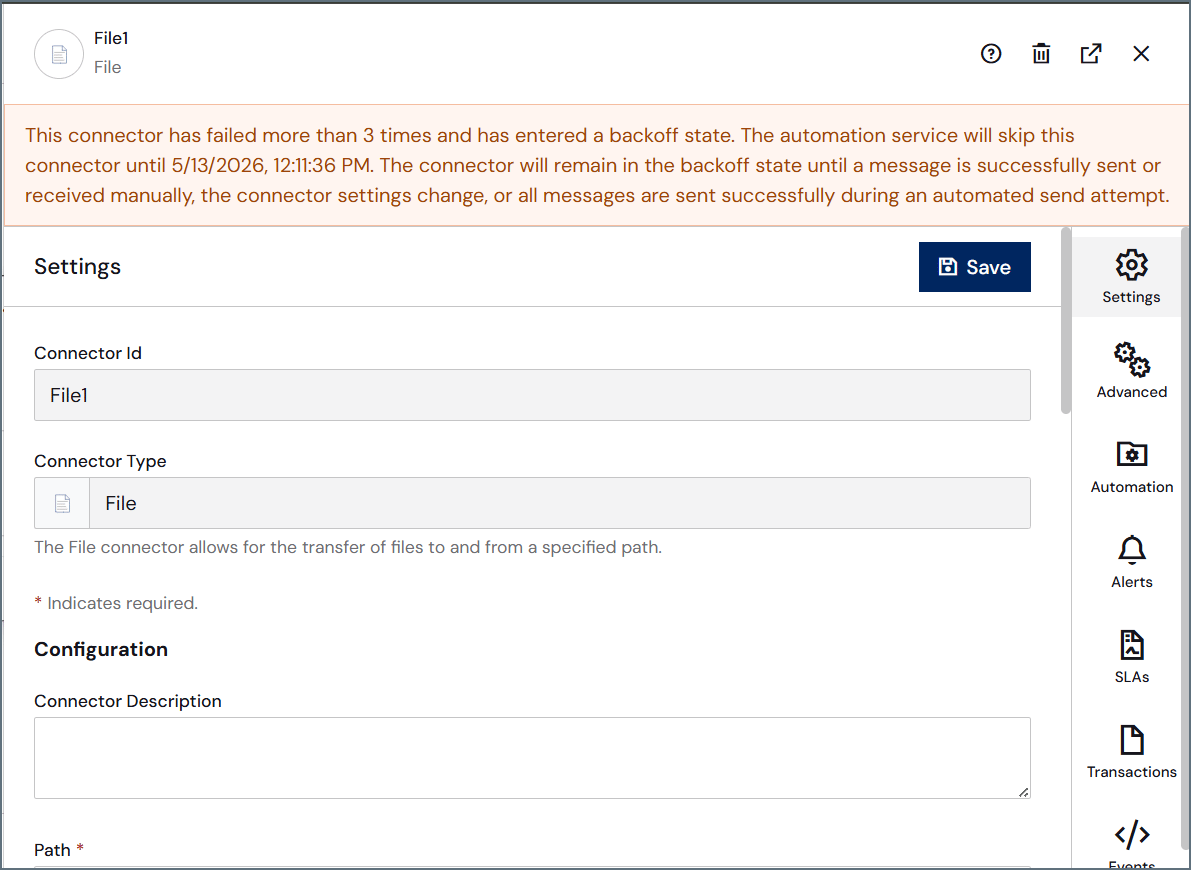
Application Log
Arc writes a warning to the application log when a connector enters backoff: This connector has failed [# of times] and has entered a backoff state. The automation service will skip this connector until [date/time]. The connector will remain in the backoff state until a message is successfully sent or received manually, the connector settings change, or all messages are sent successfully during an automated send attempt.Unsent Files
If files are accumulating in a connector’s Transactions tab with a status of Unsent while automation appears to be enabled, backoff is a likely cause. Check the application log for a backoff warning and review the transaction log for consecutive automation failures.Exiting Backoff
A connector exits backoff automatically when any of the following occurs:- A file is sent or received successfully through a manual send or receive
- The connector’s settings are saved
- All files are sent successfully during an automated send attempt