

Configure a Partner Workflow
The following image of a fully configured partner workflow has been annotated to explain each element in the workflow. Each number corresponds to a description below.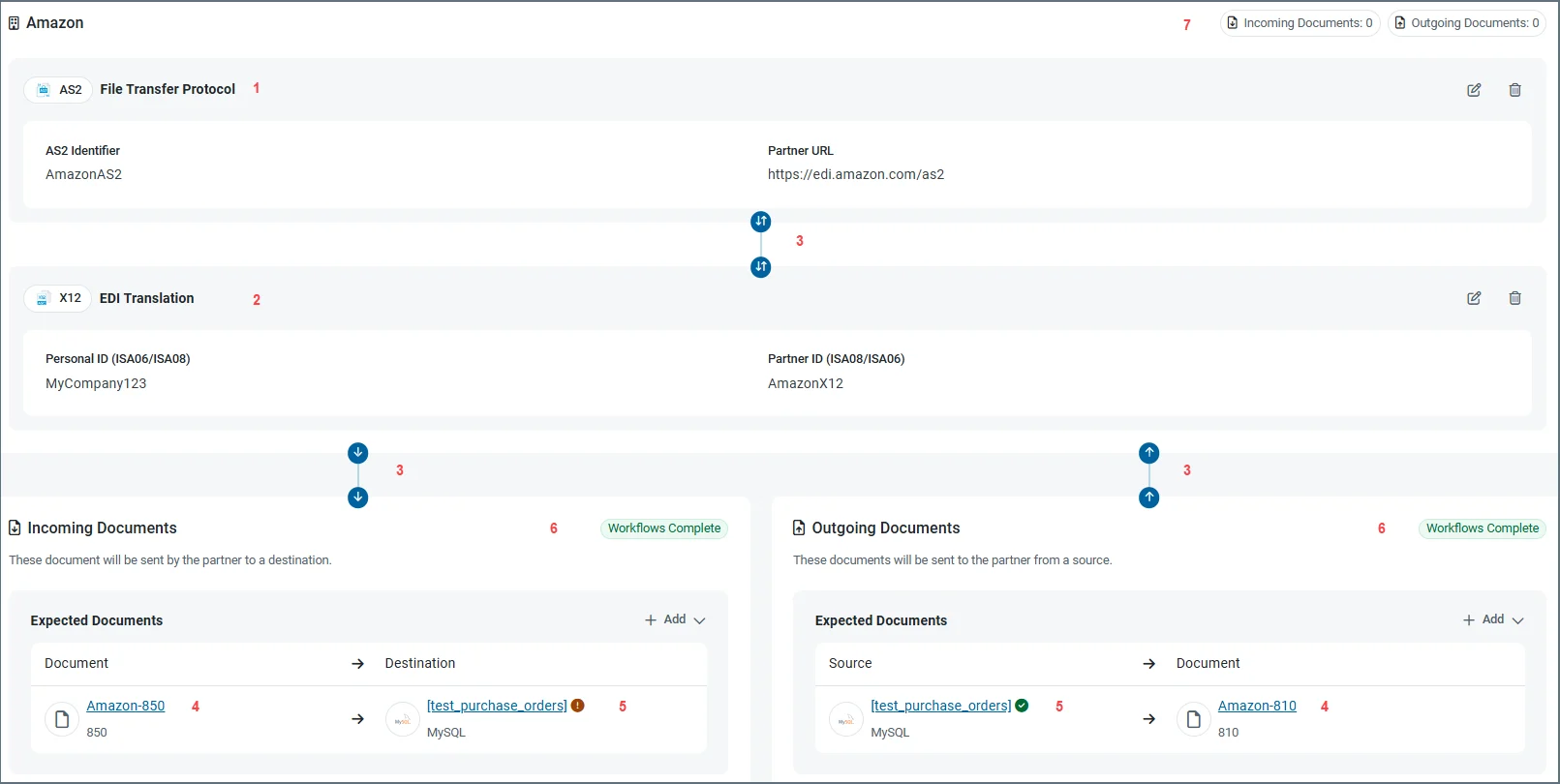
- The MFT connector that handles incoming and outgoing file transfers.
- The EDI connector that translates documents to and from XML.
- Arrows indicating the direction of data flow. Two arrows indicate that the flow is bidirectional.
- The defined document that you exchange with your partner. Clicking the document name takes you to that document’s workflow in the Documents tab.
- The table in the application connector where data is upserted to or selected from. Icons indicate whether the mapping has been tested. The checkmark indicates test success, and the exclamation mark indicates that the mapping hasn’t been tested or that an error has occurred during testing.
- Status of all the document workflow definitions. For example, if a workflow for a document is incomplete, the message reflects that, and that document is highlighted in orange.
- Count of incoming and outgoing documents processed.
Configure File Transfer Protocol
When you add a new partner, you need to configure the connector to use for both incoming and outgoing file transfers. Click Add Connector, then select from the list of available MFT connectors. When you click Add, the connector configuration pane opens. For details on the configuration options, click the question mark icon to open the documentation for your MFT connector. When you are finished, click Save.If you need to change the MFT connector type later, you must delete the existing connector, then add a new one. However, you can edit the current configuration options at any time by clicking the tablet and pencil icon.
Configure EDI Translation
The next step is to configure the connector to use to translate partner documents into XML so they can be used in . Click Add Connector, then select from the list of available EDI connectors. When you click Add, the connector configuration pane opens. For details on the configuration options, click the question mark icon to open the documentation for your EDI connector. When you are finished, click Save.If you need to change the EDI connector type later, you must delete the existing connector, then add a new one. However, you can edit the current configuration options at any time by clicking the tablet and pencil icon. If you change the EDI version of the connector, you are notified that all documents configured for the current partner will be removed.
Select or Add Documents
Once you have configured the MFT and EDI connectors, you can add documents to the workflow. Use the Add Existing or Add New buttons to continue.- Choose Add Existing to select from existing documents that use the same EDI connector for translation. Use the checkboxes to choose your document(s), then click Add Documents.
- Choose Add New to create a new document on the fly. Choose the schema version for your EDI document, use the checkboxes to select from the list of available documents, then click Add Documents.
You can also add documents from the Documents tab. See Managing Documents for more information.