

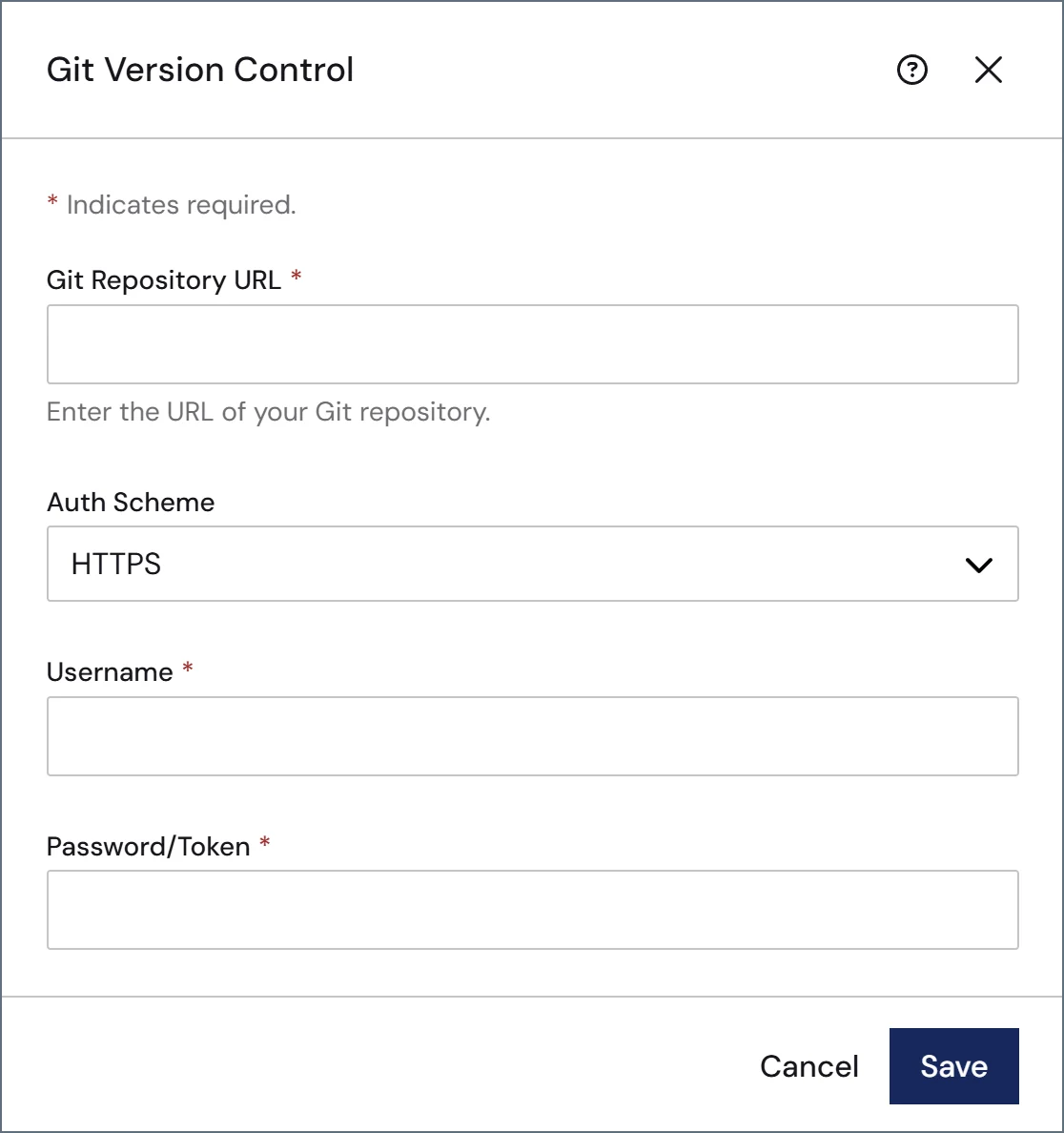
- The URL to your remote Git repository. If you are using SSH, do not enter the HTTPS address here; you must use the SSH address (for example,
git@github.com:username/private-repo.git). All major Git platforms are supported (such as GitHub, GitLab, Bitbucket, and Azure DevOps). - Your auth scheme. Once you select an auth scheme, the fields required for configuration appear.
- HTTPS: The Username and Password or Token to connect to the repository.
- SSH: The SSH Private Key file and Passphrase to connect to the repository. See Authenticating with SSH for more information.
- OAuth: Click Get Access Token to retrieve the access token that allows you to connect.
AppDirectory, creates a branch named settings-before-git-init-<initialization_date> that contains the configuration that exists at initialization, and stages those configuration files for commit. This ensures that no configurations are lost in the event that the remote repository already has content that would conflict with those settings.
The footer changes to a status bar showing a number of Git metrics and actions such as the current number of local files changed, the number of remote commits and the current branch. Click Commit and Push on the toolbar to push the initial commit to the remote repository.

Authenticating with SSH
Follow these steps to authenticate using SSH:- Run
ls -al ~/.sshto check for an existing SSH key. - If you have an existing key, you can use it. Alternatively, run this command to generate a new SSH public/private key pair:
ssh-keygen -t ed25519 -C "your_email@example.com". - Optionally, add a passphrase to the key for added security.
- Use the SSH Private Key field to upload your private key.
- Add the public SSH key to your Git platform.