

Key Capabilities
- Custom business logic implementation using Python scripting
- Access to full message context including message headers and file content
- Integration with external libraries and system commands (Python)
- Support for complex data transformations and business rule processing
Overview
Python connectors use the Python scripting language to accomplish a wide range of custom behavior. The script configured in the connector is run each time a document is placed in the Transactions tab for the connector. The input document can be read and modified in the script, or the input document can simply trigger the Python script configured in the connector. Python connectors can also be configured to run on a schedule via Receive automation on the Automation tab. After you decide the appropriate task for your Python connector, read the Writing Python documentation to explore how to call various operations.Connector Configuration
This section contains all of the configurable connector properties.Python Tab
Options related to writing and testing the script.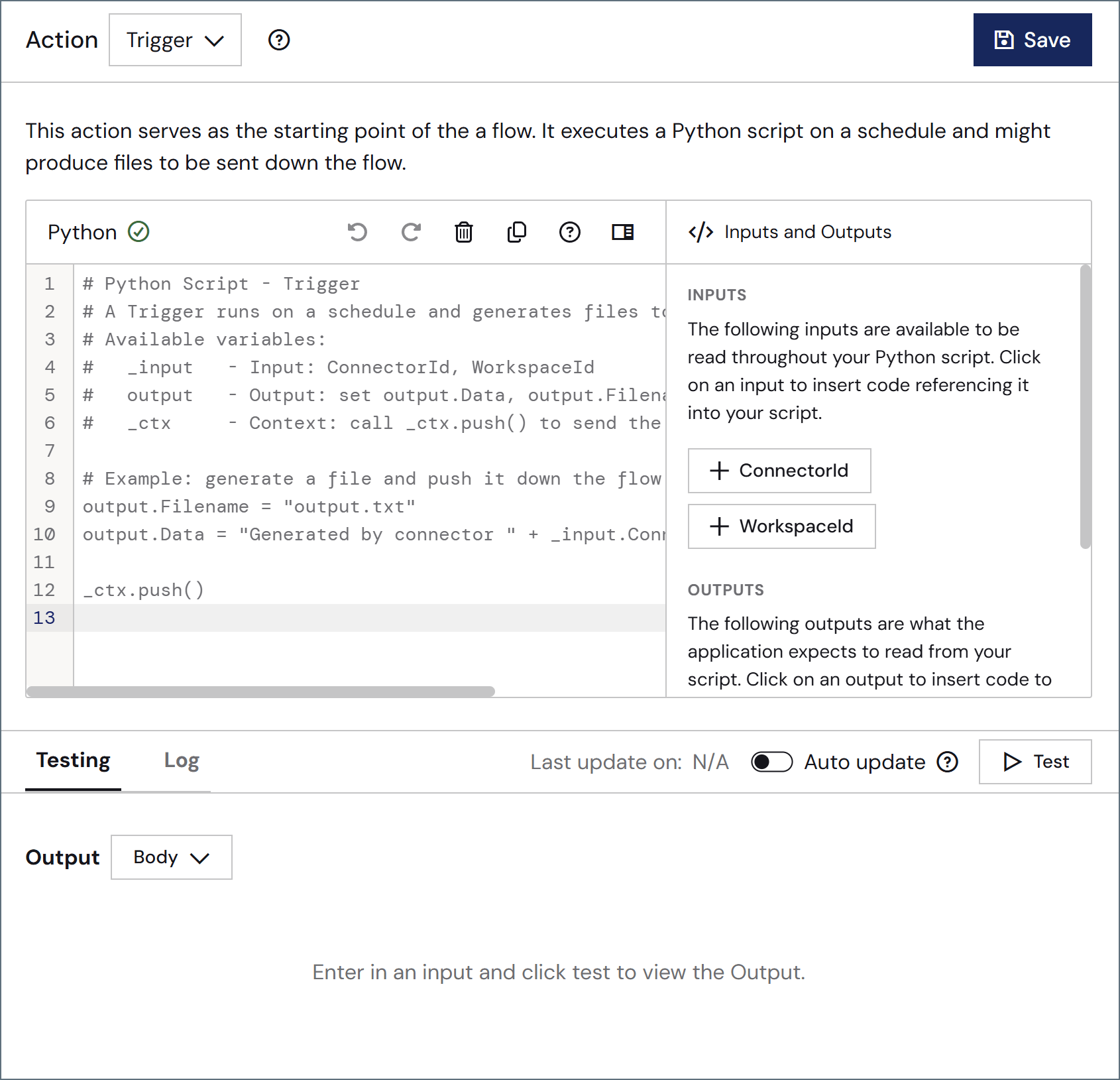
Actions
Settings Tab
Configuration
Settings related to the core operation of the connector.| 設定 | 説明 |
|---|---|
| Connector Id | コネクタの静的で一意の識別子です。 |
| Connector Type | コネクタ名とその機能の説明を表示します。 |
| Connector Description | コネクタおよびフロー内でのその役割について自由形式の説明を提供するためのオプションフィールドです。 |
Advanced Settings
Advanced Tab
Message
Message 設定は、コネクタがメッセージを検索する方法と、処理後にメッセージを管理する方法を決定します。
Note: 以下の設定は非推奨となり、デフォルトで非表示になっています。以前に有効化またはデフォルト以外の値に設定されていたコネクタにのみ表示されます。処理済みファイルのコピーを保持するには、フロー内のコネクタを右クリックし、成功パスを表示を選択して、成功パスをFile コネクタに接続してください。
| 設定 | 説明 |
|---|---|
| Sent フォルダに保存(非推奨) | コネクタが処理したファイルをSent フォルダにコピーします。デフォルトで無効です。Sent フォルダに保存されたファイルは保存データの暗号化の対象外です。 |
| Sent フォルダのスキーム(非推奨) | 選択した時間間隔でSent フォルダ内のファイルをグループ化します。Sent フォルダに保存が有効な場合のみ適用されます。 |
Logging
ログの作成と保存を制御する設定です。
| 設定 | 説明 |
|---|---|
| Log Level | コネクタが生成するログの詳細度です。サポートを依頼する際は、これをDebug に設定してください。 |
| Log Subfolder Scheme | 選択した間隔に従って、コネクタがLogs フォルダ内のファイルをグループ化するよう指示します。Weekly オプション(デフォルト)は、コネクタが毎週新しいサブフォルダを作成し、その週のすべてのログをそのフォルダに保存するよう指示します。この設定を空白のままにすると、コネクタはすべてのログをLogs フォルダに直接保存します。多数のトランザクションを処理するコネクタでは、サブフォルダを使用することでログを整理しやすくなり、パフォーマンスが向上します。 |
| Log Messages | 処理したファイルのログエントリにファイル自体のコピーを含めるには、これをオンにします。これを無効にすると、Transactions タブからファイルのコピーをダウンロードできなくなる場合があります。 |
Other Settings
Miscellaneous
Miscellaneous 設定は、特定のユースケース向けの設定です。
| 設定 | 説明 |
|---|---|
| Other Settings | 非表示のコネクタ設定をセミコロン区切りのリストで設定できます(例:setting1=value1;setting2=value2)。通常のコネクタのユースケースや機能では、これらの設定の使用は必要ありません。 |
Automation Tab
Automation Settings
Settings related to the automatic processing of files by the connector.Automation Status
Performance
コネクタへのリソースの割り当てに関する設定です。
| 設定 | 説明 |
|---|---|
| Max Workers | このコネクタでファイルを処理するためにスレッドプールから消費されるワーカースレッドの最大数です。設定すると、Advanced Settings ページのPerformance Settings 部分にあるデフォルト設定が上書きされます。 |
| Max Files | コネクタに割り当てられた各スレッドが送信するファイルの最大数です。設定すると、Advanced Settings ページのPerformance Settings 部分にあるデフォルト設定が上書きされます。 |
Alerts Tab
SLAs Tab
Transactions Tab
This tab lists all messages associated with the connector. Use the search bar to find specific messages, or click the funnel icon to apply a filter. You can filter by time, message direction, and/or status. Options on this tab vary depending on the connector’s action type:- If your connector is a Trigger, use the Receive button to start the flow.
- If your connector is a Transform or Terminal, messages that come from a previous connector in the flow automatically appear in the flow, or you can use the Upload Files button to add files.
Producing Output and Log Entries
Python connectors send data to the output feed through the built-inoutput item, which is pushed automatically when the script finishes — no explicit push is needed. (To push a custom item instead, set its attributes and call _ctx.push(item).) Following are three common use cases.
1 Create and output a file:
print() writes to the log file for the current message (as shown above). To write to the Arc application log instead, use _ctx.log('level', 'message') with a level of DEBUG, INFO, WARNING, or ERROR.