

Key Capabilities
- Transforms flat XML files into CSV, TSV, and PSV formats using ArcScript templating
- Visual Designer for simple mappings with automatic field matching and Code view for complex transformations
- XPath navigation for extracting values from nested XML structures with dynamic template generation
Overview
The CSV Map connector has two modes of operation: the visual Designer and the scripting-focused Code view. The Designer enables you to visually establish simple relationships between document types. More complicated translations require the Code view, which leverages the ArcScript scripting language to create a mapping template between XML and a flat file structure. To begin, from the Settings tab, upload a sample Source File and Destination File. If the structure of both sample files allows for designer-driven mapping, the visual Designer is populated with the source and destination fields. The application also attempts to populate the Code window with as much of the destination structure as it can.Connector Configuration
This section contains all of the configurable connector properties.Mapping Tab
Upload files to initiate design-driven mapping of source and destinations fields. Click Upload File, then choose your source and destination files.- The Source File represents the XML structure of input documents. Any files processed by the connector should have a matching XML structure. To support designer-driven mapping, this file must be a simple XML, CSV, PSV, or TSV structure.
- The Destination File file represents the structure of output documents. To use designer-driven mapping, this file must be a simple XML, CSV, PSV, or TSV structure.
Mappings
This section defines the mapping relationship between input and output files. The Designer view can map simple XML, CSV, PSV, and TSV structures, and the Code view can map more complicated XML structures. See Using the Designer and Using Code View for details.Settings Tab
Connector Configuration
Settings related to the core operation of the connector.| 設定 | 説明 |
|---|---|
| Connector Id | コネクタの静的で一意の識別子です。 |
| Connector Type | コネクタ名とその機能の説明を表示します。 |
| Connector Description | コネクタおよびフロー内でのその役割について自由形式の説明を提供するためのオプションフィールドです。 |
Advanced Tab
Advanced Settings
Message
Message 設定は、コネクタがメッセージを検索する方法と、処理後にメッセージを管理する方法を決定します。
Note: 以下の設定は非推奨となり、デフォルトで非表示になっています。以前に有効化またはデフォルト以外の値に設定されていたコネクタにのみ表示されます。処理済みファイルのコピーを保持するには、フロー内のコネクタを右クリックし、成功パスを表示を選択して、成功パスをFile コネクタに接続してください。
| 設定 | 説明 |
|---|---|
| Sent フォルダに保存(非推奨) | コネクタが処理したファイルをSent フォルダにコピーします。デフォルトで無効です。Sent フォルダに保存されたファイルは保存データの暗号化の対象外です。 |
| Sent フォルダのスキーム(非推奨) | 選択した時間間隔でSent フォルダ内のファイルをグループ化します。Sent フォルダに保存が有効な場合のみ適用されます。 |
Logging
ログの作成と保存を制御する設定です。
| 設定 | 説明 |
|---|---|
| Log Level | コネクタが生成するログの詳細度です。サポートを依頼する際は、これをDebug に設定してください。 |
| Log Subfolder Scheme | 選択した間隔に従って、コネクタがLogs フォルダ内のファイルをグループ化するよう指示します。Weekly オプション(デフォルト)は、コネクタが毎週新しいサブフォルダを作成し、その週のすべてのログをそのフォルダに保存するよう指示します。この設定を空白のままにすると、コネクタはすべてのログをLogs フォルダに直接保存します。多数のトランザクションを処理するコネクタでは、サブフォルダを使用することでログを整理しやすくなり、パフォーマンスが向上します。 |
| Log Messages | 処理したファイルのログエントリにファイル自体のコピーを含めるには、これをオンにします。これを無効にすると、Transactions タブからファイルのコピーをダウンロードできなくなる場合があります。 |
Miscellaneous
Miscellaneous 設定は、特定のユースケース向けの設定です。
| 設定 | 説明 |
|---|---|
| Other Settings | 非表示のコネクタ設定をセミコロン区切りのリストで設定できます(例:setting1=value1;setting2=value2)。通常のコネクタのユースケースや機能では、これらの設定の使用は必要ありません。 |
Automation Tab
Automation Settings
Settings related to the automatic processing of files by the connector.Performance
コネクタへのリソースの割り当てに関する設定です。
| 設定 | 説明 |
|---|---|
| Max Workers | このコネクタでファイルを処理するためにスレッドプールから消費されるワーカースレッドの最大数です。設定すると、Advanced Settings ページのPerformance Settings 部分にあるデフォルト設定が上書きされます。 |
| Max Files | コネクタに割り当てられた各スレッドが送信するファイルの最大数です。設定すると、Advanced Settings ページのPerformance Settings 部分にあるデフォルト設定が上書きされます。 |
Alerts Tab
SLAs Tab
Using the Designer
The visual designer is only available for CSV, PSV, TSV, and simple XML files. Below is an example of a simple XML document as the source file: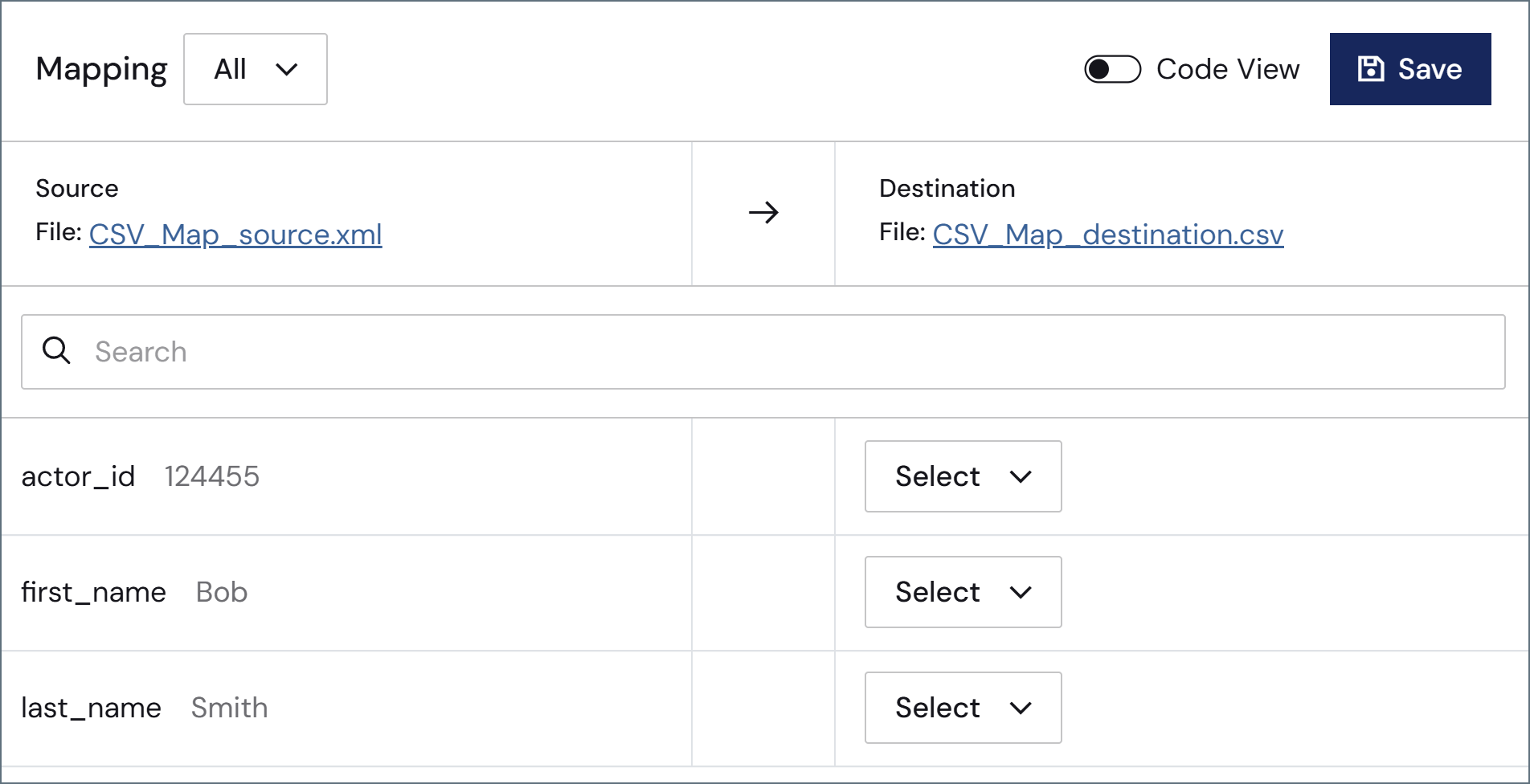
Using the Code View
The Code view provides the ability to generate the mapping template manually using ArcScript. This allows for more granular control over the possible input and output formats. The code view defines how the destination file looks once rendered, with ArcScript elements dynamically filling in the template with values from the source document. ArcScript elements all start with an arc prefix: for example,<arc:set>. Any content in the code view that is not ArcScript is included as part of the output file.
Navigating XML Input
ArcScript supports navigating complicated XML structures to parse out values from the Source File. The xmlDOMSearch operation takes an xpath as input and loads the XML structure at the given path. This operation loops for each instance of the xpath found in the source document: to load the entire document and avoid looping, provide the root element of the XML source as input to xmlDOMSearch. For example:author element in the root. Within each author loop, the value from the name element is read as content in the output file. The output file in this case would look like this:
Templating Output Data
The Code view serves as a template of the output file, and ArcScript fills in the values to the defined template. As a simple example, if data is formatted as comma-separated values, these commas can be included as part of the Code view to provide structure to the ArcScript functions. Therefore, you can generate more complex CSV files from more complicated XML structures than the Designer mode allows. For example, take the following XML, which has nested elements that prevent the use of Designer mode:Additional Scripting Features
Since full ArcScript is available in Code view, you might want to leverage ArcScript Operations in the template. For example, if the source file only includes the Id of an item in the database, but you need the actual item name, you can use the dbQuery operation to look up the name for the corresponding Id. ArcScript also supports conditional logic in a mapping template. Thearc:if keyword is one of many keywords available to help with performing conditional logic in templates. For example, if the source file contains information about customers in QuickBooks, you might want to perform different business logic for customers with an outstanding balance versus customers who have paid in full. A simple example of this use case might look like the following: