

Only the File connector can defer finalization. Other source connectors do not support this feature.
Key Capabilities
- Deferred cleanup of source files, so a received file is not deleted until the downstream flow succeeds
- Automatic timeout handling that releases pending files for another receive without deleting the source
- No configuration required to link to the source connector, because the message carries the information needed to find it
- Clear error messages when a message cannot be finalized
Overview
By default, a source connector such as the File connector completes a message as soon as it receives it. Any post-processing, such as deleting the file from the source folder, happens immediately, even if the downstream flow later fails. When you enable Defer received-file finalization on the File connector, the connector holds each received file in a pending state instead. The Finalize connector completes the pending file after the rest of the flow succeeds. When a message reaches the Finalize connector, the connector:- Reads the deferred source information that the message carries.
- Finds the source connector that received the file.
- Tells the source connector to finalize the file, which triggers the source connector’s configured cleanup (for example, deleting the file when Delete files (after received) is enabled).
Connector Configuration
This section contains all of the configurable connector properties.Settings Tab
Settings related to the core configuration of the connector.| Setting | Description |
|---|---|
| Connector Id | The static, unique identifier for the connector. |
| Connector Type | Displays the connector name and a description of what it does. |
| Connector Description | An optional field to provide a free-form description of the connector and its role in the flow. |
Advanced Tab
Other Settings
Logging
Settings that govern the creation and storage of logs.
| Setting | Description |
|---|---|
| Log Level | The verbosity of logs generated by the connector. When you request support, set this to Debug. |
| Log Subfolder Scheme | Instructs the connector to group files in the Logs folder according to the selected interval. The Weekly option (which is the default) instructs the connector to create a new subfolder each week and store all logs for the week in that folder. Leaving this setting blank tells the connector to save all logs directly in the Logs folder. For connectors that process many transactions, using subfolders helps keep logs organized and improves performance. |
| Log Messages | Check this to have the log entry for a processed file include a copy of the file itself. If you disable this, you might not be able to download a copy of the file from the Transactions tab. |
Miscellaneous
Miscellaneous settings are for specific use cases.
| Setting | Description |
|---|---|
| Other Settings | Enables you to configure hidden connector settings in a semicolon-separated list (for example, setting1=value1;setting2=value2). Normal connector use cases and functionality should not require the use of these settings. |
Automation Tab
Automation Settings
Settings related to the automatic processing of files by the connector.Performance
Settings related to the allocation of resources to the connector.
| Setting | Description |
|---|---|
| Max Workers | The maximum number of worker threads consumed from the threadpool to process files on this connector. If set, this overrides the default setting on the Performance Settings portion of the Advanced Settings page. |
| Max Files | The maximum number of files sent by each thread assigned to the connector. If set, this overrides the default setting on the Performance Settings portion of the Advanced Settings page. |
Alerts Tab
SLAs Tab
Transactions Tab
This tab lists all messages associated with the connector. Use the search bar to find specific messages, or click the funnel icon to apply a filter. You can filter by time, message direction, and/or status.Using Finalize with the File Connector
To delay deletion of a received file until the flow succeeds:- On the File connector that receives the files, enable Defer received-file finalization and, if you want the source files removed, Delete files (after received). See Receive.
- Build the rest of the flow that processes the file.
- Add a Finalize connector and connect it to the Success Path of the last connector that processes the file.
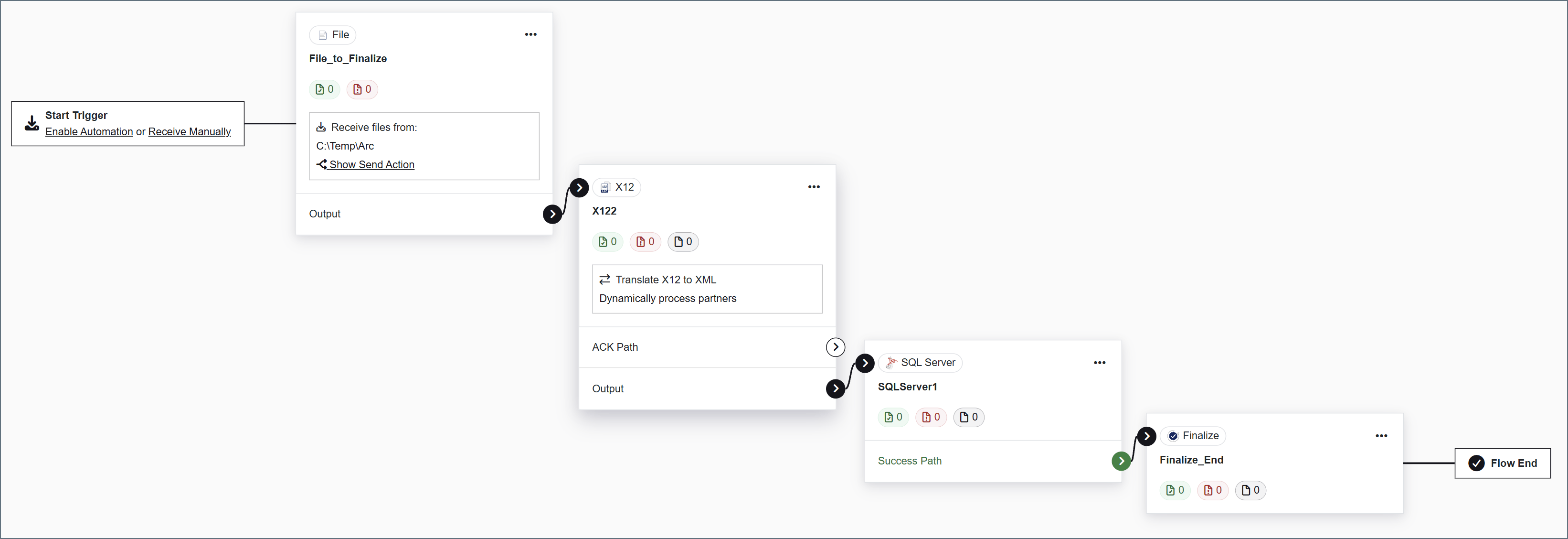
- The File connector receives a file from its configured path and holds it as pending.
- The X12 connector translates the file to XML.
- The SQL Server connector upserts the XML data into SQL Server.
- The SQL Server connector’s Success Path is connected to the Finalize connector, which completes the pending file.
- The file reaches the Finalize connector. The File connector completes the file and performs the configured cleanup.
- The pending timeout is reached. The Receive Pending Timeout (minutes) setting on the File connector’s Automation tab controls this timeout. The message is marked with a Pending Timeout error, the source file is not deleted, and the file is released so that it can be received again.
Messages that do not come from a connector with deferred finalization enabled cannot be finalized. Sending a regular message to the Finalize connector results in an error.
Source File Changes
If the source file changes between the time it is received and the time it is finalized, the connector does not delete it. The application log contains the following message, where{0} is the name of the file:
Source file '{0}' changed after it was received. Deferred finalization will not delete it.
Pending Timeout
The Receive Pending Timeout (minutes) setting on the File connector’s Automation tab controls how long a received file stays pending. The default is 10 minutes, and setting it to 0 keeps files pending indefinitely. If a pending message is not finalized before the timeout elapses:- The application log records that the message exceeded the pending timeout while waiting for finalization.
- An error notification is sent with the subject Send Failure: Pending Timeout.
- The message is marked with a Pending Timeout error. This appears as Error in the Transactions tab.
- The source file is not deleted, and the file becomes eligible to be received again.