

- 2022 and 2023
- ArcESB 2020 and 2021
- RSSBus Connect 2016, 2017, 2018, and 2019
- AS2 connector V2 (/n software)
- AS2 connector V3, FTP connector V1, OFTP connector V2, and SFTP connector V1 (RSSBus)
- IP*Works! EDI AS2 connector V7 (/n software)
Upgrading to a new major version (for example, upgrading from 2023 to 20) requires new product keys to license the application. You can request new keys from our sales team at arcsales@cdata.com.
Upgrading from a Build of 2024 or Later
Cross-Platform Edition
The Java Edition of 20 is shipped as setup.exe for Windows and in a compressed setup.tar.gz file for Linux. Follow the steps for your operating system to upgrade an existing installation of 20 to a newer build.Linux
- Stop the server.
-
Unzip the
arc.warfile from the tar.gz archive and place it in/opt/arc/webapp/, overwriting the old file. -
(Optional) Unzip the
arc.jarfile from the tar.gz archive and place it in/opt/arc/, overwriting the old file. - Start the server.
Windows
- Stop the server.
- Run setup.exe.
- Point the installer to the location where is installed.
- After the upgrade completes, start the server.
Notes for Java users
-
No matter how you choose to deploy , the files and folders that are contained in the application directory (
ApplicationDirectory) must be readable and writable by the user running the application. The service.sh script that is included with the Java Edition uses cdatarc as this user. -
If the application was previously run as a different user and you want to restore the necessary permissions for a cdatarc user to run the application, the command should be similar to the following:
.NET Edition
Stop the server (either through the embedded web server UI or in IIS, if applicable) and run setup.exe. The setup detects the installation path, overwrites the older build, and leaves all configuration data intact.Upgrading from 2022 or 2023
Cross-Platform Edition
The Java Edition of 20 is shipped as setup.exe for Windows and in a compressed setup.tar.gz file for Linux. Follow the steps for your operating system to upgrade an existing installation of 2022 or 2023 to 20.Linux
- Stop the server.
-
Unzip the
arc.warfile from the tar.gz archive and place it in/opt/arc/webapp/, overwriting the old file. -
(Optional) Unzip the
arc.jarfile from the tar.gz archive and place it in/opt/arc/, overwriting the old file. - Start the server.
Windows
- Stop the server.
- Run setup.exe.
- Point the installer to the location where is installed.
- After the upgrade completes, start the server.
Notes for Java users
-
No matter how you choose to deploy , the files and folders that are contained in the application directory (
ApplicationDirectory) must be readable and writable by the user running the application. The service.sh script that is included with the Java Edition uses cdatarc as this user. -
If the application was previously run as a different user and you want to restore the necessary permissions for a cdatarc user to run the application, the command should be similar to the following:
.NET Edition
20 functions as a drop-in upgrade to 2022; simply running the Windows installer for 20 upgrades all necessary application resources. The Windows installer for 20 attempts to detect existing installations of ArcESB 2022 and preserve the connectors, flows, and settings from the existing installation. If ArcESB 2022 was not installed in the default location, you might need to point the 20 installer to the folder on disk where ArcESB 2022 was installed.Upgrading from ArcESB 2021
Cross-Platform Edition
The Java Edition of 20 is shipped as setup.exe for Windows and in a compressed setup.tar.gz file for Linux. Follow the steps for your operating system to upgrade an existing installation of ArcESB 2021 to 20.Linux
-
Extract the tar.gz file to
/opt/arc/. -
Stop the server (for example,
sudo systemctl stop arcesb). -
If upgrading an installation that utilizes the Embedded Jetty Server, run
sudo bash /opt/arc/upgrade.sh, optionally specifying the-InstallDirectoryparameter if your previous installation used a non-default path. If upgrading an installation that utilizes an external servlet container (for example, Apache Tomcat or External Jetty), see the instructions for your servlet container. -
Start the server either as a service (for example,
sudo systemctl start arc) or in-process (for example,java -jar arc.jar).
Windows
- Stop the server.
- Run setup.exe.
- Point the installer to the location where is installed.
- After the upgrade completes, start the server.
Notes for Java users
-
No matter how you choose to deploy , the files and folders that are contained in the application directory (
ApplicationDirectory) must be readable and writable by the user running the application. The service.sh script that is included with the Java Edition uses cdatarc as this user. -
If the application was previously run as a different user and you want to restore the necessary permissions for a cdatarc user to run the application, the command should be similar to the following:
.NET Edition
20 functions as a drop-in upgrade to ArcESB 2021; simply running the Windows installer for 20 upgrades all necessary application resources. The Windows installer for 20 attempts to detect existing installations of ArcESB 2021 and preserve the connectors, flows, and settings from the existing installation. If ArcESB 2021 was not installed in the default location, you might need to point the 20 installer to the folder on disk where ArcESB 2021 was installed.Upgrading from ArcESB 2020
Before you begin, keep in mind that the current version of includes several features that might cause the application to behave differently from an ArcESB 2020 installation:- 20 manages users within the application rather than through server configuration, so some user settings might not transfer. See User Management for more information.
- 20 does not automatically preserve subfolder structures found on FTP and SFTP servers. See Subfolders in File Based Connectors for more information.
- 2023 does not let you override local folders for individual connectors. See Overriding Local Folders for more information.
- 20 does not require Windows administrator privileges to run by default, so some folder permissions might need to be updated. See Windows Application Directory for more information.
Cross-Platform Edition
The Java Edition of 20 is shipped as setup.exe for Windows and in a compressed setup.tar.gz file for Linux. Follow the steps for your operating system to upgrade an existing installation of ArcESB 2020 to 20.Linux
-
Extract the tar.gz file to
/opt/arc/. -
Stop the server (for example,
sudo systemctl stop arcesb). -
If upgrading an installation that utilizes the Embedded Jetty Server, run
sudo bash /opt/arc/upgrade.sh, optionally specifying the-InstallDirectoryparameter if your previous installation used a non-default path. If upgrading an installation that utilizes an external servlet container (for example, Apache Tomcat or External Jetty), see the instructions for your servlet container. -
Start the server either as a service (for example,
sudo systemctl start arc) or in-process (for example,java -jar arc.jar).
Windows
- Stop the server.
- Run setup.exe.
- Point the installer to the location where is installed.
- After the upgrade completes, start the server.
Notes for Java users
-
No matter how you choose to deploy , the files and folders that are contained in the application directory (
ApplicationDirectory) must be readable and writable by the user running the application. The service.sh script that is included with the Java Edition uses cdatarc as this user. -
If the application was previously run as a different user and you want to restore the necessary permissions for a cdatarc user to run the application, the command should be similar to the following:
.NET Edition
20 functions as a drop-in upgrade to ArcESB 2020. Simply running the installer for 20 upgrades all necessary application resources. The installer for 20 attempts to detect existing installations of ArcESB 2020 and preserve the connectors, flows, and settings from the existing installation. If ArcESB 2020 was not installed in the default location, it might be necessary to point the 20 installer to the folder on disk where ArcESB 2020 was installed. 20 can be installed separately from ArcESB 2020 by directing the 20 installer to a different folder than the one in which ArcESB 2020 was installed. Installations do not interfere with each other as long as they are installed to different folders.User Management
ArcESB 2020 and earlier managed users via the server configuration XML files (for example, Web.Config or server.xml). More recent versions of bring user management within the application itself, on the Users tab in the Settings page. Users configured in versions prior to 2021 do not persist during the upgrade and must be re-created as necessary on the Users tab. See User Roles for more information.Subfolders in File Based Connectors
This section is relevant only for users with file-based connectors (including File, FTP, and SFTP) that preserve the folder structure from remote file systems.
Overriding Local Folders
Prior to ArcESB 2021, you could override theSend, Receive, and Sent folders for individual connectors by using Connector Settings. Starting with ArcESB 2021, these options are not in the interface, and direct overrides of connector folders are discouraged. Best practice is to use a File connector to manage local file systems.
If necessary, you can still manually override the SendFolder, ReceiveFolder, and SentFolder properties of connectors in Connector Settings by using the field under Advanced > Miscellaneous > Other Settings. If these settings were overridden for a connector in a previous release, the configured settings are present here.
If you choose to use this method to override local folders for the connector, set the value under Advanced > Processing Delay to a non-zero value in seconds (for example, 10) to prevent from processing files that are still being written by an external process.
Windows Application Directory
The Windows edition of 20 stores the Application Directory (which holds the data for flows, connectors, profile settings, and so on) in theC:\ProgramData\CData\Arc folder by default. Prior to ArcESB 2021, the Application Directory was in the C:\Program Files folder. This helps ensure that 20 can run without administrator privileges by default.
When you upgrade from ArcESB 2020 or earlier to 20, the application re-uses the Application Directory from the older installation, but it still attempts to run without administrator privileges by default. As a result, it might be necessary to set the access permission rules on the Application Directory within C:\Program Files to allow access with lower running permissions.
For more information on the Application Directory, see Configuring the Application Directory.
Upgrading from RSSBus Connect 2016, 2017, 2018, or 2019
This section describes the process of upgrading from an earlier release of RSSBus Connect.For help upgrading from an earlier version than RSSBus Connect 2016, see Upgrading from AS2 Connector.
- 20 manages users within the application rather than through server configuration, so some user settings might not transfer. See User Management for more information.
- 20 does not automatically preserve subfolder structures found on FTP and SFTP servers. See Subfolders in File Based Connectors for more information.
- 20 does not let you override local folders for individual connectors. See Overriding Local Folders for more information.
- 20 does not require Windows administrator privileges to run by default, so some folder permissions might need to be updated. See Windows Application Directory for more information.
Cross-Platform Edition
The Java Edition of 20 is shipped as setup.exe for Windows and in a compressed setup.tar.gz file for Linux. Follow the steps for your operating system to upgrade an existing installation of RSSBus Connect Java Edition to 20:Linux
-
Extract the tar.gz file to
/opt/arc/. -
Stop the server (for example,
sudo systemctl stop arcesb). -
If upgrading an installation that utilizes the Embedded Jetty Server, run
sudo bash /opt/arc/upgrade.sh, optionally specifying the-InstallDirectoryparameter if your previous installation used a non-default path. If upgrading an installation that utilizes an external servlet container (for example, Apache Tomcat or External Jetty), see the instructions for your servlet container. -
Start the server either as a service (for example,
sudo systemctl start arc) or in-process (for example,java -jar arc.jar).
Windows
- Stop the server.
- Run setup.exe.
- Point the installer to the location where is installed.
- After the upgrade completes, start the server.
Notes for Java users
-
No matter how you choose to deploy , the files and folders that are contained in the application directory (
ApplicationDirectory) must be readable and writable by the user running the application. The service.sh script that is included with the Java Edition uses cdatarc as this user. -
If the application was previously run as a different user and you want to restore the necessary permissions for a cdatarc user to run the application, the command should be similar to the following:
.NET Edition
Upgrading to 20 from RSSBus Connect 2016, 2017, 2018, or 2019 can be a one-step in-place upgrade. Simply run the installer to update application resources (EXE, DLL, JAR, and WAR files) without disturbing configuration data. If the installer detects an RSSBus Connect installation, the installer uses this same installation path to store configuration data (profile, connectors/ports, certificates). Thus, the settings from older versions are used automatically by the new installation.Transferring Configuration Data Manually
If an in-place upgrade is not possible, you can still transfer configuration data from previous versions of RSSBus Connect. The first transfer method is to export connector (port) settings from the older version, then import these connectors into the new version:- In RSSBus Connect, export connectors from the Ports tab by clicking Settings (the gear icon) in the upper right of the window and selecting Export Port Settings. In later versions of RSSBus Connect (for example, RSSBus Connect 2019), you can export connectors from the Flows tab by right-clicking the connector (port) in the flow and selecting Export Port Settings.
- In , click Settings, then select Import Workspace to import the connectors from the Flows tab.
data folder of the installation directory. Copying the data folder from a previous version into the same folder in the latest version effectively copies the entire application configuration.
The default installation directory for is as follows:
-
.NET Edition:
C:\Program Files\CData\CData Arc -
Java:
/opt/arc
-
.NET Edition:
C:\Program Files\RSSBus\RSSBus Connect -
Java:
~/rssbus/connect
~ resolves to the home directory of the user where the Java servlet is installed. On a Windows system, ~ resolves to %ProgramData%.
If you do not see the installation directory, check for the RSSBus Connect default installation directory. The installer attempts to detect RSSBus Connect installations and use the pre-existing folder structure from RSSBus Connect.
Upgrading Application-Data Source Connectors
introduced a new approach to connecting to external data sources that are applications rather than traditional databases (for example, Salesforce, NetSuite, QuickBooks, and so on). In RSSBus Connect, each external data source application required a dedicated connector (port) to interface with the application. In , a single connector called the connector is used to connect to each application data source.Drivers
The connector uses drivers to connect to a specific data source. Software provides the ADO.NET and JDBC drivers that enable connectivity to hundreds of cloud and on-premises applications, databases, and more. These drivers were used beneath the surface in previous RSSBus Connect connectors (ports), so the interface and approach to accessing data in these application data sources has not changed. To upgrade this set of connectors (ports) to , you must install and configure the appropriate driver in a connector. See the Connector documentation for details on installing drivers. Once the driver is installed and selected within the connector’s settings, the connector can be configured with the same connection settings and credentials that were used in RSSBus Connect connectors (for example, the Salesforce connector, the HubSpot connector, and so on).Upgrading External Connectors
A small number of connectors that were previously external are now embedded in 20:- SQL Server
- Oracle
Upgrading from AS2 Connector
This section also applies to upgrading from FTP Connector, OFTP Connector, and SFTP Connector.Installing
.NET Edition Users
The Windows installation of targets a different installation path than earlier versions of the product, and it listens on a different port. This change ensures that both releases can be run side-by-side without conflicting with one another. Simply run setup.exe and follow the prompts to install the application on the machine.Java Users
As with previous versions of the AS2 connector (and other releases in the connector family), the application is provided as a distributablearc.war file. If you distribute this WAR file to your Java server by using the server’s built-in deployment wizard, this replaces your existing installation of the AS2 connector in its entirety, including trading partner profiles.
If you want to perform an in-place upgrade of the AS2 connector and still preserve your profile settings between installations, create a copy of your previous installation’s data folder before you deploy the new package. This data folder is located in /WEB-INF/data/ under the existing web application folder. Once you copy this folder into a new location, deploy in place of the existing installation. When you launch the application for the first time, the connectors (ports) are not configured. Click Import Profiles to specify the location where you copied your data folder to restore your profiles.
Alternatively, you can rename the arc.war file that is provided with to install this version of the application as a parallel application.
Importing Profile Information
If you are upgrading from an earlier version of the AS2 connector, SFTP connector, or other previous versions, you can detect and import your existing partner profile configurations using two methods.Import Automatically
If you install the Windows edition of on a machine where a previous version of the application was installed, the installation program attempts to detect the installation of the previous version, and it can import the profile settings from it. If it detects a partner profile with the same name as one already configured in , this process creates a duplicate entry with a number appended to the identifying field to ensure that it is unique. You can safely delete duplicate profiles after they are imported.Import Using the Admin API
‘s Admin API includes an import action that you can use to import settings from previous versions. The import action requires three parameters:-
arcflow — The base64-encoded string containing the flow data. This string can be generated by base64-encoding the entire file contents of a
.arcflowfile. - Overwrite — How should respond if an imported profile/partner configuration causes a conflict with the current configuration. If the value is True, the existing configurations are overwritten. Otherwise, an error is generated.
- WorkspaceId — The workspace into which the flow is imported. If this parameter is not specified, the application attempts to determine which workspace to import into (based on workspace values in the flow that is being imported) and falls back to the default workspace if necessary.
Configuring a Transparent Upgrade
After you run the installer and import partner profiles from a previous installation, the new version has backwards compatibility for receiving URLs in the old version. However, there are two key differences:- uses a different local port than the application server that hosted the previous installation of the application. This behavior avoids conflicts with the installation of a previous version of the AS2 connector so that you can maintain both versions of the application and transfer partners to the new version at your own pace.
-
The
Incoming,Outgoing, andSentfolders from the previous installation of the AS2 connector are not imported automatically into the profiles that are used in . By default, the application uses its own local file resources, so it does not interfere with the currently running instance of the application. This also ensures that, if automation is enabled in the previous profile, the application does not immediately begin sending files that are waiting to be sent in the older version of the AS2 connector.
- Determine whether to use the old folder structure from the previous installation of the AS2 connector, or the default folder structure.
- Determine whether to use your existing receiving URL, or a new one.
Keeping Your Previous Folders
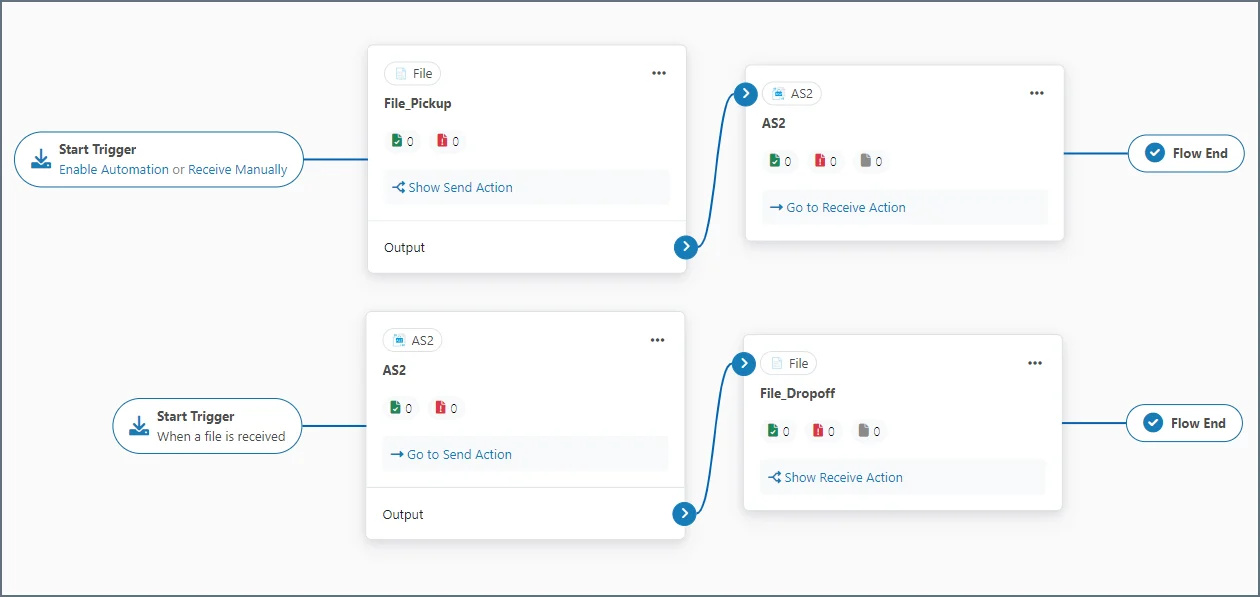
The current version of includes a File connector that lets you interact with external folders in the file system as a separate logical step in your message flow. This process lets you integrate with the local file system by using the same resources that you used previously. However, if you add additional connectors in the future, the application creates these in a differentdata folder by default.
The following image shows an example of a flow that uses File connectors in this way:
Advantages
The existing back-end business logic is preserved for configured trading partners.Disadvantages
Additional connectors use a differentdata folder by default.
Switching to Use the New Folders
If you plan to add more partners or configure additional connectors in , it might be best to switch to the new default folder structure. This structure is described below. The Application Directory contains all connector and profile configuration data. Each configured connector in has its own folder within thedata folder (for the default workspace) or an appropriate workspace folder within the workspaces folder. The connector-specific folder contains the following folders:
-
Logs— A folder where the connector writes connector-specific logs. -
Pending— Connectors that wait for a partner response store pending messages in this folder (only certain connector types require this). -
Receive— Connectors that receive or download files from an external source place those files in this folder. Connectors that operate on local data (without sending or receiving from an external source) place files here after they are processed. -
Send— Files placed in this folder are slated to be processed, sent, and uploaded by the connector. -
Sent— The connector places a copy of processed, sent, and uploaded files in this folder.
Send folder, and pick up files that are received from external trading partners in the connector’s Receive folder.
Advantages
A consistent folder structure is maintained if additional trading partners are configured.Disadvantages
Business logic might need to be reconfigured to use the new folder structure.Using a New URL
The server provided with listens on different ports and uses different URLs for receiving AS2 transmissions than earlier releases. After you import your profiles into , you must update your trading partners so that they are sending to your new Receiving URL. By default, the server provided with listens in plain text on port 8001 and uses SSL/TLS on port 8401. You can find the Receiving URL by clicking Profile > AS2.Advantages
- Trading partners transition at their own pace.
- There is no downtime.
Disadvantages
- Trading partners need to change your URL in the profile configuration on their end.
- An additional port must be opened on the firewall.
- Both versions of the application are maintained.
Using the Existing URL
To receive requests on the same URL used by the previous version, stop the server hosting the previous version so that the same port can be assigned to . You also need to assign the server to the port that you were using for the previous version. You can configure the port by right-clicking the icon in the system tray, then clicking Server Options. The application automatically recognizes requests to resources that were supported in previous versions of the application (/as2connector/pub/ReceiveFile.rsb and /Receiver.aspx, for instance) and forwards them to the appropriate resources in .
Advantages
- Trading partners do not need to change profiles.
- Maintain one system.
Disadvantages
- Downtime while old server is stopped to free up a port for the new server.
- Existing profiles must first be imported.
If the port that you configure is an SSL/TLS-enabled port, you also need to configure the SSL/TLS certificate that is used for the previous version of the AS2 connector on this port. If you previously hosted an SSL/TLS port in , the same certificate store is the location of SSL/TLS certificates in (the local machine’s personal account).
Upgrading an Amazon AMI
20 has a dedicated AMI in the AWS Marketplace that you can use to create a new EC2 instance running . To preserve all application data, follow the instructions in Manual Backup to understand how to copy application folders directly from the file system. Follow these steps to make a persistent copy of the relevant folders:- Copy the folders from the Amazon VM to a local machine via a transfer protocol like SFTP or SCP.
- Transfer the same folders to the EC2 instance created from the latest AMI.