

Overview
IDoc connectors can connect to SAP using the following methods: Windows- NetWeaver RFC SDK
- Classic RFC SDK
- Classic RFC SDK with Unicode support
- SOAP (send-only)
- Java connector (JCO)
- SOAP (send-only)
Connector Configuration
This section contains all of the configurable connector properties.Settings Tab
Host Configuration
Settings related to establishing the connection to the SAP system.Client Authentication
Settings related to authenticating against the SAP system.Receiver Options
Settings related to receiving IDoc files.Control Record Information Options
This section allows you to overwrite the control headers for IDoc files before sending them to SAP. This is useful when you are receiving IDoc files from one SAP system and sending them to another SAP system: in this situation you should change the control record without changing the IDoc file data. See Sending IDocs to SAP for more information.Advanced Tab
Language Settings
Settings related to communication language.Gateway
Settings related to communicating with SAP through a gateway.Logon Load Balancing
Settings related to logging in to the SAP system as a group to enable load balancing.Secure Network Communications (SNC)
Settings related to using an external security product to enhance the SAP connection security.Advanced Settings
Settings not included in the previous categories.Message
Message 設定は、コネクタがメッセージを検索する方法と、処理後にメッセージを管理する方法を決定します。
Note: 以下の設定は非推奨となり、デフォルトで非表示になっています。以前に有効化またはデフォルト以外の値に設定されていたコネクタにのみ表示されます。処理済みファイルのコピーを保持するには、フロー内のコネクタを右クリックし、成功パスを表示を選択して、成功パスをFile コネクタに接続してください。
| 設定 | 説明 |
|---|---|
| Sent フォルダに保存(非推奨) | コネクタが処理したファイルをSent フォルダにコピーします。デフォルトで無効です。Sent フォルダに保存されたファイルは保存データの暗号化の対象外です。 |
| Sent フォルダのスキーム(非推奨) | 選択した時間間隔でSent フォルダ内のファイルをグループ化します。Sent フォルダに保存が有効な場合のみ適用されます。 |
Logging
ログの作成と保存を制御する設定です。
| 設定 | 説明 |
|---|---|
| Log Level | コネクタが生成するログの詳細度です。サポートを依頼する際は、これをDebug に設定してください。 |
| Log Subfolder Scheme | 選択した間隔に従って、コネクタがLogs フォルダ内のファイルをグループ化するよう指示します。Weekly オプション(デフォルト)は、コネクタが毎週新しいサブフォルダを作成し、その週のすべてのログをそのフォルダに保存するよう指示します。この設定を空白のままにすると、コネクタはすべてのログをLogs フォルダに直接保存します。多数のトランザクションを処理するコネクタでは、サブフォルダを使用することでログを整理しやすくなり、パフォーマンスが向上します。 |
| Log Messages | 処理したファイルのログエントリにファイル自体のコピーを含めるには、これをオンにします。これを無効にすると、Transactions タブからファイルのコピーをダウンロードできなくなる場合があります。 |
Miscellaneous
Miscellaneous 設定は、特定のユースケース向けの設定です。
| 設定 | 説明 |
|---|---|
| Other Settings | 非表示のコネクタ設定をセミコロン区切りのリストで設定できます(例:setting1=value1;setting2=value2)。通常のコネクタのユースケースや機能では、これらの設定の使用は必要ありません。 |
Automation Tab
Automation Settings
Settings related to the automatic processing of files by the connector.Performance
コネクタへのリソースの割り当てに関する設定です。
| 設定 | 説明 |
|---|---|
| Max Workers | このコネクタでファイルを処理するためにスレッドプールから消費されるワーカースレッドの最大数です。設定すると、Advanced Settings ページのPerformance Settings 部分にあるデフォルト設定が上書きされます。 |
| Max Files | コネクタに割り当てられた各スレッドが送信するファイルの最大数です。設定すると、Advanced Settings ページのPerformance Settings 部分にあるデフォルト設定が上書きされます。 |
Alerts Tab
SLAs Tab
Establishing a Connection
Using NetWeaver RFC SDK
The following libraries from the NetWeaver RFC SDK must be placed into the Arcwww\\bin\\x64 folder (www\\bin\\x86 on 32-bit operating systems):
- sapnwrfc.dll
- icudt30.dll
- icuin30.dll
- icuuc30.dll
- libicudecnumber.dll
- libsapucum.dll
- The .dll names might be different based on the version of the SAP RFC SDK you have installed. The examples above are for version 3.0.
-
You need to add the
sapgw00service to your listed services for the NetWeaver SDK connection to work on your client machine. You can add it to the services file atC:\\Windows\\System32\\drivers\\etc\\services.
Using Classic RFC SDK
The non-Unicode library does not require anything other than librfc32.dll. Place librfc32.dll into the Arcwww\\bin\\x64 folder (www\\bin\\x86 on 32-bit operating systems).
These libraries are provided in both x86 and x64, so you must use the same platform that the process is using. If the application is running on a 64-bit version of Windows, the process is 64-bit.
Using Classic RFC SDK with Unicode Support
The following libraries from the SAP RFC SDK must be placed into the Arcwww\\bin\\x64 folder (www\\bin\\x86 on 32-bit operating systems):
- librfc32u.dll
- icudt30.dll
- icuin30.dll
- icuuc30.dll
- The .dll names might be different based on the version of the SAP RFC SDK you have installed. The examples above are for version 3.0.
- These libraries are provided in both x86 and x64, so you must use the same platform that the process is using. If the application is running on a 64-bit version of Windows, the process is 64-bit.
Using the Java Connector
To use the Java connector, add sapjco3.jar to thelib folder of your Java servlet container.
Using SOAP
SOAP can only be used to send IDocs to SAP. You must use a different connection type to receive IDocs from SAP.This requires enabling SOAP connections on the SAP system.
Configuring Services
In addition to the dependencies above, the following services must be added to%WINDIR%\\system32\\drivers\\etc\\services, or /etc/services if your system is running Linux or Mac OS X. If SAP NetWeaver is already installed on the machine, no further action is required.
Logging on to SAP
The following settings are required to connect with your SAP system.Gateway
When connecting to SAP via a gateway, use the options in the Gateway section of the Advanced tab.Load Balancing
To log on via load balancing, set the properties in the Logon Load Balancing section of the Advanced tab.Secure Network Communications (SNC)
To enable secure network communications, check the Enable SNC box in the Secure Network Communications (SNC) section of the Advanced tab. Set SNC Library to the .dll of the SNC library you want to use to connect with SAP.Sending IDocs to SAP
Once you have configured the IDoc connector to connect to your SAP system, you can begin sending IDoc files to SAP. The IDoc connector can send files formatted in raw IDoc or XML IDoc. You can configure the connector to automatically insert control record information into the IDoc being sent to SAP: the DOCREL, SNDPOR, SNDPRT, and so on. This makes it easier to process outgoing IDocs to the configured system. Configure these settings in the Control Record Information Options section of the Settings tab. Before sending an IDoc to your SAP system, make sure that you have properly configured a partner profile in SAP. If no partner profile in SAP matches the control record information in the IDoc you are sending, the data will not be processed by your SAP system. See Test Sending an IDoc to SAP for more information on setting up a partner profile.Test Sending an IDoc to SAP
To test sending an IDoc to SAP, you first need to configure your SAP system to have a partner profile for Arc. The following steps describe how to do this with an ORDERS IDoc.-
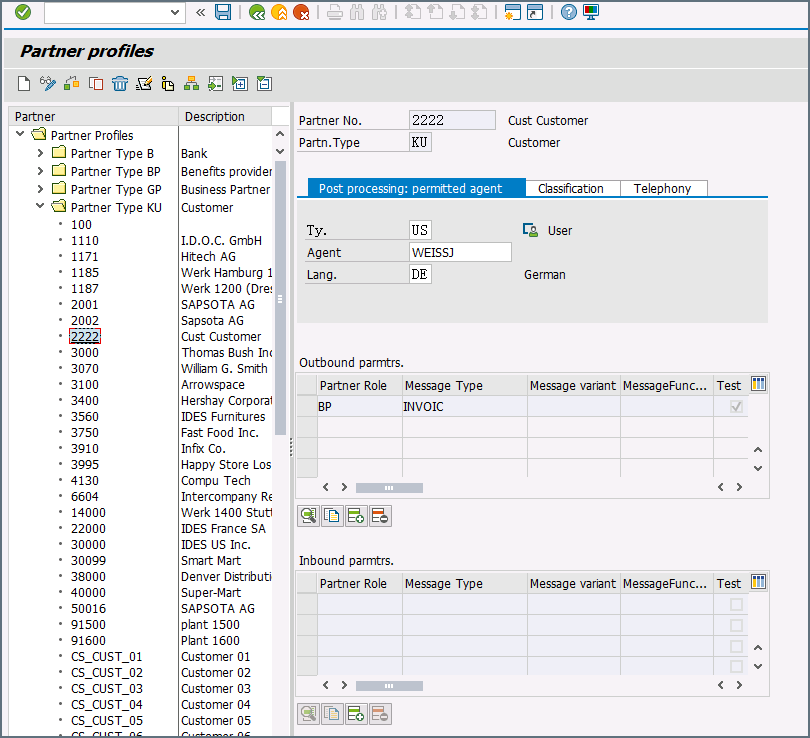
Create a partner: Go to transaction code WE20 and define a partner profile. Set Partn Type to KU for Customer and Partner No to a valid customer number.
-
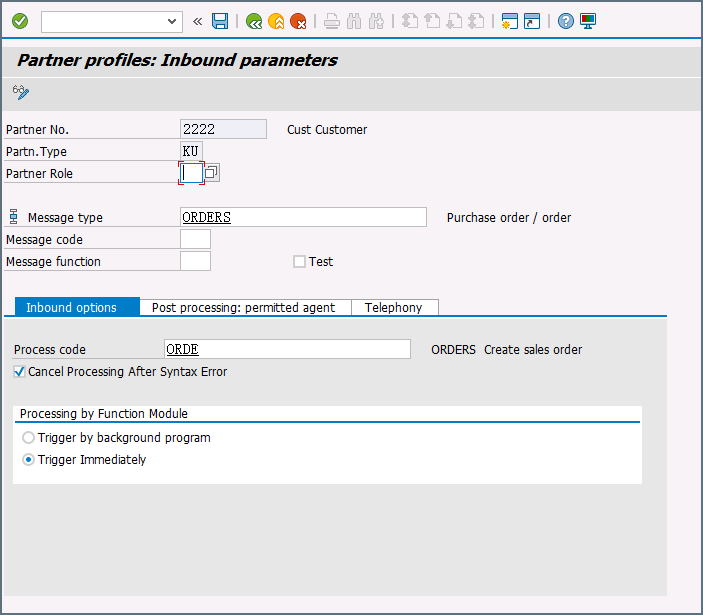
Add an inbound parameter for the ORDERS document: The message type for this document is ORDERS. On the Inbound Options tab, set Process code to ORDE to tell SAP how to create a sales order when a purchase order ORDERS document is received by the SAP system.
- Assign the customer to a sales division: The customer configured in step one must be assigned to a sales organization, distribution channel, and division. Go to transaction VOE2 to configure these settings in the EDSDC table.
Receiving IDocs from SAP
Once you have configured the IDoc connector to connect to your SAP system, you can begin receiving IDoc files from SAP. The IDoc connector can receive files formatted in raw IDoc or XML IDoc. To receive files from SAP, create an RFC destination for Arc. You can then check Enable IDoc Receiver in the Receiver Options section of the Settings tab, then enter the Program Id that you registered in your SAP system for Arc.Test Receiving an IDoc from SAP
This example describes how to configure your SAP system to send a MATMAS IDoc to Arc.- Define a logical system: First, go to transaction SALE. Then navigate to Basic Settings > Logical Systems > Define Logical System. Create a new entry with a valid name (for example, Arc) and description.
-
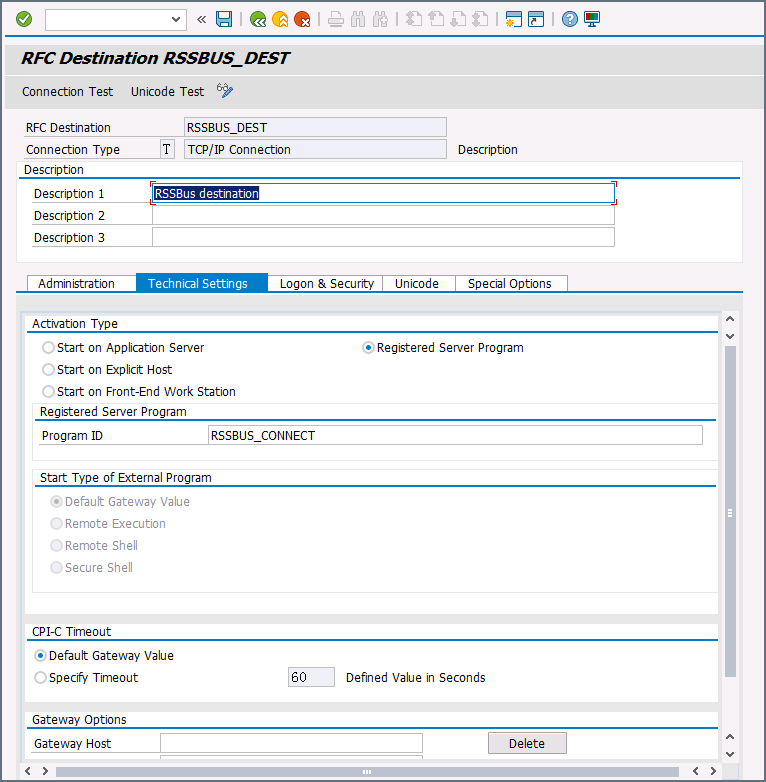
Create an RFC destination: Open transaction code SM59. Click the create button and fill in the fields for the RFC destination described below.
-
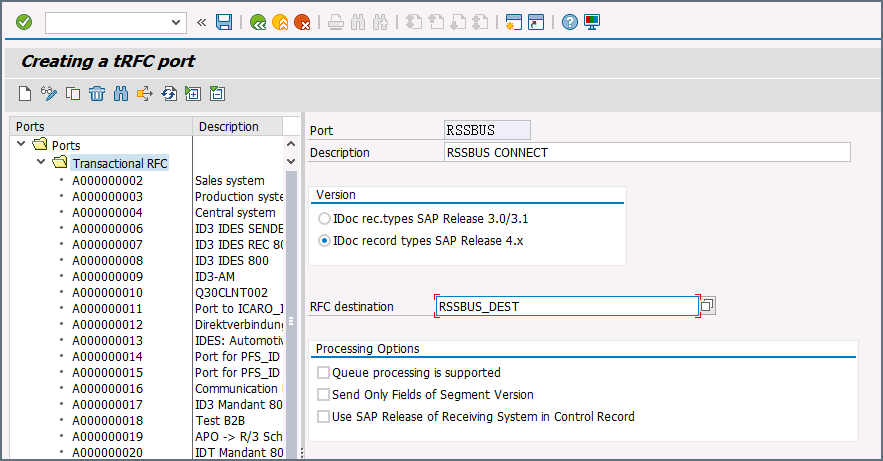
Create a processing connector: Go to transaction code WE21. Create a new Transactional RFC connector with a unique name and the same destination you created in step 2.
-
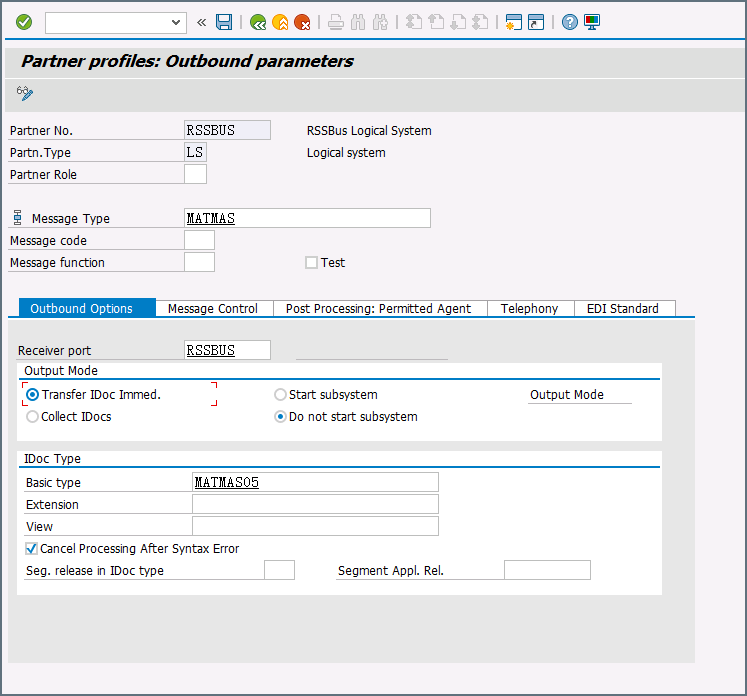
Create a partner profile: Open transaction WE20. Create a partner profile for the logical system that you added in step 1. Next, add an outbound parameter for the MATMAS document. Set the Message Type to MATMAS. On the Outbound Options tab, set the Receiver port to the value of the connector you configured in step 3, set the Output Mode to Transfer IDoc Immed, and set the IDoc Basic type to MATMAS05.
- Send a test IDoc: Use transaction BD10 to send a test IDoc to Arc for a specified material number. You need to configure the Message Type and Logical System before sending the message. Use transaction BD87 to monitor outgoing messages and process them again if necessary.