Key Capabilities
- PDF form generation from XML input using template-based field mapping
- Multi-page output support with selective page generation and barcode field integration
- Support for Code39, Code128, GS1-128, and QR code barcode types with advanced configuration
Overview
PDF connectors translate XML input into PDF output. XML element names are matched with form field names in the PDF template. The value of each XML element is pushed into the appropriate form field to generate the PDF output file.Connector Configuration
This section contains all of the configurable connector properties.Settings Tab
Configuration
Settings related to the core operation of the connector.Other Settings
Advanced Tab
Other Settings
Message
Message 設定は、コネクタがメッセージを検索する方法と、処理後にメッセージを管理する方法を決定します。
Note: 以下の設定は非推奨となり、デフォルトで非表示になっています。以前に有効化またはデフォルト以外の値に設定されていたコネクタにのみ表示されます。処理済みファイルのコピーを保持するには、フロー内のコネクタを右クリックし、成功パスを表示を選択して、成功パスをFile コネクタに接続してください。
| 設定 | 説明 |
|---|---|
| Sent フォルダに保存(非推奨) | コネクタが処理したファイルをSent フォルダにコピーします。デフォルトで無効です。Sent フォルダに保存されたファイルは保存データの暗号化の対象外です。 |
| Sent フォルダのスキーム(非推奨) | 選択した時間間隔でSent フォルダ内のファイルをグループ化します。Sent フォルダに保存が有効な場合のみ適用されます。 |
Logging
ログの作成と保存を制御する設定です。
| 設定 | 説明 |
|---|---|
| Log Level | コネクタが生成するログの詳細度です。サポートを依頼する際は、これをDebug に設定してください。 |
| Log Subfolder Scheme | 選択した間隔に従って、コネクタがLogs フォルダ内のファイルをグループ化するよう指示します。Weekly オプション(デフォルト)は、コネクタが毎週新しいサブフォルダを作成し、その週のすべてのログをそのフォルダに保存するよう指示します。この設定を空白のままにすると、コネクタはすべてのログをLogs フォルダに直接保存します。多数のトランザクションを処理するコネクタでは、サブフォルダを使用することでログを整理しやすくなり、パフォーマンスが向上します。 |
| Log Messages | 処理したファイルのログエントリにファイル自体のコピーを含めるには、これをオンにします。これを無効にすると、Transactions タブからファイルのコピーをダウンロードできなくなる場合があります。 |
Miscellaneous
Miscellaneous 設定は、特定のユースケース向けの設定です。
| 設定 | 説明 |
|---|---|
| Other Settings | 非表示のコネクタ設定をセミコロン区切りのリストで設定できます(例:setting1=value1;setting2=value2)。通常のコネクタのユースケースや機能では、これらの設定の使用は必要ありません。 |
Automation Tab
Automation Settings
Settings related to the automatic processing of files by the connector.Performance
コネクタへのリソースの割り当てに関する設定です。
| 設定 | 説明 |
|---|---|
| Max Workers | このコネクタでファイルを処理するためにスレッドプールから消費されるワーカースレッドの最大数です。設定すると、Advanced Settings ページのPerformance Settings 部分にあるデフォルト設定が上書きされます。 |
| Max Files | コネクタに割り当てられた各スレッドが送信するファイルの最大数です。設定すると、Advanced Settings ページのPerformance Settings 部分にあるデフォルト設定が上書きされます。 |
Alerts Tab
SLAs Tab
Generating a PDF Document
The PDF connector reads XML input files and uses the data from these XML files to generate PDF documents that match the Template File PDF document specified on the Settings tab. The structure of these XML input files should match the structure described below, or the legacy structure described in the next section.XML Format
Here is an example of an XML input file:- An Items element at the root
- A PDF child element representing a PDF document
- Inside the PDF element, an element that matches the name of each form field that should be dynamically populated with data
Multi-Page Outputs
If the template file PDF contains multiple pages, the connector automatically generates the appropriate number of pages when processing an XML input file. In addition, multiple copies of the template file can be generated from a single XML file, in which case the additional copies are appended as multiple PDF pages for the same single output file. To generate multiple copies of the template file as a multi-page output, simply repeat the PDF element that is a direct child of the root Items element. Each PDF element at this position is considered a separate instance of the template file, so it should contain all of the named form field values necessary to fill out the template.Output a Subset of Pages
If the template file PDF contains multiple pages, the connector supports generating a subset of these template pages by specifying the appropriate pages in the XML input file. The Items element at the root of the input document accepts a pages attribute with a comma-delimited list of the page numbers (zero-indexed) that should be included in the output. For example, if the template file contains 4 pages, and only the first and last page should be included in the output, the XML input file would look like this:Barcodes
Barcode fields (form fields that should contain barcode data) are treated just like other form fields: the barcode field has a label in the PDF template which should be used as the element name in the input XML. In addition, barcode fields should have a type attribute that determines the barcode type to generate. The connector supports four barcode types:- code39
- code128
- gs1128
- qrcode
Advanced Barcode Configuration
In addition to specifying the barcode type in the XML input file, the barcode can be configured directly in the PDF template file. When creating and editing the form field that holds the barcode, you can add configuration information to the field tooltip that affects the resulting bar code. This configuration information should always have the following form:$$parameter1:value,parameter2:value$$
The following parameters are supported for barcodes:
- barcode: the type of barcode (redundant when using the type attribute described in the previous section)
- qrcodeversion: the version of the QR code when the barcode type is set to qrcode
- eclevel: the level of error correction when using a QR code. Accepted values are L (low), M (medium), Q (quartile), and H (high)
- quietzone: a whitespace buffer surrounding the barcode. The value should be an integer value representing a multiple of the smallest bar size (with a recommended value 10 or higher)
- heightnarrowratio: the width of the narrowest bar in relation to the height of the barcode; must be specified as a ratio where height is 1 (for example, ‘0.05’ for 1/20th)
- widenarrowratio: the width of the narrowest bar in relation to the width of the widest bar; must be specified as a ratio where the widest bar is 1 (for example, ‘0.2’ for 1/5th)
- spacebarratio: the width of a space in a barcode in relation to the width of the bar; must be specified as a ratio where the bar width is 1 (default value is 1)
Example
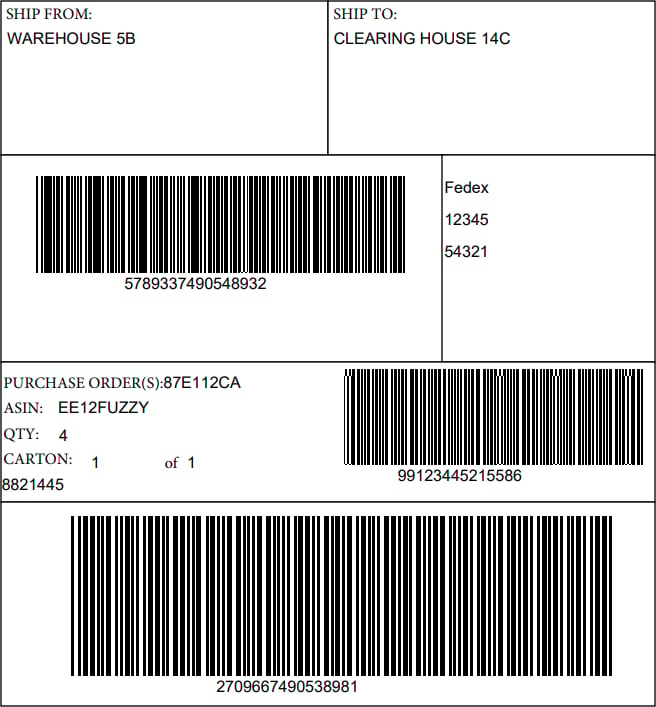
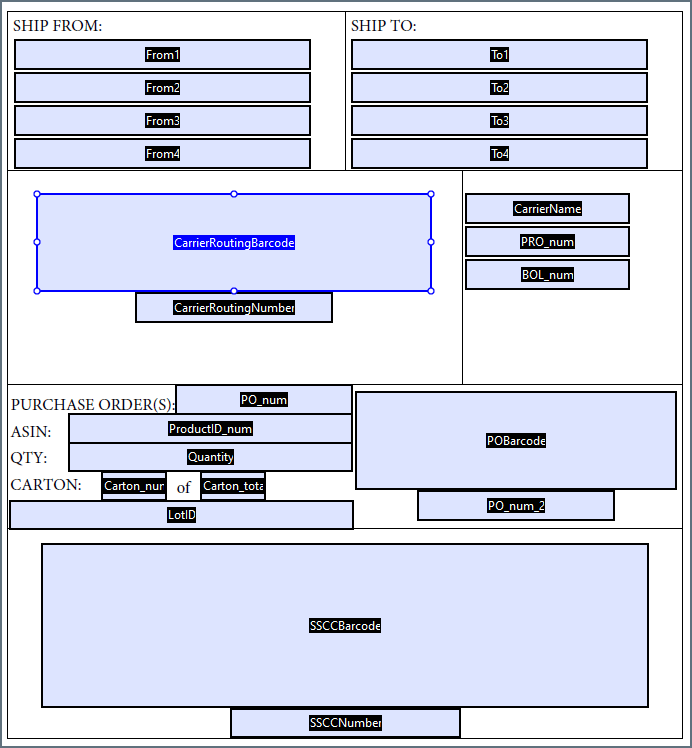
Below is an example XML input file, PDF Template File, and resulting PDF output.The template file image below is of the Adobe Pro form editor, which displays the names of each form field. Remember that the field names in the template file must match the element labels in the XML.
Input XML
Template File
Output