Key Capabilities
- One mailbox per trading partner, each with its own credentials, URL, and folder tree
- Self-service file exchange for partners who do not have typical MFT capabilities
- Organized Send and Receive folder trees with drag-and-drop management
- File retention controls for downloaded files, with re-download support
- File extension filtering to control what partners can upload
- Customizable page title and logo branding for the partner-facing mailbox page
- Routing by folder using the standard
SubFolderheader, consistent with other MFT connectors
Overview
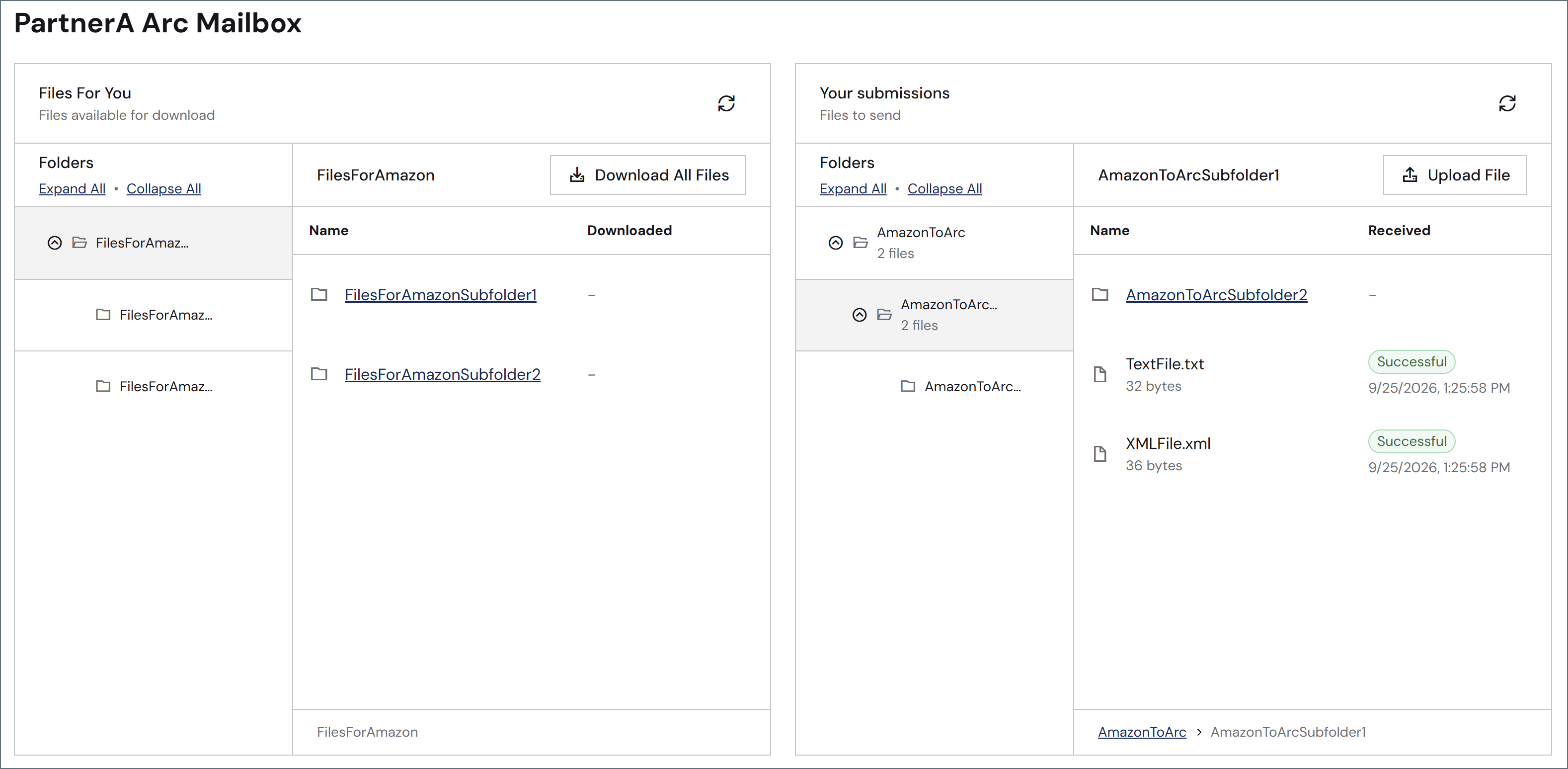
Each Partner Mailbox connector represents one trading partner’s mailbox. The partner opens a dedicated web page, authenticates with a username and password, and can then download files that have been staged for them and upload files to send. Multiple trading partners require multiple connector instances. The partner’s mailbox page is organized into two sections: files staged for the partner to download (Send folders), and folders where the partner can upload files (Receive folders). Each section uses an independent folder tree that the admin manages in the connector configuration. Partner uploads enter the Arc flow as messages the same way files from any other connector do. Routing within the flow is handled by theSubFolder header, described in How Routing Works.
Currently, the web page is the only access method. SFTP and FTP access to the same mailbox are planned for a future release.
Connector Configuration
Mailbox Config Tab
The Partner Mailbox URL displayed at the top of this tab is the address the partner uses to access their mailbox. The URL takes the form.../connector/<workspace>/<connectorId>/mailbox.rst. Share this URL with the partner after your configuration is complete.
Mailbox Authentication
Credentials the partner uses to log in to the mailbox page.File Management – Partner Download
Settings that control how files staged for the partner are managed after download.File Management – Partner Upload
Settings that control which files partners are allowed to upload.Partner Mailbox Page
Settings for the appearance of the partner-facing mailbox page.Partner Mailbox Folders
The folder configuration is split into two tabs: Send Folders for files staged for the partner to download, and Receive Folders for folders where the partner uploads files. Each tab has an independent folder tree that starts with one root folder. The Section Header field sets the heading displayed above that section on the partner’s page. You can add, rename, move, and delete subfolders to any depth below the root. Folder names accept letters, numbers, and underscores only, and must be unique within the same parent (compared case-insensitively). You cannot delete the root folder. Hover over a folder, then use the tablet and pencil icon to rename it if necessary. Use the folder with a plus sign icon to add subfolders to the tree. You cannot delete the top-level folder, but you can delete subfolders by clicking the bin icon. See Managing the Folder Tree for details.Send Folders
Receive Folders
Settings Tab
Connector Info
General settings for identifying and describing the connector.Advanced Tab
Advanced Settings
Logging
Settings that govern the creation and storage of logs.
| Setting | Description |
|---|---|
| Log Level | The verbosity of logs generated by the connector. When you request support, set this to Debug. |
| Log Subfolder Scheme | Instructs the connector to group files in the Logs folder according to the selected interval. The Weekly option (which is the default) instructs the connector to create a new subfolder each week and store all logs for the week in that folder. Leaving this setting blank tells the connector to save all logs directly in the Logs folder. For connectors that process many transactions, using subfolders helps keep logs organized and improves performance. |
| Log Messages | Check this to have the log entry for a processed file include a copy of the file itself. If you disable this, you might not be able to download a copy of the file from the Transactions tab. |
Miscellaneous
Miscellaneous settings are for specific use cases.
| Setting | Description |
|---|---|
| Other Settings | Enables you to configure hidden connector settings in a semicolon-separated list (for example, setting1=value1;setting2=value2). Normal connector use cases and functionality should not require the use of these settings. |
Alerts Tab
SLAs Tab
How Routing Works
Routing in the Partner Mailbox connector uses the standardSubFolder header mechanism used by other MFT connectors.
Partner uploads (Receive folders)
When a partner uploads a file, it is written to the Receive subfolder the partner selected on the mailbox page. The resulting message carries a SubFolder header set to that folder’s path. A downstream connector such as Branch can then route the message based on that header value. This is the primary reason for defining multiple Receive subfolders: partners can indicate the type of file they are sending by choosing the appropriate folder, and the flow branches accordingly.
Staging files for a partner (Send folders)
To deliver a file to a specific Send subfolder on the partner’s page, the upstream connector or script must set the SubFolder header to the desired subfolder path before the message reaches the Partner Mailbox connector. There is no routing UI in the connector itself. You must set the header earlier in the flow, typically by using a Script connector.
Pay close attention when setting the
SubFolder header in upstream connectors. If the header is missing or set to a path that does not exist, files are reported as undeliverable and added to the errored-messages view. See Managing the Folder Tree for details.Managing the Folder Tree
Renaming, moving, or deleting a Send or Receive folder can affect files that are already staged or in flight. Before confirming any such change, Arc displays the number of files currently in the affected folder. Verify that no files will be stranded before proceeding. When a folder is renamed or moved, files already staged under the old path are not automatically updated. Any upstream connector or script that sets theSubFolder header to the old path must also be updated to use the new path.
Files that are reported as undeliverable appear in the errored-messages view. You can requeue them once the missing folder is added or the upstream script is corrected.
Retention and File Lifecycle
The following rules govern how files in Send folders are managed after they are staged:- Delete after download: the file is removed from the partner’s mailbox page after the first download. Setting File Retention For Downloaded Files to 0 has the same effect.
- Keep until retention passes: the partner can re-download the file until the retention period expires. Each download is recorded as a successful send in the connector’s transaction log.
- Retention is counted from the first download, not from when the file was staged. Re-downloading does not reset the retention period.
- Files that are never downloaded are never purged by the retention setting. They remain available until they are manually removed.
- Application and workspace-level Send folder cleanup settings do not affect Partner Mailbox Send folders. The Partner Mailbox connector manages its retention independently.
Partner Mailbox View
Partners access the mailbox by navigating to the Partner Mailbox URL displayed on the Mailbox Config tab and entering their credentials. Authentication uses browser-native basic authentication. The mailbox page has two sections, as shown in the following image: