Key Capabilities
- ZPL label generation from XML input with template-based customization
- Compatible with XML Map connector for automated label creation workflows
- Dynamic field substitution using
${...}syntax for thermal printer output
Overview
The Label connector converts input XML into ZPL files based on a predefined XML template, which enables automated and consistent label creation for printing on Zebra thermal printers. It is compatible with the XML Map connector as well as raw XML input. However, the primary use case is for XML to be mapped to the ZPL structure represented in XML using a flow that goes from an XML Map to a Label connector.Connector Configuration
This section contains all of the configurable connector properties.Settings Tab
Configuration
Settings related to establishing the connection.| Setting | Description |
|---|---|
| Connector Id | The static, unique identifier for the connector. |
| Connector Type | Displays the connector name and a description of what it does. |
| Connector Description | An optional field to provide a free-form description of the connector and its role in the flow. |
Template Tab
The ZPL file to use as a template. When you create a Label connector, Arc pre-fills this field with a ZPL template to use as a starting point. See Generating a ZPL Document for details.Advanced Tab
Advanced Settings
Settings not included in the previous categories.Message
Message settings determine how the connector searches for messages and manages them after processing.
Note: The settings below are deprecated and hidden by default. They appear only on connectors where they were previously enabled or configured to a non-default value. To retain copies of successfully processed files, right-click the connector in the flow, choose Show Success Path, and connect the success path to a File connector.
| Setting | Description |
|---|---|
| Save to Sent Folder (Deprecated) | Copies files processed by the connector to the Sent folder. Disabled by default. Files saved to the Sent folder are not covered by Encryption at Rest. |
| Sent Folder Scheme (Deprecated) | Groups files in the Sent folder by the selected time interval. Only relevant when Save to Sent Folder is enabled. |
Logging
Settings that govern the creation and storage of logs.
| Setting | Description |
|---|---|
| Log Level | The verbosity of logs generated by the connector. When you request support, set this to Debug. |
| Log Subfolder Scheme | Instructs the connector to group files in the Logs folder according to the selected interval. The Weekly option (which is the default) instructs the connector to create a new subfolder each week and store all logs for the week in that folder. Leaving this setting blank tells the connector to save all logs directly in the Logs folder. For connectors that process many transactions, using subfolders helps keep logs organized and improves performance. |
| Log Messages | Check this to have the log entry for a processed file include a copy of the file itself. If you disable this, you might not be able to download a copy of the file from the Transactions tab. |
Miscellaneous
Miscellaneous settings are for specific use cases.
| Setting | Description |
|---|---|
| Other Settings | Enables you to configure hidden connector settings in a semicolon-separated list (for example, setting1=value1;setting2=value2). Normal connector use cases and functionality should not require the use of these settings. |
Automation Tab
Automation Settings
Settings related to the automatic processing of files by the connector.Performance
Settings related to the allocation of resources to the connector.
| Setting | Description |
|---|---|
| Max Workers | The maximum number of worker threads consumed from the threadpool to process files on this connector. If set, this overrides the default setting on the Performance Settings portion of the Advanced Settings page. |
| Max Files | The maximum number of files sent by each thread assigned to the connector. If set, this overrides the default setting on the Performance Settings portion of the Advanced Settings page. |
Alerts Tab
SLAs Tab
Generating a ZPL Document
The Label connector reads an XML input file into the ZPL template specified on the Template tab, and uses the data from the template to generate ZPL labels.Default ZPL Template
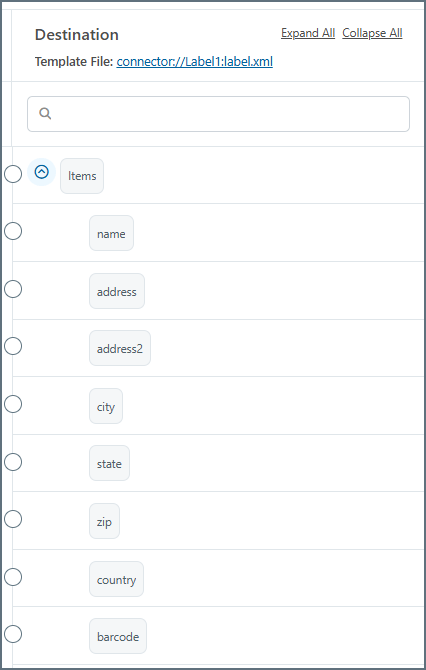
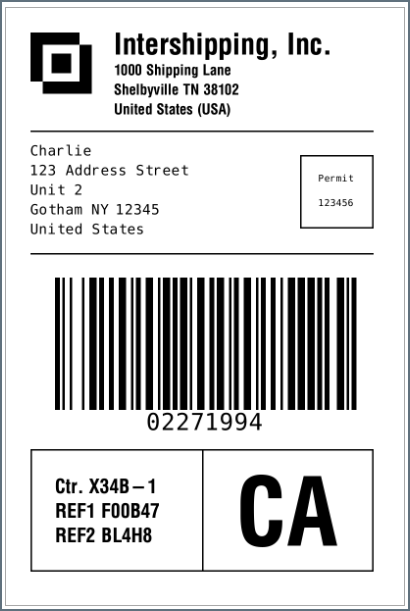
Arc pre-fills the Template field with a ZPL template to use as a starting point. This documentation does not go into detail on how to use the ZPL language: you need to learn that outside of Arc. You can modify other aspects and dynamic fields of the ZPL template as necessary, but here is the default content:${...} syntax (such as ${name} in the content above) are what Arc pulls from the input XML passed into the connector. When you put an XML Map connector in front of a Label connector in a flow, the destination side of the mapping shows these fields, as shown in the following image.