Key Capabilities
- Healthcare data exchange with full HL7 message standard support
- MSH header validation and generation for compliant message structure
- Original mode acknowledgment processing for reliable healthcare communications
- Support for multiple HL7 versions with strict schema validation options
Overview
When receiving HL7 documents, HL7 connectors validate interchange headers and convert the HL7 document into XML. This is useful as a staging step, because XML is the primary format that Arc uses to manipulate data in a flow. The HL7 connector automatically reads the input file to determine the appropriate schema, then parses the document according to this schema. When generating HL7 documents, HL7 connectors convert XML into HL7 document syntax and apply the appropriate interchange headers. This is useful as the final step for creating an HL7 document, after the XML data has been fetched and transformed elsewhere in the flow.Connector Configuration
This section contains all of the configurable connector properties.Settings Tab
Translation Configuration
Settings related to the core operation of the connector.EDI Partner
MSH Settings
Settings related to the message headers. When converting HL7 documents into XML, the document headers are validated against these settings; when generating HL7 documents from XML, these settings are used to generate document headers.
The following options are only visible when the Translation Type is XML to HL7.
Acknowledgments
Settings related to generating and requesting acknowledgments.Sample Files Tab
Advanced Tab
EDI Delimiters
Settings that specify which characters separate elements, segments, and so on.Advanced Settings
Settings not included in the previous categories.Message
Message settings determine how the connector searches for messages and manages them after processing.
Note: The settings below are deprecated and hidden by default. They appear only on connectors where they were previously enabled or configured to a non-default value. To retain copies of successfully processed files, right-click the connector in the flow, choose Show Success Path, and connect the success path to a File connector.
| Setting | Description |
|---|---|
| Save to Sent Folder (Deprecated) | Copies files processed by the connector to the Sent folder. Disabled by default. Files saved to the Sent folder are not covered by Encryption at Rest. |
| Sent Folder Scheme (Deprecated) | Groups files in the Sent folder by the selected time interval. Only relevant when Save to Sent Folder is enabled. |
Logging
Settings that govern the creation and storage of logs.
| Setting | Description |
|---|---|
| Log Level | The verbosity of logs generated by the connector. When you request support, set this to Debug. |
| Log Subfolder Scheme | Instructs the connector to group files in the Logs folder according to the selected interval. The Weekly option (which is the default) instructs the connector to create a new subfolder each week and store all logs for the week in that folder. Leaving this setting blank tells the connector to save all logs directly in the Logs folder. For connectors that process many transactions, using subfolders helps keep logs organized and improves performance. |
| Log Messages | Check this to have the log entry for a processed file include a copy of the file itself. If you disable this, you might not be able to download a copy of the file from the Transactions tab. |
Miscellaneous
Miscellaneous settings are for specific use cases.
| Setting | Description |
|---|---|
| Other Settings | Enables you to configure hidden connector settings in a semicolon-separated list (for example, setting1=value1;setting2=value2). Normal connector use cases and functionality should not require the use of these settings. |
EDI Partners Tab
Automation Tab
Automation
Settings related to the automatic processing of files by the connector.Performance
Settings related to the allocation of resources to the connector.
| Setting | Description |
|---|---|
| Max Workers | The maximum number of worker threads consumed from the threadpool to process files on this connector. If set, this overrides the default setting on the Performance Settings portion of the Advanced Settings page. |
| Max Files | The maximum number of files sent by each thread assigned to the connector. If set, this overrides the default setting on the Performance Settings portion of the Advanced Settings page. |
Alerts Tab
SLAs Tab
XML to HL7
When generating HL7 files, set the Translation Type to XML to HL7. The application then reads the header information from the settings configured on the Settings tab. Once you have configured the connector with the settings from your trading partner agreement, click the Transactions tab and select More > Create Test Files. The application creates a set of test XML files which provide example data of what the XML should look like for the connector to generate an HL7 document. After these test files are processed by the connector, navigate to the Transactions tab to see the resulting HL7 document.HL7 to XML
When generating XML, set the Translation Type to HL7 to XML. Then complete the trading partner agreement settings so the application can validate the information in the HL7 documents during processing. XML files are generated into the Output folder. To create test HL7 files for several HL7 documents, click the Transactions tab and select More > Create Test Files. After these test files are processed by the connector, navigate to the Transactions tab to see the resulting XML.Use With the XML Map Connector
Upload Test File
Acknowledgements
Acknowledgements can be automatically generated and processed by the application.Original Mode Acknowledgements
This is an indication that an interchange has taken place between the two parties (although not necessarily that any individual message has been exchanged). It is automatically generated in response to a request in the interchange.Message Originator
Requesting Acknowledgements
HL7 connectors in XML to HL7 mode can be configured so that original mode acknowledgements are requested for an interchange. Select Original Mode in the Acknowledgement Type field on the Settings tab to direct the connector to maintain a Pending ACK status for the transmission until the appropriate acknowledgements have been returned and processed.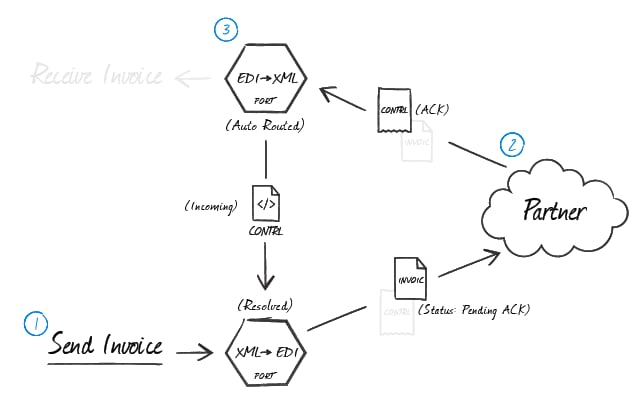
The Transmission Control setting in the Advanced Settings section of the Advanced tab controls the flow of documents as it relates to their acknowledgements. When this is checked, the connector waits for an acknowledgement of the current message before processing the next message.
Processing Acknowledgements
When HL7 acknowledgements are received at an HL7 connector in HL7 to XML mode, the connector can be configured to automatically route any detected acknowledgements to the XML to HL7 connector that originated the transmission. Routing ACKs between HL7 connectors is configured visually on the Flows canvas by dragging the gray dot at the bottom of the HL7 connector in XML to HL7 mode onto the HL7 connector that is in HL7 to XML mode. The receiving XML to HL7 connector then pairs the acknowledgements to the original message and resolves the matching message.Message Recipient
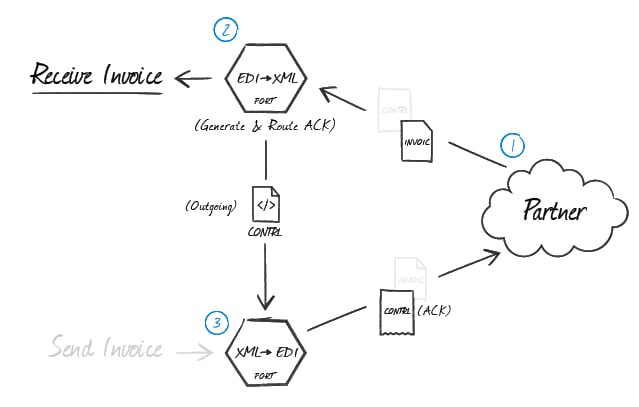
Generating Acknowledgements
When an HL7 connector in HL7 to XML mode is processing received messages from the originator and generating XML, you can tell the connector to automatically generate original mode acknowledgements by selecting Original Mode in the Acknowledgement Type field on the Settings tab. You must route these acknowledgements to an HL7 connector in XML to HL7 mode to generate the HL7 acknowledgement. To route the ACK appropriately, drag the gray dot at the bottom of the HL7 connector in HL7 to XML mode onto the HL7 connector that is in XML to HL7 mode.