

テーブルとカラム
親テーブルと子テーブル
結果
オプション
Edit Source Structure ダイアログの右側にあるOptions パネルには、コネクタがレコードを処理する方法を制御する設定が含まれています。これらの設定はテーブルデザイナーと並べて使用でき、クエリ全体に適用されます。
- Only process new or changed records:増分処理を有効にし、前回の実行以降に新しく追加または変更された行のみをコネクタが選択するようにします。
- Update [column] with [value] when rows are processed:各行が処理された後、指定した値でカラムを更新します。
Edit Source Structure ダイアログの上部にあるPreview XML またはCode View を切り替えると、出力構造のプレビューや基になるXML 設定を表示することもできます。
結合されたテーブル
これは次のクエリと同等です:結果
Apply をクリックすると、Results ノードが結果構造に表示されます。JOIN 出力のカラムとフィルタを設定するには、Results ノードの省略記号(...)をクリックしてResults Settings を選択します。
Edit Results Settings ダイアログが開き、Columns とFilters の2つのタブが表示されます。
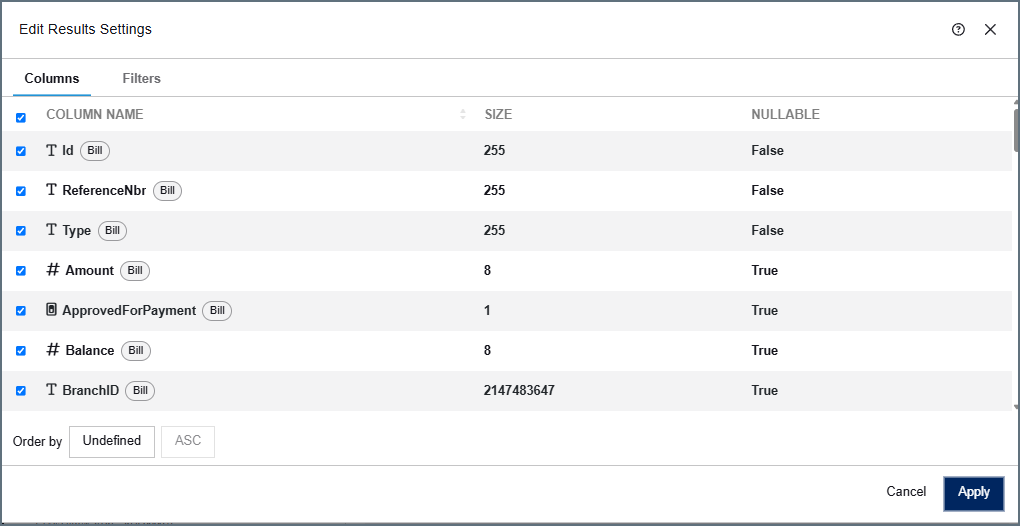
Columns タブには、すべての結合テーブルのすべてのカラムが一覧表示されます。各カラムには、ソーステーブルを示すタグが表示されます。デフォルトでは、すべてのカラムが選択されています。カラムのチェックを外すと、クエリ出力から除外されます。
Columns タブの下部にあるOrder by フィールドを使用して、カラムで出力をソートし、ASC(昇順)またはDESC(降順)を選択します。
Filters タブでは、コネクタが選択する行を制限するフィルタを追加できます。詳細については、フィルタを参照してください。
オプション
Edit Source Structure ダイアログの右側にあるOptions パネルには、コネクタがレコードを処理する方法を制御する設定が含まれています。これらの設定はJOIN デザイナーと並べて使用でき、JOIN クエリ全体に適用されます。
- Use column [x] for processing new or changed records:増分処理を有効にし、前回の実行以降に新しく追加または変更された行のみをコネクタが選択するようにします。Joined Tables 設定では、このカラムはベース(最左)テーブルのものである必要があります。結合テーブルのカラムはこの設定には使用できません。
- Update [column] with [value] when rows are processed:各行が処理された後、指定した値でカラムを更新します。
Edit Source Structure ダイアログの上部にあるPreview XML またはCode View を切り替えると、出力構造のプレビューや基になるXML 設定を表示することもできます。
受信フィルタ
The following filters appear on the Advanced tab and restrict which messages the connector retrieves on each poll.
| Setting | Description |
|---|---|
| Read State | Restricts the messages retrieved to only unread or only read messages. Defaults to Any. |
| Importance | Restricts the messages retrieved to a single importance level. Defaults to Any. |
| Attachments | Restricts the messages retrieved to those with or without attachments. Defaults to Any. |
| Category | Restricts the messages retrieved to those stamped with the specified Outlook category. Leave empty to receive messages regardless of category. |
| Conversation Id | Restricts the messages retrieved to a single conversation thread. Each received message carries its conversation Id in the Microsoft365Email-Conversation-Id header, which is where this value comes from. |
| Subject | Restricts the messages retrieved to those whose subject contains the specified value. Leave empty to receive messages regardless of subject. |
| Sender | Restricts the messages retrieved to those sent from the specified email address. The address must match in full; a partial address or bare domain matches nothing. Leave empty to receive messages from any sender. |
| Max Messages | The maximum number of messages to retrieve in a single poll. Messages are retrieved oldest first, so remaining messages are picked up on the following poll. Defaults to 50. |
| Days To Search | The number of days to look back when searching for messages. Defaults to 7. When set to 0, no date limit is applied. When Only Process New Messages is enabled, this value is used only as a fallback when no prior receive watermark is available. |
| Only Process New Messages | When enabled (the default), the connector tracks the last message received and will not re-download it on subsequent polls. The connector uses a stored watermark as the primary date filter and falls back to Days To Search when the watermark is unavailable. When disabled, every poll retrieves messages within the Days To Search window without tracking state. |
受信後のアクション
フィルタ
必要に応じてフィルタを追加し、コネクタが選択するデータを制限できます。設定ダイアログのFilters タブをクリックしてフィルタを設定します。コネクタはフィルタをクエリ構文に変換します。
フィルタの作成
フィルタを作成するには、次の手順に従います。
- Add Filter をクリックします。
- カラムのドロップダウンで、フィルタリングするカラムを選択します。
- 条件のドロップダウンで、フィルタリング条件を選択します。利用可能な条件は、選択したカラムのデータ型によって異なります。例えば、数値カラムにはLess Than or Equal To という条件があり、文字列カラムにはContains があります。
- 値フィールドに値を入力します。条件に値が不要な場合(例:Is Null)、値フィールドは表示されません。
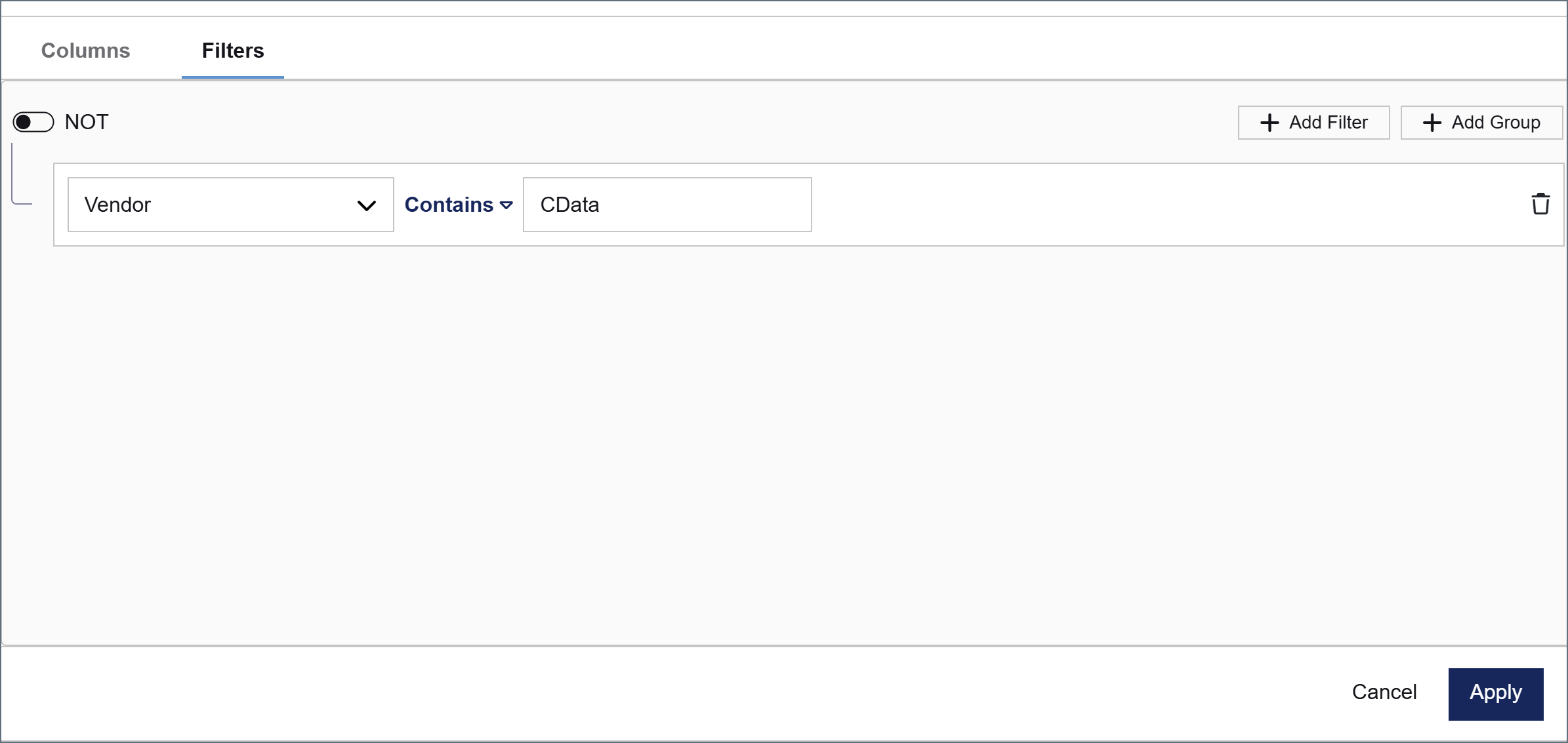
次の画像は、Vendor という名前のカラムに対するフィルタの例を示しています。このフィルタを設定すると、コネクタはVendor カラムにCData を含む行のみを選択します。
フィルタグループ
Add Filter をクリックしてさらにフィルタを作成することで、複数のフィルタを適用できます。デフォルトではすべてのフィルタが同じグループに属します。Add Group をクリックしてネストされたグループを作成し、異なるロジックでフィルタを分離します。
各グループには、上部に次のオプションがあります。
- NOT トグル:グループ全体のロジックを反転します。例えば、Amount Less Than or Equal To 5000 を含むグループでNOT を有効にすると、コネクタは金額が5000 より大きい行のみを選択するよう指示されます。
- And / Or トグル:このグループが隣接するフィルタまたはグループとどのように関連するかを決定します。
- And を選択した場合、このグループの条件は隣接する条件に加えて真である必要があります。
- Or を選択した場合、このグループの条件は隣接する条件の代替となります。
次のスクリーンショットは、複数のフィルタグループの例を示しています。
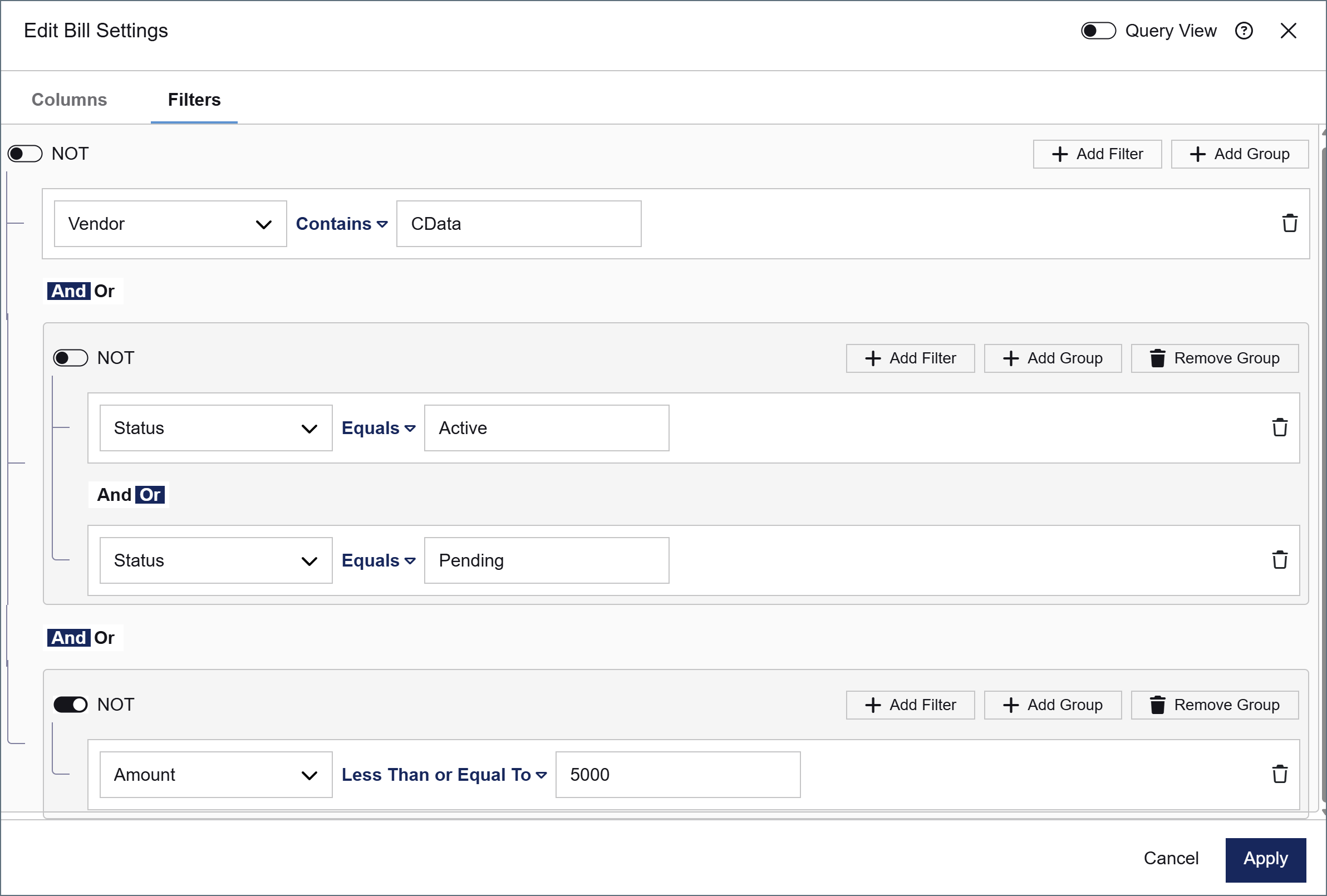
この例では、次のすべてが真である場合にフィルタ条件が満たされます。
- Vendor カラムにCData が含まれている
- Status カラムがActive またはPending に等しい
- Amount カラムが5000 以下ではない(つまり、Amount が5000 より大きい)
このフィルタ条件が満たされると、コネクタは一致するデータをSelect してフローを下って渡します。