The XML Group connector processes collections of related XML records by aggregating, validating, and transforming structured data for seamless integration with various systems. It enables efficient handling of hierarchical XML data, ensuring consistency and interoperability across applications such as data exchange, reporting, and automated workflows.
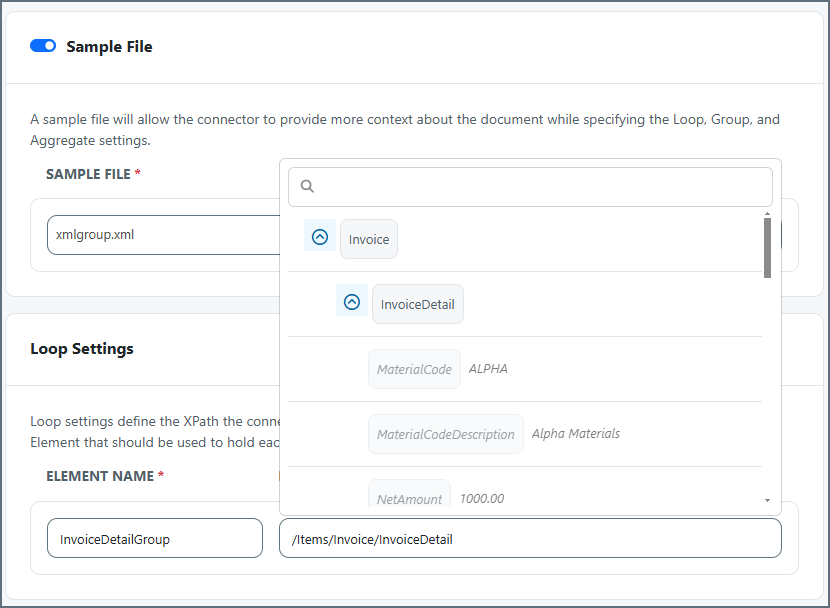
Use the Sample File toggle to specify a sample file that allows the connector to provide more context about the document. See Using Sample Files for more information.
Setting
Description
Sample File
Select an existing sample file, or upload a new one.
Settings related to the XPath the connector should use to represent a single record in the input document, as well as the XML element to use to hold each group of related records.
Setting
Description
Element Name
The name of the XML element to use for the grouping in the output file.
Record XPath
Which XPath from the input should represent a single record.
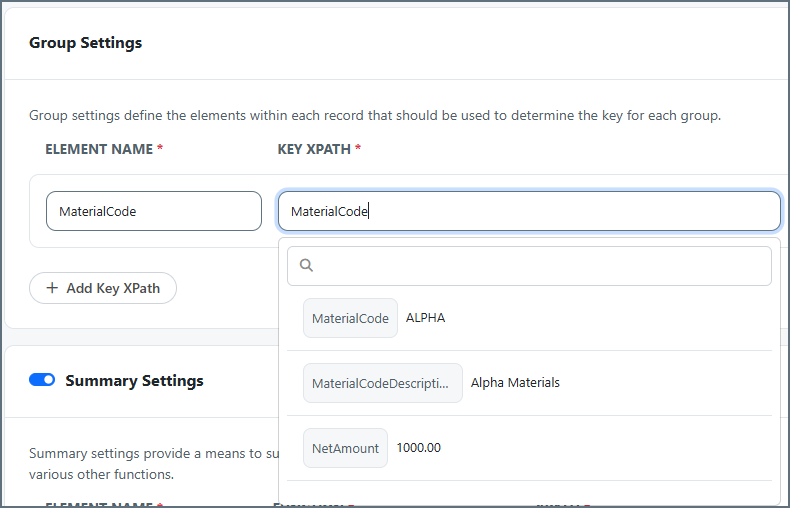
Settings that define which elements in each record to use to determine the key for each group. See Using Group Settings for more information.
Setting
Description
Element Name
Tells the connector what to name the XML element to use for grouping in the output file. This is usually the same name as the element in the input file that the Key XPath points to, but you can use a different name.
Key XPath
The XPath from the input file of the element to use as the key (what you want to group by). The Key XPath is relative to the Record XPath.
Use the Summary Settings toggle to see the settings that define how to summarize the records in each group. See Using Summary Settings for more information.
Setting
Description
Element Name
The name of the XPath to use to summarize the records.
Function
The function to use as the aggregate. Choose from MIN, MAX, SUM, AVG, COUNT, and CONCATENATE.
The amount of time (in seconds) by which the processing of files placed in the Transactions tab is delayed. This is a legacy setting. Best practice is to use a File connector to manage local file systems instead of this setting.
Toggle Sample File on to upload a sample input XML that mimics the XML input that is going to be passed into the connector.When enabled, it provides XPath helpers for each of the XPath fields in the UI, so it becomes easier to see the document structure and select the correct XPath. You can only click eligible XML elements, based on what the XPath is representing for the connector.For example, in Loop Settings, you can only select parent elements because Arc expects that those elements are what represent a record.Then, in Group Settings, the visible elements are the child elements of the Loop Settings parent element because Arc expects the key element to be a child of the parent record.
Group settings define the elements in each record to use to determine the key for each group. The key is usually an Id value such as CustomerID or InvoiceID. You can have multiple keys, which appear as children of the element name and xpath set in Loop Settings.
Element Name tells the connector what to name the XML element to use for grouping in the output file. This is usually the same name as the element in the input file that the Key XPath points to, but you can use a different name.
Key XPath is the XPath from the input file of the element to use as the key (what you want to group by). The Key XPath is relative to the Record XPath.
For example, in the following XML, the <MaterialCode> element is the key. This lets you group all occurrences of ALPHA, BRAVO and CHARLIE together in the output, instead of having multiples of each.
Summary settings control how the connector should aggregate data. You can define an XPath containing a value that you want to perform an action operator on (MIN, MAX, SUM, AVG, COUNT, CONCATENATE), and the connector then performs that operator on all records in a group. A common example is to SUM the price of each record.The following example uses the Loop Settings and Group Settings described in the previous images, along with the following Summary Settings:Using the XML in the previous section results in an output XML with a InvoiceDetailGroup for each key element (the MaterialCode). Inside each InvoiceDetailGroup is the MaterialCode key from the Group Settings, and the calculated NetAmountSUM from the Summary Settings. Finally, the original InvoiceDetail elements and their children are included:
Because you already have the associated records as nested children of the key, instead of in a flat structure, this XML is easier to work with when it goes to an XML Map connector.