Key Capabilities
- PDF form generation from XML input using template-based field mapping
- Multi-page output support with selective page generation and barcode field integration
- Support for Code39, Code128, GS1-128, and QR code barcode types with advanced configuration
Overview
PDF connectors translate XML input into PDF output. XML element names are matched with form field names in the PDF template. The value of each XML element is pushed into the appropriate form field to generate the PDF output file.Connector Configuration
This section contains all of the configurable connector properties.Settings Tab
Configuration
Settings related to the core operation of the connector.Other Settings
Advanced Tab
Other Settings
Logging
Settings that govern the creation and storage of logs.
| Setting | Description |
|---|---|
| Log Level | The verbosity of logs generated by the connector. When you request support, set this to Debug. |
| Log Subfolder Scheme | Instructs the connector to group files in the Logs folder according to the selected interval. The Weekly option (which is the default) instructs the connector to create a new subfolder each week and store all logs for the week in that folder. Leaving this setting blank tells the connector to save all logs directly in the Logs folder. For connectors that process many transactions, using subfolders helps keep logs organized and improves performance. |
| Log Messages | Check this to have the log entry for a processed file include a copy of the file itself. If you disable this, you might not be able to download a copy of the file from the Transactions tab. |
Miscellaneous
Miscellaneous settings are for specific use cases.
| Setting | Description |
|---|---|
| Other Settings | Enables you to configure hidden connector settings in a semicolon-separated list (for example, setting1=value1;setting2=value2). Normal connector use cases and functionality should not require the use of these settings. |
Automation Tab
Automation Settings
Settings related to the automatic processing of files by the connector.Performance
Settings related to the allocation of resources to the connector.
| Setting | Description |
|---|---|
| Max Workers | The maximum number of worker threads consumed from the threadpool to process files on this connector. If set, this overrides the default setting on the Performance Settings portion of the Advanced Settings page. |
| Max Files | The maximum number of files sent by each thread assigned to the connector. If set, this overrides the default setting on the Performance Settings portion of the Advanced Settings page. |
Alerts Tab
SLAs Tab
Generating a PDF Document
The PDF connector reads XML input files and uses the data from these XML files to generate PDF documents that match the Template File PDF document specified on the Settings tab. The structure of these XML input files should match the structure described below, or the legacy structure described in the next section.XML Format
Here is an example of an XML input file:- An Items element at the root
- A PDF child element representing a PDF document
- Inside the PDF element, an element that matches the name of each form field that should be dynamically populated with data
Multi-Page Outputs
If the template file PDF contains multiple pages, the connector automatically generates the appropriate number of pages when processing an XML input file. In addition, multiple copies of the template file can be generated from a single XML file, in which case the additional copies are appended as multiple PDF pages for the same single output file. To generate multiple copies of the template file as a multi-page output, simply repeat the PDF element that is a direct child of the root Items element. Each PDF element at this position is considered a separate instance of the template file, so it should contain all of the named form field values necessary to fill out the template.Output a Subset of Pages
If the template file PDF contains multiple pages, the connector supports generating a subset of these template pages by specifying the appropriate pages in the XML input file. The Items element at the root of the input document accepts a pages attribute with a comma-delimited list of the page numbers (zero-indexed) that should be included in the output. For example, if the template file contains 4 pages, and only the first and last page should be included in the output, the XML input file would look like this:Barcodes
Barcode fields (form fields that should contain barcode data) are treated just like other form fields: the barcode field has a label in the PDF template which should be used as the element name in the input XML. In addition, barcode fields should have a type attribute that determines the barcode type to generate. The connector supports four barcode types:- code39
- code128
- gs1128
- qrcode
Advanced Barcode Configuration
In addition to specifying the barcode type in the XML input file, the barcode can be configured directly in the PDF template file. When creating and editing the form field that holds the barcode, you can add configuration information to the field tooltip that affects the resulting bar code. This configuration information should always have the following form:$$parameter1:value,parameter2:value$$
The following parameters are supported for barcodes:
- barcode: the type of barcode (redundant when using the type attribute described in the previous section)
- qrcodeversion: the version of the QR code when the barcode type is set to qrcode
- eclevel: the level of error correction when using a QR code. Accepted values are L (low), M (medium), Q (quartile), and H (high)
- quietzone: a whitespace buffer surrounding the barcode. The value should be an integer value representing a multiple of the smallest bar size (with a recommended value 10 or higher)
- heightnarrowratio: the width of the narrowest bar in relation to the height of the barcode; must be specified as a ratio where height is 1 (for example, ‘0.05’ for 1/20th)
- widenarrowratio: the width of the narrowest bar in relation to the width of the widest bar; must be specified as a ratio where the widest bar is 1 (for example, ‘0.2’ for 1/5th)
- spacebarratio: the width of a space in a barcode in relation to the width of the bar; must be specified as a ratio where the bar width is 1 (default value is 1)
Example
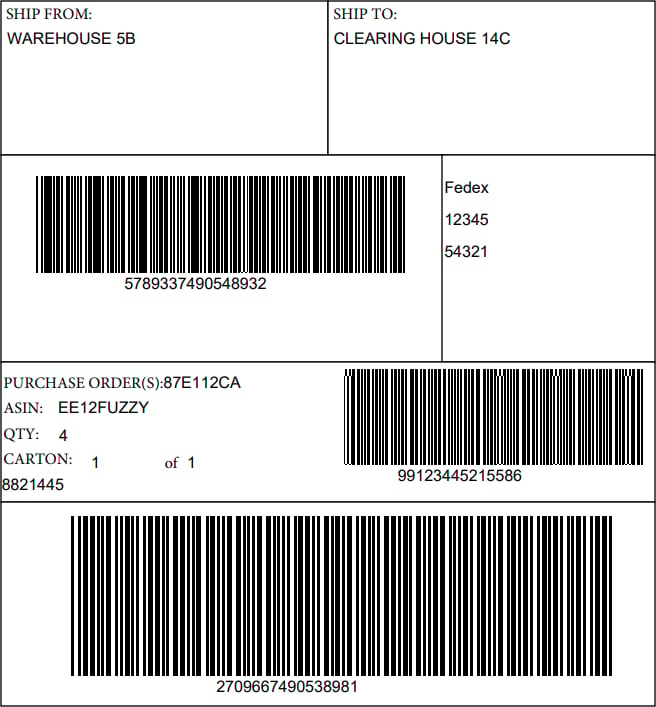
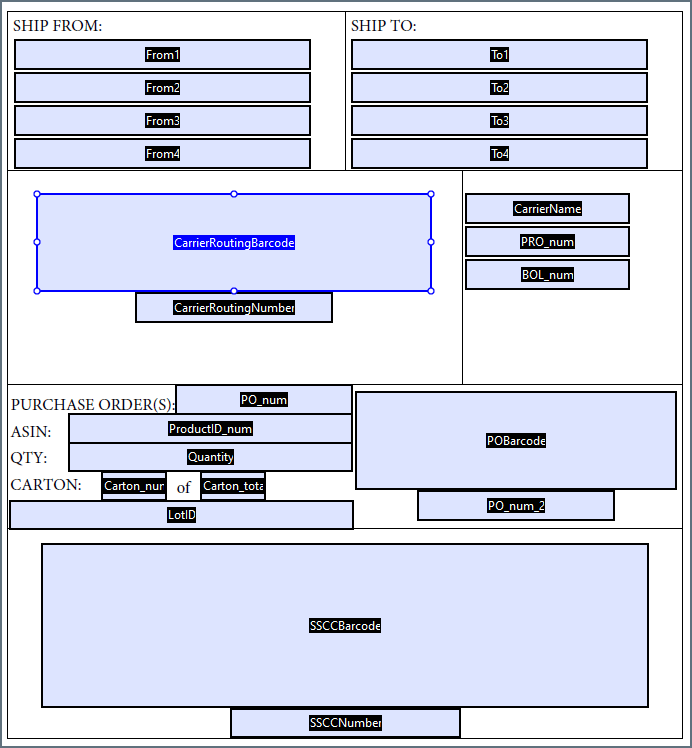
Below is an example XML input file, PDF Template File, and resulting PDF output.The template file image below is of the Adobe Pro form editor, which displays the names of each form field. Remember that the field names in the template file must match the element labels in the XML.
Input XML
Template File
Output