

Connector Configuration
The following settings are available when you are receiving IDocs from SAP.サーバーステータス
サーバーの状態。
サーバーの実行中に生成されたログを確認するには、ログタブをご覧ください。
Receiver Options
Settings related to receiving IDoc files.Advanced Settings
Settings not included in the previous categories.Logging
Settings that govern the creation and storage of logs.Miscellaneous
Miscellaneous settings are for specific use cases.Receiving IDocs from SAP
Once you have configured the IDoc connector to connect to your SAP system, you can begin receiving IDoc files from SAP. The IDoc connector can receive files formatted in raw IDoc or XML IDoc. To receive files from SAP, create an RFC destination for Arc. You can then check Enable IDoc Receiver in the Receiver Options section of the Settings tab, then enter the Program Id that you registered in your SAP system for Arc.Test Receiving an IDoc from SAP
This example describes how to configure your SAP system to send a MATMAS IDoc to Arc.- Define a logical system: First, go to transaction SALE. Then navigate to Basic Settings > Logical Systems > Define Logical System. Create a new entry with a valid name (for example, Arc) and description.
-
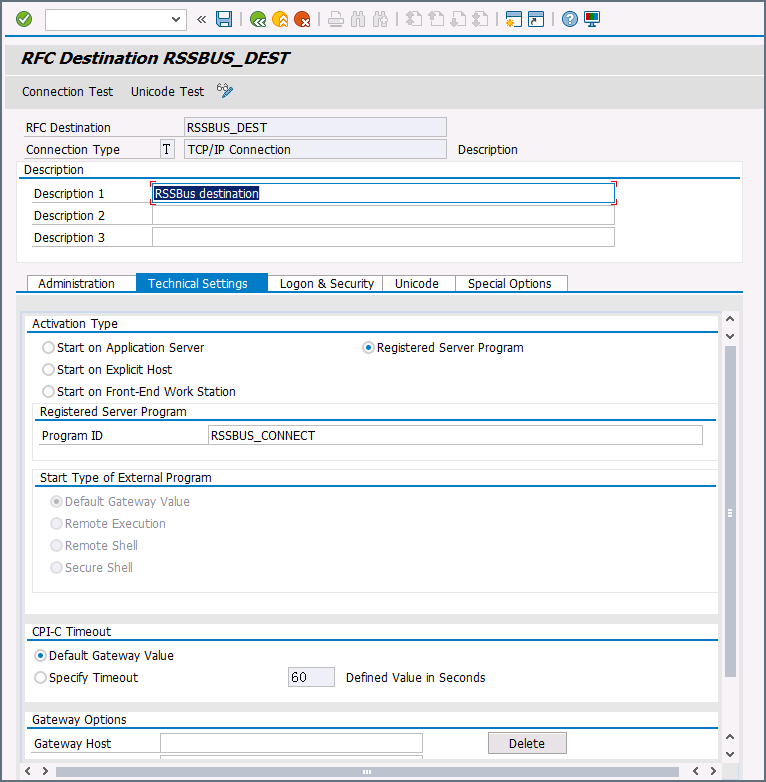
Create an RFC destination: Open transaction code SM59. Click the create button and fill in the fields for the RFC destination described below.
-
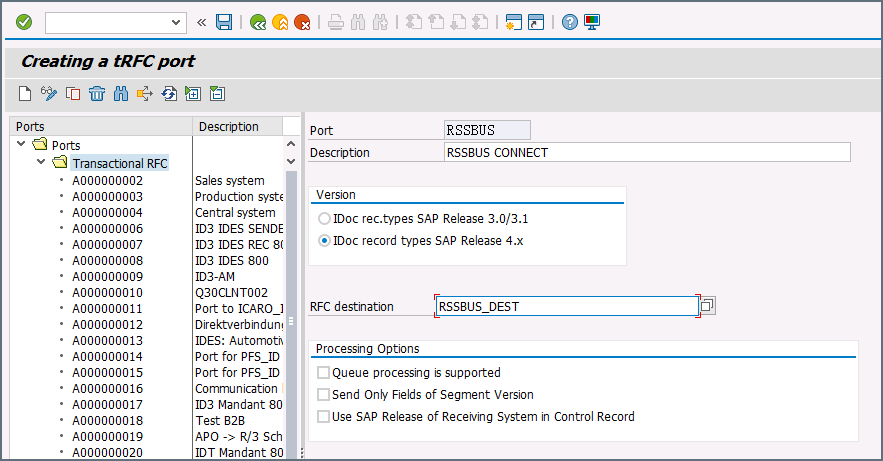
Create a processing connector: Go to transaction code WE21. Create a new Transactional RFC connector with a unique name and the same destination you created in step 2.
-
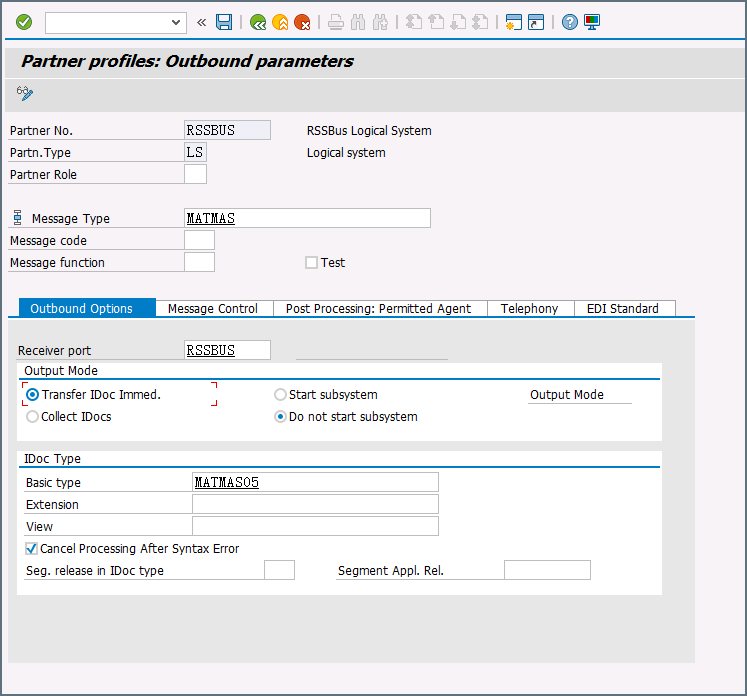
Create a partner profile: Open transaction WE20. Create a partner profile for the logical system that you added in step 1. Next, add an outbound parameter for the MATMAS document. Set the Message Type to MATMAS. On the Outbound Options tab, set the Receiver port to the value of the connector you configured in step 3, set the Output Mode to Transfer IDoc Immed, and set the IDoc Basic type to MATMAS05.
- Send a test IDoc: Use transaction BD10 to send a test IDoc to Arc for a specified material number. You need to configure the Message Type and Logical System before sending the message. Use transaction BD87 to monitor outgoing messages and process them again if necessary.