

Arc tracks your configuration files (such as
*.cfg, XML, JSON, and binaries), with two exceptions: the vault and its contents, and users and roles. To avoid versioning sensitive values like tokens, usernames, and passwords, CData recommends that you store all sensitive values in the vault and reference the vault items in connectors where the sensitive values are required. See Architecture for a complete list of tracked file types. When a workspace has its own repository, that workspace’s files are tracked in the workspace repository instead of the global repository.To exclude files from version control, add entries to a .gitignore file in the root of your Arc Application Directory. To exclude a file or pattern, add it on a new line in .gitignore. Common candidates for exclusion include environment-specific configuration files that differ across deployments and large binary files that would inflate repository size. Keep in mind that excluded files are never committed, pushed, pulled, or restored, so you must manage them separately in each environment.Installation and Configuration
Prerequisites
Before you can use the version control features, you must install Git on all Arc environments, including development and production. If you are using a remote repository, you must also create it before configuring version control. Arc supports all major Git platforms, including GitHub, GitLab, Azure DevOps, and Bitbucket. If you are using a local repository, no remote setup is required.Installing Git
Windows
- Download the Git installer from git-scm.com/download/win.
- Run the installer and follow the installation wizard using your preferred settings.
-
Verify the installation by opening a command prompt or PowerShell and running:
Linux Debian/Ubuntu
Run the following:Linux Fedora/RHEL/CentOS
Run the following:Configure Version Control
Version control can be configured at two levels: for the application as a whole (the global repository) and, optionally, for individual workspaces. See Global and Workspace Repositories to understand how the two relate.Configure the Global Repository
Navigate to Settings > Advanced > Git Version Control to set up version control. See Git Version Control Settings for details. When you click Configure, you first choose a Configuration Type:- Remote: connects to a hosted Git repository. This enables push, pull, and team collaboration across multiple Arc environments.
- Local: creates a standalone Git repository directly on the Arc server. No remote URL or credentials are required. This is the fastest way to get started with version control.
Configure a Workspace Repository
To version an individual workspace in its own repository:- Open the workspace, then click Settings in the ellipsis menu. Click the Git Version Control tab.
- Toggle on the Enable Git Version Control switch. If the global repository is set up, a warning explains that enabling version control for the workspace removes it from the global repository, so it is tracked only in the repository you configure.
-
Configure the repository. The fields are the same as those for the application-level repository; see Git Version Control Settings for details.
Select a Configuration Type:
- Remote: connects to a hosted Git repository. Provide the repository URL and authentication credentials.
- Local: creates a standalone Git repository on the Arc server. No remote URL or credentials are required.
- Click Save.
Workspace repositories follow a few rules, such as a restriction on the Default workspace. See Global and Workspace Repositories for details.You can convert a workspace repository between Local and Remote (see Migrate from a Local to a Remote Repository and Convert a Remote Repository to a Local Repository).You can change the remote URL after you save the configuration (see Edit the Remote URL).
Global and Workspace Repositories
Arc supports two kinds of repository:- Global: the application-level repository that you configure under Settings > Advanced > Git Version Control. By default, it tracks the configuration for the entire instance, including every workspace.
- Workspace: an optional repository that versions a single workspace, separate from the global repository.
- If the global repository is set up, enabling a workspace repository moves the workspace out of the global repository. After you enable it, the workspace is tracked only in its configured repository.
- Shared resources stay in the global repository. Connections, certificates, and profiles that a workspace uses remain in the global repository. A workspace repository is therefore not a self-contained backup of everything that the workspace needs.
- Workspace repositories are independent of the global repository. You can enable a workspace repository whether or not you have set up a global repository.
- The Default workspace cannot have its own repository. Its Git Version Control tab shows the message A separate Git repository is not available for the Default workspace.
One Repository at a Time
Every version control action applies to exactly one repository: the repository you currently have selected. Commit, push, pull, branch, discard, restore, and status all apply to the selected repository and nothing else. No action spans multiple repositories.- An action that you start from a row in the repository list stays with that row’s repository, even if the active workspace changes while the action runs.
- Progress, errors, and counts are tracked separately for each repository, so a failure in one repository does not block work in another.
Development Environments
This section applies to remote repositories only. Local repositories do not have a remote to sync with, so separate development environments are not required.
- Merge conflicts when multiple users make changes at the same time
- Poor user experience due to competing version control operations
-
Export the data encryption key from production (see Understanding Data Encryption Keys and Master Keys for more information on key usage)
- In your production environment, use your API key to call the Admin API exportDataEncryptionKey endpoint. Use the
passphraseparameter to create the passphrase that will be used when you import the key to the development environment. - Save the response because you need this data encryption key for your development environment.
- In your production environment, use your API key to call the Admin API exportDataEncryptionKey endpoint. Use the
-
Export the vault from your production environment:
-
Use the UI
- Navigate to Settings > Advanced > Migration > Export
- Select Custom Export and create a Password, then click Next
- On the Settings tab, only check Vault
- Click Export to perform the export and download the file
- Use the Admin API export endpoint with the vault option enabled
-
Use the UI
-
Install Arc in your development environment (if it is not already installed)
- Install Arc on your development machine
- Complete the initial setup and create your first user account
- Install your development license
- Create an API key for API access
- Import the data encryption key to development: In your development environment, use your API key to call the Admin API importDataEncryptionKey endpoint with the same passphrase you used when you exported the key from production. This ensures that your development environment uses the same data encryption key and can decrypt the vault contents.
-
Import the vault to development
-
Use the UI
- Navigate to Settings > Advanced > Migration > Import
- Upload the vault file you exported earlier
- Complete the import process
- Use the Admin API import endpoint to upload and import the vault file.
-
Use the UI
-
Pull the remote repository to sync your development environment with the production configuration. If any workspaces in production have their own repositories, configure and pull each of those repositories as well. Shared resources such as connections, certificates, and profiles remain in the global repository, so you must pull the global repository too.
-
Use the UI
- Install Git by following the instructions in Prerequisites
- Navigate to Settings > Advanced > Git Version Control
- Configure your remote repository connection (see Git Version Control Settings for instructions)
- Pull the latest changes from the remote repository
- Use standard Git commands to configure the repository connection on your local machine
-
Use the UI
- Make and test changes locally without affecting production
- Commit changes to your local repository
- Push completed work to the remote repository
- Pull updates made by other team members
- Follow standard Git workflows (such as branches and pull requests) for collaborative development
Version Control Operations
Arc‘s Git integration provides essential version control operations that allow you to manage configuration changes, synchronize with remote repositories, and maintain multiple development branches. These operations follow standard Git workflows while being tailored specifically for Arc‘s configuration management needs. Once version control is implemented on your environments, the standard Arc footer becomes a status bar that displays Git metrics and actions such as the number of local files changed, the number of remote commits, the selected repository, and the current branch. All of these metrics and actions apply to the selected repository (see One Repository at a Time).
Permissions
Version control is restricted to administrators. Only users with the Admin role can use version control features, including viewing version control logs, for both the global repository and workspace repositories. The Version Control options are hidden in the UI for all other users.Commit and Push
Commit captures all configuration changes in the selected repository as a single atomic unit and saves them to that repository. When you commit, Arc automatically records your Arc username as the author and timestamps the change, ensuring full traceability of who made what changes, and when. A commit message is required to document the purpose of your changes. Push synchronizes your local commits to the remote Git repository, making your changes available to other team members and backup systems. If the remote branch contains newer changes that you haven’t pulled yet, the push operation fails with an error message and suggestions of what to do next. This prevents overwriting other users’ work and ensures proper merge handling. For remote repositories, commit and push are handled in a single action. See Commit and Push New Changes for details. For local repositories, there is no push step; the toolbar shows Commit instead of Commit and Push.Pull
Pull is available for remote repositories only. Local repositories do not have a remote to pull from.
Select a Repository
When more than one repository is initialized, the toolbar includes a searchable repository list. Use it to see the state of every repository and to choose which one is selected.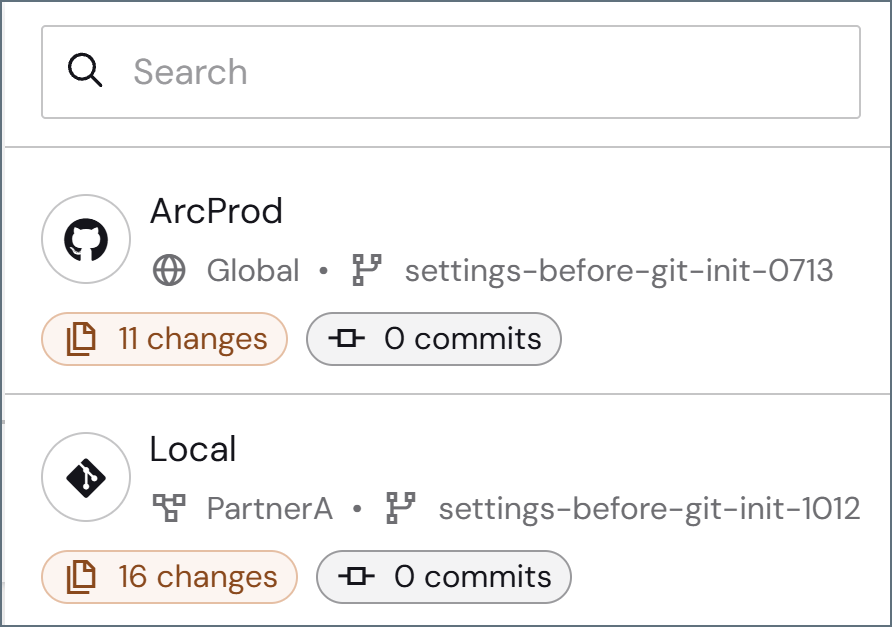
- The Git provider and the repository name
- The scope: Global, or the name of the workspace
- The current branch
- The number of local changes
- The number of incoming commits
- Commit & Push (or Commit for a repository with no remote): opens the Local Changes flyout with that repository preselected.
- Pull: pulls the incoming commits for that repository.
- Select: makes that repository the selected repository. The current repository shows Selected instead.
Branch
Branch management allows you to maintain separate configuration versions for different purposes, such as development, testing, and production environments. Branches belong to a single repository, so the branches that you see and the branch changes that you make apply to the selected repository only. Use the branch dropdown in the toolbar to switch between branches, create new ones, or delete stale ones. When creating a new branch, specify the branch name and select which branch to create it from (the default is to use your current branch). This enables you to experiment with configuration changes without affecting your main environment. See Create Branches and Delete Branches for details.Logging
All version control changes are captured in the Audit logs section of the Activity page. You can download logs from that page as necessary.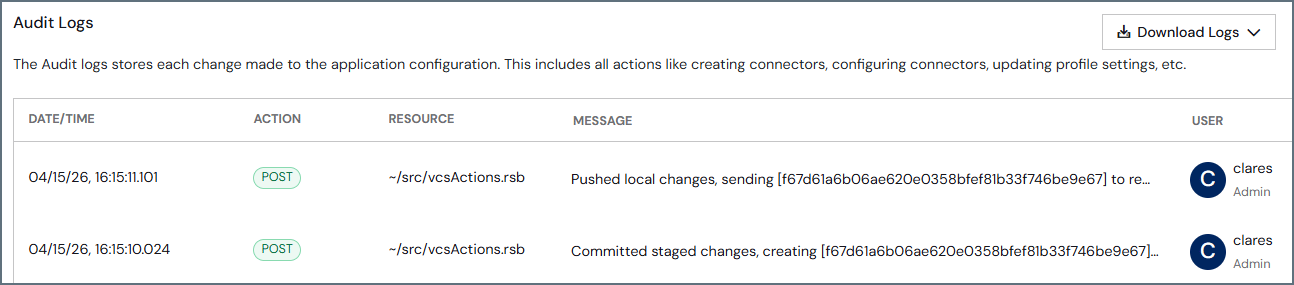
History Viewer
Once version control is enabled, a Commits History tab appears on the Activity page. It shows the commit history of one repository at a time and provides details such as the commit hash, commit message, author, date and time, and a list of the files that were changed in each commit. You can search and filter the content on this tab.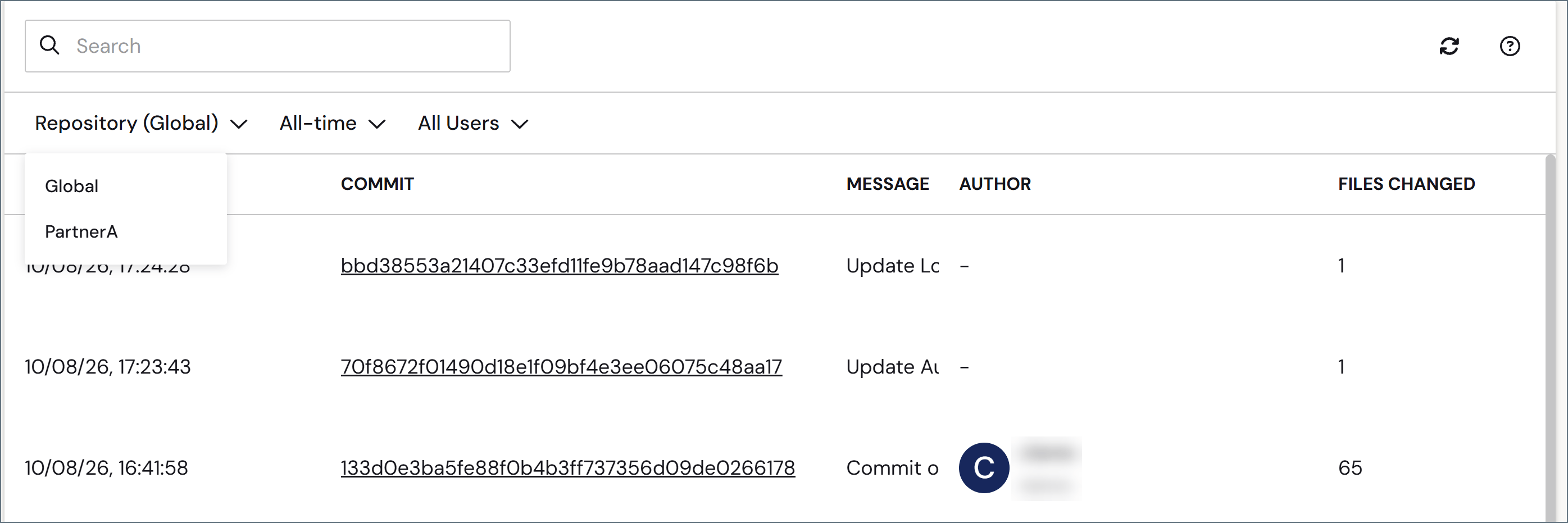
- Use the Repository filter to choose which repository’s history the table shows. The tab shows the history of a single repository, not a combined history of all repositories: the table does not include a repository column, and there is no option to show all repositories at once. Actions on a row, such as pull and restore, apply to the repository whose history you are viewing. If no repository is configured, the tab shows No repositories available.
- Use the All-time and All Users filters to further narrow your results.
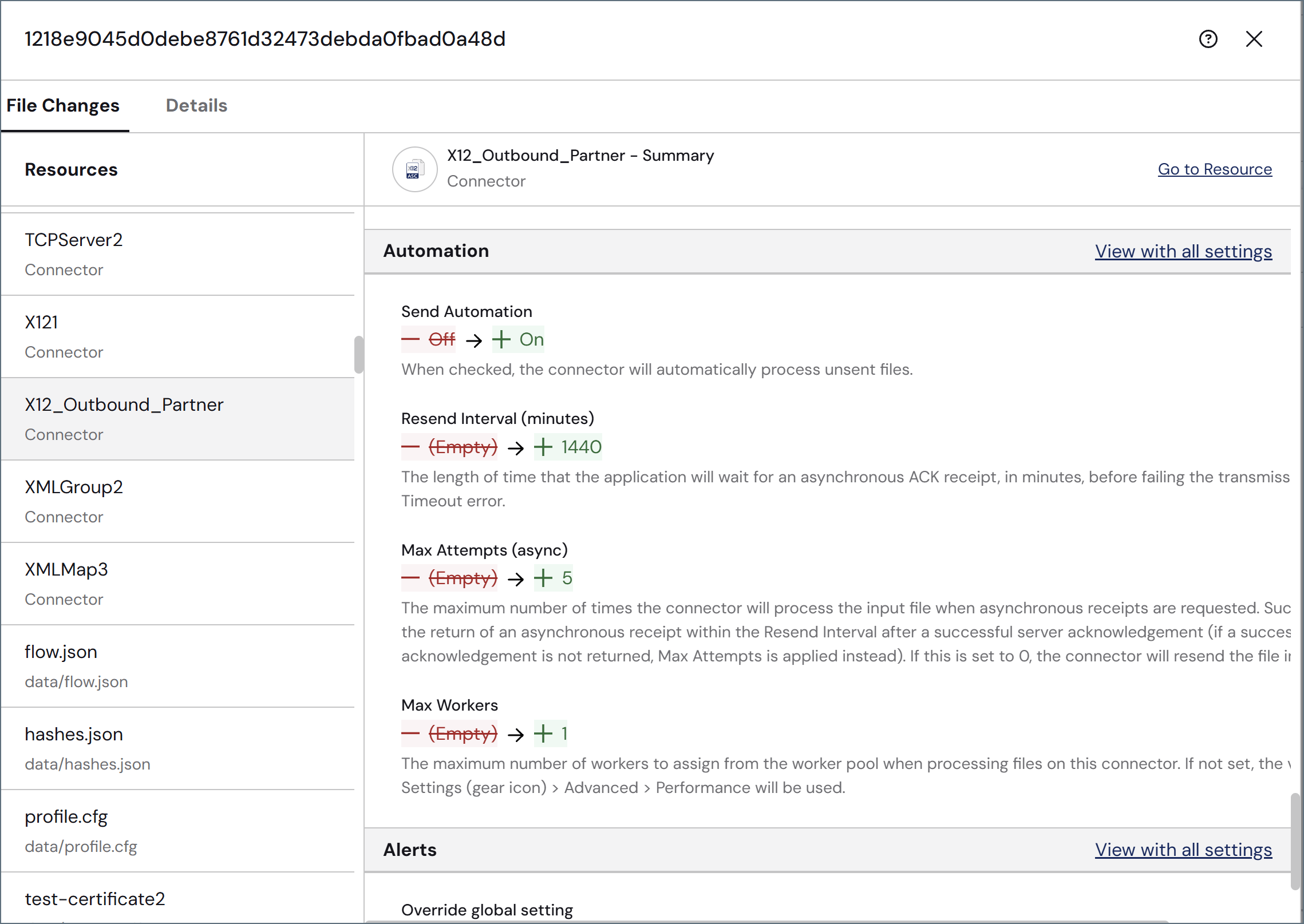
- Passwords and secrets are masked
- Vault references are prefixed with a key symbol
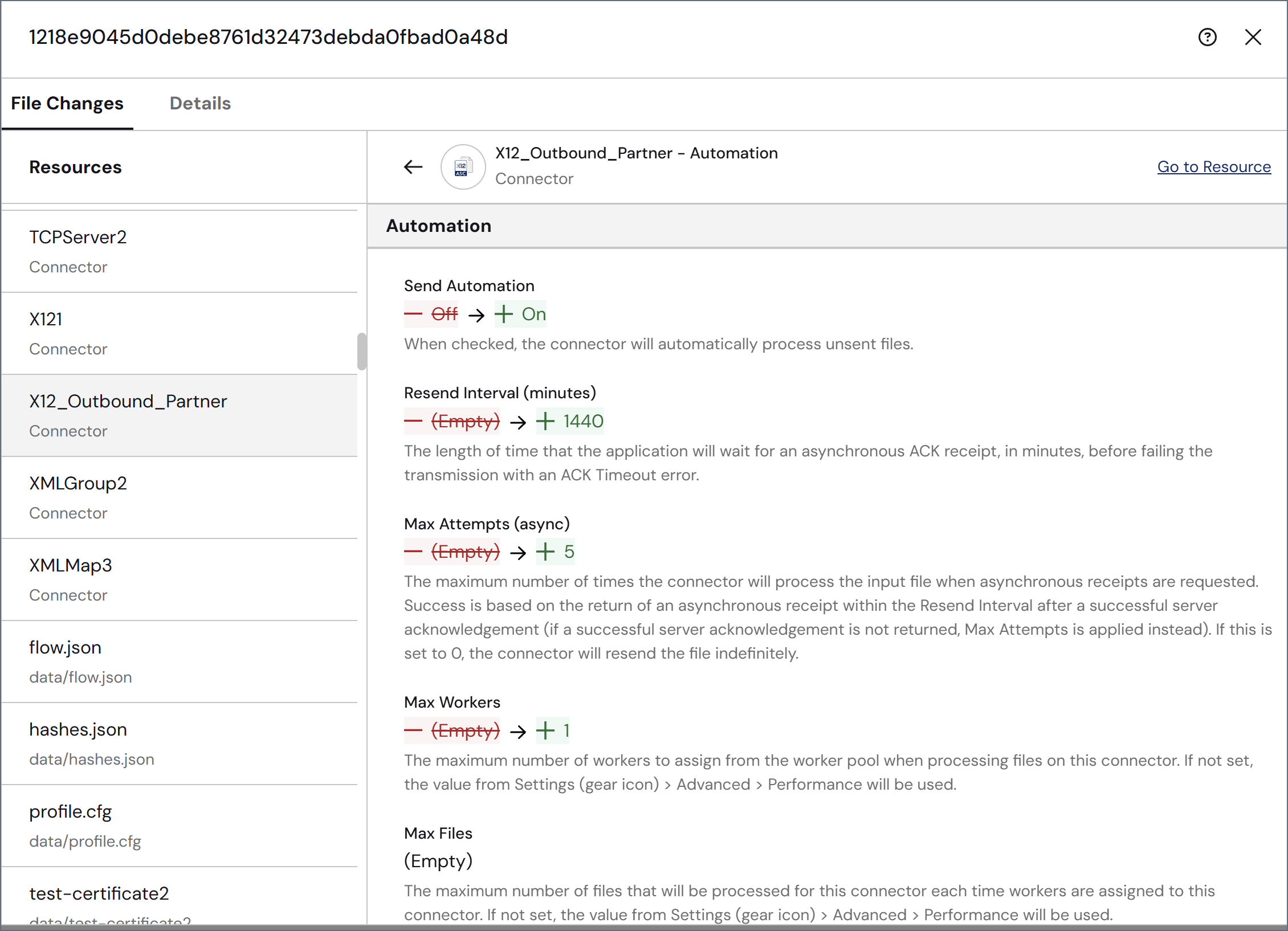
Version Control Workflows Examples
The following examples demonstrate common version control scenarios encountered when working with Arc‘s Git integration. These workflows cover the essential operations: pulling updates from remote repositories, creating and deleting branches, committing and pushing changes, restoring changes, resolving conflicts when local and remote changes diverge, and discarding unwanted modifications.Pull Changes
This workflow applies to remote repositories only.
- Click Pull on the toolbar to pull the commits without reviewing them
-
Click the number of commits on the toolbar to open the Pull Remote Commits preview

- Navigate to the Commits History tab on the Activity page and click the link to the number of remote commits on the left or the Pull button on the right to open the Pull Remote Commits preview
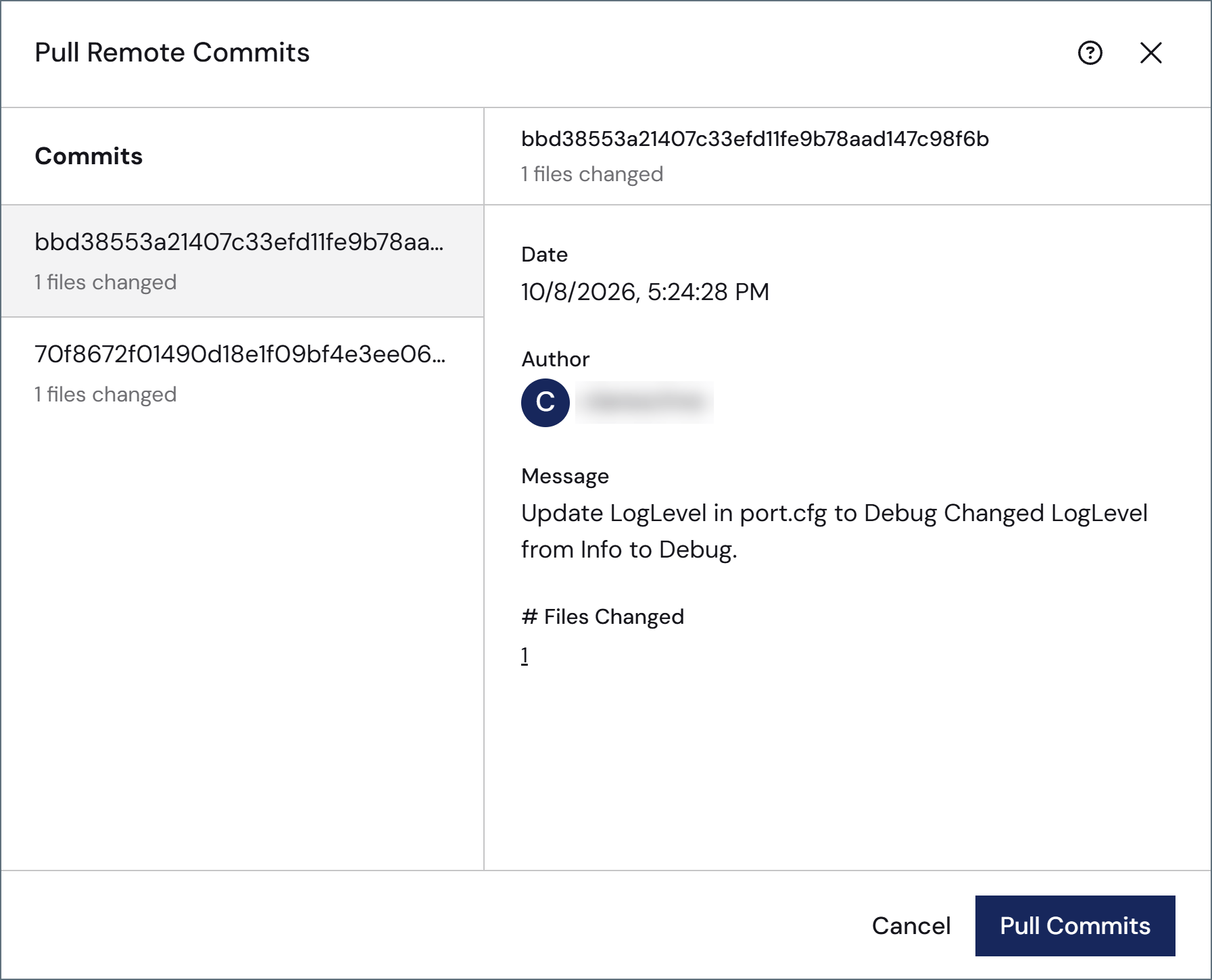
Create Branches
To create a new branch, click the branch icon on the toolbar (you can also switch between branches here).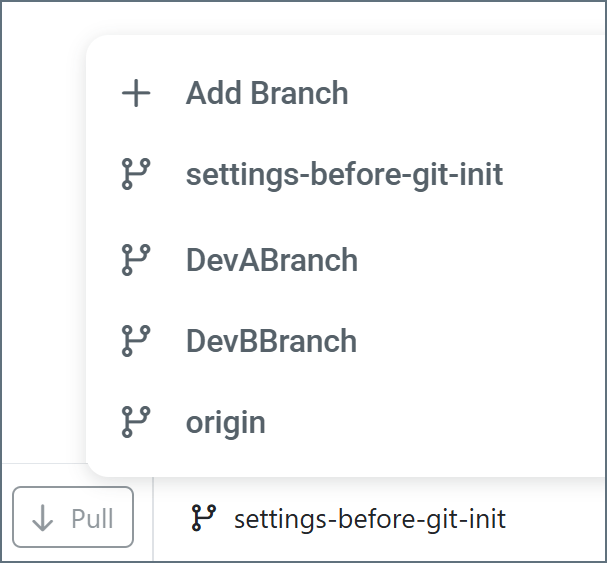
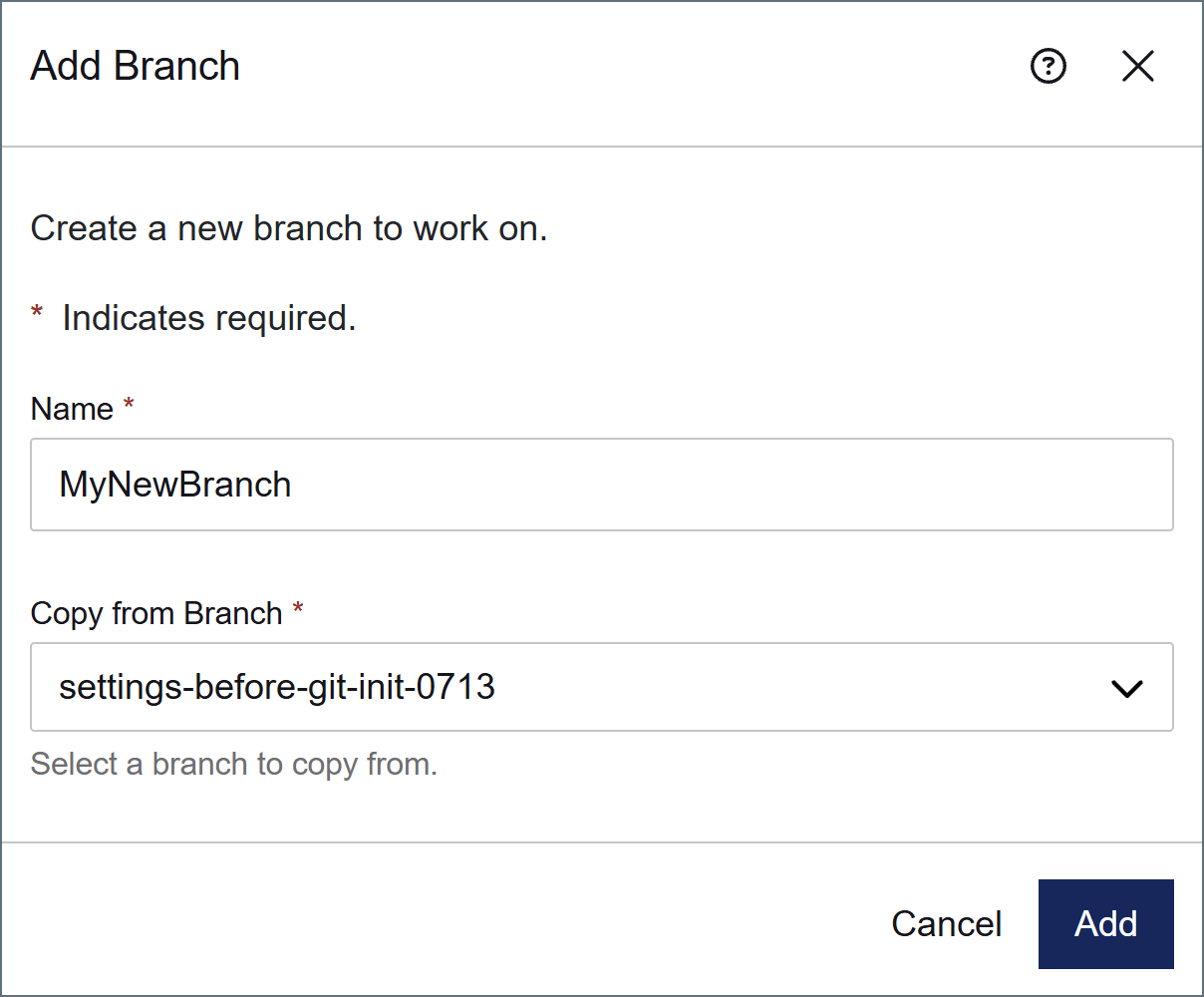
Delete Branches
To delete a branch, click the branch icon on the toolbar. Hover over the branch you want to delete and click the trashcan icon.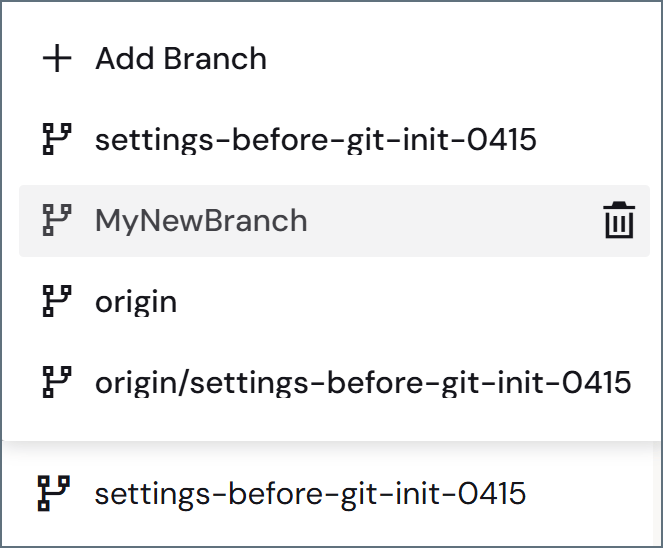
Commit and Push New Changes
When you are making changes in Arc, the toolbar shows the total number of files that have been changed in the selected repository: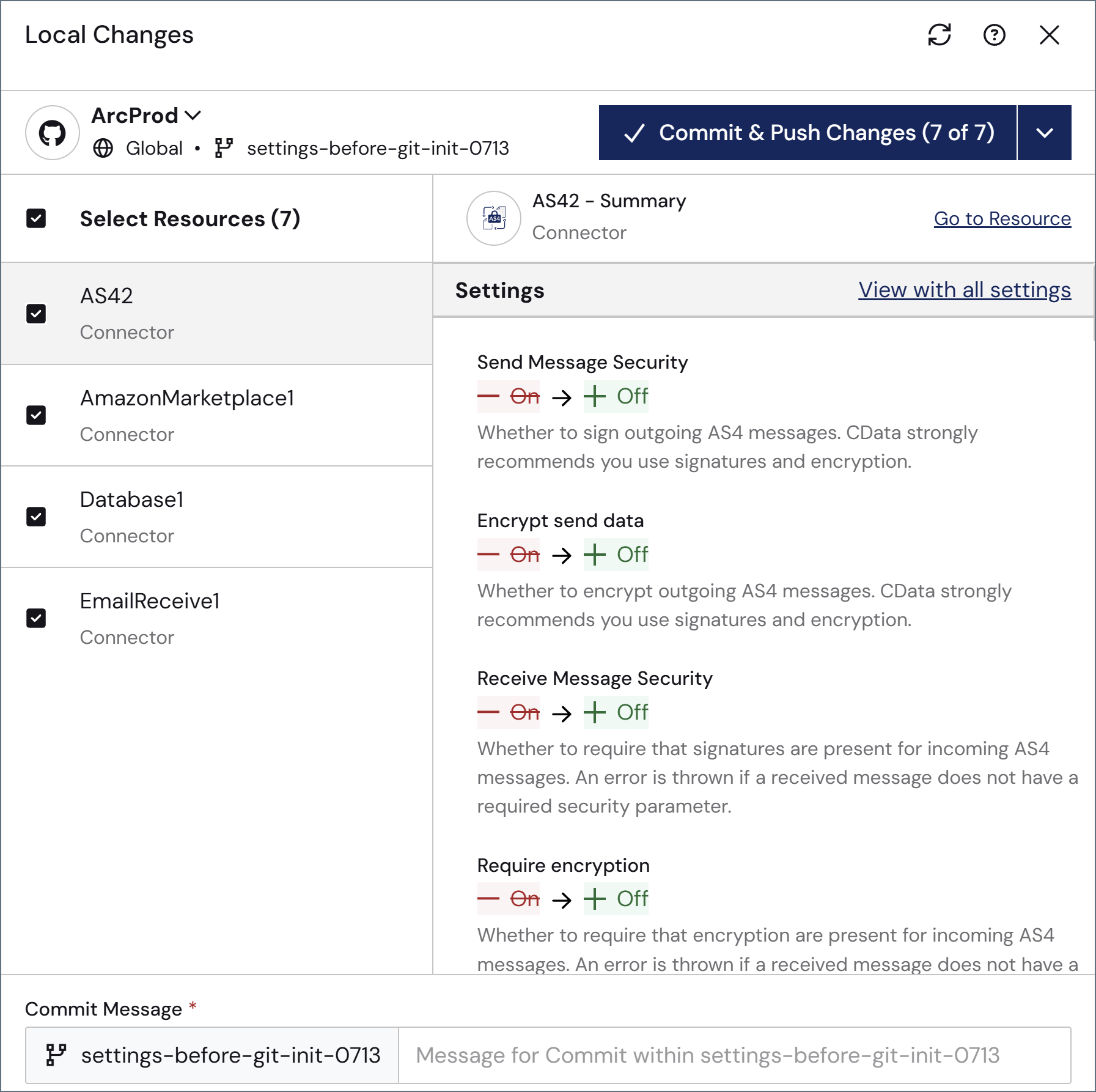
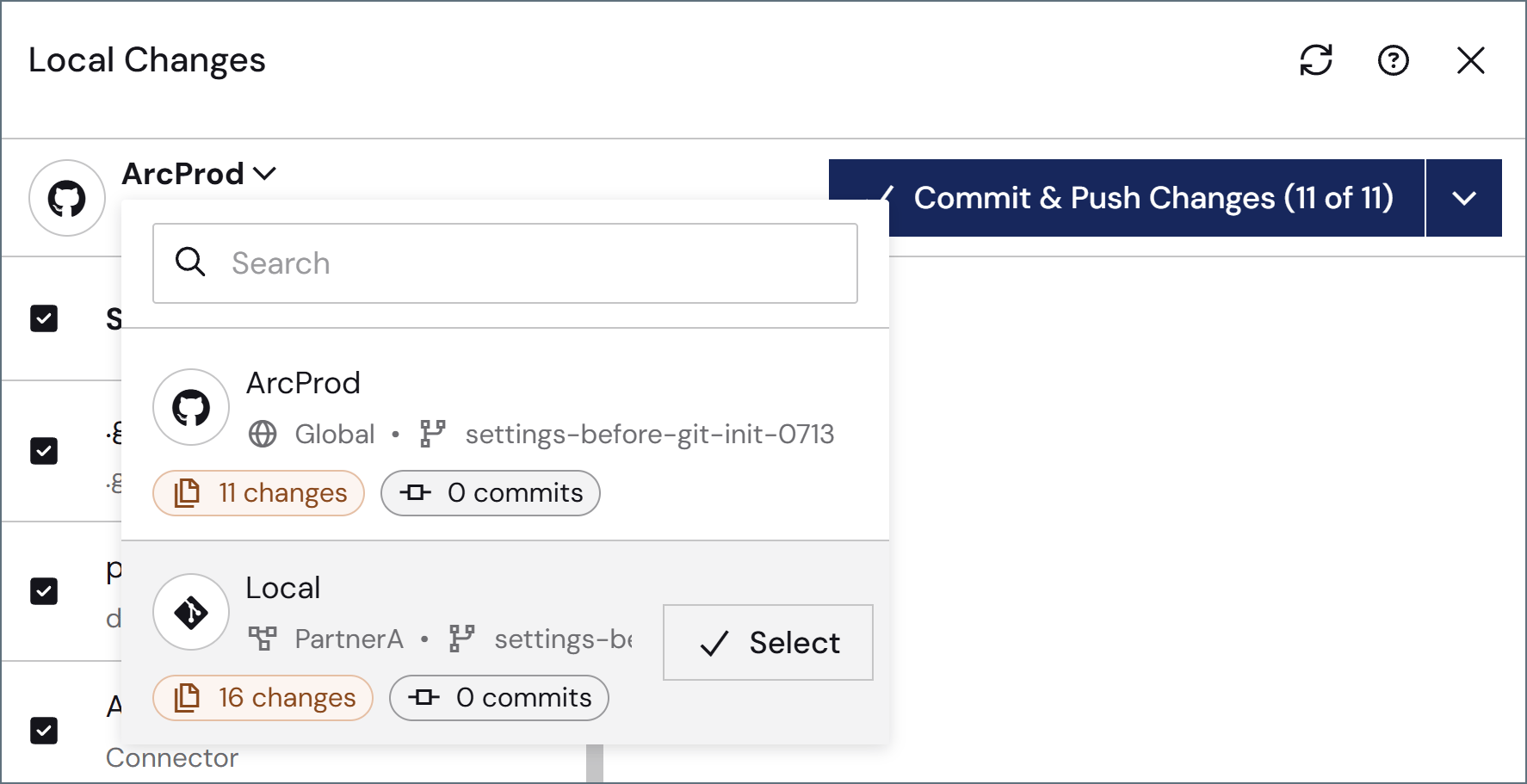
For remote repositories, commit and push happen as a single step; you do not commit locally and then push separately. For local repositories, only Commit is available since there is no remote to push to.
Restore Changes from a Previous Revision
To restore resources to their previous state, navigate to the Commits History tab on the Activity page and use the Repository filter to choose the repository that contains the resources. Restore applies only to that repository. Click the ellipsis to the right of the Files Changed column, then click Restore. Review the diff between the current state and the proposed restore point state, then click Next. Be aware that if you proceed with the restore, any uncommitted changes in those files are permanently lost. Click Restore Resources to complete the task.Manage Commit and Pull Conflicts
This section applies to remote repositories only. Commit conflicts do not occur with local repositories because there is no remote branch to diverge from.

Discard Changes
To discard your current changes in the selected repository, click the trashcan icon in the toolbar. This opens a Discard Changes pane, where you can select exactly which changes to discard. Click Next, confirm that your selections are correct, then click Discard Changes. Once complete, a confirmation message appears and the number of changes in the toolbar is reduced by the number of changes that were discarded. You can also discard changes on the Local Changes flyout. Select the resources to discard, then use the dropdown arrow on the Commit… button and choose Discard Changes. Review your selections, then click Discard Changes.Migrate from a Local to a Remote Repository
If you have a local repository and want to connect to a remote server while preserving your commit history, you can convert it to a remote repository. This works for global and workspace repositories.- Create the remote repository: set up a new, empty repository on your Git platform (such as GitHub, GitLab, or Bitbucket).
- Open the version control settings: for the global repository, navigate to Settings > Advanced > Git Version Control. For a workspace repository, open the workspace, then click Settings in the ellipsis menu. Click the Git Version Control tab.
- Change the Configuration Type from Local to Remote.
- Enter the remote repository URL and your authentication credentials. See Git Version Control Settings for the available authentication schemes.
- Click Save. Arc adds the remote to the repository and applies your credentials. Once your Status shows Connected, click Commit & Push to send your existing local commits to the remote repository.
.git directory.
Convert a Remote Repository to a Local Repository
To stop syncing a repository with its remote while keeping its history, open the version control settings for the global or workspace repository, change Configuration Type from Remote to Local, and click Save. Arc cleanly removes the remote from the repository. Your local commit history and tracked files are preserved, and Pull is no longer available for that repository.Edit the Remote URL
You can change the repository URL after version control is initialized. To change the remote URL for a repository that is already connected to a remote:- Open the version control settings for the repository. For the global repository, navigate to Settings > Advanced > Git Version Control. For a workspace repository, open the workspace, then click Settings in the ellipsis menu. Click the Git Version Control tab.
- Edit the repository URL and, if required, your credentials.
- Click Save.