

Key Capabilities
- Bidirectional Excel/XML conversion in both Table and Template modes
- Advanced template system using ArcScript for dynamic data population
- Support for multiple worksheets with configurable row/column ranges
Overview
Excel connectors can be configured in two modes: Table and Template. These modes are described below.Table Mode
The default mode for Excel connectors is Table. This mode only supports converting files from XLSX to XML. To convert from XML to XSLX, use Template mode. In Table mode, the connector treats input XLSX files exactly like CSV files. The resulting output XML file has the following structure, where each row (record) in the original file becomes a child of the root element Items:Template Mode
In Template mode, the connector uses a template file to perform conversions. This template file matches the output file format:- When converting from XML to Excel, the template file is an Excel file.
- When converting from Excel to XML, the template file is an XML file.
Connector Configuration
This section contains all of the configurable connector properties.Settings Tab
Configuration
Settings related to the core configuration of the connector.Advanced Settings
Settings not included in the previous categories.Advanced Tab
Message
Message 設定は、コネクタがメッセージを検索する方法と、処理後にメッセージを管理する方法を決定します。
| 設定 | 説明 |
|---|---|
| Save to Sent Folder | コネクタが処理したファイルをコネクタのSent フォルダにコピーするには、これをオンにします。 |
| Sent Folder Scheme | 選択した間隔に従って、コネクタがSent フォルダ内のファイルをグループ化するよう指示します。例えば、Weekly オプションは、コネクタが毎週新しいサブフォルダを作成し、その週のすべての送信済みファイルをそのフォルダに保存するよう指示します。空白の設定は、コネクタがすべてのファイルをSent フォルダに直接保存するよう指示します。多数のトランザクションを処理するコネクタでは、サブフォルダを使用することでファイルを整理しやすくなり、パフォーマンスを向上できます。 |
Logging
ログの作成と保存を制御する設定です。
| 設定 | 説明 |
|---|---|
| Log Level | コネクタが生成するログの詳細度です。サポートを依頼する際は、これをDebug に設定してください。 |
| Log Subfolder Scheme | 選択した間隔に従って、コネクタがLogs フォルダ内のファイルをグループ化するよう指示します。Weekly オプション(デフォルト)は、コネクタが毎週新しいサブフォルダを作成し、その週のすべてのログをそのフォルダに保存するよう指示します。この設定を空白のままにすると、コネクタはすべてのログをLogs フォルダに直接保存します。多数のトランザクションを処理するコネクタでは、サブフォルダを使用することでログを整理しやすくなり、パフォーマンスが向上します。 |
| Log Messages | 処理したファイルのログエントリにファイル自体のコピーを含めるには、これをオンにします。これを無効にすると、Transactions タブからファイルのコピーをダウンロードできなくなる場合があります。 |
Other Settings
Miscellaneous
Miscellaneous 設定は、特定のユースケース向けの設定です。
| 設定 | 説明 |
|---|---|
| Other Settings | 非表示のコネクタ設定をセミコロン区切りのリストで設定できます(例:setting1=value1;setting2=value2)。通常のコネクタのユースケースや機能では、これらの設定の使用は必要ありません。 |
Automation Tab
Settings related to the automatic processing of files by the connector.Automation Settings
Performance
コネクタへのリソースの割り当てに関する設定です。
| 設定 | 説明 |
|---|---|
| Max Workers | このコネクタでファイルを処理するためにスレッドプールから消費されるワーカースレッドの最大数です。設定すると、Advanced Settings ページのPerformance Settings 部分にあるデフォルト設定が上書きされます。 |
| Max Files | コネクタに割り当てられた各スレッドが送信するファイルの最大数です。設定すると、Advanced Settings ページのPerformance Settings 部分にあるデフォルト設定が上書きされます。 |
Alerts Tab
SLAs Tab
Templates
XML to Excel
The following snippet from an XML file contains a list of elements under the/Items/Orders path.
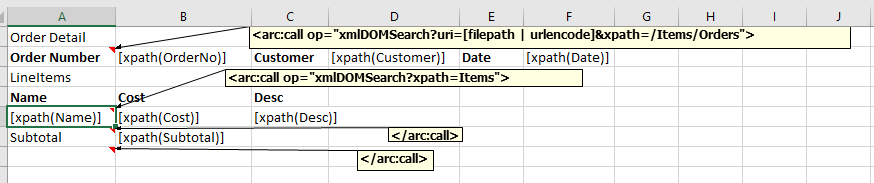
- Static column headers. In the example above, this is Order Detail.
- Scripting in Excel notes. This scripting should use the xmlDOMSearch operation to loop through the input XML at a specified XPath. In the example above, this is contained in the arc:call operation.
- Scripting in Excel cells. This scripting should use the xpath formatters to read values from the XML at a given xpath. This xpath is relative to the xpath specified in the xmlDOMSearch operation.
xmlDOMSearch
The xmlDOMSearch requires two parameters:xpath formatters
The Excel notes with the xmlDOMSearch operation surround a block of cells that reference the input XML via the xpath formatter. The xpath formatter reads values from the input XML at the specified xpath.This xpath is relative to the path provided as a parameter to the xmlDOMSearch operation.
[xpath("OrderNo")]. Since this xpath is relative, the cell is populated with the value from the following path in the input XML: /Items/Orders/OrderNo.
If the xmlDOMSearch operation loops more than once—that is, if more than one instance of the operation’s xpath parameter is found—then the block of cells between the Excel notes is repeated. The new cells are added vertically, so in the above example the second OrderNo cell would be directly below the first Notes cell.
Excel to XML
To convert from XSLX to an XML file, you must create a custom XML template using ArcScript commands. Since XML does not support the same scripting functionality as Excel files, the structure and formatting for converting from XSLX to XML is different than from XML to Excel.Due to the wide range of potential input and output structures, there is no universal solution for every conversion need. The example template shown below is just one of many potential solutions. You need to create a template based on your own needs.
arc:set lines below specify the location of the file and the Excel version used to create the file.
[_value | toalphanum | replace(' ','')] indicates that the arc:set command should parse header names from the Excel file, convert them to alphanumeric format, eliminate blank spaces, and assign them as headers in the XML file.
Macros
Examples
Excel Operations
In addition to the Operations provided with Arc, connectors can provide operations that extend functionality into ArcScript. These connector operations can be called just like any other ArcScript operation, except for two details:- They must be called through the
connector.rscendpoint. - They must include an auth token.
excelClose
Close an Excel connection.Optional Parameters
- handle: The handle for the Excel file.
Output Attributes
- success: True if the connection is closed successfully.
excelGet
Queries the specified Excel worksheet.Required Parameters
- sheet: The name of the Excel worksheet.
Optional Parameters
- version: The version of Excel you are using. The default is AUTO. You only need to choose another version if you are using a legacy Excel version.
- file: The path to the Excel workbook.
- handle: The handle for the Excel file.
- map:*: This set of inputs contains a mapping of the attribute name and the name of the cell whose value is to be retrieved from the spreadsheet. For example, the attribute name map:MyValue which has a value of C1 pushes an attribute named MyValue with the value found in the cell at C1 in the sheet. You can specify a range of cell names to retrieve a range of cell values.
Output Attributes
- *: Depends on the content of the sheet and the query specified. If column headers are present they are used to name the output attributes.
excelListSheets
Lists the worksheets in a specified Excel workbook.Optional Parameters
- version: The version of Excel you are using. The default is AUTO. You only need to choose another version if you are using a legacy Excel version.
- file: The path to the Excel workbook.
- handle: The handle for the Excel file.
Output Attributes
- isHidden: Returns true if the sheet is hidden from view in Excel.
- sheet: The name of the Excel worksheet. Note that the name ends with $. This is not required when specifying worksheet names to other operations.
excelOpen
Open an existing Excel workbook.Required Parameters
- file: The path to the Excel workbook.
Optional Parameters
- version: The version of Excel you are using. The default is AUTO. You only need to choose another version if you are using a legacy Excel version.
Output Attributes
- handle: The handle which is used to execute other operations.