

Key Capabilities
- File compression and extraction with support for multiple archive formats (7zip, Bzip2, Gzip, and Tar)
- Password protection and encryption capabilities for secure archives
- Scheduled Send functionality to combine multiple files into single archives
- Configurable compression methods and levels for optimized file sizes and processing speed
Overview
Zip connectors automatically compress or decompress incoming files depending on the Operation setting of the connector. In Compress mode, each file is zipped independently, so the number of output Zip archives is equal to the number of input files. In Decompress mode, all files are extracted from input archives and output as an individual file; folder structure is ignored. Zip connectors can be configured to compress and decompress archives in a variety of formats, including 7zip, Bzip2, Gzip, and Tar.Connector Configuration
This section contains all of the configurable connector properties.Settings Tab
Configuration
Settings related to the core operation of the connector.Archive Options
Settings related to the archive being processed or created.Encryption
Settings related to encrypting archives during compression, if allowed by the archive format.Advanced Tab
Advanced Settings
Settings not included in the previous categories.Logging
Settings that govern the creation and storage of logs.
| Setting | Description |
|---|---|
| Log Level | The verbosity of logs generated by the connector. When you request support, set this to Debug. |
| Log Subfolder Scheme | Instructs the connector to group files in the Logs folder according to the selected interval. The Weekly option (which is the default) instructs the connector to create a new subfolder each week and store all logs for the week in that folder. Leaving this setting blank tells the connector to save all logs directly in the Logs folder. For connectors that process many transactions, using subfolders helps keep logs organized and improves performance. |
| Log Messages | Check this to have the log entry for a processed file include a copy of the file itself. If you disable this, you might not be able to download a copy of the file from the Transactions tab. |
Other Settings
Miscellaneous
Miscellaneous settings are for specific use cases.
| Setting | Description |
|---|---|
| Other Settings | Enables you to configure hidden connector settings in a semicolon-separated list (for example, setting1=value1;setting2=value2). Normal connector use cases and functionality should not require the use of these settings. |
Automation Tab
Automation Settings
Settings related to the automatic processing of files by the connector. By default, the Enable automation checkbox is checked. If you uncheck it, you cannot use the other automation settings.Performance
Settings related to the allocation of resources to the connector.
| Setting | Description |
|---|---|
| Max Workers | The maximum number of worker threads consumed from the threadpool to process files on this connector. If set, this overrides the default setting on the Performance Settings portion of the Advanced Settings page. |
| Max Files | The maximum number of files sent by each thread assigned to the connector. If set, this overrides the default setting on the Performance Settings portion of the Advanced Settings page. |
Alerts Tab
SLAs Tab
Subfolder Headers
The Zip connector makes use of the Subfolder header for reading from and writing to compressed files. A Subfolder header is added any time there are subfolders in the zip structure.When compressing files, the Subfolder header is only used when you set Scheduled Send on the Automation tab.
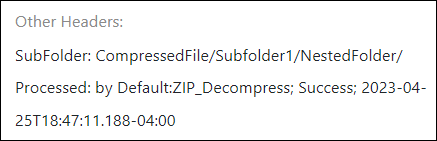
- The message for each file that is in a subfolder in the compressed file contains a Subfolder header in its metadata.
- This header displays the path to the subfolder in the zip folder structure.
- This subfolder header is supported by other connectors that support a subfolder header in Send operations.