When you are receiving IDoc files from one SAP system and sending them to another SAP system you might want to change the control record information without changing the IDoc file data. See Sending IDocs to SAP for more information.To overwrite the control headers for IDoc files, check Overwrite, then make your changes to the following options.
Setting
Description
SAP Release (DOCREL)
The SAP Release for IDOC.
Test Flag (TEST)
The flag which indicates whether the IDoc should be in test mode.
Sender Port (SNDPOR)
The sender port (SAP System or external subsystem).
Sender Partner Number (SNDPRN)
The sender’s partner number.
Sender Partner Type (SNDPRT)
The sender’s partner type.
Sender Partner Function (SNDPFC)
The sender’s partner function.
Sender Address (SNDSAD)
The sender’s address.
Logical Address (SNDLAD)
The sender’s logical address.
Receiver Port (RCVPOR)
The receiver port.
Receiver Partner Number (RCVPRN)
The receiver’s partner number.
Receiver Partner Type (RCFPRT)
The receiver’s partner type.
Receiver Partner Function (RCVPFC)
The receiver’s partner function.
Recipient Address (RVCSAD)
The receiver’s address.
Receiver Logical Address (RCVLAD)
The receiver’s logical address.
Use System Date/Time
Whether to include the system date/time in the control record information.
The amount of time (in seconds) by which the processing of files placed in the Transactions tab is delayed. This is a legacy setting. Best practice is to use a File connector to manage local file systems instead of this setting.
Refresh Schema
When enabled, the connector attempts to update the schema it uses for parsing when a parsing error occurs. The schema is updated by reaching out to the SAP system and querying for the appropriate schema.
Local File Scheme
A scheme for assigning filenames to messages that are output by the connector. You can use macros in your filenames dynamically to include information such as identifiers and timestamps. For more information, see Macros.
Upload Schema
Use this to upload a schema and install it in the connector’s Schema folder. If a schema already exists, you are asked if you want to overwrite it.
Message settings determine how the connector searches for messages and manages them after processing. You can save messages to your Sent folder or you can group them based on a Sent folder scheme, as described below.
Setting
Description
Save to Sent Folder
Check this to copy files processed by the connector to the Sent folder for the connector.
Sent Folder Scheme
Instructs the connector to group files in the Sent folder according to the selected interval. For example, the Weekly option instructs the connector to create a new subfolder each week and store all sent files for the week in that folder. The blank setting instructs the connector to save all files directly in the Sent folder. For connectors that process many transactions, using subfolders can help keep files organized and improve performance.
Settings that govern the creation and storage of logs.
Setting
Description
Log Level
The verbosity of logs generated by the connector. When you request support, set this to Debug.
Log Subfolder Scheme
Instructs the connector to group files in the Logs folder according to the selected interval. The Weekly option (which is the default) instructs the connector to create a new subfolder each week and store all logs for the week in that folder. Leaving this setting blank tells the connector to save all logs directly in the Logs folder. For connectors that process many transactions, using subfolders helps keep logs organized and improves performance.
Log Messages
Check this to have the log entry for a processed file include a copy of the file itself. If you disable this, you might not be able to download a copy of the file from the Transactions tab.
Miscellaneous settings are for specific use cases.
Setting
Description
Other Settings
Enables you to configure hidden connector settings in a semicolon-separated list (for example, setting1=value1;setting2=value2). Normal connector use cases and functionality should not require the use of these settings.
Once you have configured the IDoc connector to connect to your SAP system, you can begin sending IDoc files to SAP. The IDoc connector can send files formatted in raw IDoc or XML IDoc.You can configure the connector to automatically insert control record information into the IDoc being sent to SAP: the DOCREL, SNDPOR, SNDPRT, and so on. This makes it easier to process outgoing IDocs to the configured system. Configure these settings in the Control Record Information Options section of the Settings tab.Before sending an IDoc to your SAP system, make sure that you have properly configured a partner profile in SAP. If no partner profile in SAP matches the control record information in the IDoc you are sending, the data will not be processed by your SAP system. See Test Sending an IDoc to SAP for more information on setting up a partner profile.
You can use transaction code WE60 to search for segment documentation for different IDoc types.
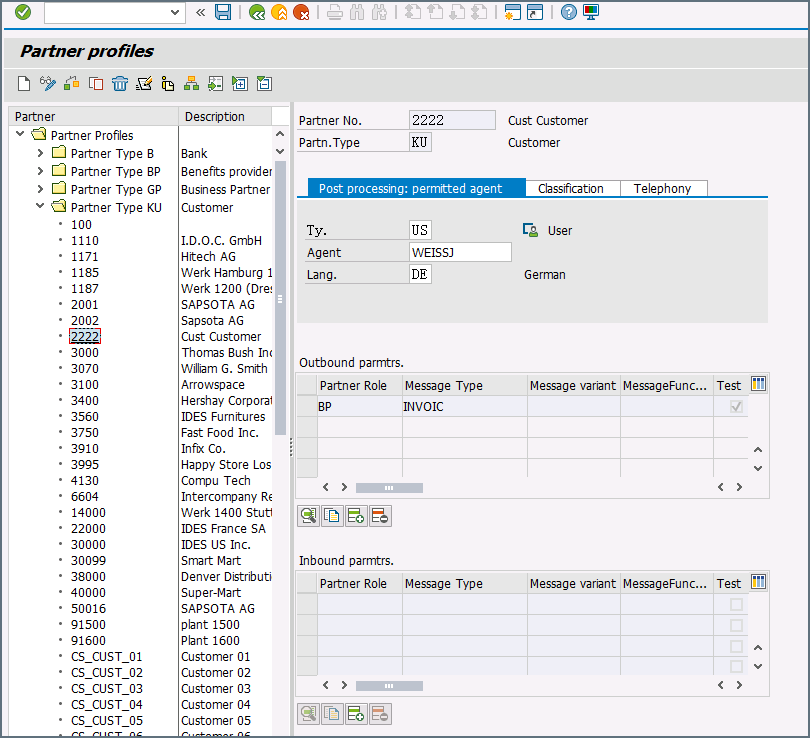
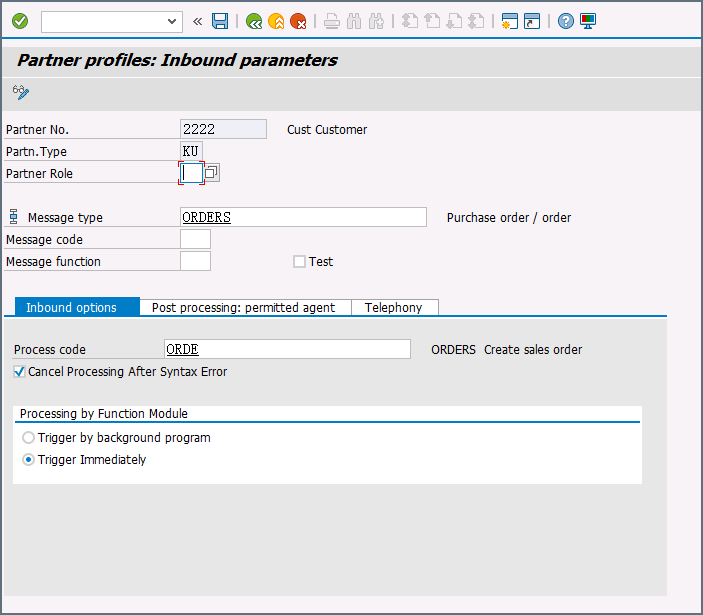
To test sending an IDoc to SAP, you first need to configure your SAP system to have a partner profile for Arc. The following steps describe how to do this with an ORDERS IDoc.
Create a partner: Go to transaction code WE20 and define a partner profile. Set Partn Type to KU for Customer and Partner No to a valid customer number.
Add an inbound parameter for the ORDERS document: The message type for this document is ORDERS. On the Inbound Options tab, set Process code to ORDE to tell SAP how to create a sales order when a purchase order ORDERS document is received by the SAP system.
Assign the customer to a sales division: The customer configured in step one must be assigned to a sales organization, distribution channel, and division. Go to transaction VOE2 to configure these settings in the EDSDC table.
{"docsConfig":{"theme":"mint","$schema":"https://mintlify.com/docs.json","name":"CData Arc Documentation","colors":{"primary":"#002660","light":"#FFE500","dark":"#002660"},"logo":{"light":"https://mintcdn.com/cdata-arc/-adMVRA2NGLWRgFp/public/images/cdata_arc_web.svg?fit=max\u0026auto=format\u0026n=-adMVRA2NGLWRgFp\u0026q=85\u0026s=8863df3ad6488c6280d057711f48aa94","dark":"https://mintcdn.com/cdata-arc/-adMVRA2NGLWRgFp/public/images/cdata_arc_yellow.svg?fit=max\u0026auto=format\u0026n=-adMVRA2NGLWRgFp\u0026q=85\u0026s=db878c051424afd58007b04161a4f5e1","href":"https://www.cdata.com/arc"},"favicon":"https://mintcdn.com/cdata-arc/Lo_2D5t4szDfleFN/favicon.ico?fit=max\u0026auto=format\u0026n=Lo_2D5t4szDfleFN\u0026q=85\u0026s=4b165e5b4d92eef3607cdc47218f10e2","appearance":{"default":"system","strict":false},"background":{"color":{"light":"#F1EEE9","dark":"#15151C"}},"footer":{"socials":{"x":"https://x.com/cdatasoftware","youtube":"https://www.youtube.com/c/CDataSoftware","linkedin":"https://www.linkedin.com/company/cdatasoftware","facebook":"https://www.facebook.com/cdatasoftware","instagram":"https://www.instagram.com/cdatasoftware"}},"fonts":{"heading":{"family":"DM Sans","weight":700},"body":{"family":"DM Sans"}},"styling":{"eyebrows":"breadcrumbs","latex":false},"contextual":{"options":["copy","view","chatgpt","claude","perplexity","mcp","cursor","vscode"],"display":"header"},"variables":{"siteName":"CData Arc","siteNameShort":"Arc","companyName":"CData"},"navigation":{"languages":[{"language":"en","navbar":{"primary":{"type":"button","label":" Contact Us","href":"https://www.cdata.com/company/contact.aspx"}},"href":"26.4/self-hosted/en/getting-started"},{"language":"ja","navbar":{"primary":{"type":"button","label":"お問い合わせ","href":"https://jp.cdata.com/contact/"}},"href":"26.4/self-hosted/ja/getting-started"}]}},"deployment":{"deploymentMetadataValue":{"subdomain":"cdata-arc","hasAudioNarration":false,"actualSubdomain":"cdata-arc","customDomains":["docs.arc.cdata.com"],"gitSource":{"type":"github","owner":"cdatasoftware","repo":"arc-docs","deployBranch":"main","contentDirectory":"","isPrivate":true,"mountPath":"","label":""},"chroma":{"liveDeploymentHistoryId":"6ae14a4699b9508b21c9dbd8","collectionId":"90177a11-7b4b-4316-b7a6-26cb9925267d","schemaVersion":"v3","latestBuiltDeploymentHistoryId":"6ae14a4699b9508b21c9dbd8"},"entitlements":{"AI_CHAT":{"status":"ENABLED"},"WEB_MCP":{"status":"ENABLED"},"NARRATION":{"status":"ENABLED"}},"buildId":"6ae14a4699b9508b21c9dbd8","clientVersion":"0.0.3990","searchFilterCounts":[{"language":"en","tag":"Arc User Guide","count":3135},{"language":"ja","tag":"Arc ユーザーガイド","count":2659},{"language":"en","tag":"Connectors","count":1994},{"language":"en","tag":"Self-Hosted","count":1921},{"language":"ja","tag":"Self-Hosted","count":1921},{"language":"en","tag":"Cloud","count":1760},{"language":"ja","tag":"コネクタ","count":1658},{"language":"ja","tag":"Cloud","count":1211},{"language":"en","tag":"Other","count":1064},{"language":"ja","tag":"その他","count":887},{"language":"en","tag":"Scripting","count":608},{"language":"en","tag":"ArcScript","count":581},{"language":"en","tag":"API Reference","count":546},{"language":"ja","tag":"スクリプティング","count":512},{"language":"ja","tag":"ArcScript","count":489},{"language":"ja","tag":"API リファレンス","count":472},{"language":"en","tag":"Getting Started","count":357},{"language":"en","tag":"Core","count":341},{"language":"ja","tag":"コア","count":312},{"language":"ja","tag":"はじめに","count":306}]},"assistantConfig":{"enableAskAiButton":false,"enableStarterQuestions":false,"enableAskAiSearchBar":true},"basePath":"","hasChatPermissions":true,"hasWebMcpPermissions":true,"toggles":[{"name":"kill-isr","enabled":true,"variant":{"name":"disabled","enabled":false,"feature_enabled":true},"impressionData":false},{"name":"agent-mintlify-slack","enabled":true,"variant":{"name":"disabled","enabled":false,"feature_enabled":true},"impressionData":false},{"name":"editor-v7-file-tree","enabled":true,"variant":{"name":"disabled","enabled":false,"feature_enabled":true},"impressionData":false},{"name":"agent-integrations-settings","enabled":true,"variant":{"name":"disabled","enabled":false,"feature_enabled":true},"impressionData":false},{"name":"automations-pr-grouping","enabled":true,"variant":{"name":"disabled","enabled":false,"feature_enabled":true},"impressionData":false},{"name":"custom-prefix","enabled":true,"variant":{"name":"disabled","enabled":false,"feature_enabled":true},"impressionData":false},{"name":"analytics-v7","enabled":true,"variant":{"name":"disabled","enabled":false,"feature_enabled":true},"impressionData":false},{"name":"user-flows-analytics","enabled":true,"variant":{"name":"disabled","enabled":false,"feature_enabled":true},"impressionData":false},{"name":"no-publish-flow","enabled":true,"variant":{"name":"disabled","enabled":false,"feature_enabled":true},"impressionData":false},{"name":"workos-onboarding","enabled":true,"variant":{"name":"disabled","enabled":false,"feature_enabled":true},"impressionData":false},{"name":"llms-txt-v2","enabled":true,"variant":{"name":"disabled","enabled":false,"feature_enabled":true},"impressionData":false},{"name":"pause-universal-search-reconcile","enabled":true,"variant":{"name":"disabled","enabled":false,"feature_enabled":true},"impressionData":false},{"name":"snapshot-serving-live","enabled":true,"variant":{"name":"disabled","enabled":false,"feature_enabled":true},"impressionData":false},{"name":"stripTemperatureMiddleware","enabled":true,"variant":{"name":"disabled","enabled":false,"feature_enabled":true},"impressionData":false},{"name":"per-site-search-delta","enabled":true,"variant":{"name":"disabled","enabled":false,"feature_enabled":true},"impressionData":false},{"name":"support-platform-pylon-zendesk","enabled":true,"variant":{"name":"disabled","enabled":false,"feature_enabled":true},"impressionData":false},{"name":"snapshot-serving","enabled":true,"variant":{"name":"disabled","enabled":false,"feature_enabled":true},"impressionData":false},{"name":"instant-rollback","enabled":true,"variant":{"name":"disabled","enabled":false,"feature_enabled":true},"impressionData":false},{"name":"granular-notifications-server","enabled":true,"variant":{"name":"disabled","enabled":false,"feature_enabled":true},"impressionData":false},{"name":"granular-notifications","enabled":true,"variant":{"name":"disabled","enabled":false,"feature_enabled":true},"impressionData":false},{"name":"editor-private-page-search","enabled":true,"variant":{"name":"disabled","enabled":false,"feature_enabled":true},"impressionData":false},{"name":"automations-fable","enabled":true,"variant":{"name":"disabled","enabled":false,"feature_enabled":true},"impressionData":false},{"name":"fixed-ai-action-pricing","enabled":true,"variant":{"name":"disabled","enabled":false,"feature_enabled":true},"impressionData":false},{"name":"automation-resolve-merge-conflict","enabled":true,"variant":{"name":"disabled","enabled":false,"feature_enabled":true},"impressionData":false},{"name":"scoped-publishing","enabled":true,"variant":{"name":"disabled","enabled":false,"feature_enabled":true},"impressionData":false},{"name":"mintql","enabled":true,"variant":{"name":"disabled","enabled":false,"feature_enabled":true},"impressionData":false},{"name":"page-level-analytics","enabled":true,"variant":{"name":"disabled","enabled":false,"feature_enabled":true},"impressionData":false},{"name":"editor-version-history-v2","enabled":true,"variant":{"name":"disabled","enabled":false,"feature_enabled":true},"impressionData":false},{"name":"editor-nav-generations","enabled":true,"variant":{"name":"disabled","enabled":false,"feature_enabled":true},"impressionData":false},{"name":"billing-page-v2","enabled":true,"variant":{"name":"disabled","enabled":false,"feature_enabled":true},"impressionData":false},{"name":"workspace-projects","enabled":true,"variant":{"name":"disabled","enabled":false,"feature_enabled":true},"impressionData":false},{"name":"assistant-v5","enabled":true,"variant":{"name":"disabled","enabled":false,"feature_enabled":true},"impressionData":false},{"name":"byok-sep-25","enabled":true,"variant":{"name":"disabled","enabled":false,"feature_enabled":true},"impressionData":false},{"name":"fork-pr-previews","enabled":true,"variant":{"name":"disabled","enabled":false,"feature_enabled":true},"impressionData":false},{"name":"revalidation-jwt","enabled":true,"variant":{"name":"disabled","enabled":false,"feature_enabled":true},"impressionData":false},{"name":"vite-origin","enabled":true,"variant":{"name":"disabled","enabled":false,"feature_enabled":true},"impressionData":false},{"name":"editor-agent-model-picker","enabled":true,"variant":{"name":"disabled","enabled":false,"feature_enabled":true},"impressionData":false},{"name":"billing-updated-9-15","enabled":true,"variant":{"name":"disabled","enabled":false,"feature_enabled":true},"impressionData":false},{"name":"workos-sso-scim","enabled":true,"variant":{"name":"disabled","enabled":false,"feature_enabled":true},"impressionData":false},{"name":"hobby-abuse-scan","enabled":true,"variant":{"name":"disabled","enabled":false,"feature_enabled":true},"impressionData":false},{"name":"dashboard-inbox","enabled":true,"variant":{"name":"disabled","enabled":false,"feature_enabled":true},"impressionData":false},{"name":"workos-signup","enabled":true,"variant":{"name":"disabled","enabled":false,"feature_enabled":true},"impressionData":false},{"name":"workos-enabled","enabled":true,"variant":{"name":"disabled","enabled":false,"feature_enabled":true},"impressionData":false}],"isAtlas":false,"googleFontsInlined":true},"customCss":[{"filePath":"custom.css","content":"@font-face{font-family:'Grafier';src:local('Grafier'),url(/public/fonts/grafier/PPGrafier-Regular.woff2) format('woff2'),url(/public/fonts/grafier/PPGrafier-Regular.woff) format('woff');font-weight:400;font-style:normal;font-display:swap}:root{--brand-agility:#FFE500;--brand-resolve:#002660;--brand-depth:#15151C;--brand-clarity:#F1EEE9;--brand-balance:#B5B9BC;--brand-link:#0B59CE;--brand-link-hover:#1F5B8E;--system-error:#BE6634;--n0:#FFFFFF;--n1:#FFFDFA;--n2:#F1EEE9;--n3:#D9D6D2;--n9:#525252;--n11:#15151C;--surface-bg:var(--brand-clarity);--surface-sidebar:transparent;--surface-card:var(--n0);--surface-header:transparent;--text-primary:var(--n11);--text-secondary:var(--n9);--border:var(--n3);--radius:5px;--shadow:0 10px 35px rgba(50,50,93,.10), 0 3px 15px rgba(0,0,0,.07);--shadow-up:0 13px 35px rgba(50,50,93,.20), 0 3px 18px rgba(0,0,0,.08);--font-sans:'DM Sans', ui-sans-serif, system-ui, sans-serif;--font-mono:'DM Mono', 'Nimbus Mono PS', 'Courier New', monospace;--logo-h:23px;--logo-w:116px}html.dark{--surface-bg:#1a1a22;--surface-sidebar:var(--surface-bg);--surface-card:#1a1a22;--surface-header:var(--surface-bg);--text-primary:rgb(158, 159, 161);--text-secondary:var(--brand-balance);--border:#2e2e3a;--brand-link:#5b9cf6;--brand-link-hover:#93c5fd}html:not(.dark) body{background-color:var(--surface-bg)}html.dark body{background-color:var(--surface-bg)}html.dark #background-color{background-color:var(--surface-bg)!important}html:not(.dark) body .mint-bg-white{background:linear-gradient(135deg,#fffdfa 0,#f1eee9 100%)!important}html.dark body .mint-bg-white{background:linear-gradient(135deg,#1a1a22 0,#15151c 100%)!important}body,html{font-weight:400;color:var(--text-primary)}h1,h2,h3,h4,h5,h6{line-height:1.2;color:#000}body,h3,h4,h5,h6,html{font-family:var(--font-sans)}h3,h4,h5,h6{font-weight:700}#page-title,h1,h2{font-family:'Grafier',var(--font-sans);font-weight:400!important;letter-spacing:normal!important;font-feature-settings:\"ss01\",\"case\"}#page-title *,h1 *,h2 *{letter-spacing:inherit!important;font-weight:inherit!important}html.dark h1,html.dark h2,html.dark h3,html.dark h4,html.dark h5,html.dark h6{color:#fff}label,li,p,td,th{line-height:1.65}code,kbd,pre,samp{font-family:var(--font-mono)!important}a{color:var(--brand-link);text-decoration:none;transition:color .15s}a:hover{color:var(--brand-link-hover)}#header a,#navbar a{color:inherit}#sidebar-content a.nav-anchor{color:var(--text-secondary)}#navbar a.nav-anchor:hover,.nav-anchor:hover{color:var(--brand-resolve)!important}html.dark #navbar a.nav-anchor:hover,html.dark .nav-anchor:hover{color:var(--brand-link-hover)!important}.nav-anchor>div.rounded-md{background:var(--text-secondary)!important}.nav-anchor:hover>div.rounded-md{background:var(--brand-resolve)!important}html.dark .nav-anchor:hover>div.rounded-md{background:var(--brand-link)!important}#header{background-color:var(--surface-header)!important;border-bottom:1px solid var(--border)!important}html.dark #header,html.dark #navbar,html.dark header,html.dark nav{background-color:var(--surface-bg)!important;border-bottom:1px solid var(--border)!important}#navbar a,label,li,p,td,th{font-family:var(--font-sans)}#navbar a{font-weight:500;font-size:.9375rem}html:not(.dark) [class*=btn-primary],html:not(.dark) [class*=button-primary],html:not(.dark) a.btn,html:not(.dark) button:not([class*=ghost]):not([class*=icon]):not([aria-label]):not(#localization-select-trigger):not([class*=text-gray]):not([class*=text-white]):not(.chat-assistant-sheet button):not(.chat-assistant-floating-input button){background-color:var(--brand-depth)!important;color:#fff!important;border-color:var(--brand-depth)!important}html:not(.dark) #navbar button:not(#topbar-cta-button),html:not(.dark) #sidebar button,html:not(.dark) #table-of-contents button,html:not(.dark) .chat-assistant-floating-input button,html:not(.dark) .chat-assistant-sheet button{background-color:transparent!important;color:inherit!important;border-color:transparent!important;box-shadow:none!important}html:not(.dark) #header .breadcrumb-item,html:not(.dark) #header .breadcrumb-item a{color:var(--brand-resolve)}html:not(.dark) #header .breadcrumb-item a:hover{color:var(--brand-link-hover)}html.dark #header .breadcrumb-item,html.dark #header .breadcrumb-item a{color:var(--text-secondary)}html.dark #header .breadcrumb-item a:hover{color:#fff}#topbar-cta-button{background-color:var(--brand-depth)!important;color:#fff!important;border:0!important;border-radius:var(--radius)!important;height:40px;padding:0 20px;font-family:var(--font-sans);font-weight:500;font-size:.9375rem;white-space:nowrap;transition:box-shadow .2s,transform .1s;cursor:pointer}#topbar-cta-button:hover{box-shadow:var(--shadow-up);transform:translateY(-1px);color:#fff!important}html.dark #topbar-cta-button{background-color:var(--brand-agility)!important}html.dark #topbar-cta-button,html.dark #topbar-cta-button:hover{color:var(--brand-depth)!important}html.dark #topbar-cta-button span,html.dark #topbar-cta-button svg{color:var(--brand-depth)!important;fill:var(--brand-depth)!important}#topbar-cta-button span[class*=bg-primary]{background-color:transparent!important;border-radius:inherit!important}img.nav-logo{height:var(--logo-h)!important;width:auto!important;max-width:var(--logo-w)!important;max-height:var(--logo-h)!important}@media (max-width:768px){:root{--logo-h:23px;--logo-w:116px}}#sidebar,html.dark #sidebar{background-color:var(--surface-sidebar)!important;border-right:1px solid var(--border)!important}#sidebar-content a,#sidebar-content button{font-family:var(--font-sans);font-weight:400;font-size:.9rem;color:var(--text-primary);border-radius:var(--radius);transition:background-color .12s,color .12s}#sidebar-content a:hover{background-color:var(--n2);color:var(--brand-resolve)}html.dark #sidebar-content a:hover{background-color:rgba(255,255,255,.06);color:#fff}#sidebar-content li[data-active]>a{color:var(--brand-resolve)!important;font-weight:600!important;background-color:#dedfe1!important;box-shadow:none!important}html.dark #sidebar-content li[data-active]>a{color:#fff!important;background-color:rgba(255,229,0,.12)!important;box-shadow:none!important}.sidebar-group-header{font-family:var(--font-sans);font-size:.7rem;font-weight:500;letter-spacing:.1em;text-transform:uppercase;color:var(--text-secondary)}.nav-tabs{border-bottom:1px solid var(--border)}.nav-tabs-item{font-family:var(--font-sans);font-weight:500;color:var(--text-secondary);transition:color .15s,border-color .15s}.nav-tabs-item[data-active]{color:var(--brand-resolve)!important;font-weight:700!important}html.dark .nav-tabs-item[data-active]{color:#fff!important}a.nav-tabs-item[data-active]>div.absolute.bottom-0{height:8px!important}html:not(.dark) a.nav-tabs-item[data-active]>div.absolute.bottom-0{background-color:var(--brand-resolve)!important}html.dark a.nav-tabs-item[data-active]>div.absolute.bottom-0{background-color:var(--brand-agility)!important}#content-area{background-color:var(--surface-bg);color:var(--text-primary)}#body-content,.mdx-content{font-family:var(--font-sans);color:var(--text-primary)}#page-title{font-size:1.875rem;color:#000;line-height:1.2}html.dark #page-title{color:#fff}:not(pre)>code{background-color:color-mix(in srgb,var(--brand-resolve) 8%,var(--surface-card));color:var(--brand-resolve);border:1px solid color-mix(in srgb,var(--brand-resolve) 18%,transparent);border-radius:3px;padding:.15em .4em;font-family:var(--font-mono)!important;font-size:.875em}html.dark :not(pre)>code{background-color:rgba(255,255,255,.08);color:#93c5fd;border-color:rgba(255,255,255,.12)}.code-block button,pre button{color:var(--brand-balance);border-radius:3px;transition:color .15s,background-color .15s}.code-block button:hover,pre button:hover{color:var(--brand-agility);background-color:rgba(255,229,0,.12)}.card,html.dark .card{background-color:var(--surface-card)}.card{border:1px solid var(--border);border-radius:var(--radius);box-shadow:var(--shadow);transition:box-shadow .2s}.card:hover{box-shadow:var(--shadow-up)}html.dark .card{border-color:var(--border)}.callout[data-type=info]{border-left:4px solid var(--brand-resolve);background-color:color-mix(in srgb,var(--brand-resolve) 6%,var(--surface-card))}.callout[data-type=warning]{border-left:4px solid var(--brand-agility);background-color:color-mix(in srgb,var(--brand-agility) 10%,var(--surface-card))}.callout[data-type=error]{border-left:4px solid var(--system-error);background-color:color-mix(in srgb,var(--system-error) 8%,var(--surface-card))}.callout[data-type=success],.callout[data-type=tip]{border-left:4px solid #27ae60;background-color:color-mix(in srgb,#27ae60 6%,var(--surface-card))}#table-of-contents{font-size:.85rem}.toc-item a{color:var(--text-secondary);transition:color .15s}.toc-item[data-active-deepest] a{color:var(--brand-resolve)!important;font-weight:600}html.dark .toc-item[data-active-deepest] a{color:var(--brand-agility)!important}#search-input,#table-of-contents{font-family:var(--font-sans)}#search-input:focus{outline:2px solid var(--brand-resolve);outline-offset:2px}html.dark #search-input:focus{outline-color:var(--brand-agility)}[cmdk-item][aria-selected=true],[cmdk-item][data-selected=true]{background-color:color-mix(in srgb,var(--brand-resolve) 8%,transparent)!important}html.dark [cmdk-item][aria-selected=true],html.dark [cmdk-item][data-selected=true]{background-color:rgba(255,229,0,.12)!important}#footer,table{font-family:var(--font-sans)}#footer{background-color:transparent!important;border-top:none!important}#footer a{color:var(--brand-balance);transition:color .15s}#footer a:hover{color:var(--text-primary)}#footer [class*=social]:hover,html.dark h1 a,html.dark h2 a,html.dark h3 a,html.dark h4 a{color:var(--brand-agility)}table{border-radius:var(--radius);overflow:hidden;width:100%}table thead tr th,th,thead th{background-color:var(--brand-resolve);color:#fff!important;font-weight:600;font-size:.875rem;padding:.6rem .75rem!important;vertical-align:middle!important}html.dark th{background-color:#1a2a4a}td{border-bottom:1px solid var(--border);padding:.55rem .75rem;font-size:.9rem}td:first-child{padding-left:.75rem!important}tr:last-child td{border-bottom:none}tr:nth-child(even) td{background-color:color-mix(in srgb,var(--brand-resolve) 3%,transparent)}html.dark tr:nth-child(even) td{background-color:rgba(255,255,255,.03)}h1 a,h2 a,h3 a,h4 a{color:var(--brand-resolve);opacity:0;transition:opacity .15s}h1:hover a,h2:hover a,h3:hover a,h4:hover a{opacity:1}hr{border:0;border-top:1px solid var(--border);margin:1.5rem 0}:focus-visible{outline:2px solid var(--brand-resolve);outline-offset:3px;border-radius:var(--radius)}html.dark :focus-visible{outline-color:var(--brand-agility)}::selection{background-color:color-mix(in srgb,var(--brand-agility) 45%,transparent);color:var(--brand-depth)}@media (max-width:768px){h1{font-size:1.625rem}h2{font-size:1.25rem}.code-block,pre{font-size:.8em}}"}],"page":{"pagePath":"26.2/self-hosted/en/connectors/sap-idoc/sap-idoc-send","slug":"/26.2/self-hosted/en/connectors/sap-idoc/sap-idoc-send","pageMetadata":{"title":"SAP IDoc Send","description":"Configuration for sending IDoc files to SAP using the Arc SAP IDoc connector.","datasource":"SAP IDoc","dataurl":"SAPIDoc","href":"/26.2/self-hosted/en/connectors/sap-idoc/sap-idoc-send"},"description":{"compiledSource":"\"use strict\";\nconst {jsx: _jsx} = arguments[0];\nconst {useMDXComponents: _provideComponents} = arguments[0];\nfunction _createMdxContent(props) {\n const _components = {\n p: \"p\",\n ..._provideComponents(),\n ...props.components\n };\n return _jsx(_components.p, {\n children: \"Configuration for sending IDoc files to SAP using the Arc SAP IDoc connector.\"\n });\n}\nfunction MDXContent(props = {}) {\n const {wrapper: MDXLayout} = {\n ..._provideComponents(),\n ...props.components\n };\n return MDXLayout ? _jsx(MDXLayout, {\n ...props,\n children: _jsx(_createMdxContent, {\n ...props\n })\n }) : _createMdxContent(props);\n}\nreturn {\n default: MDXContent\n};\n","frontmatter":{},"scope":{}},"pageType":"default","mdx":{"mdxSource":{"compiledSource":"\"use strict\";const{Fragment:_Fragment,jsx:_jsx,jsxs:_jsxs}=arguments[0];const{useMDXComponents:_provideComponents}=arguments[0];function _createMdxContent(props){const _components={a:`a`,code:`code`,em:`em`,li:`li`,ol:`ol`,p:`p`,strong:`strong`,tbody:`tbody`,td:`td`,th:`th`,thead:`thead`,tr:`tr`,..._provideComponents(),...props.components},{Heading,OptimizedImage,Table,Tip}=_components;if(!Heading)_missingMdxReference(`Heading`,true);if(!OptimizedImage)_missingMdxReference(`OptimizedImage`,true);if(!Table)_missingMdxReference(`Table`,true);if(!Tip)_missingMdxReference(`Tip`,true);return _jsxs(_Fragment,{children:[_jsx(Heading,{level:`2`,id:`connector-configuration`,children:`Connector Configuration`}),`\n`,_jsx(_components.p,{children:`The following settings are available when you are sending IDoc files to SAP.`}),`\n`,_jsx(Heading,{level:`4`,id:`control-record-information-options`,children:`Control Record Information Options`}),`\n`,_jsxs(_components.p,{children:[`When you are receiving IDoc files from one SAP system and sending them to another SAP system you might want to change the control record information without changing the IDoc file data. See `,_jsx(_components.a,{href:`#sending-idocs-to-sap`,children:`Sending IDocs to SAP`}),` for more information.`]}),`\n`,_jsxs(_components.p,{children:[`To overwrite the control headers for IDoc files, check `,_jsx(_components.strong,{children:`Overwrite`}),`, then make your changes to the following options.`]}),`\n`,_jsxs(Table,{children:[_jsx(_components.thead,{children:_jsxs(_components.tr,{children:[_jsx(_components.th,{children:`Setting`}),_jsx(_components.th,{children:`Description`})]})}),_jsxs(_components.tbody,{children:[_jsxs(_components.tr,{children:[_jsx(_components.td,{children:_jsx(_components.strong,{children:`SAP Release (DOCREL)`})}),_jsx(_components.td,{children:`The SAP Release for IDOC.`})]}),_jsxs(_components.tr,{children:[_jsx(_components.td,{children:_jsx(_components.strong,{children:`Test Flag (TEST)`})}),_jsx(_components.td,{children:`The flag which indicates whether the IDoc should be in test mode.`})]}),_jsxs(_components.tr,{children:[_jsx(_components.td,{children:_jsx(_components.strong,{children:`Sender Port (SNDPOR)`})}),_jsx(_components.td,{children:`The sender port (SAP System or external subsystem).`})]}),_jsxs(_components.tr,{children:[_jsx(_components.td,{children:_jsx(_components.strong,{children:`Sender Partner Number (SNDPRN)`})}),_jsx(_components.td,{children:`The sender’s partner number.`})]}),_jsxs(_components.tr,{children:[_jsx(_components.td,{children:_jsx(_components.strong,{children:`Sender Partner Type (SNDPRT)`})}),_jsx(_components.td,{children:`The sender’s partner type.`})]}),_jsxs(_components.tr,{children:[_jsx(_components.td,{children:_jsx(_components.strong,{children:`Sender Partner Function (SNDPFC)`})}),_jsx(_components.td,{children:`The sender’s partner function.`})]}),_jsxs(_components.tr,{children:[_jsx(_components.td,{children:_jsx(_components.strong,{children:`Sender Address (SNDSAD)`})}),_jsx(_components.td,{children:`The sender’s address.`})]}),_jsxs(_components.tr,{children:[_jsx(_components.td,{children:_jsx(_components.strong,{children:`Logical Address (SNDLAD)`})}),_jsx(_components.td,{children:`The sender’s logical address.`})]}),_jsxs(_components.tr,{children:[_jsx(_components.td,{children:_jsx(_components.strong,{children:`Receiver Port (RCVPOR)`})}),_jsx(_components.td,{children:`The receiver port.`})]}),_jsxs(_components.tr,{children:[_jsx(_components.td,{children:_jsx(_components.strong,{children:`Receiver Partner Number (RCVPRN)`})}),_jsx(_components.td,{children:`The receiver’s partner number.`})]}),_jsxs(_components.tr,{children:[_jsx(_components.td,{children:_jsx(_components.strong,{children:`Receiver Partner Type (RCFPRT)`})}),_jsx(_components.td,{children:`The receiver’s partner type.`})]}),_jsxs(_components.tr,{children:[_jsx(_components.td,{children:_jsx(_components.strong,{children:`Receiver Partner Function (RCVPFC)`})}),_jsx(_components.td,{children:`The receiver’s partner function.`})]}),_jsxs(_components.tr,{children:[_jsx(_components.td,{children:_jsx(_components.strong,{children:`Recipient Address (RVCSAD)`})}),_jsx(_components.td,{children:`The receiver’s address.`})]}),_jsxs(_components.tr,{children:[_jsx(_components.td,{children:_jsx(_components.strong,{children:`Receiver Logical Address (RCVLAD)`})}),_jsx(_components.td,{children:`The receiver’s logical address.`})]}),_jsxs(_components.tr,{children:[_jsx(_components.td,{children:_jsx(_components.strong,{children:`Use System Date/Time`})}),_jsx(_components.td,{children:`Whether to include the system date/time in the control record information.`})]})]})]}),`\n`,_jsx(Heading,{level:`4`,id:`advanced-settings`,children:`Advanced Settings`}),`\n`,_jsx(_components.p,{children:_jsx(_components.em,{children:`Settings not included in the previous categories.`})}),`\n`,_jsxs(Table,{children:[_jsx(_components.thead,{children:_jsxs(_components.tr,{children:[_jsx(_components.th,{children:`Setting`}),_jsx(_components.th,{children:`Description`})]})}),_jsxs(_components.tbody,{children:[_jsxs(_components.tr,{children:[_jsx(_components.td,{children:_jsx(_components.strong,{children:`Processing Delay`})}),_jsxs(_components.td,{children:[`The amount of time (in seconds) by which the processing of files placed in the `,_jsx(_components.strong,{children:`Transactions`}),` tab is delayed. This is a legacy setting. Best practice is to `,_jsx(_components.a,{href:`/26.2/self-hosted/en/connectors/sap-idoc/Designing-a-Flow#interacting-with-the-local-file-system`,children:`use a File connector`}),` to manage local file systems instead of this setting.`]})]}),_jsxs(_components.tr,{children:[_jsx(_components.td,{children:_jsx(_components.strong,{children:`Refresh Schema`})}),_jsx(_components.td,{children:`When enabled, the connector attempts to update the schema it uses for parsing when a parsing error occurs. The schema is updated by reaching out to the SAP system and querying for the appropriate schema.`})]}),_jsxs(_components.tr,{children:[_jsx(_components.td,{children:_jsx(_components.strong,{children:`Local File Scheme`})}),_jsxs(_components.td,{children:[`A scheme for assigning filenames to messages that are output by the connector. You can use macros in your filenames dynamically to include information such as identifiers and timestamps. For more information, see `,_jsx(_components.a,{href:`#macros`,children:`Macros`}),`.`]})]}),_jsxs(_components.tr,{children:[_jsx(_components.td,{children:_jsx(_components.strong,{children:`Upload Schema`})}),_jsx(_components.td,{children:`Use this to upload a schema and install it in the connector’s Schema folder. If a schema already exists, you are asked if you want to overwrite it.`})]})]})]}),`\n`,_jsx(Heading,{level:`4`,id:`message`,children:`Message`}),`\n`,_jsxs(_components.p,{children:[_jsx(_components.em,{children:`Message settings`}),` determine how the connector searches for messages and manages them after processing. You can save messages to your `,_jsx(_components.strong,{children:`Sent`}),` folder or you can group them based on a `,_jsx(_components.strong,{children:`Sent`}),` folder scheme, as described below.`]}),`\n`,_jsxs(Table,{children:[_jsx(_components.thead,{children:_jsxs(_components.tr,{children:[_jsx(_components.th,{children:`Setting`}),_jsx(_components.th,{children:`Description`})]})}),_jsxs(_components.tbody,{children:[_jsxs(_components.tr,{children:[_jsx(_components.td,{children:_jsx(_components.strong,{children:`Save to Sent Folder`})}),_jsx(_components.td,{children:`Check this to copy files processed by the connector to the Sent folder for the connector.`})]}),_jsxs(_components.tr,{children:[_jsx(_components.td,{children:_jsx(_components.strong,{children:`Sent Folder Scheme`})}),_jsxs(_components.td,{children:[`Instructs the connector to group files in the `,_jsx(_components.strong,{children:`Sent`}),` folder according to the selected interval. For example, the `,_jsx(_components.strong,{children:`Weekly`}),` option instructs the connector to create a new subfolder each week and store all sent files for the week in that folder. The blank setting instructs the connector to save all files directly in the `,_jsx(_components.strong,{children:`Sent`}),` folder. For connectors that process many transactions, using subfolders can help keep files organized and improve performance.`]})]})]})]}),`\n`,_jsx(Heading,{level:`4`,id:`logging`,children:`Logging`}),`\n`,_jsx(_components.p,{children:_jsx(_components.em,{children:`Settings that govern the creation and storage of logs.`})}),`\n`,_jsxs(Table,{children:[_jsx(_components.thead,{children:_jsxs(_components.tr,{children:[_jsx(_components.th,{children:`Setting`}),_jsx(_components.th,{children:`Description`})]})}),_jsxs(_components.tbody,{children:[_jsxs(_components.tr,{children:[_jsx(_components.td,{children:_jsx(_components.strong,{children:`Log Level`})}),_jsxs(_components.td,{children:[`The verbosity of logs generated by the connector. When you request support, set this to `,_jsx(_components.strong,{children:`Debug`}),`.`]})]}),_jsxs(_components.tr,{children:[_jsx(_components.td,{children:_jsx(_components.strong,{children:`Log Subfolder Scheme`})}),_jsxs(_components.td,{children:[`Instructs the connector to group files in the Logs folder according to the selected interval. The `,_jsx(_components.strong,{children:`Weekly`}),` option (which is the default) instructs the connector to create a new subfolder each week and store all logs for the week in that folder. Leaving this setting blank tells the connector to save all logs directly in the Logs folder. For connectors that process many transactions, using subfolders helps keep logs organized and improves performance.`]})]}),_jsxs(_components.tr,{children:[_jsx(_components.td,{children:_jsx(_components.strong,{children:`Log Messages`})}),_jsxs(_components.td,{children:[`Check this to have the log entry for a processed file include a copy of the file itself. If you disable this, you might not be able to download a copy of the file from the `,_jsx(_components.strong,{children:`Transactions`}),` tab.`]})]})]})]}),`\n`,_jsx(Heading,{level:`4`,id:`miscellaneous`,children:`Miscellaneous`}),`\n`,_jsx(_components.p,{children:_jsx(_components.em,{children:`Miscellaneous settings are for specific use cases.`})}),`\n`,_jsxs(Table,{children:[_jsx(_components.thead,{children:_jsxs(_components.tr,{children:[_jsx(_components.th,{children:`Setting`}),_jsx(_components.th,{children:`Description`})]})}),_jsx(_components.tbody,{children:_jsxs(_components.tr,{children:[_jsx(_components.td,{children:_jsx(_components.strong,{children:`Other Settings`})}),_jsxs(_components.td,{children:[`Enables you to configure hidden connector settings in a semicolon-separated list (for example, `,_jsx(_components.code,{children:`setting1=value1;setting2=value2`}),`). Normal connector use cases and functionality should not require the use of these settings.`]})]})})]}),`\n`,_jsx(Heading,{level:`2`,id:`sending-idocs-to-sap`,children:`Sending IDocs to SAP`}),`\n`,_jsx(_components.p,{children:`Once you have configured the IDoc connector to connect to your SAP system, you can begin sending IDoc files to SAP. The IDoc connector can send files formatted in raw IDoc or XML IDoc.`}),`\n`,_jsxs(_components.p,{children:[`You can configure the connector to automatically insert control record information into the IDoc being sent to SAP: the DOCREL, SNDPOR, SNDPRT, and so on. This makes it easier to process outgoing IDocs to the configured system. Configure these settings in the `,_jsx(_components.a,{href:`#control-record-information-options`,children:`Control Record Information Options`}),` section of the `,_jsx(_components.strong,{children:`Settings`}),` tab.`]}),`\n`,_jsxs(_components.p,{children:[`Before sending an IDoc to your SAP system, make sure that you have properly configured a partner profile in SAP. If no partner profile in SAP matches the control record information in the IDoc you are sending, the data will not be processed by your SAP system. See `,_jsx(_components.a,{href:`#test-sending-an-idoc-to-sap`,children:`Test Sending an IDoc to SAP`}),` for more information on setting up a partner profile.`]}),`\n`,_jsx(Tip,{children:`You can use transaction code WE60 to search for segment documentation for different IDoc types.`}),`\n`,_jsx(Heading,{level:`3`,id:`test-sending-an-idoc-to-sap`,children:`Test Sending an IDoc to SAP`}),`\n`,_jsx(_components.p,{children:`To test sending an IDoc to SAP, you first need to configure your SAP system to have a partner profile for Arc. The following steps describe how to do this with an ORDERS IDoc.`}),`\n`,_jsxs(_components.ol,{children:[`\n`,_jsxs(_components.li,{children:[`\n`,_jsxs(_components.p,{children:[_jsx(_components.em,{children:`Create a partner:`}),` Go to transaction code WE20 and define a partner profile. Set `,_jsx(_components.strong,{children:`Partn Type`}),` to `,_jsx(_components.strong,{children:`KU`}),` for Customer and `,_jsx(_components.strong,{children:`Partner No`}),` to a valid customer number.`]}),`\n`,_jsx(OptimizedImage,{src:`https://mintcdn.com/cdata-arc/xdrLIry2LMz9ZgYa/26.2/images/sap-send-profiles.png?fit=max\u0026auto=format\u0026n=xdrLIry2LMz9ZgYa\u0026q=85\u0026s=37b2252dd8620ec2a0570c78d9c8c421`,alt:`Create a Partner`,\"data-og-width\":`810`,width:`810`,\"data-og-height\":`738`,height:`738`,\"data-path\":`26.2/images/sap-send-profiles.png`,\"data-optimize\":`true`,\"data-opv\":`3`,srcset:`https://mintcdn.com/cdata-arc/xdrLIry2LMz9ZgYa/26.2/images/sap-send-profiles.png?w=280\u0026fit=max\u0026auto=format\u0026n=xdrLIry2LMz9ZgYa\u0026q=85\u0026s=772746502b4877127ed2accb4d5095c5 280w, https://mintcdn.com/cdata-arc/xdrLIry2LMz9ZgYa/26.2/images/sap-send-profiles.png?w=560\u0026fit=max\u0026auto=format\u0026n=xdrLIry2LMz9ZgYa\u0026q=85\u0026s=46e81d172fd390c9c4a599754ff93912 560w, https://mintcdn.com/cdata-arc/xdrLIry2LMz9ZgYa/26.2/images/sap-send-profiles.png?w=840\u0026fit=max\u0026auto=format\u0026n=xdrLIry2LMz9ZgYa\u0026q=85\u0026s=bbd22d316446c4dfd1696ffd043ac627 840w, https://mintcdn.com/cdata-arc/xdrLIry2LMz9ZgYa/26.2/images/sap-send-profiles.png?w=1100\u0026fit=max\u0026auto=format\u0026n=xdrLIry2LMz9ZgYa\u0026q=85\u0026s=49c09618fb2f31b61c2360c0ce5290ce 1100w, https://mintcdn.com/cdata-arc/xdrLIry2LMz9ZgYa/26.2/images/sap-send-profiles.png?w=1650\u0026fit=max\u0026auto=format\u0026n=xdrLIry2LMz9ZgYa\u0026q=85\u0026s=5983eeb0768ac40f7991bc0a31ade93d 1650w, https://mintcdn.com/cdata-arc/xdrLIry2LMz9ZgYa/26.2/images/sap-send-profiles.png?w=2500\u0026fit=max\u0026auto=format\u0026n=xdrLIry2LMz9ZgYa\u0026q=85\u0026s=f7b9b25f9b4ef8f492cf9e0642ad3f56 2500w`}),`\n`]}),`\n`,_jsxs(_components.li,{children:[`\n`,_jsxs(_components.p,{children:[_jsx(_components.em,{children:`Add an inbound parameter for the ORDERS document:`}),` The message type for this document is ORDERS. On the `,_jsx(_components.strong,{children:`Inbound Options`}),` tab, set `,_jsx(_components.strong,{children:`Process code`}),` to `,_jsx(_components.strong,{children:`ORDE`}),` to tell SAP how to create a sales order when a purchase order ORDERS document is received by the SAP system.`]}),`\n`,_jsx(OptimizedImage,{src:`https://mintcdn.com/cdata-arc/xdrLIry2LMz9ZgYa/26.2/images/sap-send-params.png?fit=max\u0026auto=format\u0026n=xdrLIry2LMz9ZgYa\u0026q=85\u0026s=2bc2733491c2012ddf8d7ac4e7169d59`,alt:`Set Parameters`,\"data-og-width\":`703`,width:`703`,\"data-og-height\":`615`,height:`615`,\"data-path\":`26.2/images/sap-send-params.png`,\"data-optimize\":`true`,\"data-opv\":`3`,srcset:`https://mintcdn.com/cdata-arc/xdrLIry2LMz9ZgYa/26.2/images/sap-send-params.png?w=280\u0026fit=max\u0026auto=format\u0026n=xdrLIry2LMz9ZgYa\u0026q=85\u0026s=8830cbd75cf525a758f0037ede2edc28 280w, https://mintcdn.com/cdata-arc/xdrLIry2LMz9ZgYa/26.2/images/sap-send-params.png?w=560\u0026fit=max\u0026auto=format\u0026n=xdrLIry2LMz9ZgYa\u0026q=85\u0026s=8c0346234664c8684939102a6ebd4b58 560w, https://mintcdn.com/cdata-arc/xdrLIry2LMz9ZgYa/26.2/images/sap-send-params.png?w=840\u0026fit=max\u0026auto=format\u0026n=xdrLIry2LMz9ZgYa\u0026q=85\u0026s=3c9484aa44af9426e6cfc80f2a8dfbbc 840w, https://mintcdn.com/cdata-arc/xdrLIry2LMz9ZgYa/26.2/images/sap-send-params.png?w=1100\u0026fit=max\u0026auto=format\u0026n=xdrLIry2LMz9ZgYa\u0026q=85\u0026s=b7380e2e9d7e8301eaca2c48c7a44ec6 1100w, https://mintcdn.com/cdata-arc/xdrLIry2LMz9ZgYa/26.2/images/sap-send-params.png?w=1650\u0026fit=max\u0026auto=format\u0026n=xdrLIry2LMz9ZgYa\u0026q=85\u0026s=28feb9f33607ea5433a64494c5f3683b 1650w, https://mintcdn.com/cdata-arc/xdrLIry2LMz9ZgYa/26.2/images/sap-send-params.png?w=2500\u0026fit=max\u0026auto=format\u0026n=xdrLIry2LMz9ZgYa\u0026q=85\u0026s=f6532d4d92b1d6a235afa37a5b3b13e0 2500w`}),`\n`]}),`\n`,_jsxs(_components.li,{children:[`\n`,_jsxs(_components.p,{children:[_jsx(_components.em,{children:`Assign the customer to a sales division:`}),` The customer configured in step one must be assigned to a sales organization, distribution channel, and division. Go to transaction VOE2 to configure these settings in the EDSDC table.`]}),`\n`]}),`\n`]})]})}function MDXContent(props={}){const{wrapper:MDXLayout}={..._provideComponents(),...props.components};return MDXLayout?_jsx(MDXLayout,{...props,children:_jsx(_createMdxContent,{...props})}):_createMdxContent(props)}return{default:MDXContent};function _missingMdxReference(id,component){throw new Error(`Expected `+(component?`component`:`object`)+\" `\"+id+\"` to be defined: you likely forgot to import, pass, or provide it.\")}","frontmatter":{},"scope":{"config":{},"pageMetadata":{"title":"SAP IDoc Send","description":"Configuration for sending IDoc files to SAP using the Arc SAP IDoc connector.","datasource":"SAP IDoc","dataurl":"SAPIDoc","href":"/26.2/self-hosted/en/connectors/sap-idoc/sap-idoc-send"}}},"mdxSourceWithNoJs":null},"mdxExtracts":{"tableOfContents":[{"title":"Connector Configuration","slug":"connector-configuration","depth":2,"children":[{"title":"Control Record Information Options","slug":"control-record-information-options","depth":4,"children":[]},{"title":"Advanced Settings","slug":"advanced-settings","depth":4,"children":[]},{"title":"Message","slug":"message","depth":4,"children":[]},{"title":"Logging","slug":"logging","depth":4,"children":[]},{"title":"Miscellaneous","slug":"miscellaneous","depth":4,"children":[]}]},{"title":"Sending IDocs to SAP","slug":"sending-idocs-to-sap","depth":2,"children":[{"title":"Test Sending an IDoc to SAP","slug":"test-sending-an-idoc-to-sap","depth":3,"children":[]}]}],"codeExamples":{}},"jsLinks":["/_mintlify/custom/cdata-arc/7abc77197b3003de/arc-search-scope.js","/_mintlify/custom/cdata-arc/9296136bf4c6dc0a/custom.js"],"subdomain":"cdata-arc","siteName":"CData Arc Documentation","title":"SAP IDoc Send - CData Arc Documentation","navMaps":{"firstHrefInVersion":{"26.4":{"href":"/26.4/self-hosted/en/connectors/sap-idoc/sap-idoc-send","matchLevel":1},"26.3":{"href":"/26.3/self-hosted/en/connectors/sap-idoc/sap-idoc-send","matchLevel":1},"26.2":{"href":"/26.2/self-hosted/en/connectors/sap-idoc/sap-idoc-send","matchLevel":0}},"firstHrefInLanguage":{"en":{"href":"/26.2/self-hosted/en/connectors/sap-idoc/sap-idoc-send","matchLevel":0},"ja":{"href":"/26.2/self-hosted/ja/connectors/sap-idoc/sap-idoc-send","matchLevel":1}}},"lastModified":"2026-09-17T13:15:22.354Z","originalFileLocation":"26.2/self-hosted/en/connectors/sap-idoc/sap-idoc-send.mdx","locale":"en"},"headHtml":"\u003cscript data-mint-head>(function(){var d=document.documentElement,p=null;if(!p){try{p=localStorage.getItem(\"isDarkMode\")}catch(e){}if(p==='true')p='dark';else if(p==='false')p='light';if(p!=='light'\u0026\u0026p!=='dark'\u0026\u0026p!=='system')p=\"system\"}var r=p==='system'?(matchMedia(\"(prefers-color-scheme: dark)\").matches?'dark':'light'):p;d.classList.remove(r==='dark'?'light':'dark');d.classList.add(r);d.setAttribute(\"data-theme-preference\",p)})();\u003c/script>\u003cmeta data-mint-head name=\"description\" content=\"Configuration for sending IDoc files to SAP using the Arc SAP IDoc connector.\">\u003cmeta data-mint-head name=\"application-name\" content=\"CData Arc Documentation\">\u003cmeta data-mint-head name=\"generator\" content=\"Mintlify\">\u003clink data-mint-head rel=\"icon\" type=\"image/png\" sizes=\"192x192\" href=\"/mintlify-assets/_mintlify/favicons/cdata-arc/cufCVWpSuDsXuo1O/_generated/favicon/android-chrome-192x192.png\" media=\"(prefers-color-scheme: light)\">\u003clink data-mint-head rel=\"apple-touch-icon\" type=\"image/png\" sizes=\"180x180\" href=\"/mintlify-assets/_mintlify/favicons/cdata-arc/cufCVWpSuDsXuo1O/_generated/favicon/apple-touch-icon.png\">\u003clink data-mint-head rel=\"icon\" type=\"image/png\" sizes=\"16x16\" href=\"/mintlify-assets/_mintlify/favicons/cdata-arc/cufCVWpSuDsXuo1O/_generated/favicon/favicon-16x16.png\" media=\"(prefers-color-scheme: light)\">\u003clink data-mint-head rel=\"icon\" type=\"image/png\" sizes=\"32x32\" href=\"/mintlify-assets/_mintlify/favicons/cdata-arc/cufCVWpSuDsXuo1O/_generated/favicon/favicon-32x32.png\" media=\"(prefers-color-scheme: light)\">\u003clink data-mint-head rel=\"shortcut icon\" type=\"image/x-icon\" href=\"/mintlify-assets/_mintlify/favicons/cdata-arc/cufCVWpSuDsXuo1O/_generated/favicon/favicon.ico\" media=\"(prefers-color-scheme: light)\">\u003clink data-mint-head rel=\"icon\" type=\"image/png\" sizes=\"192x192\" href=\"/mintlify-assets/_mintlify/favicons/cdata-arc/cufCVWpSuDsXuo1O/_generated/favicon-dark/android-chrome-192x192.png\" media=\"(prefers-color-scheme: dark)\">\u003clink data-mint-head rel=\"icon\" type=\"image/png\" sizes=\"16x16\" href=\"/mintlify-assets/_mintlify/favicons/cdata-arc/cufCVWpSuDsXuo1O/_generated/favicon-dark/favicon-16x16.png\" media=\"(prefers-color-scheme: dark)\">\u003clink data-mint-head rel=\"icon\" type=\"image/png\" sizes=\"32x32\" href=\"/mintlify-assets/_mintlify/favicons/cdata-arc/cufCVWpSuDsXuo1O/_generated/favicon-dark/favicon-32x32.png\" media=\"(prefers-color-scheme: dark)\">\u003clink data-mint-head rel=\"shortcut icon\" type=\"image/x-icon\" href=\"/mintlify-assets/_mintlify/favicons/cdata-arc/cufCVWpSuDsXuo1O/_generated/favicon-dark/favicon.ico\" media=\"(prefers-color-scheme: dark)\">\u003cmeta data-mint-head property=\"og:title\" content=\"SAP IDoc Send - CData Arc Documentation\">\u003cmeta data-mint-head property=\"og:description\" content=\"Configuration for sending IDoc files to SAP using the Arc SAP IDoc connector.\">\u003cmeta data-mint-head property=\"og:site_name\" content=\"CData Arc Documentation\">\u003cmeta data-mint-head property=\"og:url\" content=\"https://docs.arc.cdata.com/26.2/self-hosted/en/connectors/sap-idoc/sap-idoc-send\">\u003cmeta data-mint-head property=\"og:type\" content=\"website\">\u003cmeta data-mint-head property=\"og:image\" content=\"https://cdata-arc.mintlify.app/_mintlify/api/og/v2?division=SAP+IDoc+Connector\u0026amp;title=SAP+IDoc+Send\u0026amp;description=Configuration+for+sending+IDoc+files+to+SAP+using+the+Arc+SAP+IDoc+connector.\u0026amp;theme=eac48c68b75976672b9dfc10\u0026amp;signature=7a4bb71499a25f2a65e07842490ba5eac19cf6ece55ee5667df59bbf2c43b156\">\u003cmeta data-mint-head property=\"og:image:width\" content=\"1200\">\u003cmeta data-mint-head property=\"og:image:height\" content=\"630\">\u003cmeta data-mint-head name=\"twitter:card\" content=\"summary_large_image\">\u003cmeta data-mint-head name=\"twitter:title\" content=\"SAP IDoc Send - CData Arc Documentation\">\u003cmeta data-mint-head name=\"twitter:description\" content=\"Configuration for sending IDoc files to SAP using the Arc SAP IDoc connector.\">\u003cmeta data-mint-head name=\"twitter:image\" content=\"https://cdata-arc.mintlify.app/_mintlify/api/og/v2?division=SAP+IDoc+Connector\u0026amp;title=SAP+IDoc+Send\u0026amp;description=Configuration+for+sending+IDoc+files+to+SAP+using+the+Arc+SAP+IDoc+connector.\u0026amp;theme=eac48c68b75976672b9dfc10\u0026amp;signature=7a4bb71499a25f2a65e07842490ba5eac19cf6ece55ee5667df59bbf2c43b156\">\u003cmeta data-mint-head name=\"twitter:image:width\" content=\"1200\">\u003cmeta data-mint-head name=\"twitter:image:height\" content=\"630\">\u003cmeta data-mint-head name=\"msapplication-config\" content=\"/mintlify-assets/_mintlify/favicons/cdata-arc/cufCVWpSuDsXuo1O/_generated/favicon/browserconfig.xml\">\u003cmeta data-mint-head name=\"apple-mobile-web-app-title\" content=\"CData Arc Documentation\">\u003cmeta data-mint-head name=\"msapplication-TileColor\" content=\"#002660\">\u003clink data-mint-head rel=\"canonical\" href=\"https://docs.arc.cdata.com/26.2/self-hosted/en/connectors/sap-idoc/sap-idoc-send\">\u003clink data-mint-head rel=\"alternate\" type=\"application/xml\" href=\"/sitemap.xml\">\u003clink data-mint-head rel=\"alternate\" type=\"text/markdown\" href=\"/26.2/self-hosted/en/connectors/sap-idoc/sap-idoc-send.md\">\u003clink data-mint-head rel=\"alternate\" hreflang=\"en\" href=\"https://docs.arc.cdata.com/26.2/self-hosted/en/connectors/sap-idoc/sap-idoc-send\">\u003clink data-mint-head rel=\"alternate\" hreflang=\"ja\" href=\"https://docs.arc.cdata.com/26.2/self-hosted/ja/connectors/sap-idoc/sap-idoc-send\">\u003clink data-mint-head rel=\"alternate\" hreflang=\"x-default\" href=\"https://docs.arc.cdata.com/26.2/self-hosted/en/connectors/sap-idoc/sap-idoc-send\">\u003cscript data-mint-head type=\"application/ld+json\">{\"@context\":\"https://schema.org\",\"@graph\":[{\"@type\":\"Organization\",\"@id\":\"https://docs.arc.cdata.com/#organization\",\"name\":\"CData Arc Documentation\",\"url\":\"https://docs.arc.cdata.com\",\"logo\":{\"@type\":\"ImageObject\",\"url\":\"https://mintcdn.com/cdata-arc/-adMVRA2NGLWRgFp/public/images/cdata_arc_web.svg?fit=max\u0026auto=format\u0026n=-adMVRA2NGLWRgFp\u0026q=85\u0026s=8863df3ad6488c6280d057711f48aa94\"}},{\"@type\":\"WebSite\",\"@id\":\"https://docs.arc.cdata.com#website\",\"name\":\"CData Arc Documentation\",\"url\":\"https://docs.arc.cdata.com\",\"publisher\":{\"@id\":\"https://docs.arc.cdata.com/#organization\"}},{\"@type\":\"WebPage\",\"@id\":\"https://docs.arc.cdata.com/26.2/self-hosted/en/connectors/sap-idoc/sap-idoc-send#webpage\",\"url\":\"https://docs.arc.cdata.com/26.2/self-hosted/en/connectors/sap-idoc/sap-idoc-send\",\"name\":\"SAP IDoc Send\",\"description\":\"Configuration for sending IDoc files to SAP using the Arc SAP IDoc connector.\",\"dateModified\":\"2026-09-17T13:15:22.354Z\",\"isPartOf\":{\"@id\":\"https://docs.arc.cdata.com#website\"},\"breadcrumb\":{\"@id\":\"https://docs.arc.cdata.com/26.2/self-hosted/en/connectors/sap-idoc/sap-idoc-send#breadcrumb\"}},{\"@type\":\"BreadcrumbList\",\"@id\":\"https://docs.arc.cdata.com/26.2/self-hosted/en/connectors/sap-idoc/sap-idoc-send#breadcrumb\",\"itemListElement\":[{\"@type\":\"ListItem\",\"position\":1,\"name\":\"Connectors\",\"item\":\"https://docs.arc.cdata.com/26.2/self-hosted/en/connectors/connectors\"},{\"@type\":\"ListItem\",\"position\":2,\"name\":\"Other\",\"item\":\"https://docs.arc.cdata.com/26.2/self-hosted/en/connectors/other-connectors\"},{\"@type\":\"ListItem\",\"position\":3,\"name\":\"SAP IDoc Connector\",\"item\":\"https://docs.arc.cdata.com/26.2/self-hosted/en/connectors/sap-idoc/sap-idoc\"},{\"@type\":\"ListItem\",\"position\":4,\"name\":\"SAP IDoc Send\",\"item\":\"https://docs.arc.cdata.com/26.2/self-hosted/en/connectors/sap-idoc/sap-idoc-send\"}]},{\"@type\":[\"Article\",\"TechArticle\"],\"@id\":\"https://docs.arc.cdata.com/26.2/self-hosted/en/connectors/sap-idoc/sap-idoc-send#article\",\"headline\":\"SAP IDoc Send\",\"name\":\"SAP IDoc Send\",\"description\":\"Configuration for sending IDoc files to SAP using the Arc SAP IDoc connector.\",\"url\":\"https://docs.arc.cdata.com/26.2/self-hosted/en/connectors/sap-idoc/sap-idoc-send\",\"mainEntityOfPage\":{\"@id\":\"https://docs.arc.cdata.com/26.2/self-hosted/en/connectors/sap-idoc/sap-idoc-send#webpage\"},\"dateModified\":\"2026-09-17T13:15:22.354Z\",\"publisher\":{\"@id\":\"https://docs.arc.cdata.com/#organization\"},\"isPartOf\":{\"@id\":\"https://docs.arc.cdata.com#website\"}}]}\u003c/script>\u003cscript data-mint-head type=\"application/ld+json\">{\"@context\":\"https://schema.org\",\"@type\":\"WebSite\",\"name\":\"CData Arc Documentation\",\"creator\":{\"@type\":\"Organization\",\"name\":\"Mintlify\",\"url\":\"https://mintlify.com\"}}\u003c/script>","siteName":"CData Arc Documentation","nav":{"global":null,"languages":[{"language":"en","navbar":{"primary":{"type":"button","label":" Contact Us","href":"https://www.cdata.com/company/contact.aspx"}},"versions":[{"version":"26.4","default":true,"pages":[{"title":"26.4","href":"/26.4/self-hosted/en/connectors/sap-idoc/sap-idoc-send"}]},{"version":"26.3","pages":[{"title":"26.3","href":"/26.3/self-hosted/en/connectors/sap-idoc/sap-idoc-send"}]},{"version":"26.2","default":false,"tabs":[{"tab":"Self-Hosted","icon":"server","dropdowns":[{"dropdown":"Arc User Guide","icon":"book-open","groups":[{"group":"Getting Started","pages":[{"title":"Getting Started","href":"/26.2/self-hosted/en/getting-started"},{"title":"Quick-Start Guide","href":"/26.2/self-hosted/en/getting-started/quick-start-guide"},{"group":"Installation and Configuration","pages":[{"title":"Installation and Configuration","href":"/26.2/self-hosted/en/getting-started/installation/installation-configuration"},{"title":"Starting the Server","href":"/26.2/self-hosted/en/getting-started/installation/starting-server"},{"group":"Cross-Platform Edition","pages":[{"title":"Cross-Platform Edition","href":"/26.2/self-hosted/en/getting-started/installation/cross-platform-edition"},{"title":"arc.properties Configuration","href":"/26.2/self-hosted/en/getting-started/installation/arc-properties-configuration"}]},{"group":".NET Edition","pages":[{"title":".NET Edition","href":"/26.2/self-hosted/en/getting-started/installation/windows-edition"},{"title":"DMZ Gateway","href":"/26.2/self-hosted/en/getting-started/administration/dmz-gateway"}]},{"title":"Defining a Custom Master Key","href":"/26.2/self-hosted/en/getting-started/installation/custom-master-key"},{"title":"Git Version Control","href":"/26.2/self-hosted/en/getting-started/installation/git-version-control"},{"title":"Cloud Marketplaces","href":"/26.2/self-hosted/en/getting-started/installation/cloud-marketplaces"},{"title":"Clustering","href":"/26.2/self-hosted/en/getting-started/administration/clustering"},{"title":"Split-Plane Deployment","href":"/26.2/self-hosted/en/getting-started/administration/split-plane-deployment"},{"title":"How to Upgrade CData Arc","href":"/26.2/self-hosted/en/getting-started/installation/how-to-upgrade"}]},{"group":"Administration","pages":[{"title":"Administration","href":"/26.2/self-hosted/en/getting-started/administration/administration"},{"title":"Dashboard Page","href":"/26.2/self-hosted/en/getting-started/administration/dashboard"},{"title":"Profiles Page","href":"/26.2/self-hosted/en/getting-started/administration/profiles"},{"group":"Settings Page","pages":[{"title":"Settings Page","href":"/26.2/self-hosted/en/getting-started/administration/settings/settings-page"},{"title":"User Management and Roles","href":"/26.2/self-hosted/en/getting-started/administration/settings/user-roles"},{"title":"Certificates","href":"/26.2/self-hosted/en/getting-started/administration/settings/certificates"},{"title":"Alerts","href":"/26.2/self-hosted/en/getting-started/administration/settings/alerts"},{"title":"Connections","href":"/26.2/self-hosted/en/getting-started/administration/settings/connections"},{"group":"Security","pages":[{"title":"Security","href":"/26.2/self-hosted/en/getting-started/administration/settings/security"},{"title":"SSO and User Provisioning","href":"/26.2/self-hosted/en/getting-started/administration/settings/single-sign-on"},{"group":"Sign In Settings","pages":[{"title":"Sign In Settings","href":"/26.2/self-hosted/en/getting-started/administration/settings/sign-in-settings"},{"title":"Two-Factor Authentication","href":"/26.2/self-hosted/en/getting-started/administration/2fa"}]},{"title":"Network Access","href":"/26.2/self-hosted/en/getting-started/administration/settings/network-access"},{"title":"Admin API Settings","href":"/26.2/self-hosted/en/getting-started/administration/settings/admin-api-settings"},{"title":"Proxy Settings","href":"/26.2/self-hosted/en/getting-started/administration/settings/proxy-settings"}]},{"title":"Global Settings Vault","href":"/26.2/self-hosted/en/getting-started/administration/settings/global-settings-vault"},{"group":"Advanced","pages":[{"title":"Advanced Settings","href":"/26.2/self-hosted/en/getting-started/administration/settings/advanced-settings"},{"title":"Cleanup Settings","href":"/26.2/self-hosted/en/getting-started/administration/settings/cleanup-settings"},{"title":"Performance Settings","href":"/26.2/self-hosted/en/getting-started/administration/settings/performance-settings"},{"title":"AI Settings","href":"/26.2/self-hosted/en/getting-started/administration/settings/ai-settings"},{"group":"Migration","pages":[{"title":"Migration","href":"/26.2/self-hosted/en/getting-started/administration/settings/migration"},{"title":"Importing and Exporting","href":"/26.2/self-hosted/en/getting-started/administration/importing-exporting-flows"}]},{"title":"Additional Settings","href":"/26.2/self-hosted/en/getting-started/administration/settings/additional-settings"},{"title":"Git Version Control Settings","href":"/26.2/self-hosted/en/getting-started/administration/settings/git-version-control-settings"}]},{"title":"License","href":"/26.2/self-hosted/en/getting-started/administration/settings/license-settings"}]},{"title":"Activity Page","href":"/26.2/self-hosted/en/getting-started/administration/activity"},{"title":"Reports","href":"/26.2/self-hosted/en/getting-started/administration/reports"},{"title":"Security Best Practices","href":"/26.2/self-hosted/en/getting-started/administration/security-best-practices"}]},{"title":"Architecture","href":"/26.2/self-hosted/en/getting-started/architecture"},{"title":"Glossary","href":"/26.2/self-hosted/en/getting-started/glossary"},{"group":"Release Notes","pages":[{"title":"Current Release","href":"/26.2/self-hosted/en/getting-started/release-notes/current"},{"title":"April 2026 (26.1.9515)","href":"/26.2/self-hosted/en/getting-started/release-notes/2026-04"},{"title":"December 2025 (25.3.9469)","href":"/26.2/self-hosted/en/getting-started/release-notes/2025-12"},{"title":"September 2025 (25.2.9376)","href":"/26.2/self-hosted/en/getting-started/release-notes/2025-09"},{"title":"April 2025 (25.1.9273)","href":"/26.2/self-hosted/en/getting-started/release-notes/2025-04"},{"title":"December 2024 (24.3.9159)","href":"/26.2/self-hosted/en/getting-started/release-notes/2024-12"},{"title":"July 2024 (24.2.9039)","href":"/26.2/self-hosted/en/getting-started/release-notes/2024-07"},{"title":"April 2024 (24.1.8949)","href":"/26.2/self-hosted/en/getting-started/release-notes/2024-04"},{"title":"January 2024 (23.4.8839)","href":"/26.2/self-hosted/en/getting-started/release-notes/2024-01"},{"title":"October 2023 (23.3.8698)","href":"/26.2/self-hosted/en/getting-started/release-notes/2023-10"},{"title":"July 2023 (23.2.8601)","href":"/26.2/self-hosted/en/getting-started/release-notes/2023-07"},{"title":"April 2023 (23.0.8517)","href":"/26.2/self-hosted/en/getting-started/release-notes/2023-04"},{"title":"January 2023 (22.0.8473)","href":"/26.2/self-hosted/en/getting-started/release-notes/2023-01"},{"title":"October 2022 (22.0.8336)","href":"/26.2/self-hosted/en/getting-started/release-notes/2022-10"},{"title":"June 2022 (22.0.8215)","href":"/26.2/self-hosted/en/getting-started/release-notes/2022-06"},{"title":"April 2022 (21.0.8126)","href":"/26.2/self-hosted/en/getting-started/release-notes/2022-04"},{"title":"January 2022 (21.0.8054)","href":"/26.2/self-hosted/en/getting-started/release-notes/2022-01"},{"title":"June 2021 (21.0.7832)","href":"/26.2/self-hosted/en/getting-started/release-notes/2021-06"}]}]},{"group":"Flows","pages":[{"title":"Flows","href":"/26.2/self-hosted/en/flows/flows"},{"title":"Designing a Flow","href":"/26.2/self-hosted/en/flows/designing-a-flow"},{"title":"Common Flows","href":"/26.2/self-hosted/en/flows/common-flows"},{"title":"Error Handling","href":"/26.2/self-hosted/en/flows/error-handling"},{"title":"Workspaces","href":"/26.2/self-hosted/en/flows/workspaces"},{"title":"Flow API","href":"/26.2/self-hosted/en/flows/flow-api"}]},{"group":"EDI Trading Partner Management Console","pages":[{"title":"EDI Trading Partner Management Console","href":"/26.2/self-hosted/en/tpmc/tpmc"},{"group":"Managing Partners","pages":[{"title":"Managing Partners","href":"/26.2/self-hosted/en/tpmc/edi-partners-tab"},{"title":"Partner Dashboard","href":"/26.2/self-hosted/en/tpmc/partner-dashboard"},{"title":"Partner User Access","href":"/26.2/self-hosted/en/tpmc/partner-user-access"}]},{"group":"Managing Documents","pages":[{"title":"Managing Documents","href":"/26.2/self-hosted/en/tpmc/edi-documents-tab"},{"title":"Document Workflow Mappings","href":"/26.2/self-hosted/en/tpmc/edi-mapping"},{"title":"Document Workflow Without Mapping","href":"/26.2/self-hosted/en/tpmc/workflow-nomapping"}]},{"title":"End to End Workflow Testing","href":"/26.2/self-hosted/en/tpmc/e2e-workflow-testing"}]},{"group":"Connectors","pages":[{"title":"Connectors","href":"/26.2/self-hosted/en/connectors/connectors"},{"group":"Core","pages":[{"title":"Core Connectors","sidebarTitle":"Core Connectors","href":"/26.2/self-hosted/en/connectors/core-connectors"},{"title":"AI Connector","sidebarTitle":"AI","href":"/26.2/self-hosted/en/connectors/ai"},{"group":"API","pages":[{"title":"API Connector Overview","sidebarTitle":"API","href":"/26.2/self-hosted/en/connectors/api/api"},{"title":"Configure a Connector","sidebarTitle":"Configure a Connector","href":"/26.2/self-hosted/en/connectors/api/api-config"},{"title":"Establish a Connection","href":"/26.2/self-hosted/en/connectors/api/api-establish-connection"},{"title":"Build Your First API","href":"/26.2/self-hosted/en/connectors/api/api-build-first-api"},{"title":"API Resources","href":"/26.2/self-hosted/en/connectors/api/api-resources"},{"title":"API Actions","href":"/26.2/self-hosted/en/connectors/api/api-actions"},{"title":"Query Your API","href":"/26.2/self-hosted/en/connectors/api/api-query"},{"title":"API Management","href":"/26.2/self-hosted/en/connectors/api/api-management"},{"title":"Authentication","href":"/26.2/self-hosted/en/connectors/api/api-authentication"},{"title":"Additional Output Formats","href":"/26.2/self-hosted/en/connectors/api/api-additional-output-formats"}]},{"title":"Batch Create Connector","sidebarTitle":"Batch Create","href":"/26.2/self-hosted/en/connectors/batch-create"},{"title":"Batch Merge Connector","sidebarTitle":"Batch Merge","href":"/26.2/self-hosted/en/connectors/batch-merge"},{"title":"Batch Split Connector","sidebarTitle":"Batch Split","href":"/26.2/self-hosted/en/connectors/batch-split"},{"title":"Branch Connector","sidebarTitle":"Branch","href":"/26.2/self-hosted/en/connectors/branch"},{"group":"CData (Deprecated)","pages":[{"title":"CData Connector Setup","sidebarTitle":"CData","href":"/26.2/self-hosted/en/connectors/cdata/cdata"},{"title":"CData Upsert","href":"/26.2/self-hosted/en/connectors/cdata/cdata-upsert"},{"title":"CData Lookup","href":"/26.2/self-hosted/en/connectors/cdata/cdata-lookup"},{"title":"CData Lookup Stored Procedure","href":"/26.2/self-hosted/en/connectors/cdata/cdata-lsp"},{"title":"CData Select","href":"/26.2/self-hosted/en/connectors/cdata/cdata-select"},{"title":"CData Execute Stored Procedure","href":"/26.2/self-hosted/en/connectors/cdata/cdata-esp"},{"title":"CData Advanced Configuration","href":"/26.2/self-hosted/en/connectors/cdata/cdata-ac"}]},{"title":"Copy Connector","sidebarTitle":"Copy","href":"/26.2/self-hosted/en/connectors/copy"},{"title":"CSV Connector","sidebarTitle":"CSV","href":"/26.2/self-hosted/en/connectors/csv"},{"title":"CSV Map Connector","sidebarTitle":"CSV Map","href":"/26.2/self-hosted/en/connectors/map"},{"title":"Discard Connector","sidebarTitle":"Discard","href":"/26.2/self-hosted/en/connectors/discard"},{"title":"Encoding Connector","sidebarTitle":"Encoding","href":"/26.2/self-hosted/en/connectors/encoding"},{"title":"Email Receive Connector","sidebarTitle":"Email Receive","href":"/26.2/self-hosted/en/connectors/email-receive"},{"title":"Email Receive Connector (Deprecated)","sidebarTitle":"Email Receive (Deprecated)","href":"/26.2/self-hosted/en/connectors/email-receivev1"},{"title":"Email Send Connector","sidebarTitle":"Email Send","href":"/26.2/self-hosted/en/connectors/email-send"},{"title":"Email Send Connector (Deprecated)","sidebarTitle":"Email Send (Deprecated)","href":"/26.2/self-hosted/en/connectors/email-sendv1"},{"title":"Excel Connector","sidebarTitle":"Excel","href":"/26.2/self-hosted/en/connectors/excel"},{"title":"File Connector","sidebarTitle":"File","href":"/26.2/self-hosted/en/connectors/file"},{"title":"Flat File Connector","sidebarTitle":"Flat File","href":"/26.2/self-hosted/en/connectors/flat-file"},{"title":"Form Connector","sidebarTitle":"Form","href":"/26.2/self-hosted/en/connectors/form"},{"title":"ICAP Connector","sidebarTitle":"ICAP","href":"/26.2/self-hosted/en/connectors/icap"},{"title":"JSON Connector","sidebarTitle":"JSON","href":"/26.2/self-hosted/en/connectors/json"},{"title":"Notify Connector","sidebarTitle":"Notify","href":"/26.2/self-hosted/en/connectors/notify"},{"title":"PSV Connector","sidebarTitle":"PSV","href":"/26.2/self-hosted/en/connectors/psv"},{"title":"REST Connector","sidebarTitle":"REST","href":"/26.2/self-hosted/en/connectors/rest"},{"title":"REST V1 Connector (Deprecated)","sidebarTitle":"REST V1 (Deprecated)","href":"/26.2/self-hosted/en/connectors/restv1"},{"title":"RSS Connector","sidebarTitle":"RSS","href":"/26.2/self-hosted/en/connectors/rss"},{"title":"Schedule Connector","sidebarTitle":"Schedule","href":"/26.2/self-hosted/en/connectors/schedule"},{"title":"Script Connector","sidebarTitle":"Script","href":"/26.2/self-hosted/en/connectors/script"},{"title":"SOAP Connector","sidebarTitle":"SOAP","href":"/26.2/self-hosted/en/connectors/soap"},{"title":"Split Connector","sidebarTitle":"Split","href":"/26.2/self-hosted/en/connectors/split"},{"title":"TCP Server Connector","sidebarTitle":"TCP Server","href":"/26.2/self-hosted/en/connectors/tcp-server"},{"title":"TSV Connector","sidebarTitle":"TSV","href":"/26.2/self-hosted/en/connectors/tsv"},{"title":"Validate Connector","sidebarTitle":"Validate","href":"/26.2/self-hosted/en/connectors/validate"},{"title":"Webhook Connector","sidebarTitle":"Webhook","href":"/26.2/self-hosted/en/connectors/webhook"},{"title":"Workspace Receive Connector","sidebarTitle":"Workspace Receive","href":"/26.2/self-hosted/en/connectors/workspace-receive"},{"title":"Workspace Send Connector","sidebarTitle":"Workspace Send","href":"/26.2/self-hosted/en/connectors/workspace-send"},{"title":"XML Group Connector","sidebarTitle":"XML Group","href":"/26.2/self-hosted/en/connectors/xml-group"},{"group":"XML Map","pages":[{"title":"XML Map Connector Overview","sidebarTitle":"XML Map","href":"/26.2/self-hosted/en/connectors/xml-map/xml-map"},{"title":"XML Map Configuration","href":"/26.2/self-hosted/en/connectors/xml-map/xml-map-configuration"},{"title":"Generating Template Files","href":"/26.2/self-hosted/en/connectors/xml-map/xml-map-template-files"},{"title":"Using the Mapping Editor","href":"/26.2/self-hosted/en/connectors/xml-map/xml-map-designer"},{"title":"Advanced","sidebarTitle":"Advanced","href":"/26.2/self-hosted/en/connectors/xml-map/xml-map-advanced"}]},{"title":"XSD Connector","sidebarTitle":"XSD","href":"/26.2/self-hosted/en/connectors/xsd"},{"title":"XSLT Connector","sidebarTitle":"XSLT","href":"/26.2/self-hosted/en/connectors/xslt"},{"title":"Zip Connector","sidebarTitle":"Zip","href":"/26.2/self-hosted/en/connectors/zip"}]},{"group":"MFT","pages":[{"title":"MFT Connectors","sidebarTitle":"MFT Connectors","href":"/26.2/self-hosted/en/connectors/mft-connectors"},{"title":"AS2 Connector","sidebarTitle":"AS2","href":"/26.2/self-hosted/en/connectors/as2"},{"title":"AS3 Connector","sidebarTitle":"AS3","href":"/26.2/self-hosted/en/connectors/as3"},{"title":"AS4 Connector","sidebarTitle":"AS4","href":"/26.2/self-hosted/en/connectors/as4"},{"title":"AS4 V1 Connector (Deprecated)","sidebarTitle":"AS4 V1 (Deprecated)","href":"/26.2/self-hosted/en/connectors/as4v1"},{"title":"Azure Blob Connector","sidebarTitle":"Azure Blob","href":"/26.2/self-hosted/en/connectors/azure-blob"},{"title":"Box Connector","sidebarTitle":"Box","href":"/26.2/self-hosted/en/connectors/box"},{"title":"Dropbox Connector","sidebarTitle":"Dropbox","href":"/26.2/self-hosted/en/connectors/dropbox"},{"title":"FTP Connector","sidebarTitle":"FTP","href":"/26.2/self-hosted/en/connectors/ftp"},{"title":"FTP Server Connector","sidebarTitle":"FTP Server","href":"/26.2/self-hosted/en/connectors/ftp-server"},{"title":"GISB Connector","sidebarTitle":"GISB","href":"/26.2/self-hosted/en/connectors/gisb"},{"title":"Google Drive Connector","sidebarTitle":"Google Drive","href":"/26.2/self-hosted/en/connectors/google-drive"},{"title":"Google Storage Connector","sidebarTitle":"Google Storage","href":"/26.2/self-hosted/en/connectors/google-storage"},{"title":"OFTP Connector","sidebarTitle":"OFTP","href":"/26.2/self-hosted/en/connectors/oftp"},{"title":"OneDrive Connector","sidebarTitle":"OneDrive","href":"/26.2/self-hosted/en/connectors/onedrive"},{"title":"OpenPGP Connector","sidebarTitle":"OpenPGP","href":"/26.2/self-hosted/en/connectors/openpgp"},{"title":"Peppol Connector","sidebarTitle":"Peppol","href":"/26.2/self-hosted/en/connectors/peppol"},{"title":"RosettaNet Connector","sidebarTitle":"RosettaNet","href":"/26.2/self-hosted/en/connectors/rnif"},{"title":"S3 Connector","sidebarTitle":"S3","href":"/26.2/self-hosted/en/connectors/s3"},{"title":"SCP Connector","sidebarTitle":"SCP","href":"/26.2/self-hosted/en/connectors/scp"},{"title":"SFTP Connector","sidebarTitle":"SFTP","href":"/26.2/self-hosted/en/connectors/sftp"},{"title":"SFTP Server Connector","sidebarTitle":"SFTP Server","href":"/26.2/self-hosted/en/connectors/sftp-server"},{"group":"SharePoint","pages":[{"title":"SharePoint Connection Setup","sidebarTitle":"SharePoint","href":"/26.2/self-hosted/en/connectors/sharepoint/sharepoint"},{"title":"SharePoint Configuration","href":"/26.2/self-hosted/en/connectors/sharepoint/sharepoint-config"}]},{"title":"WebDAV Connector","sidebarTitle":"WebDAV","href":"/26.2/self-hosted/en/connectors/webdav"}]},{"group":"EDI","pages":[{"title":"EDI Connectors","sidebarTitle":"EDI Connectors","href":"/26.2/self-hosted/en/connectors/edi-connectors"},{"title":"EANCOM Connector","sidebarTitle":"EANCOM","href":"/26.2/self-hosted/en/connectors/eancom"},{"title":"EDIFACT Connector","sidebarTitle":"EDIFACT","href":"/26.2/self-hosted/en/connectors/edifact"},{"title":"HL7 Connector","sidebarTitle":"HL7","href":"/26.2/self-hosted/en/connectors/hl7"},{"title":"HL7 MLLP Connector","sidebarTitle":"HL7 MLLP","href":"/26.2/self-hosted/en/connectors/hl7mllp"},{"title":"IATA PADIS Connector","sidebarTitle":"IATA PADIS","href":"/26.2/self-hosted/en/connectors/iatapadis"},{"title":"Label Connector","sidebarTitle":"Label","href":"/26.2/self-hosted/en/connectors/label"},{"title":"PDF Label Connector","sidebarTitle":"PDF Label","href":"/26.2/self-hosted/en/connectors/pdf-label"},{"title":"PIP Connector","sidebarTitle":"PIP","href":"/26.2/self-hosted/en/connectors/pip"},{"title":"TRADACOMS Connector","sidebarTitle":"TRADACOMS","href":"/26.2/self-hosted/en/connectors/tradacoms"},{"title":"VDA Connector","sidebarTitle":"VDA","href":"/26.2/self-hosted/en/connectors/vda"},{"title":"X12 Connector","sidebarTitle":"X12","href":"/26.2/self-hosted/en/connectors/x12"},{"title":"ZUGFeRD Connector","sidebarTitle":"ZUGFeRD","href":"/26.2/self-hosted/en/connectors/zugferd"}]},{"group":"Database","pages":[{"title":"Database Connectors","sidebarTitle":"Database Connectors","href":"/26.2/self-hosted/en/connectors/database-connectors"},{"group":"Database","pages":[{"title":"Database Connector Setup","sidebarTitle":"Database","href":"/26.2/self-hosted/en/connectors/database/database"},{"title":"Database Upsert Configuration","sidebarTitle":"Database Upsert","href":"/26.2/self-hosted/en/connectors/database/database-upsert"},{"title":"Database Lookup Configuration","sidebarTitle":"Database Lookup","href":"/26.2/self-hosted/en/connectors/database/database-lookup"},{"title":"Database Lookup Stored Procedure Configuration","sidebarTitle":"Database Lookup Stored Procedure","href":"/26.2/self-hosted/en/connectors/database/database-lsp"},{"title":"Database Select Configuration","sidebarTitle":"Database Select","href":"/26.2/self-hosted/en/connectors/database/database-select"},{"title":"Database Execute Stored Procedure Configuration","sidebarTitle":"Database Execute Stored Procedure","href":"/26.2/self-hosted/en/connectors/database/database-esp"},{"title":"Database Advanced Configuration","href":"/26.2/self-hosted/en/connectors/database/database-ac"}]},{"group":"DB2","pages":[{"title":"DB2 Connector Setup","sidebarTitle":"DB2","href":"/26.2/self-hosted/en/connectors/db2/db2"},{"title":"DB2 Upsert Configuration","sidebarTitle":"DB2 Upsert","href":"/26.2/self-hosted/en/connectors/db2/db2-upsert"},{"title":"DB2 Lookup Configuration","sidebarTitle":"DB2 Lookup","href":"/26.2/self-hosted/en/connectors/db2/db2-lookup"},{"title":"DB2 Lookup Stored Procedure Configuration","sidebarTitle":"DB2 Lookup Stored Procedure","href":"/26.2/self-hosted/en/connectors/db2/db2-lsp"},{"title":"DB2 Select Configuration","sidebarTitle":"DB2 Select","href":"/26.2/self-hosted/en/connectors/db2/db2-select"},{"title":"DB2 Execute Stored Procedure Configuration","sidebarTitle":"DB2 Execute Stored Procedure","href":"/26.2/self-hosted/en/connectors/db2/db2-esp"},{"title":"DB2 Advanced Configuration","href":"/26.2/self-hosted/en/connectors/db2/db2-ac"}]},{"group":"DB2 for IBM i","pages":[{"title":"DB2 for IBM i Connector Setup","sidebarTitle":"DB2 for IBM i","href":"/26.2/self-hosted/en/connectors/db2ibmi/db2ibmi"},{"title":"DB2 for IBM i Upsert Configuration","sidebarTitle":"DB2 for IBM i Upsert","href":"/26.2/self-hosted/en/connectors/db2ibmi/db2ibmi-upsert"},{"title":"DB2 for IBM i Lookup Configuration","sidebarTitle":"DB2 for IBM i Lookup","href":"/26.2/self-hosted/en/connectors/db2ibmi/db2ibmi-lookup"},{"title":"DB2 for IBM i Lookup Stored Procedure Configuration","sidebarTitle":"DB2 for IBM i Lookup Stored Procedure","href":"/26.2/self-hosted/en/connectors/db2ibmi/db2ibmi-lsp"},{"title":"DB2 for IBM i Select Configuration","sidebarTitle":"DB2 for IBM i Select","href":"/26.2/self-hosted/en/connectors/db2ibmi/db2ibmi-select"},{"title":"DB2 for IBM i Execute Stored Procedure Configuration","sidebarTitle":"DB2 for IBM i Execute Stored Procedure","href":"/26.2/self-hosted/en/connectors/db2ibmi/db2ibmi-esp"},{"title":"DB2 for IBM i Advanced Configuration","href":"/26.2/self-hosted/en/connectors/db2ibmi/db2ibmi-ac"}]},{"group":"MySQL","pages":[{"title":"MySQL Connector Setup","sidebarTitle":"MySQL","href":"/26.2/self-hosted/en/connectors/mysql/mysql"},{"title":"MySQL Upsert Configuration","sidebarTitle":"MySQL Upsert","href":"/26.2/self-hosted/en/connectors/mysql/mysql-upsert"},{"title":"MySQL Lookup Configuration","sidebarTitle":"MySQL Lookup","href":"/26.2/self-hosted/en/connectors/mysql/mysql-lookup"},{"title":"MySQL Lookup Stored Procedure Configuration","sidebarTitle":"MySQL Lookup Stored Procedure","href":"/26.2/self-hosted/en/connectors/mysql/mysql-lsp"},{"title":"MySQL Select Configuration","sidebarTitle":"MySQL Select","href":"/26.2/self-hosted/en/connectors/mysql/mysql-select"},{"title":"MySQL Execute Stored Procedure Configuration","sidebarTitle":"MySQL Execute Stored Procedure","href":"/26.2/self-hosted/en/connectors/mysql/mysql-esp"},{"title":"MySQL Advanced Configuration","href":"/26.2/self-hosted/en/connectors/mysql/mysql-ac"}]},{"group":"Oracle","pages":[{"title":"Oracle Connector Setup","sidebarTitle":"Oracle","href":"/26.2/self-hosted/en/connectors/oracle/oracle"},{"title":"Oracle Upsert Configuration","sidebarTitle":"Oracle Upsert","href":"/26.2/self-hosted/en/connectors/oracle/oracle-upsert"},{"title":"Oracle Lookup Configuration","sidebarTitle":"Oracle Lookup","href":"/26.2/self-hosted/en/connectors/oracle/oracle-lookup"},{"title":"Oracle Lookup Stored Procedure Configuration","sidebarTitle":"Oracle Lookup Stored Procedure","href":"/26.2/self-hosted/en/connectors/oracle/oracle-lsp"},{"title":"Oracle Select Configuration","sidebarTitle":"Oracle Select","href":"/26.2/self-hosted/en/connectors/oracle/oracle-select"},{"title":"Oracle Execute Stored Procedure Configuration","sidebarTitle":"Oracle Execute Stored Procedure","href":"/26.2/self-hosted/en/connectors/oracle/oracle-esp"},{"title":"Oracle Advanced Configuration","href":"/26.2/self-hosted/en/connectors/oracle/oracle-ac"}]},{"group":"PostgreSQL","pages":[{"title":"PostgreSQL Connector Setup","sidebarTitle":"PostgreSQL","href":"/26.2/self-hosted/en/connectors/postgresql/postgresql"},{"title":"PostgreSQL Upsert Configuration","sidebarTitle":"PostgreSQL Upsert","href":"/26.2/self-hosted/en/connectors/postgresql/postgresql-upsert"},{"title":"PostgreSQL Lookup Configuration","sidebarTitle":"PostgreSQL Lookup","href":"/26.2/self-hosted/en/connectors/postgresql/postgresql-lookup"},{"title":"PostgreSQL Lookup Stored Procedure Configuration","sidebarTitle":"PostgreSQL Lookup Stored Procedure","href":"/26.2/self-hosted/en/connectors/postgresql/postgresql-lsp"},{"title":"PostgreSQL Select Configuration","sidebarTitle":"PostgreSQL Select","href":"/26.2/self-hosted/en/connectors/postgresql/postgresql-select"},{"title":"PostgreSQL Execute Stored Procedure Configuration","sidebarTitle":"PostgreSQL Execute Stored Procedure","href":"/26.2/self-hosted/en/connectors/postgresql/postgresql-esp"},{"title":"PostgreSQL Advanced Configuration","href":"/26.2/self-hosted/en/connectors/postgresql/postgresql-ac"}]},{"group":"SQL Server","pages":[{"title":"SQL Server Connector Setup","sidebarTitle":"SQL Server","href":"/26.2/self-hosted/en/connectors/sql-server/sql-server"},{"title":"SQL Server Upsert Configuration","sidebarTitle":"SQL Server Upsert","href":"/26.2/self-hosted/en/connectors/sql-server/sql-server-upsert"},{"title":"SQL Server Lookup Configuration","sidebarTitle":"SQL Server Lookup","href":"/26.2/self-hosted/en/connectors/sql-server/sql-server-lookup"},{"title":"SQL Server Lookup Stored Procedure Configuration","sidebarTitle":"SQL Server Lookup Stored Procedure","href":"/26.2/self-hosted/en/connectors/sql-server/sql-server-lsp"},{"title":"SQL Server Select Configuration","sidebarTitle":"SQL Server Select","href":"/26.2/self-hosted/en/connectors/sql-server/sql-server-select"},{"title":"SQL Server Execute Stored Procedure Configuration","sidebarTitle":"SQL Server Execute Stored Procedure","href":"/26.2/self-hosted/en/connectors/sql-server/sql-server-esp"},{"title":"SQL Server Advanced Configuration","href":"/26.2/self-hosted/en/connectors/sql-server/sql-server-ac"}]},{"group":"SQLite","pages":[{"title":"SQLite Connector Setup","sidebarTitle":"SQLite","href":"/26.2/self-hosted/en/connectors/sqlite/sqlite"},{"title":"SQLite Upsert Configuration","sidebarTitle":"SQLite Upsert","href":"/26.2/self-hosted/en/connectors/sqlite/sqlite-upsert"},{"title":"SQLite Lookup Configuration","sidebarTitle":"SQLite Lookup","href":"/26.2/self-hosted/en/connectors/sqlite/sqlite-lookup"},{"title":"SQLite Lookup Stored Procedure Configuration","sidebarTitle":"SQLite Lookup Stored Procedure","href":"/26.2/self-hosted/en/connectors/sqlite/sqlite-lsp"},{"title":"SQLite Select Configuration","sidebarTitle":"SQLite Select","href":"/26.2/self-hosted/en/connectors/sqlite/sqlite-select"},{"title":"SQLite Execute Stored Procedure Configuration","sidebarTitle":"SQLite Execute Stored Procedure","href":"/26.2/self-hosted/en/connectors/sqlite/sqlite-esp"},{"title":"SQLite Advanced Configuration","href":"/26.2/self-hosted/en/connectors/sqlite/sqlite-ac"}]}]},{"group":"Other","pages":[{"title":"Other Connectors","sidebarTitle":"Other Connectors","href":"/26.2/self-hosted/en/connectors/other-connectors"},{"group":"Adobe Commerce","pages":[{"title":"Adobe Commerce Connector Setup","sidebarTitle":"Adobe Commerce","href":"/26.2/self-hosted/en/connectors/adobe-commerce/adobe-commerce"},{"title":"Adobe Commerce Upsert","href":"/26.2/self-hosted/en/connectors/adobe-commerce/adobe-commerce-upsert"},{"title":"Adobe Commerce Lookup","href":"/26.2/self-hosted/en/connectors/adobe-commerce/adobe-commerce-lookup"},{"title":"Adobe Commerce Lookup Stored Procedure","href":"/26.2/self-hosted/en/connectors/adobe-commerce/adobe-commerce-lsp"},{"title":"Adobe Commerce Select","href":"/26.2/self-hosted/en/connectors/adobe-commerce/adobe-commerce-select"},{"title":"Adobe Commerce Execute Stored Procedure","href":"/26.2/self-hosted/en/connectors/adobe-commerce/adobe-commerce-esp"},{"title":"Adobe Commerce Advanced Configuration","href":"/26.2/self-hosted/en/connectors/adobe-commerce/adobe-commerce-ac"}]},{"group":"Amazon Marketplace","pages":[{"title":"Amazon Marketplace Connector Setup","sidebarTitle":"Amazon Marketplace","href":"/26.2/self-hosted/en/connectors/amazon-marketplace/amazon-marketplace"},{"title":"Amazon Marketplace Upsert","href":"/26.2/self-hosted/en/connectors/amazon-marketplace/amazon-marketplace-upsert"},{"title":"Amazon Marketplace Lookup","href":"/26.2/self-hosted/en/connectors/amazon-marketplace/amazon-marketplace-lookup"},{"title":"Amazon Marketplace Lookup Stored Procedure","href":"/26.2/self-hosted/en/connectors/amazon-marketplace/amazon-marketplace-lsp"},{"title":"Amazon Marketplace Select","href":"/26.2/self-hosted/en/connectors/amazon-marketplace/amazon-marketplace-select"},{"title":"Amazon Marketplace Execute Stored Procedure","href":"/26.2/self-hosted/en/connectors/amazon-marketplace/amazon-marketplace-esp"},{"title":"Amazon Marketplace Confirm Shipment","href":"/26.2/self-hosted/en/connectors/amazon-marketplace/amazon-marketplace-confirm-shipment"},{"title":"Amazon Marketplace Submit Vendor Order Acknowledgement","href":"/26.2/self-hosted/en/connectors/amazon-marketplace/amazon-marketplace-submit-vendor-order-acknowledgement"},{"title":"Amazon Marketplace Submit Vendor Shipment Confirmations","href":"/26.2/self-hosted/en/connectors/amazon-marketplace/amazon-marketplace-submit-vendor-shipment-confirmations"},{"title":"Amazon Marketplace Submit Vendor Payments","href":"/26.2/self-hosted/en/connectors/amazon-marketplace/amazon-marketplace-submit-vendor-payments"},{"title":"Amazon Marketplace Update Inventory","href":"/26.2/self-hosted/en/connectors/amazon-marketplace/amazon-marketplace-update-inventory"},{"title":"Amazon Marketplace Advanced Configuration","href":"/26.2/self-hosted/en/connectors/amazon-marketplace/amazon-marketplace-ac"}]},{"title":"AMQP Connector Setup","sidebarTitle":"AMQP","href":"/26.2/self-hosted/en/connectors/amqp"},{"title":"Apache Kafka Connector Setup","sidebarTitle":"Apache Kafka","href":"/26.2/self-hosted/en/connectors/apachekafka"},{"group":"BigCommerce","pages":[{"title":"BigCommerce Connector Setup","sidebarTitle":"BigCommerce","href":"/26.2/self-hosted/en/connectors/bigcommerce/bigcommerce"},{"title":"BigCommerce Upsert","href":"/26.2/self-hosted/en/connectors/bigcommerce/bigcommerce-upsert"},{"title":"BigCommerce Lookup","href":"/26.2/self-hosted/en/connectors/bigcommerce/bigcommerce-lookup"},{"title":"BigCommerce Lookup Stored Procedure","href":"/26.2/self-hosted/en/connectors/bigcommerce/bigcommerce-lsp"},{"title":"BigCommerce Select","href":"/26.2/self-hosted/en/connectors/bigcommerce/bigcommerce-select"},{"title":"BigCommerce Execute Stored Procedure","href":"/26.2/self-hosted/en/connectors/bigcommerce/bigcommerce-esp"},{"title":"BigCommerce Advanced Configuration","href":"/26.2/self-hosted/en/connectors/bigcommerce/bigcommerce-ac"}]},{"group":"Databricks","pages":[{"title":"Databricks Connector Setup","sidebarTitle":"Databricks","href":"/26.2/self-hosted/en/connectors/databricks/databricks"},{"title":"Databricks Upsert","href":"/26.2/self-hosted/en/connectors/databricks/databricks-upsert"},{"title":"Databricks Lookup","href":"/26.2/self-hosted/en/connectors/databricks/databricks-lookup"},{"title":"Databricks Lookup Stored Procedure","href":"/26.2/self-hosted/en/connectors/databricks/databricks-lsp"},{"title":"Databricks Select","href":"/26.2/self-hosted/en/connectors/databricks/databricks-select"},{"title":"Databricks Execute Stored Procedure","href":"/26.2/self-hosted/en/connectors/databricks/databricks-esp"},{"title":"Databricks Advanced Configuration","href":"/26.2/self-hosted/en/connectors/databricks/databricks-ac"}]},{"group":"Dynamics 365","pages":[{"title":"Dynamics 365 Connector Setup","sidebarTitle":"Dynamics 365","href":"/26.2/self-hosted/en/connectors/dynamics-365/dynamics-365"},{"title":"Dynamics 365 Upsert","href":"/26.2/self-hosted/en/connectors/dynamics-365/dynamics-365-upsert"},{"title":"Dynamics 365 Lookup","href":"/26.2/self-hosted/en/connectors/dynamics-365/dynamics-365-lookup"},{"title":"Dynamics 365 Lookup Stored Procedure","href":"/26.2/self-hosted/en/connectors/dynamics-365/dynamics-365-lsp"},{"title":"Dynamics 365 Select","href":"/26.2/self-hosted/en/connectors/dynamics-365/dynamics-365-select"},{"title":"Dynamics 365 Execute Stored Procedure","href":"/26.2/self-hosted/en/connectors/dynamics-365/dynamics-365-esp"},{"title":"Dynamics 365 Advanced Configuration","href":"/26.2/self-hosted/en/connectors/dynamics-365/dynamics-365-ac"}]},{"group":"Dynamics 365 Business Central","pages":[{"title":"Dynamics 365 Business Central Connector Setup","sidebarTitle":"Dynamics 365 Business Central","href":"/26.2/self-hosted/en/connectors/dynamics-365-bc/dynamics-365-bc"},{"title":"Dynamics 365 Business Central Upsert","href":"/26.2/self-hosted/en/connectors/dynamics-365-bc/dynamics-365-bc-upsert"},{"title":"Dynamics 365 Business Central Lookup","href":"/26.2/self-hosted/en/connectors/dynamics-365-bc/dynamics-365-bc-lookup"},{"title":"Dynamics 365 Business Central Lookup Stored Procedure","href":"/26.2/self-hosted/en/connectors/dynamics-365-bc/dynamics-365-bc-lsp"},{"title":"Dynamics 365 Business Central Select","href":"/26.2/self-hosted/en/connectors/dynamics-365-bc/dynamics-365-bc-select"},{"title":"Dynamics 365 Business Central Execute Stored Procedure","href":"/26.2/self-hosted/en/connectors/dynamics-365-bc/dynamics-365-bc-esp"},{"title":"Dynamics 365 Business Central Advanced Configuration","href":"/26.2/self-hosted/en/connectors/dynamics-365-bc/dynamics-365-bc-ac"}]},{"group":"Exact Online","pages":[{"title":"Exact Online Connector Setup","sidebarTitle":"Exact Online","href":"/26.2/self-hosted/en/connectors/exact-online/exact-online"},{"title":"Exact Online Upsert","href":"/26.2/self-hosted/en/connectors/exact-online/exact-online-upsert"},{"title":"Exact Online Lookup","href":"/26.2/self-hosted/en/connectors/exact-online/exact-online-lookup"},{"title":"Exact Online Lookup Stored Procedure","href":"/26.2/self-hosted/en/connectors/exact-online/exact-online-lsp"},{"title":"Exact Online Select","href":"/26.2/self-hosted/en/connectors/exact-online/exact-online-select"},{"title":"Exact Online Execute Stored Procedure","href":"/26.2/self-hosted/en/connectors/exact-online/exact-online-esp"},{"title":"Exact Online Advanced Configuration","href":"/26.2/self-hosted/en/connectors/exact-online/exact-online-ac"}]},{"group":"FHIR","pages":[{"title":"FHIR Connector Setup","sidebarTitle":"FHIR","href":"/26.2/self-hosted/en/connectors/fhir/fhir"},{"title":"FHIR Lookup","href":"/26.2/self-hosted/en/connectors/fhir/fhir-lookup"},{"title":"FHIR Lookup Stored Procedure","href":"/26.2/self-hosted/en/connectors/fhir/fhir-lsp"},{"title":"FHIR Select","href":"/26.2/self-hosted/en/connectors/fhir/fhir-select"},{"title":"FHIR Execute Stored Procedure","href":"/26.2/self-hosted/en/connectors/fhir/fhir-esp"},{"title":"FHIR Advanced Configuration","href":"/26.2/self-hosted/en/connectors/fhir/fhir-ac"}]},{"title":"IBM MQ Connector","sidebarTitle":"IBM MQ","href":"/26.2/self-hosted/en/connectors/ibmmq"},{"title":"Infor","href":"/26.2/self-hosted/en/connectors/infor"},{"group":"Kintone","pages":[{"title":"Kintone Connector Setup","sidebarTitle":"Kintone","href":"/26.2/self-hosted/en/connectors/kintone/kintone"},{"title":"Kintone Upsert","href":"/26.2/self-hosted/en/connectors/kintone/kintone-upsert"},{"title":"Kintone Lookup","href":"/26.2/self-hosted/en/connectors/kintone/kintone-lookup"},{"title":"Kintone Lookup Stored Procedure","href":"/26.2/self-hosted/en/connectors/kintone/kintone-lsp"},{"title":"Kintone Select","href":"/26.2/self-hosted/en/connectors/kintone/kintone-select"},{"title":"Kintone Execute Stored Procedure","href":"/26.2/self-hosted/en/connectors/kintone/kintone-esp"},{"title":"Kintone Advanced Configuration","href":"/26.2/self-hosted/en/connectors/kintone/kintone-ac"}]},{"title":"MQTT","href":"/26.2/self-hosted/en/connectors/mqtt"},{"group":"NetSuite","pages":[{"title":"NetSuite Connector Setup","sidebarTitle":"NetSuite","href":"/26.2/self-hosted/en/connectors/netsuite/netsuite"},{"title":"NetSuite Upsert","href":"/26.2/self-hosted/en/connectors/netsuite/netsuite-upsert"},{"title":"NetSuite Lookup","href":"/26.2/self-hosted/en/connectors/netsuite/netsuite-lookup"},{"title":"NetSuite Lookup Stored Procedure","href":"/26.2/self-hosted/en/connectors/netsuite/netsuite-lsp"},{"title":"NetSuite Select","href":"/26.2/self-hosted/en/connectors/netsuite/netsuite-select"},{"title":"NetSuite Execute Stored Procedure","href":"/26.2/self-hosted/en/connectors/netsuite/netsuite-esp"},{"title":"NetSuite Advanced Configuration","href":"/26.2/self-hosted/en/connectors/netsuite/netsuite-ac"}]},{"group":"Odoo","pages":[{"title":"Odoo Connector Setup","sidebarTitle":"Odoo","href":"/26.2/self-hosted/en/connectors/odoo/odoo"},{"title":"Odoo Upsert","href":"/26.2/self-hosted/en/connectors/odoo/odoo-upsert"},{"title":"Odoo Lookup","href":"/26.2/self-hosted/en/connectors/odoo/odoo-lookup"},{"title":"Odoo Lookup Stored Procedure","href":"/26.2/self-hosted/en/connectors/odoo/odoo-lsp"},{"title":"Odoo Select","href":"/26.2/self-hosted/en/connectors/odoo/odoo-select"},{"title":"Odoo Execute Stored Procedure","href":"/26.2/self-hosted/en/connectors/odoo/odoo-esp"},{"title":"Odoo Advanced Configuration","href":"/26.2/self-hosted/en/connectors/odoo/odoo-ac"}]},{"group":"QuickBooks Online","pages":[{"title":"QuickBooks Online Connector Setup","sidebarTitle":"QuickBooks Online","href":"/26.2/self-hosted/en/connectors/quickbooks-online/quickbooks-online"},{"title":"QuickBooks Online Upsert","href":"/26.2/self-hosted/en/connectors/quickbooks-online/quickbooks-online-upsert"},{"title":"QuickBooks Online Lookup","href":"/26.2/self-hosted/en/connectors/quickbooks-online/quickbooks-online-lookup"},{"title":"QuickBooks Online Lookup Stored Procedure","href":"/26.2/self-hosted/en/connectors/quickbooks-online/quickbooks-online-lsp"},{"title":"QuickBooks Online Select","href":"/26.2/self-hosted/en/connectors/quickbooks-online/quickbooks-online-select"},{"title":"QuickBooks Online Execute Stored Procedure","href":"/26.2/self-hosted/en/connectors/quickbooks-online/quickbooks-online-esp"},{"title":"QuickBooks Online Advanced Configuration","href":"/26.2/self-hosted/en/connectors/quickbooks-online/quickbooks-online-ac"}]},{"group":"Sage Intacct","pages":[{"title":"Sage Intacct Connector Setup","sidebarTitle":"Sage Intacct","href":"/26.2/self-hosted/en/connectors/sage-intacct/sage-intacct"},{"title":"Sage Intacct Upsert","href":"/26.2/self-hosted/en/connectors/sage-intacct/sage-intacct-upsert"},{"title":"Sage Intacct Lookup","href":"/26.2/self-hosted/en/connectors/sage-intacct/sage-intacct-lookup"},{"title":"Sage Intacct Lookup Stored Procedure","href":"/26.2/self-hosted/en/connectors/sage-intacct/sage-intacct-lsp"},{"title":"Sage Intacct Select","href":"/26.2/self-hosted/en/connectors/sage-intacct/sage-intacct-select"},{"title":"Sage Intacct Execute Stored Procedure","href":"/26.2/self-hosted/en/connectors/sage-intacct/sage-intacct-esp"},{"title":"Sage Intacct Advanced Configuration","href":"/26.2/self-hosted/en/connectors/sage-intacct/sage-intacct-ac"}]},{"group":"Salesforce","pages":[{"title":"Salesforce Connector Setup","sidebarTitle":"Salesforce","href":"/26.2/self-hosted/en/connectors/salesforce/salesforce"},{"title":"Salesforce Upsert","href":"/26.2/self-hosted/en/connectors/salesforce/salesforce-upsert"},{"title":"Salesforce Lookup","href":"/26.2/self-hosted/en/connectors/salesforce/salesforce-lookup"},{"title":"Salesforce Lookup Stored Procedure","href":"/26.2/self-hosted/en/connectors/salesforce/salesforce-lsp"},{"title":"Salesforce Select","href":"/26.2/self-hosted/en/connectors/salesforce/salesforce-select"},{"title":"Salesforce Upload","href":"/26.2/self-hosted/en/connectors/salesforce/salesforce-upload"},{"title":"Salesforce Download","href":"/26.2/self-hosted/en/connectors/salesforce/salesforce-download"},{"title":"Salesforce Execute Stored Procedure","href":"/26.2/self-hosted/en/connectors/salesforce/salesforce-esp"},{"title":"Salesforce Advanced Configuration","href":"/26.2/self-hosted/en/connectors/salesforce/salesforce-ac"}]},{"group":"SAP IDoc Connector","pages":[{"title":"SAP IDoc Connector","sidebarTitle":"SAP IDoc","description":"Bidirectional SAP IDoc data exchange supporting NetWeaver RFC, Classic RFC, JCO, and SOAP connection methods.","href":"/26.2/self-hosted/en/connectors/sap-idoc/sap-idoc"},{"title":"SAP IDoc Send","href":"/26.2/self-hosted/en/connectors/sap-idoc/sap-idoc-send"},{"title":"SAP IDoc Receive","description":"Configuration for receiving IDoc files from SAP using the Arc SAP IDoc connector.","href":"/26.2/self-hosted/en/connectors/sap-idoc/sap-idoc-receive"},{"title":"SAP IDoc Translate","href":"/26.2/self-hosted/en/connectors/sap-idoc/sap-idoc-translate"}]},{"title":"SAP IDoc Connector V1 (Deprecated)","sidebarTitle":"SAP IDoc V1 (Deprecated)","href":"/26.2/self-hosted/en/connectors/sapidoc-v1"},{"group":"ShipStation","pages":[{"title":"ShipStation Connector Setup","sidebarTitle":"ShipStation","href":"/26.2/self-hosted/en/connectors/shipstation/shipstation"},{"title":"ShipStation Lookup","href":"/26.2/self-hosted/en/connectors/shipstation/shipstation-lookup"},{"title":"ShipStation Lookup Stored Procedure","href":"/26.2/self-hosted/en/connectors/shipstation/shipstation-lsp"},{"title":"ShipStation Select","href":"/26.2/self-hosted/en/connectors/shipstation/shipstation-select"},{"title":"ShipStation Execute Stored Procedure","href":"/26.2/self-hosted/en/connectors/shipstation/shipstation-esp"},{"title":"ShipStation Create Shipment Label","href":"/26.2/self-hosted/en/connectors/shipstation/shipstation-create-shipment-label"},{"title":"ShipStation Advanced Configuration","href":"/26.2/self-hosted/en/connectors/shipstation/shipstation-ac"}]},{"group":"Shopify","pages":[{"title":"Shopify Connector Setup","sidebarTitle":"Shopify","href":"/26.2/self-hosted/en/connectors/shopify/shopify"},{"title":"Shopify Upsert","href":"/26.2/self-hosted/en/connectors/shopify/shopify-upsert"},{"title":"Shopify Lookup","href":"/26.2/self-hosted/en/connectors/shopify/shopify-lookup"},{"title":"Shopify Lookup Stored Procedure","href":"/26.2/self-hosted/en/connectors/shopify/shopify-lsp"},{"title":"Shopify Select","href":"/26.2/self-hosted/en/connectors/shopify/shopify-select"},{"title":"Shopify Execute Stored Procedure","href":"/26.2/self-hosted/en/connectors/shopify/shopify-esp"},{"title":"Shopify Advanced Configuration","href":"/26.2/self-hosted/en/connectors/shopify/shopify-ac"}]},{"group":"Snowflake","pages":[{"title":"Snowflake Connector Setup","sidebarTitle":"Snowflake","href":"/26.2/self-hosted/en/connectors/snowflake/snowflake"},{"title":"Snowflake Upsert","href":"/26.2/self-hosted/en/connectors/snowflake/snowflake-upsert"},{"title":"Snowflake Lookup","href":"/26.2/self-hosted/en/connectors/snowflake/snowflake-lookup"},{"title":"Snowflake Lookup Stored Procedure","href":"/26.2/self-hosted/en/connectors/snowflake/snowflake-lsp"},{"title":"Snowflake Select","href":"/26.2/self-hosted/en/connectors/snowflake/snowflake-select"},{"title":"Snowflake Execute Stored Procedure","href":"/26.2/self-hosted/en/connectors/snowflake/snowflake-esp"},{"title":"Snowflake Advanced Configuration","href":"/26.2/self-hosted/en/connectors/snowflake/snowflake-ac"}]},{"group":"Square","pages":[{"title":"Square Connector Setup","sidebarTitle":"Square","href":"/26.2/self-hosted/en/connectors/square/square"},{"title":"Square Upsert","href":"/26.2/self-hosted/en/connectors/square/square-upsert"},{"title":"Square Lookup","href":"/26.2/self-hosted/en/connectors/square/square-lookup"},{"title":"Square Lookup Stored Procedure","href":"/26.2/self-hosted/en/connectors/square/square-lsp"},{"title":"Square Select","href":"/26.2/self-hosted/en/connectors/square/square-select"},{"title":"Square Execute Stored Procedure","href":"/26.2/self-hosted/en/connectors/square/square-esp"},{"title":"Square Advanced Configuration","href":"/26.2/self-hosted/en/connectors/square/square-ac"}]},{"group":"Stripe","pages":[{"title":"Stripe Connector Setup","sidebarTitle":"Stripe","href":"/26.2/self-hosted/en/connectors/stripe/stripe"},{"title":"Stripe Upsert","href":"/26.2/self-hosted/en/connectors/stripe/stripe-upsert"},{"title":"Stripe Lookup","href":"/26.2/self-hosted/en/connectors/stripe/stripe-lookup"},{"title":"Stripe Lookup Stored Procedure","href":"/26.2/self-hosted/en/connectors/stripe/stripe-lsp"},{"title":"Stripe Select","href":"/26.2/self-hosted/en/connectors/stripe/stripe-select"},{"title":"Stripe Execute Stored Procedure","href":"/26.2/self-hosted/en/connectors/stripe/stripe-esp"},{"title":"Stripe Advanced Configuration","href":"/26.2/self-hosted/en/connectors/stripe/stripe-ac"}]},{"group":"Tally","pages":[{"title":"Tally Connector Setup","sidebarTitle":"Tally","href":"/26.2/self-hosted/en/connectors/tally/tally"},{"title":"Tally Lookup","href":"/26.2/self-hosted/en/connectors/tally/tally-lookup"},{"title":"Tally Lookup Stored Procedure","href":"/26.2/self-hosted/en/connectors/tally/tally-lsp"},{"title":"Tally Select","href":"/26.2/self-hosted/en/connectors/tally/tally-select"},{"title":"Tally Execute Stored Procedure","href":"/26.2/self-hosted/en/connectors/tally/tally-esp"},{"title":"Tally Export Report","href":"/26.2/self-hosted/en/connectors/tally/tally-export-report"},{"title":"Tally Advanced Configuration","href":"/26.2/self-hosted/en/connectors/tally/tally-ac"}]},{"group":"WooCommerce","pages":[{"title":"WooCommerce Connector Setup","sidebarTitle":"WooCommerce","href":"/26.2/self-hosted/en/connectors/woocommerce/woocommerce"},{"title":"WooCommerce Upsert","href":"/26.2/self-hosted/en/connectors/woocommerce/woocommerce-upsert"},{"title":"WooCommerce Lookup","href":"/26.2/self-hosted/en/connectors/woocommerce/woocommerce-lookup"},{"title":"WooCommerce Lookup Stored Procedure","href":"/26.2/self-hosted/en/connectors/woocommerce/woocommerce-lsp"},{"title":"WooCommerce Select","href":"/26.2/self-hosted/en/connectors/woocommerce/woocommerce-select"},{"title":"WooCommerce Execute Stored Procedure","href":"/26.2/self-hosted/en/connectors/woocommerce/woocommerce-esp"},{"title":"WooCommerce Advanced Configuration","href":"/26.2/self-hosted/en/connectors/woocommerce/woocommerce-ac"}]},{"group":"Zoho CRM","pages":[{"title":"Zoho CRM Connector Setup","sidebarTitle":"Zoho CRM","href":"/26.2/self-hosted/en/connectors/zoho-crm/zoho-crm"},{"title":"Zoho CRM Upsert","href":"/26.2/self-hosted/en/connectors/zoho-crm/zoho-crm-upsert"},{"title":"Zoho CRM Lookup","href":"/26.2/self-hosted/en/connectors/zoho-crm/zoho-crm-lookup"},{"title":"Zoho CRM Select","href":"/26.2/self-hosted/en/connectors/zoho-crm/zoho-crm-select"},{"title":"Zoho CRM Execute Stored Procedure","href":"/26.2/self-hosted/en/connectors/zoho-crm/zoho-crm-esp"},{"title":"Zoho CRM Advanced Configuration","href":"/26.2/self-hosted/en/connectors/zoho-crm/zoho-crm-ac"}]},{"group":"Zoho Inventory","pages":[{"title":"Zoho Inventory Connector Setup","sidebarTitle":"Zoho Inventory","href":"/26.2/self-hosted/en/connectors/zoho-inventory/zoho-inventory"},{"title":"Zoho Inventory Upsert","href":"/26.2/self-hosted/en/connectors/zoho-inventory/zoho-inventory-upsert"},{"title":"Zoho Inventory Lookup","href":"/26.2/self-hosted/en/connectors/zoho-inventory/zoho-inventory-lookup"},{"title":"Zoho Inventory Lookup Stored Procedure","href":"/26.2/self-hosted/en/connectors/zoho-inventory/zoho-inventory-lsp"},{"title":"Zoho Inventory Select","href":"/26.2/self-hosted/en/connectors/zoho-inventory/zoho-inventory-select"},{"title":"Zoho Inventory Execute Stored Procedure","href":"/26.2/self-hosted/en/connectors/zoho-inventory/zoho-inventory-esp"},{"title":"Zoho Inventory Advanced Configuration","href":"/26.2/self-hosted/en/connectors/zoho-inventory/zoho-inventory-ac"}]}]},{"title":"Connector View and Bulk Editing Connectors","sidebarTitle":"Connector View and Bulk Editing Connectors","href":"/26.2/self-hosted/en/connectors/bulk-edit-connectors"}]},{"group":"Mapping","pages":[{"title":"Mapping","href":"/26.2/self-hosted/en/mapping/mapping"},{"title":"Configure the Mapping","href":"/26.2/self-hosted/en/mapping/mapping-config"},{"title":"Using the Node Value Editor","href":"/26.2/self-hosted/en/mapping/mapping-node-value-editor"},{"title":"Using the Condition Editor","href":"/26.2/self-hosted/en/mapping/mapping-condition-editor"}]},{"group":"Admin API","pages":[{"title":"Admin API","href":"/26.2/self-hosted/en/admin-api/admin-api"},{"title":"Authentication","href":"/26.2/self-hosted/en/admin-api/admin-api-authentication"},{"title":"Cross-Origin Resource Sharing (CORS)","href":"/26.2/self-hosted/en/admin-api/admin-api-cors"},{"title":"Resources","href":"/26.2/self-hosted/en/admin-api/admin-api-resources"},{"title":"Filtering","href":"/26.2/self-hosted/en/admin-api/admin-api-filtering"},{"title":"Actions","href":"/26.2/self-hosted/en/admin-api/admin-api-actions"},{"title":"Example Use Cases","href":"/26.2/self-hosted/en/admin-api/admin-api-examples"}]},{"group":"How-To Guides","pages":[{"title":"How-To Guides","href":"/26.2/self-hosted/en/how-to/how-to"},{"title":"Configure an AS2 Connection","href":"/26.2/self-hosted/en/how-to/configure-as2"},{"title":"Configure an AS4 Connection","href":"/26.2/self-hosted/en/how-to/configure-as4"},{"title":"Configure an OFTP Connection","href":"/26.2/self-hosted/en/how-to/configure-oftp"},{"title":"EDI Quick-Start with Excel","href":"/26.2/self-hosted/en/how-to/edi-quickstart-excel"},{"title":"Map an EDI 850 Purchase Order to CSV","href":"/26.2/self-hosted/en/how-to/edi850-csv"},{"title":"Map MySQL Output to an EDI 810 Invoice","href":"/26.2/self-hosted/en/how-to/mysql-edi810"},{"title":"Backup or Migrate CData Arc","sidebarTitle":"Backup or Migrate CData Arc","href":"/26.2/self-hosted/en/how-to/back-up-migrate-arcesb"}]},{"group":"Scripting","pages":[{"title":"Scripting","href":"/26.2/self-hosted/en/scripting/scripting"},{"group":"ArcScript","pages":[{"title":"ArcScript","href":"/26.2/self-hosted/en/scripting/arcscript"},{"title":"Introduction to ArcScript","href":"/26.2/self-hosted/en/scripting/introduction-to-arcscript"},{"group":"Keywords","pages":[{"title":"Keywords","href":"/26.2/self-hosted/en/scripting/keyword-reference/keywords"},{"title":"arc:break","href":"/26.2/self-hosted/en/scripting/keyword-reference/op-arc-break"},{"title":"arc:cache","href":"/26.2/self-hosted/en/scripting/keyword-reference/op-arc-cache"},{"title":"arc:call","href":"/26.2/self-hosted/en/scripting/keyword-reference/op-arc-call"},{"title":"arc:case","href":"/26.2/self-hosted/en/scripting/keyword-reference/op-arc-case"},{"title":"arc:catch","href":"/26.2/self-hosted/en/scripting/keyword-reference/op-arc-catch"},{"title":"arc:check","href":"/26.2/self-hosted/en/scripting/keyword-reference/op-arc-check"},{"title":"arc:continue","href":"/26.2/self-hosted/en/scripting/keyword-reference/op-arc-continue"},{"title":"arc:default","href":"/26.2/self-hosted/en/scripting/keyword-reference/op-arc-default"},{"title":"arc:else","href":"/26.2/self-hosted/en/scripting/keyword-reference/op-arc-else"},{"title":"arc:enum","href":"/26.2/self-hosted/en/scripting/keyword-reference/op-arc-enum"},{"title":"arc:equals","href":"/26.2/self-hosted/en/scripting/keyword-reference/op-arc-equals"},{"title":"arc:exists","href":"/26.2/self-hosted/en/scripting/keyword-reference/op-arc-exists"},{"title":"arc:finally","href":"/26.2/self-hosted/en/scripting/keyword-reference/op-arc-finally"},{"title":"arc:first","href":"/26.2/self-hosted/en/scripting/keyword-reference/op-arc-first"},{"title":"arc:if","href":"/26.2/self-hosted/en/scripting/keyword-reference/op-arc-if"},{"title":"arc:import","href":"/26.2/self-hosted/en/scripting/keyword-reference/op-arc-import"},{"title":"arc:include","href":"/26.2/self-hosted/en/scripting/keyword-reference/op-arc-include"},{"title":"arc:includec","href":"/26.2/self-hosted/en/scripting/keyword-reference/op-arc-include-c"},{"title":"arc:info","href":"/26.2/self-hosted/en/scripting/keyword-reference/op-arc-info"},{"title":"arc:last","href":"/26.2/self-hosted/en/scripting/keyword-reference/op-arc-last"},{"title":"arc:map","href":"/26.2/self-hosted/en/scripting/keyword-reference/op-arc-map"},{"title":"arc:match","href":"/26.2/self-hosted/en/scripting/keyword-reference/op-arc-match"},{"title":"arc:notequals","href":"/26.2/self-hosted/en/scripting/keyword-reference/op-arc-not-equals"},{"title":"arc:null","href":"/26.2/self-hosted/en/scripting/keyword-reference/op-arc-null"},{"title":"arc:notnull","href":"/26.2/self-hosted/en/scripting/keyword-reference/op-arc-not-null"},{"title":"arc:push","href":"/26.2/self-hosted/en/scripting/keyword-reference/op-arc-push"},{"title":"arc:render","href":"/26.2/self-hosted/en/scripting/keyword-reference/op-arc-render"},{"title":"arc:restrict","href":"/26.2/self-hosted/en/scripting/keyword-reference/op-arc-restrict"},{"title":"arc:script","href":"/26.2/self-hosted/en/scripting/keyword-reference/op-arc-script"},{"title":"arc:select","href":"/26.2/self-hosted/en/scripting/keyword-reference/op-arc-select"},{"title":"arc:set","href":"/26.2/self-hosted/en/scripting/keyword-reference/op-arc-set"},{"title":"arc:setc","href":"/26.2/self-hosted/en/scripting/keyword-reference/op-arc-set-c"},{"title":"arc:setm","href":"/26.2/self-hosted/en/scripting/keyword-reference/op-arc-set-m"},{"title":"arc:throw","href":"/26.2/self-hosted/en/scripting/keyword-reference/op-arc-throw"},{"title":"arc:try","href":"/26.2/self-hosted/en/scripting/keyword-reference/op-arc-try"},{"title":"arc:unset","href":"/26.2/self-hosted/en/scripting/keyword-reference/op-arc-unset"},{"title":"arc:validate","href":"/26.2/self-hosted/en/scripting/keyword-reference/op-arc-validate"}]},{"group":"Operations","pages":[{"title":"Operations","href":"/26.2/self-hosted/en/scripting/operations/operations"},{"title":"appSendEmail","href":"/26.2/self-hosted/en/scripting/operations/op-app-send-email"},{"title":"cryptoDecrypt","href":"/26.2/self-hosted/en/scripting/operations/op-crypto-decrypt"},{"title":"cryptoEncrypt","href":"/26.2/self-hosted/en/scripting/operations/op-crypto-encrypt"},{"title":"dbBeginTransaction","href":"/26.2/self-hosted/en/scripting/operations/op-db-begin-transaction"},{"title":"dbCall","href":"/26.2/self-hosted/en/scripting/operations/op-db-call"},{"title":"dbEndTransaction","href":"/26.2/self-hosted/en/scripting/operations/op-db-end-transaction"},{"title":"dbListColumns","href":"/26.2/self-hosted/en/scripting/operations/op-db-list-columns"},{"title":"dbListTables","href":"/26.2/self-hosted/en/scripting/operations/op-db-list-tables"},{"title":"dbListViews","href":"/26.2/self-hosted/en/scripting/operations/op-db-list-views"},{"title":"dbNonQuery","href":"/26.2/self-hosted/en/scripting/operations/op-db-non-query"},{"title":"dbQuery","href":"/26.2/self-hosted/en/scripting/operations/op-db-query"},{"title":"encDecode","href":"/26.2/self-hosted/en/scripting/operations/op-enc-decode"},{"title":"encEncode","href":"/26.2/self-hosted/en/scripting/operations/op-enc-encode"},{"title":"excelClose","href":"/26.2/self-hosted/en/scripting/operations/op-excel-close"},{"title":"excelGet","href":"/26.2/self-hosted/en/scripting/operations/op-excel-get"},{"title":"excelListSheets","href":"/26.2/self-hosted/en/scripting/operations/op-excel-list-sheets"},{"title":"excelOpen","href":"/26.2/self-hosted/en/scripting/operations/op-excel-open"},{"title":"fileCopy","href":"/26.2/self-hosted/en/scripting/operations/op-file-copy"},{"title":"fileCreate","href":"/26.2/self-hosted/en/scripting/operations/op-file-create"},{"title":"fileDelete","href":"/26.2/self-hosted/en/scripting/operations/op-file-delete"},{"title":"fileListDir","href":"/26.2/self-hosted/en/scripting/operations/op-file-list-dir"},{"title":"fileMakeDir","href":"/26.2/self-hosted/en/scripting/operations/op-file-make-dir"},{"title":"fileMove","href":"/26.2/self-hosted/en/scripting/operations/op-file-move"},{"title":"fileRead","href":"/26.2/self-hosted/en/scripting/operations/op-file-read"},{"title":"fileReadLine","href":"/26.2/self-hosted/en/scripting/operations/op-file-read-line"},{"title":"fileWrite","href":"/26.2/self-hosted/en/scripting/operations/op-file-write"},{"title":"flowExecute","href":"/26.2/self-hosted/en/scripting/operations/op-flow-execute"},{"title":"httpGet","href":"/26.2/self-hosted/en/scripting/operations/op-http-get"},{"title":"httpPost","href":"/26.2/self-hosted/en/scripting/operations/op-http-post"},{"title":"httpPut","href":"/26.2/self-hosted/en/scripting/operations/op-http-put"},{"title":"httpUpload","href":"/26.2/self-hosted/en/scripting/operations/op-http-upload"},{"title":"integrityResetTampering","href":"/26.2/self-hosted/en/scripting/operations/op-integrity-reset-tampering"},{"title":"jsonClose","href":"/26.2/self-hosted/en/scripting/operations/op-json-close"},{"title":"jsonDOMGet","href":"/26.2/self-hosted/en/scripting/operations/op-json-dom-get"},{"title":"jsonDOMSearch","href":"/26.2/self-hosted/en/scripting/operations/op-json-dom-search"},{"title":"jsonOpen","href":"/26.2/self-hosted/en/scripting/operations/op-json-open"},{"title":"messageRead","href":"/26.2/self-hosted/en/scripting/operations/op-message-read"},{"title":"messageReadLine","href":"/26.2/self-hosted/en/scripting/operations/op-message-read-line"},{"title":"sysExecute","href":"/26.2/self-hosted/en/scripting/operations/op-sys-execute"},{"title":"threadSleep","href":"/26.2/self-hosted/en/scripting/operations/op-thread-sleep"},{"title":"xmlClose","href":"/26.2/self-hosted/en/scripting/operations/op-xml-close"},{"title":"xmlDOMGet","href":"/26.2/self-hosted/en/scripting/operations/op-xml-dom-get"},{"title":"xmlDOMSearch","href":"/26.2/self-hosted/en/scripting/operations/op-xml-dom-search"},{"title":"xmlOpen","href":"/26.2/self-hosted/en/scripting/operations/op-xml-open"},{"title":"zipCompress","href":"/26.2/self-hosted/en/scripting/operations/op-zip-compress"},{"title":"zipExtract","href":"/26.2/self-hosted/en/scripting/operations/op-zip-extract"},{"title":"zipScan","href":"/26.2/self-hosted/en/scripting/operations/op-zip-scan"}]},{"group":"Formatters","pages":[{"title":"Formatters","href":"/26.2/self-hosted/en/scripting/value-formatters/formatters"},{"group":"String Formatters","pages":[{"title":"String Formatters","href":"/26.2/self-hosted/en/scripting/value-formatters/string-formatters"},{"title":"Capitalization Formatters","href":"/26.2/self-hosted/en/scripting/value-formatters/capitalization-string-formatters"},{"title":"Encoding/Decoding Formatters","href":"/26.2/self-hosted/en/scripting/value-formatters/encoding-decoding-string-formatters"},{"title":"Logical Formatters","href":"/26.2/self-hosted/en/scripting/value-formatters/logical-string-formatters"},{"title":"Searching Formatters","href":"/26.2/self-hosted/en/scripting/value-formatters/searching-string-formatters"},{"title":"Transform Formatters","href":"/26.2/self-hosted/en/scripting/value-formatters/transform-string-formatters"},{"title":"Whitespace Formatters","href":"/26.2/self-hosted/en/scripting/value-formatters/whitespace-string-formatters"}]},{"title":"Array Formatters","href":"/26.2/self-hosted/en/scripting/value-formatters/array-string-formatters"},{"title":"Date Formatters","href":"/26.2/self-hosted/en/scripting/value-formatters/date-formatters"},{"title":"Number Formatters","href":"/26.2/self-hosted/en/scripting/value-formatters/number-formatters"},{"title":"File Formatters","href":"/26.2/self-hosted/en/scripting/value-formatters/file-formatters"},{"title":"Function Formatters","href":"/26.2/self-hosted/en/scripting/value-formatters/function-formatters"}]}]},{"group":"Python","pages":[{"title":"Python","href":"/26.2/self-hosted/en/scripting/python-scripting"},{"title":"Prerequisites","href":"/26.2/self-hosted/en/scripting/python-prerequisites"},{"title":"Writing Python","href":"/26.2/self-hosted/en/scripting/writing-python"},{"title":"Third-Party Library Support","href":"/26.2/self-hosted/en/scripting/third-party-library-support"}]}]},{"group":"Software License and Third-Party Copyrights","pages":[{"title":"Software License","href":"/26.2/self-hosted/en/getting-started/license"},{"title":"Third Party Copyrights","href":"/26.2/self-hosted/en/getting-started/third-party-copyrights"}]}]},{"dropdown":"API Reference","icon":"code","groups":[{"group":"Overview","pages":[{"title":"API Reference","href":"/26.2/self-hosted/en/api-reference/overview"}]},{"group":"Certificates","pages":[{"title":"Return certificates","openapi":"26.2/self-hosted/en/api-reference/openapi.json GET /certificates","href":"/26.2/self-hosted/en/api-reference/certificates/return-certificates"},{"title":"Create certificates","openapi":"26.2/self-hosted/en/api-reference/openapi.json POST /certificates","href":"/26.2/self-hosted/en/api-reference/certificates/create-certificates"},{"title":"Return count of certificates","openapi":"26.2/self-hosted/en/api-reference/openapi.json GET /certificates/$count","href":"/26.2/self-hosted/en/api-reference/certificates/return-count-of-certificates"},{"title":"Return a single certificates","openapi":"26.2/self-hosted/en/api-reference/openapi.json GET /certificates('{Name}')","href":"/26.2/self-hosted/en/api-reference/certificates/return-a-single-certificates"},{"title":"Delete certificates","openapi":"26.2/self-hosted/en/api-reference/openapi.json DELETE /certificates('{Name}')","href":"/26.2/self-hosted/en/api-reference/certificates/delete-certificates"},{"title":"Return specified property value of specified certificates","openapi":"26.2/self-hosted/en/api-reference/openapi.json GET /certificates('{Name}')/{propertyName}/$value","href":"/26.2/self-hosted/en/api-reference/certificates/return-specified-property-value-of-specified-certificates"}]},{"group":"Connectors","pages":[{"title":"Return connectors","openapi":"26.2/self-hosted/en/api-reference/openapi.json GET /connectors","href":"/26.2/self-hosted/en/api-reference/connectors/return-connectors"},{"title":"Create connectors","openapi":"26.2/self-hosted/en/api-reference/openapi.json POST /connectors","href":"/26.2/self-hosted/en/api-reference/connectors/create-connectors"},{"title":"Return count of connectors","openapi":"26.2/self-hosted/en/api-reference/openapi.json GET /connectors/$count","href":"/26.2/self-hosted/en/api-reference/connectors/return-count-of-connectors"},{"title":"Return a single connectors","openapi":"26.2/self-hosted/en/api-reference/openapi.json GET /connectors('{ConnectorId}')","href":"/26.2/self-hosted/en/api-reference/connectors/return-a-single-connectors"},{"title":"Update connectors","openapi":"26.2/self-hosted/en/api-reference/openapi.json PUT /connectors('{ConnectorId}')","href":"/26.2/self-hosted/en/api-reference/connectors/update-connectors"},{"title":"Delete connectors","openapi":"26.2/self-hosted/en/api-reference/openapi.json DELETE /connectors('{ConnectorId}')","href":"/26.2/self-hosted/en/api-reference/connectors/delete-connectors"},{"title":"Return specified property value of specified connectors","openapi":"26.2/self-hosted/en/api-reference/openapi.json GET /connectors('{ConnectorId}')/{propertyName}/$value","href":"/26.2/self-hosted/en/api-reference/connectors/return-specified-property-value-of-specified-connectors"}]},{"group":"Files","pages":[{"title":"Return files","openapi":"26.2/self-hosted/en/api-reference/openapi.json GET /files","href":"/26.2/self-hosted/en/api-reference/files/return-files"},{"title":"Create files","openapi":"26.2/self-hosted/en/api-reference/openapi.json POST /files","href":"/26.2/self-hosted/en/api-reference/files/create-files"},{"title":"Return count of files","openapi":"26.2/self-hosted/en/api-reference/openapi.json GET /files/$count","href":"/26.2/self-hosted/en/api-reference/files/return-count-of-files"},{"title":"Return a single files","openapi":"26.2/self-hosted/en/api-reference/openapi.json GET /files(ConnectorId='{ConnectorId}',Folder='{Folder}',Filename='{Filename}',MessageId='{MessageId}')","href":"/26.2/self-hosted/en/api-reference/files/return-a-single-files"},{"title":"Update files","openapi":"26.2/self-hosted/en/api-reference/openapi.json PUT /files(ConnectorId='{ConnectorId}',Folder='{Folder}',Filename='{Filename}',MessageId='{MessageId}')","href":"/26.2/self-hosted/en/api-reference/files/update-files"},{"title":"Delete files","openapi":"26.2/self-hosted/en/api-reference/openapi.json DELETE /files(ConnectorId='{ConnectorId}',Folder='{Folder}',Filename='{Filename}',MessageId='{MessageId}')","href":"/26.2/self-hosted/en/api-reference/files/delete-files"},{"title":"Return specified property value of specified files","openapi":"26.2/self-hosted/en/api-reference/openapi.json GET /files(ConnectorId='{ConnectorId}',Folder='{Folder}',Filename='{Filename}',MessageId='{MessageId}')/{propertyName}/$value","href":"/26.2/self-hosted/en/api-reference/files/return-specified-property-value-of-specified-files"}]},{"group":"Logs","pages":[{"title":"Return logs","openapi":"26.2/self-hosted/en/api-reference/openapi.json GET /logs","href":"/26.2/self-hosted/en/api-reference/logs/return-logs"},{"title":"Return count of logs","openapi":"26.2/self-hosted/en/api-reference/openapi.json GET /logs/$count","href":"/26.2/self-hosted/en/api-reference/logs/return-count-of-logs"},{"title":"Return a single logs","openapi":"26.2/self-hosted/en/api-reference/openapi.json GET /logs('{Id}')","href":"/26.2/self-hosted/en/api-reference/logs/return-a-single-logs"},{"title":"Delete logs","openapi":"26.2/self-hosted/en/api-reference/openapi.json DELETE /logs('{Id}')","href":"/26.2/self-hosted/en/api-reference/logs/delete-logs"},{"title":"Return specified property value of specified logs","openapi":"26.2/self-hosted/en/api-reference/openapi.json GET /logs('{Id}')/{propertyName}/$value","href":"/26.2/self-hosted/en/api-reference/logs/return-specified-property-value-of-specified-logs"}]},{"group":"Profile","pages":[{"title":"Return profile","openapi":"26.2/self-hosted/en/api-reference/openapi.json GET /profile","href":"/26.2/self-hosted/en/api-reference/profile/return-profile"},{"title":"Update profile","openapi":"26.2/self-hosted/en/api-reference/openapi.json PUT /profile","href":"/26.2/self-hosted/en/api-reference/profile/update-profile"},{"title":"Return count of profile","openapi":"26.2/self-hosted/en/api-reference/openapi.json GET /profile/$count","href":"/26.2/self-hosted/en/api-reference/profile/return-count-of-profile"}]},{"group":"Reports","pages":[{"title":"Return reports","openapi":"26.2/self-hosted/en/api-reference/openapi.json GET /reports","href":"/26.2/self-hosted/en/api-reference/reports/return-reports"},{"title":"Create reports","openapi":"26.2/self-hosted/en/api-reference/openapi.json POST /reports","href":"/26.2/self-hosted/en/api-reference/reports/create-reports"},{"title":"Return count of reports","openapi":"26.2/self-hosted/en/api-reference/openapi.json GET /reports/$count","href":"/26.2/self-hosted/en/api-reference/reports/return-count-of-reports"},{"title":"Return a single reports","openapi":"26.2/self-hosted/en/api-reference/openapi.json GET /reports('{Name}')","href":"/26.2/self-hosted/en/api-reference/reports/return-a-single-reports"},{"title":"Update reports","openapi":"26.2/self-hosted/en/api-reference/openapi.json PUT /reports('{Name}')","href":"/26.2/self-hosted/en/api-reference/reports/update-reports"},{"title":"Delete reports","openapi":"26.2/self-hosted/en/api-reference/openapi.json DELETE /reports('{Name}')","href":"/26.2/self-hosted/en/api-reference/reports/delete-reports"},{"title":"Return specified property value of specified reports","openapi":"26.2/self-hosted/en/api-reference/openapi.json GET /reports('{Name}')/{propertyName}/$value","href":"/26.2/self-hosted/en/api-reference/reports/return-specified-property-value-of-specified-reports"}]},{"group":"Requests","pages":[{"title":"Return requests","openapi":"26.2/self-hosted/en/api-reference/openapi.json GET /requests","href":"/26.2/self-hosted/en/api-reference/requests/return-requests"},{"title":"Return count of requests","openapi":"26.2/self-hosted/en/api-reference/openapi.json GET /requests/$count","href":"/26.2/self-hosted/en/api-reference/requests/return-count-of-requests"},{"title":"Return a single requests","openapi":"26.2/self-hosted/en/api-reference/openapi.json GET /requests('{Id}')","href":"/26.2/self-hosted/en/api-reference/requests/return-a-single-requests"},{"title":"Delete requests","openapi":"26.2/self-hosted/en/api-reference/openapi.json DELETE /requests('{Id}')","href":"/26.2/self-hosted/en/api-reference/requests/delete-requests"},{"title":"Return specified property value of specified requests","openapi":"26.2/self-hosted/en/api-reference/openapi.json GET /requests('{Id}')/{propertyName}/$value","href":"/26.2/self-hosted/en/api-reference/requests/return-specified-property-value-of-specified-requests"}]},{"group":"Transactions","pages":[{"title":"Return transactions","openapi":"26.2/self-hosted/en/api-reference/openapi.json GET /transactions","href":"/26.2/self-hosted/en/api-reference/transactions/return-transactions"},{"title":"Return count of transactions","openapi":"26.2/self-hosted/en/api-reference/openapi.json GET /transactions/$count","href":"/26.2/self-hosted/en/api-reference/transactions/return-count-of-transactions"},{"title":"Return a single transactions","openapi":"26.2/self-hosted/en/api-reference/openapi.json GET /transactions('{Id}')","href":"/26.2/self-hosted/en/api-reference/transactions/return-a-single-transactions"},{"title":"Delete transactions","openapi":"26.2/self-hosted/en/api-reference/openapi.json DELETE /transactions('{Id}')","href":"/26.2/self-hosted/en/api-reference/transactions/delete-transactions"},{"title":"Return specified property value of specified transactions","openapi":"26.2/self-hosted/en/api-reference/openapi.json GET /transactions('{Id}')/{propertyName}/$value","href":"/26.2/self-hosted/en/api-reference/transactions/return-specified-property-value-of-specified-transactions"}]},{"group":"Vault","pages":[{"title":"Return vault","openapi":"26.2/self-hosted/en/api-reference/openapi.json GET /vault","href":"/26.2/self-hosted/en/api-reference/vault/return-vault"},{"title":"Create vault","openapi":"26.2/self-hosted/en/api-reference/openapi.json POST /vault","href":"/26.2/self-hosted/en/api-reference/vault/create-vault"},{"title":"Return count of vault","openapi":"26.2/self-hosted/en/api-reference/openapi.json GET /vault/$count","href":"/26.2/self-hosted/en/api-reference/vault/return-count-of-vault"},{"title":"Return a single vault","openapi":"26.2/self-hosted/en/api-reference/openapi.json GET /vault('{Id}')","href":"/26.2/self-hosted/en/api-reference/vault/return-a-single-vault"},{"title":"Update vault","openapi":"26.2/self-hosted/en/api-reference/openapi.json PUT /vault('{Id}')","href":"/26.2/self-hosted/en/api-reference/vault/update-vault"},{"title":"Delete vault","openapi":"26.2/self-hosted/en/api-reference/openapi.json DELETE /vault('{Id}')","href":"/26.2/self-hosted/en/api-reference/vault/delete-vault"},{"title":"Return specified property value of specified vault","openapi":"26.2/self-hosted/en/api-reference/openapi.json GET /vault('{Id}')/{propertyName}/$value","href":"/26.2/self-hosted/en/api-reference/vault/return-specified-property-value-of-specified-vault"}]},{"group":"Workspaces","pages":[{"title":"Return workspaces","openapi":"26.2/self-hosted/en/api-reference/openapi.json GET /workspaces","href":"/26.2/self-hosted/en/api-reference/workspaces/return-workspaces"},{"title":"Create workspaces","openapi":"26.2/self-hosted/en/api-reference/openapi.json POST /workspaces","href":"/26.2/self-hosted/en/api-reference/workspaces/create-workspaces"},{"title":"Return count of workspaces","openapi":"26.2/self-hosted/en/api-reference/openapi.json GET /workspaces/$count","href":"/26.2/self-hosted/en/api-reference/workspaces/return-count-of-workspaces"},{"title":"Return a single workspaces","openapi":"26.2/self-hosted/en/api-reference/openapi.json GET /workspaces('{Workspaceid}')","href":"/26.2/self-hosted/en/api-reference/workspaces/return-a-single-workspaces"},{"title":"Update workspaces","openapi":"26.2/self-hosted/en/api-reference/openapi.json PUT /workspaces('{Workspaceid}')","href":"/26.2/self-hosted/en/api-reference/workspaces/update-workspaces"},{"title":"Delete workspaces","openapi":"26.2/self-hosted/en/api-reference/openapi.json DELETE /workspaces('{Workspaceid}')","href":"/26.2/self-hosted/en/api-reference/workspaces/delete-workspaces"},{"title":"Return specified property value of specified workspaces","openapi":"26.2/self-hosted/en/api-reference/openapi.json GET /workspaces('{Workspaceid}')/{propertyName}/$value","href":"/26.2/self-hosted/en/api-reference/workspaces/return-specified-property-value-of-specified-workspaces"}]},{"group":"Actions","pages":[{"title":"Cleans up log files for the specified workspaces and connectors.","openapi":"26.2/self-hosted/en/api-reference/openapi.json POST /cleanup","href":"/26.2/self-hosted/en/api-reference/actions/cleans-up-log-files-for-the-specified-workspaces-and-connectors"},{"title":"This action will copy the connector settings to a new connector based on the newly specified Id.","openapi":"26.2/self-hosted/en/api-reference/openapi.json POST /copyConnector","href":"/26.2/self-hosted/en/api-reference/actions/this-action-will-copy-the-connector-settings-to-a-new-connector-based-on-the-newly-specified-id"},{"title":"This action will copy all connectors from the specified WorkspaceId to a new workspace.","openapi":"26.2/self-hosted/en/api-reference/openapi.json POST /copyWorkspace","href":"/26.2/self-hosted/en/api-reference/actions/this-action-will-copy-all-connectors-from-the-specified-workspaceid-to-a-new-workspace"},{"title":"Create the public/private certificate key pair.","openapi":"26.2/self-hosted/en/api-reference/openapi.json POST /createCert","href":"/26.2/self-hosted/en/api-reference/actions/create-the-public-private-certificate-key-pair"},{"title":"Exchange the specified certificate.","openapi":"26.2/self-hosted/en/api-reference/openapi.json POST /exchangeCert","href":"/26.2/self-hosted/en/api-reference/actions/exchange-the-specified-certificate"},{"title":"Export the connector settings.","openapi":"26.2/self-hosted/en/api-reference/openapi.json POST /export","href":"/26.2/self-hosted/en/api-reference/actions/export-the-connector-settings"},{"title":"Export the internal Data Encryption Key (DEK)","openapi":"26.2/self-hosted/en/api-reference/openapi.json POST /exportDataEncryptionKey","href":"/26.2/self-hosted/en/api-reference/actions/export-the-internal-data-encryption-key-dek"},{"title":"Get the unsend messages count of each connector.","openapi":"26.2/self-hosted/en/api-reference/openapi.json POST /getMessageCount","href":"/26.2/self-hosted/en/api-reference/actions/get-the-unsend-messages-count-of-each-connector"},{"title":"Retrieves the transaction details of the application.","openapi":"26.2/self-hosted/en/api-reference/openapi.json POST /getTransactionLogs","href":"/26.2/self-hosted/en/api-reference/actions/retrieves-the-transaction-details-of-the-application"},{"title":"This action will import partner/connector profiles from previous versions of the application.","openapi":"26.2/self-hosted/en/api-reference/openapi.json POST /import","href":"/26.2/self-hosted/en/api-reference/actions/this-action-will-import-partner-connector-profiles-from-previous-versions-of-the-application"},{"title":"Import and update the internal Data Encryption Key (DEK)","openapi":"26.2/self-hosted/en/api-reference/openapi.json POST /importDataEncryptionKey","href":"/26.2/self-hosted/en/api-reference/actions/import-and-update-the-internal-data-encryption-key-dek"},{"title":"Download files for this connector.","openapi":"26.2/self-hosted/en/api-reference/openapi.json POST /receiveFile","href":"/26.2/self-hosted/en/api-reference/actions/download-files-for-this-connector"},{"title":"Requeue a message.","openapi":"26.2/self-hosted/en/api-reference/openapi.json POST /requeueMessage","href":"/26.2/self-hosted/en/api-reference/actions/requeue-a-message"},{"title":"Sends a file using the specified connector.","openapi":"26.2/self-hosted/en/api-reference/openapi.json POST /sendFile","href":"/26.2/self-hosted/en/api-reference/actions/sends-a-file-using-the-specified-connector"}]}]}]},{"tab":"Cloud","icon":"cloud","dropdowns":[{"dropdown":"Arc User Guide","icon":"book-open","groups":[{"group":"Getting Started","pages":[{"title":"Getting Started","href":"/26.2/cloud/en/getting-started"},{"title":"Quick-Start Guide","href":"/26.2/cloud/en/getting-started/quick-start-guide"},{"group":"Administration","pages":[{"title":"Administration","href":"/26.2/cloud/en/getting-started/administration/administration"},{"title":"Dashboard Page","href":"/26.2/cloud/en/getting-started/administration/dashboard"},{"title":"Profiles Page","href":"/26.2/cloud/en/getting-started/administration/profiles"},{"group":"Settings Page","pages":[{"title":"Settings Page","href":"/26.2/cloud/en/getting-started/administration/settings/settings-page"},{"title":"User Management and Roles","href":"/26.2/cloud/en/getting-started/administration/settings/user-roles"},{"title":"Certificates","href":"/26.2/cloud/en/getting-started/administration/settings/certificates"},{"title":"Alerts","href":"/26.2/cloud/en/getting-started/administration/settings/alerts"},{"title":"Connections","href":"/26.2/cloud/en/getting-started/administration/settings/connections"},{"group":"Security","pages":[{"title":"Security","href":"/26.2/cloud/en/getting-started/administration/settings/security"},{"title":"SSO and User Provisioning","href":"/26.2/cloud/en/getting-started/administration/settings/single-sign-on"},{"group":"Sign In Settings","pages":[{"title":"Sign In Settings","href":"/26.2/cloud/en/getting-started/administration/settings/sign-in-settings"},{"title":"Two-Factor Authentication","href":"/26.2/cloud/en/getting-started/administration/2fa"}]},{"title":"Network Access","href":"/26.2/cloud/en/getting-started/administration/settings/network-access"},{"title":"Admin API Settings","href":"/26.2/cloud/en/getting-started/administration/settings/admin-api-settings"},{"title":"Proxy Settings","href":"/26.2/cloud/en/getting-started/administration/settings/proxy-settings"}]},{"title":"Global Settings Vault","href":"/26.2/cloud/en/getting-started/administration/settings/global-settings-vault"},{"group":"Advanced","pages":[{"title":"Advanced Settings","href":"/26.2/cloud/en/getting-started/administration/settings/advanced-settings"},{"title":"Cleanup Settings","href":"/26.2/cloud/en/getting-started/administration/settings/cleanup-settings"},{"title":"Performance Settings","href":"/26.2/cloud/en/getting-started/administration/settings/performance-settings"},{"title":"AI Settings","href":"/26.2/cloud/en/getting-started/administration/settings/ai-settings"},{"group":"Migration","pages":[{"title":"Migration","href":"/26.2/cloud/en/getting-started/administration/settings/migration"},{"title":"Importing and Exporting","href":"/26.2/cloud/en/getting-started/administration/importing-exporting-flows"}]},{"title":"Additional Settings","href":"/26.2/cloud/en/getting-started/administration/settings/additional-settings"},{"title":"Git Version Control Settings","href":"/26.2/cloud/en/getting-started/administration/settings/git-version-control-settings"}]},{"title":"License","href":"/26.2/cloud/en/getting-started/administration/settings/license-settings"}]},{"title":"Activity Page","href":"/26.2/cloud/en/getting-started/administration/activity"},{"title":"Reports","href":"/26.2/cloud/en/getting-started/administration/reports"},{"title":"Security Best Practices","href":"/26.2/cloud/en/getting-started/administration/security-best-practices"}]},{"title":"Architecture","href":"/26.2/cloud/en/getting-started/architecture"},{"title":"Glossary","href":"/26.2/cloud/en/getting-started/glossary"},{"title":"Frequently Asked Questions (FAQs)","href":"/26.2/cloud/en/getting-started/faqs"},{"group":"Release Notes","pages":[{"title":"Current Release","href":"/26.2/cloud/en/getting-started/release-notes/current"},{"title":"April 2026 (26.1.9515)","href":"/26.2/cloud/en/getting-started/release-notes/2026-04"},{"title":"December 2025 (25.3.9469)","href":"/26.2/cloud/en/getting-started/release-notes/2025-12"},{"title":"September 2025 (25.2.9376)","href":"/26.2/cloud/en/getting-started/release-notes/2025-09"},{"title":"April 2025 (25.1.9273)","href":"/26.2/cloud/en/getting-started/release-notes/2025-04"},{"title":"December 2024 (24.3.9159)","href":"/26.2/cloud/en/getting-started/release-notes/2024-12"},{"title":"July 2024 (24.2.9039)","href":"/26.2/cloud/en/getting-started/release-notes/2024-07"},{"title":"April 2024 (24.1.8949)","href":"/26.2/cloud/en/getting-started/release-notes/2024-04"},{"title":"January 2024 (23.4.8839)","href":"/26.2/cloud/en/getting-started/release-notes/2024-01"},{"title":"October 2023 (23.3.8698)","href":"/26.2/cloud/en/getting-started/release-notes/2023-10"},{"title":"July 2023 (23.2.8601)","href":"/26.2/cloud/en/getting-started/release-notes/2023-07"},{"title":"April 2023 (23.0.8517)","href":"/26.2/cloud/en/getting-started/release-notes/2023-04"},{"title":"January 2023 (22.0.8473)","href":"/26.2/cloud/en/getting-started/release-notes/2023-01"},{"title":"October 2022 (22.0.8336)","href":"/26.2/cloud/en/getting-started/release-notes/2022-10"},{"title":"June 2022 (22.0.8215)","href":"/26.2/cloud/en/getting-started/release-notes/2022-06"},{"title":"April 2022 (21.0.8126)","href":"/26.2/cloud/en/getting-started/release-notes/2022-04"},{"title":"January 2022 (21.0.8054)","href":"/26.2/cloud/en/getting-started/release-notes/2022-01"},{"title":"June 2021 (21.0.7832)","href":"/26.2/cloud/en/getting-started/release-notes/2021-06"}]}]},{"group":"Flows","pages":[{"title":"Flows","href":"/26.2/cloud/en/flows/flows"},{"title":"Designing a Flow","href":"/26.2/cloud/en/flows/designing-a-flow"},{"title":"Common Flows","href":"/26.2/cloud/en/flows/common-flows"},{"title":"Error Handling","href":"/26.2/cloud/en/flows/error-handling"},{"title":"Workspaces","href":"/26.2/cloud/en/flows/workspaces"},{"title":"Flow API","href":"/26.2/cloud/en/flows/flow-api"}]},{"group":"EDI Trading Partner Management Console","pages":[{"title":"EDI Trading Partner Management Console","href":"/26.2/cloud/en/tpmc/tpmc"},{"group":"Managing Partners","pages":[{"title":"Managing Partners","href":"/26.2/cloud/en/tpmc/edi-partners-tab"},{"title":"Partner Dashboard","href":"/26.2/cloud/en/tpmc/partner-dashboard"},{"title":"Partner User Access","href":"/26.2/cloud/en/tpmc/partner-user-access"}]},{"group":"Managing Documents","pages":[{"title":"Managing Documents","href":"/26.2/cloud/en/tpmc/edi-documents-tab"},{"title":"Document Workflow Mappings","href":"/26.2/cloud/en/tpmc/edi-mapping"},{"title":"Document Workflow Without Mapping","href":"/26.2/cloud/en/tpmc/workflow-nomapping"}]},{"title":"End to End Workflow Testing","href":"/26.2/cloud/en/tpmc/e2e-workflow-testing"}]},{"group":"Connectors","pages":[{"title":"Connectors","href":"/26.2/cloud/en/connectors/connectors"},{"group":"Core","pages":[{"title":"Core Connectors","sidebarTitle":"Core Connectors","href":"/26.2/cloud/en/connectors/core-connectors"},{"title":"AI Connector","sidebarTitle":"AI","href":"/26.2/cloud/en/connectors/ai"},{"title":"Batch Create Connector","sidebarTitle":"Batch Create","href":"/26.2/cloud/en/connectors/batch-create"},{"title":"Batch Merge Connector","sidebarTitle":"Batch Merge","href":"/26.2/cloud/en/connectors/batch-merge"},{"title":"Batch Split Connector","sidebarTitle":"Batch Split","href":"/26.2/cloud/en/connectors/batch-split"},{"title":"Branch Connector","sidebarTitle":"Branch","href":"/26.2/cloud/en/connectors/branch"},{"title":"Copy Connector","sidebarTitle":"Copy","href":"/26.2/cloud/en/connectors/copy"},{"title":"CSV Connector","sidebarTitle":"CSV","href":"/26.2/cloud/en/connectors/csv"},{"title":"CSV Map Connector","sidebarTitle":"CSV Map","href":"/26.2/cloud/en/connectors/map"},{"title":"Discard Connector","sidebarTitle":"Discard","href":"/26.2/cloud/en/connectors/discard"},{"title":"Encoding Connector","sidebarTitle":"Encoding","href":"/26.2/cloud/en/connectors/encoding"},{"title":"Email Receive Connector","sidebarTitle":"Email Receive","href":"/26.2/cloud/en/connectors/email-receive"},{"title":"Email Receive Connector (Deprecated)","sidebarTitle":"Email Receive (Deprecated)","href":"/26.2/cloud/en/connectors/email-receivev1"},{"title":"Email Send Connector","sidebarTitle":"Email Send","href":"/26.2/cloud/en/connectors/email-send"},{"title":"Email Send Connector (Deprecated)","sidebarTitle":"Email Send (Deprecated)","href":"/26.2/cloud/en/connectors/email-sendv1"},{"title":"Excel Connector","sidebarTitle":"Excel","href":"/26.2/cloud/en/connectors/excel"},{"title":"Flat File Connector","sidebarTitle":"Flat File","href":"/26.2/cloud/en/connectors/flat-file"},{"title":"Form Connector","sidebarTitle":"Form","href":"/26.2/cloud/en/connectors/form"},{"title":"ICAP Connector","sidebarTitle":"ICAP","href":"/26.2/cloud/en/connectors/icap"},{"title":"JSON Connector","sidebarTitle":"JSON","href":"/26.2/cloud/en/connectors/json"},{"title":"Notify Connector","sidebarTitle":"Notify","href":"/26.2/cloud/en/connectors/notify"},{"title":"PSV Connector","sidebarTitle":"PSV","href":"/26.2/cloud/en/connectors/psv"},{"title":"REST Connector","sidebarTitle":"REST","href":"/26.2/cloud/en/connectors/rest"},{"title":"REST V1 Connector (Deprecated)","sidebarTitle":"REST V1 (Deprecated)","href":"/26.2/cloud/en/connectors/restv1"},{"title":"RSS Connector","sidebarTitle":"RSS","href":"/26.2/cloud/en/connectors/rss"},{"title":"Schedule Connector","sidebarTitle":"Schedule","href":"/26.2/cloud/en/connectors/schedule"},{"title":"Script Connector","sidebarTitle":"Script","href":"/26.2/cloud/en/connectors/script"},{"title":"SOAP Connector","sidebarTitle":"SOAP","href":"/26.2/cloud/en/connectors/soap"},{"title":"Split Connector","sidebarTitle":"Split","href":"/26.2/cloud/en/connectors/split"},{"title":"TSV Connector","sidebarTitle":"TSV","href":"/26.2/cloud/en/connectors/tsv"},{"title":"Validate Connector","sidebarTitle":"Validate","href":"/26.2/cloud/en/connectors/validate"},{"title":"Webhook Connector","sidebarTitle":"Webhook","href":"/26.2/cloud/en/connectors/webhook"},{"title":"Workspace Receive Connector","sidebarTitle":"Workspace Receive","href":"/26.2/cloud/en/connectors/workspace-receive"},{"title":"Workspace Send Connector","sidebarTitle":"Workspace Send","href":"/26.2/cloud/en/connectors/workspace-send"},{"title":"XML Group Connector","sidebarTitle":"XML Group","href":"/26.2/cloud/en/connectors/xml-group"},{"group":"XML Map","pages":[{"title":"XML Map Connector Overview","sidebarTitle":"XML Map","href":"/26.2/cloud/en/connectors/xml-map/xml-map"},{"title":"XML Map Configuration","href":"/26.2/cloud/en/connectors/xml-map/xml-map-configuration"},{"title":"Generating Template Files","href":"/26.2/cloud/en/connectors/xml-map/xml-map-template-files"},{"title":"Using the Mapping Editor","href":"/26.2/cloud/en/connectors/xml-map/xml-map-designer"},{"title":"Advanced","sidebarTitle":"Advanced","href":"/26.2/cloud/en/connectors/xml-map/xml-map-advanced"}]},{"title":"XSD Connector","sidebarTitle":"XSD","href":"/26.2/cloud/en/connectors/xsd"},{"title":"XSLT Connector","sidebarTitle":"XSLT","href":"/26.2/cloud/en/connectors/xslt"},{"title":"Zip Connector","sidebarTitle":"Zip","href":"/26.2/cloud/en/connectors/zip"}]},{"group":"MFT","pages":[{"title":"MFT Connectors","sidebarTitle":"MFT Connectors","href":"/26.2/cloud/en/connectors/mft-connectors"},{"title":"AS2 Connector","sidebarTitle":"AS2","href":"/26.2/cloud/en/connectors/as2"},{"title":"AS3 Connector","sidebarTitle":"AS3","href":"/26.2/cloud/en/connectors/as3"},{"title":"AS4 Connector","sidebarTitle":"AS4","href":"/26.2/cloud/en/connectors/as4"},{"title":"AS4 V1 Connector (Deprecated)","sidebarTitle":"AS4 V1 (Deprecated)","href":"/26.2/cloud/en/connectors/as4v1"},{"title":"Azure Blob Connector","sidebarTitle":"Azure Blob","href":"/26.2/cloud/en/connectors/azure-blob"},{"title":"Box Connector","sidebarTitle":"Box","href":"/26.2/cloud/en/connectors/box"},{"title":"Dropbox Connector","sidebarTitle":"Dropbox","href":"/26.2/cloud/en/connectors/dropbox"},{"title":"FTP Connector","sidebarTitle":"FTP","href":"/26.2/cloud/en/connectors/ftp"},{"title":"GISB Connector","sidebarTitle":"GISB","href":"/26.2/cloud/en/connectors/gisb"},{"title":"Google Drive Connector","sidebarTitle":"Google Drive","href":"/26.2/cloud/en/connectors/google-drive"},{"title":"Google Storage Connector","sidebarTitle":"Google Storage","href":"/26.2/cloud/en/connectors/google-storage"},{"title":"OFTP Connector","sidebarTitle":"OFTP","href":"/26.2/cloud/en/connectors/oftp"},{"title":"OneDrive Connector","sidebarTitle":"OneDrive","href":"/26.2/cloud/en/connectors/onedrive"},{"title":"OpenPGP Connector","sidebarTitle":"OpenPGP","href":"/26.2/cloud/en/connectors/openpgp"},{"title":"Peppol Connector","sidebarTitle":"Peppol","href":"/26.2/cloud/en/connectors/peppol"},{"title":"RosettaNet Connector","sidebarTitle":"RosettaNet","href":"/26.2/cloud/en/connectors/rnif"},{"title":"S3 Connector","sidebarTitle":"S3","href":"/26.2/cloud/en/connectors/s3"},{"title":"SCP Connector","sidebarTitle":"SCP","href":"/26.2/cloud/en/connectors/scp"},{"title":"SFTP Connector","sidebarTitle":"SFTP","href":"/26.2/cloud/en/connectors/sftp"},{"title":"SFTP Server Connector","sidebarTitle":"SFTP Server","href":"/26.2/cloud/en/connectors/sftp-server"},{"group":"SharePoint","pages":[{"title":"SharePoint Connection Setup","sidebarTitle":"SharePoint","href":"/26.2/cloud/en/connectors/sharepoint/sharepoint"},{"title":"SharePoint Configuration","href":"/26.2/cloud/en/connectors/sharepoint/sharepoint-config"}]},{"title":"WebDAV Connector","sidebarTitle":"WebDAV","href":"/26.2/cloud/en/connectors/webdav"}]},{"group":"EDI","pages":[{"title":"EDI Connectors","sidebarTitle":"EDI Connectors","href":"/26.2/cloud/en/connectors/edi-connectors"},{"title":"EANCOM Connector","sidebarTitle":"EANCOM","href":"/26.2/cloud/en/connectors/eancom"},{"title":"EDIFACT Connector","sidebarTitle":"EDIFACT","href":"/26.2/cloud/en/connectors/edifact"},{"title":"HL7 Connector","sidebarTitle":"HL7","href":"/26.2/cloud/en/connectors/hl7"},{"title":"IATA PADIS Connector","sidebarTitle":"IATA PADIS","href":"/26.2/cloud/en/connectors/iatapadis"},{"title":"Label Connector","sidebarTitle":"Label","href":"/26.2/cloud/en/connectors/label"},{"title":"PDF Label Connector","sidebarTitle":"PDF Label","href":"/26.2/cloud/en/connectors/pdf-label"},{"title":"PIP Connector","sidebarTitle":"PIP","href":"/26.2/cloud/en/connectors/pip"},{"title":"TRADACOMS Connector","sidebarTitle":"TRADACOMS","href":"/26.2/cloud/en/connectors/tradacoms"},{"title":"VDA Connector","sidebarTitle":"VDA","href":"/26.2/cloud/en/connectors/vda"},{"title":"X12 Connector","sidebarTitle":"X12","href":"/26.2/cloud/en/connectors/x12"},{"title":"ZUGFeRD Connector","sidebarTitle":"ZUGFeRD","href":"/26.2/cloud/en/connectors/zugferd"}]},{"group":"Database","pages":[{"title":"Database Connectors","sidebarTitle":"Database Connectors","href":"/26.2/cloud/en/connectors/database-connectors"},{"group":"DB2","pages":[{"title":"DB2 Connector Setup","sidebarTitle":"DB2","href":"/26.2/cloud/en/connectors/db2/db2"},{"title":"DB2 Upsert Configuration","sidebarTitle":"DB2 Upsert","href":"/26.2/cloud/en/connectors/db2/db2-upsert"},{"title":"DB2 Lookup Configuration","sidebarTitle":"DB2 Lookup","href":"/26.2/cloud/en/connectors/db2/db2-lookup"},{"title":"DB2 Lookup Stored Procedure Configuration","sidebarTitle":"DB2 Lookup Stored Procedure","href":"/26.2/cloud/en/connectors/db2/db2-lsp"},{"title":"DB2 Select Configuration","sidebarTitle":"DB2 Select","href":"/26.2/cloud/en/connectors/db2/db2-select"},{"title":"DB2 Execute Stored Procedure Configuration","sidebarTitle":"DB2 Execute Stored Procedure","href":"/26.2/cloud/en/connectors/db2/db2-esp"},{"title":"DB2 Advanced Configuration","href":"/26.2/cloud/en/connectors/db2/db2-ac"}]},{"group":"DB2 for IBM i","pages":[{"title":"DB2 for IBM i Connector Setup","sidebarTitle":"DB2 for IBM i","href":"/26.2/cloud/en/connectors/db2ibmi/db2ibmi"},{"title":"DB2 for IBM i Upsert Configuration","sidebarTitle":"DB2 for IBM i Upsert","href":"/26.2/cloud/en/connectors/db2ibmi/db2ibmi-upsert"},{"title":"DB2 for IBM i Lookup Configuration","sidebarTitle":"DB2 for IBM i Lookup","href":"/26.2/cloud/en/connectors/db2ibmi/db2ibmi-lookup"},{"title":"DB2 for IBM i Lookup Stored Procedure Configuration","sidebarTitle":"DB2 for IBM i Lookup Stored Procedure","href":"/26.2/cloud/en/connectors/db2ibmi/db2ibmi-lsp"},{"title":"DB2 for IBM i Select Configuration","sidebarTitle":"DB2 for IBM i Select","href":"/26.2/cloud/en/connectors/db2ibmi/db2ibmi-select"},{"title":"DB2 for IBM i Execute Stored Procedure Configuration","sidebarTitle":"DB2 for IBM i Execute Stored Procedure","href":"/26.2/cloud/en/connectors/db2ibmi/db2ibmi-esp"},{"title":"DB2 for IBM i Advanced Configuration","href":"/26.2/cloud/en/connectors/db2ibmi/db2ibmi-ac"}]},{"group":"MySQL","pages":[{"title":"MySQL Connector Setup","sidebarTitle":"MySQL","href":"/26.2/cloud/en/connectors/mysql/mysql"},{"title":"MySQL Upsert Configuration","sidebarTitle":"MySQL Upsert","href":"/26.2/cloud/en/connectors/mysql/mysql-upsert"},{"title":"MySQL Lookup Configuration","sidebarTitle":"MySQL Lookup","href":"/26.2/cloud/en/connectors/mysql/mysql-lookup"},{"title":"MySQL Lookup Stored Procedure Configuration","sidebarTitle":"MySQL Lookup Stored Procedure","href":"/26.2/cloud/en/connectors/mysql/mysql-lsp"},{"title":"MySQL Select Configuration","sidebarTitle":"MySQL Select","href":"/26.2/cloud/en/connectors/mysql/mysql-select"},{"title":"MySQL Execute Stored Procedure Configuration","sidebarTitle":"MySQL Execute Stored Procedure","href":"/26.2/cloud/en/connectors/mysql/mysql-esp"},{"title":"MySQL Advanced Configuration","href":"/26.2/cloud/en/connectors/mysql/mysql-ac"}]},{"group":"Oracle","pages":[{"title":"Oracle Connector Setup","sidebarTitle":"Oracle","href":"/26.2/cloud/en/connectors/oracle/oracle"},{"title":"Oracle Upsert Configuration","sidebarTitle":"Oracle Upsert","href":"/26.2/cloud/en/connectors/oracle/oracle-upsert"},{"title":"Oracle Lookup Configuration","sidebarTitle":"Oracle Lookup","href":"/26.2/cloud/en/connectors/oracle/oracle-lookup"},{"title":"Oracle Lookup Stored Procedure Configuration","sidebarTitle":"Oracle Lookup Stored Procedure","href":"/26.2/cloud/en/connectors/oracle/oracle-lsp"},{"title":"Oracle Select Configuration","sidebarTitle":"Oracle Select","href":"/26.2/cloud/en/connectors/oracle/oracle-select"},{"title":"Oracle Execute Stored Procedure Configuration","sidebarTitle":"Oracle Execute Stored Procedure","href":"/26.2/cloud/en/connectors/oracle/oracle-esp"},{"title":"Oracle Advanced Configuration","href":"/26.2/cloud/en/connectors/oracle/oracle-ac"}]},{"group":"PostgreSQL","pages":[{"title":"PostgreSQL Connector Setup","sidebarTitle":"PostgreSQL","href":"/26.2/cloud/en/connectors/postgresql/postgresql"},{"title":"PostgreSQL Upsert Configuration","sidebarTitle":"PostgreSQL Upsert","href":"/26.2/cloud/en/connectors/postgresql/postgresql-upsert"},{"title":"PostgreSQL Lookup Configuration","sidebarTitle":"PostgreSQL Lookup","href":"/26.2/cloud/en/connectors/postgresql/postgresql-lookup"},{"title":"PostgreSQL Lookup Stored Procedure Configuration","sidebarTitle":"PostgreSQL Lookup Stored Procedure","href":"/26.2/cloud/en/connectors/postgresql/postgresql-lsp"},{"title":"PostgreSQL Select Configuration","sidebarTitle":"PostgreSQL Select","href":"/26.2/cloud/en/connectors/postgresql/postgresql-select"},{"title":"PostgreSQL Execute Stored Procedure Configuration","sidebarTitle":"PostgreSQL Execute Stored Procedure","href":"/26.2/cloud/en/connectors/postgresql/postgresql-esp"},{"title":"PostgreSQL Advanced Configuration","href":"/26.2/cloud/en/connectors/postgresql/postgresql-ac"}]},{"group":"SQL Server","pages":[{"title":"SQL Server Connector Setup","sidebarTitle":"SQL Server","href":"/26.2/cloud/en/connectors/sql-server/sql-server"},{"title":"SQL Server Upsert Configuration","sidebarTitle":"SQL Server Upsert","href":"/26.2/cloud/en/connectors/sql-server/sql-server-upsert"},{"title":"SQL Server Lookup Configuration","sidebarTitle":"SQL Server Lookup","href":"/26.2/cloud/en/connectors/sql-server/sql-server-lookup"},{"title":"SQL Server Lookup Stored Procedure Configuration","sidebarTitle":"SQL Server Lookup Stored Procedure","href":"/26.2/cloud/en/connectors/sql-server/sql-server-lsp"},{"title":"SQL Server Select Configuration","sidebarTitle":"SQL Server Select","href":"/26.2/cloud/en/connectors/sql-server/sql-server-select"},{"title":"SQL Server Execute Stored Procedure Configuration","sidebarTitle":"SQL Server Execute Stored Procedure","href":"/26.2/cloud/en/connectors/sql-server/sql-server-esp"},{"title":"SQL Server Advanced Configuration","href":"/26.2/cloud/en/connectors/sql-server/sql-server-ac"}]},{"group":"SQLite","pages":[{"title":"SQLite Connector Setup","sidebarTitle":"SQLite","href":"/26.2/cloud/en/connectors/sqlite/sqlite"},{"title":"SQLite Upsert Configuration","sidebarTitle":"SQLite Upsert","href":"/26.2/cloud/en/connectors/sqlite/sqlite-upsert"},{"title":"SQLite Lookup Configuration","sidebarTitle":"SQLite Lookup","href":"/26.2/cloud/en/connectors/sqlite/sqlite-lookup"},{"title":"SQLite Lookup Stored Procedure Configuration","sidebarTitle":"SQLite Lookup Stored Procedure","href":"/26.2/cloud/en/connectors/sqlite/sqlite-lsp"},{"title":"SQLite Select Configuration","sidebarTitle":"SQLite Select","href":"/26.2/cloud/en/connectors/sqlite/sqlite-select"},{"title":"SQLite Execute Stored Procedure Configuration","sidebarTitle":"SQLite Execute Stored Procedure","href":"/26.2/cloud/en/connectors/sqlite/sqlite-esp"},{"title":"SQLite Advanced Configuration","href":"/26.2/cloud/en/connectors/sqlite/sqlite-ac"}]}]},{"group":"Other","pages":[{"title":"Other Connectors","sidebarTitle":"Other Connectors","href":"/26.2/cloud/en/connectors/other-connectors"},{"group":"Adobe Commerce","pages":[{"title":"Adobe Commerce Connector Setup","sidebarTitle":"Adobe Commerce","href":"/26.2/cloud/en/connectors/adobe-commerce/adobe-commerce"},{"title":"Adobe Commerce Upsert","href":"/26.2/cloud/en/connectors/adobe-commerce/adobe-commerce-upsert"},{"title":"Adobe Commerce Lookup","href":"/26.2/cloud/en/connectors/adobe-commerce/adobe-commerce-lookup"},{"title":"Adobe Commerce Lookup Stored Procedure","href":"/26.2/cloud/en/connectors/adobe-commerce/adobe-commerce-lsp"},{"title":"Adobe Commerce Select","href":"/26.2/cloud/en/connectors/adobe-commerce/adobe-commerce-select"},{"title":"Adobe Commerce Execute Stored Procedure","href":"/26.2/cloud/en/connectors/adobe-commerce/adobe-commerce-esp"},{"title":"Adobe Commerce Advanced Configuration","href":"/26.2/cloud/en/connectors/adobe-commerce/adobe-commerce-ac"}]},{"group":"Amazon Marketplace","pages":[{"title":"Amazon Marketplace Connector Setup","sidebarTitle":"Amazon Marketplace","href":"/26.2/cloud/en/connectors/amazon-marketplace/amazon-marketplace"},{"title":"Amazon Marketplace Upsert","href":"/26.2/cloud/en/connectors/amazon-marketplace/amazon-marketplace-upsert"},{"title":"Amazon Marketplace Lookup","href":"/26.2/cloud/en/connectors/amazon-marketplace/amazon-marketplace-lookup"},{"title":"Amazon Marketplace Lookup Stored Procedure","href":"/26.2/cloud/en/connectors/amazon-marketplace/amazon-marketplace-lsp"},{"title":"Amazon Marketplace Select","href":"/26.2/cloud/en/connectors/amazon-marketplace/amazon-marketplace-select"},{"title":"Amazon Marketplace Execute Stored Procedure","href":"/26.2/cloud/en/connectors/amazon-marketplace/amazon-marketplace-esp"},{"title":"Amazon Marketplace Confirm Shipment","href":"/26.2/cloud/en/connectors/amazon-marketplace/amazon-marketplace-confirm-shipment"},{"title":"Amazon Marketplace Submit Vendor Order Acknowledgement","href":"/26.2/cloud/en/connectors/amazon-marketplace/amazon-marketplace-submit-vendor-order-acknowledgement"},{"title":"Amazon Marketplace Submit Vendor Shipment Confirmations","href":"/26.2/cloud/en/connectors/amazon-marketplace/amazon-marketplace-submit-vendor-shipment-confirmations"},{"title":"Amazon Marketplace Submit Vendor Payments","href":"/26.2/cloud/en/connectors/amazon-marketplace/amazon-marketplace-submit-vendor-payments"},{"title":"Amazon Marketplace Update Inventory","href":"/26.2/cloud/en/connectors/amazon-marketplace/amazon-marketplace-update-inventory"},{"title":"Amazon Marketplace Advanced Configuration","href":"/26.2/cloud/en/connectors/amazon-marketplace/amazon-marketplace-ac"}]},{"title":"AMQP Connector Setup","sidebarTitle":"AMQP","href":"/26.2/cloud/en/connectors/amqp"},{"title":"Apache Kafka Connector Setup","sidebarTitle":"Apache Kafka","href":"/26.2/cloud/en/connectors/apachekafka"},{"group":"BigCommerce","pages":[{"title":"BigCommerce Connector Setup","sidebarTitle":"BigCommerce","href":"/26.2/cloud/en/connectors/bigcommerce/bigcommerce"},{"title":"BigCommerce Upsert","href":"/26.2/cloud/en/connectors/bigcommerce/bigcommerce-upsert"},{"title":"BigCommerce Lookup","href":"/26.2/cloud/en/connectors/bigcommerce/bigcommerce-lookup"},{"title":"BigCommerce Lookup Stored Procedure","href":"/26.2/cloud/en/connectors/bigcommerce/bigcommerce-lsp"},{"title":"BigCommerce Select","href":"/26.2/cloud/en/connectors/bigcommerce/bigcommerce-select"},{"title":"BigCommerce Execute Stored Procedure","href":"/26.2/cloud/en/connectors/bigcommerce/bigcommerce-esp"},{"title":"BigCommerce Advanced Configuration","href":"/26.2/cloud/en/connectors/bigcommerce/bigcommerce-ac"}]},{"group":"Databricks","pages":[{"title":"Databricks Connector Setup","sidebarTitle":"Databricks","href":"/26.2/cloud/en/connectors/databricks/databricks"},{"title":"Databricks Upsert","href":"/26.2/cloud/en/connectors/databricks/databricks-upsert"},{"title":"Databricks Lookup","href":"/26.2/cloud/en/connectors/databricks/databricks-lookup"},{"title":"Databricks Lookup Stored Procedure","href":"/26.2/cloud/en/connectors/databricks/databricks-lsp"},{"title":"Databricks Select","href":"/26.2/cloud/en/connectors/databricks/databricks-select"},{"title":"Databricks Execute Stored Procedure","href":"/26.2/cloud/en/connectors/databricks/databricks-esp"},{"title":"Databricks Advanced Configuration","href":"/26.2/cloud/en/connectors/databricks/databricks-ac"}]},{"group":"Dynamics 365","pages":[{"title":"Dynamics 365 Connector Setup","sidebarTitle":"Dynamics 365","href":"/26.2/cloud/en/connectors/dynamics-365/dynamics-365"},{"title":"Dynamics 365 Upsert","href":"/26.2/cloud/en/connectors/dynamics-365/dynamics-365-upsert"},{"title":"Dynamics 365 Lookup","href":"/26.2/cloud/en/connectors/dynamics-365/dynamics-365-lookup"},{"title":"Dynamics 365 Lookup Stored Procedure","href":"/26.2/cloud/en/connectors/dynamics-365/dynamics-365-lsp"},{"title":"Dynamics 365 Select","href":"/26.2/cloud/en/connectors/dynamics-365/dynamics-365-select"},{"title":"Dynamics 365 Execute Stored Procedure","href":"/26.2/cloud/en/connectors/dynamics-365/dynamics-365-esp"},{"title":"Dynamics 365 Advanced Configuration","href":"/26.2/cloud/en/connectors/dynamics-365/dynamics-365-ac"}]},{"group":"Dynamics 365 Business Central","pages":[{"title":"Dynamics 365 Business Central Connector Setup","sidebarTitle":"Dynamics 365 Business Central","href":"/26.2/cloud/en/connectors/dynamics-365-bc/dynamics-365-bc"},{"title":"Dynamics 365 Business Central Upsert","href":"/26.2/cloud/en/connectors/dynamics-365-bc/dynamics-365-bc-upsert"},{"title":"Dynamics 365 Business Central Lookup","href":"/26.2/cloud/en/connectors/dynamics-365-bc/dynamics-365-bc-lookup"},{"title":"Dynamics 365 Business Central Lookup Stored Procedure","href":"/26.2/cloud/en/connectors/dynamics-365-bc/dynamics-365-bc-lsp"},{"title":"Dynamics 365 Business Central Select","href":"/26.2/cloud/en/connectors/dynamics-365-bc/dynamics-365-bc-select"},{"title":"Dynamics 365 Business Central Execute Stored Procedure","href":"/26.2/cloud/en/connectors/dynamics-365-bc/dynamics-365-bc-esp"},{"title":"Dynamics 365 Business Central Advanced Configuration","href":"/26.2/cloud/en/connectors/dynamics-365-bc/dynamics-365-bc-ac"}]},{"group":"Exact Online","pages":[{"title":"Exact Online Connector Setup","sidebarTitle":"Exact Online","href":"/26.2/cloud/en/connectors/exact-online/exact-online"},{"title":"Exact Online Upsert","href":"/26.2/cloud/en/connectors/exact-online/exact-online-upsert"},{"title":"Exact Online Lookup","href":"/26.2/cloud/en/connectors/exact-online/exact-online-lookup"},{"title":"Exact Online Lookup Stored Procedure","href":"/26.2/cloud/en/connectors/exact-online/exact-online-lsp"},{"title":"Exact Online Select","href":"/26.2/cloud/en/connectors/exact-online/exact-online-select"},{"title":"Exact Online Execute Stored Procedure","href":"/26.2/cloud/en/connectors/exact-online/exact-online-esp"},{"title":"Exact Online Advanced Configuration","href":"/26.2/cloud/en/connectors/exact-online/exact-online-ac"}]},{"group":"FHIR","pages":[{"title":"FHIR Connector Setup","sidebarTitle":"FHIR","href":"/26.2/cloud/en/connectors/fhir/fhir"},{"title":"FHIR Lookup","href":"/26.2/cloud/en/connectors/fhir/fhir-lookup"},{"title":"FHIR Lookup Stored Procedure","href":"/26.2/cloud/en/connectors/fhir/fhir-lsp"},{"title":"FHIR Select","href":"/26.2/cloud/en/connectors/fhir/fhir-select"},{"title":"FHIR Execute Stored Procedure","href":"/26.2/cloud/en/connectors/fhir/fhir-esp"},{"title":"FHIR Advanced Configuration","href":"/26.2/cloud/en/connectors/fhir/fhir-ac"}]},{"title":"IBM MQ Connector","sidebarTitle":"IBM MQ","href":"/26.2/cloud/en/connectors/ibmmq"},{"title":"Infor","href":"/26.2/cloud/en/connectors/infor"},{"group":"Kintone","pages":[{"title":"Kintone Connector Setup","sidebarTitle":"Kintone","href":"/26.2/cloud/en/connectors/kintone/kintone"},{"title":"Kintone Upsert","href":"/26.2/cloud/en/connectors/kintone/kintone-upsert"},{"title":"Kintone Lookup","href":"/26.2/cloud/en/connectors/kintone/kintone-lookup"},{"title":"Kintone Lookup Stored Procedure","href":"/26.2/cloud/en/connectors/kintone/kintone-lsp"},{"title":"Kintone Select","href":"/26.2/cloud/en/connectors/kintone/kintone-select"},{"title":"Kintone Execute Stored Procedure","href":"/26.2/cloud/en/connectors/kintone/kintone-esp"},{"title":"Kintone Advanced Configuration","href":"/26.2/cloud/en/connectors/kintone/kintone-ac"}]},{"title":"MQTT","href":"/26.2/cloud/en/connectors/mqtt"},{"group":"NetSuite","pages":[{"title":"NetSuite Connector Setup","sidebarTitle":"NetSuite","href":"/26.2/cloud/en/connectors/netsuite/netsuite"},{"title":"NetSuite Upsert","href":"/26.2/cloud/en/connectors/netsuite/netsuite-upsert"},{"title":"NetSuite Lookup","href":"/26.2/cloud/en/connectors/netsuite/netsuite-lookup"},{"title":"NetSuite Lookup Stored Procedure","href":"/26.2/cloud/en/connectors/netsuite/netsuite-lsp"},{"title":"NetSuite Select","href":"/26.2/cloud/en/connectors/netsuite/netsuite-select"},{"title":"NetSuite Execute Stored Procedure","href":"/26.2/cloud/en/connectors/netsuite/netsuite-esp"},{"title":"NetSuite Advanced Configuration","href":"/26.2/cloud/en/connectors/netsuite/netsuite-ac"}]},{"group":"Odoo","pages":[{"title":"Odoo Connector Setup","sidebarTitle":"Odoo","href":"/26.2/cloud/en/connectors/odoo/odoo"},{"title":"Odoo Upsert","href":"/26.2/cloud/en/connectors/odoo/odoo-upsert"},{"title":"Odoo Lookup","href":"/26.2/cloud/en/connectors/odoo/odoo-lookup"},{"title":"Odoo Lookup Stored Procedure","href":"/26.2/cloud/en/connectors/odoo/odoo-lsp"},{"title":"Odoo Select","href":"/26.2/cloud/en/connectors/odoo/odoo-select"},{"title":"Odoo Execute Stored Procedure","href":"/26.2/cloud/en/connectors/odoo/odoo-esp"},{"title":"Odoo Advanced Configuration","href":"/26.2/cloud/en/connectors/odoo/odoo-ac"}]},{"group":"QuickBooks Online","pages":[{"title":"QuickBooks Online Connector Setup","sidebarTitle":"QuickBooks Online","href":"/26.2/cloud/en/connectors/quickbooks-online/quickbooks-online"},{"title":"QuickBooks Online Upsert","href":"/26.2/cloud/en/connectors/quickbooks-online/quickbooks-online-upsert"},{"title":"QuickBooks Online Lookup","href":"/26.2/cloud/en/connectors/quickbooks-online/quickbooks-online-lookup"},{"title":"QuickBooks Online Lookup Stored Procedure","href":"/26.2/cloud/en/connectors/quickbooks-online/quickbooks-online-lsp"},{"title":"QuickBooks Online Select","href":"/26.2/cloud/en/connectors/quickbooks-online/quickbooks-online-select"},{"title":"QuickBooks Online Execute Stored Procedure","href":"/26.2/cloud/en/connectors/quickbooks-online/quickbooks-online-esp"},{"title":"QuickBooks Online Advanced Configuration","href":"/26.2/cloud/en/connectors/quickbooks-online/quickbooks-online-ac"}]},{"group":"Sage Intacct","pages":[{"title":"Sage Intacct Connector Setup","sidebarTitle":"Sage Intacct","href":"/26.2/cloud/en/connectors/sage-intacct/sage-intacct"},{"title":"Sage Intacct Upsert","href":"/26.2/cloud/en/connectors/sage-intacct/sage-intacct-upsert"},{"title":"Sage Intacct Lookup","href":"/26.2/cloud/en/connectors/sage-intacct/sage-intacct-lookup"},{"title":"Sage Intacct Lookup Stored Procedure","href":"/26.2/cloud/en/connectors/sage-intacct/sage-intacct-lsp"},{"title":"Sage Intacct Select","href":"/26.2/cloud/en/connectors/sage-intacct/sage-intacct-select"},{"title":"Sage Intacct Execute Stored Procedure","href":"/26.2/cloud/en/connectors/sage-intacct/sage-intacct-esp"},{"title":"Sage Intacct Advanced Configuration","href":"/26.2/cloud/en/connectors/sage-intacct/sage-intacct-ac"}]},{"group":"Salesforce","pages":[{"title":"Salesforce Connector Setup","sidebarTitle":"Salesforce","href":"/26.2/cloud/en/connectors/salesforce/salesforce"},{"title":"Salesforce Upsert","href":"/26.2/cloud/en/connectors/salesforce/salesforce-upsert"},{"title":"Salesforce Lookup","href":"/26.2/cloud/en/connectors/salesforce/salesforce-lookup"},{"title":"Salesforce Lookup Stored Procedure","href":"/26.2/cloud/en/connectors/salesforce/salesforce-lsp"},{"title":"Salesforce Select","href":"/26.2/cloud/en/connectors/salesforce/salesforce-select"},{"title":"Salesforce Upload","href":"/26.2/cloud/en/connectors/salesforce/salesforce-upload"},{"title":"Salesforce Download","href":"/26.2/cloud/en/connectors/salesforce/salesforce-download"},{"title":"Salesforce Execute Stored Procedure","href":"/26.2/cloud/en/connectors/salesforce/salesforce-esp"},{"title":"Salesforce Advanced Configuration","href":"/26.2/cloud/en/connectors/salesforce/salesforce-ac"}]},{"group":"SAP IDoc Connector","pages":[{"title":"SAP IDoc Connector","sidebarTitle":"SAP IDoc","href":"/26.2/cloud/en/connectors/sap-idoc/sap-idoc"},{"title":"SAP IDoc Send","href":"/26.2/cloud/en/connectors/sap-idoc/sap-idoc-send"},{"title":"SAP IDoc Receive","href":"/26.2/cloud/en/connectors/sap-idoc/sap-idoc-receive"},{"title":"SAP IDoc Translate","href":"/26.2/cloud/en/connectors/sap-idoc/sap-idoc-translate"}]},{"title":"SAP IDoc Connector V1 (Deprecated)","sidebarTitle":"SAP IDoc V1 (Deprecated)","href":"/26.2/cloud/en/connectors/sapidoc-v1"},{"group":"ShipStation","pages":[{"title":"ShipStation Connector Setup","sidebarTitle":"ShipStation","href":"/26.2/cloud/en/connectors/shipstation/shipstation"},{"title":"ShipStation Lookup","href":"/26.2/cloud/en/connectors/shipstation/shipstation-lookup"},{"title":"ShipStation Lookup Stored Procedure","href":"/26.2/cloud/en/connectors/shipstation/shipstation-lsp"},{"title":"ShipStation Select","href":"/26.2/cloud/en/connectors/shipstation/shipstation-select"},{"title":"ShipStation Execute Stored Procedure","href":"/26.2/cloud/en/connectors/shipstation/shipstation-esp"},{"title":"ShipStation Create Shipment Label","href":"/26.2/cloud/en/connectors/shipstation/shipstation-create-shipment-label"},{"title":"ShipStation Advanced Configuration","href":"/26.2/cloud/en/connectors/shipstation/shipstation-ac"}]},{"group":"Shopify","pages":[{"title":"Shopify Connector Setup","sidebarTitle":"Shopify","href":"/26.2/cloud/en/connectors/shopify/shopify"},{"title":"Shopify Upsert","href":"/26.2/cloud/en/connectors/shopify/shopify-upsert"},{"title":"Shopify Lookup","href":"/26.2/cloud/en/connectors/shopify/shopify-lookup"},{"title":"Shopify Lookup Stored Procedure","href":"/26.2/cloud/en/connectors/shopify/shopify-lsp"},{"title":"Shopify Select","href":"/26.2/cloud/en/connectors/shopify/shopify-select"},{"title":"Shopify Execute Stored Procedure","href":"/26.2/cloud/en/connectors/shopify/shopify-esp"},{"title":"Shopify Advanced Configuration","href":"/26.2/cloud/en/connectors/shopify/shopify-ac"}]},{"group":"Snowflake","pages":[{"title":"Snowflake Connector Setup","sidebarTitle":"Snowflake","href":"/26.2/cloud/en/connectors/snowflake/snowflake"},{"title":"Snowflake Upsert","href":"/26.2/cloud/en/connectors/snowflake/snowflake-upsert"},{"title":"Snowflake Lookup","href":"/26.2/cloud/en/connectors/snowflake/snowflake-lookup"},{"title":"Snowflake Lookup Stored Procedure","href":"/26.2/cloud/en/connectors/snowflake/snowflake-lsp"},{"title":"Snowflake Select","href":"/26.2/cloud/en/connectors/snowflake/snowflake-select"},{"title":"Snowflake Execute Stored Procedure","href":"/26.2/cloud/en/connectors/snowflake/snowflake-esp"},{"title":"Snowflake Advanced Configuration","href":"/26.2/cloud/en/connectors/snowflake/snowflake-ac"}]},{"group":"Square","pages":[{"title":"Square Connector Setup","sidebarTitle":"Square","href":"/26.2/cloud/en/connectors/square/square"},{"title":"Square Upsert","href":"/26.2/cloud/en/connectors/square/square-upsert"},{"title":"Square Lookup","href":"/26.2/cloud/en/connectors/square/square-lookup"},{"title":"Square Lookup Stored Procedure","href":"/26.2/cloud/en/connectors/square/square-lsp"},{"title":"Square Select","href":"/26.2/cloud/en/connectors/square/square-select"},{"title":"Square Execute Stored Procedure","href":"/26.2/cloud/en/connectors/square/square-esp"},{"title":"Square Advanced Configuration","href":"/26.2/cloud/en/connectors/square/square-ac"}]},{"group":"Stripe","pages":[{"title":"Stripe Connector Setup","sidebarTitle":"Stripe","href":"/26.2/cloud/en/connectors/stripe/stripe"},{"title":"Stripe Upsert","href":"/26.2/cloud/en/connectors/stripe/stripe-upsert"},{"title":"Stripe Lookup","href":"/26.2/cloud/en/connectors/stripe/stripe-lookup"},{"title":"Stripe Lookup Stored Procedure","href":"/26.2/cloud/en/connectors/stripe/stripe-lsp"},{"title":"Stripe Select","href":"/26.2/cloud/en/connectors/stripe/stripe-select"},{"title":"Stripe Execute Stored Procedure","href":"/26.2/cloud/en/connectors/stripe/stripe-esp"},{"title":"Stripe Advanced Configuration","href":"/26.2/cloud/en/connectors/stripe/stripe-ac"}]},{"group":"Tally","pages":[{"title":"Tally Connector Setup","sidebarTitle":"Tally","href":"/26.2/cloud/en/connectors/tally/tally"},{"title":"Tally Lookup","href":"/26.2/cloud/en/connectors/tally/tally-lookup"},{"title":"Tally Lookup Stored Procedure","href":"/26.2/cloud/en/connectors/tally/tally-lsp"},{"title":"Tally Select","href":"/26.2/cloud/en/connectors/tally/tally-select"},{"title":"Tally Execute Stored Procedure","href":"/26.2/cloud/en/connectors/tally/tally-esp"},{"title":"Tally Export Report","href":"/26.2/cloud/en/connectors/tally/tally-export-report"},{"title":"Tally Advanced Configuration","href":"/26.2/cloud/en/connectors/tally/tally-ac"}]},{"group":"WooCommerce","pages":[{"title":"WooCommerce Connector Setup","sidebarTitle":"WooCommerce","href":"/26.2/cloud/en/connectors/woocommerce/woocommerce"},{"title":"WooCommerce Upsert","href":"/26.2/cloud/en/connectors/woocommerce/woocommerce-upsert"},{"title":"WooCommerce Lookup","href":"/26.2/cloud/en/connectors/woocommerce/woocommerce-lookup"},{"title":"WooCommerce Lookup Stored Procedure","href":"/26.2/cloud/en/connectors/woocommerce/woocommerce-lsp"},{"title":"WooCommerce Select","href":"/26.2/cloud/en/connectors/woocommerce/woocommerce-select"},{"title":"WooCommerce Execute Stored Procedure","href":"/26.2/cloud/en/connectors/woocommerce/woocommerce-esp"},{"title":"WooCommerce Advanced Configuration","href":"/26.2/cloud/en/connectors/woocommerce/woocommerce-ac"}]},{"group":"Zoho CRM","pages":[{"title":"Zoho CRM Connector Setup","sidebarTitle":"Zoho CRM","href":"/26.2/cloud/en/connectors/zoho-crm/zoho-crm"},{"title":"Zoho CRM Upsert","href":"/26.2/cloud/en/connectors/zoho-crm/zoho-crm-upsert"},{"title":"Zoho CRM Lookup","href":"/26.2/cloud/en/connectors/zoho-crm/zoho-crm-lookup"},{"title":"Zoho CRM Select","href":"/26.2/cloud/en/connectors/zoho-crm/zoho-crm-select"},{"title":"Zoho CRM Execute Stored Procedure","href":"/26.2/cloud/en/connectors/zoho-crm/zoho-crm-esp"},{"title":"Zoho CRM Advanced Configuration","href":"/26.2/cloud/en/connectors/zoho-crm/zoho-crm-ac"}]},{"group":"Zoho Inventory","pages":[{"title":"Zoho Inventory Connector Setup","sidebarTitle":"Zoho Inventory","href":"/26.2/cloud/en/connectors/zoho-inventory/zoho-inventory"},{"title":"Zoho Inventory Upsert","href":"/26.2/cloud/en/connectors/zoho-inventory/zoho-inventory-upsert"},{"title":"Zoho Inventory Lookup","href":"/26.2/cloud/en/connectors/zoho-inventory/zoho-inventory-lookup"},{"title":"Zoho Inventory Lookup Stored Procedure","href":"/26.2/cloud/en/connectors/zoho-inventory/zoho-inventory-lsp"},{"title":"Zoho Inventory Select","href":"/26.2/cloud/en/connectors/zoho-inventory/zoho-inventory-select"},{"title":"Zoho Inventory Execute Stored Procedure","href":"/26.2/cloud/en/connectors/zoho-inventory/zoho-inventory-esp"},{"title":"Zoho Inventory Advanced Configuration","href":"/26.2/cloud/en/connectors/zoho-inventory/zoho-inventory-ac"}]}]},{"title":"Connector View and Bulk Editing Connectors","sidebarTitle":"Connector View and Bulk Editing Connectors","href":"/26.2/cloud/en/connectors/bulk-edit-connectors"}]},{"group":"Mapping","pages":[{"title":"Mapping","href":"/26.2/cloud/en/mapping/mapping"},{"title":"Configure the Mapping","href":"/26.2/cloud/en/mapping/mapping-config"},{"title":"Using the Node Value Editor","href":"/26.2/cloud/en/mapping/mapping-node-value-editor"},{"title":"Using the Condition Editor","href":"/26.2/cloud/en/mapping/mapping-condition-editor"}]},{"group":"Admin API","pages":[{"title":"Admin API","href":"/26.2/cloud/en/admin-api/admin-api"},{"title":"Authentication","href":"/26.2/cloud/en/admin-api/admin-api-authentication"},{"title":"Cross-Origin Resource Sharing (CORS)","href":"/26.2/cloud/en/admin-api/admin-api-cors"},{"title":"Resources","href":"/26.2/cloud/en/admin-api/admin-api-resources"},{"title":"Filtering","href":"/26.2/cloud/en/admin-api/admin-api-filtering"},{"title":"Actions","href":"/26.2/cloud/en/admin-api/admin-api-actions"},{"title":"Example Use Cases","href":"/26.2/cloud/en/admin-api/admin-api-examples"}]},{"group":"How-To Guides","pages":[{"title":"How-To Guides","href":"/26.2/cloud/en/how-to/how-to"},{"title":"Configure an AS2 Connection","href":"/26.2/cloud/en/how-to/configure-as2"},{"title":"Configure an AS4 Connection","href":"/26.2/cloud/en/how-to/configure-as4"},{"title":"Configure an OFTP Connection","href":"/26.2/cloud/en/how-to/configure-oftp"},{"title":"EDI Quick-Start with Excel","href":"/26.2/cloud/en/how-to/edi-quickstart-excel"},{"title":"Map an EDI 850 Purchase Order to CSV","href":"/26.2/cloud/en/how-to/edi850-csv"},{"title":"Map MySQL Output to an EDI 810 Invoice","href":"/26.2/cloud/en/how-to/mysql-edi810"},{"title":"Backup or Migrate CData Arc","sidebarTitle":"Backup or Migrate CData Arc","href":"/26.2/cloud/en/how-to/back-up-migrate-arcesb"}]},{"group":"Scripting","pages":[{"title":"Scripting","href":"/26.2/cloud/en/scripting/scripting"},{"group":"ArcScript","pages":[{"title":"ArcScript","href":"/26.2/cloud/en/scripting/arcscript"},{"title":"Introduction to ArcScript","href":"/26.2/cloud/en/scripting/introduction-to-arcscript"},{"group":"Keywords","pages":[{"title":"Keywords","href":"/26.2/cloud/en/scripting/keyword-reference/keywords"},{"title":"arc:break","href":"/26.2/cloud/en/scripting/keyword-reference/op-arc-break"},{"title":"arc:cache","href":"/26.2/cloud/en/scripting/keyword-reference/op-arc-cache"},{"title":"arc:call","href":"/26.2/cloud/en/scripting/keyword-reference/op-arc-call"},{"title":"arc:case","href":"/26.2/cloud/en/scripting/keyword-reference/op-arc-case"},{"title":"arc:catch","href":"/26.2/cloud/en/scripting/keyword-reference/op-arc-catch"},{"title":"arc:check","href":"/26.2/cloud/en/scripting/keyword-reference/op-arc-check"},{"title":"arc:continue","href":"/26.2/cloud/en/scripting/keyword-reference/op-arc-continue"},{"title":"arc:default","href":"/26.2/cloud/en/scripting/keyword-reference/op-arc-default"},{"title":"arc:else","href":"/26.2/cloud/en/scripting/keyword-reference/op-arc-else"},{"title":"arc:enum","href":"/26.2/cloud/en/scripting/keyword-reference/op-arc-enum"},{"title":"arc:equals","href":"/26.2/cloud/en/scripting/keyword-reference/op-arc-equals"},{"title":"arc:exists","href":"/26.2/cloud/en/scripting/keyword-reference/op-arc-exists"},{"title":"arc:finally","href":"/26.2/cloud/en/scripting/keyword-reference/op-arc-finally"},{"title":"arc:first","href":"/26.2/cloud/en/scripting/keyword-reference/op-arc-first"},{"title":"arc:if","href":"/26.2/cloud/en/scripting/keyword-reference/op-arc-if"},{"title":"arc:import","href":"/26.2/cloud/en/scripting/keyword-reference/op-arc-import"},{"title":"arc:include","href":"/26.2/cloud/en/scripting/keyword-reference/op-arc-include"},{"title":"arc:includec","href":"/26.2/cloud/en/scripting/keyword-reference/op-arc-include-c"},{"title":"arc:info","href":"/26.2/cloud/en/scripting/keyword-reference/op-arc-info"},{"title":"arc:last","href":"/26.2/cloud/en/scripting/keyword-reference/op-arc-last"},{"title":"arc:map","href":"/26.2/cloud/en/scripting/keyword-reference/op-arc-map"},{"title":"arc:match","href":"/26.2/cloud/en/scripting/keyword-reference/op-arc-match"},{"title":"arc:notequals","href":"/26.2/cloud/en/scripting/keyword-reference/op-arc-not-equals"},{"title":"arc:null","href":"/26.2/cloud/en/scripting/keyword-reference/op-arc-null"},{"title":"arc:notnull","href":"/26.2/cloud/en/scripting/keyword-reference/op-arc-not-null"},{"title":"arc:push","href":"/26.2/cloud/en/scripting/keyword-reference/op-arc-push"},{"title":"arc:render","href":"/26.2/cloud/en/scripting/keyword-reference/op-arc-render"},{"title":"arc:restrict","href":"/26.2/cloud/en/scripting/keyword-reference/op-arc-restrict"},{"title":"arc:script","href":"/26.2/cloud/en/scripting/keyword-reference/op-arc-script"},{"title":"arc:select","href":"/26.2/cloud/en/scripting/keyword-reference/op-arc-select"},{"title":"arc:set","href":"/26.2/cloud/en/scripting/keyword-reference/op-arc-set"},{"title":"arc:setc","href":"/26.2/cloud/en/scripting/keyword-reference/op-arc-set-c"},{"title":"arc:setm","href":"/26.2/cloud/en/scripting/keyword-reference/op-arc-set-m"},{"title":"arc:throw","href":"/26.2/cloud/en/scripting/keyword-reference/op-arc-throw"},{"title":"arc:try","href":"/26.2/cloud/en/scripting/keyword-reference/op-arc-try"},{"title":"arc:unset","href":"/26.2/cloud/en/scripting/keyword-reference/op-arc-unset"},{"title":"arc:validate","href":"/26.2/cloud/en/scripting/keyword-reference/op-arc-validate"}]},{"group":"Operations","pages":[{"title":"Operations","href":"/26.2/cloud/en/scripting/operations/operations"},{"title":"appSendEmail","href":"/26.2/cloud/en/scripting/operations/op-app-send-email"},{"title":"cryptoDecrypt","href":"/26.2/cloud/en/scripting/operations/op-crypto-decrypt"},{"title":"cryptoEncrypt","href":"/26.2/cloud/en/scripting/operations/op-crypto-encrypt"},{"title":"dbBeginTransaction","href":"/26.2/cloud/en/scripting/operations/op-db-begin-transaction"},{"title":"dbCall","href":"/26.2/cloud/en/scripting/operations/op-db-call"},{"title":"dbEndTransaction","href":"/26.2/cloud/en/scripting/operations/op-db-end-transaction"},{"title":"dbListColumns","href":"/26.2/cloud/en/scripting/operations/op-db-list-columns"},{"title":"dbListTables","href":"/26.2/cloud/en/scripting/operations/op-db-list-tables"},{"title":"dbListViews","href":"/26.2/cloud/en/scripting/operations/op-db-list-views"},{"title":"dbNonQuery","href":"/26.2/cloud/en/scripting/operations/op-db-non-query"},{"title":"dbQuery","href":"/26.2/cloud/en/scripting/operations/op-db-query"},{"title":"encDecode","href":"/26.2/cloud/en/scripting/operations/op-enc-decode"},{"title":"encEncode","href":"/26.2/cloud/en/scripting/operations/op-enc-encode"},{"title":"excelClose","href":"/26.2/cloud/en/scripting/operations/op-excel-close"},{"title":"excelGet","href":"/26.2/cloud/en/scripting/operations/op-excel-get"},{"title":"excelListSheets","href":"/26.2/cloud/en/scripting/operations/op-excel-list-sheets"},{"title":"excelOpen","href":"/26.2/cloud/en/scripting/operations/op-excel-open"},{"title":"flowExecute","href":"/26.2/cloud/en/scripting/operations/op-flow-execute"},{"title":"httpGet","href":"/26.2/cloud/en/scripting/operations/op-http-get"},{"title":"httpPost","href":"/26.2/cloud/en/scripting/operations/op-http-post"},{"title":"httpPut","href":"/26.2/cloud/en/scripting/operations/op-http-put"},{"title":"httpUpload","href":"/26.2/cloud/en/scripting/operations/op-http-upload"},{"title":"integrityResetTampering","href":"/26.2/cloud/en/scripting/operations/op-integrity-reset-tampering"},{"title":"jsonClose","href":"/26.2/cloud/en/scripting/operations/op-json-close"},{"title":"jsonDOMGet","href":"/26.2/cloud/en/scripting/operations/op-json-dom-get"},{"title":"jsonDOMSearch","href":"/26.2/cloud/en/scripting/operations/op-json-dom-search"},{"title":"jsonOpen","href":"/26.2/cloud/en/scripting/operations/op-json-open"},{"title":"messageRead","href":"/26.2/cloud/en/scripting/operations/op-message-read"},{"title":"messageReadLine","href":"/26.2/cloud/en/scripting/operations/op-message-read-line"},{"title":"sysExecute","href":"/26.2/cloud/en/scripting/operations/op-sys-execute"},{"title":"threadSleep","href":"/26.2/cloud/en/scripting/operations/op-thread-sleep"},{"title":"xmlClose","href":"/26.2/cloud/en/scripting/operations/op-xml-close"},{"title":"xmlDOMGet","href":"/26.2/cloud/en/scripting/operations/op-xml-dom-get"},{"title":"xmlDOMSearch","href":"/26.2/cloud/en/scripting/operations/op-xml-dom-search"},{"title":"xmlOpen","href":"/26.2/cloud/en/scripting/operations/op-xml-open"},{"title":"zipCompress","href":"/26.2/cloud/en/scripting/operations/op-zip-compress"},{"title":"zipExtract","href":"/26.2/cloud/en/scripting/operations/op-zip-extract"},{"title":"zipScan","href":"/26.2/cloud/en/scripting/operations/op-zip-scan"}]},{"group":"Formatters","pages":[{"title":"Formatters","href":"/26.2/cloud/en/scripting/value-formatters/formatters"},{"group":"String Formatters","pages":[{"title":"String Formatters","href":"/26.2/cloud/en/scripting/value-formatters/string-formatters"},{"title":"Capitalization Formatters","href":"/26.2/cloud/en/scripting/value-formatters/capitalization-string-formatters"},{"title":"Encoding/Decoding Formatters","href":"/26.2/cloud/en/scripting/value-formatters/encoding-decoding-string-formatters"},{"title":"Logical Formatters","href":"/26.2/cloud/en/scripting/value-formatters/logical-string-formatters"},{"title":"Searching Formatters","href":"/26.2/cloud/en/scripting/value-formatters/searching-string-formatters"},{"title":"Transform Formatters","href":"/26.2/cloud/en/scripting/value-formatters/transform-string-formatters"},{"title":"Whitespace Formatters","href":"/26.2/cloud/en/scripting/value-formatters/whitespace-string-formatters"}]},{"title":"Array Formatters","href":"/26.2/cloud/en/scripting/value-formatters/array-string-formatters"},{"title":"Date Formatters","href":"/26.2/cloud/en/scripting/value-formatters/date-formatters"},{"title":"Number Formatters","href":"/26.2/cloud/en/scripting/value-formatters/number-formatters"},{"title":"File Formatters","href":"/26.2/cloud/en/scripting/value-formatters/file-formatters"},{"title":"Function Formatters","href":"/26.2/cloud/en/scripting/value-formatters/function-formatters"}]}]},{"group":"Python","pages":[{"title":"Python","href":"/26.2/cloud/en/scripting/python-scripting"},{"title":"Writing Python","href":"/26.2/cloud/en/scripting/writing-python"},{"title":"Third-Party Library Support","href":"/26.2/cloud/en/scripting/third-party-library-support"}]}]},{"group":"Software License and Third-Party Copyrights","pages":[{"title":"Software License","href":"/26.2/cloud/en/getting-started/license"},{"title":"Third Party Copyrights","href":"/26.2/cloud/en/getting-started/third-party-copyrights"}]}]},{"dropdown":"API Reference","icon":"code","groups":[{"group":"Overview","pages":[{"title":"API Reference","href":"/26.2/cloud/en/api-reference/overview"}]},{"group":"Certificates","pages":[{"title":"Return certificates","openapi":"26.2/cloud/en/api-reference/openapi.json GET /certificates","href":"/26.2/cloud/en/api-reference/certificates/return-certificates"},{"title":"Create certificates","openapi":"26.2/cloud/en/api-reference/openapi.json POST /certificates","href":"/26.2/cloud/en/api-reference/certificates/create-certificates"},{"title":"Return count of certificates","openapi":"26.2/cloud/en/api-reference/openapi.json GET /certificates/$count","href":"/26.2/cloud/en/api-reference/certificates/return-count-of-certificates"},{"title":"Return a single certificates","openapi":"26.2/cloud/en/api-reference/openapi.json GET /certificates('{Name}')","href":"/26.2/cloud/en/api-reference/certificates/return-a-single-certificates"},{"title":"Delete certificates","openapi":"26.2/cloud/en/api-reference/openapi.json DELETE /certificates('{Name}')","href":"/26.2/cloud/en/api-reference/certificates/delete-certificates"},{"title":"Return specified property value of specified certificates","openapi":"26.2/cloud/en/api-reference/openapi.json GET /certificates('{Name}')/{propertyName}/$value","href":"/26.2/cloud/en/api-reference/certificates/return-specified-property-value-of-specified-certificates"}]},{"group":"Connectors","pages":[{"title":"Return connectors","openapi":"26.2/cloud/en/api-reference/openapi.json GET /connectors","href":"/26.2/cloud/en/api-reference/connectors/return-connectors"},{"title":"Create connectors","openapi":"26.2/cloud/en/api-reference/openapi.json POST /connectors","href":"/26.2/cloud/en/api-reference/connectors/create-connectors"},{"title":"Return count of connectors","openapi":"26.2/cloud/en/api-reference/openapi.json GET /connectors/$count","href":"/26.2/cloud/en/api-reference/connectors/return-count-of-connectors"},{"title":"Return a single connectors","openapi":"26.2/cloud/en/api-reference/openapi.json GET /connectors('{ConnectorId}')","href":"/26.2/cloud/en/api-reference/connectors/return-a-single-connectors"},{"title":"Update connectors","openapi":"26.2/cloud/en/api-reference/openapi.json PUT /connectors('{ConnectorId}')","href":"/26.2/cloud/en/api-reference/connectors/update-connectors"},{"title":"Delete connectors","openapi":"26.2/cloud/en/api-reference/openapi.json DELETE /connectors('{ConnectorId}')","href":"/26.2/cloud/en/api-reference/connectors/delete-connectors"},{"title":"Return specified property value of specified connectors","openapi":"26.2/cloud/en/api-reference/openapi.json GET /connectors('{ConnectorId}')/{propertyName}/$value","href":"/26.2/cloud/en/api-reference/connectors/return-specified-property-value-of-specified-connectors"}]},{"group":"Files","pages":[{"title":"Return files","openapi":"26.2/cloud/en/api-reference/openapi.json GET /files","href":"/26.2/cloud/en/api-reference/files/return-files"},{"title":"Create files","openapi":"26.2/cloud/en/api-reference/openapi.json POST /files","href":"/26.2/cloud/en/api-reference/files/create-files"},{"title":"Return count of files","openapi":"26.2/cloud/en/api-reference/openapi.json GET /files/$count","href":"/26.2/cloud/en/api-reference/files/return-count-of-files"},{"title":"Return a single files","openapi":"26.2/cloud/en/api-reference/openapi.json GET /files(ConnectorId='{ConnectorId}',Folder='{Folder}',Filename='{Filename}',MessageId='{MessageId}')","href":"/26.2/cloud/en/api-reference/files/return-a-single-files"},{"title":"Update files","openapi":"26.2/cloud/en/api-reference/openapi.json PUT /files(ConnectorId='{ConnectorId}',Folder='{Folder}',Filename='{Filename}',MessageId='{MessageId}')","href":"/26.2/cloud/en/api-reference/files/update-files"},{"title":"Delete files","openapi":"26.2/cloud/en/api-reference/openapi.json DELETE /files(ConnectorId='{ConnectorId}',Folder='{Folder}',Filename='{Filename}',MessageId='{MessageId}')","href":"/26.2/cloud/en/api-reference/files/delete-files"},{"title":"Return specified property value of specified files","openapi":"26.2/cloud/en/api-reference/openapi.json GET /files(ConnectorId='{ConnectorId}',Folder='{Folder}',Filename='{Filename}',MessageId='{MessageId}')/{propertyName}/$value","href":"/26.2/cloud/en/api-reference/files/return-specified-property-value-of-specified-files"}]},{"group":"Logs","pages":[{"title":"Return logs","openapi":"26.2/cloud/en/api-reference/openapi.json GET /logs","href":"/26.2/cloud/en/api-reference/logs/return-logs"},{"title":"Return count of logs","openapi":"26.2/cloud/en/api-reference/openapi.json GET /logs/$count","href":"/26.2/cloud/en/api-reference/logs/return-count-of-logs"},{"title":"Return a single logs","openapi":"26.2/cloud/en/api-reference/openapi.json GET /logs('{Id}')","href":"/26.2/cloud/en/api-reference/logs/return-a-single-logs"},{"title":"Delete logs","openapi":"26.2/cloud/en/api-reference/openapi.json DELETE /logs('{Id}')","href":"/26.2/cloud/en/api-reference/logs/delete-logs"},{"title":"Return specified property value of specified logs","openapi":"26.2/cloud/en/api-reference/openapi.json GET /logs('{Id}')/{propertyName}/$value","href":"/26.2/cloud/en/api-reference/logs/return-specified-property-value-of-specified-logs"}]},{"group":"Profile","pages":[{"title":"Return profile","openapi":"26.2/cloud/en/api-reference/openapi.json GET /profile","href":"/26.2/cloud/en/api-reference/profile/return-profile"},{"title":"Update profile","openapi":"26.2/cloud/en/api-reference/openapi.json PUT /profile","href":"/26.2/cloud/en/api-reference/profile/update-profile"},{"title":"Return count of profile","openapi":"26.2/cloud/en/api-reference/openapi.json GET /profile/$count","href":"/26.2/cloud/en/api-reference/profile/return-count-of-profile"}]},{"group":"Reports","pages":[{"title":"Return reports","openapi":"26.2/cloud/en/api-reference/openapi.json GET /reports","href":"/26.2/cloud/en/api-reference/reports/return-reports"},{"title":"Create reports","openapi":"26.2/cloud/en/api-reference/openapi.json POST /reports","href":"/26.2/cloud/en/api-reference/reports/create-reports"},{"title":"Return count of reports","openapi":"26.2/cloud/en/api-reference/openapi.json GET /reports/$count","href":"/26.2/cloud/en/api-reference/reports/return-count-of-reports"},{"title":"Return a single reports","openapi":"26.2/cloud/en/api-reference/openapi.json GET /reports('{Name}')","href":"/26.2/cloud/en/api-reference/reports/return-a-single-reports"},{"title":"Update reports","openapi":"26.2/cloud/en/api-reference/openapi.json PUT /reports('{Name}')","href":"/26.2/cloud/en/api-reference/reports/update-reports"},{"title":"Delete reports","openapi":"26.2/cloud/en/api-reference/openapi.json DELETE /reports('{Name}')","href":"/26.2/cloud/en/api-reference/reports/delete-reports"},{"title":"Return specified property value of specified reports","openapi":"26.2/cloud/en/api-reference/openapi.json GET /reports('{Name}')/{propertyName}/$value","href":"/26.2/cloud/en/api-reference/reports/return-specified-property-value-of-specified-reports"}]},{"group":"Requests","pages":[{"title":"Return requests","openapi":"26.2/cloud/en/api-reference/openapi.json GET /requests","href":"/26.2/cloud/en/api-reference/requests/return-requests"},{"title":"Return count of requests","openapi":"26.2/cloud/en/api-reference/openapi.json GET /requests/$count","href":"/26.2/cloud/en/api-reference/requests/return-count-of-requests"},{"title":"Return a single requests","openapi":"26.2/cloud/en/api-reference/openapi.json GET /requests('{Id}')","href":"/26.2/cloud/en/api-reference/requests/return-a-single-requests"},{"title":"Delete requests","openapi":"26.2/cloud/en/api-reference/openapi.json DELETE /requests('{Id}')","href":"/26.2/cloud/en/api-reference/requests/delete-requests"},{"title":"Return specified property value of specified requests","openapi":"26.2/cloud/en/api-reference/openapi.json GET /requests('{Id}')/{propertyName}/$value","href":"/26.2/cloud/en/api-reference/requests/return-specified-property-value-of-specified-requests"}]},{"group":"Transactions","pages":[{"title":"Return transactions","openapi":"26.2/cloud/en/api-reference/openapi.json GET /transactions","href":"/26.2/cloud/en/api-reference/transactions/return-transactions"},{"title":"Return count of transactions","openapi":"26.2/cloud/en/api-reference/openapi.json GET /transactions/$count","href":"/26.2/cloud/en/api-reference/transactions/return-count-of-transactions"},{"title":"Return a single transactions","openapi":"26.2/cloud/en/api-reference/openapi.json GET /transactions('{Id}')","href":"/26.2/cloud/en/api-reference/transactions/return-a-single-transactions"},{"title":"Delete transactions","openapi":"26.2/cloud/en/api-reference/openapi.json DELETE /transactions('{Id}')","href":"/26.2/cloud/en/api-reference/transactions/delete-transactions"},{"title":"Return specified property value of specified transactions","openapi":"26.2/cloud/en/api-reference/openapi.json GET /transactions('{Id}')/{propertyName}/$value","href":"/26.2/cloud/en/api-reference/transactions/return-specified-property-value-of-specified-transactions"}]},{"group":"Vault","pages":[{"title":"Return vault","openapi":"26.2/cloud/en/api-reference/openapi.json GET /vault","href":"/26.2/cloud/en/api-reference/vault/return-vault"},{"title":"Create vault","openapi":"26.2/cloud/en/api-reference/openapi.json POST /vault","href":"/26.2/cloud/en/api-reference/vault/create-vault"},{"title":"Return count of vault","openapi":"26.2/cloud/en/api-reference/openapi.json GET /vault/$count","href":"/26.2/cloud/en/api-reference/vault/return-count-of-vault"},{"title":"Return a single vault","openapi":"26.2/cloud/en/api-reference/openapi.json GET /vault('{Id}')","href":"/26.2/cloud/en/api-reference/vault/return-a-single-vault"},{"title":"Update vault","openapi":"26.2/cloud/en/api-reference/openapi.json PUT /vault('{Id}')","href":"/26.2/cloud/en/api-reference/vault/update-vault"},{"title":"Delete vault","openapi":"26.2/cloud/en/api-reference/openapi.json DELETE /vault('{Id}')","href":"/26.2/cloud/en/api-reference/vault/delete-vault"},{"title":"Return specified property value of specified vault","openapi":"26.2/cloud/en/api-reference/openapi.json GET /vault('{Id}')/{propertyName}/$value","href":"/26.2/cloud/en/api-reference/vault/return-specified-property-value-of-specified-vault"}]},{"group":"Workspaces","pages":[{"title":"Return workspaces","openapi":"26.2/cloud/en/api-reference/openapi.json GET /workspaces","href":"/26.2/cloud/en/api-reference/workspaces/return-workspaces"},{"title":"Create workspaces","openapi":"26.2/cloud/en/api-reference/openapi.json POST /workspaces","href":"/26.2/cloud/en/api-reference/workspaces/create-workspaces"},{"title":"Return count of workspaces","openapi":"26.2/cloud/en/api-reference/openapi.json GET /workspaces/$count","href":"/26.2/cloud/en/api-reference/workspaces/return-count-of-workspaces"},{"title":"Return a single workspaces","openapi":"26.2/cloud/en/api-reference/openapi.json GET /workspaces('{Workspaceid}')","href":"/26.2/cloud/en/api-reference/workspaces/return-a-single-workspaces"},{"title":"Update workspaces","openapi":"26.2/cloud/en/api-reference/openapi.json PUT /workspaces('{Workspaceid}')","href":"/26.2/cloud/en/api-reference/workspaces/update-workspaces"},{"title":"Delete workspaces","openapi":"26.2/cloud/en/api-reference/openapi.json DELETE /workspaces('{Workspaceid}')","href":"/26.2/cloud/en/api-reference/workspaces/delete-workspaces"},{"title":"Return specified property value of specified workspaces","openapi":"26.2/cloud/en/api-reference/openapi.json GET /workspaces('{Workspaceid}')/{propertyName}/$value","href":"/26.2/cloud/en/api-reference/workspaces/return-specified-property-value-of-specified-workspaces"}]},{"group":"Actions","pages":[{"title":"Cleans up log files for the specified workspaces and connectors.","openapi":"26.2/cloud/en/api-reference/openapi.json POST /cleanup","href":"/26.2/cloud/en/api-reference/actions/cleans-up-log-files-for-the-specified-workspaces-and-connectors"},{"title":"This action will copy the connector settings to a new connector based on the newly specified Id.","openapi":"26.2/cloud/en/api-reference/openapi.json POST /copyConnector","href":"/26.2/cloud/en/api-reference/actions/this-action-will-copy-the-connector-settings-to-a-new-connector-based-on-the-newly-specified-id"},{"title":"This action will copy all connectors from the specified WorkspaceId to a new workspace.","openapi":"26.2/cloud/en/api-reference/openapi.json POST /copyWorkspace","href":"/26.2/cloud/en/api-reference/actions/this-action-will-copy-all-connectors-from-the-specified-workspaceid-to-a-new-workspace"},{"title":"Create the public/private certificate key pair.","openapi":"26.2/cloud/en/api-reference/openapi.json POST /createCert","href":"/26.2/cloud/en/api-reference/actions/create-the-public-private-certificate-key-pair"},{"title":"Exchange the specified certificate.","openapi":"26.2/cloud/en/api-reference/openapi.json POST /exchangeCert","href":"/26.2/cloud/en/api-reference/actions/exchange-the-specified-certificate"},{"title":"Export the connector settings.","openapi":"26.2/cloud/en/api-reference/openapi.json POST /export","href":"/26.2/cloud/en/api-reference/actions/export-the-connector-settings"},{"title":"Export the internal Data Encryption Key (DEK)","openapi":"26.2/cloud/en/api-reference/openapi.json POST /exportDataEncryptionKey","href":"/26.2/cloud/en/api-reference/actions/export-the-internal-data-encryption-key-dek"},{"title":"Get the unsend messages count of each connector.","openapi":"26.2/cloud/en/api-reference/openapi.json POST /getMessageCount","href":"/26.2/cloud/en/api-reference/actions/get-the-unsend-messages-count-of-each-connector"},{"title":"Retrieves the transaction details of the application.","openapi":"26.2/cloud/en/api-reference/openapi.json POST /getTransactionLogs","href":"/26.2/cloud/en/api-reference/actions/retrieves-the-transaction-details-of-the-application"},{"title":"This action will import partner/connector profiles from previous versions of the application.","openapi":"26.2/cloud/en/api-reference/openapi.json POST /import","href":"/26.2/cloud/en/api-reference/actions/this-action-will-import-partner-connector-profiles-from-previous-versions-of-the-application"},{"title":"Import and update the internal Data Encryption Key (DEK)","openapi":"26.2/cloud/en/api-reference/openapi.json POST /importDataEncryptionKey","href":"/26.2/cloud/en/api-reference/actions/import-and-update-the-internal-data-encryption-key-dek"},{"title":"Download files for this connector.","openapi":"26.2/cloud/en/api-reference/openapi.json POST /receiveFile","href":"/26.2/cloud/en/api-reference/actions/download-files-for-this-connector"},{"title":"Requeue a message.","openapi":"26.2/cloud/en/api-reference/openapi.json POST /requeueMessage","href":"/26.2/cloud/en/api-reference/actions/requeue-a-message"},{"title":"Sends a file using the specified connector.","openapi":"26.2/cloud/en/api-reference/openapi.json POST /sendFile","href":"/26.2/cloud/en/api-reference/actions/sends-a-file-using-the-specified-connector"}]}]}]}]}]},{"language":"ja","navbar":{"primary":{"type":"button","label":"お問い合わせ","href":"https://jp.cdata.com/contact/"}},"pages":[{"title":"ja","href":"/26.2/self-hosted/ja/connectors/sap-idoc/sap-idoc-send"}]}]},"title":"SAP IDoc Send - CData Arc Documentation","buildId":"dpl_2oYXwqkEXirXBPk8wV1FtM5USFWi","deploymentId":"dpl_2oYXwqkEXirXBPk8wV1FtM5USFWi","dynamics":["a74be98ba7"],"chunks":["zoom-image-lightbox-D7yRe3On.js","lightbox-handle-r17bVUz3.js"]}