

Overview
IDoc connectors can connect to SAP using the following methods: Windows- NetWeaver RFC SDK
- Classic RFC SDK
- Classic RFC SDK with Unicode support
- SOAP (send-only)
- Java connector (JCO)
- SOAP (send-only)
Connector Configuration
This section contains all of the configurable connector properties.Settings Tab
Host Configuration
Settings related to establishing the connection to the SAP system.Client Authentication
Settings related to authenticating against the SAP system.Receiver Options
Settings related to receiving IDoc files.Control Record Information Options
This section allows you to overwrite the control headers for IDoc files before sending them to SAP. This is useful when you are receiving IDoc files from one SAP system and sending them to another SAP system: in this situation you should change the control record without changing the IDoc file data. See Sending IDocs to SAP for more information.Advanced Tab
Language Settings
Settings related to communication language.Gateway
Settings related to communicating with SAP through a gateway.Logon Load Balancing
Settings related to logging in to the SAP system as a group to enable load balancing.Secure Network Communications (SNC)
Settings related to using an external security product to enhance the SAP connection security.Advanced Settings
Settings not included in the previous categories.Message
Message settings determine how the connector searches for messages and manages them after processing.
| Setting | Description |
|---|---|
| Save to Sent Folder | Check this to copy files processed by the connector to the Sent folder for the connector. |
| Sent Folder Scheme | Instructs the connector to group files in the Sent folder according to the selected interval. For example, the Weekly option instructs the connector to create a new subfolder each week and store all sent files for the week in that folder. The blank setting instructs the connector to save all files directly in the Sent folder. For connectors that process many transactions, using subfolders can help keep files organized and improve performance. |
Logging
Settings that govern the creation and storage of logs.
| Setting | Description |
|---|---|
| Log Level | The verbosity of logs generated by the connector. When you request support, set this to Debug. |
| Log Subfolder Scheme | Instructs the connector to group files in the Logs folder according to the selected interval. The Weekly option (which is the default) instructs the connector to create a new subfolder each week and store all logs for the week in that folder. Leaving this setting blank tells the connector to save all logs directly in the Logs folder. For connectors that process many transactions, using subfolders helps keep logs organized and improves performance. |
| Log Messages | Check this to have the log entry for a processed file include a copy of the file itself. If you disable this, you might not be able to download a copy of the file from the Transactions tab. |
Miscellaneous
Miscellaneous settings are for specific use cases.
| Setting | Description |
|---|---|
| Other Settings | Enables you to configure hidden connector settings in a semicolon-separated list (for example, setting1=value1;setting2=value2). Normal connector use cases and functionality should not require the use of these settings. |
Automation Tab
Automation Settings
Settings related to the automatic processing of files by the connector.Performance
Settings related to the allocation of resources to the connector.
| Setting | Description |
|---|---|
| Max Workers | The maximum number of worker threads consumed from the threadpool to process files on this connector. If set, this overrides the default setting on the Performance Settings portion of the Advanced Settings page. |
| Max Files | The maximum number of files sent by each thread assigned to the connector. If set, this overrides the default setting on the Performance Settings portion of the Advanced Settings page. |
Alerts Tab
SLAs Tab
Establishing a Connection
Using NetWeaver RFC SDK
The following libraries from the NetWeaver RFC SDK must be placed into the Arcwww\\bin\\x64 folder (www\\bin\\x86 on 32-bit operating systems):
- sapnwrfc.dll
- icudt30.dll
- icuin30.dll
- icuuc30.dll
- libicudecnumber.dll
- libsapucum.dll
- The .dll names might be different based on the version of the SAP RFC SDK you have installed. The examples above are for version 3.0.
-
You need to add the
sapgw00service to your listed services for the NetWeaver SDK connection to work on your client machine. You can add it to the services file atC:\\Windows\\System32\\drivers\\etc\\services.
Using Classic RFC SDK
The non-Unicode library does not require anything other than librfc32.dll. Place librfc32.dll into the Arcwww\\bin\\x64 folder (www\\bin\\x86 on 32-bit operating systems).
These libraries are provided in both x86 and x64, so you must use the same platform that the process is using. If the application is running on a 64-bit version of Windows, the process is 64-bit.
Using Classic RFC SDK with Unicode Support
The following libraries from the SAP RFC SDK must be placed into the Arcwww\\bin\\x64 folder (www\\bin\\x86 on 32-bit operating systems):
- librfc32u.dll
- icudt30.dll
- icuin30.dll
- icuuc30.dll
- The .dll names might be different based on the version of the SAP RFC SDK you have installed. The examples above are for version 3.0.
- These libraries are provided in both x86 and x64, so you must use the same platform that the process is using. If the application is running on a 64-bit version of Windows, the process is 64-bit.
Using the Java Connector
To use the Java connector, add sapjco3.jar to thelib folder of your Java servlet container.
Using SOAP
SOAP can only be used to send IDocs to SAP. You must use a different connection type to receive IDocs from SAP.This requires enabling SOAP connections on the SAP system.
Configuring Services
In addition to the dependencies above, the following services must be added to%WINDIR%\\system32\\drivers\\etc\\services, or /etc/services if your system is running Linux or Mac OS X. If SAP NetWeaver is already installed on the machine, no further action is required.
Logging on to SAP
The following settings are required to connect with your SAP system.Gateway
When connecting to SAP via a gateway, use the options in the Gateway section of the Advanced tab.Load Balancing
To log on via load balancing, set the properties in the Logon Load Balancing section of the Advanced tab.Secure Network Communications (SNC)
To enable secure network communications, check the Enable SNC box in the Secure Network Communications (SNC) section of the Advanced tab. Set SNC Library to the .dll of the SNC library you want to use to connect with SAP.Sending IDocs to SAP
Once you have configured the IDoc connector to connect to your SAP system, you can begin sending IDoc files to SAP. The IDoc connector can send files formatted in raw IDoc or XML IDoc. You can configure the connector to automatically insert control record information into the IDoc being sent to SAP: the DOCREL, SNDPOR, SNDPRT, and so on. This makes it easier to process outgoing IDocs to the configured system. Configure these settings in the Control Record Information Options section of the Settings tab. Before sending an IDoc to your SAP system, make sure that you have properly configured a partner profile in SAP. If no partner profile in SAP matches the control record information in the IDoc you are sending, the data will not be processed by your SAP system. See Test Sending an IDoc to SAP for more information on setting up a partner profile.Test Sending an IDoc to SAP
To test sending an IDoc to SAP, you first need to configure your SAP system to have a partner profile for Arc. The following steps describe how to do this with an ORDERS IDoc.-
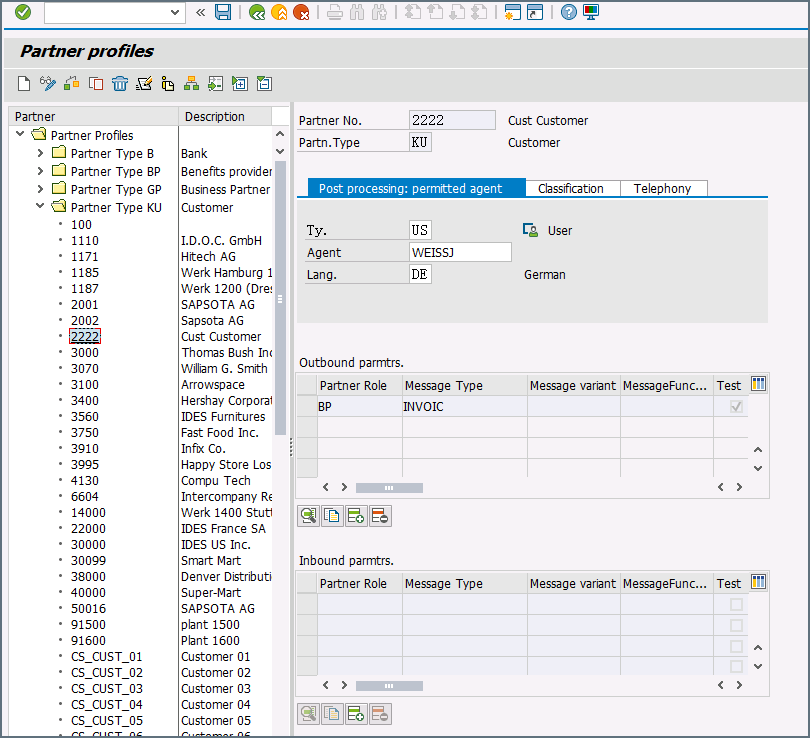
Create a partner: Go to transaction code WE20 and define a partner profile. Set Partn Type to KU for Customer and Partner No to a valid customer number.
-
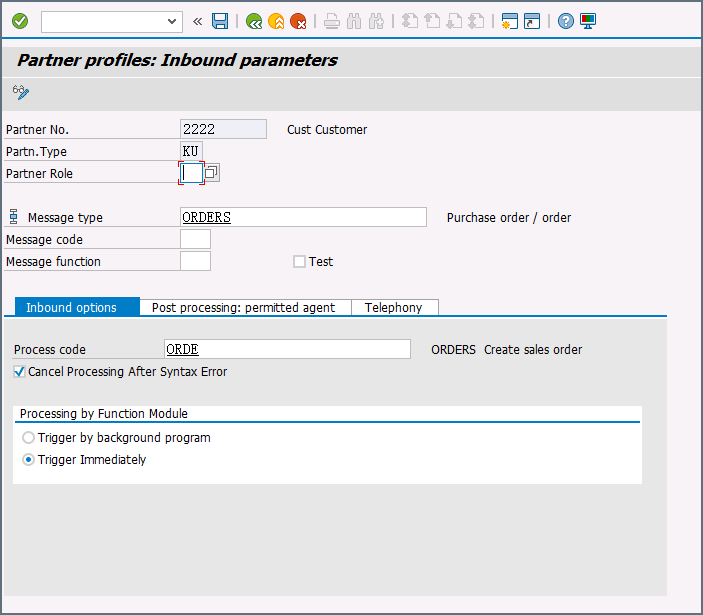
Add an inbound parameter for the ORDERS document: The message type for this document is ORDERS. On the Inbound Options tab, set Process code to ORDE to tell SAP how to create a sales order when a purchase order ORDERS document is received by the SAP system.
- Assign the customer to a sales division: The customer configured in step one must be assigned to a sales organization, distribution channel, and division. Go to transaction VOE2 to configure these settings in the EDSDC table.
Receiving IDocs from SAP
Once you have configured the IDoc connector to connect to your SAP system, you can begin receiving IDoc files from SAP. The IDoc connector can receive files formatted in raw IDoc or XML IDoc. To receive files from SAP, create an RFC destination for Arc. You can then check Enable IDoc Receiver in the Receiver Options section of the Settings tab, then enter the Program Id that you registered in your SAP system for Arc.Test Receiving an IDoc from SAP
This example describes how to configure your SAP system to send a MATMAS IDoc to Arc.- Define a logical system: First, go to transaction SALE. Then navigate to Basic Settings > Logical Systems > Define Logical System. Create a new entry with a valid name (for example, Arc) and description.
-
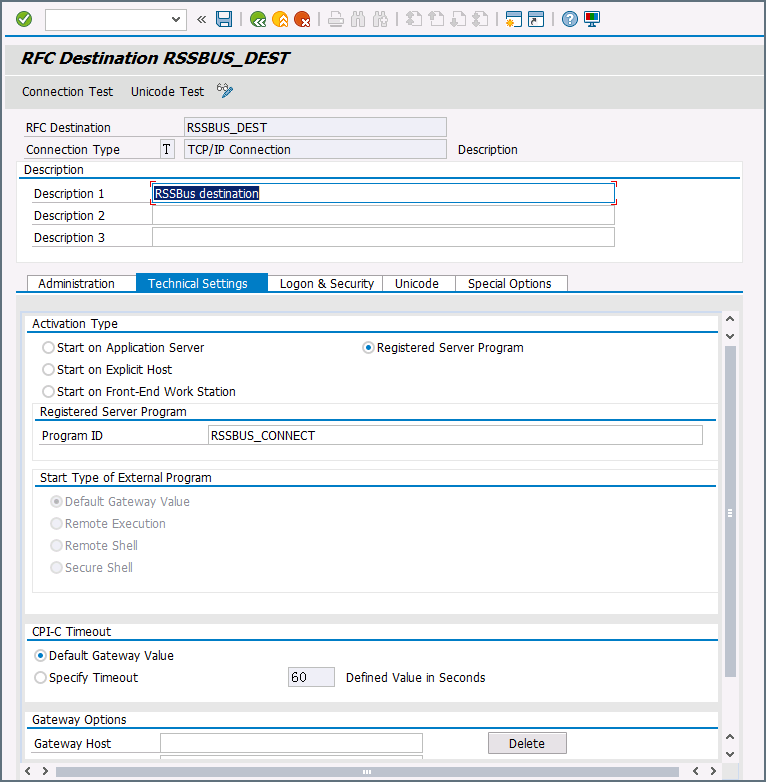
Create an RFC destination: Open transaction code SM59. Click the create button and fill in the fields for the RFC destination described below.
-
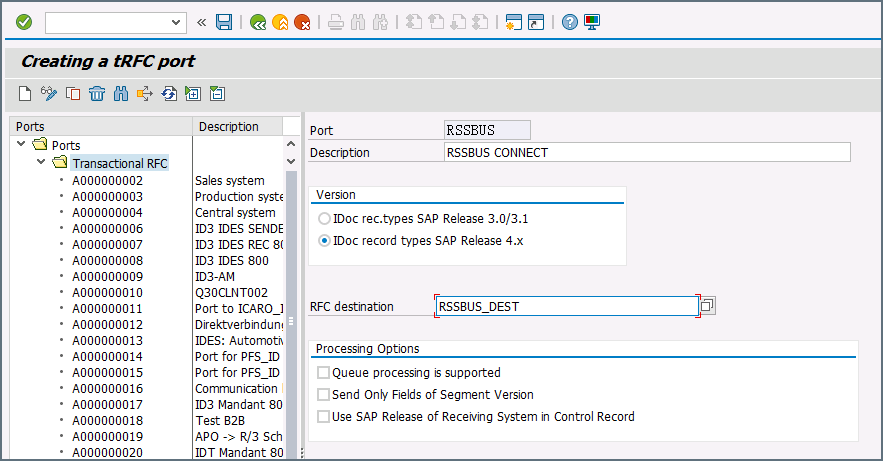
Create a processing connector: Go to transaction code WE21. Create a new Transactional RFC connector with a unique name and the same destination you created in step 2.
-
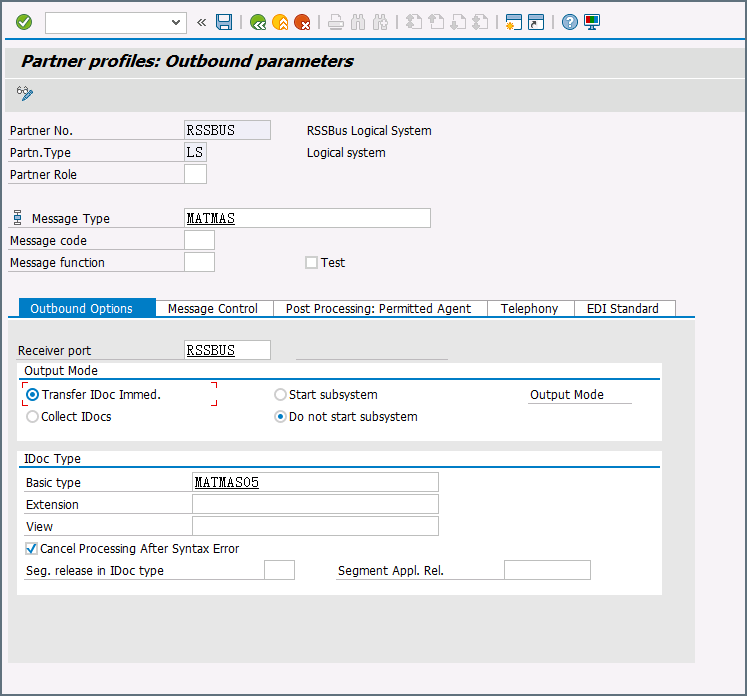
Create a partner profile: Open transaction WE20. Create a partner profile for the logical system that you added in step 1. Next, add an outbound parameter for the MATMAS document. Set the Message Type to MATMAS. On the Outbound Options tab, set the Receiver port to the value of the connector you configured in step 3, set the Output Mode to Transfer IDoc Immed, and set the IDoc Basic type to MATMAS05.
- Send a test IDoc: Use transaction BD10 to send a test IDoc to Arc for a specified material number. You need to configure the Message Type and Logical System before sending the message. Use transaction BD87 to monitor outgoing messages and process them again if necessary.