> ## Documentation Index
> Fetch the complete documentation index at: https://docs.arc.cdata.com/llms.txt
> Use this file to discover all available pages before exploring further.
# SFTP Connector
> Configuration and usage guide for the CData Arc SFTP connector.
export const CommonCacheCleanup = () => <>
Arc はリソースキャッシュを自動的にクリーンアップします。この処理はすべての受信サイクルの間にバックグラウンドで実行され、リモートサーバー上にすでに存在しないファイルの古いキャッシュエントリを削除します。これにより、手動での操作を必要とせずにキャッシュサイズを管理可能な状態に保ちます。
デフォルトでは、ファイルは30 日間保持されますが、Advanced タブのOther Settings フィールドにあるResourceCacheRetentionDays 設定を使用して、お使いの環境に合わせて調整できます。例えば、ResourceCacheRetentionDays=15 とすると、ファイルは削除されるまで15 日間保持されます。
;
export const CommonServerCommands = ({extraCommands}) => <>
これらのオプションを使用すると、コネクタの実行中のさまざまなタイミングで、ターゲットサーバー上でカスタムコマンドを実行できます。
以下で説明するコマンドは一般的に受け入れられますが、コマンドを使用する前に、ターゲットサーバーがそのコマンドを受け入れられることをサーバー管理者に必ず確認してください。
| 設定 | 説明 |
|---|
| After Connect | 接続した直後にこのコマンドを実行します。 |
| After Get | 各ファイルをダウンロードした後にこのコマンドを実行します。 |
| After Put | 各ファイルをアップロードした後にこのコマンドを実行します。 |
| Before Get | 各ファイルをダウンロードする前にこのコマンドを実行します。 |
| Before Put | 各ファイルをアップロードする前にこのコマンドを実行します。 |
上記で説明したフィールドに含めることで、ターゲットサーバーに送信できるコマンドは次のとおりです。
• onerror:fail 引数を渡すと、カスタムスクリプトから発生したエラーをトランザクション全体のエラーとして扱うようコネクタに指示します。fail がない場合、コネクタは例外をログに記録して処理を続行します。
• cd:ディレクトリを変更します。
• mkdir:ディレクトリを作成します。
• rn または move:ファイルの名前を変更または移動します。
• del または rm:ファイルを削除または除去します。
• rmdir:ディレクトリを削除します。
{extraCommands}
CData Arc は、これらのコマンドで次のマクロをサポートしています。これらはすべて次の構文を使用します。%Macro%。%Date% や %SourceFilename% などの一部のマクロは引数を必要としませんが、引数を必要とするものもあります。引数を取るマクロは次の構文を使用します。%Macro:argument%
| マクロ | 説明 |
|---|
| MsgHeader:headername | メッセージのヘッダー値に評価されます(例:%MsgHeader:headername%)。 |
| SourceFilename | 現在処理されているファイルのファイル名(拡張子を含む)に評価されます。 |
| SourceFilenameNoExt | 現在処理されているファイルのファイル名(拡張子を除く)に評価されます。 |
| Date | ファイルが最後に更新された日付をyyyy-MM-dd 形式(例:2024-02-13)で評価します。 |
| DateTime | ファイルが最後に更新された日時をyyyy-MM-dd'T'HH:mm:ss 形式(例:2024-02-13T08:14:22)で評価します。 |
| Time | ファイルが最後に更新された時刻をHH:mm:ss 形式(例:08:14:22)で評価します。 |
| DateTime.tz | ファイルが最後に更新された日時をyyyy-MM-dd'T'HH:mm:ss zzz 形式(例:2024-02-13T08:14:22 PST)で評価します。 |
| Time.tz | ファイルが最後に更新された時刻をHH:mm:ss zzz 形式(例:08:14:22 PST)で評価します。 |
| DateFormat:format | システムの現在の日時を指定された形式(format)で評価します。利用可能な日時形式については、日付形式のサンプルを参照してください。 |
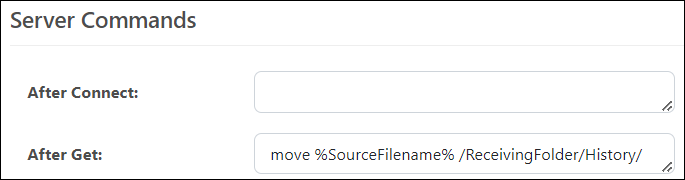
例:ダウンロード後に、各ファイルをダウンロードフォルダからHistory サブフォルダに移動したいとします。After Get フィールドを使用して、%SourceFilename% マクロとともにmove コマンドを指定します。
 ;
export const CommonProxySettings = () => <>
;
export const CommonProxySettings = () => <>
これらは、接続のルーティング先となるプロキシを識別し認証するための一連の設定です。デフォルトでは、このセクションはSecurity Settings ページのProxy Settings 部分にあるグローバル設定を使用します。チェックボックスをオフにすると、コネクタ固有の設定を指定できます。
| 設定 | 説明 |
|---|
| Proxy Type |
プロキシベースのファイアウォールで使用されるプロトコル。 |
| Proxy Host |
プロキシベースのファイアウォールの名前またはIP アドレス。 |
| Proxy Port |
プロキシベースのファイアウォールのTCP ポート。 |
| Proxy User |
プロキシベースのファイアウォールで認証するために使用するユーザー名。 |
| Proxy Password |
プロキシベースのファイアウォールで認証するために使用するパスワード。 |
| Authentication Scheme |
デフォルトのNone のままにするか、次の認証スキームのいずれかを選択します:Basic、Digest、Proprietary、またはNTLM。 |
;
export const SlasTab = ({siteName = "CData Arc"}) => <>
サービスレベルアグリーメント(SLA)の設定に関する設定です。
SLA を使用すると、フロー内のコネクタが送受信すると見込まれるボリュームを設定し、そのボリュームを達成すると見込まれる期間を設定できます。{siteName} は、SLA が達成されない場合にユーザーへ警告するメールを送信し、SLA をAt Risk としてマークします。これは、SLA が間もなく達成されない場合にViolated としてマークされることを意味します。これにより、ユーザーは介入してSLA が達成されない理由を特定し、適切な対応を取る機会を得られます。At Risk 期間の終了時点でもSLA が達成されない場合、SLA はviolated としてマークされ、ユーザーに再度通知されます。
SLA を定義するには、Expected Volume をオンに切り替え、Settings タブをクリックします。
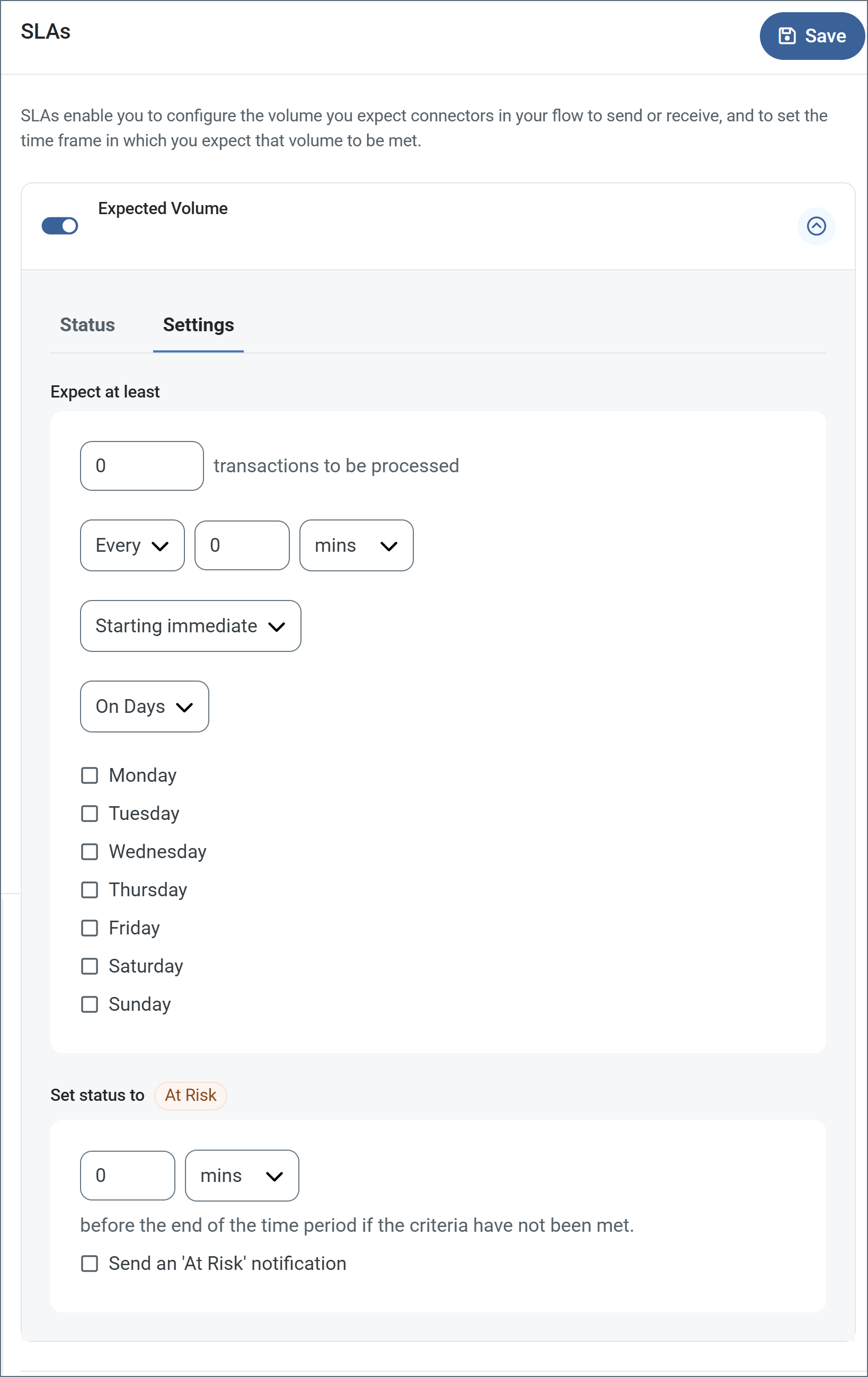
- コネクタに送信と受信の個別のアクションがある場合は、ラジオボタンを使用してSLA がどちらの方向に適用されるかを指定します。
- ウィンドウのExpect at least 部分で、次を設定します。
- 処理を見込む最小トランザクション数(ボリューム)を設定します。
- Every フィールドを使用して期間を指定します。
- SLA を有効にするタイミングを指定します。Starting on を選択した場合は、日付および時刻フィールドを入力します。
- SLA を有効にしたい曜日のチェックボックスをオンにします。必要に応じて、ドロップダウンでEveryday を選択します。
- ウィンドウのSet status to 'At Risk' 部分で、SLA をAt Risk としてマークするタイミングを指定します。
- デフォルトでは、SLA が違反状態になるまで通知は送信されません。これを変更するには、Send an 'At Risk' notification をオンにします。
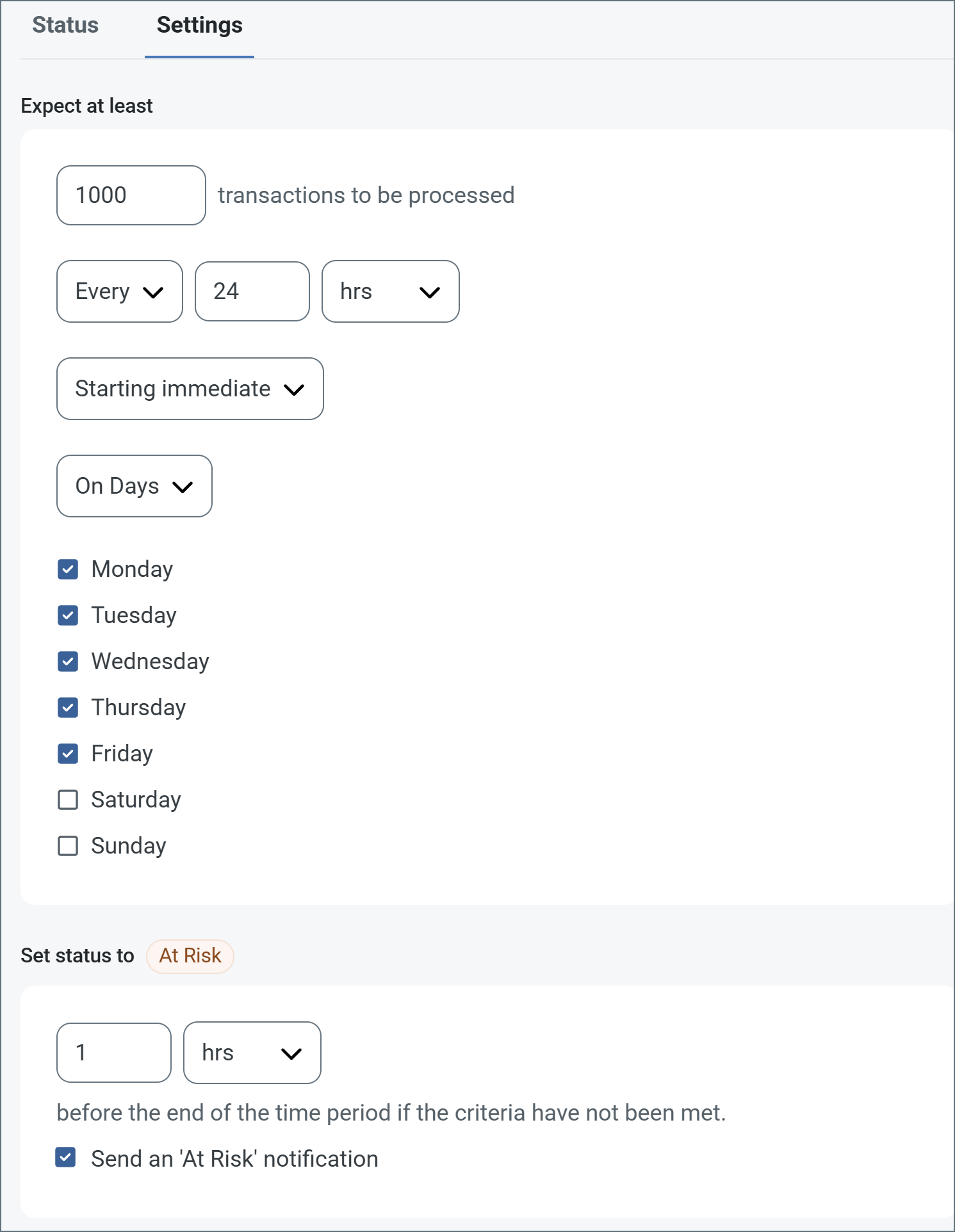
次の例は、月曜日から金曜日まで毎日1000 件のファイルを受信すると見込むコネクタ向けに設定されたSLA を示しています。1000 件のファイルが受信されていない場合、期間の終了の1時間前にAt Risk 通知が送信されます。
 必要に応じてSLA アラートをオフにすることができます。これはメンテナンスウィンドウ中に役立ちます。navbar でSettings をクリックし、Alerts > General Alerts に移動します。タブレットと鉛筆のアイコンをクリックして編集し、SLA Alerts 設定のチェックを外します。
;
export const AlertsTab = ({siteNameShort = "Arc"}) => <>
必要に応じてSLA アラートをオフにすることができます。これはメンテナンスウィンドウ中に役立ちます。navbar でSettings をクリックし、Alerts > General Alerts に移動します。タブレットと鉛筆のアイコンをクリックして編集し、SLA Alerts 設定のチェックを外します。
;
export const AlertsTab = ({siteNameShort = "Arc"}) => <>
アラートの設定に関する設定です。
サービスレベルアグリーメント(SLA)を実行する前に、通知用のメールアラートをセットアップする必要があります。デフォルトでは、{siteNameShort} はAlerts タブのグローバル設定を使用します。このコネクタに別の設定を使用するには、Override global setting をオンに切り替えます。
デフォルトではエラーアラートが有効になっており、エラーが発生するたびにメールが送信されます。これをオフにするには、Enable チェックボックスのチェックを外します。
Subject(必須)を入力します。Allow {siteNameShort}Script in Subject をチェックすると、Subject フィールドで{siteNameShort}Script を使用できます。これを選択すると、{siteNameShort}Script エディタボタンが表示されます( )。
)。
必要に応じてRecipient のメールアドレスをカンマ区切りのリストで入力します。
;
export const Message = () => <>
Message 設定は、コネクタがメッセージを検索する方法と、処理後にメッセージを管理する方法を決定します。
Note: 以下の設定は非推奨となり、デフォルトで非表示になっています。以前に有効化またはデフォルト以外の値に設定されていたコネクタにのみ表示されます。処理済みファイルのコピーを保持するには、フロー内のコネクタを右クリックし、成功パスを表示を選択して、成功パスをFile コネクタに接続してください。
| 設定 | 説明 |
|---|
| Sent フォルダに保存(非推奨) |
コネクタが処理したファイルをSent フォルダにコピーします。デフォルトで無効です。Sent フォルダに保存されたファイルは保存データの暗号化の対象外です。 |
| Sent フォルダのスキーム(非推奨) |
選択した時間間隔でSent フォルダ内のファイルをグループ化します。Sent フォルダに保存が有効な場合のみ適用されます。 |
;
export const MiscConnector = () => <>
Miscellaneous 設定は、特定のユースケース向けの設定です。
| 設定 |
説明 |
| Other Settings |
非表示のコネクタ設定をセミコロン区切りのリストで設定できます(例:setting1=value1;setting2=value2)。通常のコネクタのユースケースや機能では、これらの設定の使用は必要ありません。 |
;
export const Logging = () => <>
ログの作成と保存を制御する設定です。
| 設定 |
説明 |
| Log Level |
コネクタが生成するログの詳細度です。サポートを依頼する際は、これをDebug に設定してください。 |
| Log Subfolder Scheme |
選択した間隔に従って、コネクタがLogs フォルダ内のファイルをグループ化するよう指示します。Weekly オプション(デフォルト)は、コネクタが毎週新しいサブフォルダを作成し、その週のすべてのログをそのフォルダに保存するよう指示します。この設定を空白のままにすると、コネクタはすべてのログをLogs フォルダに直接保存します。多数のトランザクションを処理するコネクタでは、サブフォルダを使用することでログを整理しやすくなり、パフォーマンスが向上します。 |
| Log Messages |
処理したファイルのログエントリにファイル自体のコピーを含めるには、これをオンにします。これを無効にすると、Transactions タブからファイルのコピーをダウンロードできなくなる場合があります。 |
;
export const MacrosExamples = ({extraMacros = []}) => <>
%Ext% や %ShortDate% などの一部のマクロは引数を必要としませんが、引数を必要とするものもあります。
引数を取るすべてのマクロは次の構文を使用します。%Macro:argument%
引数を取るマクロの例を次に示します。
- %Header:headername%:
headername はメッセージ上のヘッダーの名前です。
- %Header:mycustomheader% は、入力メッセージに設定された
mycustomheader ヘッダーの値に解決されます。
- %Header:ponum% は、入力メッセージに設定された
ponum ヘッダーの値に解決されます。
- %RegexFilename:pattern%:
pattern は正規表現パターンです。例えば、%RegexFilename:^([\w][A-Za-z]+)% は、ファイル名の最初の単語にマッチしてそれに解決され、大文字・小文字を区別しません(test_file.xml はtest に解決されます)。
- %Vault:vaultitem%:
vaultitem はVault 内のアイテムの名前です。例えば、%Vault:companyname% は、Vault に保存されたcompanyname アイテムの値に解決されます。
- %DateFormat:format%:
format は許容される日付形式です(詳細は日付形式のサンプルを参照してください)。例えば、%DateFormat:yyyy-MM-dd-HH-mm-ss-fff% は、ファイルの日付とタイムスタンプに解決されます。
{extraMacros.filter(item => item.example).map(item => - {item.example}
)}
次の例に示すように、より高度なマクロを作成することもできます。
- 1 つのファイル名で複数のマクロを組み合わせる:
%DateFormat:yyyy-MM-dd-HH-mm-ss-fff%%EXT%
- マクロの外側にテキストを含める:
MyFile_%DateFormat:yyyy-MM-dd-HH-mm-ss-fff%
- マクロの内側にテキストを含める:
%DateFormat:'DateProcessed-'yyyy-MM-dd_'TimeProcessed-'HH-mm-ss%
;
export const MacrosTable = ({siteName = "CData Arc", extraMacros = []}) => <>
ファイル命名戦略でマクロを使用すると、データの整理効率と文脈の理解を高めることができます。
ファイル名にマクロを組み込むことで、識別子、タイムスタンプ、ヘッダー情報などの関連情報を
動的に含めることができ、各ファイルに有用な文脈を提供します。
{siteName} は次のマクロをサポートしています。これらはすべて次の構文を使用します。%Macro%
| マクロ | 説明 |
|---|
| ConnectorID | コネクタのConnectorID に評価されます。 |
| ConnectorName | コネクタの名前に評価されます。ファイル名やパスに接続名を含めることができます。例えば、どのデータベース接続が生成したかによってバックアップファイルにタグを付けるために使用できます。 |
| Ext | コネクタが現在処理しているファイルの拡張子に評価されます。 |
| Filename | コネクタが現在処理しているファイルのファイル名(拡張子を含む)に評価されます。 |
| FilenameNoExt | コネクタが現在処理しているファイルのファイル名(拡張子を除く)に評価されます。 |
| MessageId | コネクタが出力しているメッセージのMessageId に評価されます。 |
| RegexFilename:pattern | コネクタが現在処理しているファイルのファイル名に正規表現パターンを適用します。 |
| Header:headername | コネクタが現在処理しているメッセージ上の対象ヘッダー(headername)の値に評価されます。 |
| LongDate | システムの現在の日時を長い形式(例:Wednesday, January 24, 2024)で評価します。 |
| ShortDate | システムの現在の日時をyyyy-MM-dd 形式(例:2024-01-24)で評価します。 |
| DateFormat:format | システムの現在の日時を指定された形式(format)で評価します。利用可能な日時形式については、日付形式のサンプルを参照してください。 |
| Vault:vaultitem | 指定されたVault アイテムの値に評価されます。 |
{extraMacros.map(item =>
| {item.name} |
{item.description} |
)}
;
export const Performance = () => <>
コネクタへのリソースの割り当てに関する設定です。
;
export const siteNameShort = "Arc";
export const siteName = "CData Arc";
The SFTP connector transfers files to and from a remote SFTP server.
## Key Capabilities
* SSH-based secure file transfer with public key and password authentication
* Advanced authentication including certificate-based client authentication
* Resume capability for interrupted uploads and downloads
* Advanced SSH encryption algorithms and server thumbprint validation
* Connection pooling and temporary file handling for reliable transfers
* Optional caching to ensure only new or updated files are downloaded
## Overview
Each SFTP connector uploads to a specified folder and downloads from a set of folders on the remote SFTP server.
Files that reach the SFTP connector in the {siteNameShort} flow are uploaded to the upload target folder, and files found in the download target folder(s) are downloaded and entered into the {siteNameShort} flow. The connector supports upload and download filters to only send and receive specified file names and/or file extensions.
## Connector Configuration
This section contains all of the configurable connector properties.
### Settings Tab
#### Host Configuration
*Settings related to establishing the connection to the remote SFTP host.*
| Setting | Description |
| ------------------------- | ----------------------------------------------------------------------------------------------- |
| **Connector Id** | The static, unique identifier for the connector. |
| **Connector Type** | Displays the connector name and a description of what it does. |
| **Connector Description** | An optional field to provide a free-form description of the connector and its role in the flow. |
| **Remote Host** | The hostname or IP address of the SFTP server. |
| **Remote Port** | The port on which to connect to the SFTP server. |
#### Client Authentication
*Settings related to authenticating to the SFTP server.*
| Setting | Description |
| ------------------------------- | --------------------------------------------------------------------------------------------------------------------------------------------------------------------------------------------------------------------------------------------------------------------------- |
| **Authentication Mode** | The type of authentication to use with the SFTP server. |
| **User** | The username for logging in to the SFTP server. |
| **Password** | The password for logging in to the SFTP server. |
| **Client Certificate** | The certificate with a private key to use during public key authentication. Only available when **Authentication Mode** is set to **Public Key** or **Multi-Factor Authentication**. Optionally, you can use the **Create Certificate** button to create a new certificate. |
| **Client Certificate Password** | The password required to access the **Client Certificate**. |
#### Server Authentication
*Setting related to verifying the SFTP server's identity.*
| Setting | Description |
| --------------------- | ------------------------------------------------------------------------------------------------------------------------------------------------------------------------------------------------------------------------------------------------------------------ |
| **Server Thumbprint** | The thumbprint of the certificate that identifies the SFTP server. You can also set this to a certificate file containing the server's public key. When you test the connection, the connector prompts you to accept/trust the thumbprint presented by the server. |
#### Upload
*Setting related to uploading files to the SFTP server.*
| Setting | Description |
| --------------- | ---------------------------------------------------------------------------------------------------------------------------------------------------------------------------------------------------------------------- |
| **Remote Path** | Files processed by the connector are uploaded to this remote folder. You can use macros to dynamically create dated folders (such as year or month folders) in your path. For more information, see [Macros](#macros). |
#### Download
*Settings related to downloading from the SFTP server.*
| Setting | Description |
| --------------------------------- | ---------------------------------------------------------------------------------------------------------------------------------------------------------------------------------------------------------------------------------------------------------- |
| **Remote Path** | The remote folder from which files are downloaded. Use a comma-delimited list to specify multiple paths. You can use macros to dynamically create dated folders (such as year or month folders) in your path. For more information, see [Macros](#macros). |
| **File Mask** | A glob pattern that determines which files in the **Remote Path** should be downloaded (for example, \*.txt). |
| **Delete files (after received)** | Check this to delete successfully downloaded files from the SFTP server. |
#### Caching
*Settings related to caching and comparing files between multiple downloads.*
| Setting | Description |
| ------------------------ | ------------------------------------------------------------------------------------------------------------------------------------------------------------------------------------ |
| **File Size Comparison** | Check this to keep a record of downloaded file names and sizes. Previously downloaded files are skipped unless the file size is different than the last download. |
| **Timestamp Comparison** | Check this to keep a record of downloaded file names and last-modified timestamps. Previously downloaded files are skipped unless the timestamp is different than the last download. |
When you enable caching, the file names are case-insensitive. For example, the connector cannot distinguish between `TEST.TXT` and `test.txt`.
### Advanced Tab
#### Server Commands
#### Advanced Settings
*Settings not included in the previous categories.*
| Setting | Description |
| -------------------------------- | ------------------------------------------------------------------------------------------------------------------------------------------------------------------------------------------------------------------------------------------------------------------------------------------------------------------------------------------------------------------------------------------------------------------------------------------------------------------------------------------------------------- |
| **Connection Pooling** | Check this to have the connector utilize a pool to access and store connections. This is useful in scenarios where the server places restrictions on the frequency of logon attempts. |
| **Download Excluded Extensions** | A comma-delimited list of file extensions that should not be downloaded by the connector. |
| **Download Excluded Prefixes** | A comma-delimited list of prefixes that instructs the connector not to download filenames that begin with a specified prefix. |
| **Max Download Files** | The maximum number of files to be downloaded from the SFTP server in one polling interval. Set to **-1** to allow all files to be downloaded. |
| **Minimum File Size** | The minimum file size to process, in bytes. If a file being uploaded is smaller than the specified size, it is finalized as **Skipped**. For files being downloaded, the connector adds a transaction log entry indicating that the file was skipped because of its size. |
| **Maximum File Size** | The maximum file size to process, in bytes. If a file being uploaded is larger than the specified size, it is finalized as **Skipped**. For files being downloaded, the connector adds a transaction log entry indicating that the file was skipped because of its size. |
| **Monitor File Growth** | Check this to have the application store the file sizes of the remote files between polling intervals, and only download files that do not change in size. This prevents the connector from downloading files that are still in the process of being written on the server. |
| **Recurse** | Check this to download files in subfolders of the target remote path. The subdirectories are preserved for the received files. |
| **Resume Downloads** | If enabled, when an error occurs during a file download, the connector stores the portion of the file that was downloaded and attempts to download the remainder of the file on the next download attempt. |
| **Resume Uploads** | If enabled, when an error occurs during a file upload, the connector notes the number of bytes that were transferred and attempts to upload the remainder of the file on the next upload attempt. |
| **SSH Encryption Algorithms** | A comma-delimited list of algorithms to use during SSH encryption. By default, all algorithms are enabled. {siteNameShort} supports the following algorithms: aes256-ctr, aes256-cbc, aes192-ctr, aes192-cbc, aes128-ctr, aes128-cbc, 3des-ctr, 3des-cbc, cast128-cbc, blowfish-cbc, arcfour, arcfour128, arcfour256, [aes128-gcm@openssh.com](mailto:aes128-gcm@openssh.com), [aes256-gcm@openssh.com](mailto:aes256-gcm@openssh.com), [chacha20-poly1305@openssh.com](mailto:chacha20-poly1305@openssh.com) |
| **Local File Scheme** | A scheme for assigning filenames to messages that are output by the connector. You can use macros in your filenames dynamically to include information such as identifiers and timestamps. For more information, see [Macros](#macros). |
| **Receive Filter** | A glob pattern filter to determine which files should be downloaded from the remote storage (for example, \*.txt). You can use negative patterns to indicate files that should *not* be downloaded (for example, -\*.tmp). Use this setting when you need multiple **File Mask** patterns. Multiple patterns can be separated by commas, with later filters taking priority except when an exact match is found. |
| **Temp Download Extension** | A temporary file extension to append to file downloads while the transfer is in progress. |
| **Temp Upload Extension** | A temporary file extension to append to file uploads while the transfer is in progress. |
| **Temp Upload Prefix** | A temporary file prefix to prepend to file uploads while the transfer is in progress. |
| **Temp Upload Path** | A temporary path on the remote SFTP server where files are uploaded. The file is moved into the permanent upload path after the transfer is complete. |
| **Timeout** | The duration the connector waits for a connection response before throwing a timeout error. |
| **Wait for Channel Close** | Check this to have the connector wait for the server to close the SSH channel before disconnecting. If timeouts occur during the logoff sequence, you should disable this setting. |
| **Use GMT File Time** | Check this to have the connector read file timestamps as GMT time, and to use that time for comparisons against the local cache. If you leave this unchecked, timestamps from the server are converted to local time before being used for time comparisons. |
| **Processing Delay** | The amount of time (in seconds) by which the processing of files placed in the **Transactions** tab is delayed. This is a legacy setting. Best practice is to [use a File connector](../flows/designing-a-flow#ローカルファイルシステムとのやり取り) to manage local file systems instead of this setting. |
#### Proxy Settings
#### Message
#### Logging
#### Miscellaneous
### Automation Tab
#### Automation Settings
*Settings related to the automatic processing of files by the connector.*
| Setting | Description |
| ------------------------- | ----------------------------------------------------------------------------------------------------------------------------------------------------------------------------------------------------------------- |
| **Upload** | Whether files arriving at the connector should automatically be uploaded. |
| **Retry Interval** | The number of minutes before a failed upload is retried. |
| **Max Attempts** | The maximum number of times the connector processes the input file. Success is measured based on a successful server acknowledgement. If you set this to 0, the connector retries the file indefinitely. |
| **Download** | Whether the connector should automatically poll the remote download path(s) for files to download. |
| **Interval** | The interval between automatic download attempts. |
| **Minutes Past the Hour** | The minutes offset for an hourly schedule. Only applicable when the interval setting above is set to *Hourly*. For example, if this value is set to 5, the automation service downloads at 1:05, 2:05, 3:05, etc. |
| **Time** | The time of day that the attempt should occur. Only applicable when the interval setting above is set to *Daily*, *Weekly*, or *Monthly*. |
| **Day** | The day on which the attempt should occur. Only applicable when the interval setting above is set to *Weekly* or *Monthly*. |
| **Minutes** | The number of minutes to wait before attempting the download. Only applicable when the interval setting above is set to *Minute*. |
| **Cron Expression** | A five-position string representing a cron expression that determines when the attempt should occur. Only applicable when the interval setting above is set to *Advanced*. |
#### Performance
### Alerts Tab
### SLAs Tab
## Establishing a Connection
The following settings are required to connect to a remote SFTP server:
* Remote Host
* Remote Port
* Authentication Mode
* User
* Password or Client Certificate/Certificate Password
* Server Thumbprint
When testing the connection to the server, the connector prompts you to accept/trust the thumbprint of the server's public key.
## Uploading Files
The SFTP connector uploads files from the **Transactions** tab. Files are automatically uploaded to the SFTP server if **Upload Automation** is enabled in the connector.
**Remote Path** should be set to the folder on the remote SFTP server where files should be uploaded. You can use [macros](#macros) to dynamically create dated folders (such as year or month folders). The application changes directories to the specified folder after logging in to the server.
If any files could not be uploaded, the connector attempts to send them again after **Retry Interval** minutes have elapsed. This process continues until the **Max Attempts** setting is reached, after which the connector raises an error and the file is no longer sent automatically.
## Downloading Files
Downloaded files are displayed in the **Transactions** tab of the connector, or passed along to the next connector in the flow. Files are automatically downloaded from the SFTP server if **Download Automation** is enabled in the connector, and can be manually downloaded by clicking the **Receive** button on the Transactions tab.
**Remote Path** should be set to the folder on the remote SFTP server from which files should be downloaded. You can use [macros](#macros) to dynamically create dated folders (such as year or month folders). The application changes directories to the specified folder after logging in to the server. The **File Mask** property filters files so that only filenames matching the glob pattern are downloaded from the server.
You can use the **Delete files (after download)** setting to delete the files on the remote server after successfully downloading them. On the Transactions tab, click the **Receive** button to test the settings and retrieve the matching files from the server.
## Subfolder Headers
If **Recurse** is checked on the **Advanced** tab, when receiving a file from the **Remote Path** in the SFTP connector:
* The message for the file that is received contains a Subfolder header in its metadata.
* This header contains the subfolder, relative to the **Remote Path** in the SFTP connector, that the file was received from.
* This subfolder header is supported by other connectors that support a subfolder header in Send operations.
When sending files, if a Subfolder header is present on the message that is sent to the **Upload Path** in the SFTP connector:
* The file is placed in the subfolder, relative to the **Upload Path** in the SFTP connector, that is specified in the subfolder header.
* The subfolder is created if permissions are available.
## Macros
### Examples