

Key Capabilities
- Complete bidirectional EDI X12 to XML document processing with all transaction sets
- Interchange and functional group header validation and generation
- Support for 997/999 functional acknowledgments with automatic routing
- Advanced features like SNIP validation for HIPAA compliance
Overview
When receiving X12 documents, X12 connectors validate X12 interchange headers and convert the X12 document into XML. This is useful as a staging step, because XML is the primary format that Arc uses to manipulate data in a flow. The X12 connector automatically reads the input file to determine the appropriate X12 schema, then parses the document according to this schema. When generating X12 documents, X12 connectors convert XML into X12 document syntax and apply the appropriate X12 interchange headers. This is useful as the final step for creating an X12 document, after the XML data has been fetched and transformed elsewhere in the flow.Prerequisites
Before you begin, make sure you have the correct schema installed for the document type you need to process. The X12 connector natively supports the following schema definitions: 00401, 00403 and 00501. You can find them in theapp_data/x12_schemas directory of your Arc installation. If you need different schemas, you can download the additional schema files from the CData website for free.
After you download and extract the zip archive, place the entire folder into an appropriately named subdirectory of the app_data/x12_schemas directory.
Connector Configuration
This section contains all of the configurable connector properties.Settings Tab
Translation Configuration
Settings related to the core operation of the connector.EDI Partner
Interchange Settings
Settings related to the interchange headers of X12 documents. When generating documents, these settings are applied as interchange headers in the resulting document. When parsing documents, the interchange settings are used to validate the incoming document.Acknowledgments
Settings related to generating and requesting acknowledgments.Sample Files Tab
Advanced Tab
EDI Delimiters
Settings that specify which characters separate elements, segments, and so on.Interchange Settings
Additional settings related to the X12 interchange headers.Functional Group Settings
Settings related to the functional group headers of X12 documents. These optional identifiers can help group similar interchanges or facilitate sub-addressing in an organization.Advanced Settings
Settings not included in the previous categories.Message
Message settings determine how the connector searches for messages and manages them after processing.
Note: The settings below are deprecated and hidden by default. They appear only on connectors where they were previously enabled or configured to a non-default value. To retain copies of successfully processed files, right-click the connector in the flow, choose Show Success Path, and connect the success path to a File connector.
| Setting | Description |
|---|---|
| Save to Sent Folder (Deprecated) | Copies files processed by the connector to the Sent folder. Disabled by default. Files saved to the Sent folder are not covered by Encryption at Rest. |
| Sent Folder Scheme (Deprecated) | Groups files in the Sent folder by the selected time interval. Only relevant when Save to Sent Folder is enabled. |
Logging
Settings that govern the creation and storage of logs.
| Setting | Description |
|---|---|
| Log Level | The verbosity of logs generated by the connector. When you request support, set this to Debug. |
| Log Subfolder Scheme | Instructs the connector to group files in the Logs folder according to the selected interval. The Weekly option (which is the default) instructs the connector to create a new subfolder each week and store all logs for the week in that folder. Leaving this setting blank tells the connector to save all logs directly in the Logs folder. For connectors that process many transactions, using subfolders helps keep logs organized and improves performance. |
| Log Messages | Check this to have the log entry for a processed file include a copy of the file itself. If you disable this, you might not be able to download a copy of the file from the Transactions tab. |
Miscellaneous
Miscellaneous settings are for specific use cases.
| Setting | Description |
|---|---|
| Other Settings | Enables you to configure hidden connector settings in a semicolon-separated list (for example, setting1=value1;setting2=value2). Normal connector use cases and functionality should not require the use of these settings. |
EDI Partners Tab
Automation Tab
Automation Settings
Settings related to the automatic processing of files by the connector.Performance
Settings related to the allocation of resources to the connector.
| Setting | Description |
|---|---|
| Max Workers | The maximum number of worker threads consumed from the threadpool to process files on this connector. If set, this overrides the default setting on the Performance Settings portion of the Advanced Settings page. |
| Max Files | The maximum number of files sent by each thread assigned to the connector. If set, this overrides the default setting on the Performance Settings portion of the Advanced Settings page. |
Alerts Tab
SLAs Tab
Converting Formats
The following sections detail the process of converting X12 to XML and vice versa.X12 to XML
Setting the Translation Type to X12 to XML instructs the connector to parse incoming X12 documents into XML. The connector first reads all of the header information for the Interchange and Functional Group sections of the document and validates them against the configured connector settings (unless Usage Indicator is set to Test Data). The connector then parses out the specific X12 schema used in the document and loads the schema from thex12_schemas folder on disk (additional schema files can be downloaded from our website for free). Using the schema, the connector generates XML representing the X12 structure of the document, populates the XML with the values from the document, and provides context to each value either as XML comments or as attributes in the XML elements (based on the value of Generate Descriptions As).
To see this process with a set of test X12 documents, navigate to the Transactions tab of an X12 connector (with Translation Type set to X12 to XML) and select More > Create Test Files. X12 documents for an invoice, purchase order, purchase order acknowledgment, and shipping notice are automatically generated and placed in the Transactions directory. After these test files are processed by the connector, navigate to the Transactions tab to see the resulting XML.
Once X12 documents are converted to XML, the data can be transformed and manipulated in many ways. Commonly, X12 data needs to be stored in a database or other back-end application system. Since Arc uses XML to represent inserts into these back-end systems, storing the X12 data becomes a matter of mapping one XML structure onto another. This is typically done with the visual designer-driven XML Map connector.
XML to X12
Setting the Translation Type to XML to X12 instructs the connector to generate an X12 document out of an XML representation of the document. After the connector has constructed the X12 message out of the data parsed from the XML, it adds functional group and interchange headers according to the configured connector settings. To see this process with a set of test XML files, navigate to the Transactions tab of an X12 connector (with Translation Type set to XML to X12) and select More > Create Test Files. XML files representing an invoice, purchase order, purchase order acknowledgment, and shipping notice are automatically generated and placed in the Transactions directory. After these test files are processed by the connector, navigate to the Transactions tab to see the resulting X12 document.Print View
Use With the XML Map Connector
Upload Test File
X12 Acknowledgments
The following sections detail the three types of X12 acknowledgments (ACKs), and how Arc expects, processes, and generates ACKs.Interchange ACKs, 997s, and 999s
A TA1 is the commonly accepted form of interchange acknowledgment. It is an indication that an interchange has taken place between the two parties, although not necessarily that any individual message has been exchanged. These serve as a receipt to the sender indicating that the EDI message was successfully received, but it does not specify whether there were any issues while processing the content of the message. The 997 (Version 4010), 997 (Version 5010), or 999 acknowledgements are considered functional ACKs: acknowledgements that an individual message (such as an invoice or purchase order) has been accepted. These are generated in response to a bidirectional agreement by both parties.Expecting, Processing, and Generating Acknowledgments
Expecting Acknowledgements
X12 connectors, while operating in XML to X12 mode, can be configured so that both interchange and functional acknowledgments can be requested for an interchange. When TA1 Acknowledgment or Functional ACK is checked in the Acknowledgments section of the Settings tab, the connector maintains a Pending ACK status for a transmission until the appropriate ACKs have been returned and processed. This means that the connector status can be used to determine whether the recipient has confirmed that they received the interchange.When EDI messages that require an acknowledgement have not received that acknowledgement, a Pending-Timeout header is added to the message. The message has a Pending status while it waits for its ACK. If it does not receive the ACK within the allotted time, the Pending-Timeout header is populated with the date and time when the message status changed to Error. When the ACK is received and the message is updated to Success, a new header is added with an empty string value.
The following diagram shows the logical flow involved when expecting an ACK from an invoice document: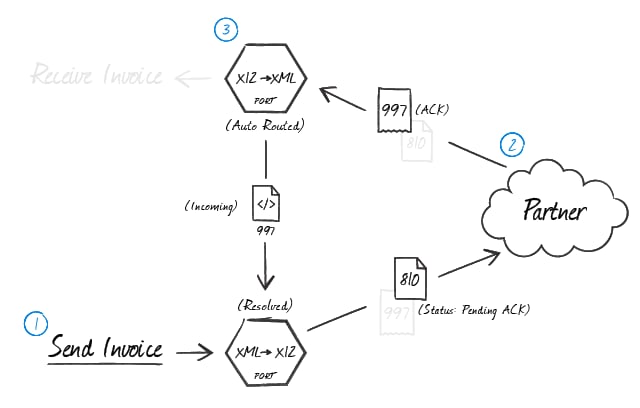
Processing Acknowledgments
In a typical flow, X12 ACKs arrive at an X12 connector operating in X12 to XML mode. This X12 connector can be configured to automatically route any received acknowledgments to the X12 connector that originally generated the document being acknowledged. Routing ACKs between X12 connectors is configured visually on the Flows canvas by dragging the gray dot at the bottom of the X12 connector in X12 to XML mode onto the X12 connector that is in XML to X12 mode. Once the X12 connector in XML to X12 mode receives the routed ACK, it pairs the ACK to the original message and changes its state from Pending ACK to Sent.Generating Acknowledgements
When an X12 connector in X12 to XML mode receives a message and generates the corresponding XML, it can automatically generate acknowledgments for the received message. To accomplish this, check TA1 Acknowledgment and/or Functional ACK expected in the Acknowledgments section of the Settings tab. These acknowledgments must be routed to another X12 connector (in XML to X12 mode) to finalize the ACK. The connector to which the ACK is routed applies interchange headings and passes the ACK along to the next connector in the flow like any other X12 message. To route the ACK appropriately, drag the gray dot at the bottom edge of the X12 connector in X12 to XML mode onto the X12 connector that is in XML to X12 mode. The following diagram shows the logical flow involved when creating an ACK for a received invoice document: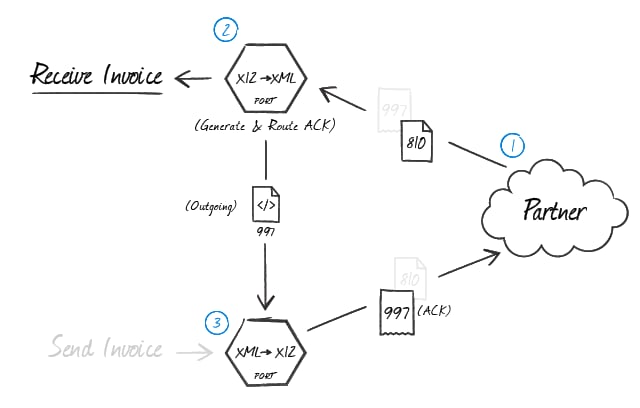
Master-Detail Hierarchy: Translating HLLoops
In EDI documents, most hierarchical relationships are represented by the order of EDI segments. Some EDI structures, like HLLoops (which are found in Advance Shipment Notifications, or X12 856s), do not follow this convention and instead have the hierarchical relationships embedded in the EDI element data itself. This can make it difficult to preserve these hierarchical relationships when converting the EDI data to XML. The X12 connector supports preserving hierarchical relationships in HLLoops via the Nest Loops setting in the Advanced Settings portion of the Advanced tab. When enabled, the connector parses the elements in the HLLoop segments to determine which segments “belong to” other segments in a hierarchical relationship. These hierarchical relationships are reflected in the output XML as parent-child relationships; in other words, this setting converts hierarchy implied by the EDI content into hierarchy represented by the XML structure. This section explains how hierarchy is encoded in HLLoop data, and how this hierarchy is converted into XML when Nest Loops is enabled.HLLoop Hierarchy
All HL segments have two values that help establish hierarchy:- an Id value, which identifies the current HL segment (this value is stored in HL01, or the first element in an HL segment)
- a parent-Id value, which identifies the current HL segment’s hierarchical parent (this value is stored in HL02, or the second element in an HL segment)
HLLoop Example
To further clarify the hierarchical relationships in HLLoop data, take the following EDI snippet as sample input (only the lines beginning with HL are relevant to determining the data hierarchy; the remaining segments are included to more closely represent actual EDI data):- The HL01 (Id) value for the first HL segment is ‘1’
- The HL02 (parent-Id) value for the second HL segment is also ‘1’
Converting HLLoop Hierarchy to XML
When Nest Loops is enabled, the X12 connector handles the conversion of HL hierarchy to XML hierarchy automatically. The connector parses the HL01 and HL02 element values from the EDI input and ensures that XML elements are appropriately nested (indented) inside the elements representing their parents. To see how the HL hierarchy is converted into XML hierarchy, the following XML output is generated from the above sample HL data when Nest Loops is enabled:Macros
Examples
X12 Operations
In addition to the Operations provided with Arc, connectors can provide operations that extend functionality into ArcScript. These connector operations can be called just like any other ArcScript operation, except that they must be called through theconnector.rsc endpoint and must include an auth token.
Operations specific to the functionality of the X12 connector are listed below.
x12Scan
Scans header values from the headers of an X12 document.Required Parameters
- file: The path to the X12 file.
Optional Parameters
- format: The file format. The default value is ‘X12’.
Output Attributes
- InterchangeSenderIdQualifier: The interchange qualifier of the sender Id (ISA05).
- InterchangeSenderId: The interchange sender Id (ISA06).
- InterchangeReceiverIdQualifier: The interchange qualifier of the receiver Id (ISA07).
- InterchangeReceiverId: The interchange receiver Id (ISA08).
- InterchangeControlNumber: The value that uniquely identifies the EDI interchange (ISA13).
- FunctionalGroupSenderId: The functional group sender Id (GS02).
- FunctionalGroupReceiverId: The functional group receiver Id (GS03).
- DocumentType: The document type or transaction set Identifier code (ST01).
- StandardVersion: The major version of the X12 Standard used in this interchange (e.g. 00401, 00501).
Common Errors
Following is a list of common errors, their causes, and the recommended solution.Error: Schema file not found ([schema major version] [schema document type])
Cause When Arc parses an X12 file, it first scans the file for the EDI version and document type to determine which schema to use during parsing. The application includes an extensive set of X12 schemas in JSON format. They are stored in theschemas folder in the application directory (next to the data folder).
This error indicates that the application could not find a schema file matching the major version and document type reported by the file.
If the [schema major version] value or [schema document type] value are missing in the error message, the EDI document does not contain the major version or document type.
Otherwise, this error indicates that the appropriate document schema is not included in the set of schema definitions automatically included with Arc.
Resolution
If the EDI file does not contain the schema major version or document type, contact the trading partner (or other source of the EDI document) and inform them that these values must be included in the message header.
Otherwise, find the appropriate schema version from our free download page. Download the schema folder and place it in one of the following locations:
- Inside the schema folder on disk (for example,
<ConnectorDirectory>/Resources/Schemas/) - If a schema is used by multiple connectors, CData recommends you use a folder structure like this:
<ApplicationDirectory>/schemas/<type>_schemas/<major version>. In this example,<type>should bex12.
Error: The segment at line [line number] with tag [segment name] is not in a valid position in the specified schema ([schema major version] [schema document type]). This may indicate that the input file contains segments that are out of order.
Cause When Arc parses an X12 file, it first scans the file for the EDI version and document type to determine which schema to use during parsing. The application includes an extensive set of X12 schemas in JSON format, stored in thewww\app_data folder of the root installation directory.
This error indicates that the parser encountered an EDI segment in the file that does not match the order of segments defined in the relevant document schema. This can indicate a few different issues:
- The EDI file was generated incorrectly by the trading partner
- The EDI file was generated using a different schema version than what is indicated in the file
- The EDI file was generated using a custom schema
- Inside its folder on disk (for example,
<ConnectorDirectory>/Resources/Schemas/) - If a schema is used by multiple connectors, CData recommends you use a folder structure like this:
<ApplicationDirectory>/schemas/<type>_schemas/<major version>. In this example,<type>should bex12.
- Manually edit the appropriate EDI schema file (found in the filepath above) to adjust the segment order so that it matches the partner’s EDI files. The error message indicates the line in the file where the segments diverge from the schema definition. Trace through the JSON definition of segment order until the divergence is found, and re-order the segments in the JSON to match the file provided by the partner.
- Contact the trading partner about the EDI file. Confirm that the file was generated according to the major version that is reported by the file, and explain that the order of the segments in the file is not recognized.