> ## Documentation Index
> Fetch the complete documentation index at: https://docs.arc.cdata.com/llms.txt
> Use this file to discover all available pages before exploring further.
# ZUGFeRD Connector
> Configuration and usage guide for the CData Arc ZUGFeRD connector.
export const SlasTab = ({siteName = "CData Arc"}) => <>
サービスレベルアグリーメント(SLA)の設定に関する設定です。
SLA を使用すると、フロー内のコネクタが送受信すると見込まれるボリュームを設定し、そのボリュームを達成すると見込まれる期間を設定できます。{siteName} は、SLA が達成されない場合にユーザーへ警告するメールを送信し、SLA をAt Risk としてマークします。これは、SLA が間もなく達成されない場合にViolated としてマークされることを意味します。これにより、ユーザーは介入してSLA が達成されない理由を特定し、適切な対応を取る機会を得られます。At Risk 期間の終了時点でもSLA が達成されない場合、SLA はviolated としてマークされ、ユーザーに再度通知されます。
SLA を定義するには、Expected Volume をオンに切り替え、Settings タブをクリックします。
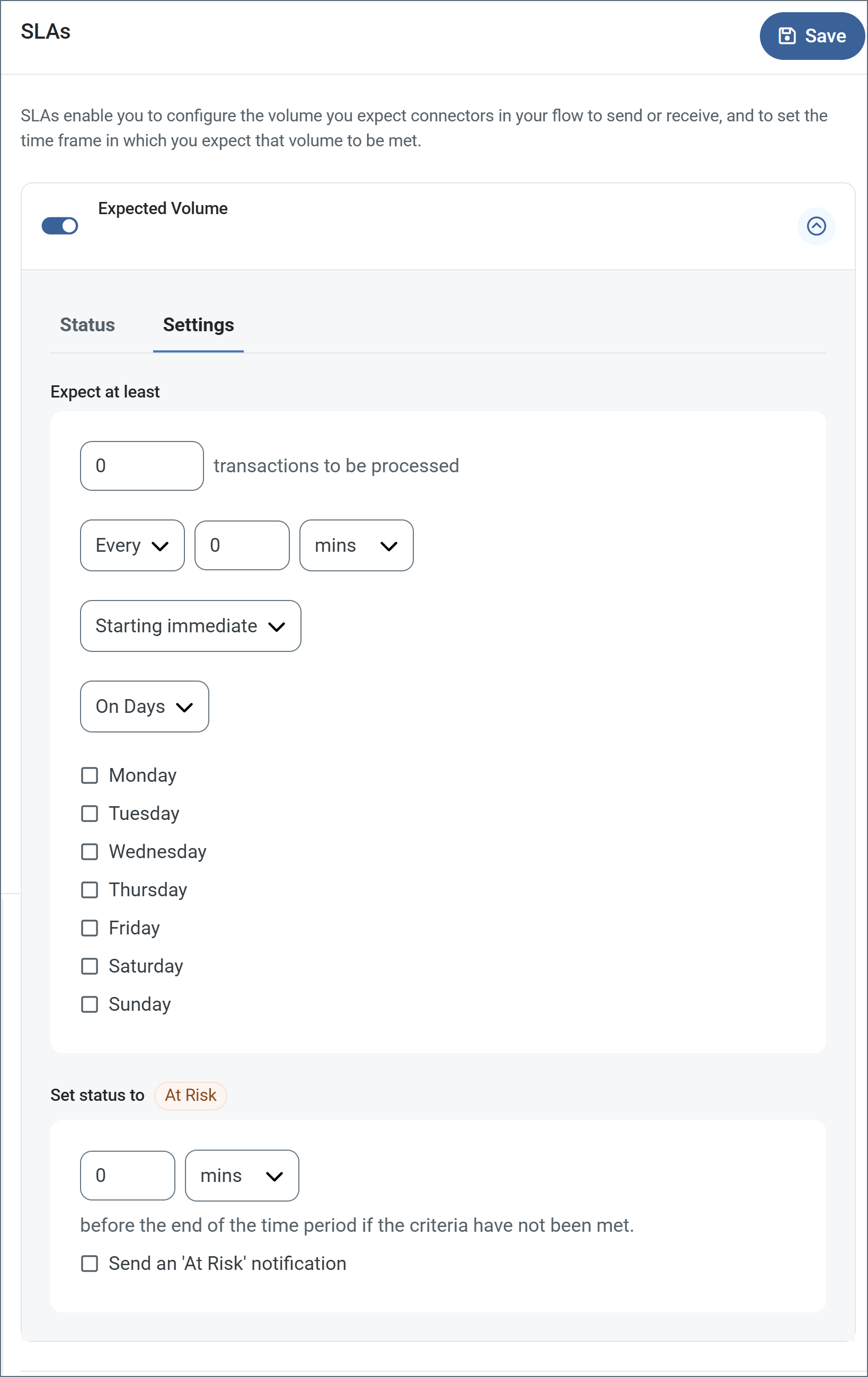
- コネクタに送信と受信の個別のアクションがある場合は、ラジオボタンを使用してSLA がどちらの方向に適用されるかを指定します。
- ウィンドウのExpect at least 部分で、次を設定します。
- 処理を見込む最小トランザクション数(ボリューム)を設定します。
- Every フィールドを使用して期間を指定します。
- SLA を有効にするタイミングを指定します。Starting on を選択した場合は、日付および時刻フィールドを入力します。
- SLA を有効にしたい曜日のチェックボックスをオンにします。必要に応じて、ドロップダウンでEveryday を選択します。
- ウィンドウのSet status to 'At Risk' 部分で、SLA をAt Risk としてマークするタイミングを指定します。
- デフォルトでは、SLA が違反状態になるまで通知は送信されません。これを変更するには、Send an 'At Risk' notification をオンにします。
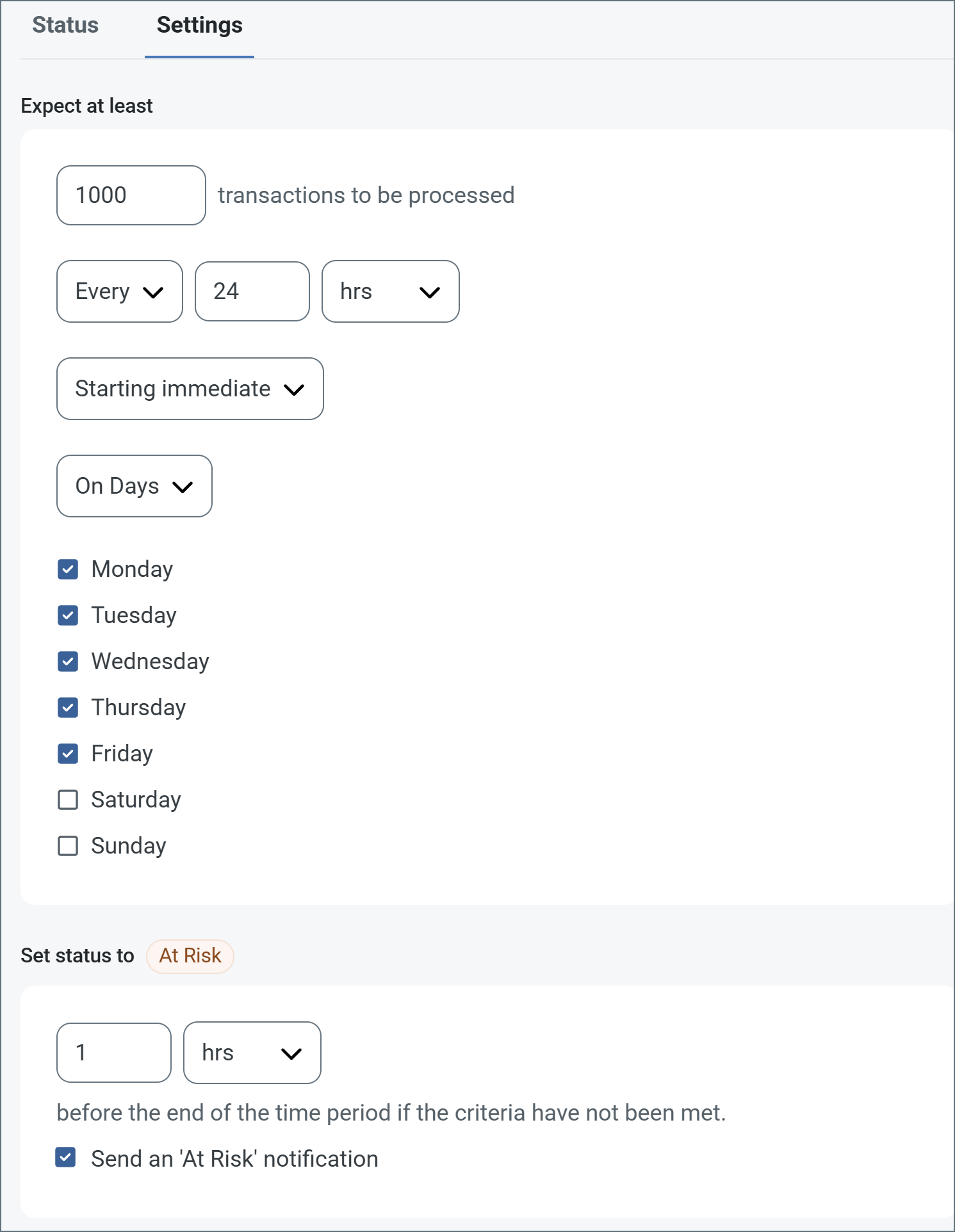
次の例は、月曜日から金曜日まで毎日1000 件のファイルを受信すると見込むコネクタ向けに設定されたSLA を示しています。1000 件のファイルが受信されていない場合、期間の終了の1時間前にAt Risk 通知が送信されます。
 必要に応じてSLA アラートをオフにすることができます。これはメンテナンスウィンドウ中に役立ちます。navbar でSettings をクリックし、Alerts > General Alerts に移動します。タブレットと鉛筆のアイコンをクリックして編集し、SLA Alerts 設定のチェックを外します。
;
export const AlertsTab = ({siteNameShort = "Arc"}) => <>
必要に応じてSLA アラートをオフにすることができます。これはメンテナンスウィンドウ中に役立ちます。navbar でSettings をクリックし、Alerts > General Alerts に移動します。タブレットと鉛筆のアイコンをクリックして編集し、SLA Alerts 設定のチェックを外します。
;
export const AlertsTab = ({siteNameShort = "Arc"}) => <>
アラートの設定に関する設定です。
サービスレベルアグリーメント(SLA)を実行する前に、通知用のメールアラートをセットアップする必要があります。デフォルトでは、{siteNameShort} はAlerts タブのグローバル設定を使用します。このコネクタに別の設定を使用するには、Override global setting をオンに切り替えます。
デフォルトではエラーアラートが有効になっており、エラーが発生するたびにメールが送信されます。これをオフにするには、Enable チェックボックスのチェックを外します。
Subject(必須)を入力し、必要に応じてRecipient のメールアドレスをカンマ区切りのリストで入力します。
;
export const Message = () => <>
Message 設定は、コネクタがメッセージを検索する方法と、処理後にメッセージを管理する方法を決定します。
| 設定 | 説明 |
|---|
| Save to Sent Folder |
コネクタが処理したファイルをコネクタのSent フォルダにコピーするには、これをオンにします。 |
| Sent Folder Scheme |
選択した間隔に従って、コネクタがSent フォルダ内のファイルをグループ化するよう指示します。例えば、Weekly オプションは、コネクタが毎週新しいサブフォルダを作成し、その週のすべての送信済みファイルをそのフォルダに保存するよう指示します。空白の設定は、コネクタがすべてのファイルをSent フォルダに直接保存するよう指示します。多数のトランザクションを処理するコネクタでは、サブフォルダを使用することでファイルを整理しやすくなり、パフォーマンスを向上できます。 |
;
export const MiscConnector = () => <>
Miscellaneous 設定は、特定のユースケース向けの設定です。
| 設定 |
説明 |
| Other Settings |
非表示のコネクタ設定をセミコロン区切りのリストで設定できます(例:setting1=value1;setting2=value2)。通常のコネクタのユースケースや機能では、これらの設定の使用は必要ありません。 |
;
export const Logging = () => <>
ログの作成と保存を制御する設定です。
| 設定 |
説明 |
| Log Level |
コネクタが生成するログの詳細度です。サポートを依頼する際は、これをDebug に設定してください。 |
| Log Subfolder Scheme |
選択した間隔に従って、コネクタがLogs フォルダ内のファイルをグループ化するよう指示します。Weekly オプション(デフォルト)は、コネクタが毎週新しいサブフォルダを作成し、その週のすべてのログをそのフォルダに保存するよう指示します。この設定を空白のままにすると、コネクタはすべてのログをLogs フォルダに直接保存します。多数のトランザクションを処理するコネクタでは、サブフォルダを使用することでログを整理しやすくなり、パフォーマンスが向上します。 |
| Log Messages |
処理したファイルのログエントリにファイル自体のコピーを含めるには、これをオンにします。これを無効にすると、Transactions タブからファイルのコピーをダウンロードできなくなる場合があります。 |
;
export const MacrosExamples = ({extraMacros = []}) => <>
%Ext% や %ShortDate% などの一部のマクロは引数を必要としませんが、引数を必要とするものもあります。
引数を取るすべてのマクロは次の構文を使用します。%Macro:argument%
引数を取るマクロの例を次に示します。
- %Header:headername%:
headername はメッセージ上のヘッダーの名前です。
- %Header:mycustomheader% は、入力メッセージに設定された
mycustomheader ヘッダーの値に解決されます。
- %Header:ponum% は、入力メッセージに設定された
ponum ヘッダーの値に解決されます。
- %RegexFilename:pattern%:
pattern は正規表現パターンです。例えば、%RegexFilename:^([\w][A-Za-z]+)% は、ファイル名の最初の単語にマッチしてそれに解決され、大文字・小文字を区別しません(test_file.xml はtest に解決されます)。
- %Vault:vaultitem%:
vaultitem はVault 内のアイテムの名前です。例えば、%Vault:companyname% は、Vault に保存されたcompanyname アイテムの値に解決されます。
- %DateFormat:format%:
format は許容される日付形式です(詳細は日付形式のサンプルを参照してください)。例えば、%DateFormat:yyyy-MM-dd-HH-mm-ss-fff% は、ファイルの日付とタイムスタンプに解決されます。
{extraMacros.filter(item => item.example).map(item => - {item.example}
)}
次の例に示すように、より高度なマクロを作成することもできます。
- 1 つのファイル名で複数のマクロを組み合わせる:
%DateFormat:yyyy-MM-dd-HH-mm-ss-fff%%EXT%
- マクロの外側にテキストを含める:
MyFile_%DateFormat:yyyy-MM-dd-HH-mm-ss-fff%
- マクロの内側にテキストを含める:
%DateFormat:'DateProcessed-'yyyy-MM-dd_'TimeProcessed-'HH-mm-ss%
;
export const MacrosTable = ({siteName = "CData Arc", extraMacros = []}) => <>
ファイル命名戦略でマクロを使用すると、データの整理効率と文脈の理解を高めることができます。
ファイル名にマクロを組み込むことで、識別子、タイムスタンプ、ヘッダー情報などの関連情報を
動的に含めることができ、各ファイルに有用な文脈を提供します。
{siteName} は次のマクロをサポートしています。これらはすべて次の構文を使用します。%Macro%
| マクロ | 説明 |
|---|
| ConnectorID | コネクタのConnectorID に評価されます。 |
| Ext | コネクタが現在処理しているファイルの拡張子に評価されます。 |
| Filename | コネクタが現在処理しているファイルのファイル名(拡張子を含む)に評価されます。 |
| FilenameNoExt | コネクタが現在処理しているファイルのファイル名(拡張子を除く)に評価されます。 |
| MessageId | コネクタが出力しているメッセージのMessageId に評価されます。 |
| RegexFilename:pattern | コネクタが現在処理しているファイルのファイル名に正規表現パターンを適用します。 |
| Header:headername | コネクタが現在処理しているメッセージ上の対象ヘッダー(headername)の値に評価されます。 |
| LongDate | システムの現在の日時を長い形式(例:Wednesday, January 24, 2024)で評価します。 |
| ShortDate | システムの現在の日時をyyyy-MM-dd 形式(例:2024-01-24)で評価します。 |
| DateFormat:format | システムの現在の日時を指定された形式(format)で評価します。利用可能な日時形式については、日付形式のサンプルを参照してください。 |
| Vault:vaultitem | 指定されたVault アイテムの値に評価されます。 |
{extraMacros.map(item =>
| {item.name} |
{item.description} |
)}
;
export const Performance = () => <>
コネクタへのリソースの割り当てに関する設定です。
;
export const siteNameShort = "Arc";
export const siteName = "CData Arc";
The ZUGFeRD connector generates ZUGFeRD files from PDF and XML invoice files, or extracts invoice XML files from ZUGFeRD files.
## Key Capabilities
* German e-invoicing standard combining PDF and XML with bidirectional processing (extract XML or generate ZUGFeRD files)
* Support for versions 1.0, 2.0, 2.1 with multiple conformance levels (MINIMUM, BASIC, EN 16931, EXTENDED, and XRECHNUNG)
* PDF/A-3 format support for embedding machine-readable XML in human-readable PDFs with Batch Group processing
## Overview
The ZUGFeRD connector facilitates the exchange of electronic invoices by integrating the ZUGFeRD (Zentraler User Guide des Forums elektronische Rechnung Deutschland) standard, which combines human-readable and machine-readable data in a single document. It is based on the PDF/A-3 standard, which allows for the embedding of XML data in a PDF file. This hybrid format ensures that the invoice can be easily read by humans while also being processed automatically by computer systems. The ZUGFeRD connector allows you to interact with ZUGFeRD files in two ways:
* [Parsing a ZUGFeRD file](#parsing-a-zugferd-file)
* [Generating a ZUGFeRD file](#generating-a-zugferd-file)
The connector determines which to do based on the type of input provided.
## Connector Configuration
This section contains all of the configurable connector properties.
### Settings Tab
#### Configuration
*Settings related to establishing the connection.*
| Setting | Description |
| ------------------------- | ----------------------------------------------------------------------------------------------- |
| **Connector Id** | The static, unique identifier for the connector. |
| **Connector Type** | Displays the connector name and a description of what it does. |
| **Connector Description** | An optional field to provide a free-form description of the connector and its role in the flow. |
| **Version** | The ZUGFeRD version to use in the generated ZUGFeRD file. |
#### Advanced Settings
*Settings not included in the previous categories.*
| Setting | Description |
| ----------------------- | --------------------------------------------------------------------------------------------------------------------------------- |
| **Conformance Level** | The conformance level to use in the generated ZUGFeRD file. Options are: BASIC, EXTENDED, MINIMUM, BASIC WL, EN 16931, XRECHNUNG. |
| **Invoice Description** | The free text description to use in the generated ZUGFeRD file. |
### Advanced Tab
#### Message
#### Logging
#### Other Settings
| Setting | Description |
| -------------------- | ---------------------------------------------------------------------------------------------------------------------------------------------------------------------------------------------------------------------------------------------------------------------------------------- |
| **Processing Delay** | The amount of time (in seconds) by which the processing of files placed in the **Transactions** tab is delayed. This is a legacy setting. Best practice is to [use a File connector](../flows/designing-a-flow#ローカルファイルシステムとのやり取り) to manage local file systems instead of this setting. |
#### Miscellaneous
### Automation Tab
#### Automation Settings
*Settings related to the automatic processing of files by the connector.*
| Setting | Description |
| -------- | ------------------------------------------------------------------------------ |
| **Send** | Check this to have the connector automatically send files when they are ready. |
#### Performance
### Alerts Tab
### SLAs Tab
## Parsing a ZUGFeRD file
The connector expects to receive a PDF file as input, which it reads to extract the attached XML to send down the flow.
### Handling Multiple Attachments
You might receive PDF files containing multiple attachments. By default, the connector passes all the attachments down the flow, adding headers to each message:
* ZUGFeRD-File-Index: The attachment number for each attachment
* ZUGFeRD-File-Count: The total number of attachments on the email
* ZUGFeRD-File-Name: The original PDF file name
* ZUGFeRD-File-Description: The description of invoice XML and attachments
* ZUGFeRD-File-Parameters: Other file parameters of invoice XML and attachments
* ZUGFeRD-File-Relationship: The file relationship of invoice xml and attachments. Invoice XML is usually "Alternative", and attachments are "Data", "Supplement", and so on.
* ZUGFeRD-File-Subtype: The file subtype of invoice xml and attachments. This is usually the MIME-Type of the file, such as text\xml or application\pdf.
## Generating a ZUGFeRD file
The connector expects a Batch Group containing exactly one PDF Batch Message and exactly one XML Batch Message. Use the [Batch Create](./batch-create) connector to create these Batch Groups before sending them to the ZUGFeRD connector in your flow. If you include more than one PDF or XML Batch Message, or if either is missing in the Batch Group, an error is thrown.
All of the ZUGFeRD specific settings in the UI (Version, Conformance Level, and Invoice Description) are only used to generate a ZUGFeRD file. Parsing does not involve these settings at all.
* **Version**: Controls the ZUGFeRD version used when generating files. {siteNameShort} supports versions 1.0, 2.0, and 2.1.
* **Conformance Level**: The ZUGFeRD standard primarily includes the following conformance levels:
* MINIMUM
* Contains the most basic invoice information, such as invoice number, date, and amount.
* Data is embedded in PDF/A-3 format, facilitating human readability and simple system processing.
* BASIC
* Builds upon the MINIMUM level by including more structured data, such as buyer and seller details, tax information, and payment terms.
* Suitable for scenarios requiring moderate automation.
* BASIC WL
* Similar to BASIC but tailored for specific use cases, often including additional fields for certain industries or regions.
* Enhances interoperability in specialized contexts.
* EN 16931 (COMFORT)
* Complies with the EU standard EN 16931, providing complete structured data for highly automated processing.
* Ideal for complex business processes and system integration.
* EXTENDED
* Expands on EN 16931 by allowing the inclusion of industry- or company-specific additional information.
* Designed for businesses with unique requirements.
* XRECHNUNG
* A German-specific profile based on ZUGFeRD, aligned with the XRechnung standard for public sector invoicing.
* Ensures compliance with German public procurement regulations.
* **Invoice Description**: PDF readers surface an optional description for attachments on PDFs. This setting controls what description is used for the XML attachment.
### Generating a Sample File
To generate a sample file that you can use for testing, navigate to the connector's **Transactions** tab and click the **Generate sample file**  button. This creates a PDF file in the Send folder. When the connector processes the PDF, it generates an XML output file with the extracted invoice data from the PDF.
## Macros
### Examples
button. This creates a PDF file in the Send folder. When the connector processes the PDF, it generates an XML output file with the extracted invoice data from the PDF.
## Macros
### Examples