> ## Documentation Index
> Fetch the complete documentation index at: https://docs.arc.cdata.com/llms.txt
> Use this file to discover all available pages before exploring further.
# Branch Connector
> Routes messages along different flow paths based on configurable conditions, supporting filename, header, XPath, and EDI metadata comparisons.
export const NameDescription = ({extraRows}) =>
| 設定 |
説明 |
| Connector Id |
コネクタの静的で一意の識別子です。 |
| Connector Type |
コネクタ名とその機能の説明を表示します。 |
| Connector Description |
コネクタおよびフロー内でのその役割について自由形式の説明を提供するためのオプションフィールドです。 |
{extraRows}
;
export const SlasTab = ({siteName = "CData Arc"}) => <>
サービスレベルアグリーメント(SLA)の設定に関する設定です。
SLA を使用すると、フロー内のコネクタが送受信すると見込まれるボリュームを設定し、そのボリュームを達成すると見込まれる期間を設定できます。{siteName} は、SLA が達成されない場合にユーザーへ警告するメールを送信し、SLA をAt Risk としてマークします。これは、SLA が間もなく達成されない場合にViolated としてマークされることを意味します。これにより、ユーザーは介入してSLA が達成されない理由を特定し、適切な対応を取る機会を得られます。At Risk 期間の終了時点でもSLA が達成されない場合、SLA はviolated としてマークされ、ユーザーに再度通知されます。
SLA を定義するには、Expected Volume をオンに切り替え、Settings タブをクリックします。
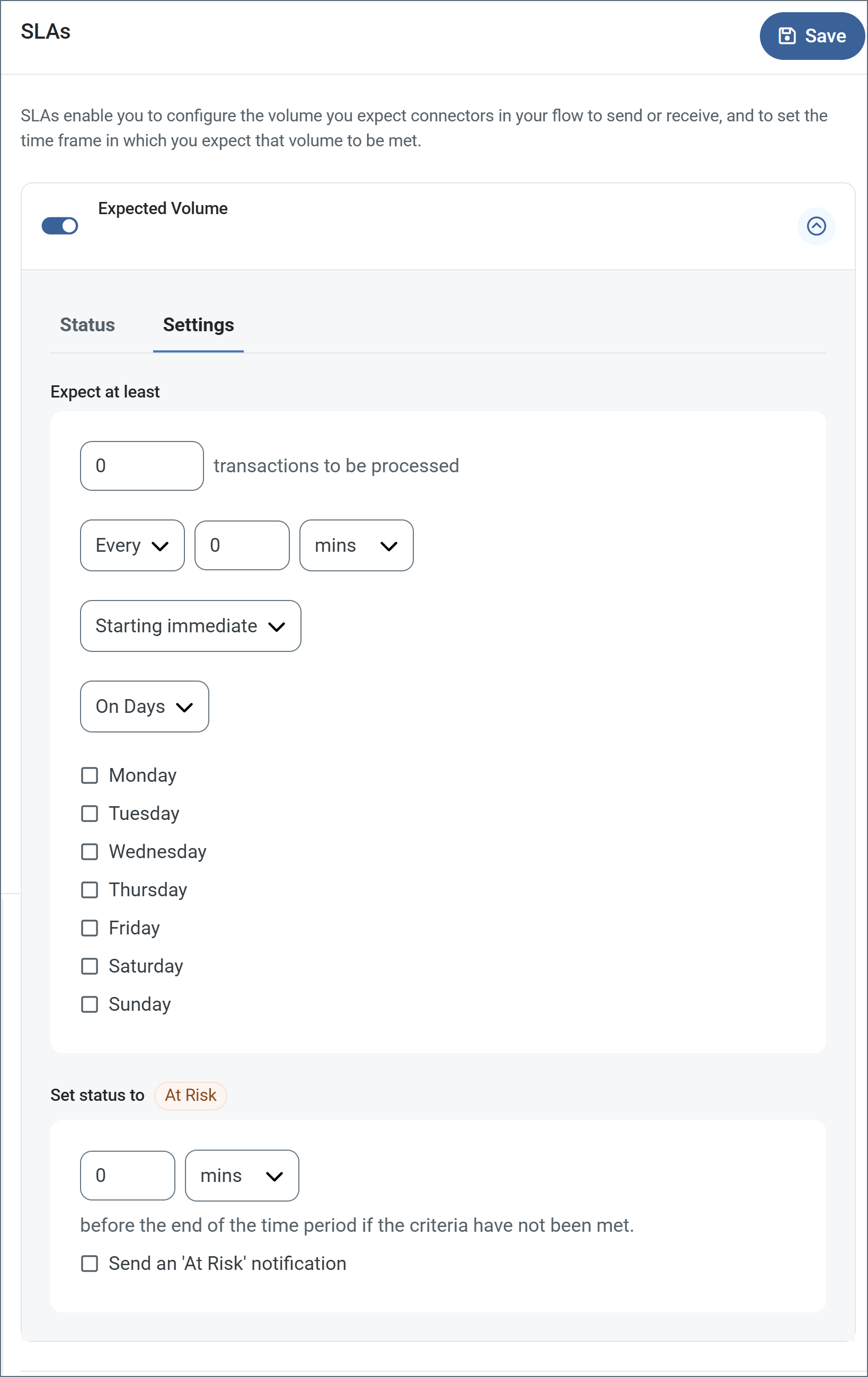
- コネクタに送信と受信の個別のアクションがある場合は、ラジオボタンを使用してSLA がどちらの方向に適用されるかを指定します。
- ウィンドウのExpect at least 部分で、次を設定します。
- 処理を見込む最小トランザクション数(ボリューム)を設定します。
- Every フィールドを使用して期間を指定します。
- SLA を有効にするタイミングを指定します。Starting on を選択した場合は、日付および時刻フィールドを入力します。
- SLA を有効にしたい曜日のチェックボックスをオンにします。必要に応じて、ドロップダウンでEveryday を選択します。
- ウィンドウのSet status to 'At Risk' 部分で、SLA をAt Risk としてマークするタイミングを指定します。
- デフォルトでは、SLA が違反状態になるまで通知は送信されません。これを変更するには、Send an 'At Risk' notification をオンにします。
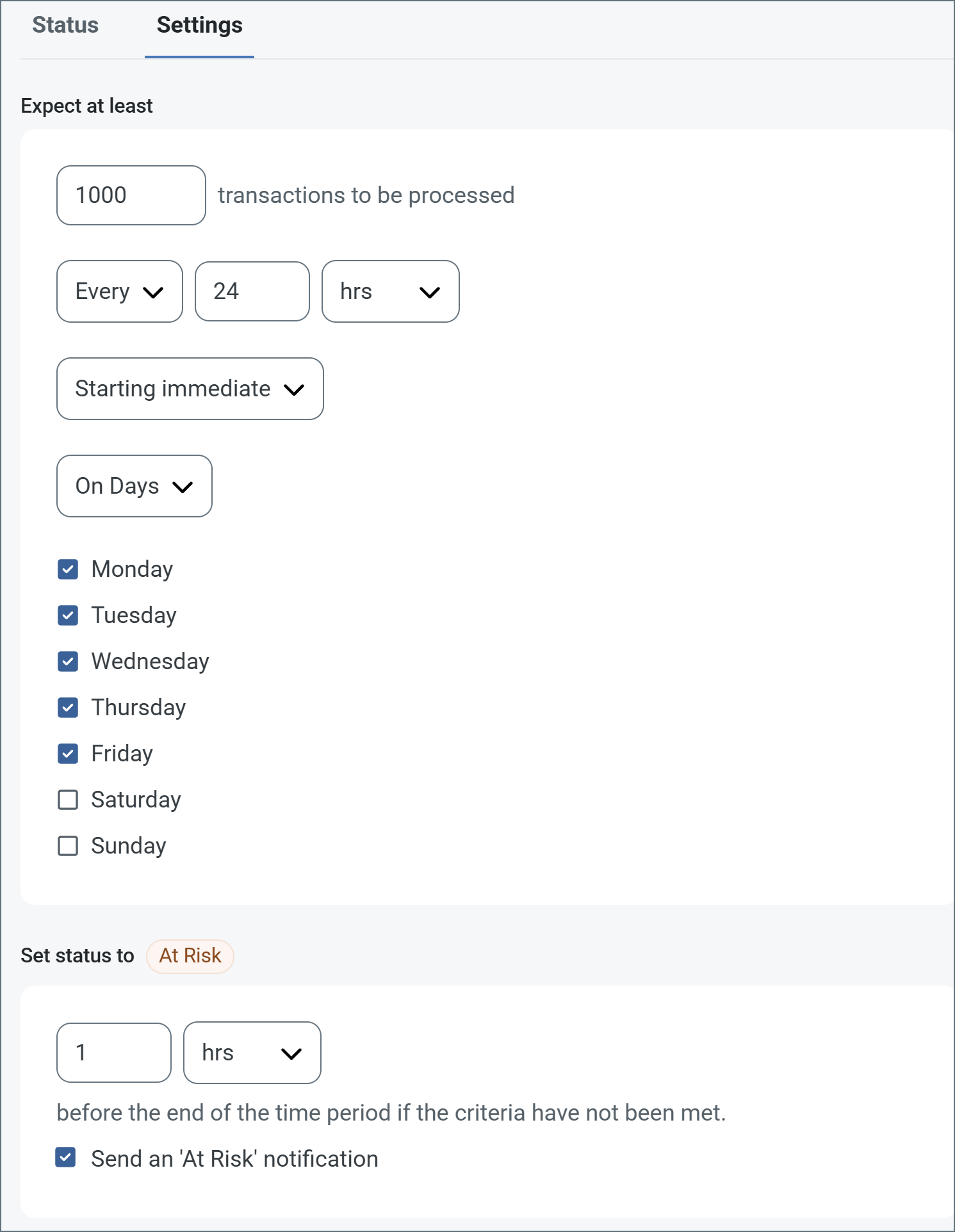
次の例は、月曜日から金曜日まで毎日1000 件のファイルを受信すると見込むコネクタ向けに設定されたSLA を示しています。1000 件のファイルが受信されていない場合、期間の終了の1時間前にAt Risk 通知が送信されます。
 必要に応じてSLA アラートをオフにすることができます。これはメンテナンスウィンドウ中に役立ちます。navbar でSettings をクリックし、Alerts > General Alerts に移動します。タブレットと鉛筆のアイコンをクリックして編集し、SLA Alerts 設定のチェックを外します。
;
export const AlertsTab = ({siteNameShort = "Arc"}) => <>
必要に応じてSLA アラートをオフにすることができます。これはメンテナンスウィンドウ中に役立ちます。navbar でSettings をクリックし、Alerts > General Alerts に移動します。タブレットと鉛筆のアイコンをクリックして編集し、SLA Alerts 設定のチェックを外します。
;
export const AlertsTab = ({siteNameShort = "Arc"}) => <>
アラートの設定に関する設定です。
サービスレベルアグリーメント(SLA)を実行する前に、通知用のメールアラートをセットアップする必要があります。デフォルトでは、{siteNameShort} はAlerts タブのグローバル設定を使用します。このコネクタに別の設定を使用するには、Override global setting をオンに切り替えます。
デフォルトではエラーアラートが有効になっており、エラーが発生するたびにメールが送信されます。これをオフにするには、Enable チェックボックスのチェックを外します。
Subject(必須)を入力し、必要に応じてRecipient のメールアドレスをカンマ区切りのリストで入力します。
;
export const Message = () => <>
Message 設定は、コネクタがメッセージを検索する方法と、処理後にメッセージを管理する方法を決定します。
| 設定 | 説明 |
|---|
| Save to Sent Folder |
コネクタが処理したファイルをコネクタのSent フォルダにコピーするには、これをオンにします。 |
| Sent Folder Scheme |
選択した間隔に従って、コネクタがSent フォルダ内のファイルをグループ化するよう指示します。例えば、Weekly オプションは、コネクタが毎週新しいサブフォルダを作成し、その週のすべての送信済みファイルをそのフォルダに保存するよう指示します。空白の設定は、コネクタがすべてのファイルをSent フォルダに直接保存するよう指示します。多数のトランザクションを処理するコネクタでは、サブフォルダを使用することでファイルを整理しやすくなり、パフォーマンスを向上できます。 |
;
export const MiscConnector = () => <>
Miscellaneous 設定は、特定のユースケース向けの設定です。
| 設定 |
説明 |
| Other Settings |
非表示のコネクタ設定をセミコロン区切りのリストで設定できます(例:setting1=value1;setting2=value2)。通常のコネクタのユースケースや機能では、これらの設定の使用は必要ありません。 |
;
export const Logging = () => <>
ログの作成と保存を制御する設定です。
| 設定 |
説明 |
| Log Level |
コネクタが生成するログの詳細度です。サポートを依頼する際は、これをDebug に設定してください。 |
| Log Subfolder Scheme |
選択した間隔に従って、コネクタがLogs フォルダ内のファイルをグループ化するよう指示します。Weekly オプション(デフォルト)は、コネクタが毎週新しいサブフォルダを作成し、その週のすべてのログをそのフォルダに保存するよう指示します。この設定を空白のままにすると、コネクタはすべてのログをLogs フォルダに直接保存します。多数のトランザクションを処理するコネクタでは、サブフォルダを使用することでログを整理しやすくなり、パフォーマンスが向上します。 |
| Log Messages |
処理したファイルのログエントリにファイル自体のコピーを含めるには、これをオンにします。これを無効にすると、Transactions タブからファイルのコピーをダウンロードできなくなる場合があります。 |
;
export const Performance = () => <>
コネクタへのリソースの割り当てに関する設定です。
;
export const siteNameShort = "Arc";
export const siteName = "CData Arc";
A Branch connector functions as a fork in the flow. Files are sent along different paths in the flow depending on whether a condition specified in the connector is true.
## Key Capabilities
* Intelligent flow routing based on configurable conditions (filename, headers, XPath, and EDI metadata)
* Support for multiple data types (such as string, number, DateTime) with flexible comparison operators
* Advanced XPath evaluation for XML document routing
* EDI-specific metadata branching for document type routing
## Overview
Branch conditions can check for these different types of values:
* the filename
* a header on the message
* all matching XPaths
* the first matching XPath
* one or more matching XPaths
* [EDI](./edi-connectors) metadata
**Notes**:
* To use the XPath options, the file being evaluated must be an XML file.
* EDI metadata branching can only be used on EDI documents.
The Branch connector configuration determines which value to look for, and the *target* values to compare against. If an incoming value matches a target value, the message is passed along a dotted blue flow path. You can have multiple target values, each of which sends the message along a different flow path. If the values do not match any of the conditions, the message is passed along the dotted gray path.
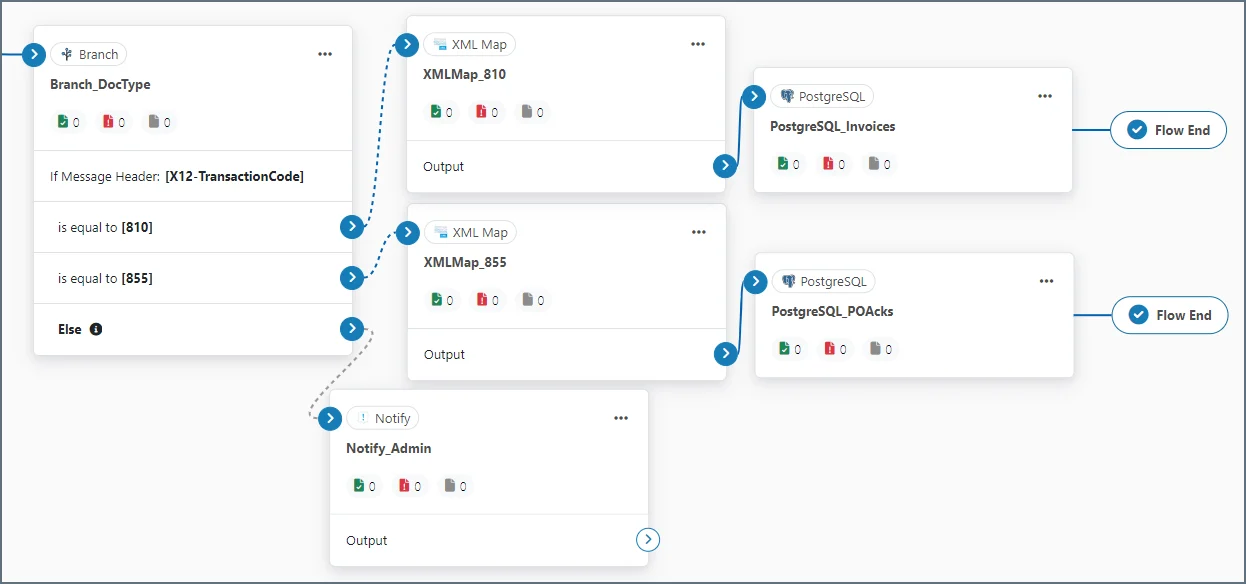 See [Branching on Message Headers](#branching-on-message-headers) for a detailed explanation of the image above.
## Connector Configuration
This section contains all of the configurable connector properties.
### Branch Config Tab
*Settings related to configuring the branch conditions.*
The branch settings allow you to specify multiple conditions for a single source value to define your branches.
See [Branching on Message Headers](#branching-on-message-headers) for a detailed explanation of the image above.
## Connector Configuration
This section contains all of the configurable connector properties.
### Branch Config Tab
*Settings related to configuring the branch conditions.*
The branch settings allow you to specify multiple conditions for a single source value to define your branches.
| Setting |
Description |
| Sample File |
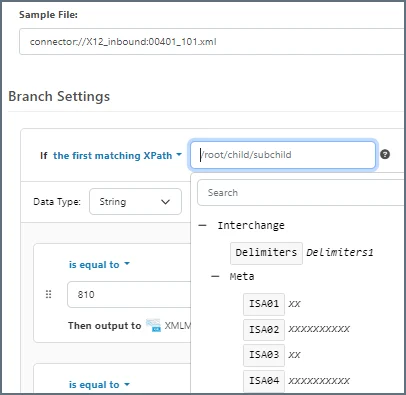
If you upload a sample XML file, the connector shows the document structure when you use an XPath for comparison. An example is shown below. |
| If |
Use the dropdown to specify what attribute to compare when messages are received. Options are: the message header, the filename, all matching XPaths, the first matching XPath, one or more matching XPaths, or EDI metadata. Once you make your selection, use the fields to the right to further define the condition, as shown in the Sample File image above. |
| Data Type |
Whether the target value is a string, number, or DateTime. If your data type is String, use the Trim string and Ignore case checkboxes to further refine the comparison. If your data type is DateTime, use the field to the right to specify how your DateTime values are structured. |
| Trim String |
Whether the string comparison should ignore whitespace. |
| Ignore Case |
Whether the string comparison should be case-sensitive.
The center portion of the branch settings section (shown in the image below) allows you to set as many conditions as you need. Hover above or below the white pane and select Add Case to add conditions.
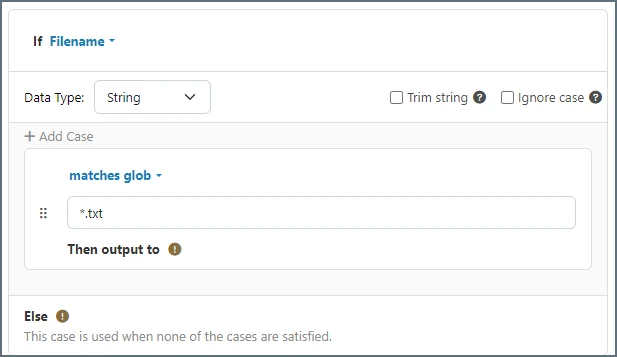
Each condition is made up of three components:
- the operator (for example, is equal to, contains, starts with, or matches regex)
- the value to compare with the value found in the file
- the Then output to component
As you create your flow, connect a different connector to each case statement in the Branch connector to establish the Then output to connectors. Finally, connect a different connector to the Else case to tell {siteNameShort} what to do if none of the other conditions are satisfied.
|
| Ignore Missing Values |
Whether to treat missing headers or XPaths as an empty string (not applicable when your If selection is Filename). This avoids errors being thrown when an expected header or XPath is missing, and instead passes the message along the 'does not match' Flow path. |
### Settings Tab
*Settings related to the core operation of the connector.*
### Advanced Tab
#### Message
#### Logging
#### Other Settings
| Setting | Description |
| -------------------- | ---------------------------------------------------------------------------------------------------------------------------------------------------------------------------------------------------------------------------------------------------------------------------------------- |
| **Processing Delay** | The amount of time (in seconds) by which the processing of files placed in the **Transactions** tab is delayed. This is a legacy setting. Best practice is to [use a File connector](../flows/designing-a-flow#ローカルファイルシステムとのやり取り) to manage local file systems instead of this setting. |
#### Miscellaneous
### Automation Tab
#### Automation Settings
| Setting | Description |
| -------- | ----------------------------------------------------------------------- |
| **Send** | Whether messages arriving at the connector are automatically processed. |
#### Performance
### Alerts Tab
### SLAs Tab
## Examples Using the Branch Connector
The following examples describe common Branch connector use cases.
### Branching on Message Headers
In this example, your business receives multiple types of EDI documents from a trading partner, and you need the different types to be processed differently.
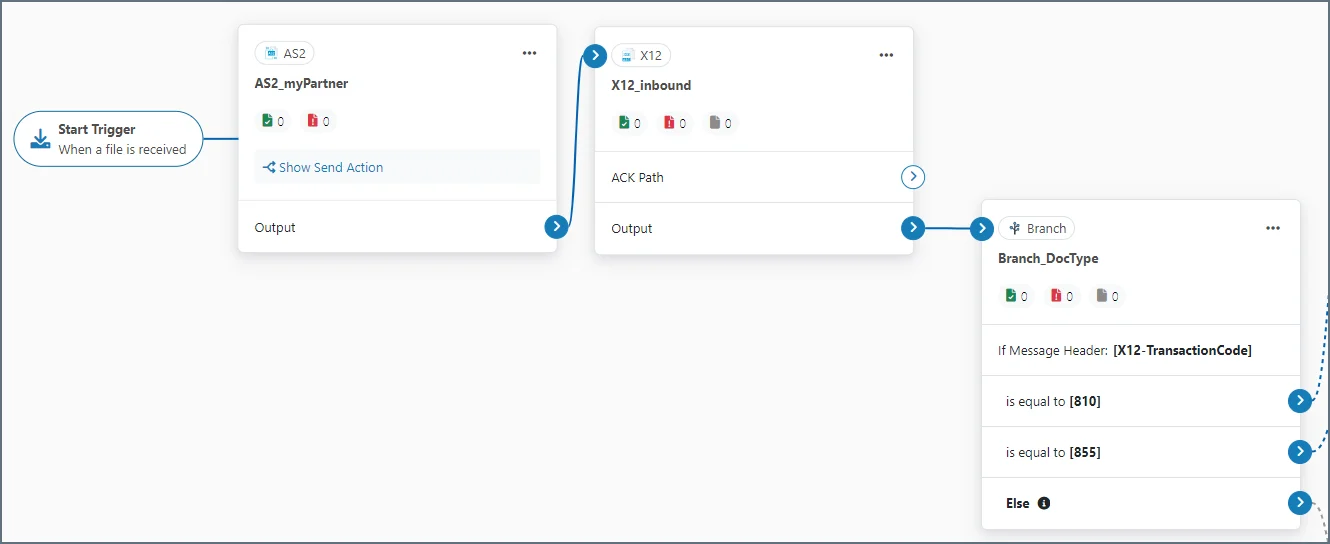 The image above illustrates a situation where you send a trading partner purchase orders. They then send you two different types of EDI documents: one is an 855 purchase order acknowledgement and one is an 810 invoice. The [X12 connector](./x12) before the Branch connector in the flow appends **X12-TransactionCode** to each message header.
The Branch connector uses the transaction code in the message header to tell {siteNameShort} what to do when it receives an 810 or an 855 EDI document, and what to do if it receives a document that does not have either of those transaction codes.
* When an 810 document is received, the next step in the flow sends it to the invoices table of the back-end system (PostgreSQL in this example.)
* When an 855 document is received, the next step in the flow sends it to a PO acknowledgement table in the back-end system.
* When any other type of document is received, the **Else** condition uses a [Notify connector](./notify) to send an email to an administrator for manual processing.
### Branching on EDI Metadata
In this example, your business receives X12 documents from multiple companies, and you need the documents from two companies to be sent to specific [Workspaces](../flows/workspaces) for further processing.
The image above illustrates a situation where you send a trading partner purchase orders. They then send you two different types of EDI documents: one is an 855 purchase order acknowledgement and one is an 810 invoice. The [X12 connector](./x12) before the Branch connector in the flow appends **X12-TransactionCode** to each message header.
The Branch connector uses the transaction code in the message header to tell {siteNameShort} what to do when it receives an 810 or an 855 EDI document, and what to do if it receives a document that does not have either of those transaction codes.
* When an 810 document is received, the next step in the flow sends it to the invoices table of the back-end system (PostgreSQL in this example.)
* When an 855 document is received, the next step in the flow sends it to a PO acknowledgement table in the back-end system.
* When any other type of document is received, the **Else** condition uses a [Notify connector](./notify) to send an email to an administrator for manual processing.
### Branching on EDI Metadata
In this example, your business receives X12 documents from multiple companies, and you need the documents from two companies to be sent to specific [Workspaces](../flows/workspaces) for further processing.
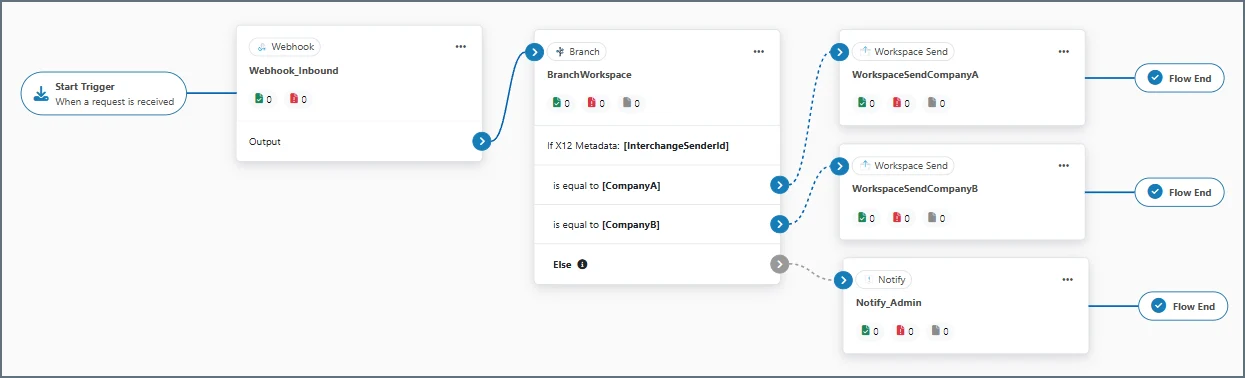 The image above illustrates a situation where two companies send you X12 documents. The Branch connector uses the X12 Metadata **InterchangeSenderId** to specify where the documents should be delivered.
* When a document is received from CompanyA, the next step in the flow sends it to the CompanyA workspace.
* When a document is received from CompanyB, the next step in the flow sends it to the CompanyB workspace.
* When any other type of document is received, the **Else** condition uses a [Notify connector](./notify) to send an email to an administrator alerting them that an inbound X12 document did not match one of the two expected companies.
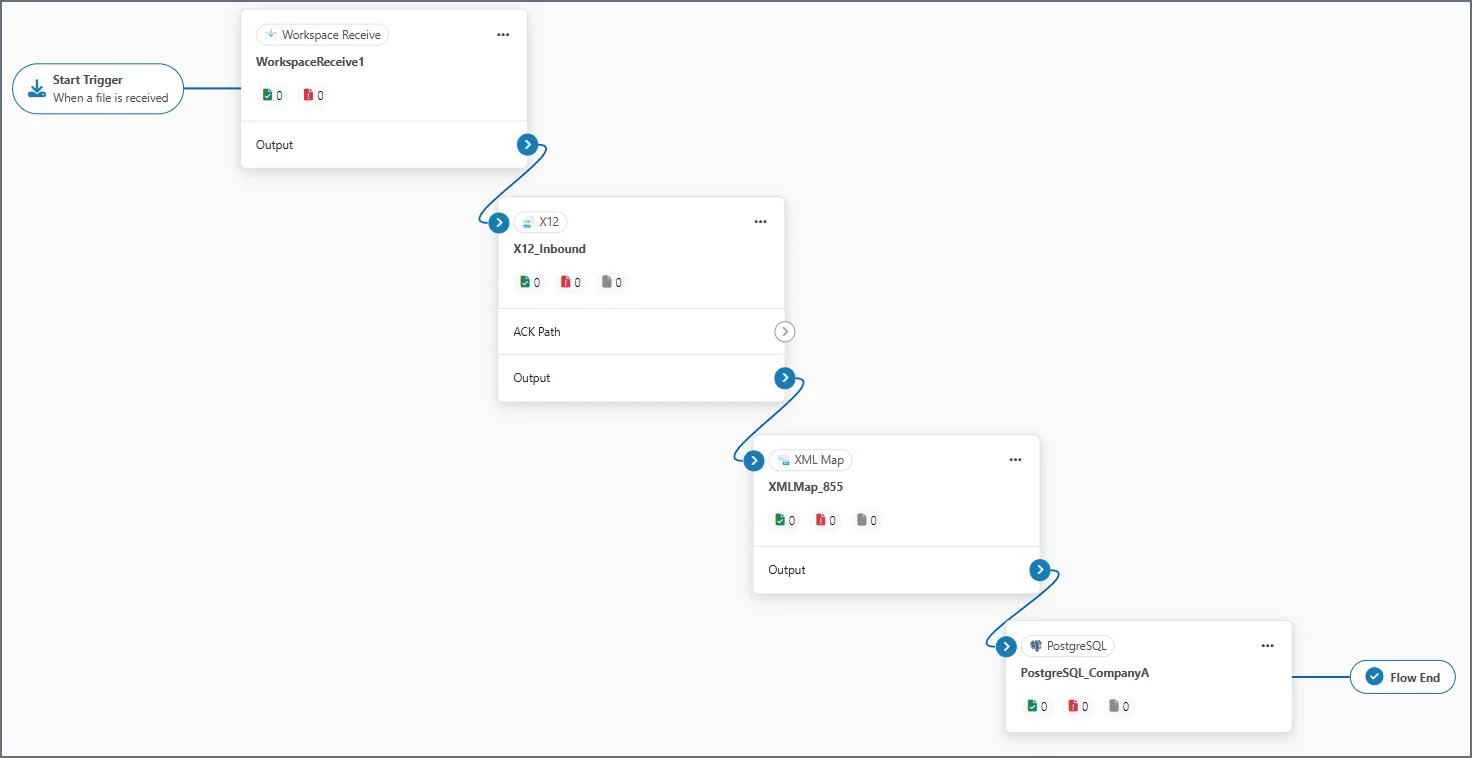
The company-specific workspaces might then contain a [Workspace Receive](./workspace-receive) connector to receive incoming documents (required because the [Workspace Send](./workspace-send) connector was used in the Branch flow), an [X12 connector](./x12) with identifiers that enable translation of the raw X12 data into XML, an [XML Map](./xml-map/xml-map) connector to handle mapping the XML to the destination, and finally a destination connector ([PostgreSQL](./postgresql/postgresql) in the following image).
The image above illustrates a situation where two companies send you X12 documents. The Branch connector uses the X12 Metadata **InterchangeSenderId** to specify where the documents should be delivered.
* When a document is received from CompanyA, the next step in the flow sends it to the CompanyA workspace.
* When a document is received from CompanyB, the next step in the flow sends it to the CompanyB workspace.
* When any other type of document is received, the **Else** condition uses a [Notify connector](./notify) to send an email to an administrator alerting them that an inbound X12 document did not match one of the two expected companies.
The company-specific workspaces might then contain a [Workspace Receive](./workspace-receive) connector to receive incoming documents (required because the [Workspace Send](./workspace-send) connector was used in the Branch flow), an [X12 connector](./x12) with identifiers that enable translation of the raw X12 data into XML, an [XML Map](./xml-map/xml-map) connector to handle mapping the XML to the destination, and finally a destination connector ([PostgreSQL](./postgresql/postgresql) in the following image).